> ## Documentation Index
> Fetch the complete documentation index at: https://docs.partnero.com/llms.txt
> Use this file to discover all available pages before exploring further.
# Create and use Stripe coupons
### What are coupons?
Coupon marketing is a strategy that uses discounts and other incentives to encourage consumers to purchase. Digital coupons can be redeemed online or in-store, and they typically offer a percentage discount, free shipping, or other type of bonus.
Partnero and Stripe's integration allows you to connect and synchronize coupons between Stripe and Partnero. There are a few options:
1. Create coupons on Partnero and sync with Stripe.
2. Create coupons on Stripe and sync with Partnero.
3. Import existing Stripe coupons to Partnero.
Let's explore each option below.
***
### Integrate Stripe
To use the coupon functionality, you'll have to integrate Stripe first. [Please follow the instructions in this article](/integrations/stripe) to connect your Partnero and Stripe accounts.
***
### Create coupons on Partnero and sync with Stripe
This option lets you create new coupon codes directly in Partnero. After creating the codes, they are automatically synced with your Stripe account.
1. Open your affiliate program on Partnero.
2. Go to **Coupons** under **Program**.
3. Click **New Coupon** and select **New S\*\*\*\*tripe coupon** from the dropdown: 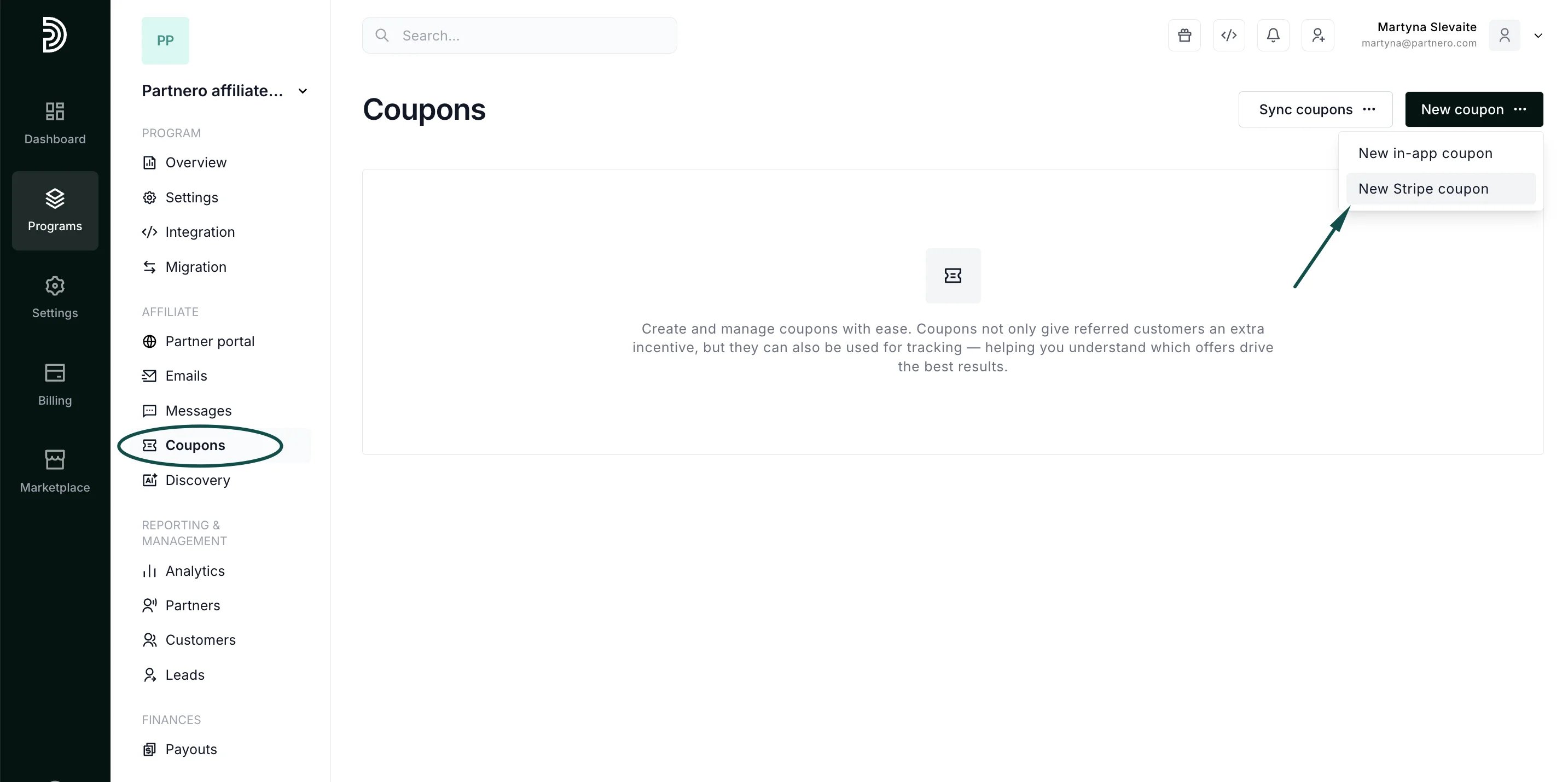 4. Define how the coupons should be synced:
 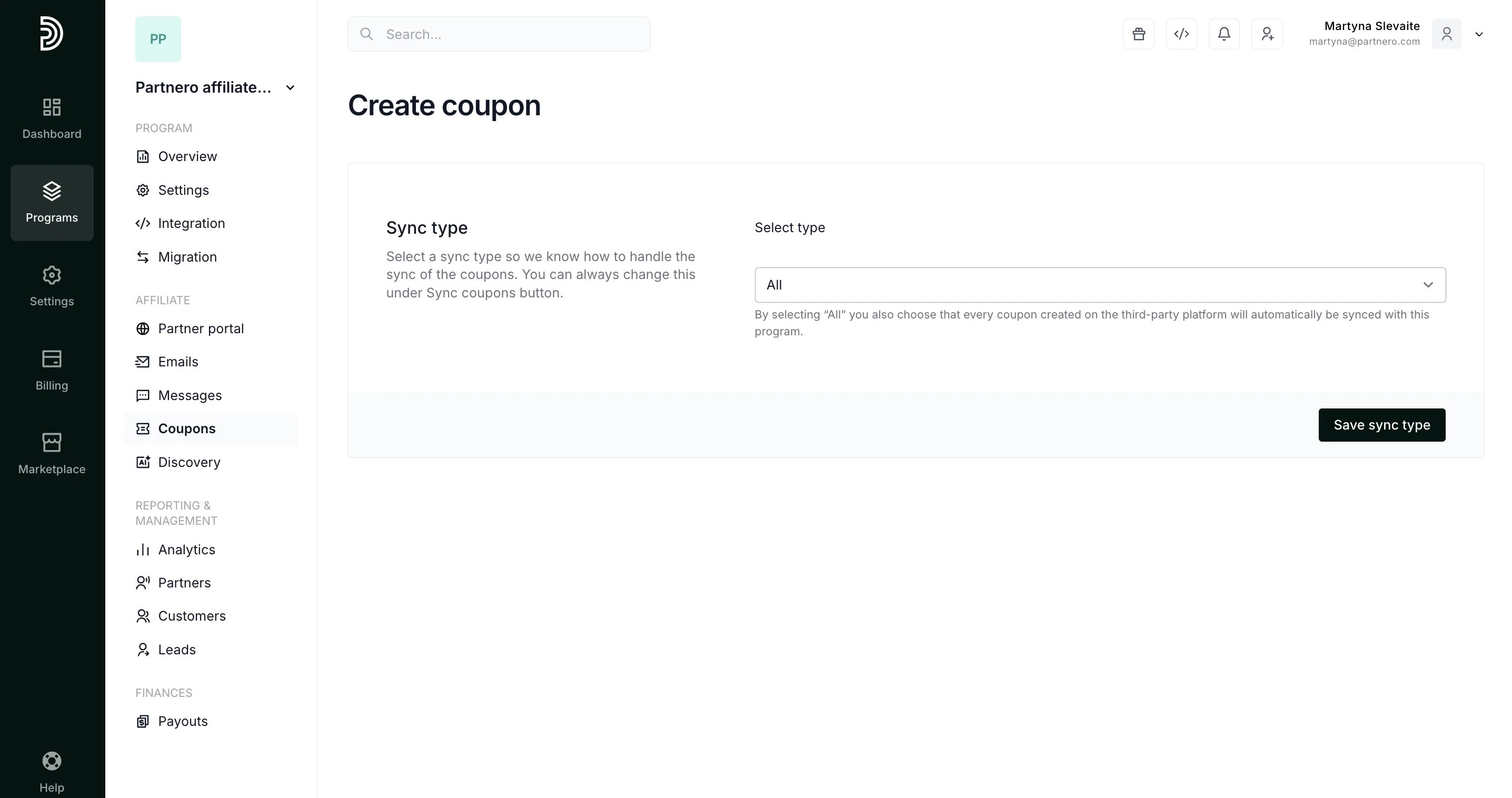 **All**: all coupons will be automatically synced with Stripe.
**Custom**: only selected coupons will be synced with Stripe.
You can always change this under the Sync coupons button.
5. Set up the desired coupon structure and click **Create**.
**All**: all coupons will be automatically synced with Stripe.
**Custom**: only selected coupons will be synced with Stripe.
You can always change this under the Sync coupons button.
5. Set up the desired coupon structure and click **Create**. 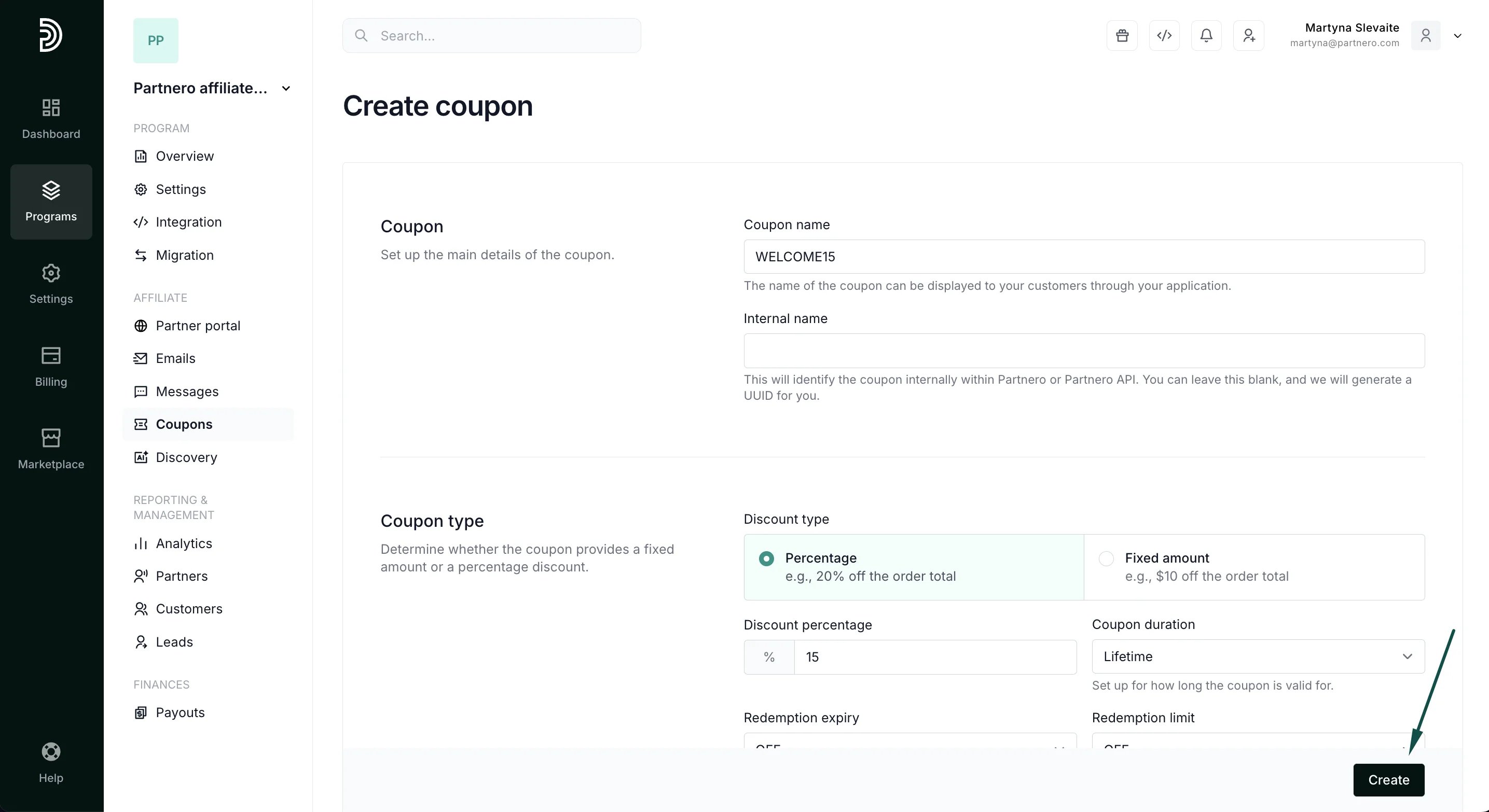 You will see a notification that the coupon was successfully created in Partnero and Stripe:
 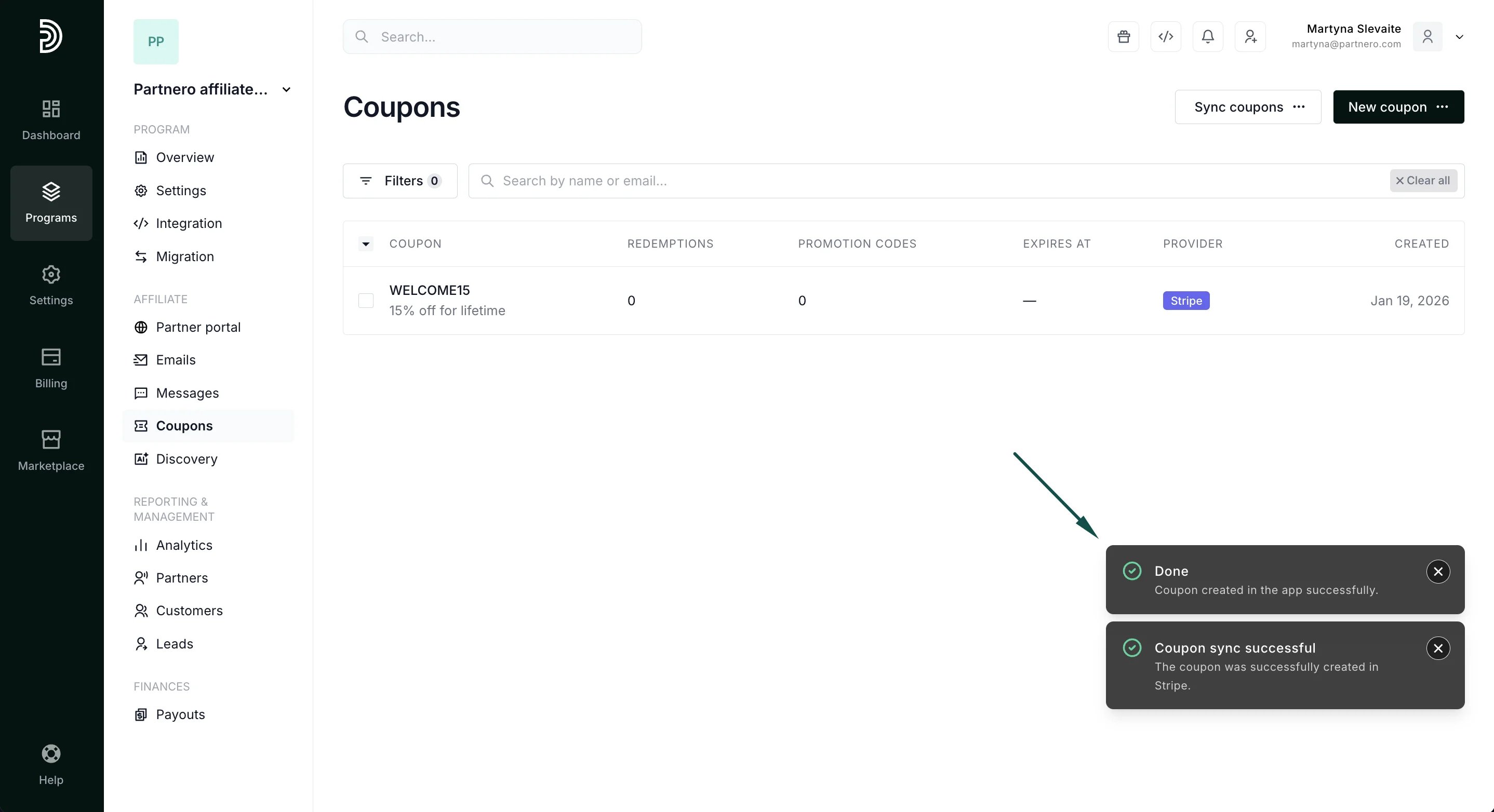 Remember that coupon and promotion code names, metadata, and metadata for coupon and promotion codes are the only fields that can be edited.
6. Open the Coupons section on Stripe - you should see the newly created coupon there as well:
Remember that coupon and promotion code names, metadata, and metadata for coupon and promotion codes are the only fields that can be edited.
6. Open the Coupons section on Stripe - you should see the newly created coupon there as well: 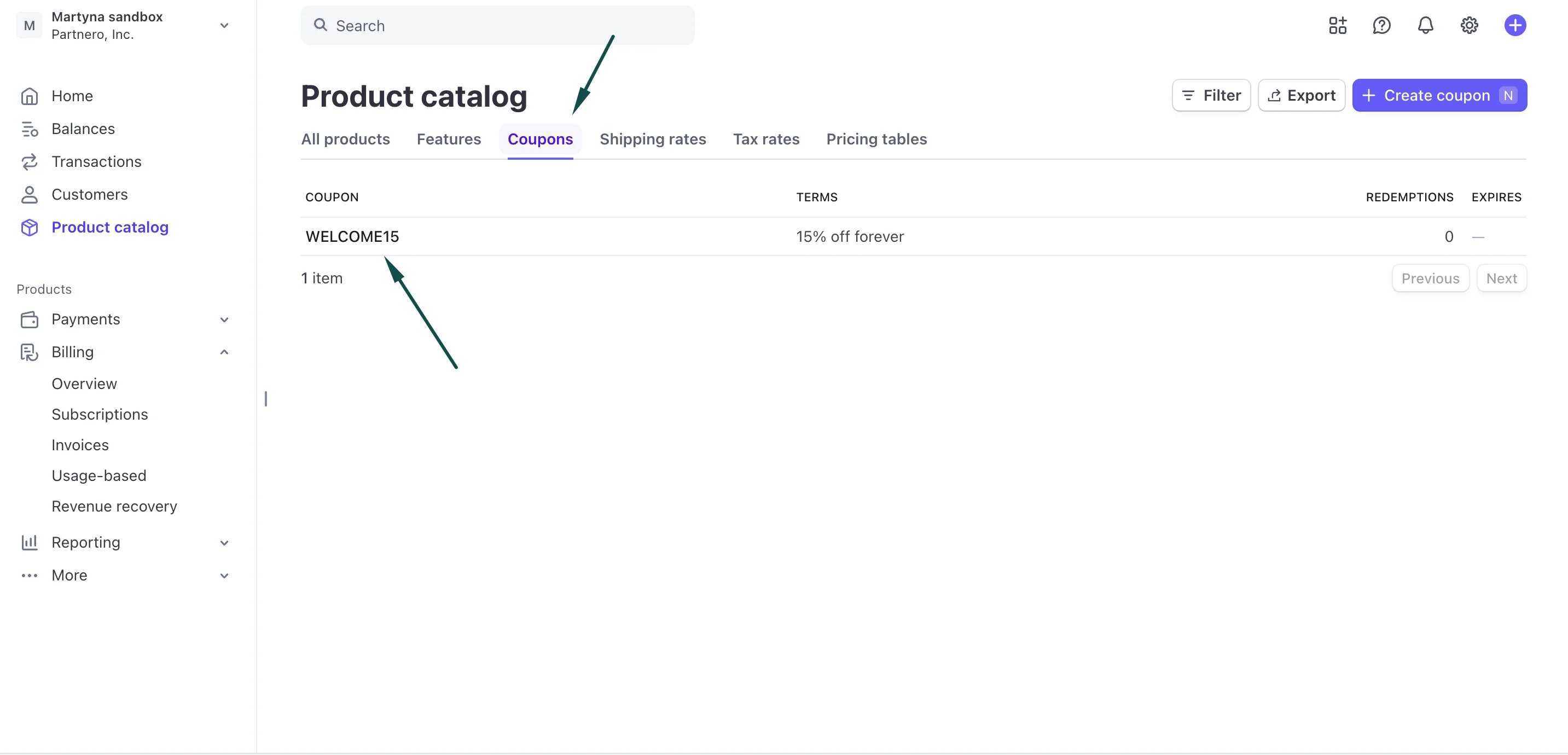 ***
### Create coupons on Stripe and sync with Partnero
This option lets you create new coupon codes on Stripe and sync them with your Partnero account.
Once you integrate Stripe and Partnero, Stripe will automatically send all required data to Partnero. This means that if you create a coupon on Stripe, it will automatically be synced with Partnero and appear under Program > Coupons.
***
### Sync existing Stripe coupons with Partnero
If you already have coupons on Stripe, you can sync them with Partnero:
1. Go to **Coupons** under **Program**.
2. Click **Sync coupons** and select **Sync Stripe coupons**:
***
### Create coupons on Stripe and sync with Partnero
This option lets you create new coupon codes on Stripe and sync them with your Partnero account.
Once you integrate Stripe and Partnero, Stripe will automatically send all required data to Partnero. This means that if you create a coupon on Stripe, it will automatically be synced with Partnero and appear under Program > Coupons.
***
### Sync existing Stripe coupons with Partnero
If you already have coupons on Stripe, you can sync them with Partnero:
1. Go to **Coupons** under **Program**.
2. Click **Sync coupons** and select **Sync Stripe coupons**: 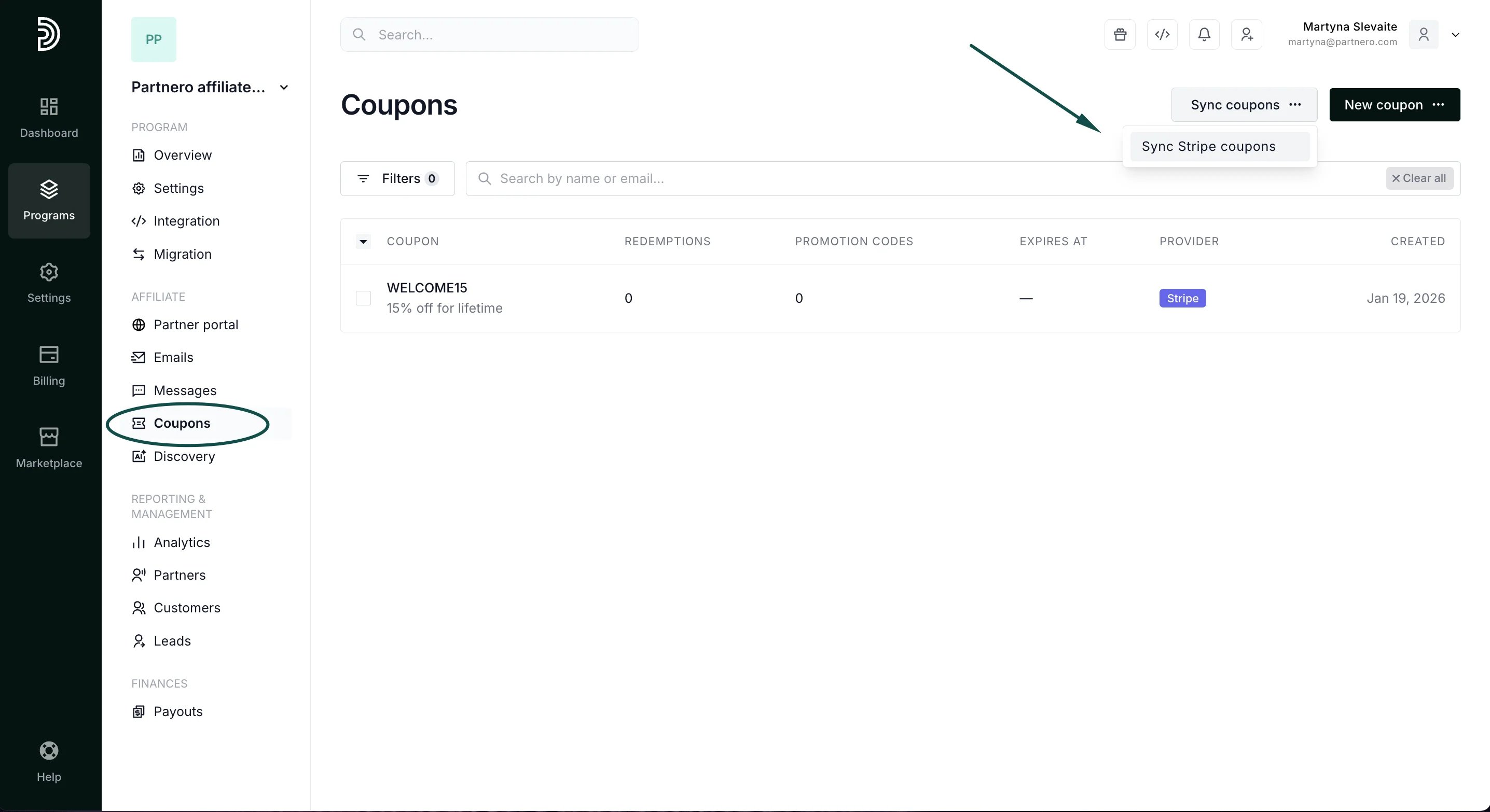 3. Confirm if you'd like to sync all coupons or select specific ones:
 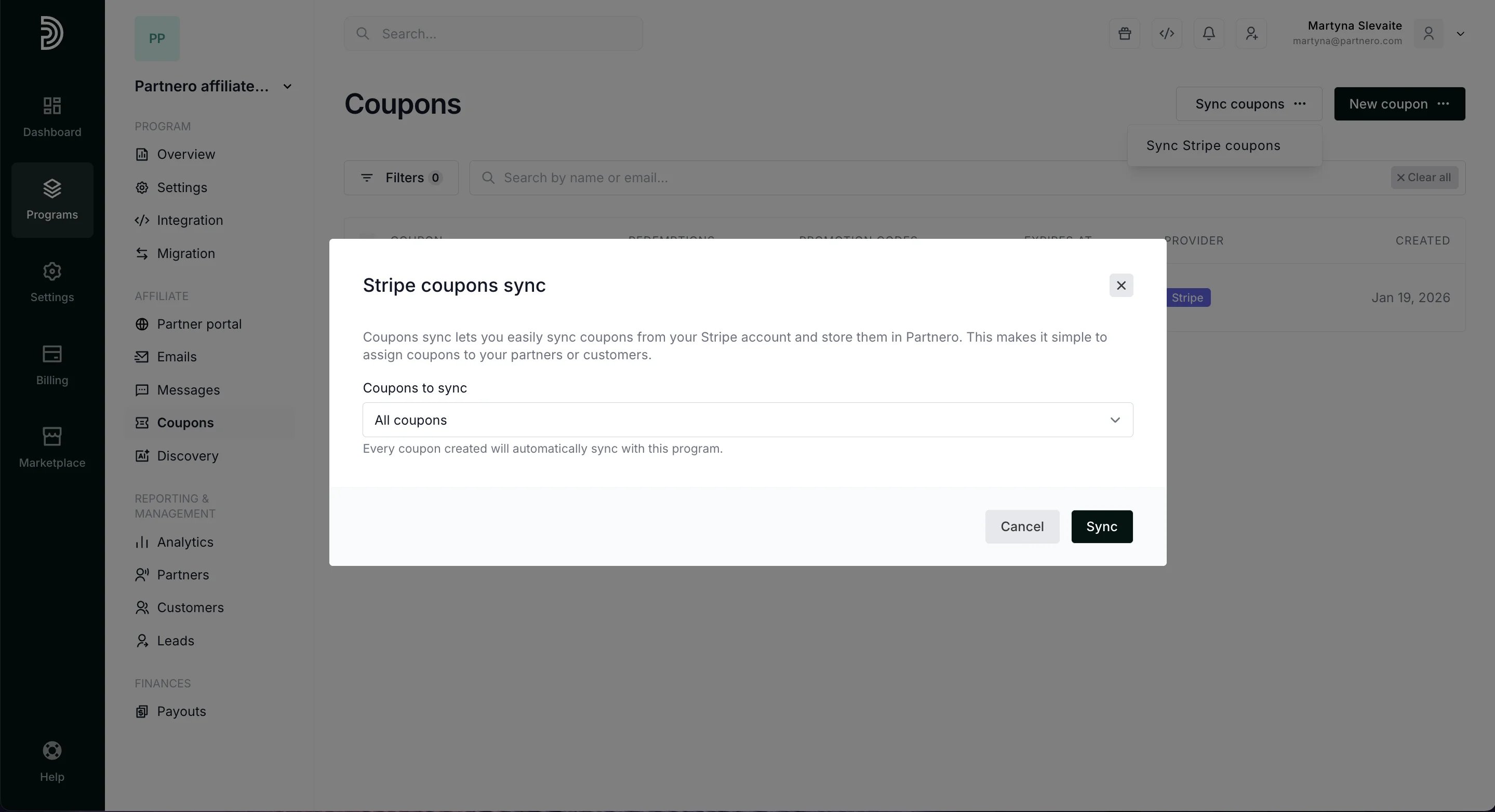 4. Click **Sync**.
***
Now that your coupons are ready, it's time to [set up promotion codes](/knowledge-base/shopify/how-to-use-promotion-codes)!
This documentation is built and hosted on [Mintlify](https://mintlify.com), a developer documentation platform.
4. Click **Sync**.
***
Now that your coupons are ready, it's time to [set up promotion codes](/knowledge-base/shopify/how-to-use-promotion-codes)!
This documentation is built and hosted on [Mintlify](https://mintlify.com), a developer documentation platform.