> ## Documentation Index
> Fetch the complete documentation index at: https://docs.partnero.com/llms.txt
> Use this file to discover all available pages before exploring further.
# Integrate BigCommerce
This guide will walk you through the steps to integrate Partnero with BigCommerce to track website visitors, capture sign-ups, and monitor sales. Following these instructions will enable accurate tracking of user interactions on your website and ensure that all relevant data is sent to Partnero.
These instructions can also be found on your Partnero account, under **Integration** > **Guides** tab > **BigCommerce**: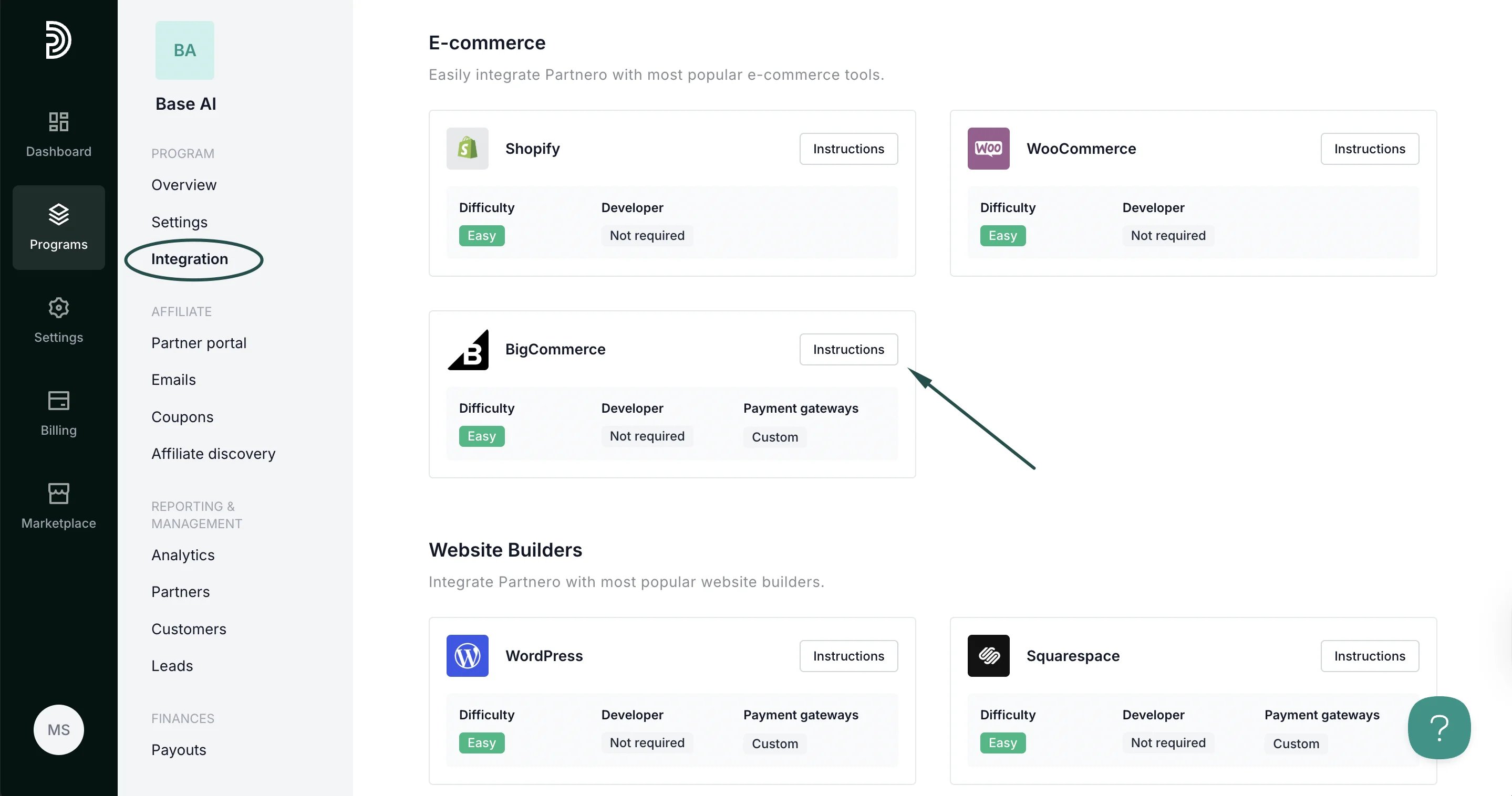 ***
### Step 1: Start tracking website visitors
To track visitors on your website, you need to install the PartneroJS snippet as custom code.
#### Install the PartneroJS Snippet
1. Go to Integration > Guides tab > BigCommerce. Click **Instructions**.
2. Copy the PartneroJS snippet:
***
### Step 1: Start tracking website visitors
To track visitors on your website, you need to install the PartneroJS snippet as custom code.
#### Install the PartneroJS Snippet
1. Go to Integration > Guides tab > BigCommerce. Click **Instructions**.
2. Copy the PartneroJS snippet: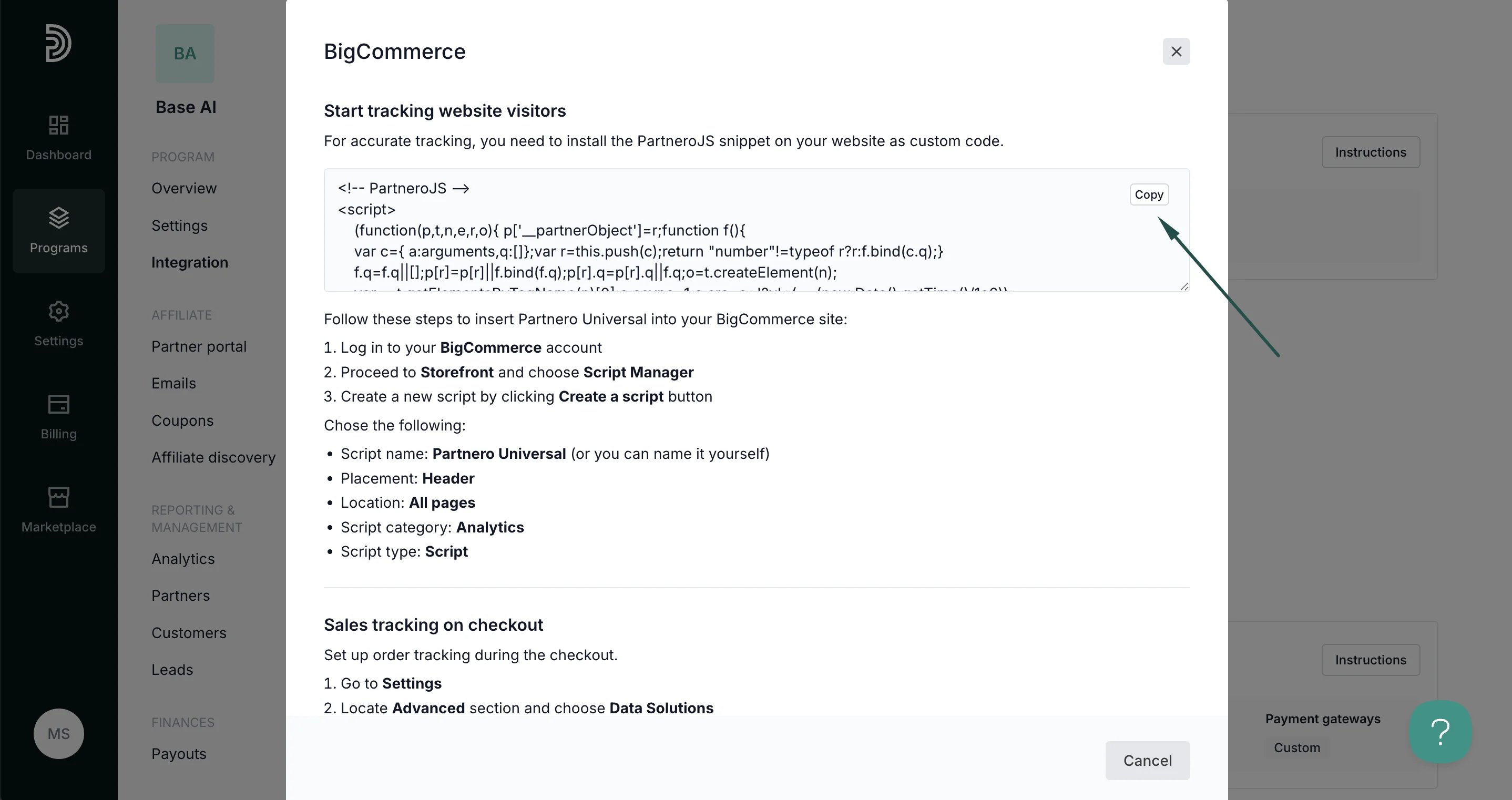 Follow these steps to insert the snippet into your BigCommerce site:
1. Log in to your BigCommerce account.
2. Proceed to **Storefront** and choose **Script Manager**:
Follow these steps to insert the snippet into your BigCommerce site:
1. Log in to your BigCommerce account.
2. Proceed to **Storefront** and choose **Script Manager**: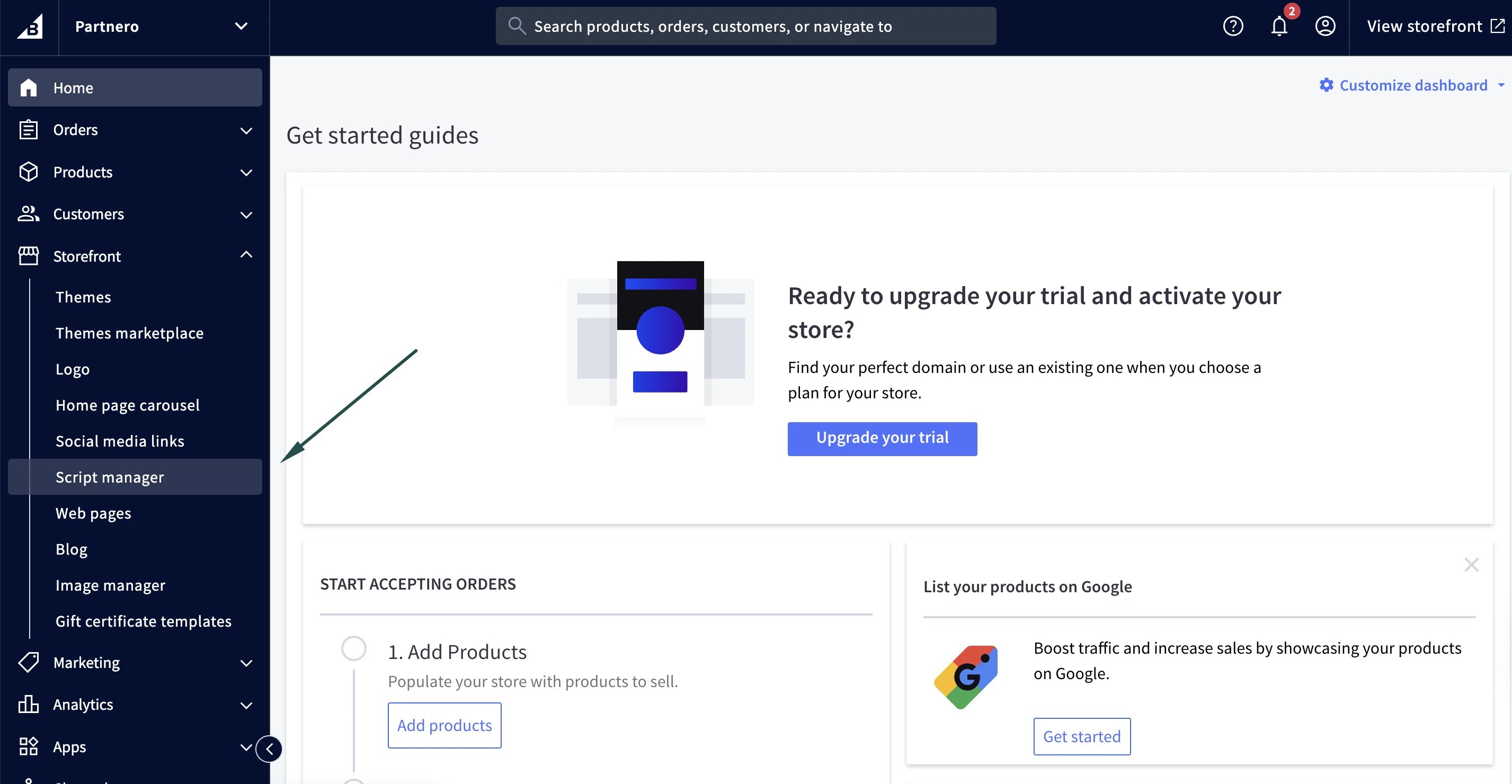 3. Click **Create a script**:
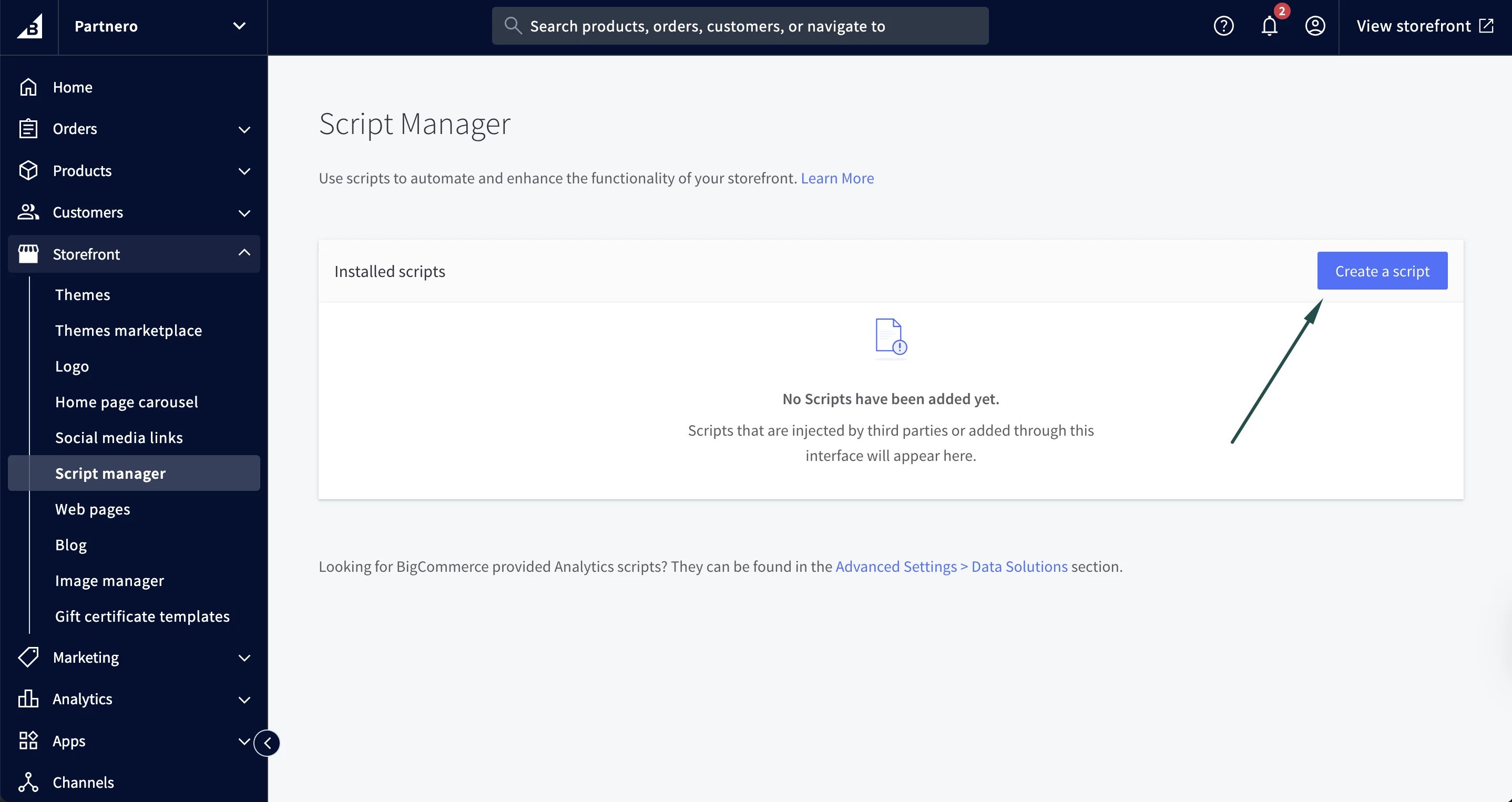 4. Select the following:
1. Script name: PartneroJS (or any other name that will help you identify this script)
2. Placement: Header
3. Location: All pages
4. Script category: Analytics
5. Script type: Script
6. Script content: paste the provided PartneroJS snippet.
4. Select the following:
1. Script name: PartneroJS (or any other name that will help you identify this script)
2. Placement: Header
3. Location: All pages
4. Script category: Analytics
5. Script type: Script
6. Script content: paste the provided PartneroJS snippet.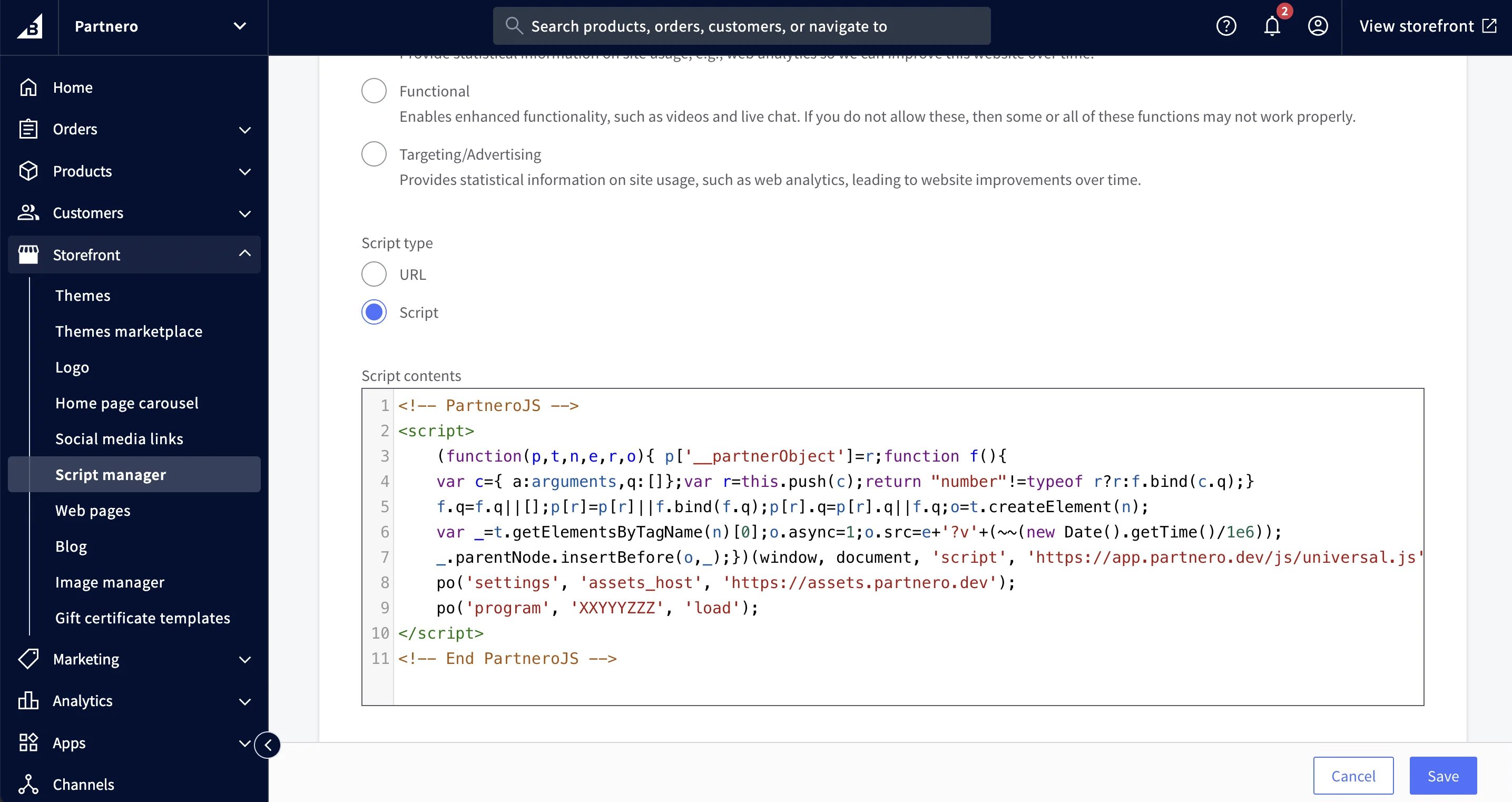 5. Click **Save**.
***
### Step 2: Customer sign-up tracking
Next, let's set up tracking for when referred visitors create customer accounts in your BigCommerce store. This is essential for proper partner attribution before any transaction tracking.
1. Copy the **customer signup tracking** snippet from the BigCommerce integration guide:
5. Click **Save**.
***
### Step 2: Customer sign-up tracking
Next, let's set up tracking for when referred visitors create customer accounts in your BigCommerce store. This is essential for proper partner attribution before any transaction tracking.
1. Copy the **customer signup tracking** snippet from the BigCommerce integration guide: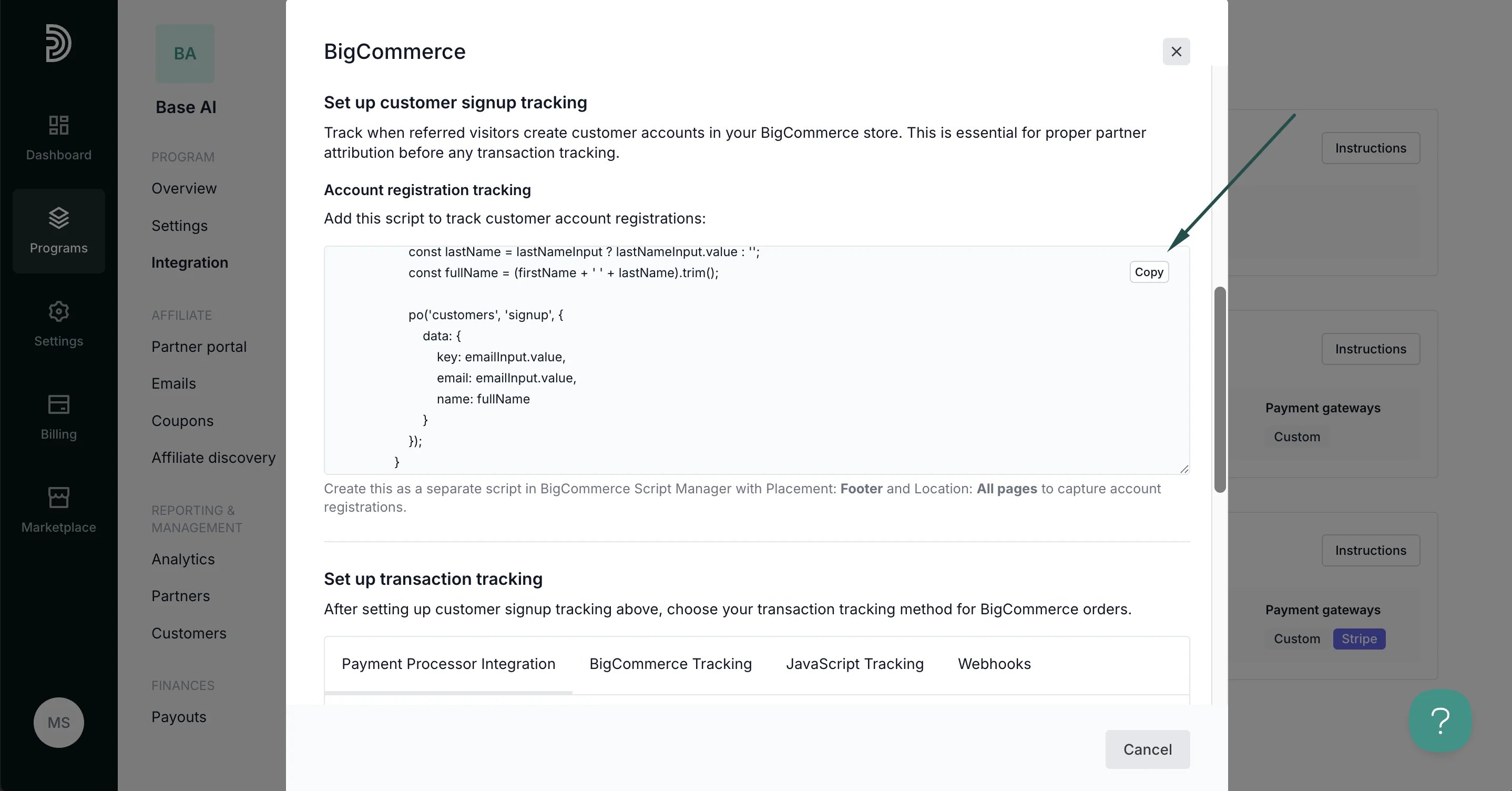 2. Return to your BigCommerce account to paste the script under **Storefront** > **Script Manager** > **Create a script**:
1. **Placement**: Footer
2. **Location**: All pages.
3. Click **Save**.
***
### Step 3: Transaction tracking
Partnero offers four integration methods to track transactions; choose one that suits your setup best. Each method has unique instructions, available on the BigCommerce integration guide.
> 💡 Pro tip: BigCommerce offers multiple tracking methods that work well together. Start with payment processor integration (Stripe/Paddle) for automatic tracking, use BigCommerce's built-in conversion tracking as a reliable backup, and implement webhooks for the most comprehensive coverage. Always ensure customer signup tracking (Step 2) is in place first for proper partner attribution.
#### Method 1: Payment Processor Integration
If your BigCommerce store processes payments through Stripe, Paddle, or other supported payment processors, connect your payment processor directly to Partnero for automatic transaction tracking.
2. Return to your BigCommerce account to paste the script under **Storefront** > **Script Manager** > **Create a script**:
1. **Placement**: Footer
2. **Location**: All pages.
3. Click **Save**.
***
### Step 3: Transaction tracking
Partnero offers four integration methods to track transactions; choose one that suits your setup best. Each method has unique instructions, available on the BigCommerce integration guide.
> 💡 Pro tip: BigCommerce offers multiple tracking methods that work well together. Start with payment processor integration (Stripe/Paddle) for automatic tracking, use BigCommerce's built-in conversion tracking as a reliable backup, and implement webhooks for the most comprehensive coverage. Always ensure customer signup tracking (Step 2) is in place first for proper partner attribution.
#### Method 1: Payment Processor Integration
If your BigCommerce store processes payments through Stripe, Paddle, or other supported payment processors, connect your payment processor directly to Partnero for automatic transaction tracking. 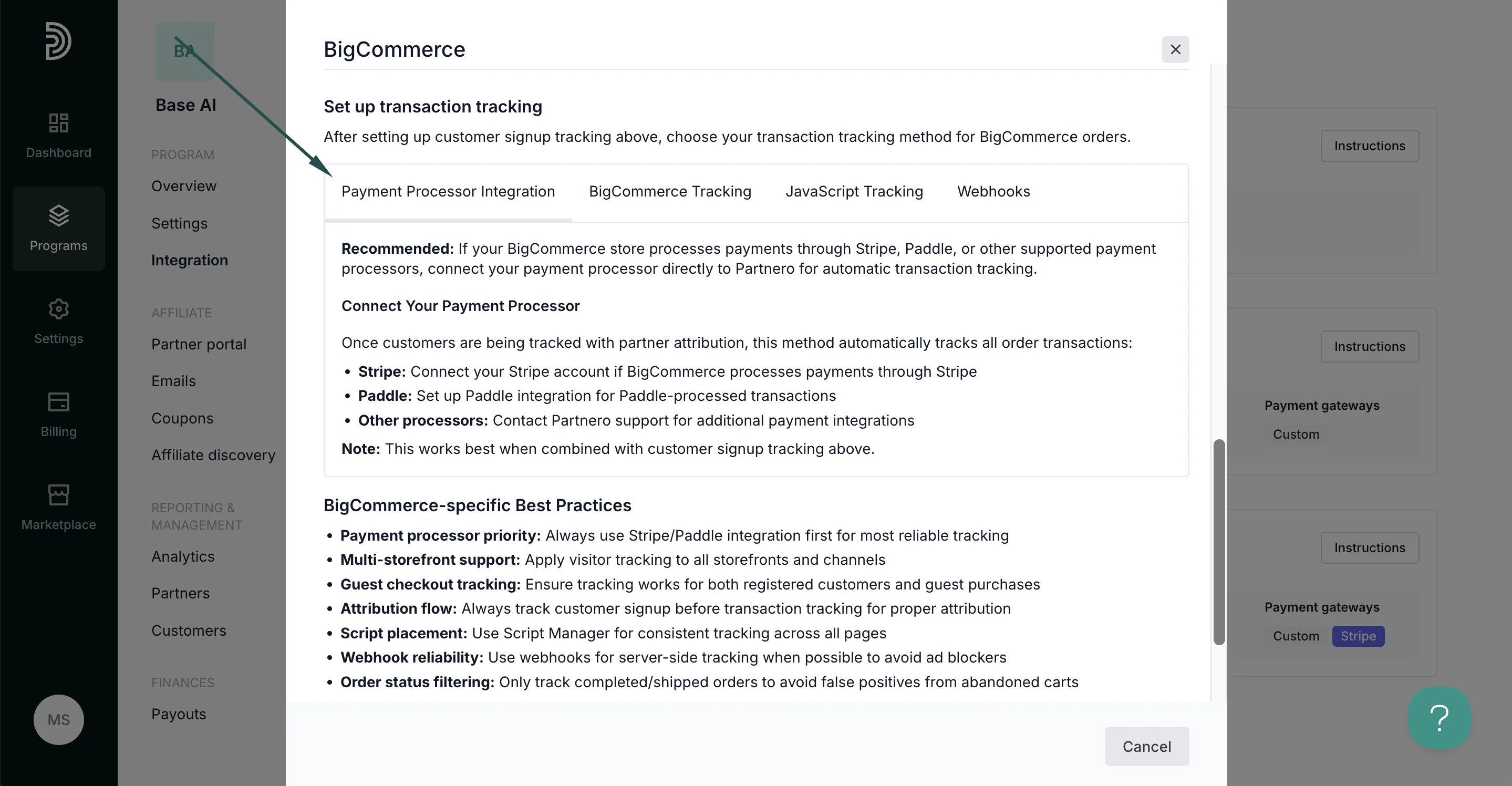 #### Method 2: BigCommerce Tracking
You can use BigCommerce's built-in Affiliate Conversion Tracking feature for automatic order tracking when payment processor integration is not available:
#### Method 2: BigCommerce Tracking
You can use BigCommerce's built-in Affiliate Conversion Tracking feature for automatic order tracking when payment processor integration is not available: 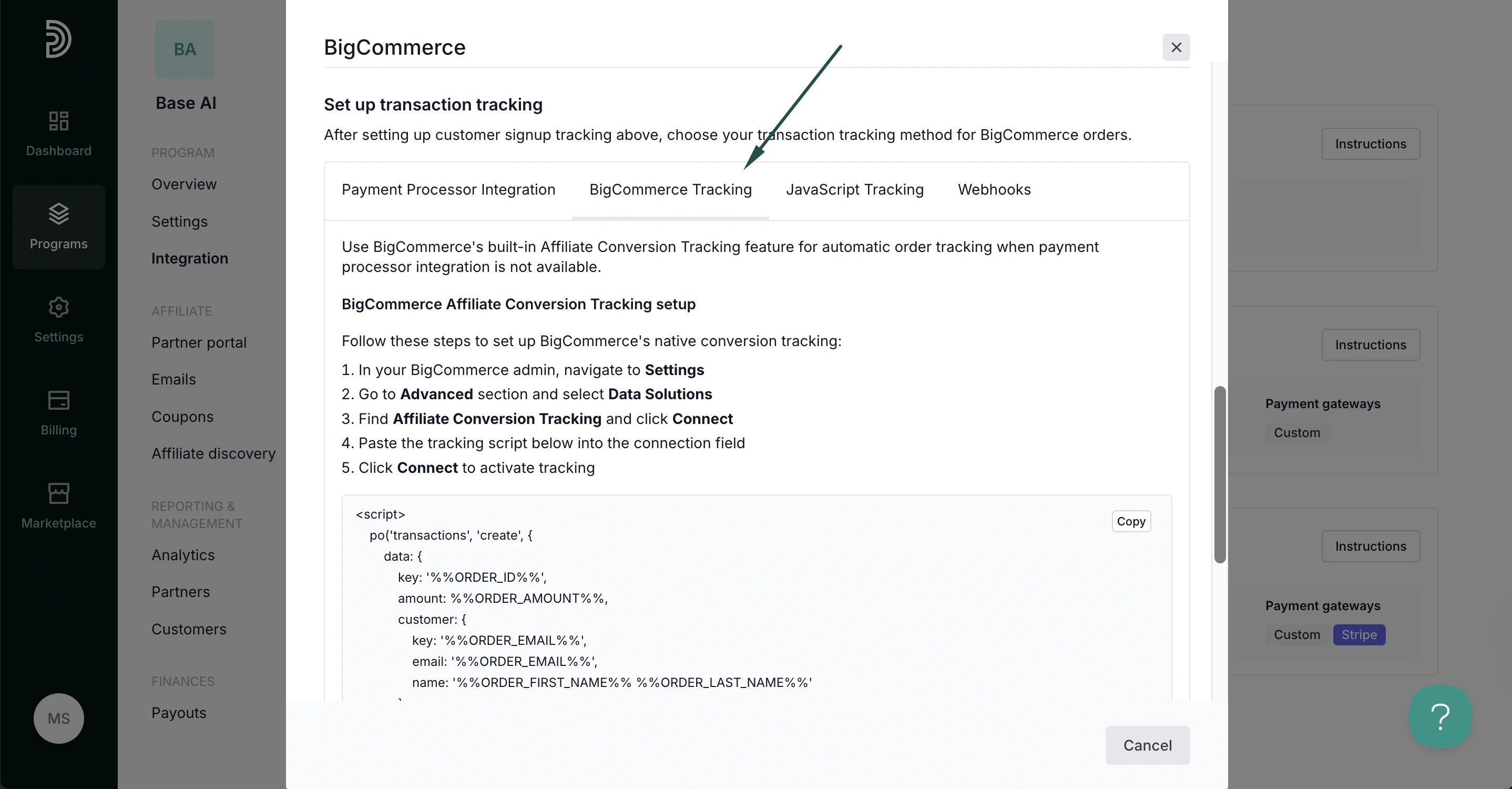 On BigCommerce:
1. Go to **Settings**. Locate the **Advanced** section and click on **Data Solutions**:
On BigCommerce:
1. Go to **Settings**. Locate the **Advanced** section and click on **Data Solutions**: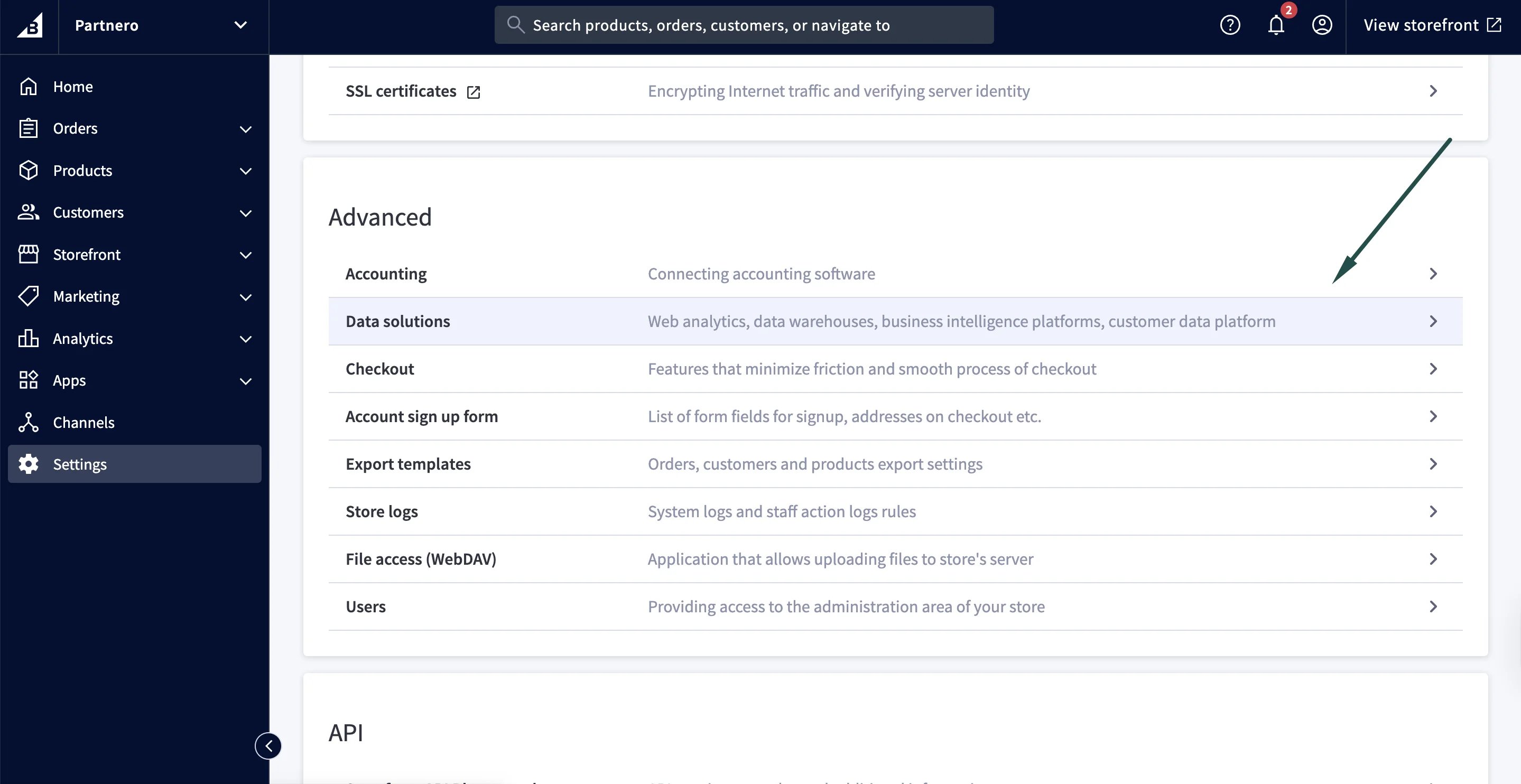 2. Click **Connect** next to **Affiliate Conversion Tracking**:
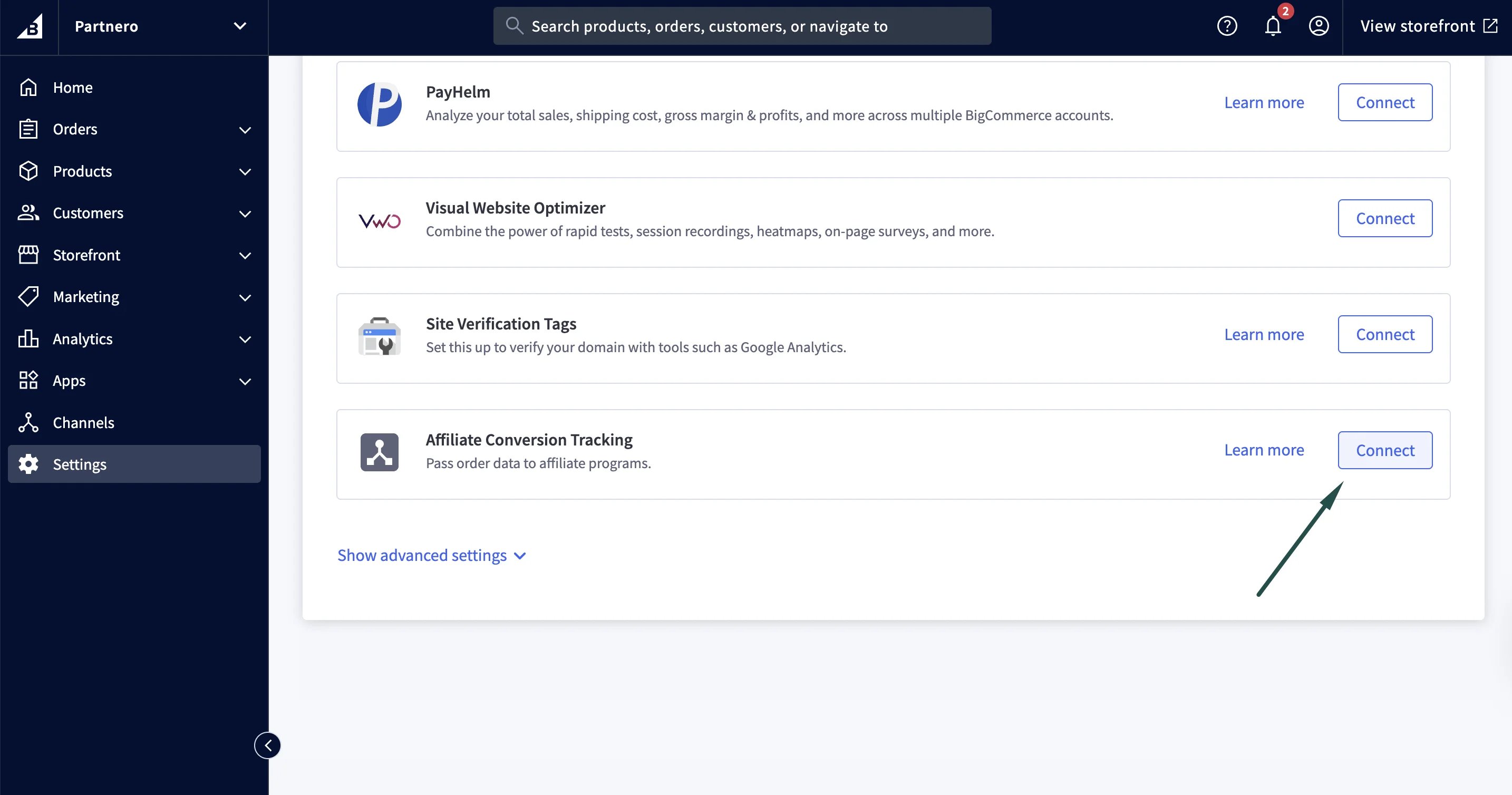 3. Paste the snippet from Partnero and click **Connect**:
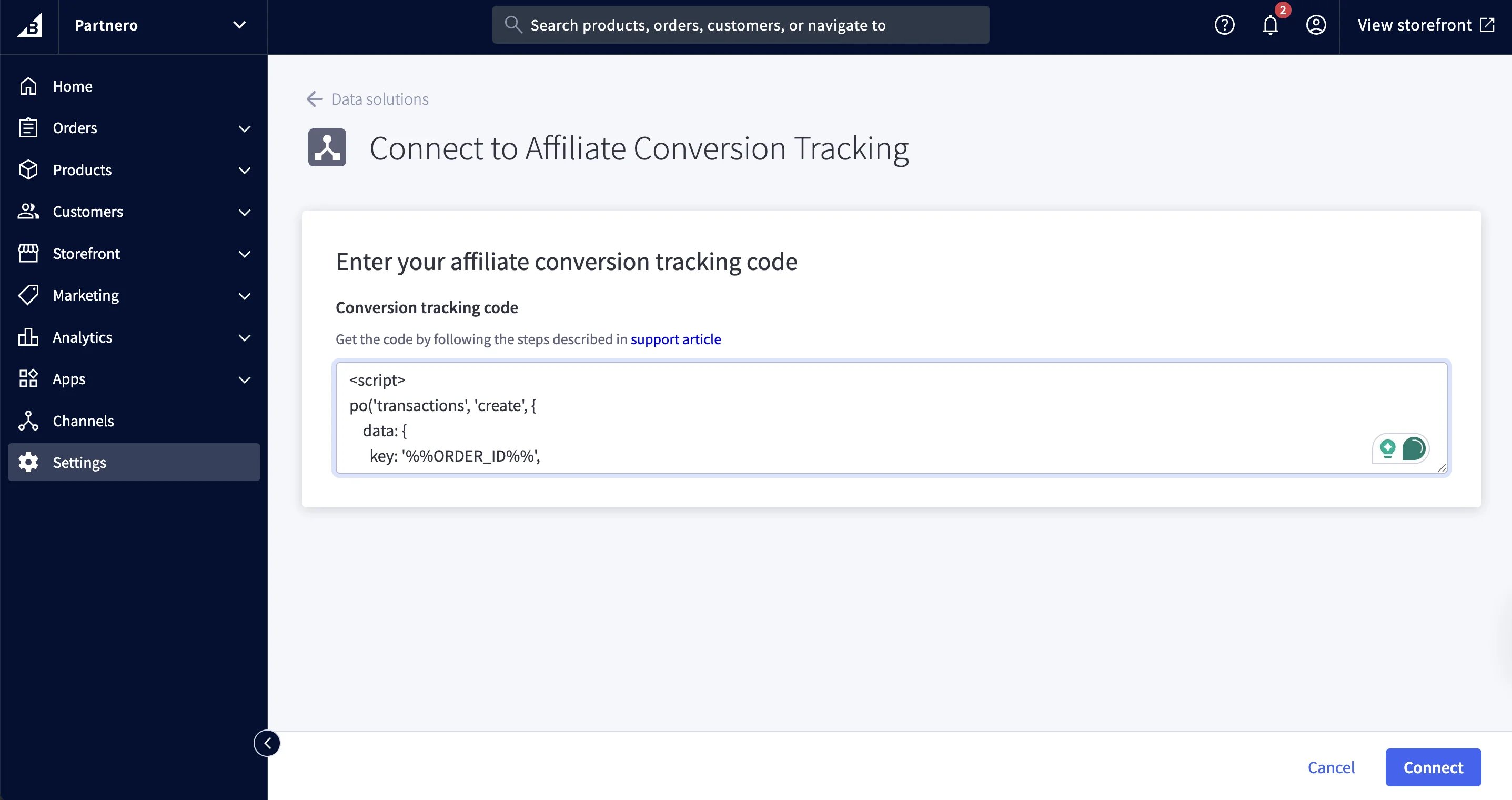 #### Method 3: JavaScript Tracking
Track transactions using JavaScript on order confirmation pages when other tracking methods are not available.
#### Method 3: JavaScript Tracking
Track transactions using JavaScript on order confirmation pages when other tracking methods are not available. 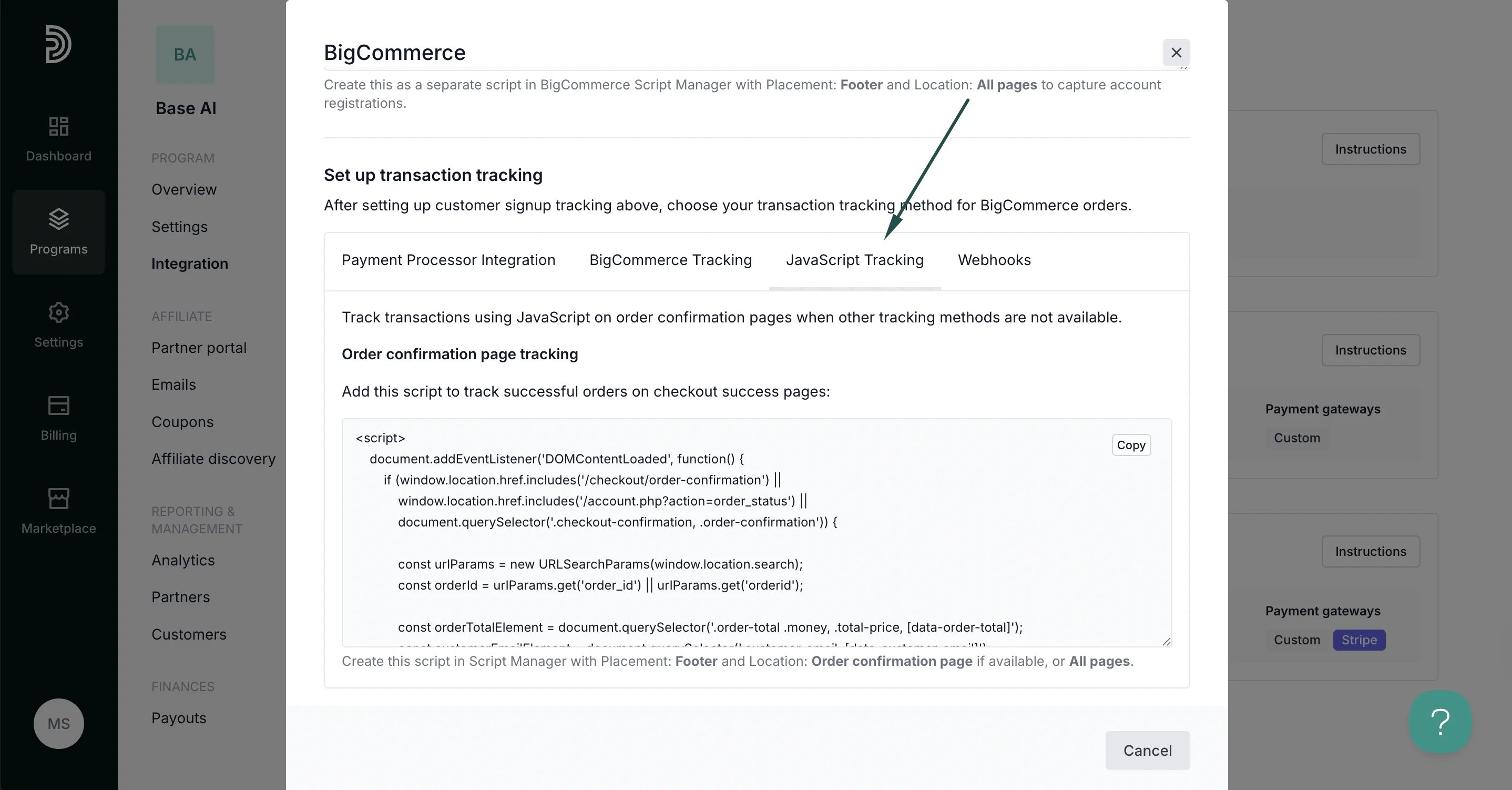 Copy the provided snippet and add it to the checkout success pages on your website.
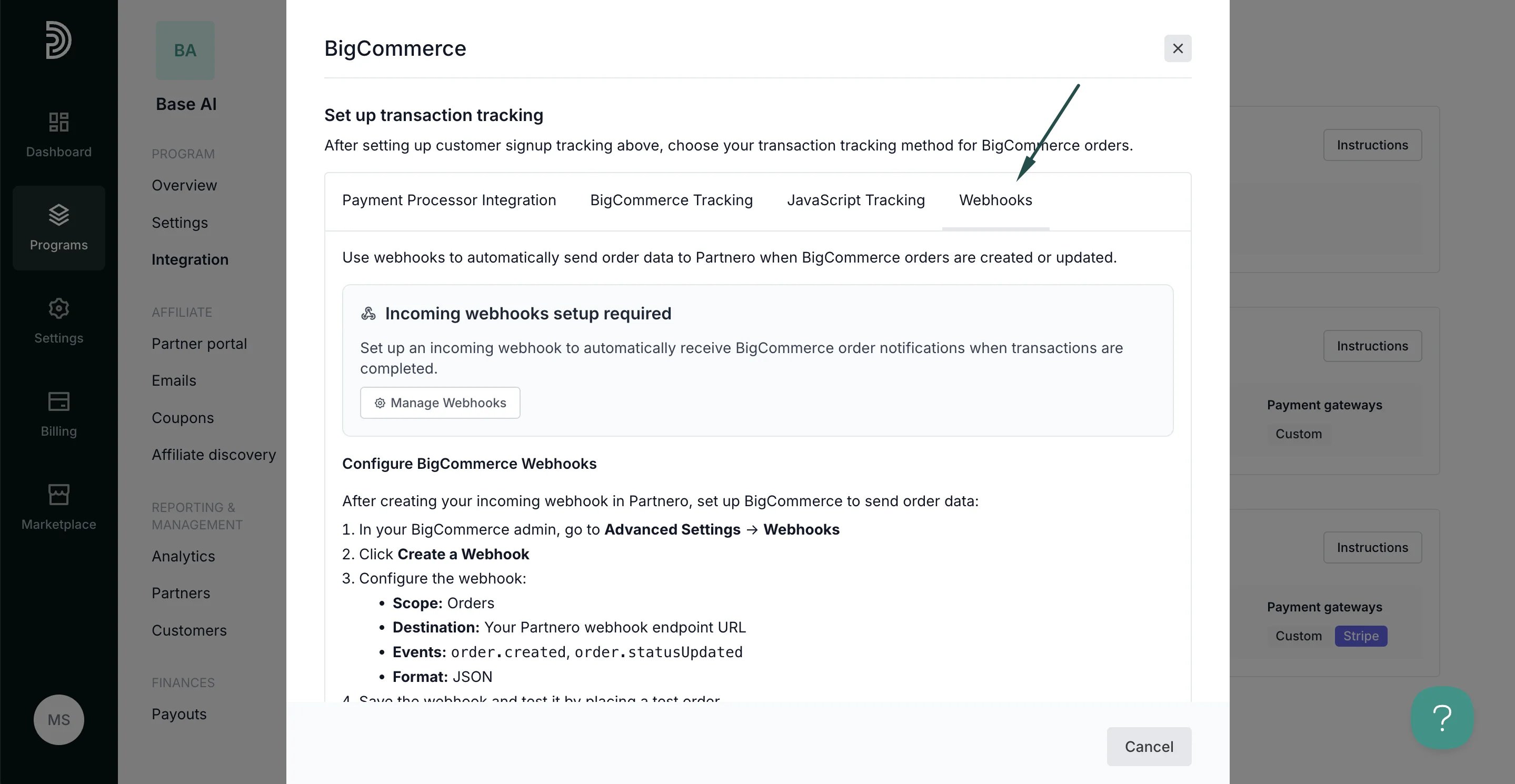
#### Method 4: Webhooks
#### Use webhooks to automatically send order data to Partnero when BigCommerce orders are created or updated.
Copy the provided snippet and add it to the checkout success pages on your website.
#### Method 4: Webhooks
#### Use webhooks to automatically send order data to Partnero when BigCommerce orders are created or updated.
 ***
### Step 4: Enable transaction creation via JS
For this integration method to work, transaction creation via JavaScript must be enabled on your Partnero account. To do that:
1. On your Partnero account, go to **Integration** > **Security** tab.
***
### Step 4: Enable transaction creation via JS
For this integration method to work, transaction creation via JavaScript must be enabled on your Partnero account. To do that:
1. On your Partnero account, go to **Integration** > **Security** tab.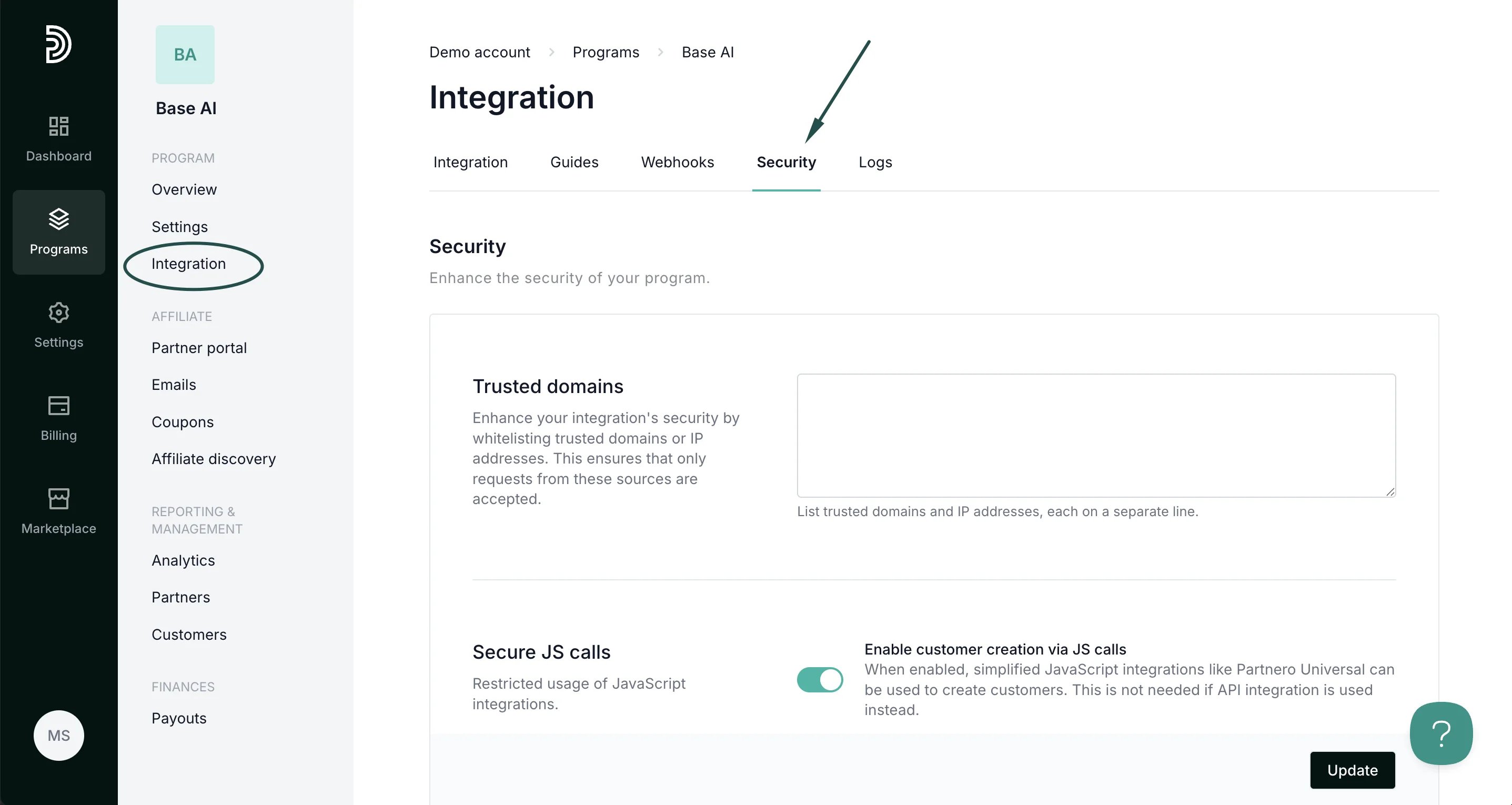 2. Scroll down to **Secure JS calls**. Toggle to enable transaction creation:
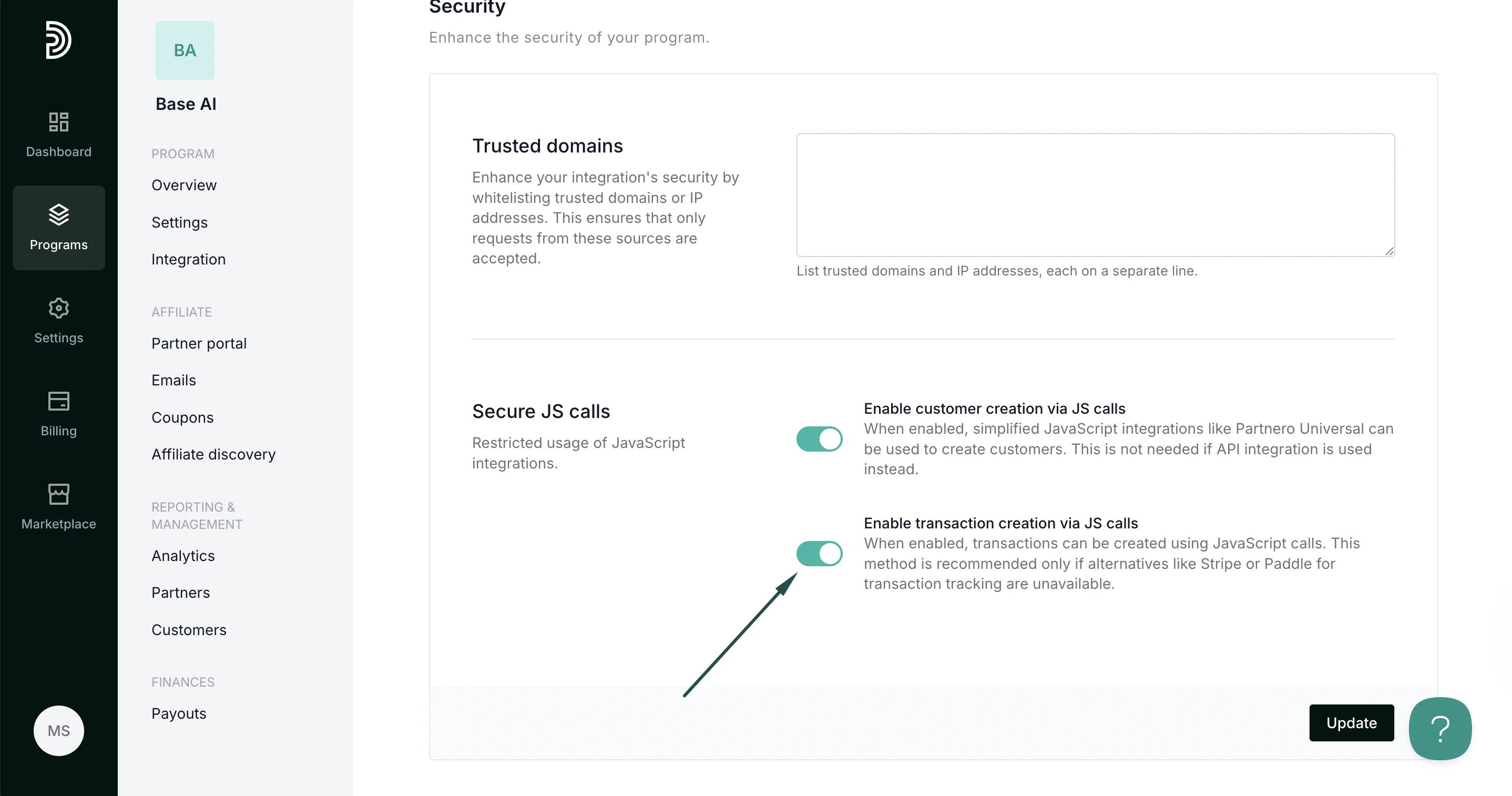 3. Click **Update**.
***
Your integration with BigCommerce is now complete! We strongly recommend testing the integration by purchasing through an affiliate link.
This documentation is built and hosted on [Mintlify](https://mintlify.com), a developer documentation platform.
3. Click **Update**.
***
Your integration with BigCommerce is now complete! We strongly recommend testing the integration by purchasing through an affiliate link.
This documentation is built and hosted on [Mintlify](https://mintlify.com), a developer documentation platform.