> ## Documentation Index
> Fetch the complete documentation index at: https://docs.partnero.com/llms.txt
> Use this file to discover all available pages before exploring further.
# Integrate OnceHub
This guide will walk you through the steps to integrate Partnero with OnceHub to track website visitors, capture sign-ups, and monitor sales. Following these instructions will enable accurate tracking of user interactions on your website and ensure that all relevant data is sent to Partnero.
These instructions can also be found on your Partnero account, under **Integration** > **Guides** tab > **OnceHub**: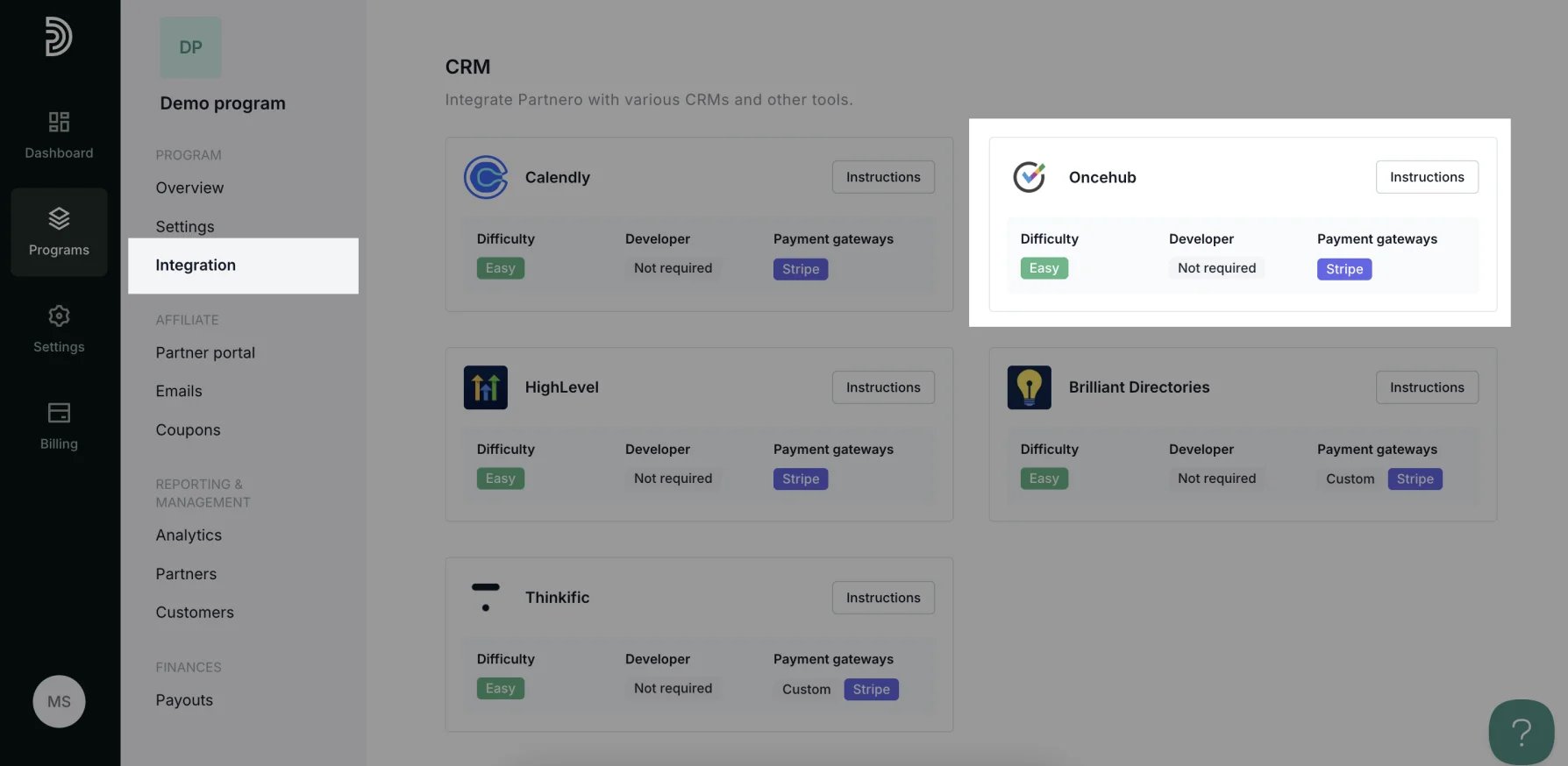 ***
### Step 1: Start Tracking Website Visitors
To track visitors on your website, you need to install the PartneroJS snippet as custom code.
#### Install the PartneroJS Snippet
1. Go to **Integration** > **Guides** tab > **OnceHub**. Click **Instructions**.
2. Copy the PartneroJS snippet:
***
### Step 1: Start Tracking Website Visitors
To track visitors on your website, you need to install the PartneroJS snippet as custom code.
#### Install the PartneroJS Snippet
1. Go to **Integration** > **Guides** tab > **OnceHub**. Click **Instructions**.
2. Copy the PartneroJS snippet:
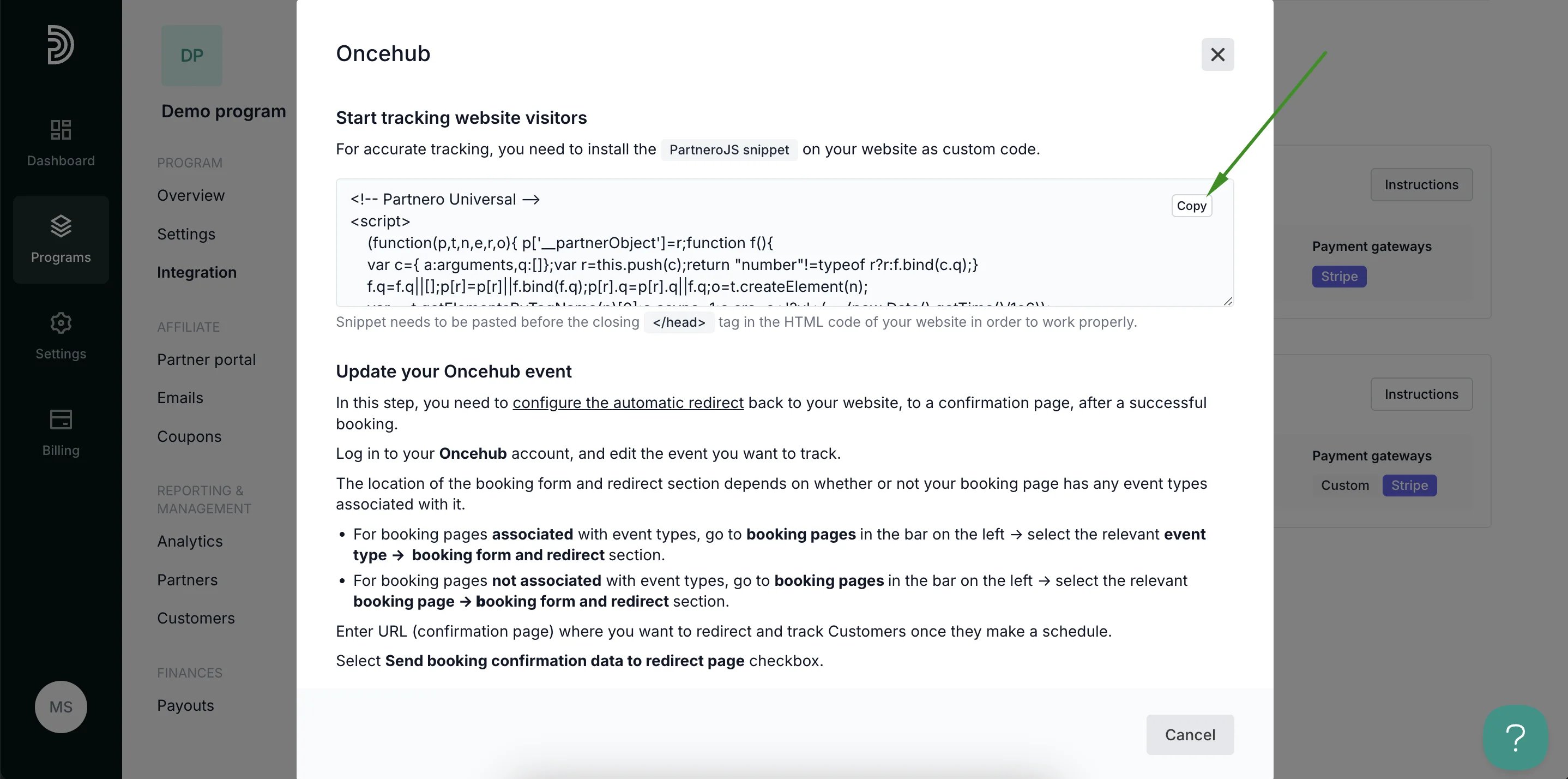 3. Paste this snippet into the HTML code of your website, just before the closing `` tag.
This step is crucial for ensuring that Partnero can start tracking visitors on your website as soon as they land on any page.
***
### Step 2: Update your OnceHub event
In this step, you need to [configure the automatic redirect](https://help.oncehub.com/help/automatic-redirect) back to your website, to a confirmation page, after a successful booking.
Log in to your Oncehub account, and edit the event you want to track.
The location of the booking form and redirect section depends on whether or not your booking page has any event types associated with it.
* For booking pages **associated** with event types, go to **B\*\*\*\*ooking pages** in the bar on the left → select the relevant **event type** → **Booking form and redirect** section.
* For booking pages **not associated** with event types, go to **Booking pages** in the bar on the left → select the relevant **booking page** → **Booking form and redirect** section.
Enter URL (confirmation page) where you want to redirect and track customers once they schedule.
Select **Send booking confirmation data to redirect page** checkbox.
***
### Step 3: Sign-up tracking
To track sign-ups, you need to add a specific script to the confirmation page where users are redirected after completing a booking.
Copy and paste the provided script into the HTML of your confirmation page:
3. Paste this snippet into the HTML code of your website, just before the closing `` tag.
This step is crucial for ensuring that Partnero can start tracking visitors on your website as soon as they land on any page.
***
### Step 2: Update your OnceHub event
In this step, you need to [configure the automatic redirect](https://help.oncehub.com/help/automatic-redirect) back to your website, to a confirmation page, after a successful booking.
Log in to your Oncehub account, and edit the event you want to track.
The location of the booking form and redirect section depends on whether or not your booking page has any event types associated with it.
* For booking pages **associated** with event types, go to **B\*\*\*\*ooking pages** in the bar on the left → select the relevant **event type** → **Booking form and redirect** section.
* For booking pages **not associated** with event types, go to **Booking pages** in the bar on the left → select the relevant **booking page** → **Booking form and redirect** section.
Enter URL (confirmation page) where you want to redirect and track customers once they schedule.
Select **Send booking confirmation data to redirect page** checkbox.
***
### Step 3: Sign-up tracking
To track sign-ups, you need to add a specific script to the confirmation page where users are redirected after completing a booking.
Copy and paste the provided script into the HTML of your confirmation page: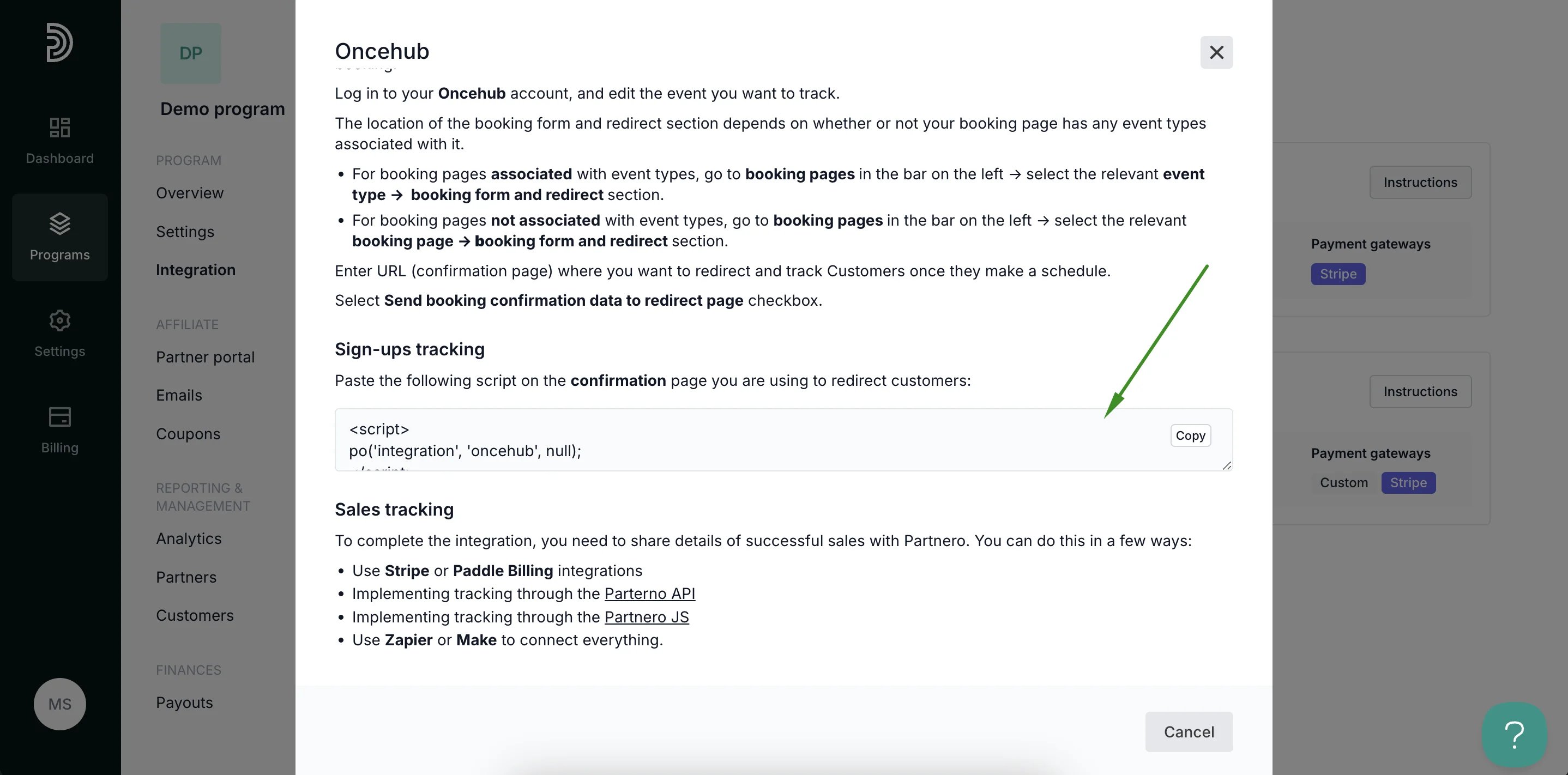 This script will notify Partnero whenever a new sign-up occurs via your OnceHub booking form, enabling you to track conversions effectively.
***
### Step 4: Sales Tracking
To complete the integration, you need to share details of successful sales with Partnero. There are several methods available to accomplish this:
1. **Use Stripe or Paddle Billing Integrations:**
If you use Stripe or Paddle for payment processing, you can integrate these platforms with Partnero to automatically track sales.
2. **Implement Tracking Through the Partnero API:**
For more customized tracking, you can use the [Partnero API](https://developers.partnero.com/guide/affiliate.html#sending-sales-data) to send sales data directly from your application to Partnero.
3. **Implement Tracking Through the Partnero JS:**
Similar to the sign-up tracking script, you can implement [JavaScript-based tracking](https://developers.partnero.com/guide/javascript-tracking.html#sales-tracking) on your sales confirmation pages.
4. **Use Zapier or Make:**
If you prefer a no-code solution, use automation platforms like [Zapier](https://www.partnero.com/integrations/zapier) or [Make](https://www.partnero.com/integrations/make) to connect OnceHub, your payment processor, and Partnero. This method allows you to track sales and send the relevant data to Partnero without writing custom code.
***
By following these steps, you will successfully integrate Partnero with OnceHub, enabling comprehensive tracking of visitor interactions, sign-ups, and sales on your website. This integration will help you optimize your marketing strategies and improve customer engagement.
This documentation is built and hosted on [Mintlify](https://mintlify.com), a developer documentation platform.
This script will notify Partnero whenever a new sign-up occurs via your OnceHub booking form, enabling you to track conversions effectively.
***
### Step 4: Sales Tracking
To complete the integration, you need to share details of successful sales with Partnero. There are several methods available to accomplish this:
1. **Use Stripe or Paddle Billing Integrations:**
If you use Stripe or Paddle for payment processing, you can integrate these platforms with Partnero to automatically track sales.
2. **Implement Tracking Through the Partnero API:**
For more customized tracking, you can use the [Partnero API](https://developers.partnero.com/guide/affiliate.html#sending-sales-data) to send sales data directly from your application to Partnero.
3. **Implement Tracking Through the Partnero JS:**
Similar to the sign-up tracking script, you can implement [JavaScript-based tracking](https://developers.partnero.com/guide/javascript-tracking.html#sales-tracking) on your sales confirmation pages.
4. **Use Zapier or Make:**
If you prefer a no-code solution, use automation platforms like [Zapier](https://www.partnero.com/integrations/zapier) or [Make](https://www.partnero.com/integrations/make) to connect OnceHub, your payment processor, and Partnero. This method allows you to track sales and send the relevant data to Partnero without writing custom code.
***
By following these steps, you will successfully integrate Partnero with OnceHub, enabling comprehensive tracking of visitor interactions, sign-ups, and sales on your website. This integration will help you optimize your marketing strategies and improve customer engagement.
This documentation is built and hosted on [Mintlify](https://mintlify.com), a developer documentation platform.