> ## Documentation Index
> Fetch the complete documentation index at: https://docs.partnero.com/llms.txt
> Use this file to discover all available pages before exploring further.
# Integrate Simvoly
This guide will walk you through the steps to integrate Partnero with Simvoly to track website visitors, capture sign-ups, and monitor sales. Following these instructions will enable accurate tracking of user interactions on your website and ensure that all relevant data is sent to Partnero.
These instructions can also be found on your Partnero account, under **Integration** > **Guides** tab > **Simvoly**: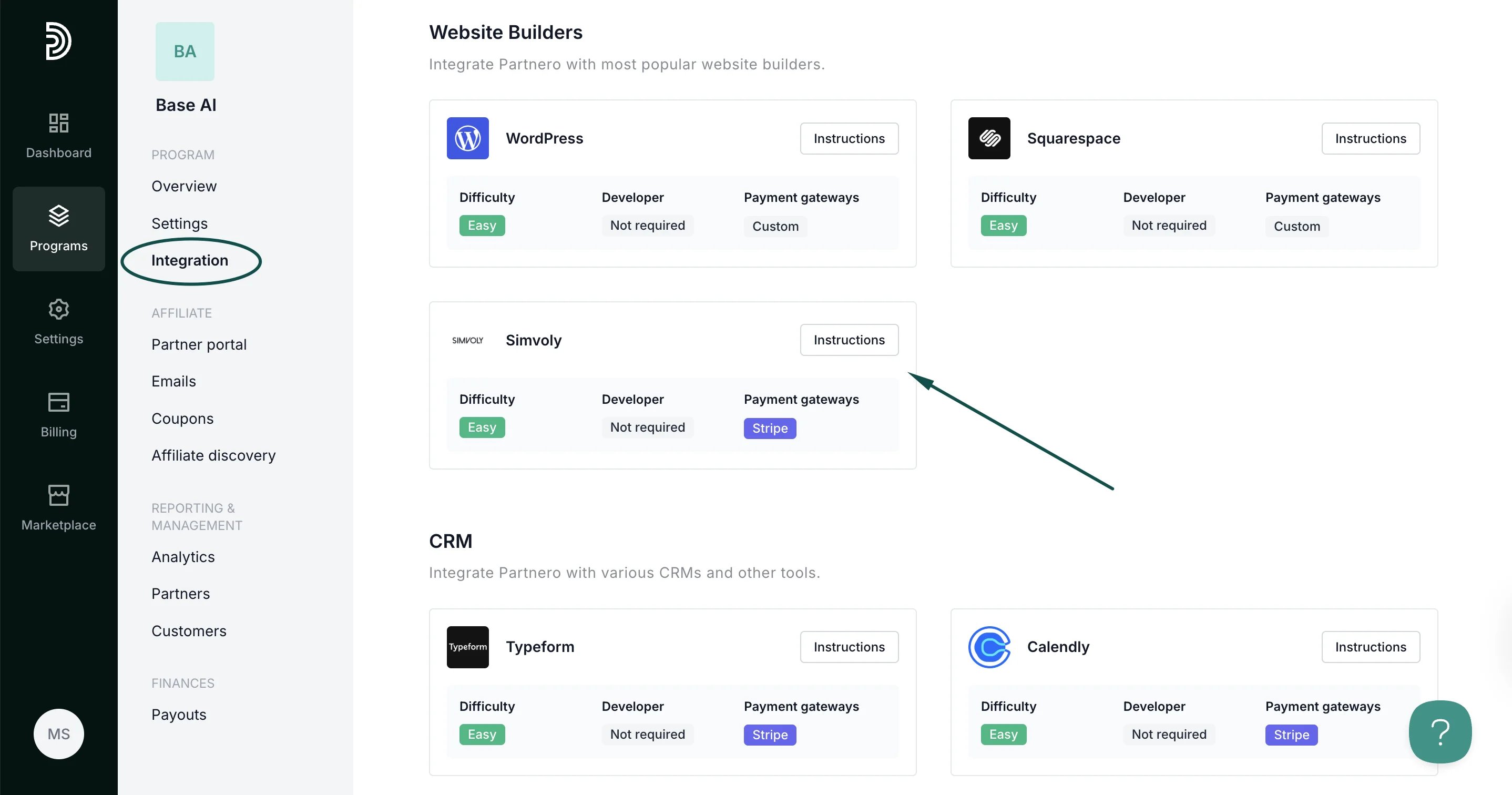 ***
### Step 1: Start tracking website visitors
To track visitors on your website, you need to install the PartneroJS snippet as custom code.
#### Install the PartneroJS Snippet
1. On Partnero, go to **Integration** > **Guides** tab > **Simvoly**. Click **Instructions**.
2. Copy the PartneroJS snippet:
***
### Step 1: Start tracking website visitors
To track visitors on your website, you need to install the PartneroJS snippet as custom code.
#### Install the PartneroJS Snippet
1. On Partnero, go to **Integration** > **Guides** tab > **Simvoly**. Click **Instructions**.
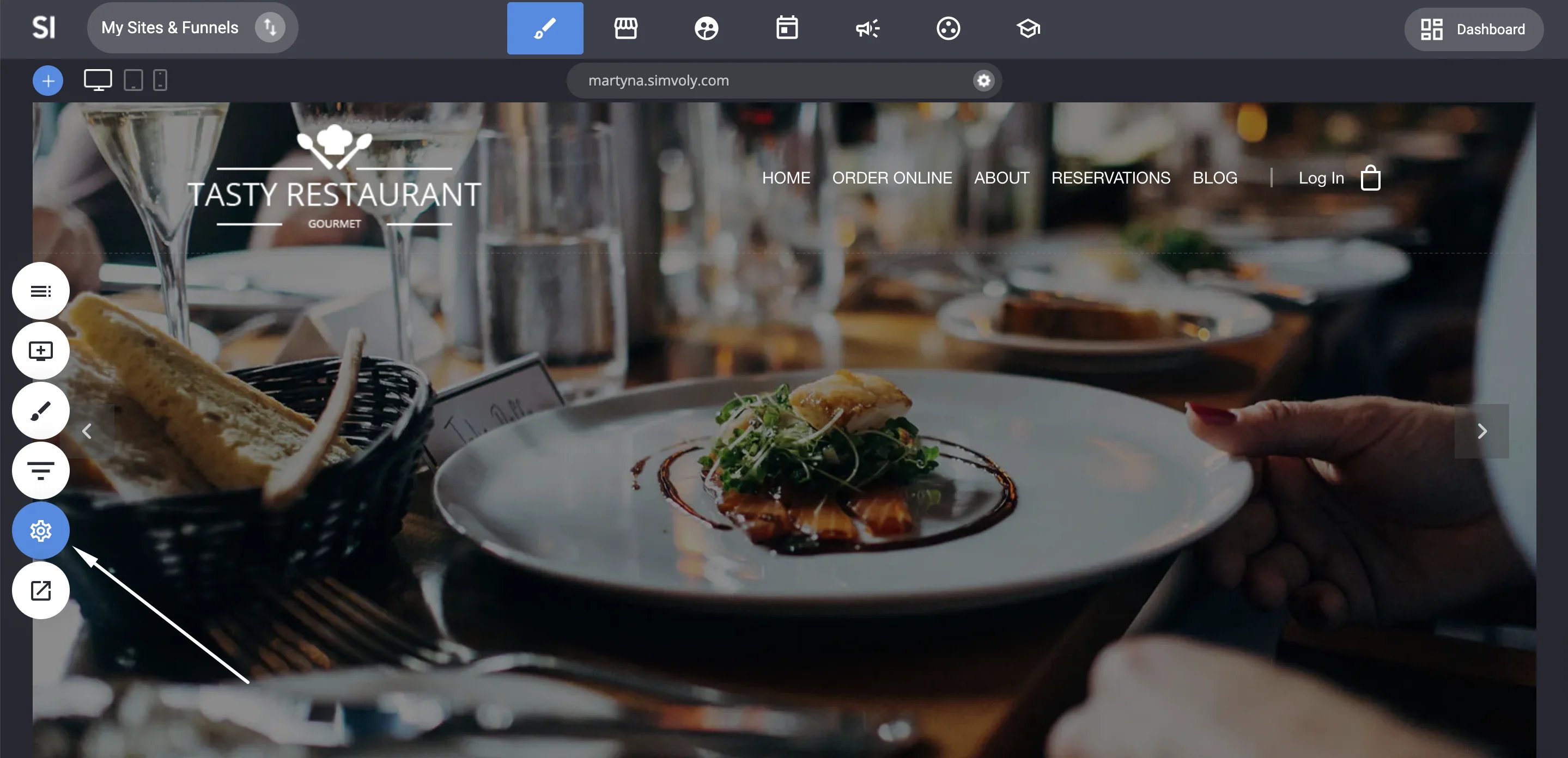
2. Copy the PartneroJS snippet: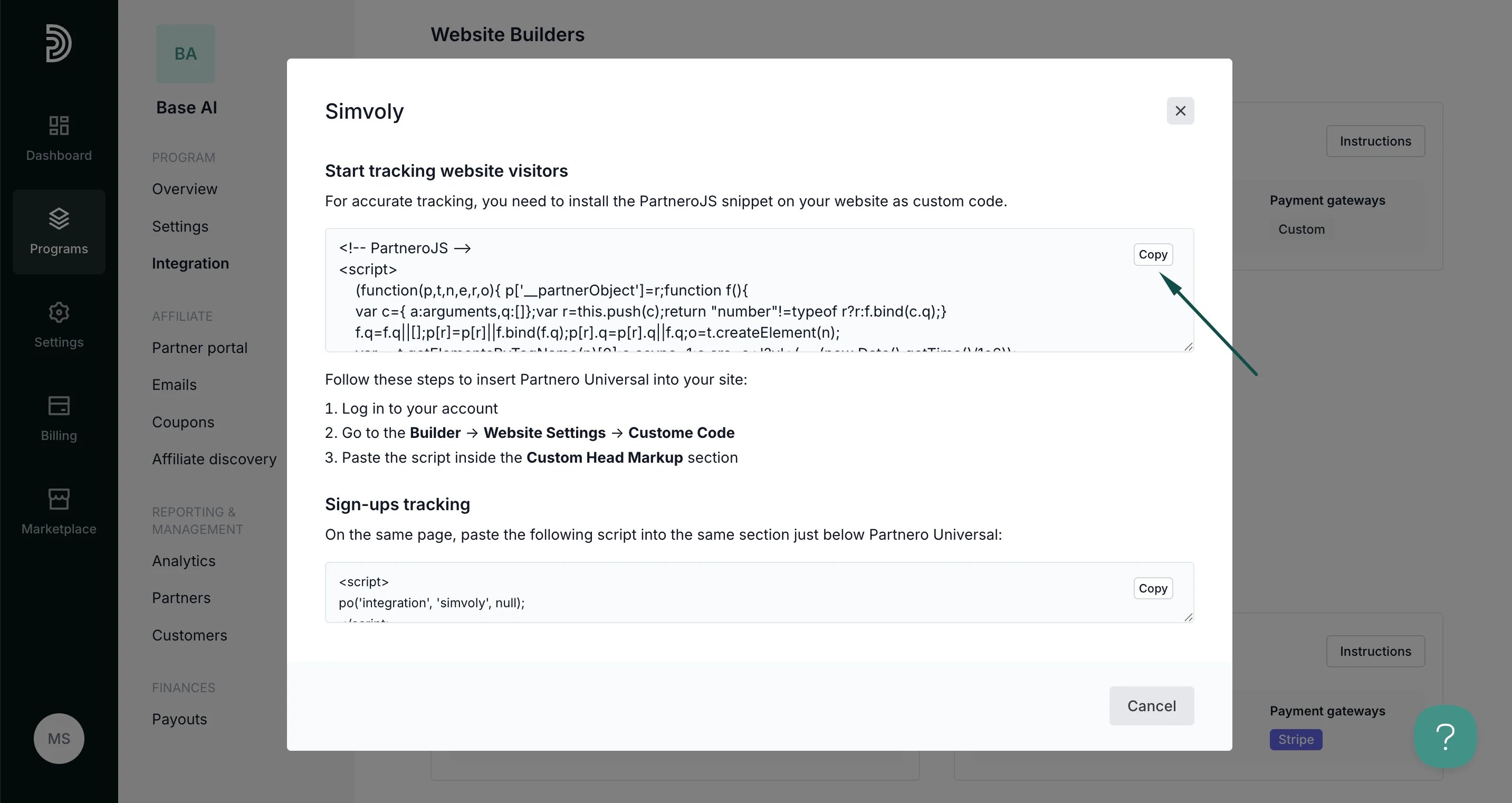 3. Next, go to your Simvoly account. Navigate to **Builder** > **Website settings**:
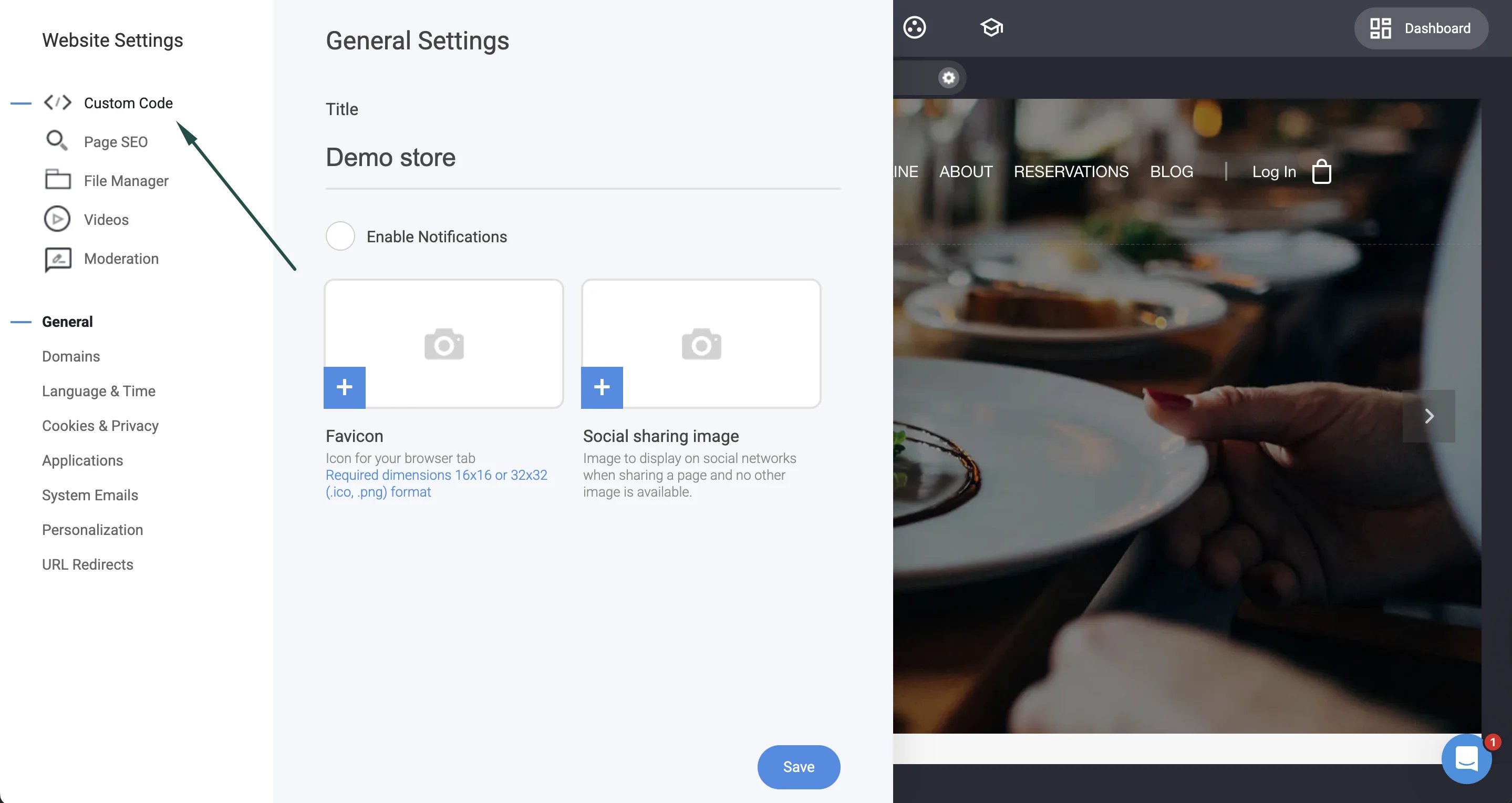
 4. Click **Custom code**:
 5. Paste the script inside the **Custom Head Markup** section:
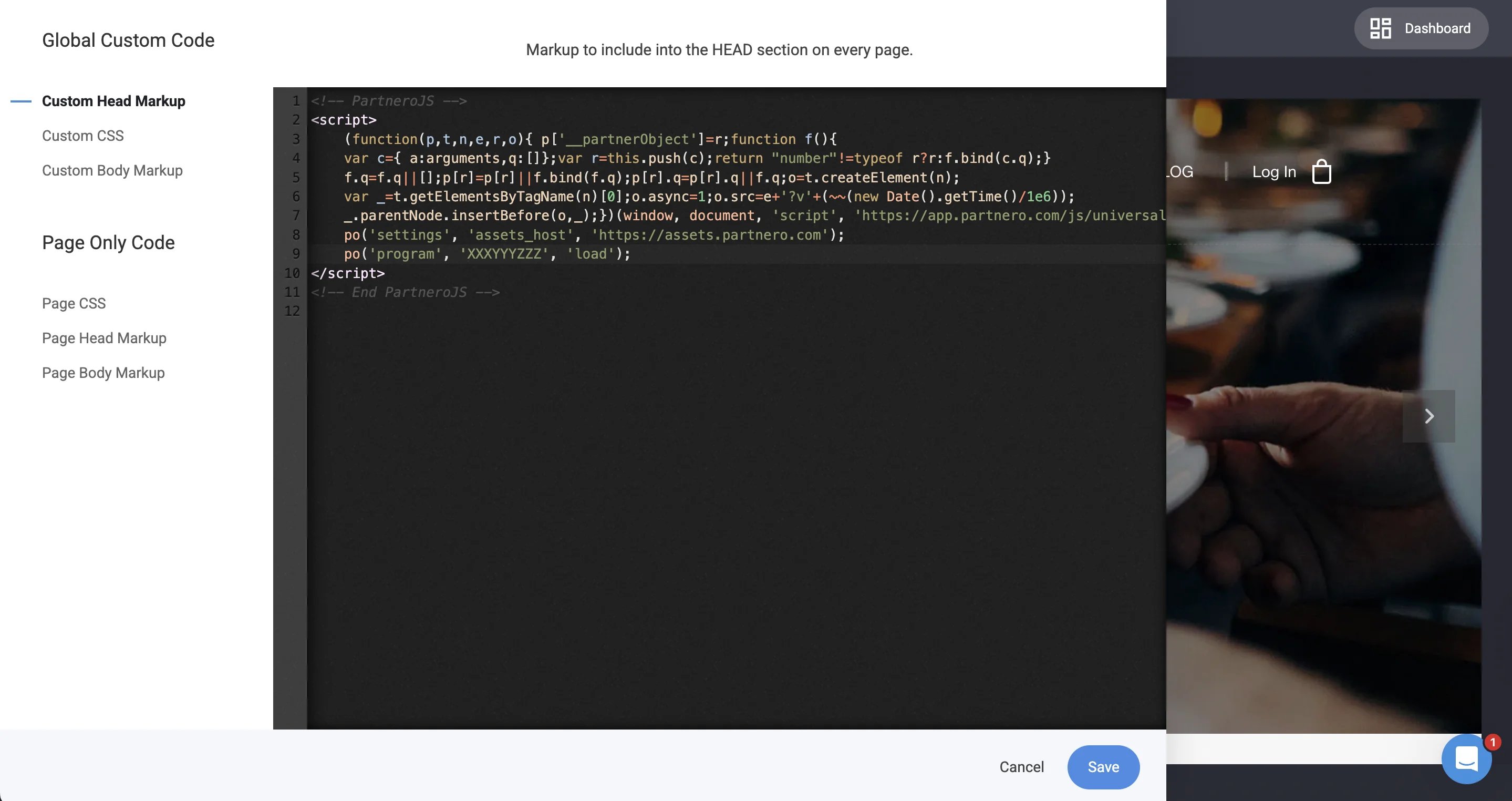 6. Click **Save**.
***
### Step 2: Sign-up tracking
To track signups:
1. On Partnero, copy the snippet provided under the **Sign-up tracking** section:
6. Click **Save**.
***
### Step 2: Sign-up tracking
To track signups:
1. On Partnero, copy the snippet provided under the **Sign-up tracking** section: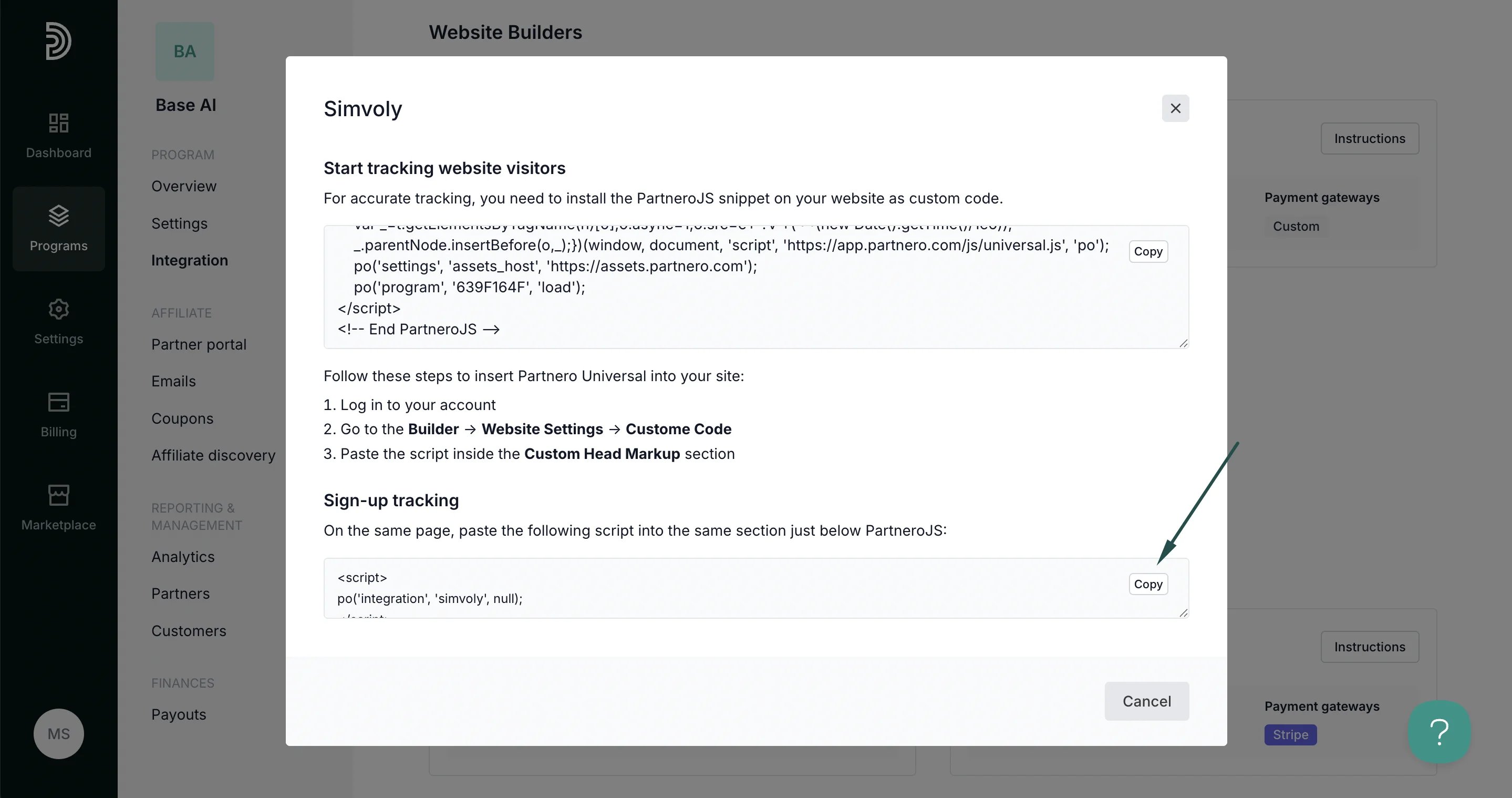 2. On Simvoly, return to the **Custom code** section. Paste the script into the **Custom Head Markup** section, just below PartneroJS:
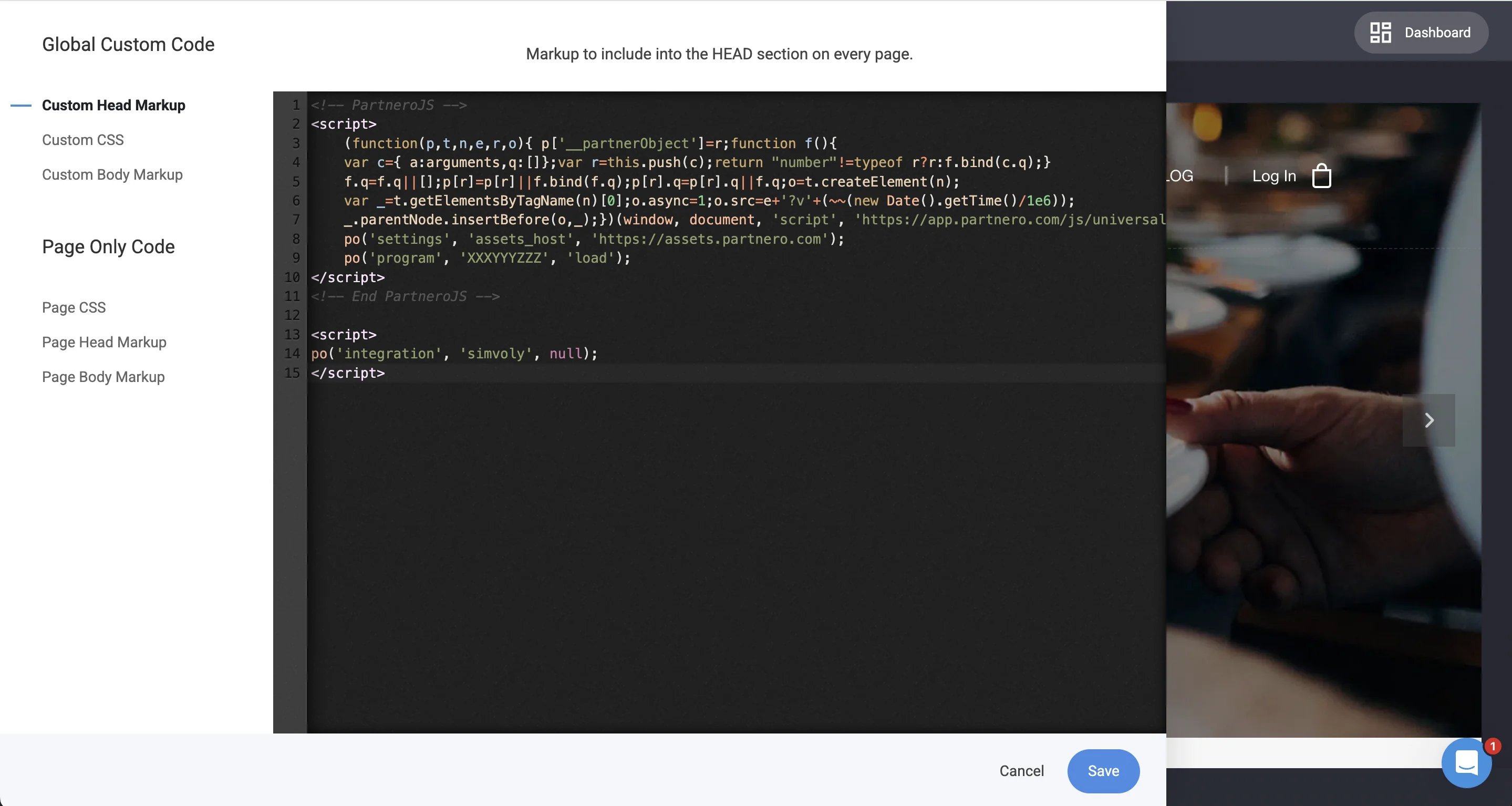 3. Click **Save**.
***
### Step 3: Sales tracking
To complete the integration, you need to share details of successful sales with Partnero. You can do that by authorizing your Stripe account:
1. Go to **Integration** > scroll down to Apps & integrations > click **Authorize** next to **Stripe**:
3. Click **Save**.
***
### Step 3: Sales tracking
To complete the integration, you need to share details of successful sales with Partnero. You can do that by authorizing your Stripe account:
1. Go to **Integration** > scroll down to Apps & integrations > click **Authorize** next to **Stripe**: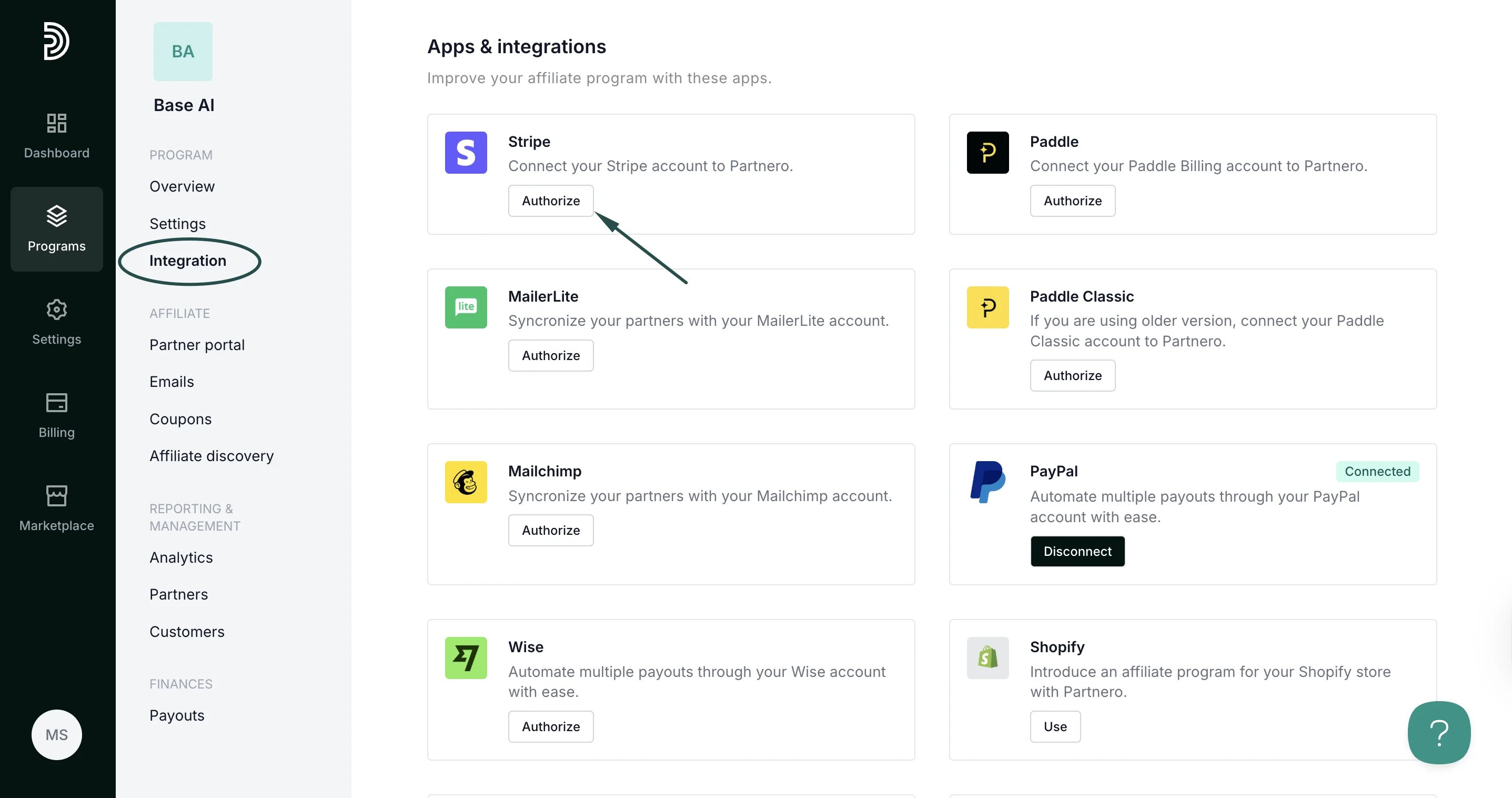 2. There are two authorization methods available: OAauth or API key.
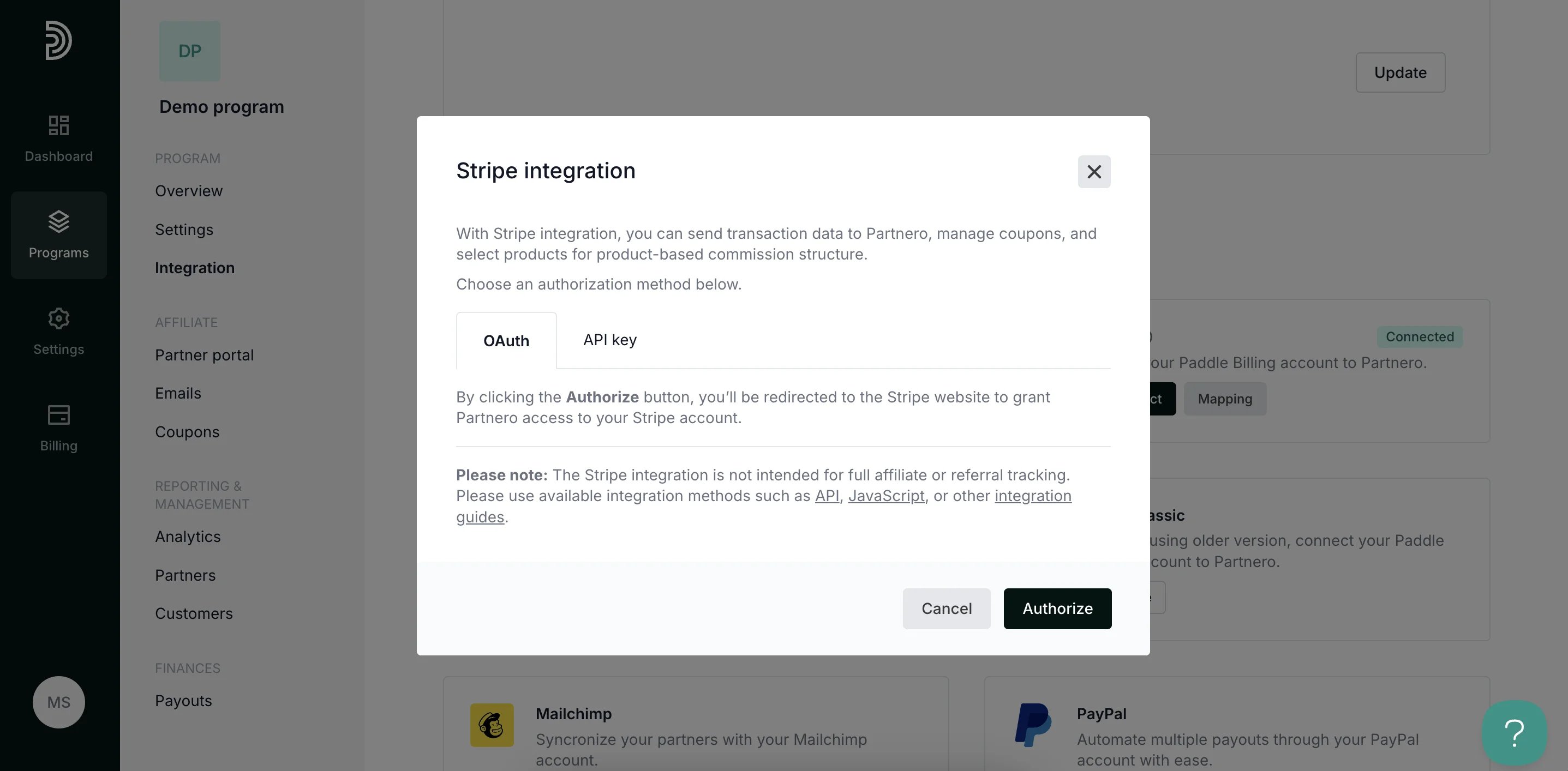 OAuth: click **Authorize** to be redirected to your Stripe account to grant Partnero access.
API key: Enter your Stripe API key. Go to **Developers** > **API keys** in your Stripe dashboard to find your Stripe API key.
OAuth: click **Authorize** to be redirected to your Stripe account to grant Partnero access.
API key: Enter your Stripe API key. Go to **Developers** > **API keys** in your Stripe dashboard to find your Stripe API key.
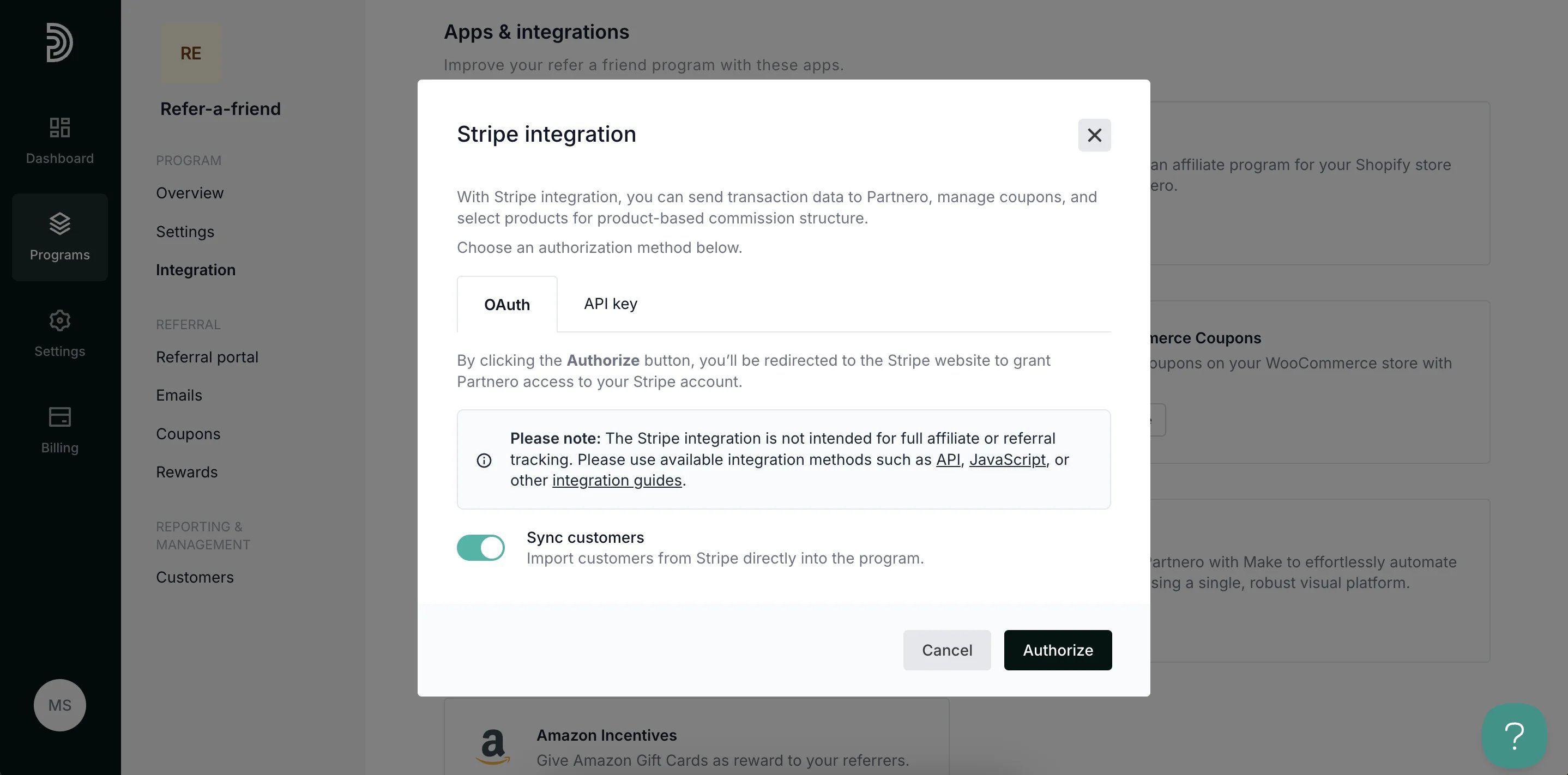 3. Click **Authorize**.
***
Your integration with Simvoly is now complete! We strongly recommend testing the integration by purchasing through an affiliate link.
This documentation is built and hosted on [Mintlify](https://mintlify.com), a developer documentation platform.
3. Click **Authorize**.
***
Your integration with Simvoly is now complete! We strongly recommend testing the integration by purchasing through an affiliate link.
This documentation is built and hosted on [Mintlify](https://mintlify.com), a developer documentation platform.