> ## Documentation Index
> Fetch the complete documentation index at: https://docs.partnero.com/llms.txt
> Use this file to discover all available pages before exploring further.
# Integrate Wix
This guide explains how to integrate Partnero into your Wix website to track referral-driven sales and customer signups. These instructions can also be found on your Partnero account, under **Integration** > **Guides** tab > **Wix**: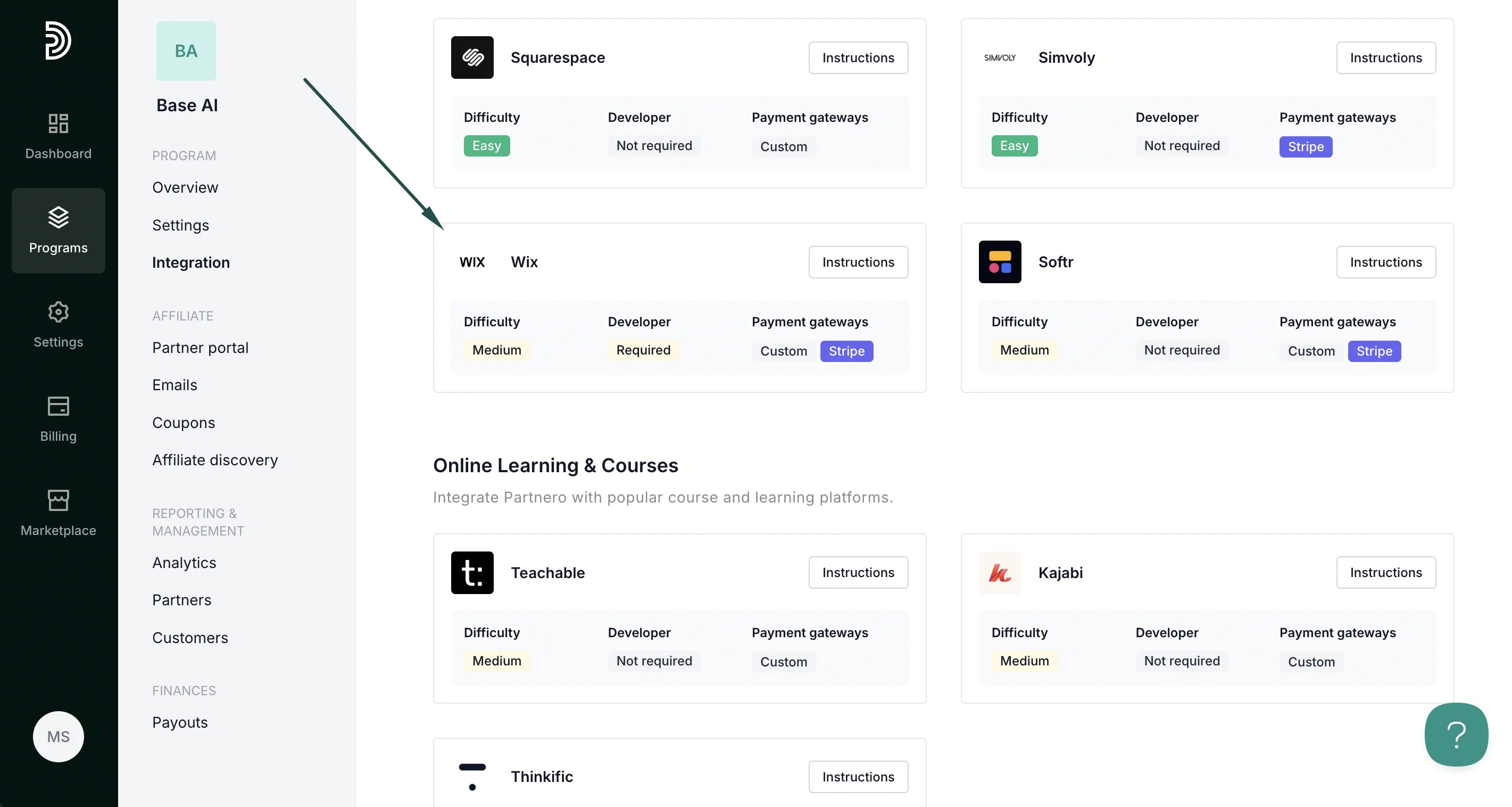 ***
### Step 1: Start tracking website visitors
To track visitors on your website, you need to install the PartneroJS snippet as custom code.
#### Install the PartneroJS Snippet
1. On Partnero, go to **Integration** > **Guides** tab > **Wix**. Click **Instructions**.
2. Copy the **PartneroJS** snippet:
***
### Step 1: Start tracking website visitors
To track visitors on your website, you need to install the PartneroJS snippet as custom code.
#### Install the PartneroJS Snippet
1. On Partnero, go to **Integration** > **Guides** tab > **Wix**. Click **Instructions**.
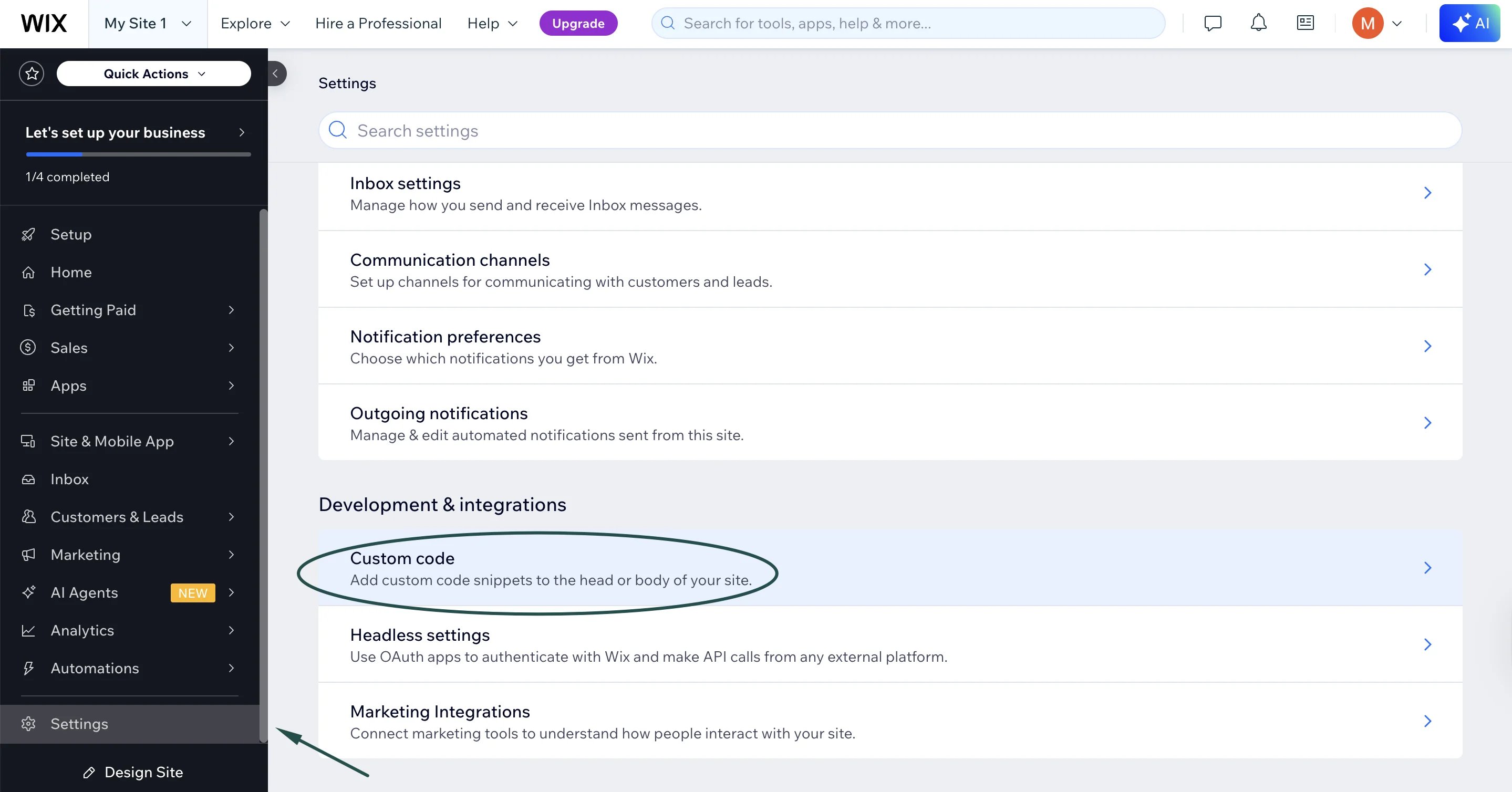
2. Copy the **PartneroJS** snippet: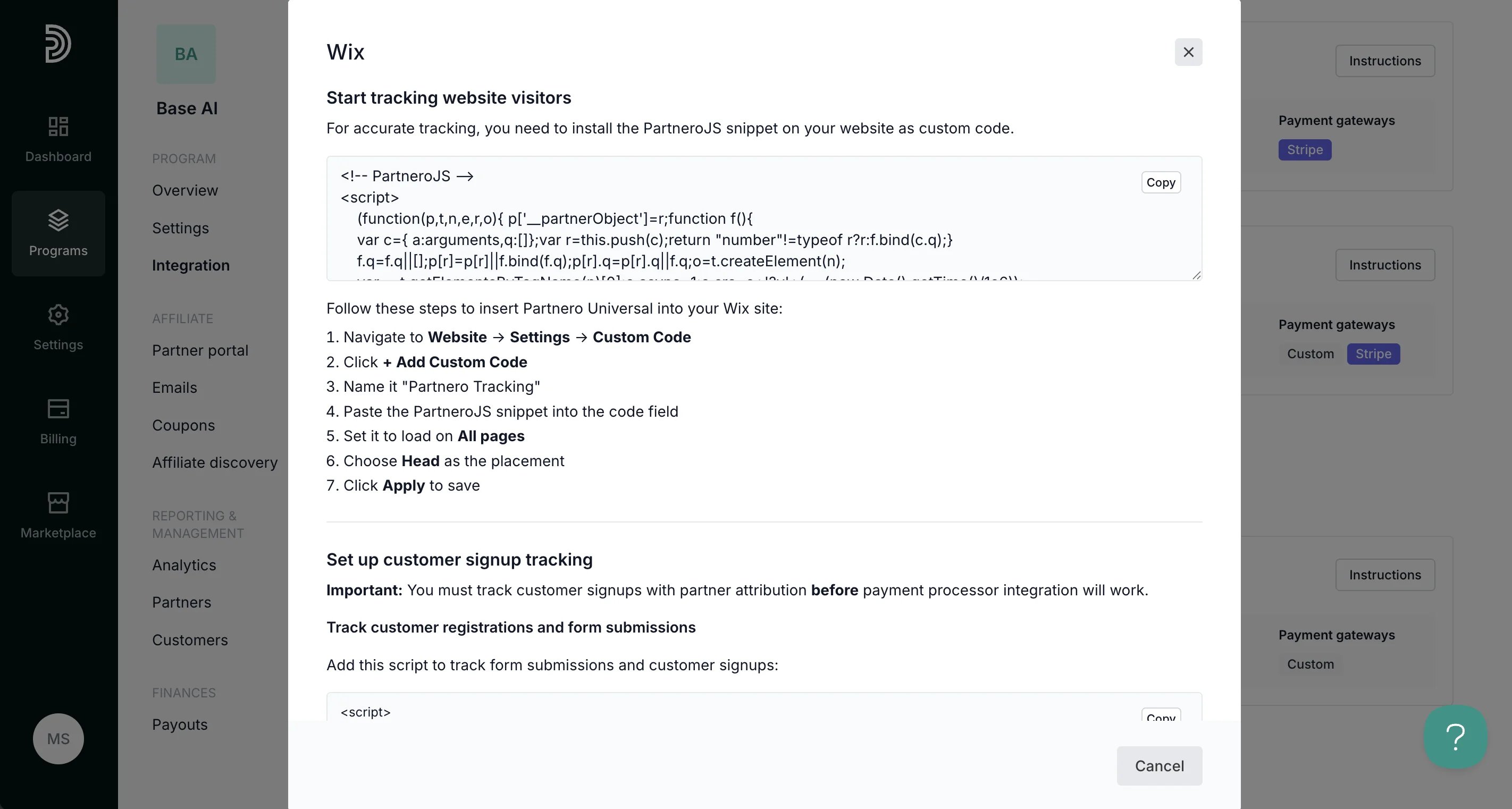 3. On Wix, navigate to **Website** → **Settings** → **Custom Code**:
 4. Click **+ Add Custom Code**
5. Name the script, for example, "Partnero Tracking"
6. Paste the PartneroJS snippet into the code field
7. Set it to load on **All pages** and choose **Head** as the placement:
4. Click **+ Add Custom Code**
5. Name the script, for example, "Partnero Tracking"
6. Paste the PartneroJS snippet into the code field
7. Set it to load on **All pages** and choose **Head** as the placement: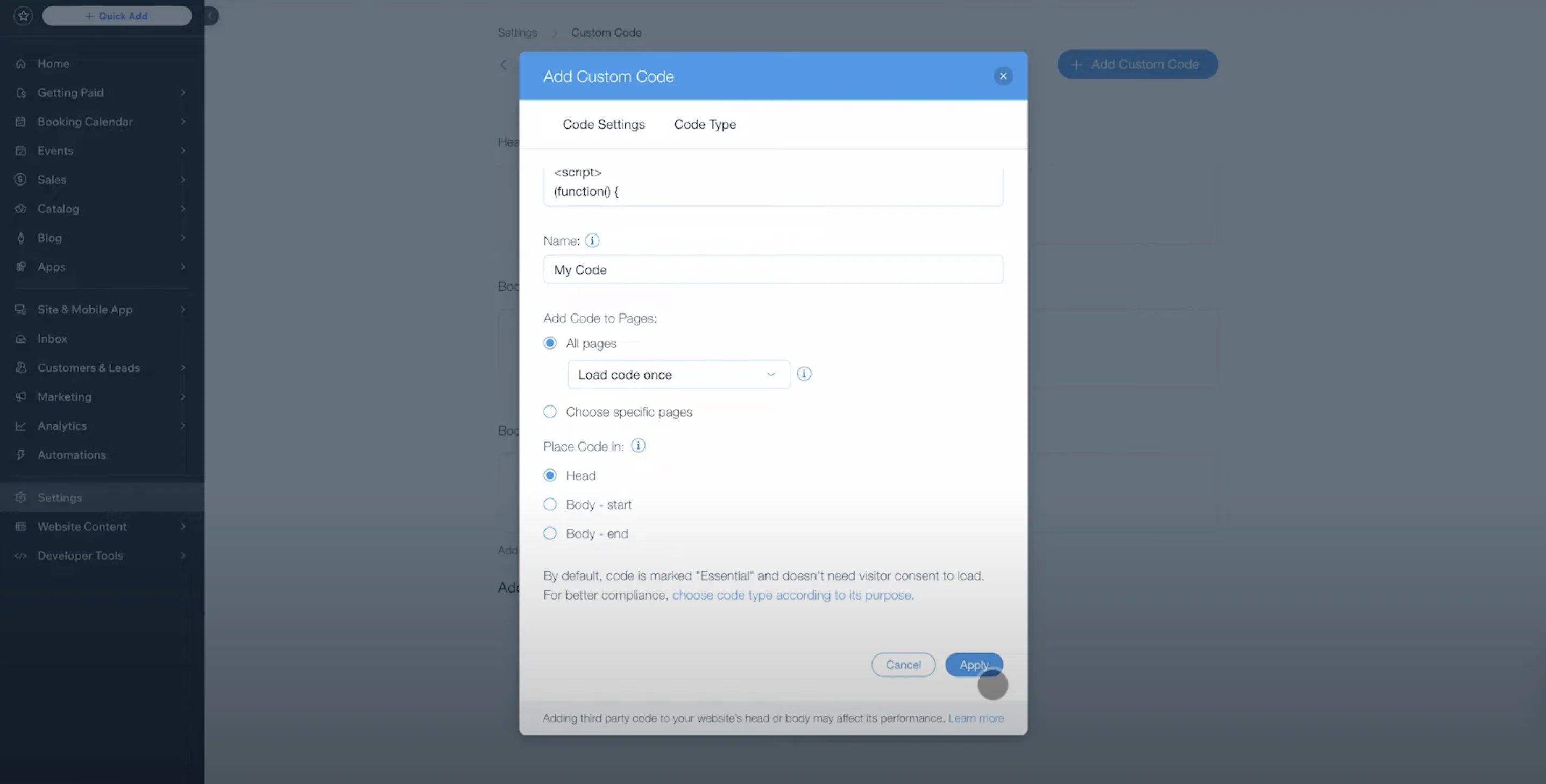 8. Click **Apply** to save.
***
### Step 2: Customer sign-up tracking
⚠️ **Important**: You must track customer signups with partner attribution before payment processor integration will work.
1. On Partnero, open the Wix integration guide. Copy the snippet provided under the **Customer signup tracking** section:
8. Click **Apply** to save.
***
### Step 2: Customer sign-up tracking
⚠️ **Important**: You must track customer signups with partner attribution before payment processor integration will work.
1. On Partnero, open the Wix integration guide. Copy the snippet provided under the **Customer signup tracking** section: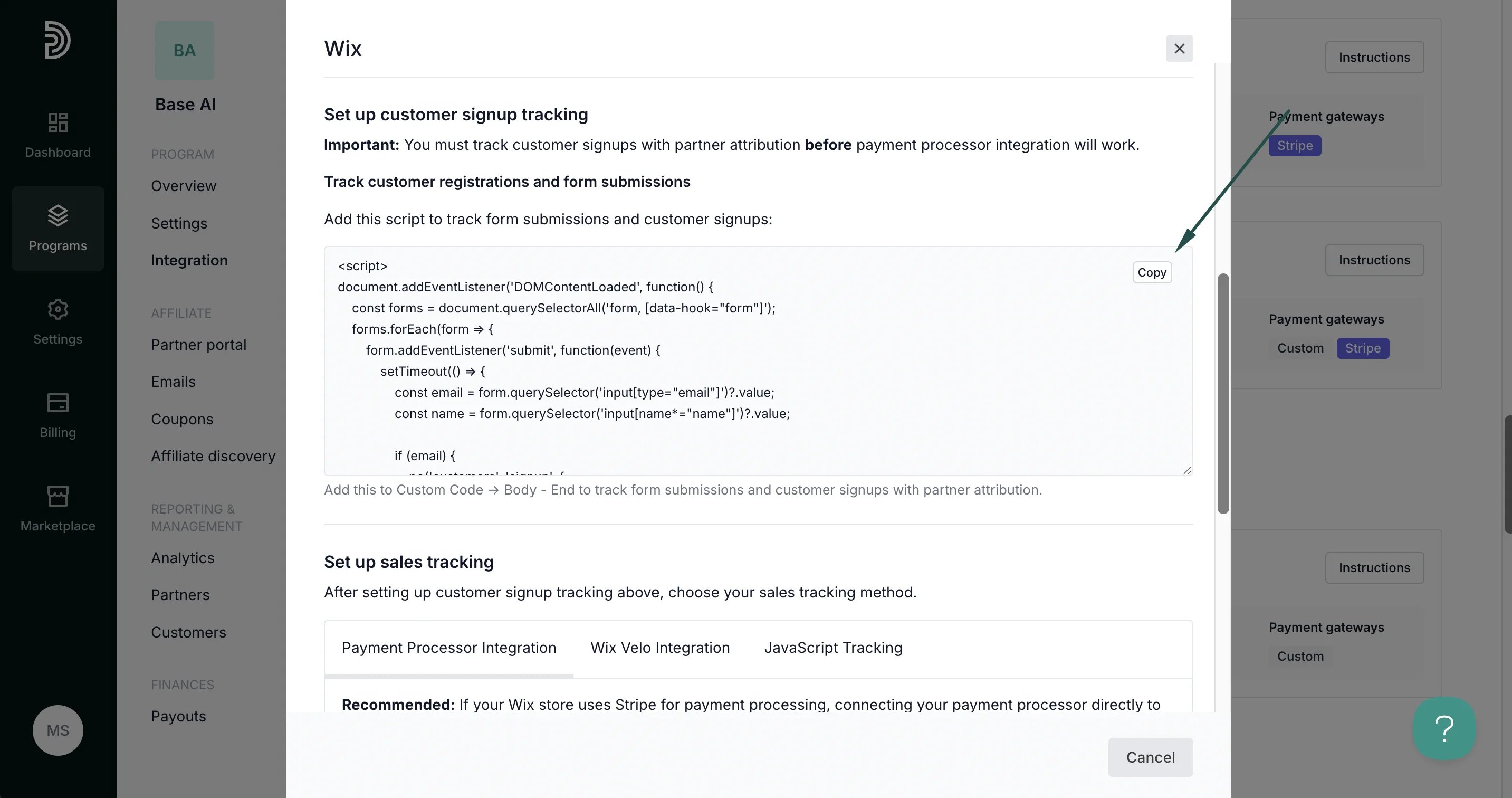 2. Return to Wix, **Website** → **Settings** → **Custom Code**.
3. Paste the script to the **Body** section of the website.
***
### Step 3: Set up sales tracking
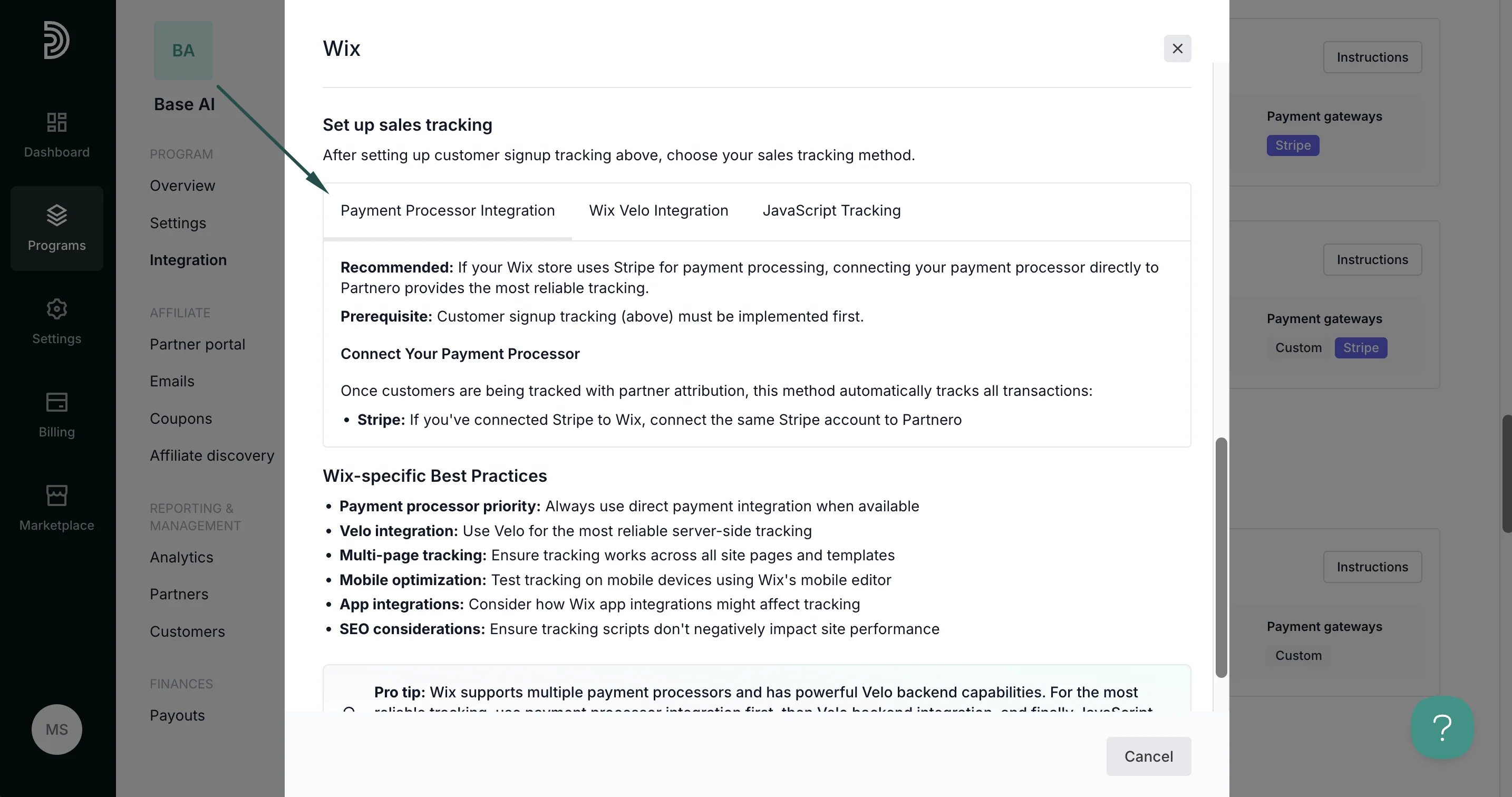
Partnero provides instructions for three different sales tracking methods. Select one that works best for your setup and follow the instructions provided in the Wix integration guide under **Integration** > **Guides** tab > **Wix**.
#### Method 1: Payment processor integration
**Recommended**: If your Wix store uses Stripe for payment processing, connecting your payment processor directly to Partnero provides the most reliable tracking.
####
Prerequisite: Customer signup tracking (above) must be implemented first.
####
2. Return to Wix, **Website** → **Settings** → **Custom Code**.
3. Paste the script to the **Body** section of the website.
***
### Step 3: Set up sales tracking
Partnero provides instructions for three different sales tracking methods. Select one that works best for your setup and follow the instructions provided in the Wix integration guide under **Integration** > **Guides** tab > **Wix**.
#### Method 1: Payment processor integration
**Recommended**: If your Wix store uses Stripe for payment processing, connecting your payment processor directly to Partnero provides the most reliable tracking.
####
Prerequisite: Customer signup tracking (above) must be implemented first.
####  Method 2: Wix Velo integration
Use Wix Velo (formerly Wix Code) to automatically track sales events when payment processor integration is not available. This method works with Wix's native payment system.
Method 2: Wix Velo integration
Use Wix Velo (formerly Wix Code) to automatically track sales events when payment processor integration is not available. This method works with Wix's native payment system. 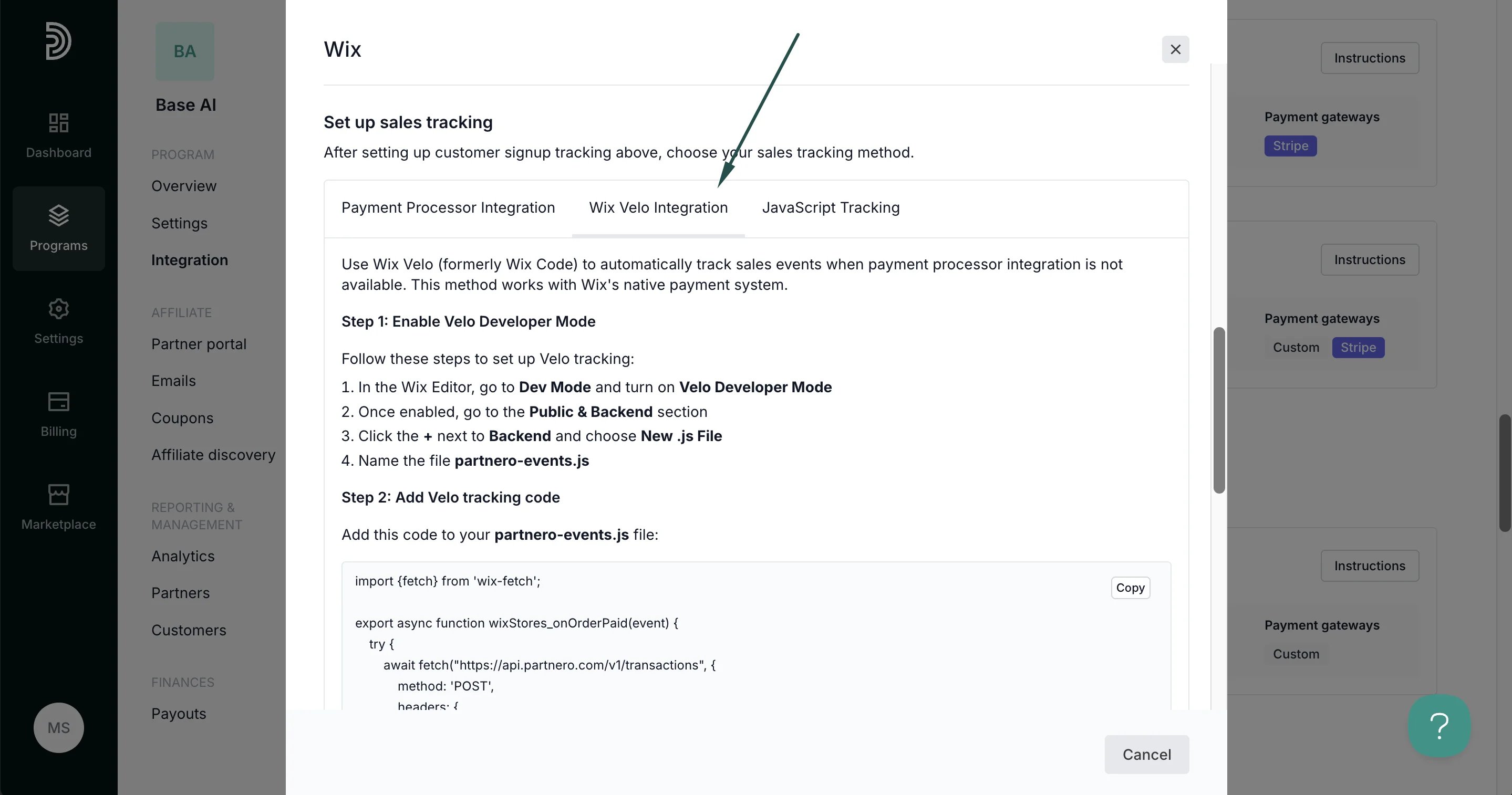 #### Method 3: JavaScript tracking
Track purchase success using JavaScript when Velo integration is not available. Use this method for customers already registered in Partnero.
#### Method 3: JavaScript tracking
Track purchase success using JavaScript when Velo integration is not available. Use this method for customers already registered in Partnero. 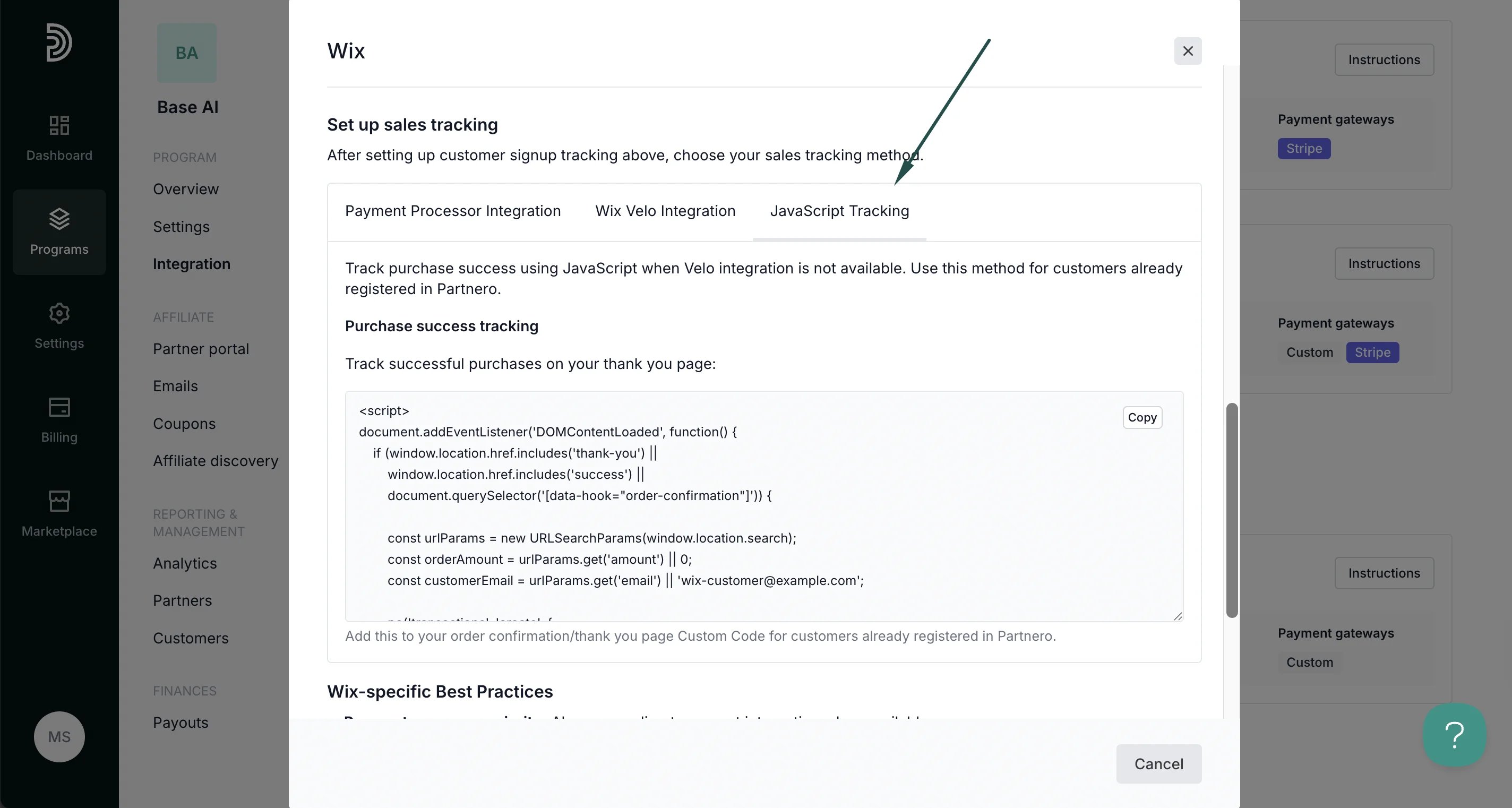 ***
Your integration with Wix is now complete! We strongly recommend testing the integration by purchasing through an affiliate link.
This documentation is built and hosted on [Mintlify](https://mintlify.com), a developer documentation platform.
***
Your integration with Wix is now complete! We strongly recommend testing the integration by purchasing through an affiliate link.
This documentation is built and hosted on [Mintlify](https://mintlify.com), a developer documentation platform.