> ## Documentation Index
> Fetch the complete documentation index at: https://docs.partnero.com/llms.txt
> Use this file to discover all available pages before exploring further.
# WooCommerce coupons
### What are coupons?
Coupon marketing is a strategy that uses discounts and other incentives to encourage consumers to purchase. Digital coupons can be redeemed online or in-store, and they typically offer a percentage discount, free shipping, or other type of bonus.
Partnero and WooCommerce integration allows you to connect and synchronize coupons between WooCommerce and Partnero. There are two ways to do that:
1. Create coupons on Partnero and sync with WooCommerce or
2. Create coupons on WooCommerce and sync with Partnero.
***
### Integration
The following steps are required to use this feature:
1. In your affiliate program, go to **Integration**: 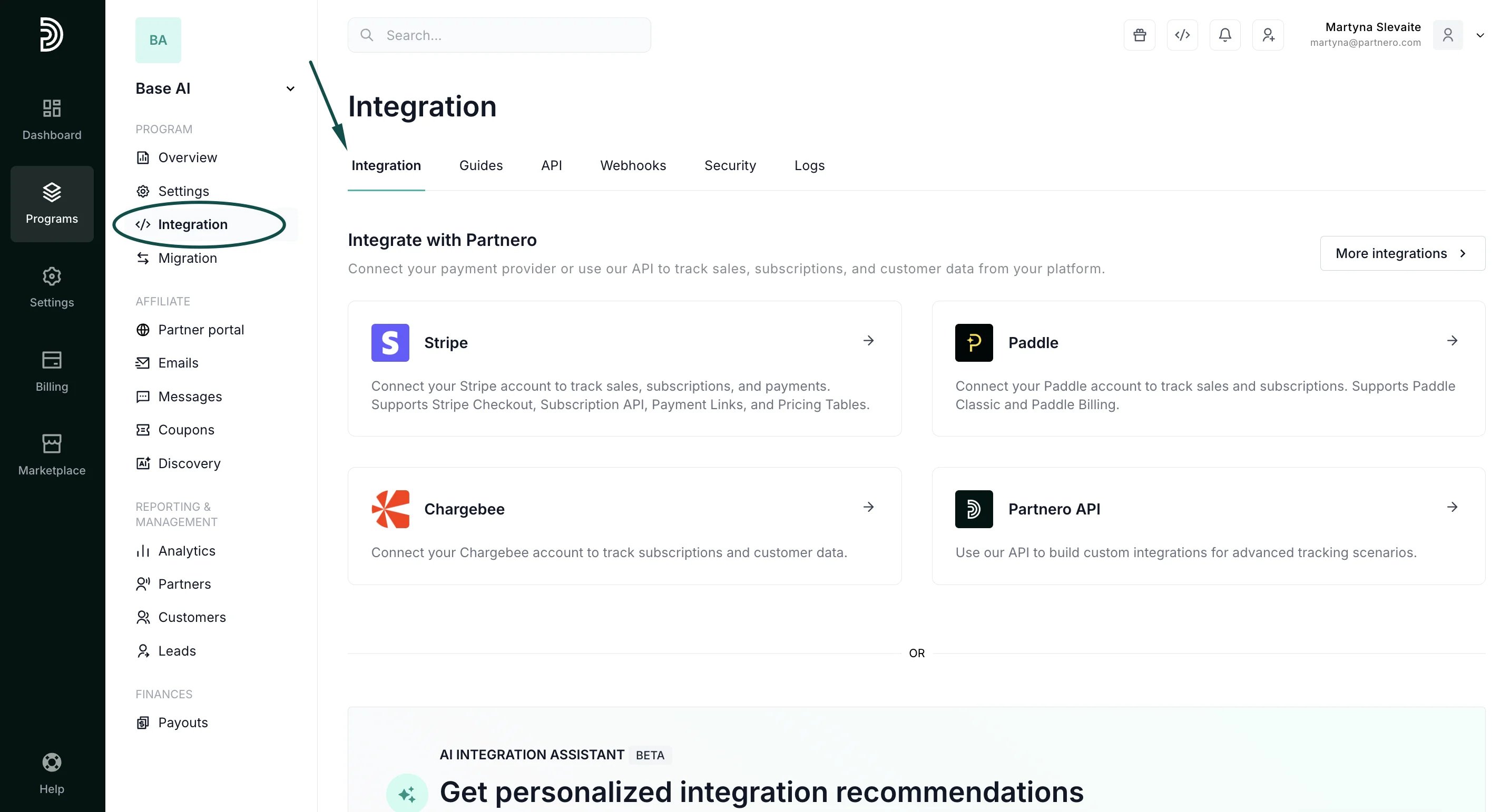 2. Scroll down to Apps & integrations and click **Authorize** next to **WooCommerce Coupons**:
 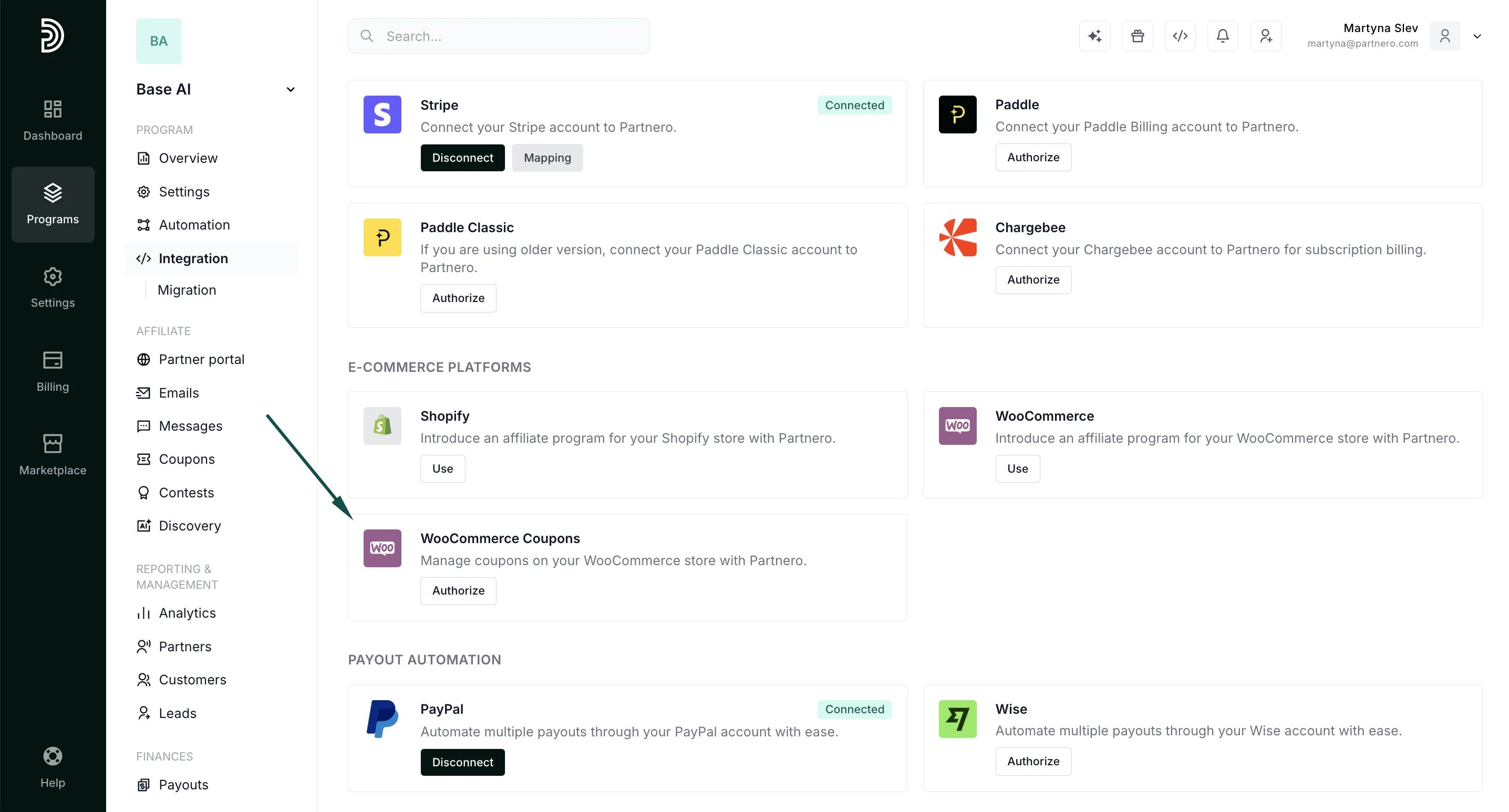 3. Here, you'll need to enter your Site URL, Consumer Key, and Consumer Secret:
 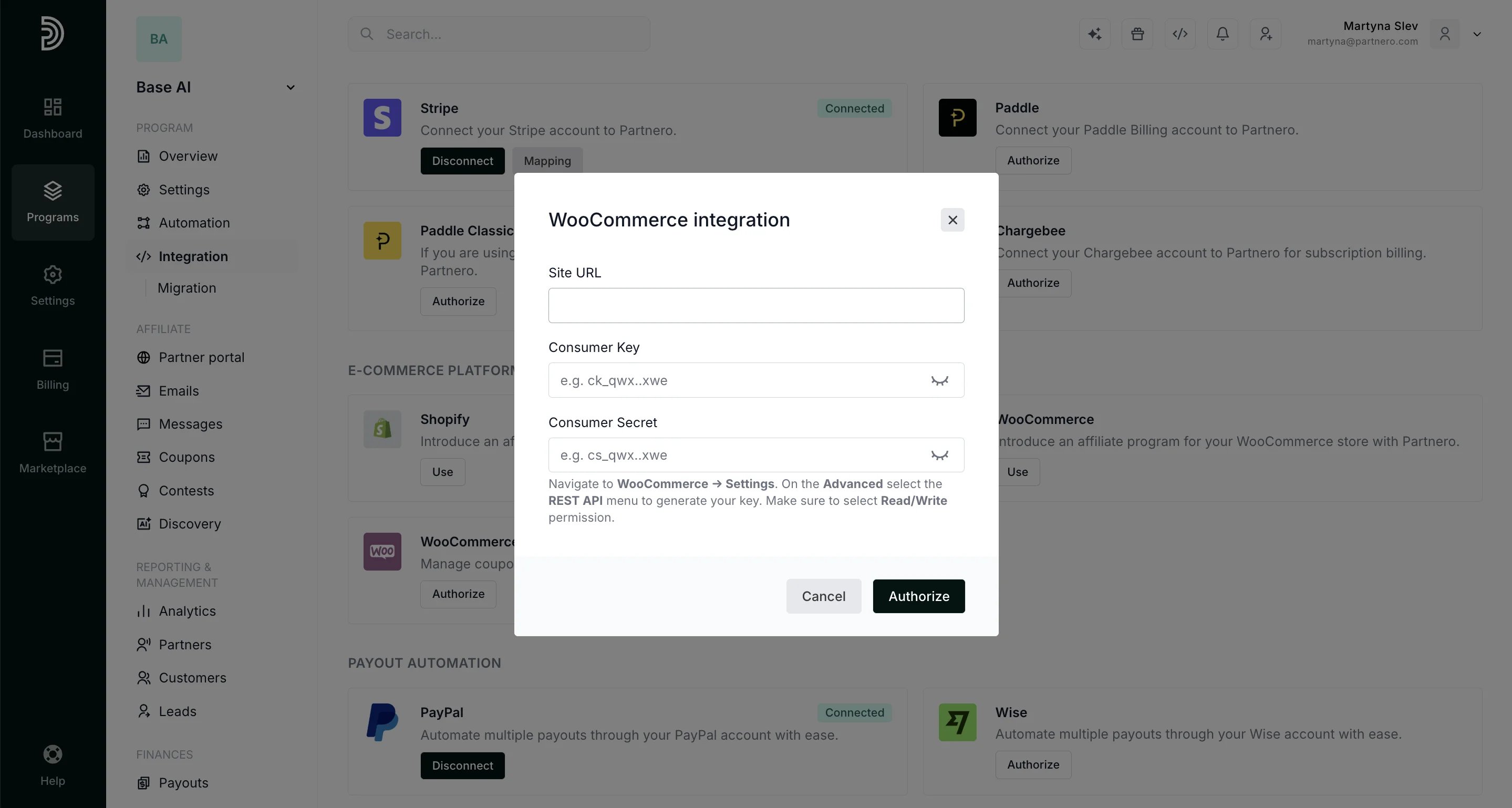 To find them, open your WordPress store. Go to **WooCommerce** > **Settings**. Open the **Advanced** tab and select the **REST API** menu:
 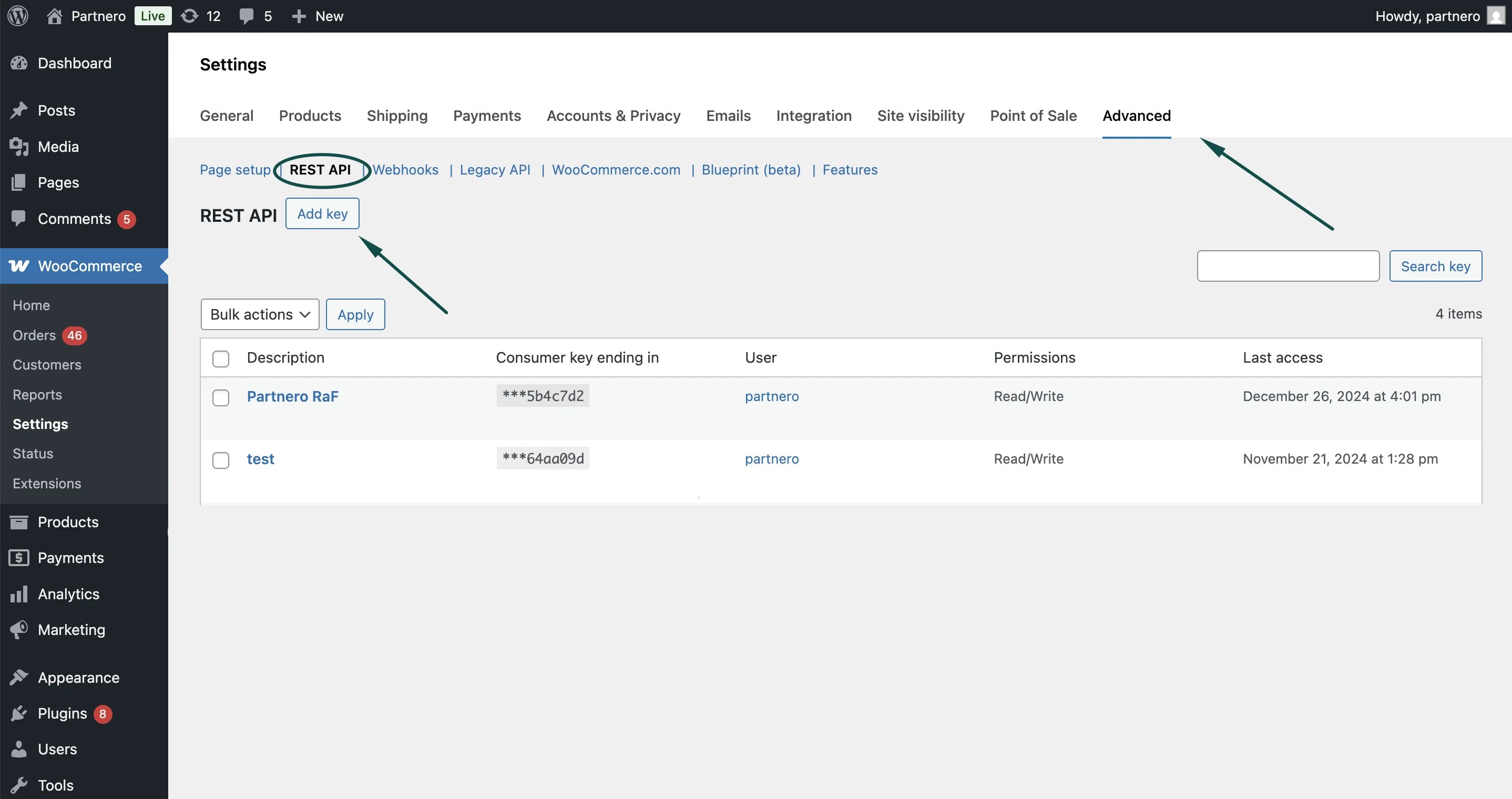 Click **Add key** to create a new API key for Partnero. Copy the information to Partnero.
4. Click **Authorize**.
If successful, you'll see the **Connected** badge next to the integration.
> **WooCommerce Coupon** integration can be used independently of the main [WooCommerce integration](/integrations/woocommerce). If you only want to track coupons, WooCommerce Coupon integration is sufficient.
>
> If you'd like to track all referred transactions, then the main [WooCommerce integration](/integrations/woocommerce) is also required.
***
### Create coupons on Partnero and sync with WooCommerce
This option allows you to create new coupon codes directly on Partnero. After you create the codes, they are automatically synced with your WooCommerce account.
1. Open your affiliate program on Partnero.
2. Go to **Coupons** under Program.
3. Click **New Coupon** and select **New WooCommerce coupo**n from the dropdown:
Click **Add key** to create a new API key for Partnero. Copy the information to Partnero.
4. Click **Authorize**.
If successful, you'll see the **Connected** badge next to the integration.
> **WooCommerce Coupon** integration can be used independently of the main [WooCommerce integration](/integrations/woocommerce). If you only want to track coupons, WooCommerce Coupon integration is sufficient.
>
> If you'd like to track all referred transactions, then the main [WooCommerce integration](/integrations/woocommerce) is also required.
***
### Create coupons on Partnero and sync with WooCommerce
This option allows you to create new coupon codes directly on Partnero. After you create the codes, they are automatically synced with your WooCommerce account.
1. Open your affiliate program on Partnero.
2. Go to **Coupons** under Program.
3. Click **New Coupon** and select **New WooCommerce coupo**n from the dropdown: 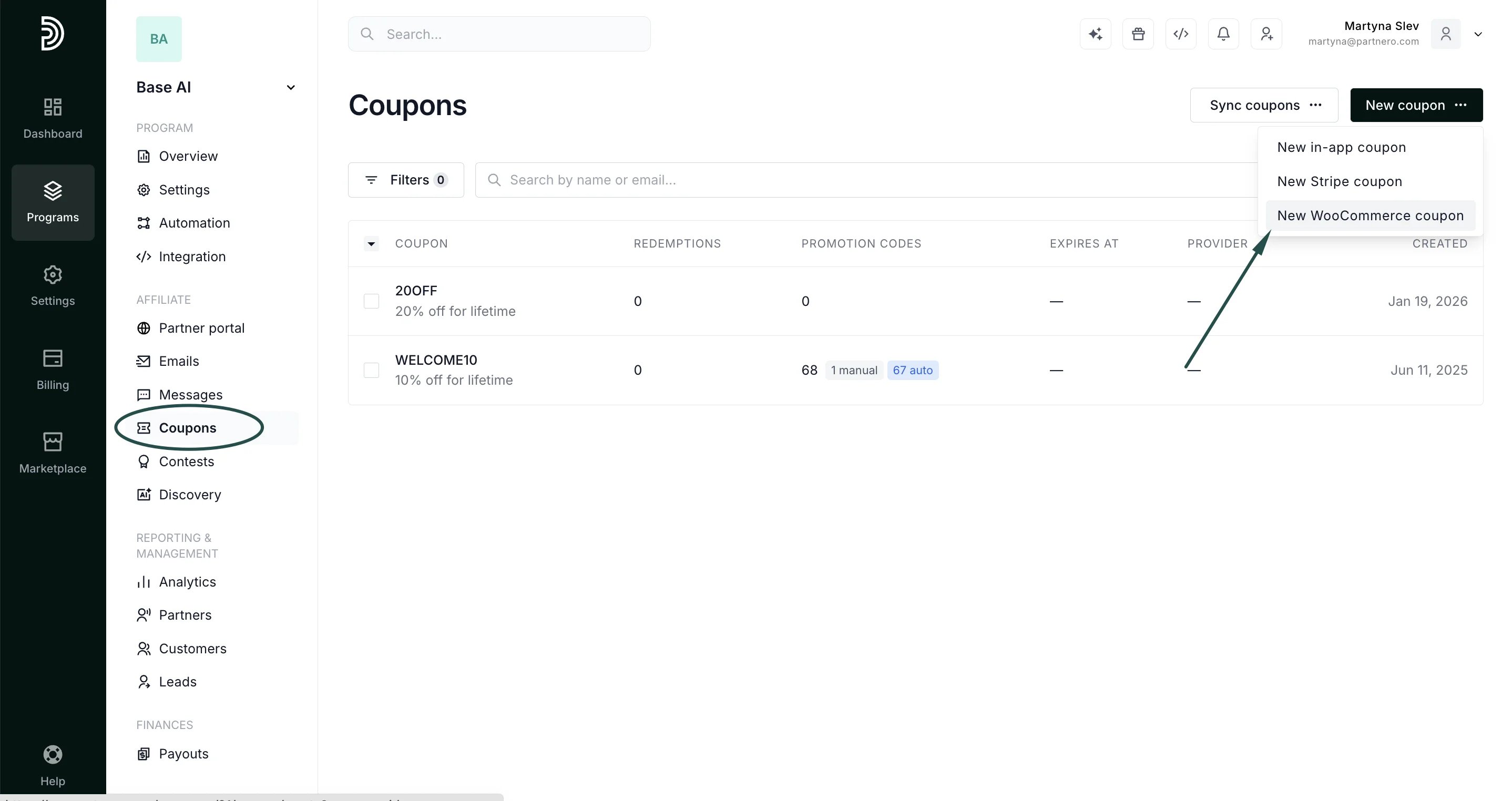 4. Set up the desired coupon structure:
 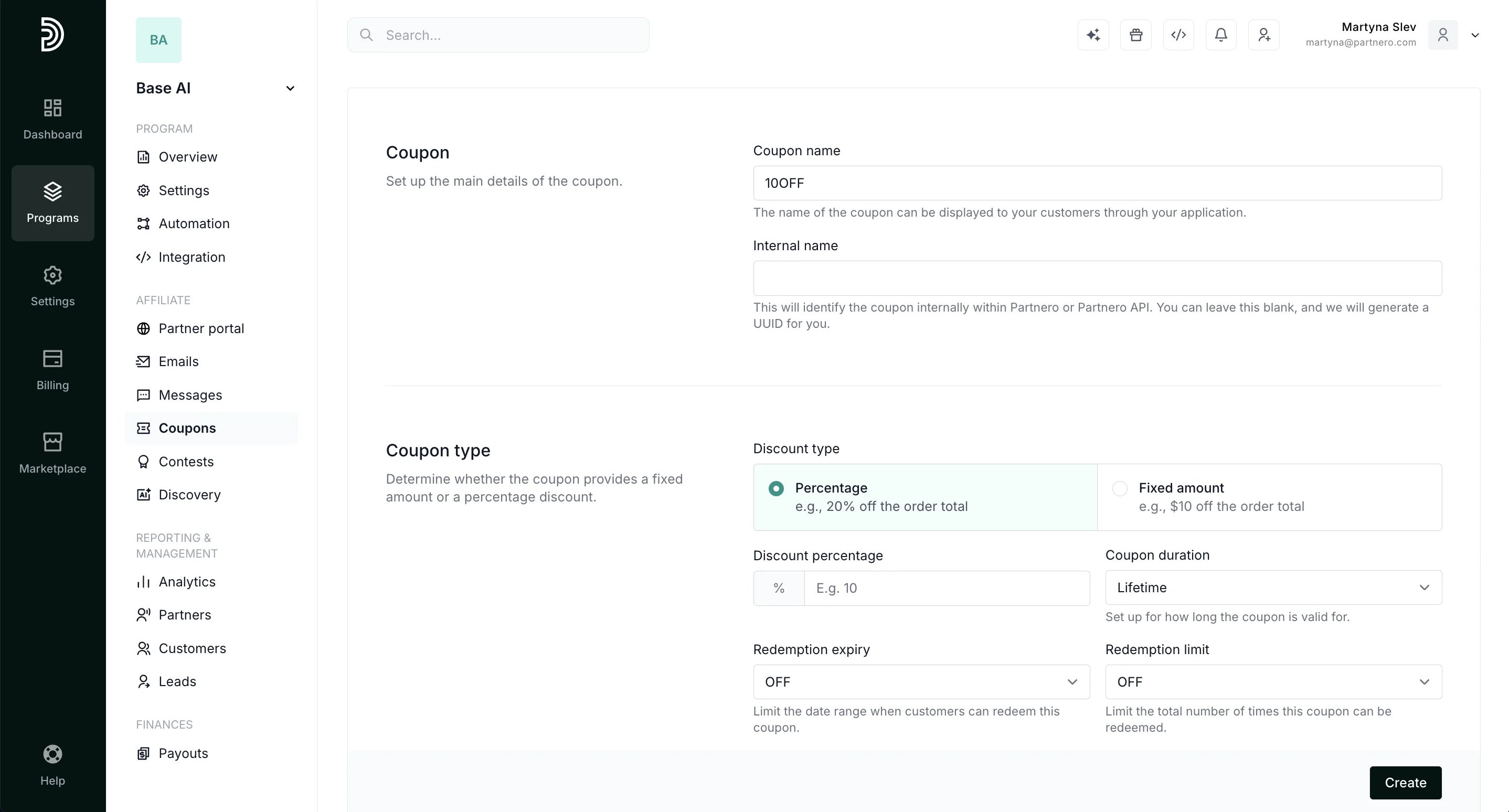 1. Add coupon name and internal name (optional)
2. Select coupon type (percentage or fixed amount)
3. Select coupon duration (how long the coupon is valid for)
4. Define redemption expiry (coupon availability date range) and redemption limits (total number of times the coupon can be redeemed).
5. Next, set up customer-facing promotion codes for the coupon. You can create them manually, or generate automatically:
1. Add coupon name and internal name (optional)
2. Select coupon type (percentage or fixed amount)
3. Select coupon duration (how long the coupon is valid for)
4. Define redemption expiry (coupon availability date range) and redemption limits (total number of times the coupon can be redeemed).
5. Next, set up customer-facing promotion codes for the coupon. You can create them manually, or generate automatically: 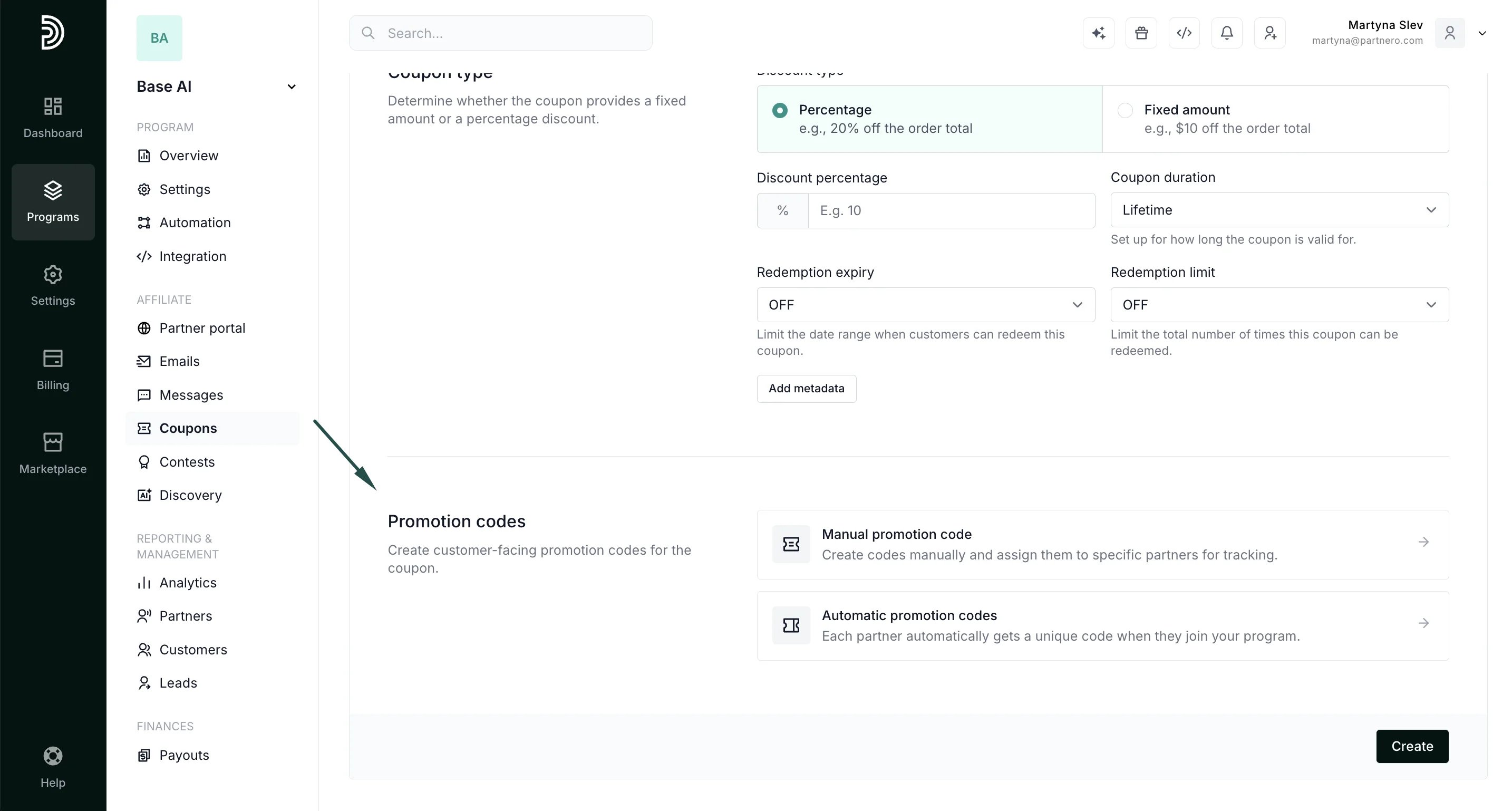 1. Manual promotion codes: create codes manually and assign them to specific partners:
 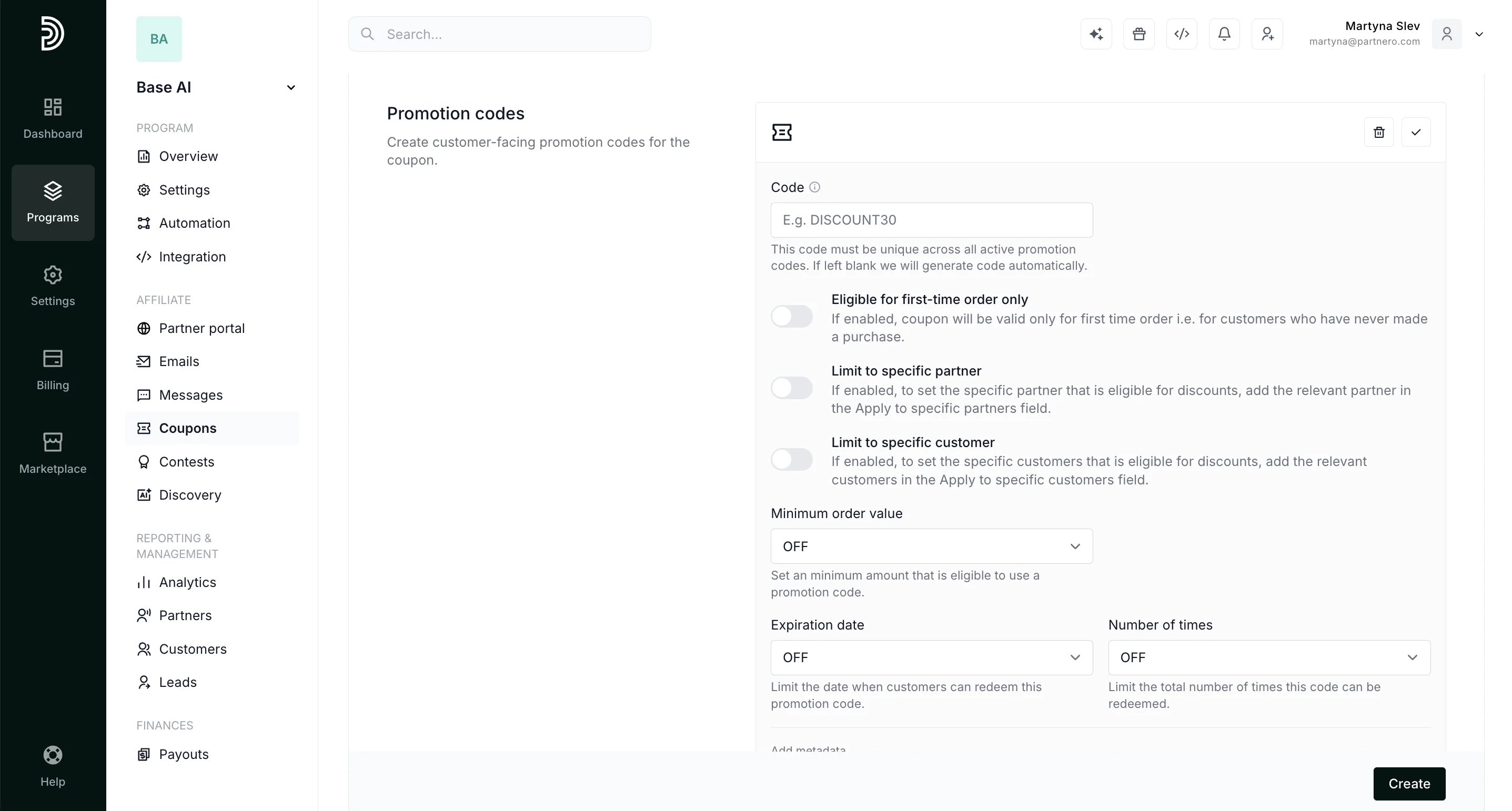 2. Automatic promotion codes: each partner automatically gets a unique promo code when they join your program:
 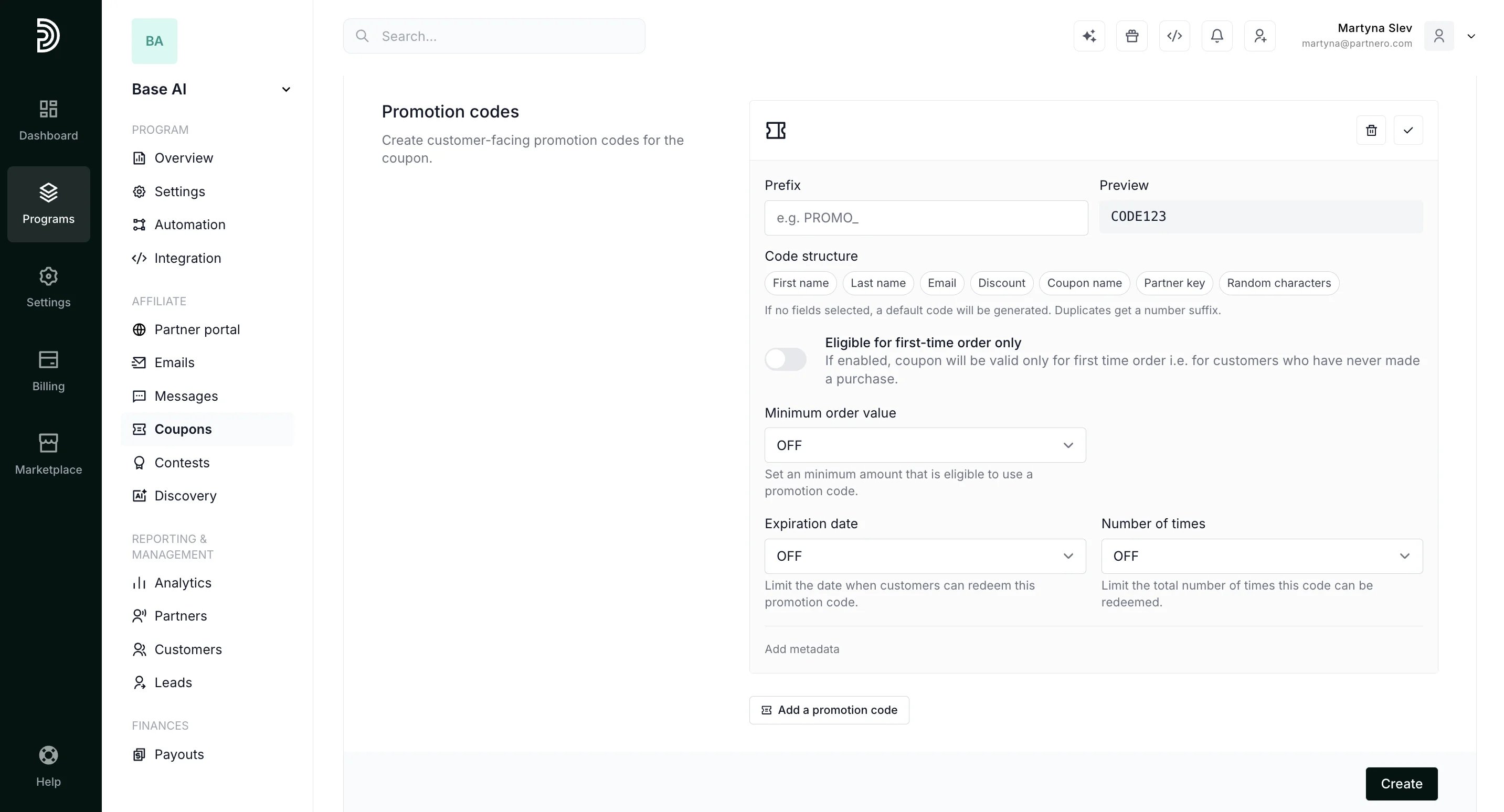 [Read more about creating promotion codes here](/knowledge-base/shopify/how-to-use-promotion-codes).
6. Click **Create**.
7. Open the Coupons section on WooCommerce - you should also see the newly created coupon there:
[Read more about creating promotion codes here](/knowledge-base/shopify/how-to-use-promotion-codes).
6. Click **Create**.
7. Open the Coupons section on WooCommerce - you should also see the newly created coupon there: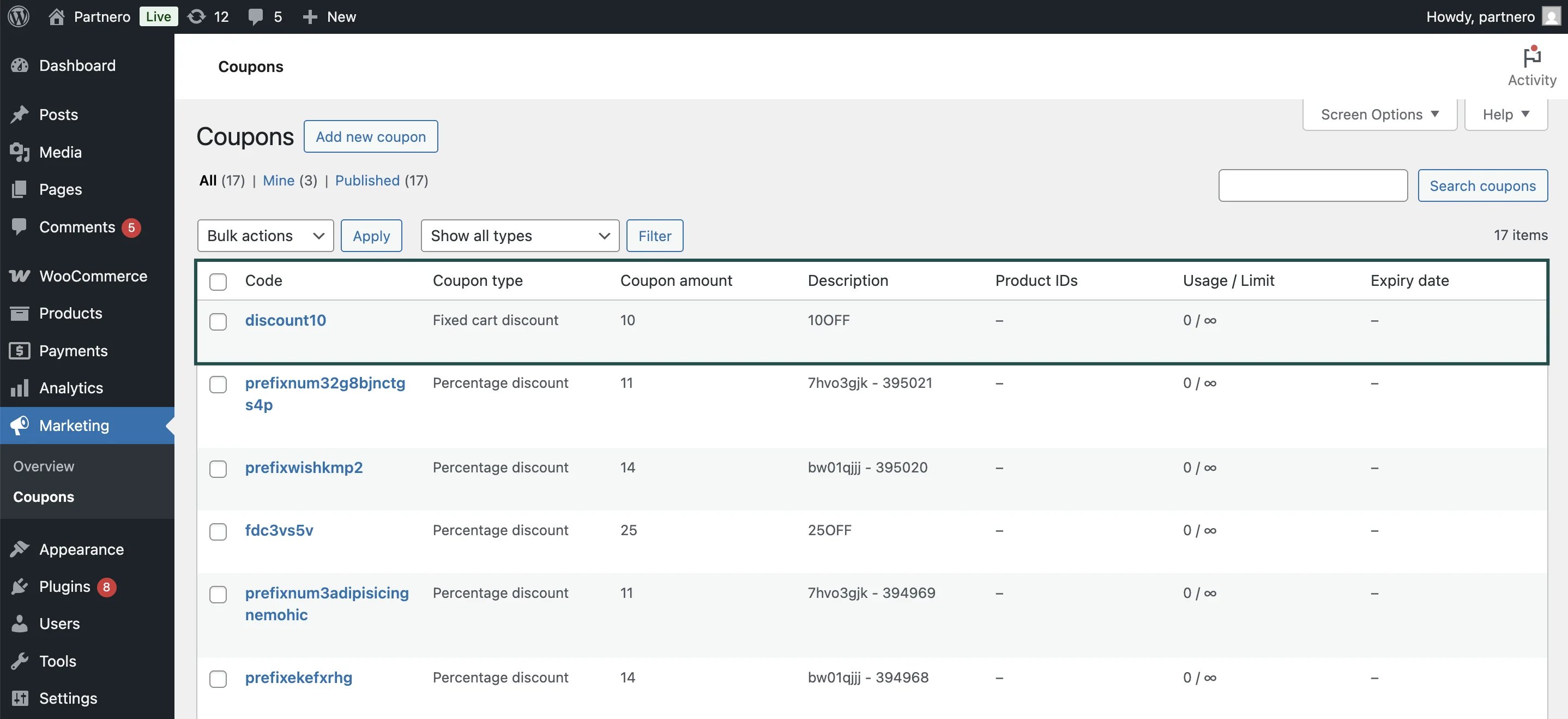 ***
### Create coupons on WooCommerce and sync with Partnero
This option lets you create new coupon codes on WooCommerce and sync them with your Partnero account.
Once you integrate WooCommerce and Partnero, WooCommerce will automatically send all required data to Partnero. When you create a coupon on WooCommerce, it will automatically be synced with Partnero and appear under **Program** > **Coupons**.
[Here's how to create a coupon on WooCommerce.](https://woocommerce.com/posts/coupons-with-woocommerce/)
***
### Sync existing WooCommerce coupons with Partnero
If you already have coupons on Stripe, you can sync them with Partnero:
1. Go to **Coupons** under **Program**.
2. Click **Sync coupons** and select **Sync WooCommerce coupo\*\*\*\*ns**:
***
### Create coupons on WooCommerce and sync with Partnero
This option lets you create new coupon codes on WooCommerce and sync them with your Partnero account.
Once you integrate WooCommerce and Partnero, WooCommerce will automatically send all required data to Partnero. When you create a coupon on WooCommerce, it will automatically be synced with Partnero and appear under **Program** > **Coupons**.
[Here's how to create a coupon on WooCommerce.](https://woocommerce.com/posts/coupons-with-woocommerce/)
***
### Sync existing WooCommerce coupons with Partnero
If you already have coupons on Stripe, you can sync them with Partnero:
1. Go to **Coupons** under **Program**.
2. Click **Sync coupons** and select **Sync WooCommerce coupo\*\*\*\*ns**: 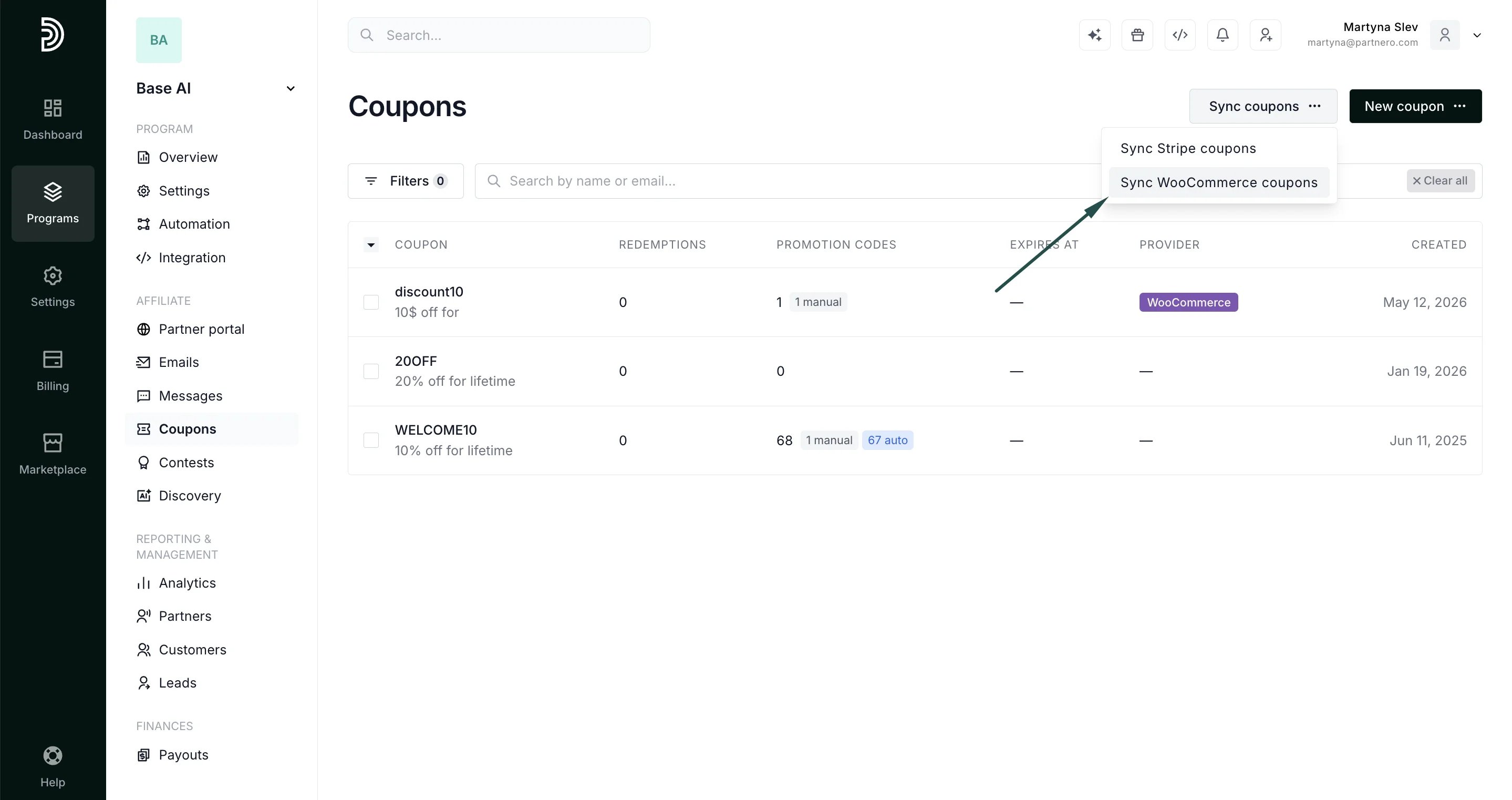 3. You should now see a list of WooCommerce coupons on Partnero.
***
Now that your coupons are ready, it's time to set up [dynamic rewards](/knowledge-base/referral-programs/offer-woocommerce-coupons-as-rewards)!
This documentation is built and hosted on [Mintlify](https://mintlify.com), a developer documentation platform.
3. You should now see a list of WooCommerce coupons on Partnero.
***
Now that your coupons are ready, it's time to set up [dynamic rewards](/knowledge-base/referral-programs/offer-woocommerce-coupons-as-rewards)!
This documentation is built and hosted on [Mintlify](https://mintlify.com), a developer documentation platform.