> ## Documentation Index
> Fetch the complete documentation index at: https://docs.partnero.com/llms.txt
> Use this file to discover all available pages before exploring further.
# Create custom referral links
When you join a program, you receive a default referral link made up of a string of letters and numbers. Depending on the program settings, you may be able to change it to something more recognizable or create additional links. If these options are not available, the program owner has not enabled them.
***
### Edit your main referral link
You can edit the main referral URL you were assigned. To do that:
1. Log in to the Partner portal (the link for each program is unique).
2. Go to **Resources**.
3. Click on the three dots next to your referral link and click **Update referral URL**: 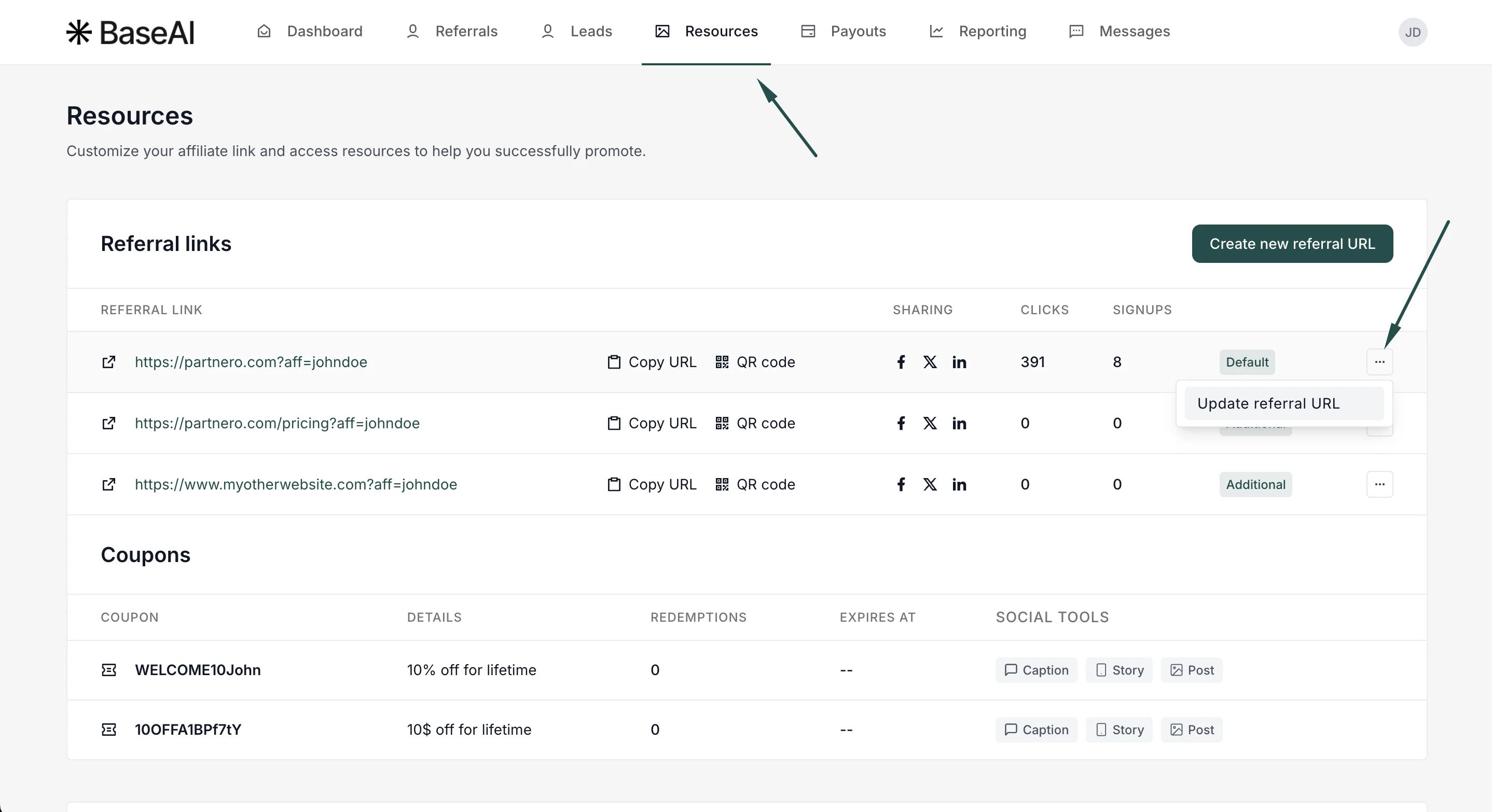 4. In the modal, enter the link key you'd like to have:
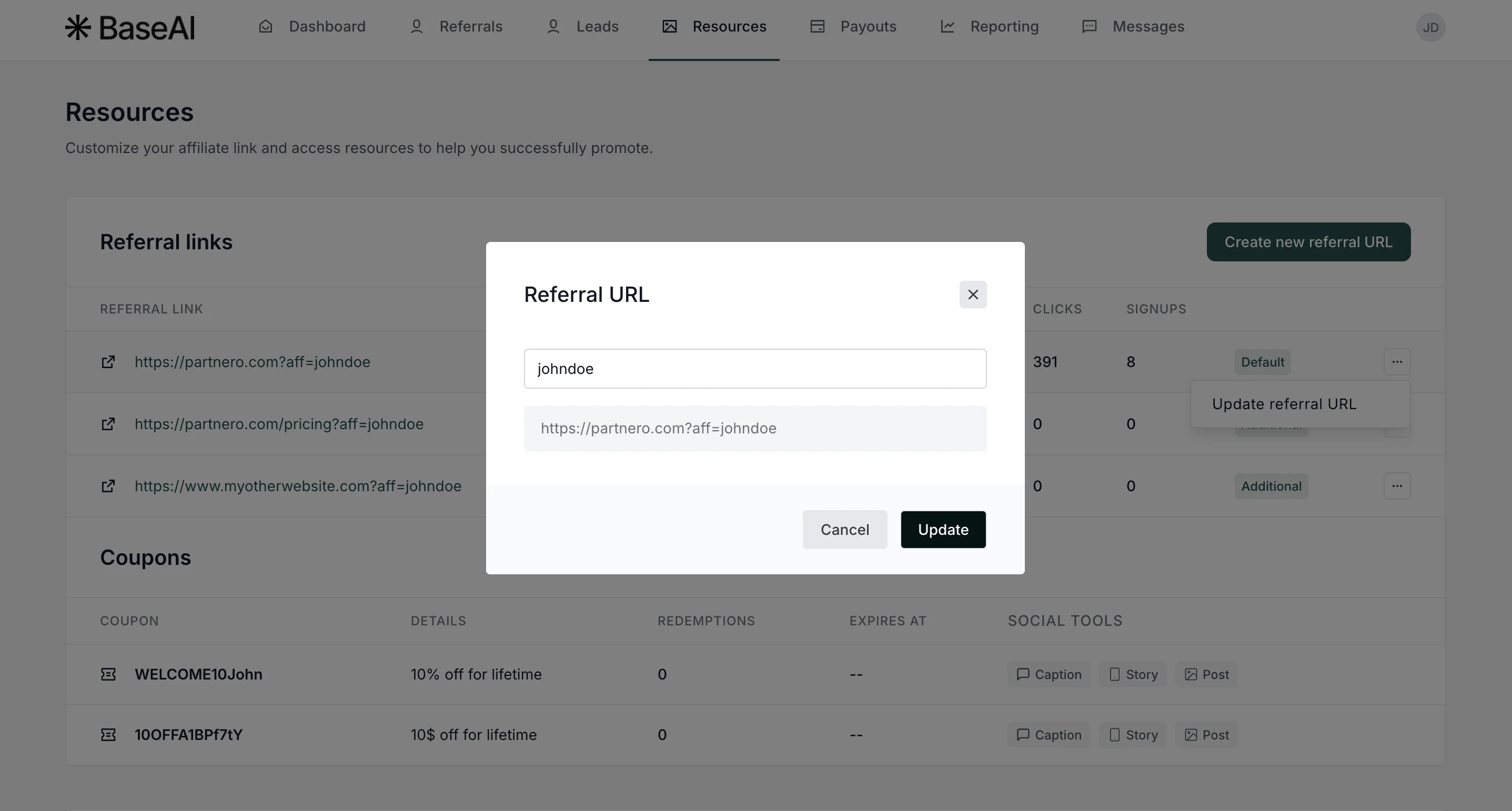 5. Click **Update**.
####
***
### Create new additional referral links
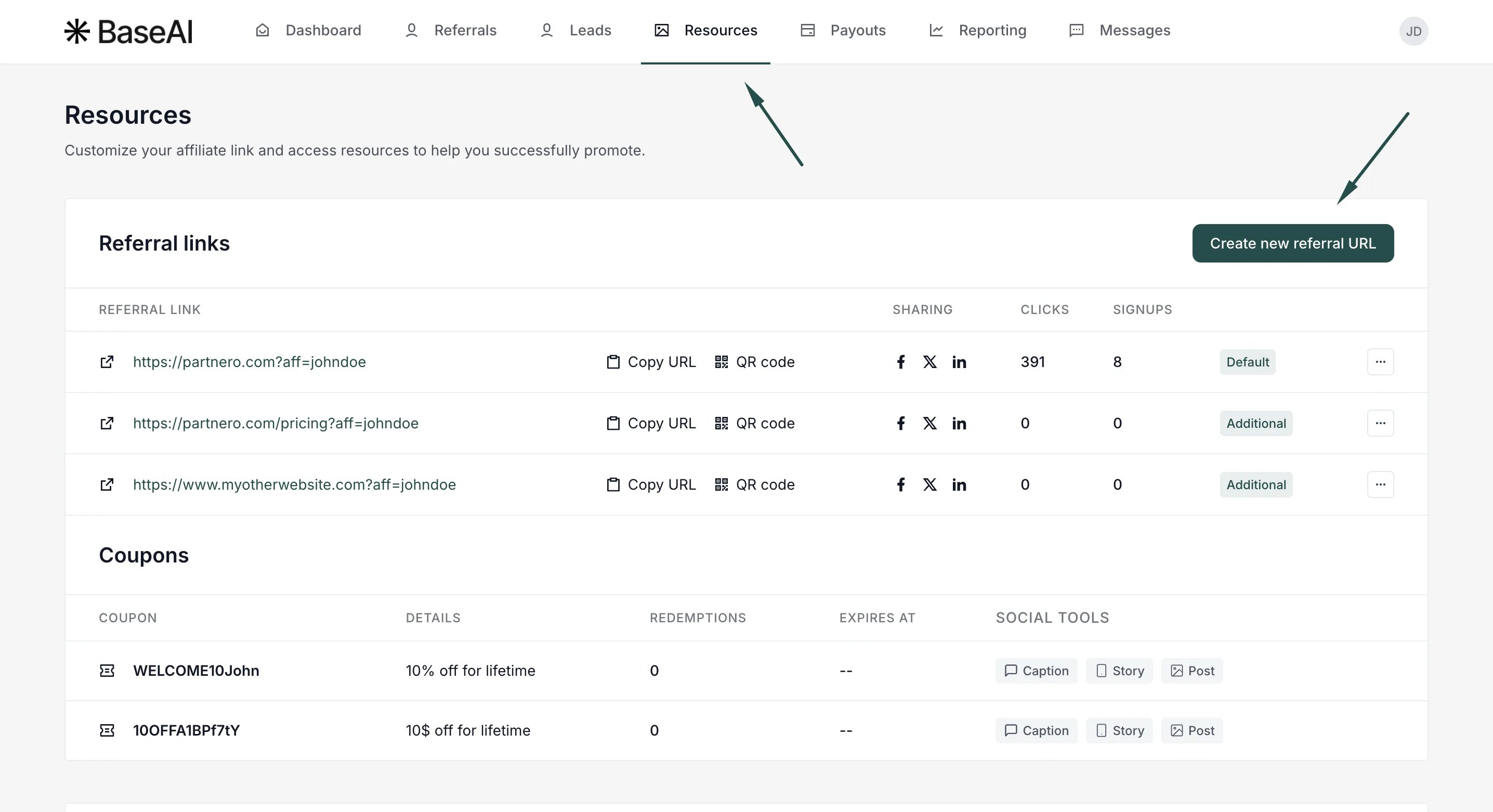
Additional referral links let you track performance by source — for example, separate links for your website, YouTube channel, and social media.To create a new referral link:
1. In the partner portal, go to **Resources**.
2. Click to **Create new referral URL**:
5. Click **Update**.
####
***
### Create new additional referral links
Additional referral links let you track performance by source — for example, separate links for your website, YouTube channel, and social media.To create a new referral link:
1. In the partner portal, go to **Resources**.
2. Click to **Create new referral URL**:
 3. From the dropdown menu, select the URL you'd like to link to. Depending on the program, there may be one or more options.
Then, enter the link key you'd like to have:
3. From the dropdown menu, select the URL you'd like to link to. Depending on the program, there may be one or more options.
Then, enter the link key you'd like to have: 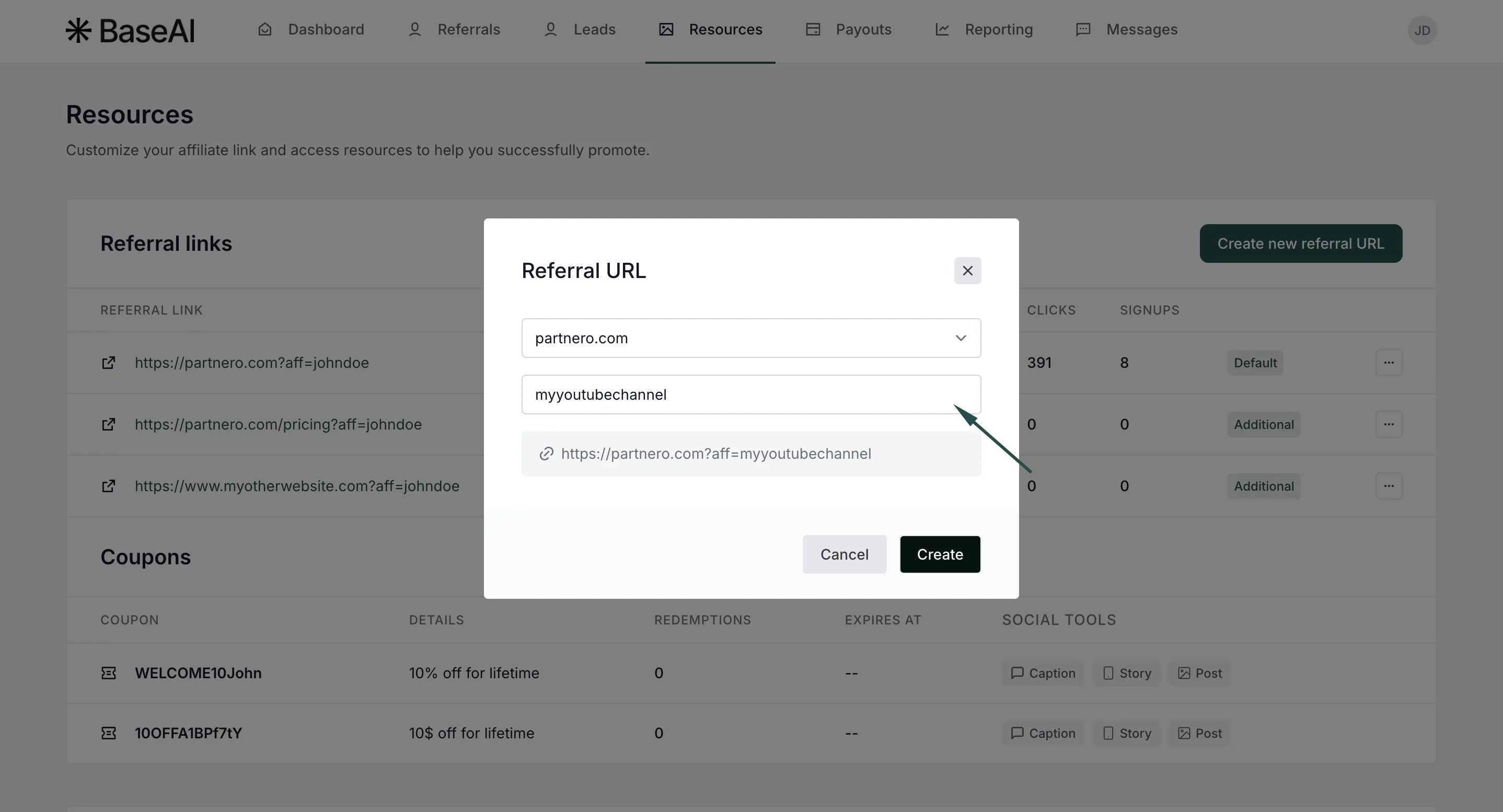 4. Click **Create**.
***
#### Guidelines for custom link keys
* Each link must be unique
* Use only letters, numbers, and the following characters: `-` `_` `.`
* No spaces or special characters
* Up to 64 characters
* Links are not case sensitive — `domain.com/a/YourLink` and `domain.com/a/yourlink` are treated as the same link
This documentation is built and hosted on [Mintlify](https://mintlify.com), a developer documentation platform.
4. Click **Create**.
***
#### Guidelines for custom link keys
* Each link must be unique
* Use only letters, numbers, and the following characters: `-` `_` `.`
* No spaces or special characters
* Up to 64 characters
* Links are not case sensitive — `domain.com/a/YourLink` and `domain.com/a/yourlink` are treated as the same link
This documentation is built and hosted on [Mintlify](https://mintlify.com), a developer documentation platform.