> ## Documentation Index
> Fetch the complete documentation index at: https://docs.partnero.com/llms.txt
> Use this file to discover all available pages before exploring further.
# How to use sub‑accounts (as a partner)
This article shows you how to create, manage, and use sub‑accounts within the Partner Portal, so you can grant colleagues access.
**Important**: the sub-accounts feature has to be enabled by the program owner to be visible on your partner portal.
***
### Create new sub-accounts
To create a new sub-account:
1. Log in to the partner portal.
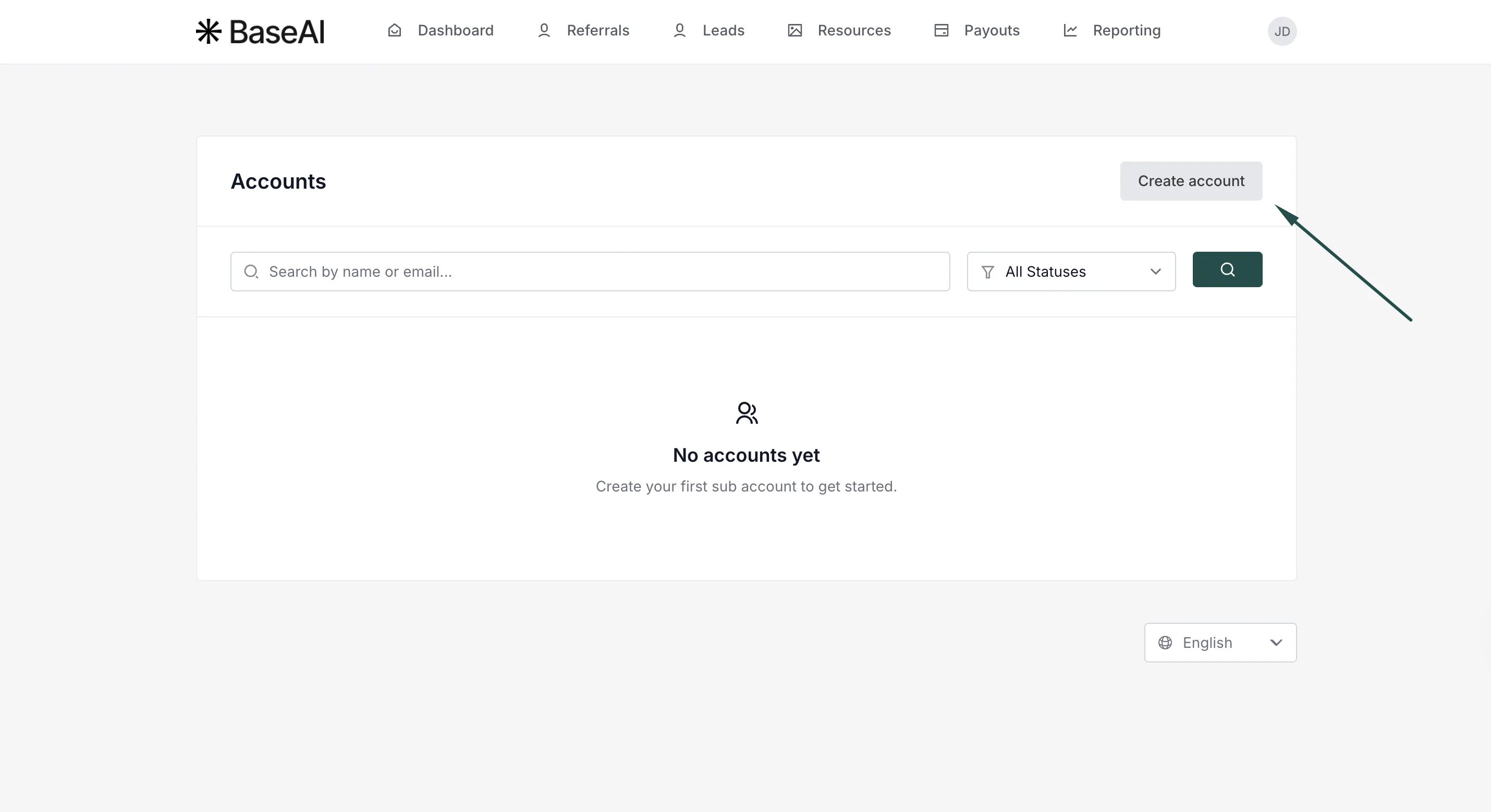
2. Click on your profile, then select **Accounts**.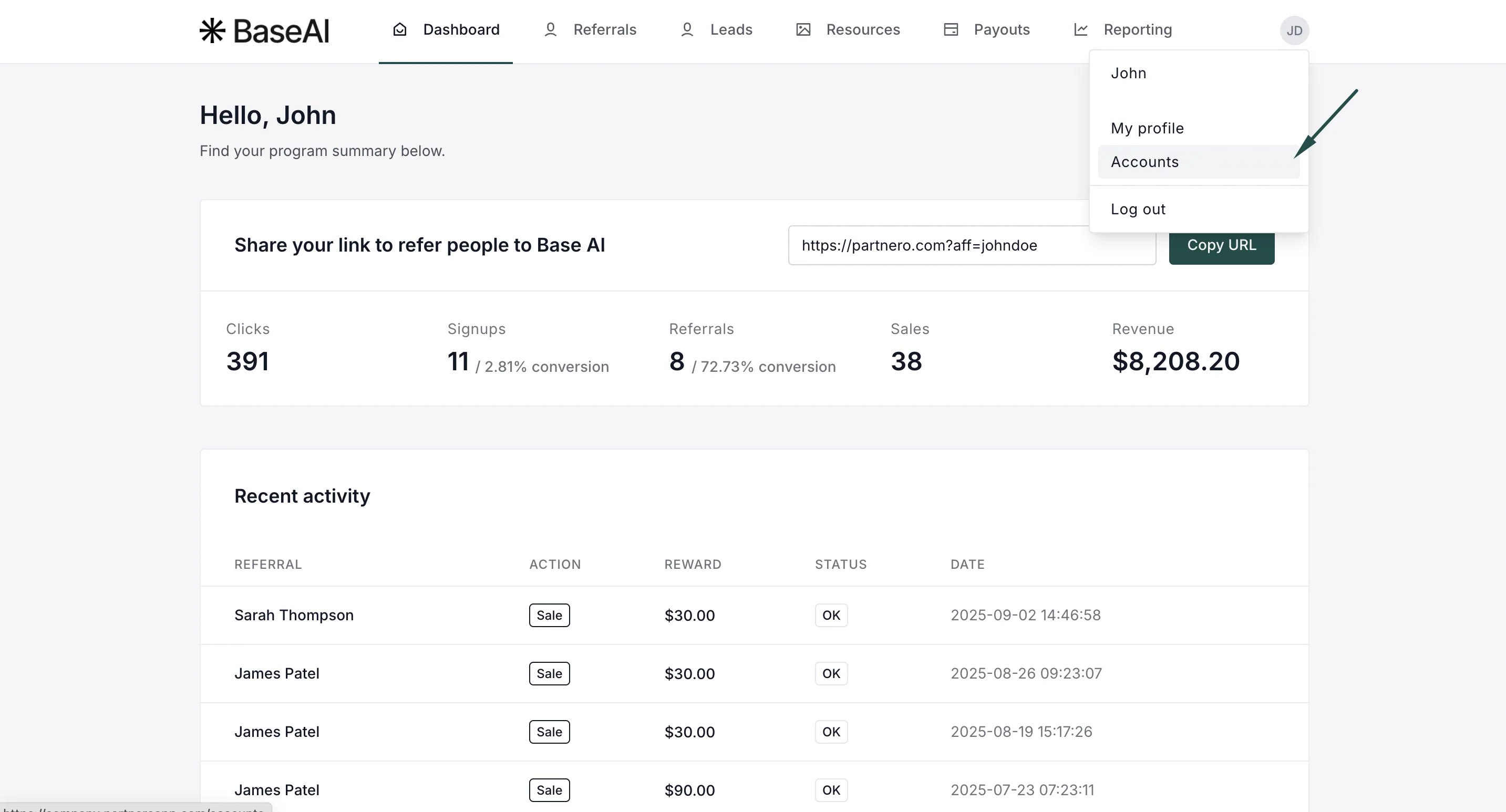 3. Click **Create Account**.
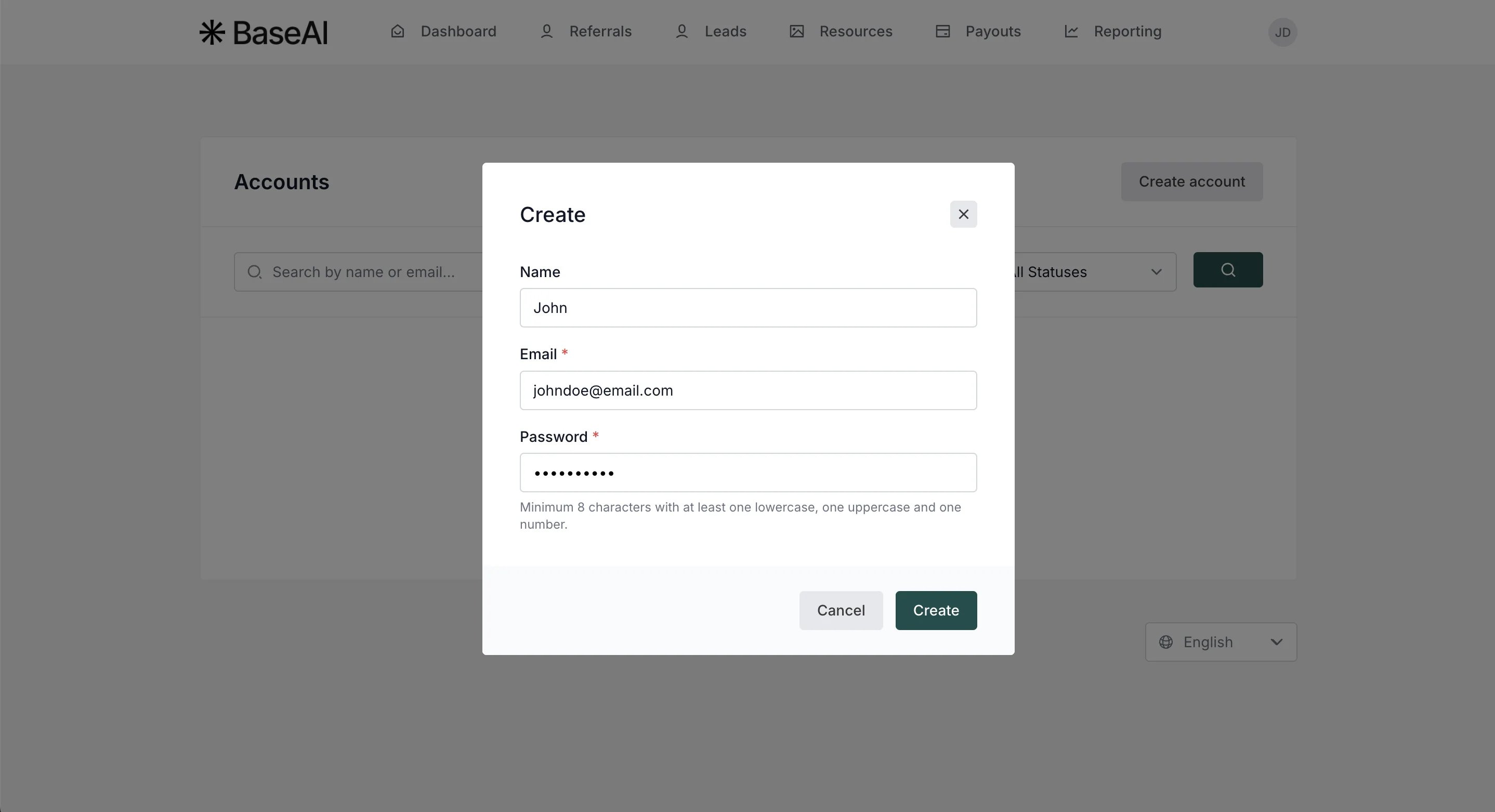
 4. Enter the name (optional), email address, and password. Click **Create**.
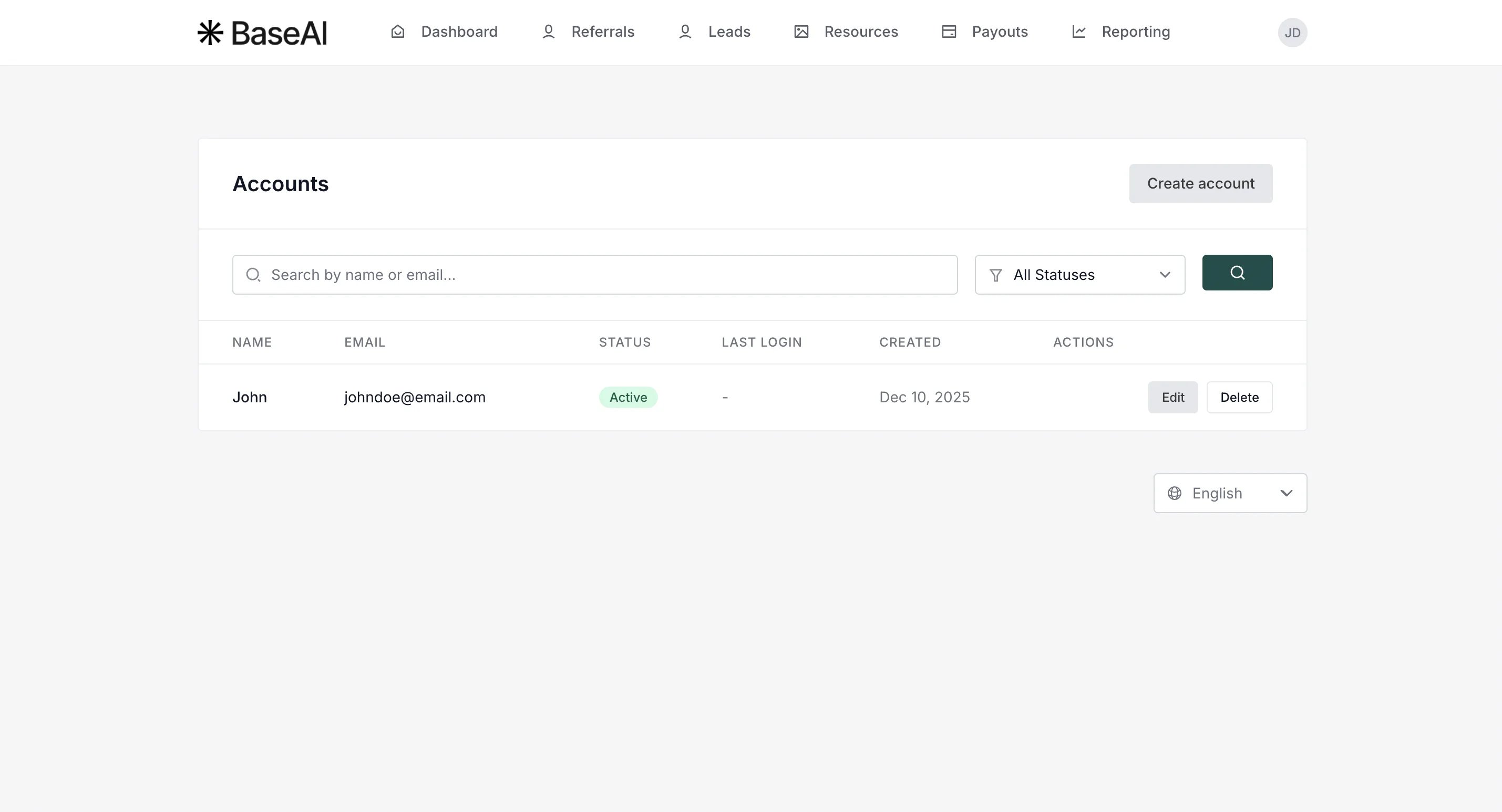
 5. You'll see the newly created sub-account. You can edit the details, suspend, or delete the sub-account here.
 You can now share the login details with the new team member.
#### Sub-account user login
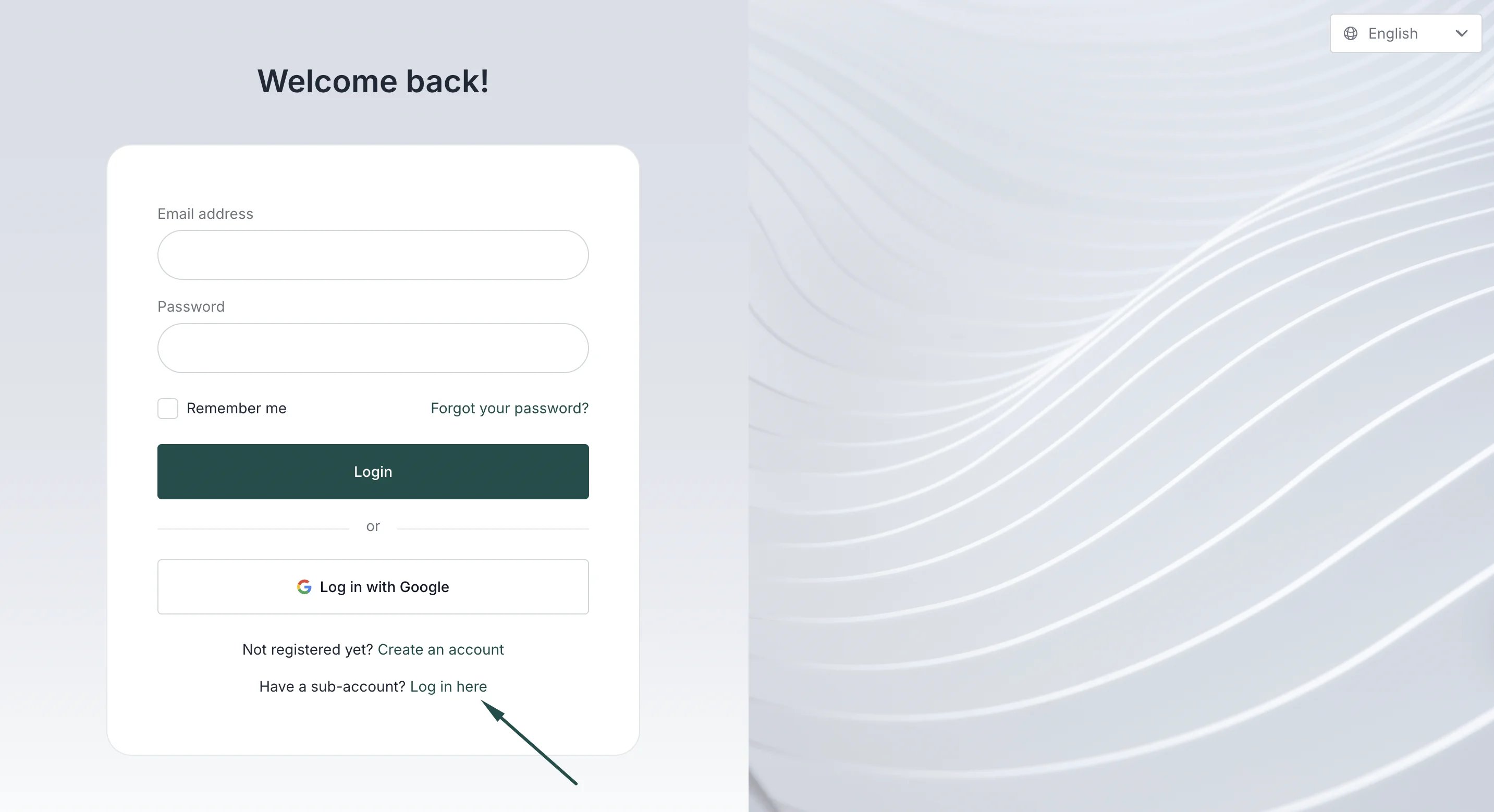
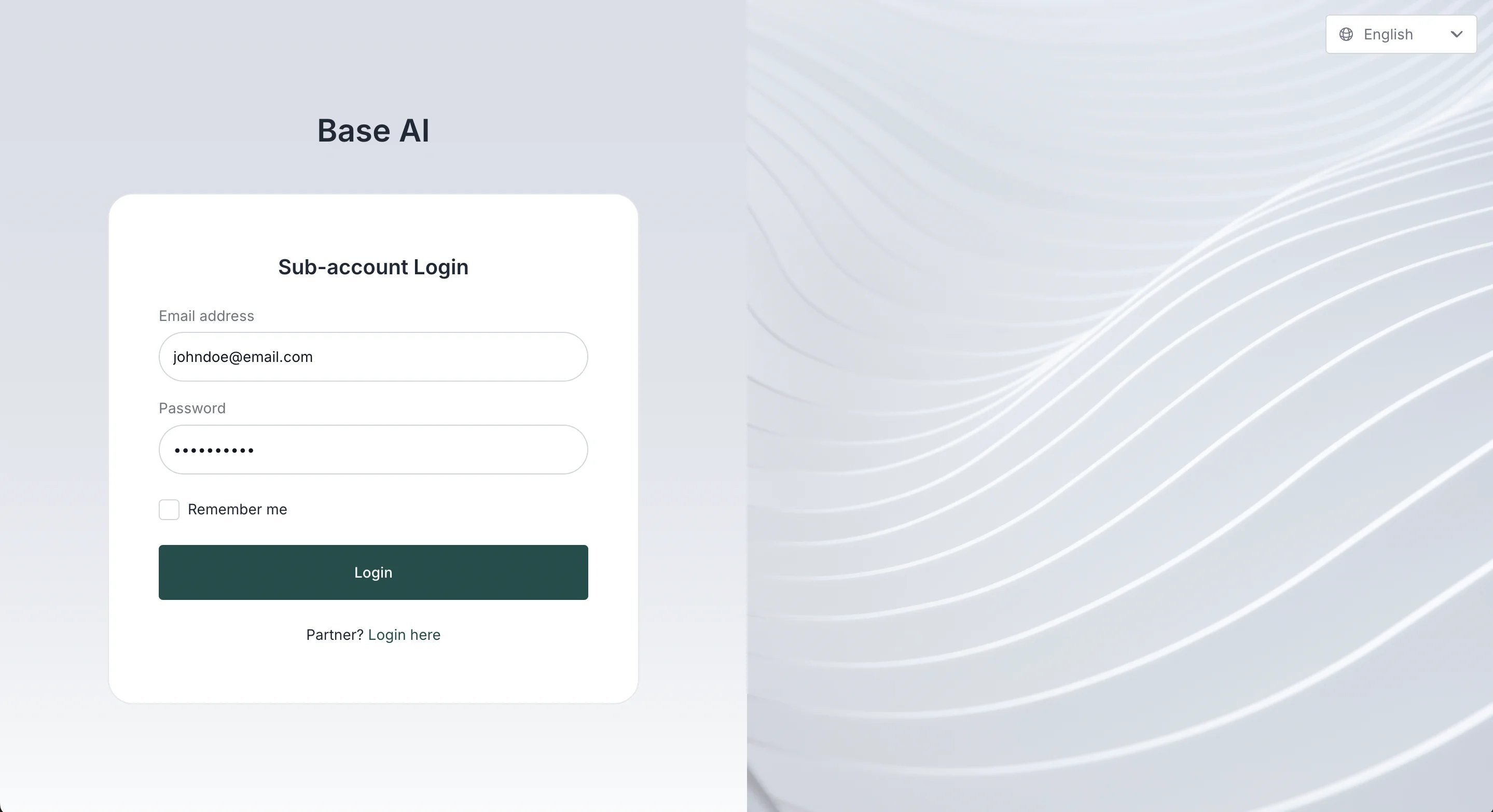
Sub-account users will have a separate login page that is accessible through the main partner portal login:
You can now share the login details with the new team member.
#### Sub-account user login
Sub-account users will have a separate login page that is accessible through the main partner portal login:
 ####
####  Sub-account user permissions
Sub-account users will not be able to:
* Add new sub-accounts to the partner portal
* Delete the partner account.
This documentation is built and hosted on [Mintlify](https://mintlify.com), a developer documentation platform.
Sub-account user permissions
Sub-account users will not be able to:
* Add new sub-accounts to the partner portal
* Delete the partner account.
This documentation is built and hosted on [Mintlify](https://mintlify.com), a developer documentation platform.