> ## Documentation Index
> Fetch the complete documentation index at: https://docs.partnero.com/llms.txt
> Use this file to discover all available pages before exploring further.
# Adjust affiliate commission when a discount code is used
Sometimes a customer uses a discount or coupon code, and the sale is credited to an affiliate. Without any rules, you'd pay the customer's discount *and* a full affiliate commission on the same order.
The Discount-based commission rules let you automatically **reduce or remove the affiliate commission whenever a discount/coupon code is used** on a transaction.
Typical uses:
* Pay 0% commission when a code is used on the customer's first order.
* Scale the commission down as the customer's discount gets bigger (e.g., small discount → full commission, big discount → no commission).
* Pay a reduced share (say 50%) of the normal commission on any discounted order
***
### How it works
1. When a sale comes in, Partnero records whether a discount/coupon code was applied and how big the discount was.
2. If discount-based rules are enabled and a code was used, Partnero calculates the commission as normal, then applies your adjustment on top as a percentage.
3. Everything is logged, so you can always see whether an adjustment was applied and why.
> *The adjustment is a percentage of the commission the affiliate would normally earn, not a percentage of the sale. So if the normal commission is $8 and your rule says "pay 50%", the affiliate gets $4.*
***
### How to set it up
To set up commission adjustment for discount codes:
1. Go to **Settings** → **Commissions** and open **Advanced commissions**. If you already have advanced commissions in place, click **Edit**: 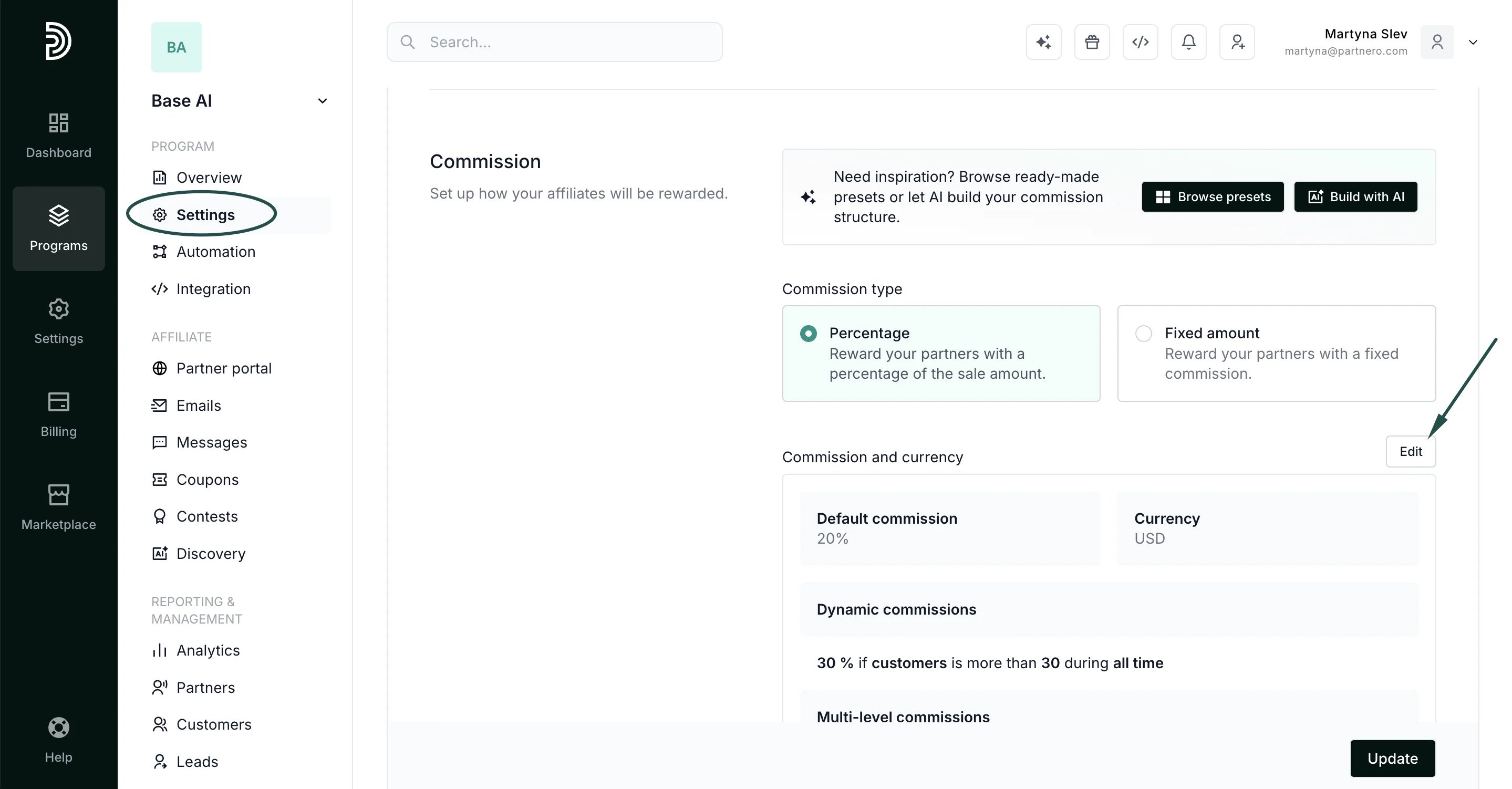 2. Select the **Discount-based** tab.
 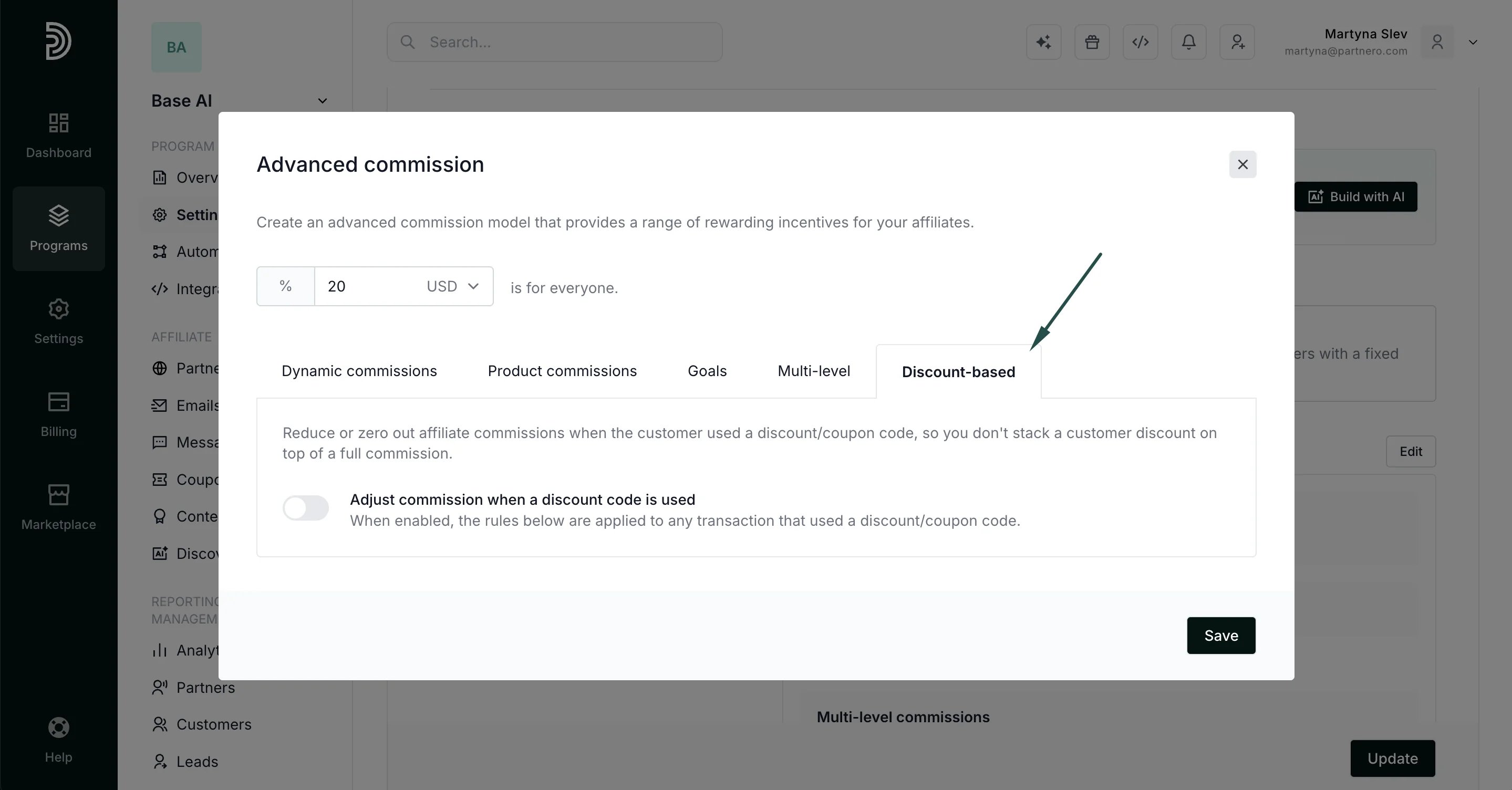 3. Turn on Adjust commission when a discount code is used.
4. Choose an Adjustment type and a scope (details below).
3. Turn on Adjust commission when a discount code is used.
4. Choose an Adjustment type and a scope (details below). 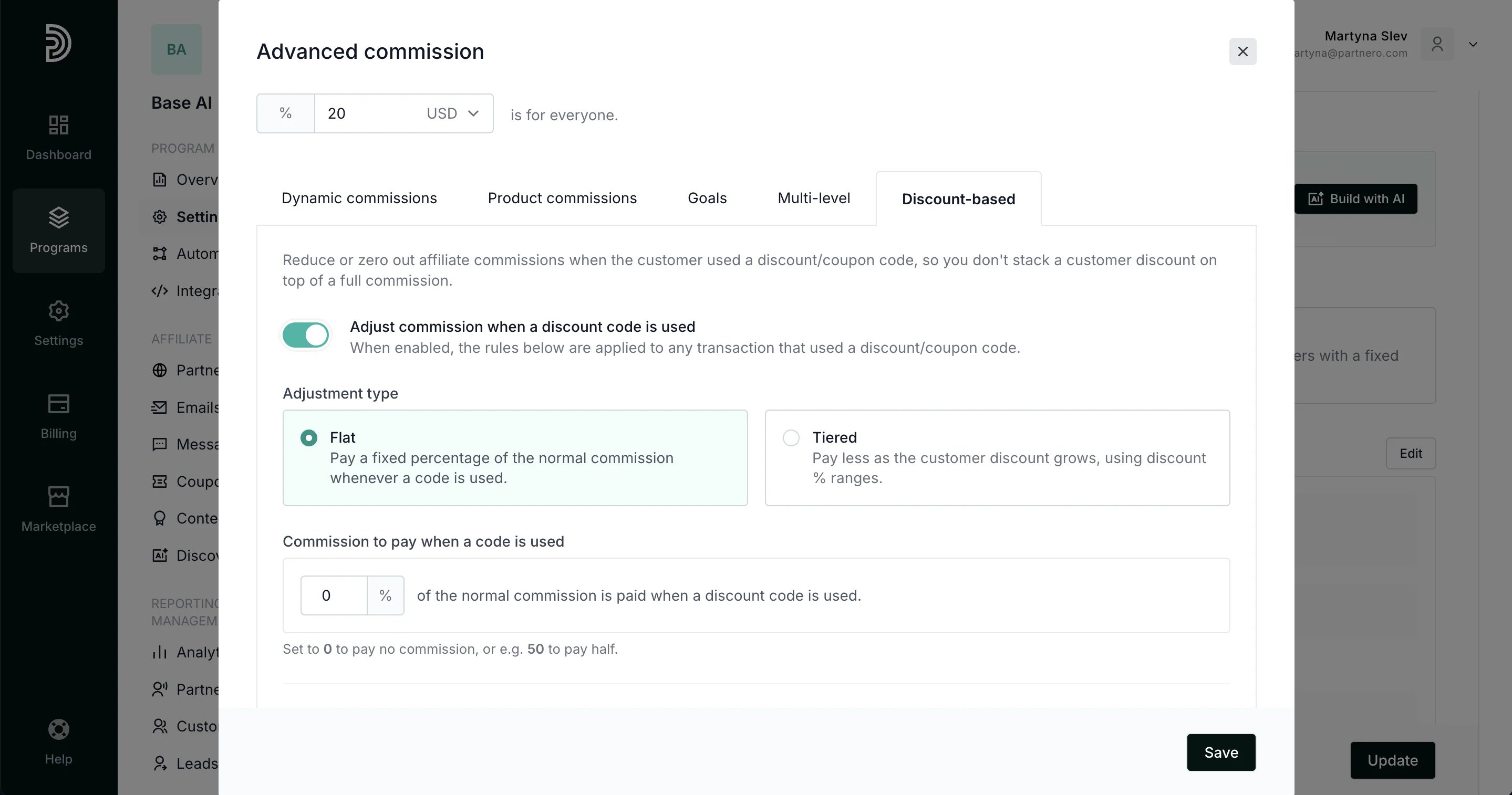 5. Click **Save**.
#### Adjustment type
**Flat**: pay a fixed percentage of the normal commission whenever a code is used.
* `0` = pay no commission on discounted orders.
* `50` = pay half the normal commission.
* `100` = pay the full commission (effectively no reduction).
**Tiered**: pay less as the customer's discount grows. You define ranges based on the discount percentage of the order:
| If dicount is between | Pay (% of commission) |
| - | - |
| 0% – 10% | 100% |
| 10% – 25% | 50% |
| 25% – 100% | 0% |
For each order, Partnero finds the first range the discount falls into and applies that percentage. If the discount doesn't match any range, the normal commission is paid in full.
#### Apply this adjustment (scope)
5. Click **Save**.
#### Adjustment type
**Flat**: pay a fixed percentage of the normal commission whenever a code is used.
* `0` = pay no commission on discounted orders.
* `50` = pay half the normal commission.
* `100` = pay the full commission (effectively no reduction).
**Tiered**: pay less as the customer's discount grows. You define ranges based on the discount percentage of the order:
| If dicount is between | Pay (% of commission) |
| - | - |
| 0% – 10% | 100% |
| 10% – 25% | 50% |
| 25% – 100% | 0% |
For each order, Partnero finds the first range the discount falls into and applies that percentage. If the discount doesn't match any range, the normal commission is paid in full.
#### Apply this adjustment (scope)
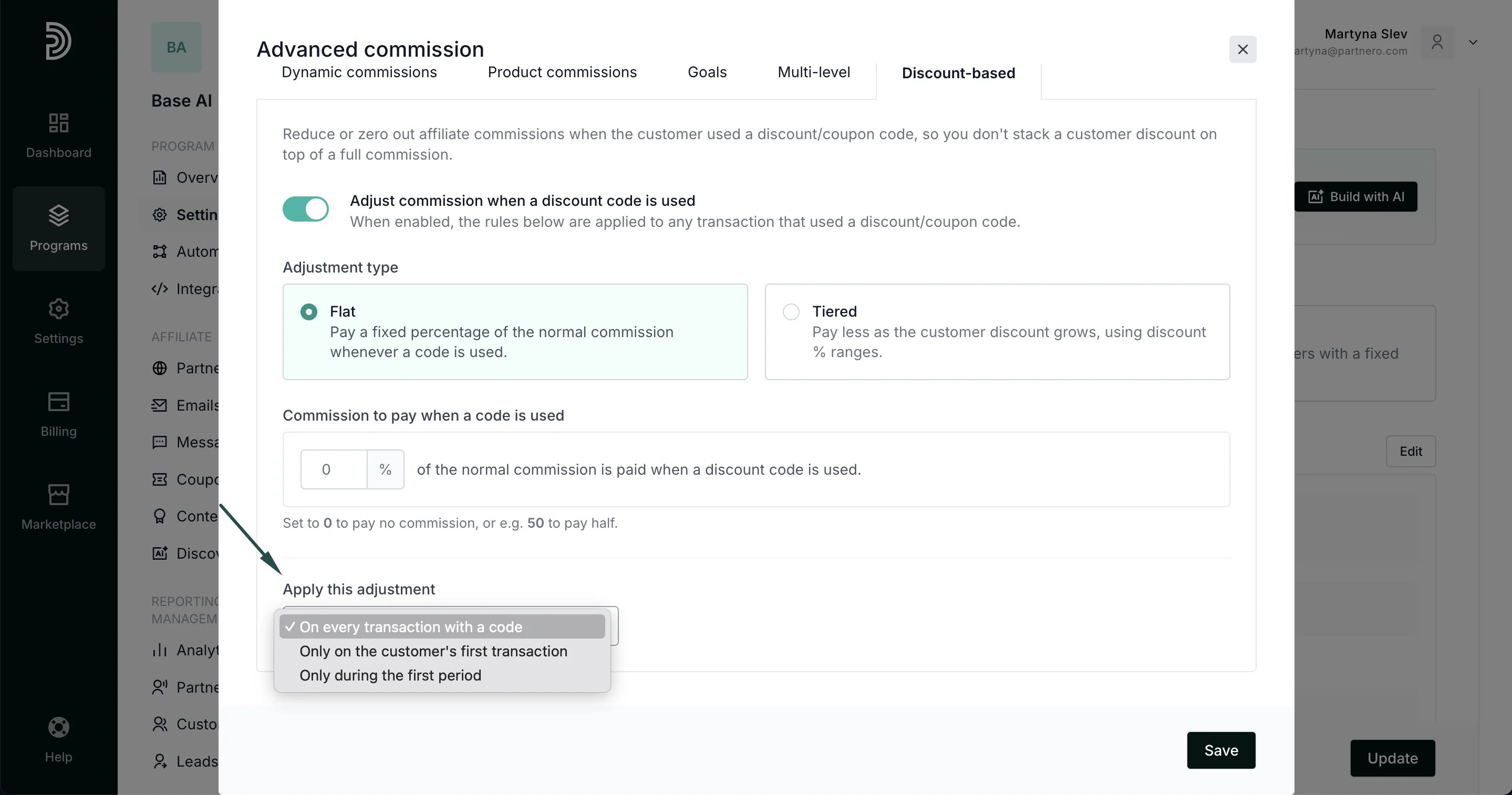 * **On every transaction with a code**: the adjustment always applies when a code is used.
* **Only on the customer's first transaction**: the adjustment applies to the customer's first purchase; normal commissions resume afterward.
* **Only during the first period**: the adjustment applies for a set number of days or months, measured from either the customer's or the partner's start date. After the period ends, normal commissions resume.
***
### Examples
**Example 1: No commission on the first discounted order**
**Goal**: When a customer uses an affiliate's code, they get the discount instead of the affiliate getting a commission, but only the first time.
* Adjustment type: Flat, pay 0%
* Apply (scope): Only on the customer's first transaction
Result: the first discounted order pays the affiliate nothing; every order after that pays the normal commission.
**Example 2: Scale commission with the discount size**
**Goal**: protect margins as discounts get larger.
* Adjustment type: Tiered
* 0–10% → pay 100%
* 10–25% → pay 50%
* 25%+ → pay 0%
* Apply (scope): On every transaction with a code
Result on a $40 order with a 20% off code (normal commission 20% = $8): the 20% discount lands in the 10–25% tier → affiliate is paid 50% → \$4.
**Example 3: Reduced commission for the first 3 months**
* Adjustment type: Flat, pay 25%
* Apply: Only during the first period → First 3 months from customer creation
Result: discounted orders in the customer's first 3 months pay a quarter of the normal commission; after that, full commissions apply.
***
### Integrations
Discount information is captured automatically; no changes are needed on your side for these integrations:
* Stripe: reads the discount from the invoice.
* Paddle: reads the discount from the transaction.
* WooCommerce: reads the order discount total.
* Shopify: reads the order discounts.
For manual/custom tracking (API or the JavaScript library), send the discount details with the transaction (see below).
***
### Good to know
* Adjustments only apply when a discount/coupon code is actually used on the order. Full-price orders are never affected.
* The rule multiplies the **final** commission, so it works alongside your other rules (fixed, percentage, dynamic, product, and goal commissions) as well as currency conversion and maximum-commission caps.
* Turning the feature off restores normal commissions immediately for new transactions.
***
### For developers: sending discount data (API & JS)
If you create transactions via the API or the JavaScript library, include these optional fields so discount-based rules can be applied:
| Field | Type | Description |
| - | - | - |
| `discount_amount` | number | The discount applied, in your currency's main units (e.g. `8.00`). |
| `gross_amount` | number | The price before the discount. Optional — if omitted, it's assumed to be `amount + discount_amount`. |
| `discount_code` | string | The coupon/promo code used (optional). |
`amount` stays the net amount the customer actually paid (after the discount).
**REST API**
POST /v1/transactions
\{
"key": "order\_12345",
"amount": 32.00,
"amount\_units": "USD",
"customer": \{ "key": "[customer@example.com](mailto:customer@example.com)" },
"discount\_amount": 8.00,
"gross\_amount": 40.00,
"discount\_code": "SAVE20"
}
Minimum needed to derive the discount percentage (gross is inferred as `32 + 8 = 40`):
\{
"key": "order\_12345",
"amount": 32.00,
"customer": \{ "key": "[customer@example.com](mailto:customer@example.com)" },
"discount\_amount": 8.00
}
* **On every transaction with a code**: the adjustment always applies when a code is used.
* **Only on the customer's first transaction**: the adjustment applies to the customer's first purchase; normal commissions resume afterward.
* **Only during the first period**: the adjustment applies for a set number of days or months, measured from either the customer's or the partner's start date. After the period ends, normal commissions resume.
***
### Examples
**Example 1: No commission on the first discounted order**
**Goal**: When a customer uses an affiliate's code, they get the discount instead of the affiliate getting a commission, but only the first time.
* Adjustment type: Flat, pay 0%
* Apply (scope): Only on the customer's first transaction
Result: the first discounted order pays the affiliate nothing; every order after that pays the normal commission.
**Example 2: Scale commission with the discount size**
**Goal**: protect margins as discounts get larger.
* Adjustment type: Tiered
* 0–10% → pay 100%
* 10–25% → pay 50%
* 25%+ → pay 0%
* Apply (scope): On every transaction with a code
Result on a $40 order with a 20% off code (normal commission 20% = $8): the 20% discount lands in the 10–25% tier → affiliate is paid 50% → \$4.
**Example 3: Reduced commission for the first 3 months**
* Adjustment type: Flat, pay 25%
* Apply: Only during the first period → First 3 months from customer creation
Result: discounted orders in the customer's first 3 months pay a quarter of the normal commission; after that, full commissions apply.
***
### Integrations
Discount information is captured automatically; no changes are needed on your side for these integrations:
* Stripe: reads the discount from the invoice.
* Paddle: reads the discount from the transaction.
* WooCommerce: reads the order discount total.
* Shopify: reads the order discounts.
For manual/custom tracking (API or the JavaScript library), send the discount details with the transaction (see below).
***
### Good to know
* Adjustments only apply when a discount/coupon code is actually used on the order. Full-price orders are never affected.
* The rule multiplies the **final** commission, so it works alongside your other rules (fixed, percentage, dynamic, product, and goal commissions) as well as currency conversion and maximum-commission caps.
* Turning the feature off restores normal commissions immediately for new transactions.
***
### For developers: sending discount data (API & JS)
If you create transactions via the API or the JavaScript library, include these optional fields so discount-based rules can be applied:
| Field | Type | Description |
| - | - | - |
| `discount_amount` | number | The discount applied, in your currency's main units (e.g. `8.00`). |
| `gross_amount` | number | The price before the discount. Optional — if omitted, it's assumed to be `amount + discount_amount`. |
| `discount_code` | string | The coupon/promo code used (optional). |
`amount` stays the net amount the customer actually paid (after the discount).
**REST API**
POST /v1/transactions
\{
"key": "order\_12345",
"amount": 32.00,
"amount\_units": "USD",
"customer": \{ "key": "[customer@example.com](mailto:customer@example.com)" },
"discount\_amount": 8.00,
"gross\_amount": 40.00,
"discount\_code": "SAVE20"
}
Minimum needed to derive the discount percentage (gross is inferred as `32 + 8 = 40`):
\{
"key": "order\_12345",
"amount": 32.00,
"customer": \{ "key": "[customer@example.com](mailto:customer@example.com)" },
"discount\_amount": 8.00
}
The same fields are supported per item when creating transactions in bulk via the `transactions` array.
**Javascript library**
partnero('track', 'transaction', \{
key: 'order\_12345',
amount: 32.00, // net amount paid (after discount)
amount\_units: 'USD',
customer: \{ key: '[customer@example.com](mailto:customer@example.com)' },
discount\_amount: 8.00, // optional
gross\_amount: 40.00, // optional; defaults to amount + discount\_amount
discount\_code: 'SAVE20' // optional
});
If you don't send any discount fields, the transaction behaves exactly as before and no adjustment is applied.
This documentation is built and hosted on [Mintlify](https://mintlify.com), a developer documentation platform.