> ## Documentation Index
> Fetch the complete documentation index at: https://docs.partnero.com/llms.txt
> Use this file to discover all available pages before exploring further.
# Approve or reject commission in review
### What is a commission review period?
When commissions are set to manual review, you can examine each transaction before paying out rewards. This article explains how to review pending commissions, approve those that are valid, or reject those that don’t meet your program rules. Manual review gives you control and helps prevent incorrect or fraudulent payouts.
For example, if you offer a 14-day money-back guarantee, it can be very useful to add a 14-day commission review period so that your affiliate partners are not discouraged from seeing refunds.
The commission review period can be set under **Settings** → **Commission** section → **Commission review period**: 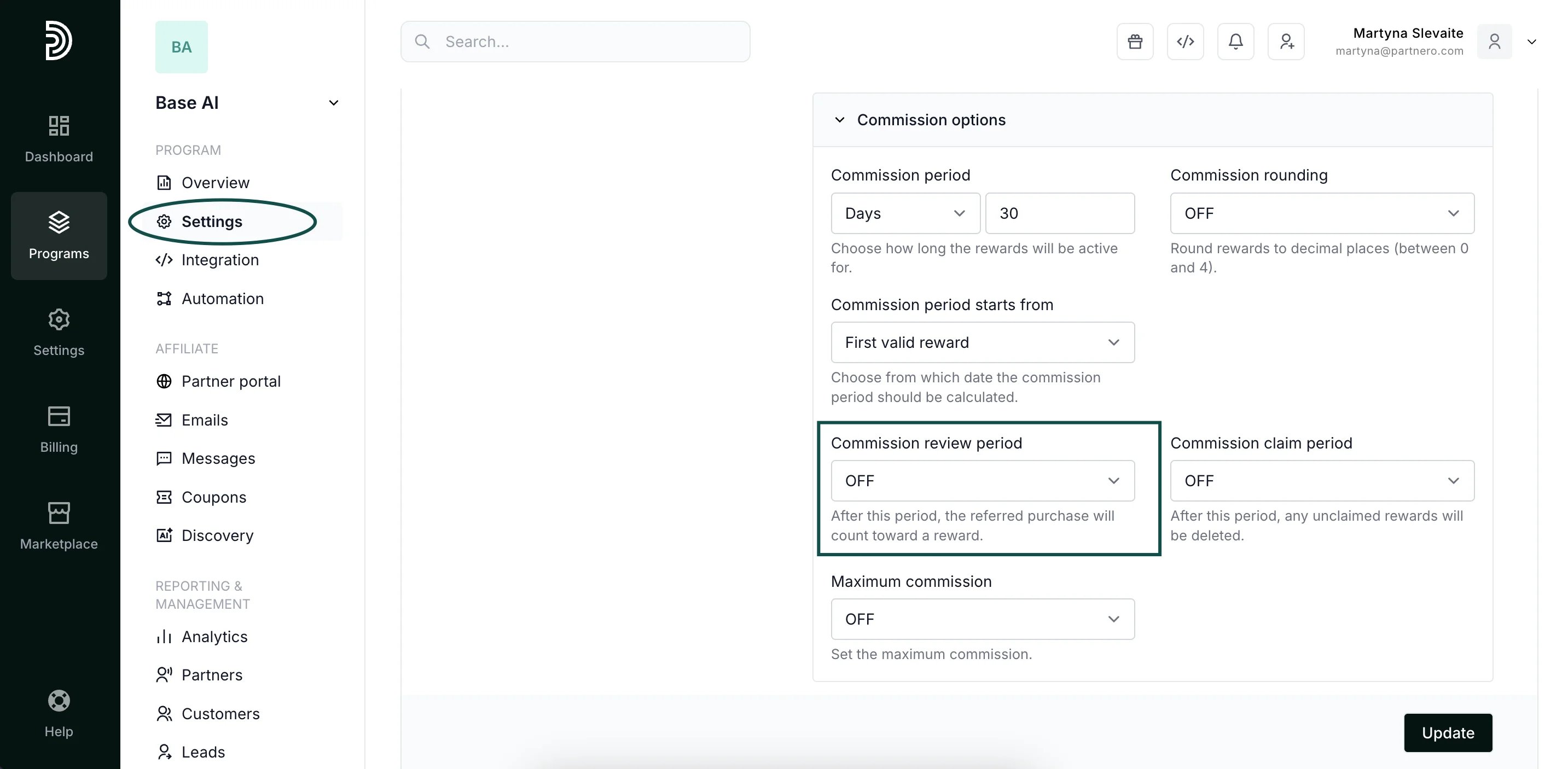 ***
### Where can I see commissions in the review period?
You can find all pending commissions on your program **Overview** page → **Pending rewards** section:
***
### Where can I see commissions in the review period?
You can find all pending commissions on your program **Overview** page → **Pending rewards** section: 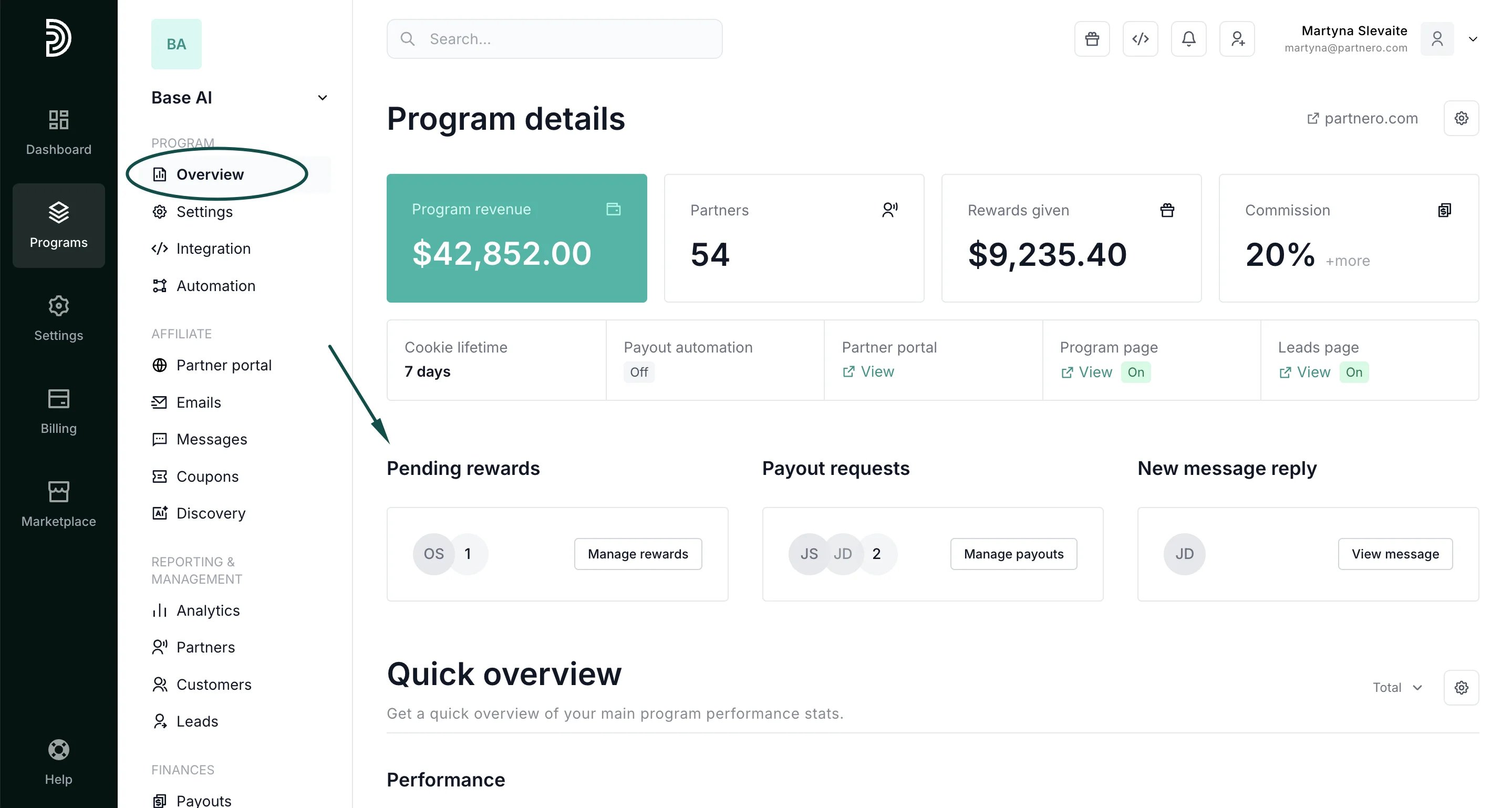 Please note that this section is only visible if you have set a review period under **Program** → **Settings**.
***
### Does the commission need to be approved manually?
After the review period ends, the commission will **automatically** be added to earned rewards. You do not need to take any additional steps.
However, you can manually approve or reject the commission before the review period ends.
***
### How to approve or reject commissions that are in the review period?
To manage commissions that are in the review period:
1. Go to **Overview** under **Program**. Click **Manage rewards** under **Pending rewards**:
Please note that this section is only visible if you have set a review period under **Program** → **Settings**.
***
### Does the commission need to be approved manually?
After the review period ends, the commission will **automatically** be added to earned rewards. You do not need to take any additional steps.
However, you can manually approve or reject the commission before the review period ends.
***
### How to approve or reject commissions that are in the review period?
To manage commissions that are in the review period:
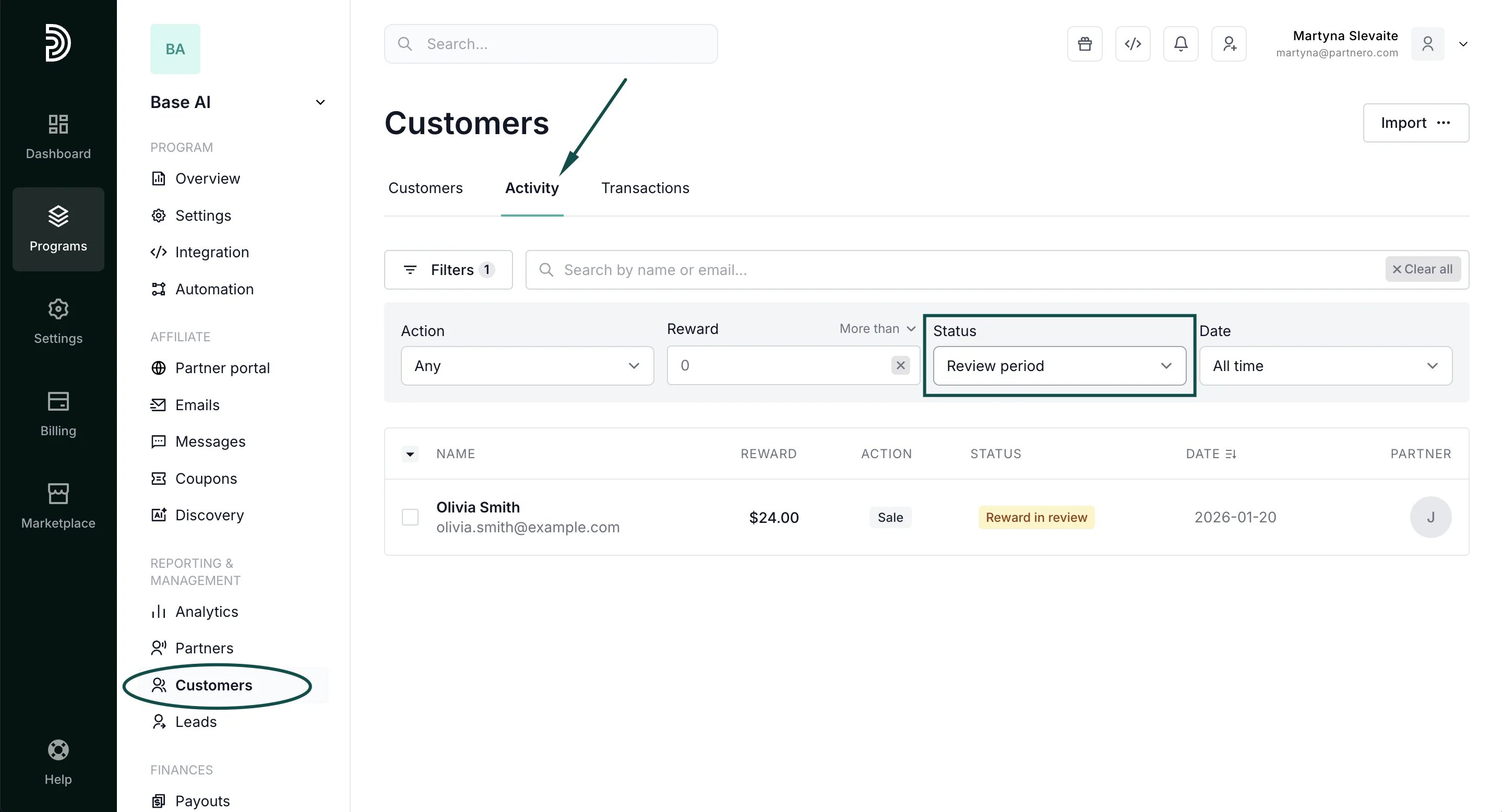
1. Go to **Overview** under **Program**. Click **Manage rewards** under **Pending rewards**: 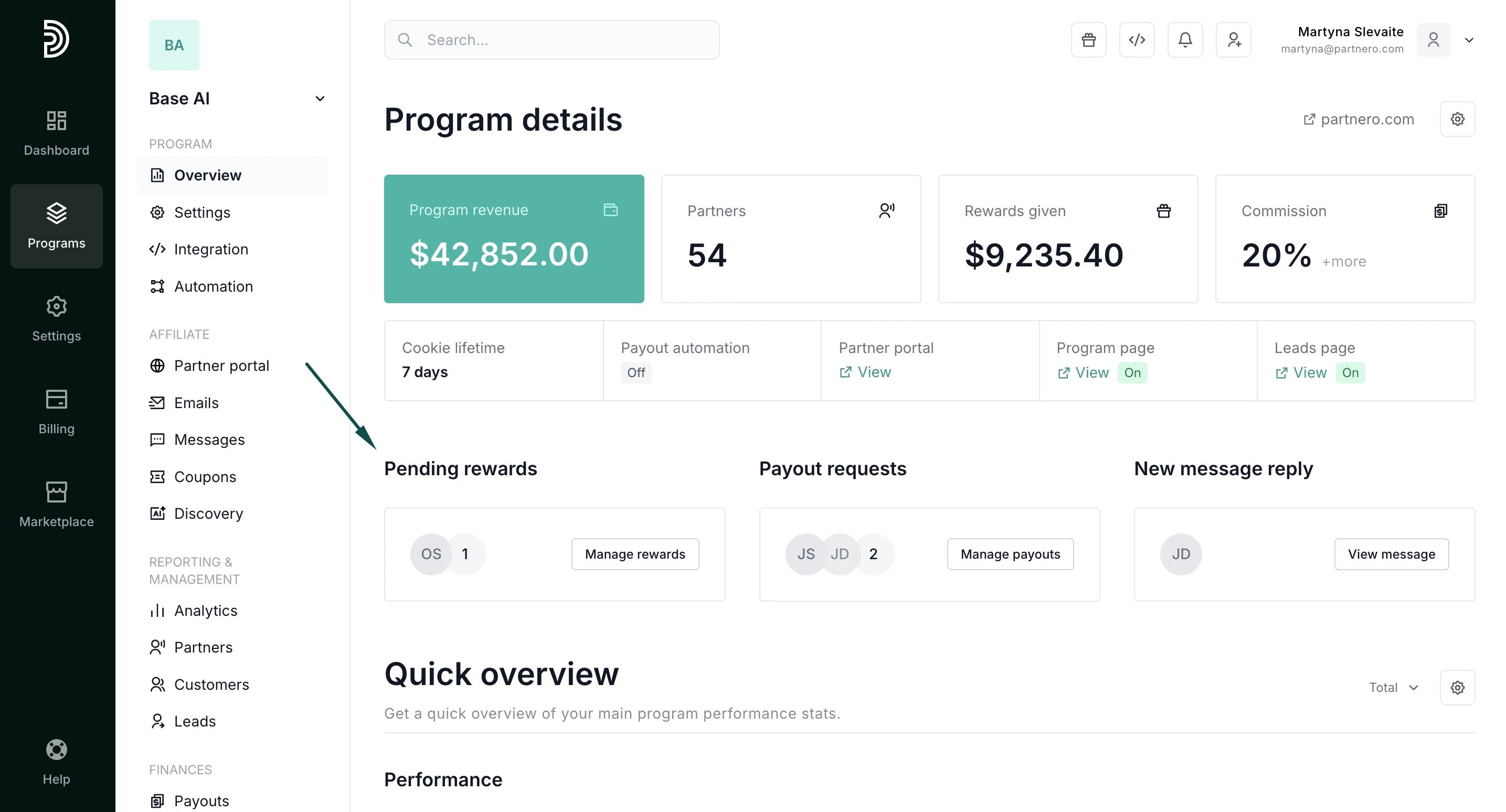 Alternatively, you can find all pending rewards in the **Customers** section → **Activity** tab → filter **Status: Review period**:
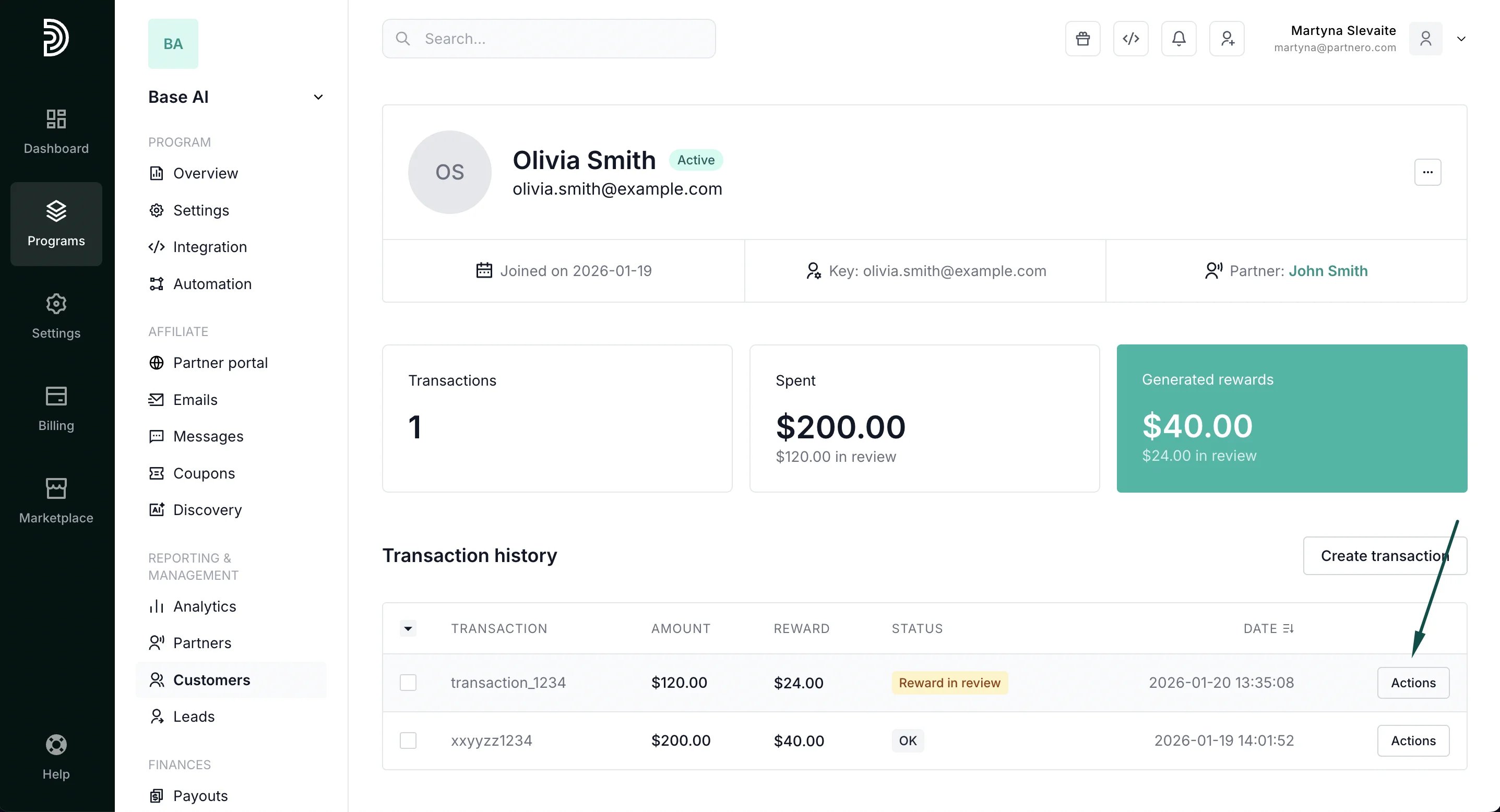
  2. Click on the reward you'd like to review. This will take you to the customer's profile. Click on **Actions** next to the reward:
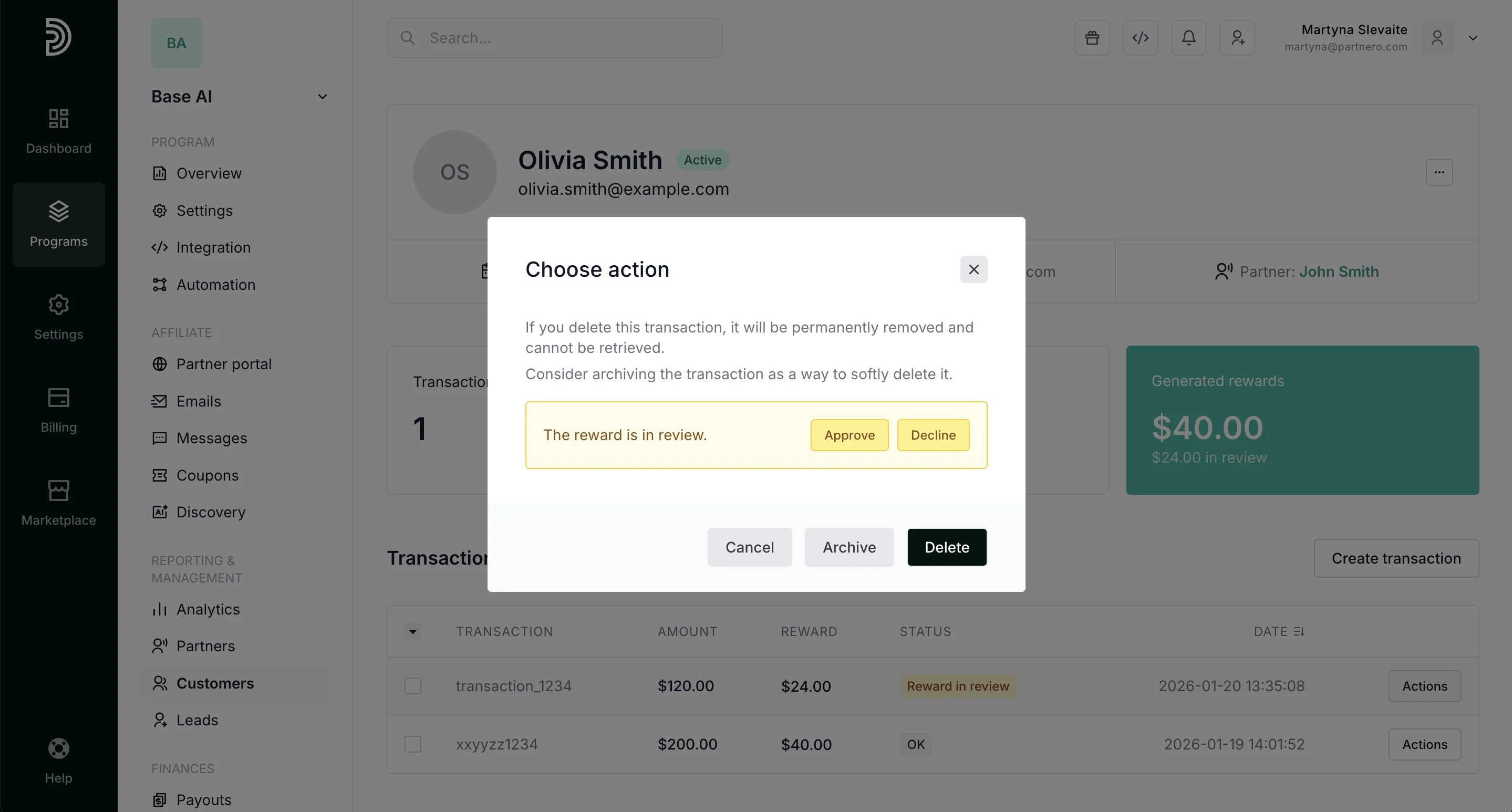
  3. Click to **Approve** or **Reject** the transaction:
  ***
This documentation is built and hosted on [Mintlify](https://mintlify.com), a developer documentation platform.
***
This documentation is built and hosted on [Mintlify](https://mintlify.com), a developer documentation platform.