> ## Documentation Index
> Fetch the complete documentation index at: https://docs.partnero.com/llms.txt
> Use this file to discover all available pages before exploring further.
# Create product-based commissions
Product-based commissions let you reward your partners with tailored commission rates for specific products or product groups. This gives you more flexibility than standard commission settings, helping you incentivize the sale of high-priority items and better align rewards with your business goals. In this guide, you’ll learn how to configure product-based commissions in Partnero step-by-step.
***
### How to set up product-based commissions
1. Open the affiliate program you'd like to work with or create a new program.
2. Go to the **Commission** section under **Settings** and click **Set up tiers, per-sale bonuses, or goals**: 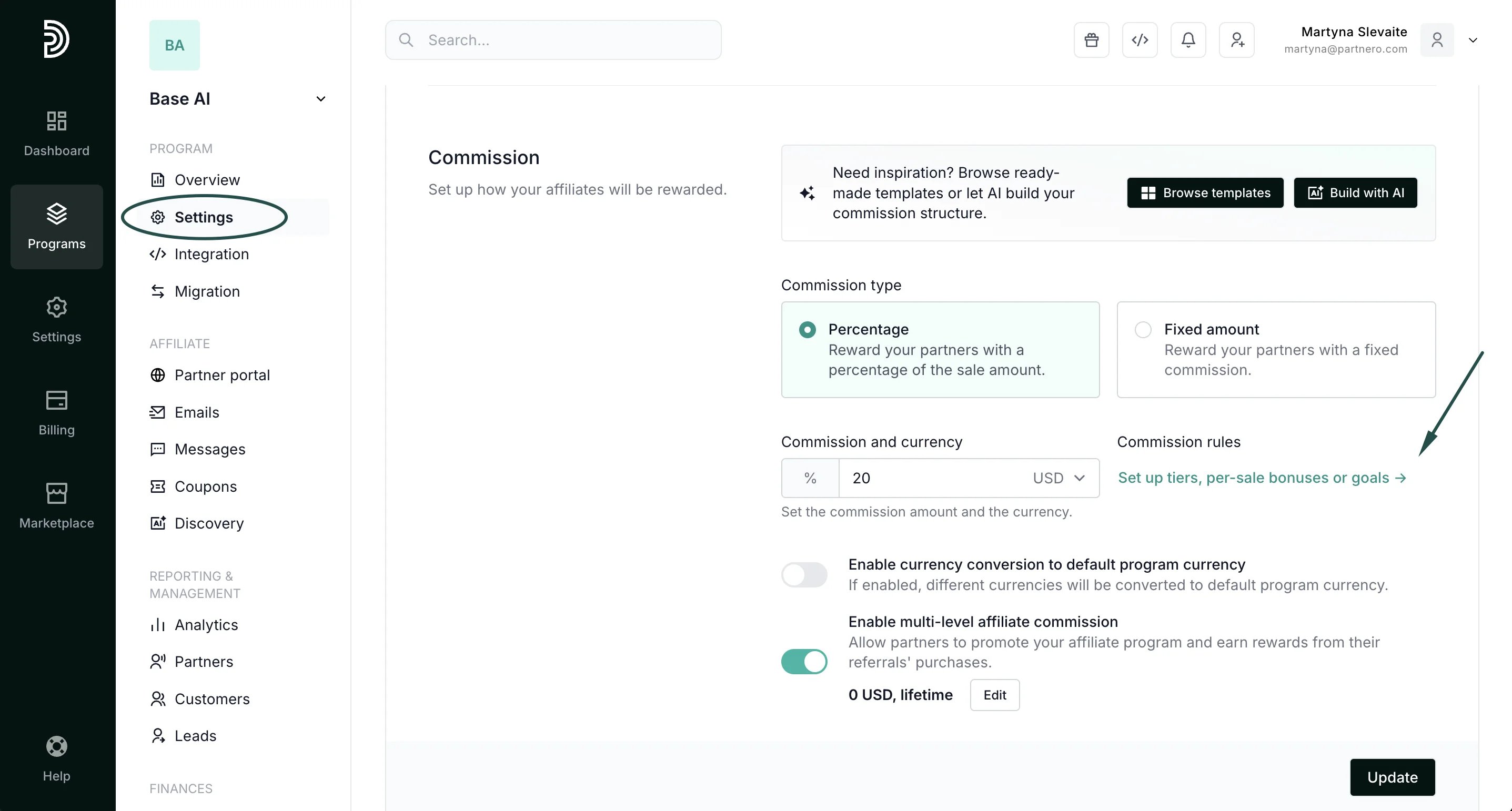 \_Note: If you already have existing advanced commissions set up, click **Edit**.
\_
3. Click on the **Product commissions** tab and click \*\*+\*\***Add**:
\_Note: If you already have existing advanced commissions set up, click **Edit**.
\_
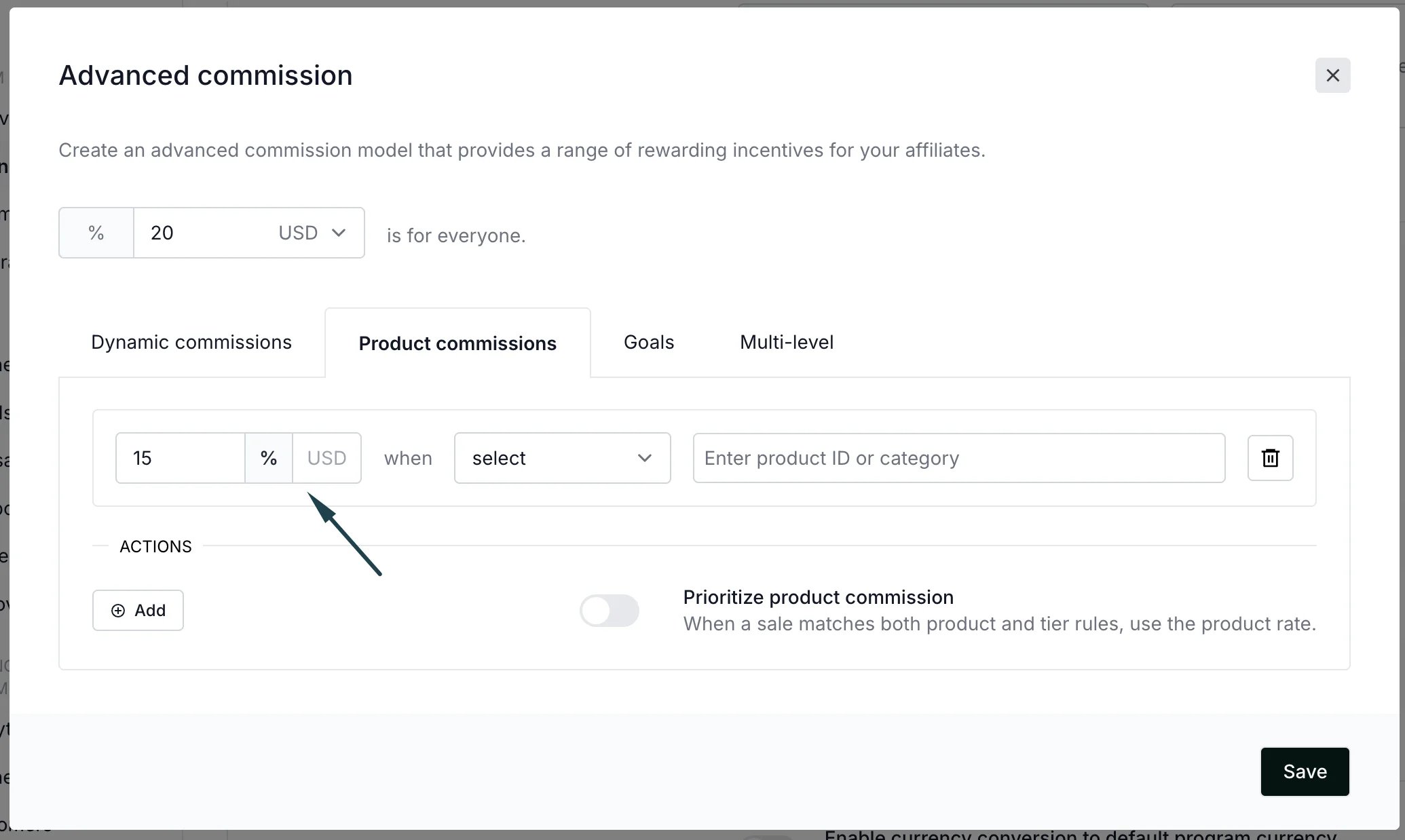
3. Click on the **Product commissions** tab and click \*\*+\*\***Add**: 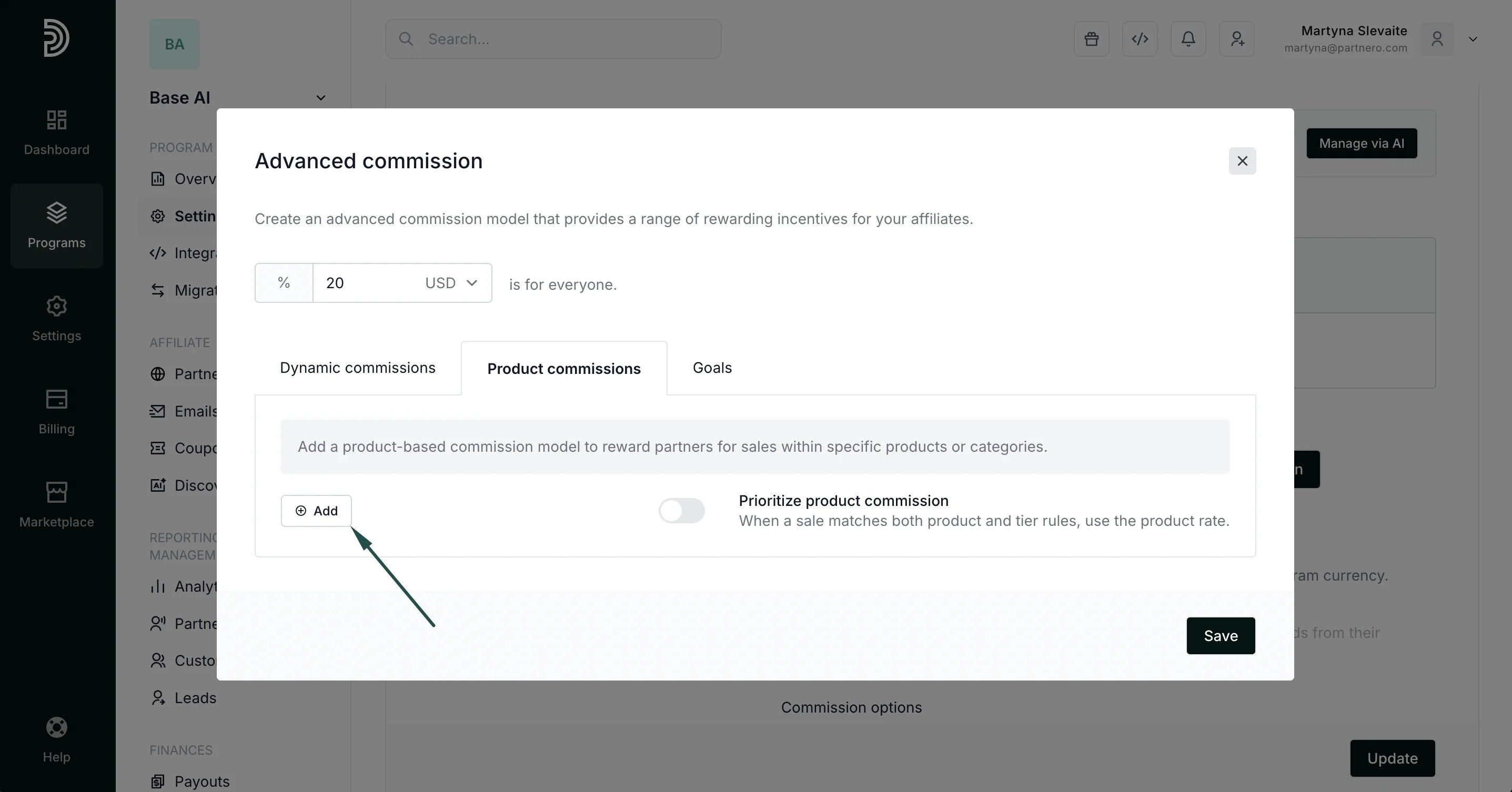 4. Add the amount and select between percentage (%) or currency (USD) for the reward, for example 15% or 15USD:
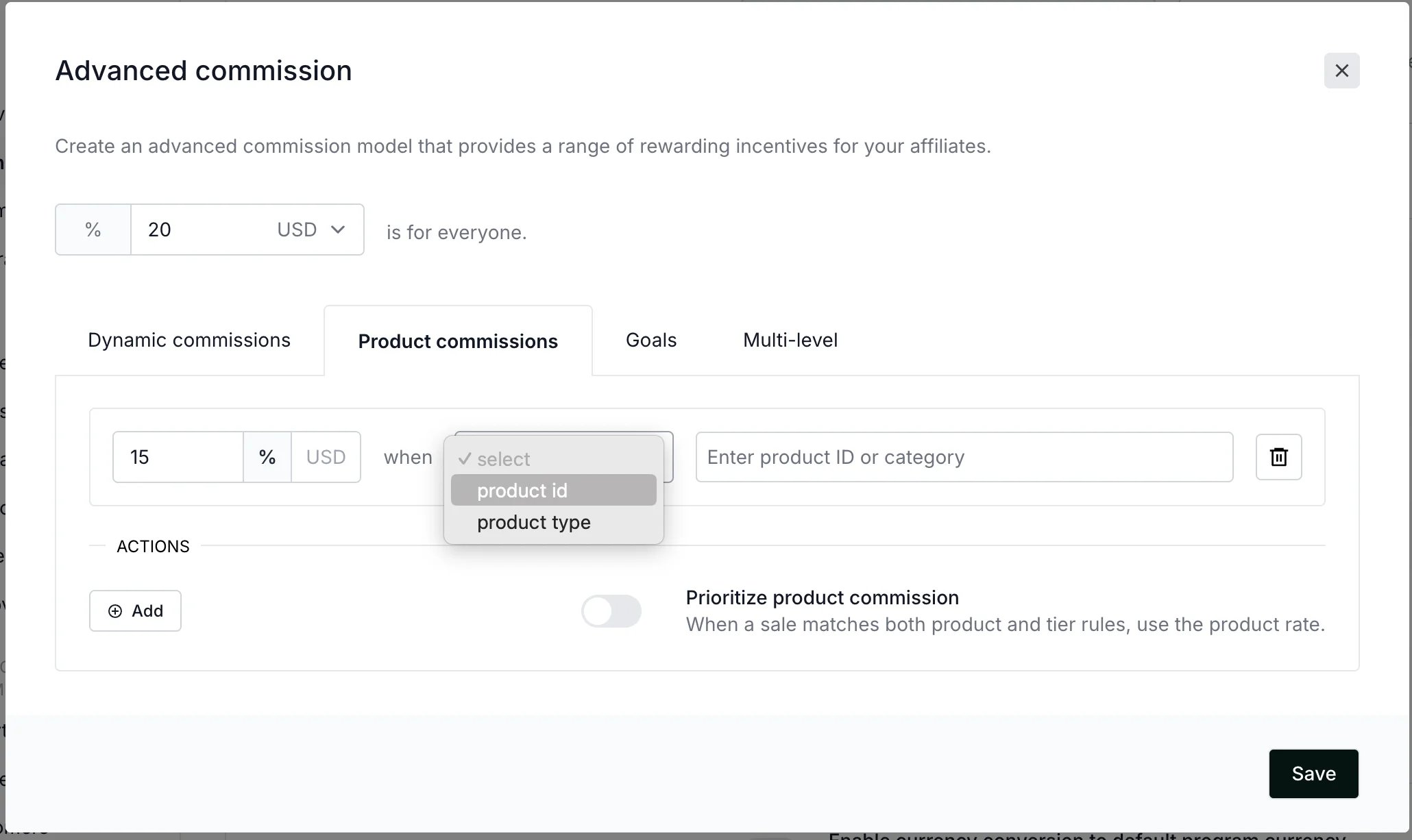
  5. Commissions can be set for a specific **product ID** or **product type**:
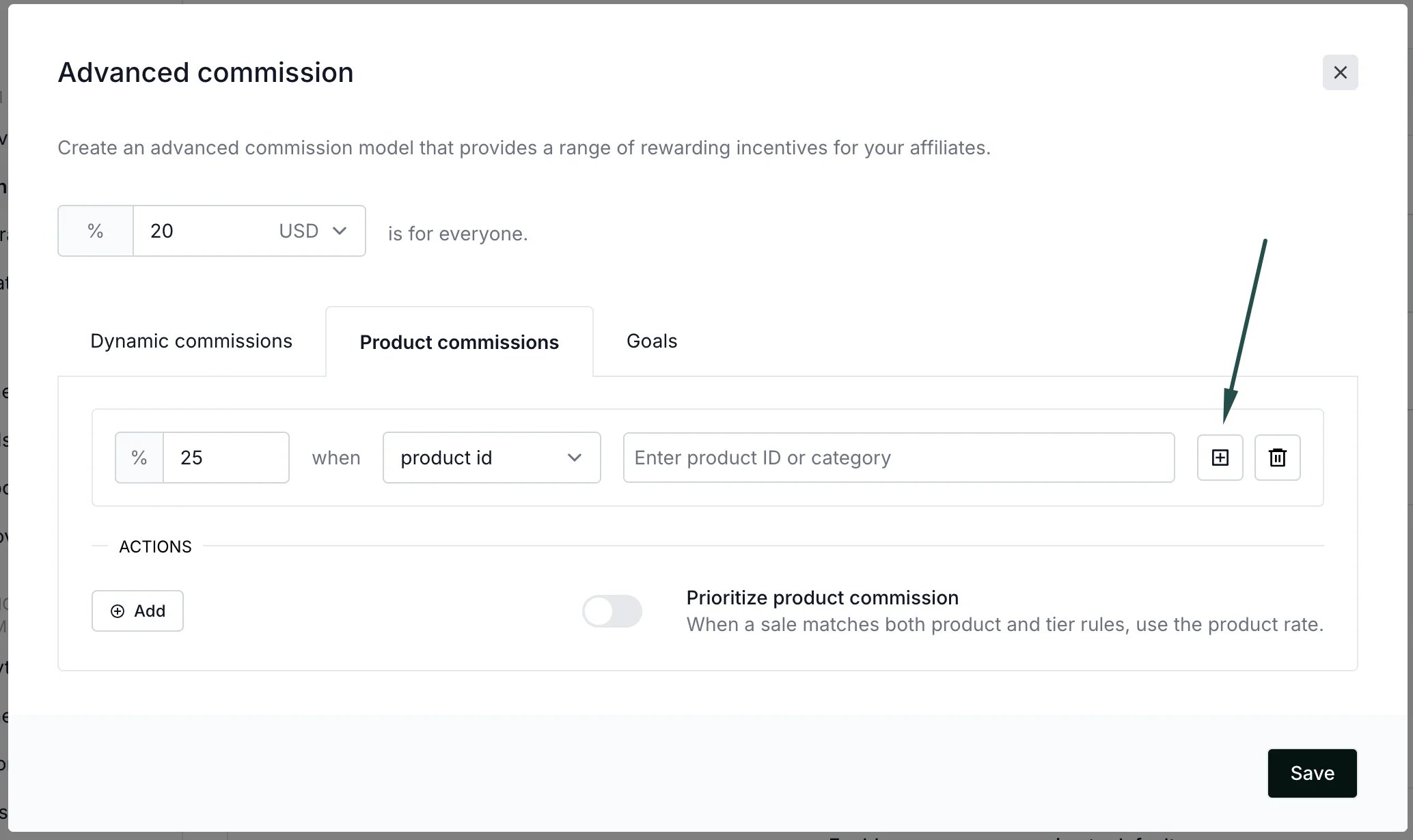
  If you have **Stripe**, **Shopify**, **Paddle,** or **Chargebee** connected, you will see a **+** button that allows importing products from your store:
6.
If you have **Stripe**, **Shopify**, **Paddle,** or **Chargebee** connected, you will see a **+** button that allows importing products from your store:
6. 
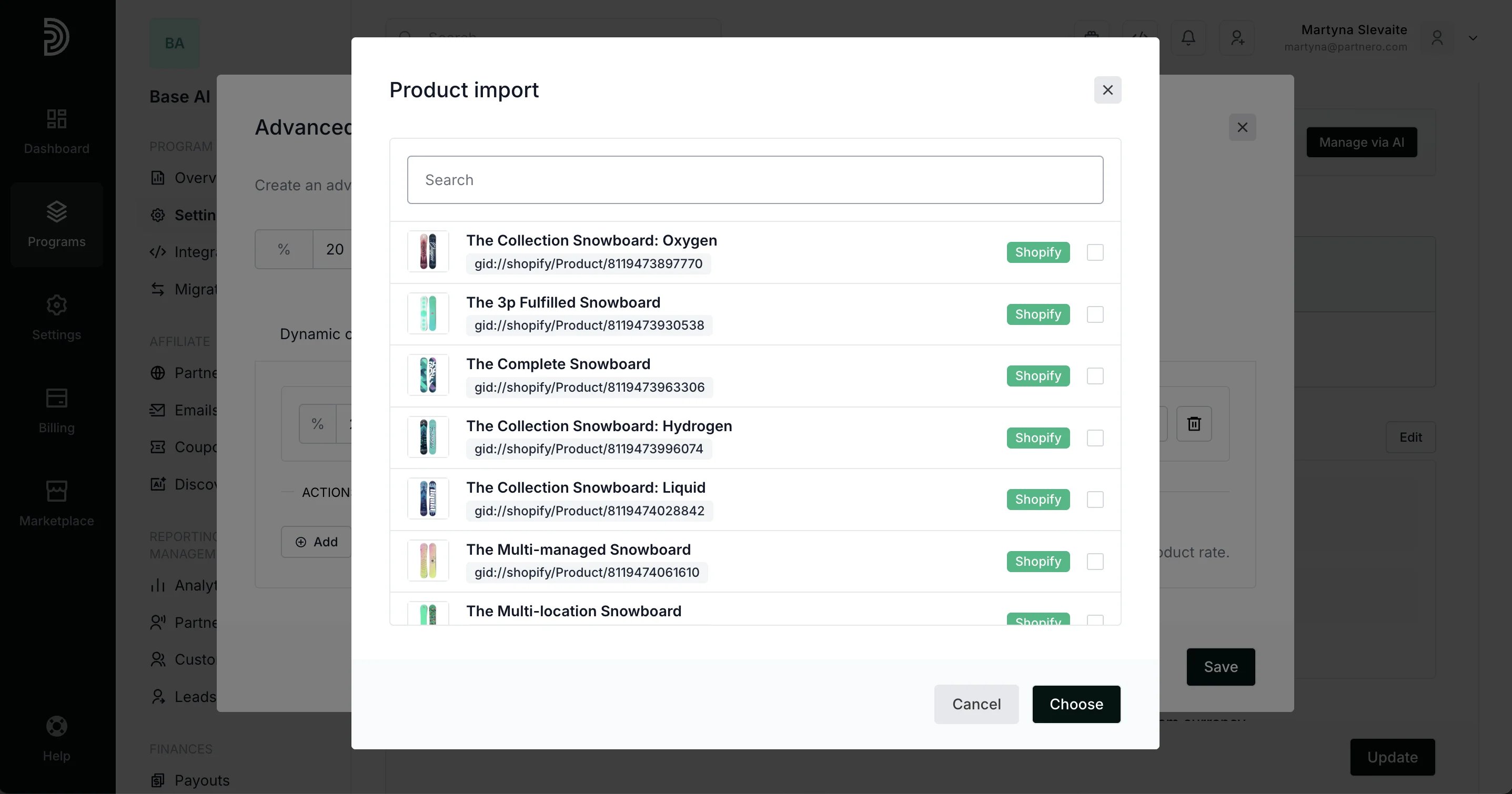 7. Selected the required products and set the commission rates. You can add multiple rows with different commission rates for different products or product groups.
If you'd like the product-based commission to have priority over the dynamic commission settings, toggle the setting at the bottom. Click **Save.
7. Selected the required products and set the commission rates. You can add multiple rows with different commission rates for different products or product groups.
If you'd like the product-based commission to have priority over the dynamic commission settings, toggle the setting at the bottom. Click **Save. 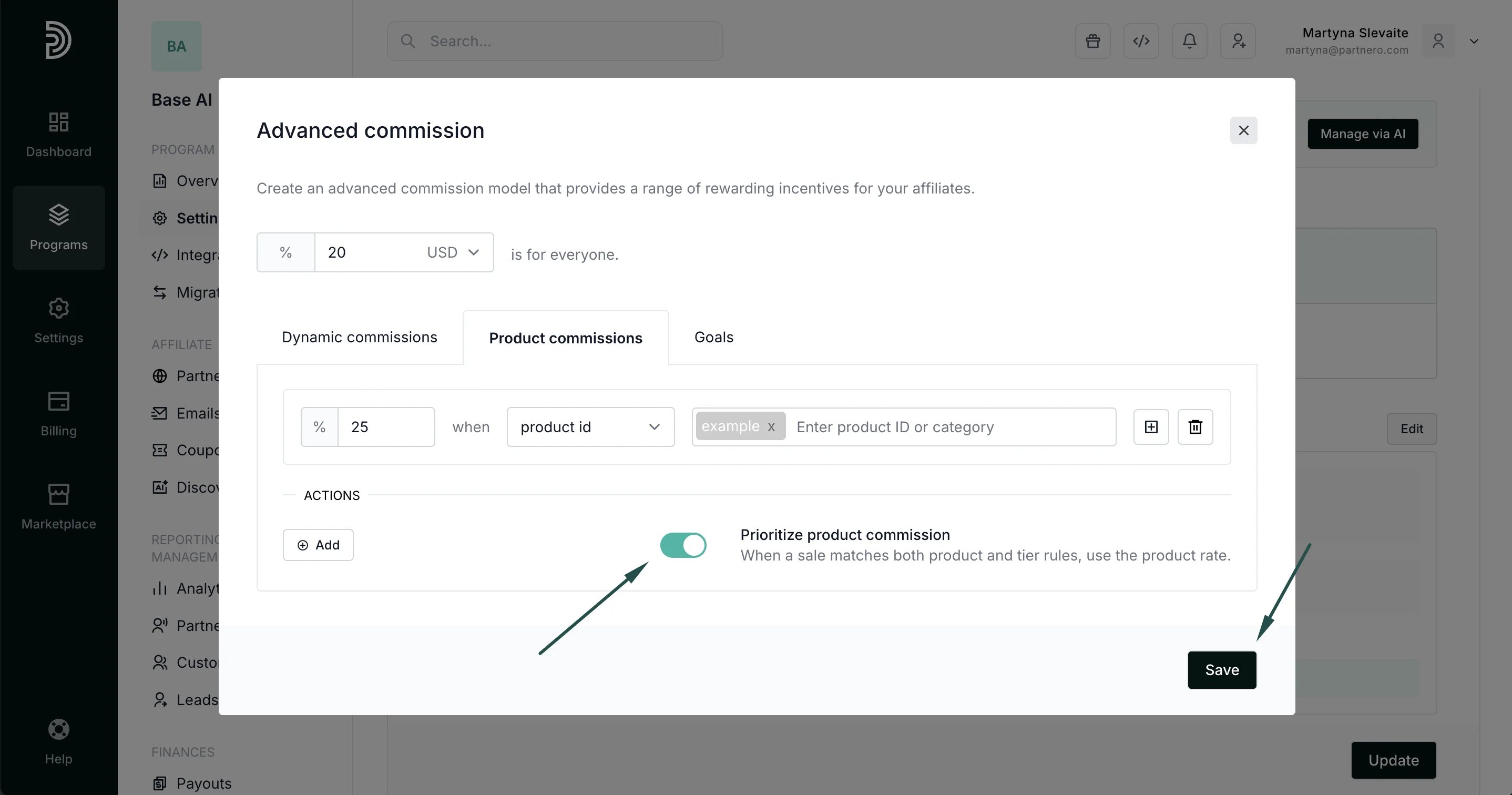 **
8. Click **Update** to save your changes:
**
8. Click **Update** to save your changes: 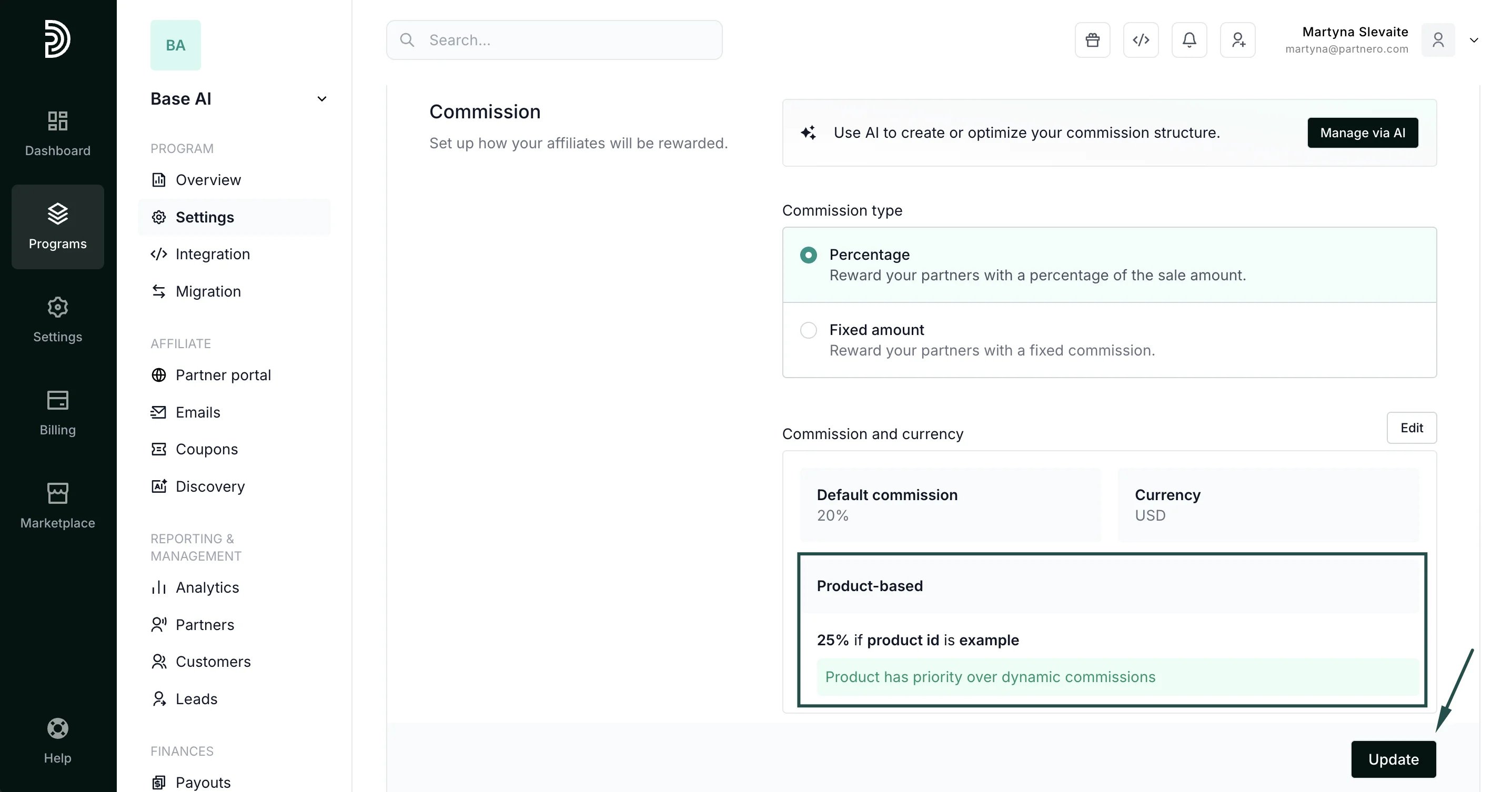 ***
### How to send product data to Partnero
When you send data about a transaction to Partnero, make sure to include the product ID or category so that the product-based commissions can be applied.
You can send product ID or category via API or JavaScript. Please find the instructions below:
* [Send product data via API](https://developers.partnero.com/guide/affiliate.html#sending-sales-data)
* [Send product data via JavaScript](https://developers.partnero.com/guide/javascript-tracking.html#sign-ups-tracking)
***
This documentation is built and hosted on [Mintlify](https://mintlify.com), a developer documentation platform.
***
### How to send product data to Partnero
When you send data about a transaction to Partnero, make sure to include the product ID or category so that the product-based commissions can be applied.
You can send product ID or category via API or JavaScript. Please find the instructions below:
* [Send product data via API](https://developers.partnero.com/guide/affiliate.html#sending-sales-data)
* [Send product data via JavaScript](https://developers.partnero.com/guide/javascript-tracking.html#sign-ups-tracking)
***
This documentation is built and hosted on [Mintlify](https://mintlify.com), a developer documentation platform.