> ## Documentation Index
> Fetch the complete documentation index at: https://docs.partnero.com/llms.txt
> Use this file to discover all available pages before exploring further.
# Manage commissions from the partner profile
You can manage partner commissions directly in the partner profile. This includes marking commissions as paid or reviewing pending commissions.
***
### Mark commissions as paid
If a partner has unpaid commissions, you'll see a **Manage** button next to Commission, where you can mark them as paid.
To mark commissions as paid from a partner profile:
1. Find the partner and open their profile. Click **Manage** next to the Commission section (only visible if there are upaid commissions):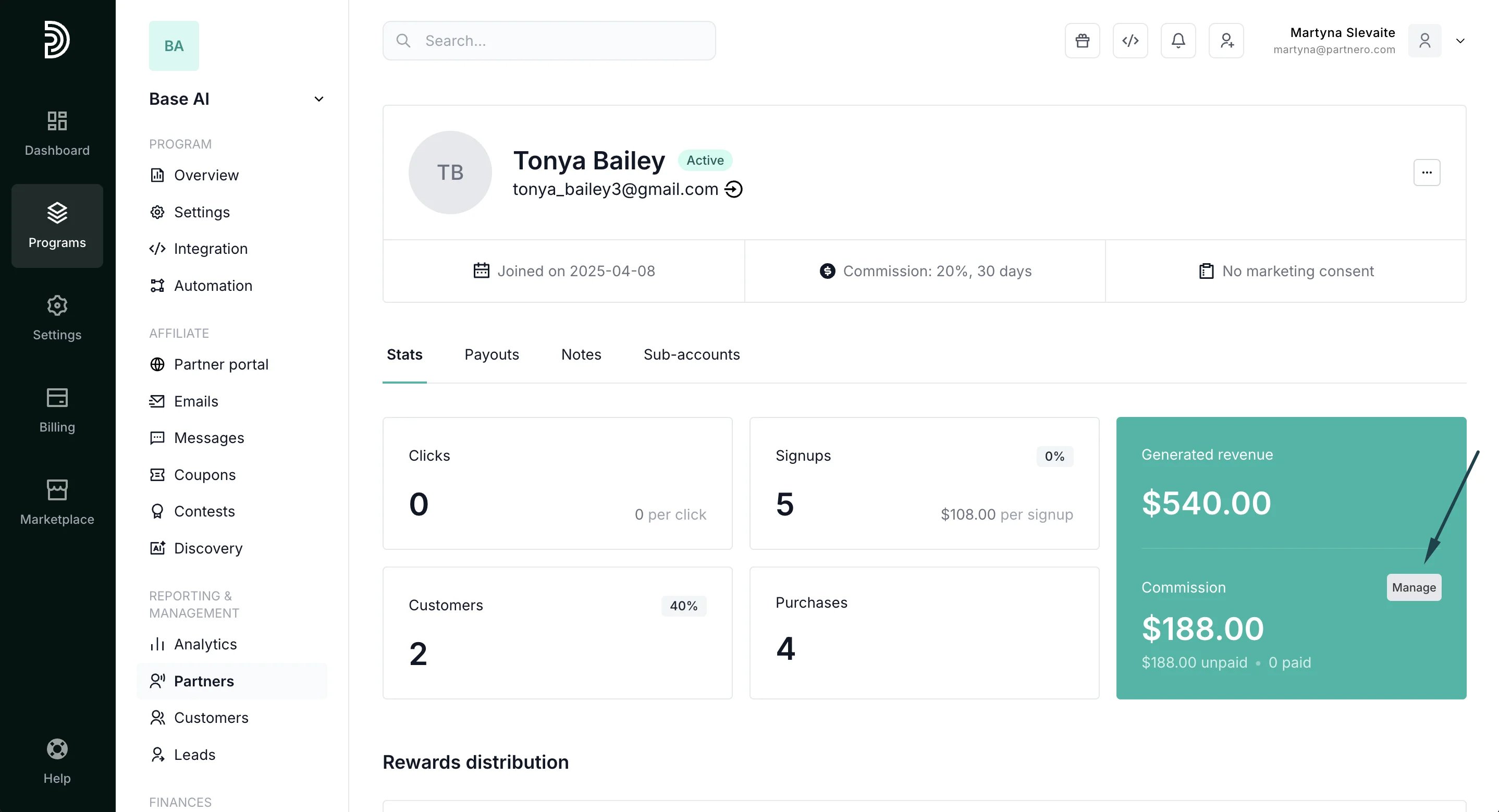 2. Click to view all unpaid commission transactions.
3. Select one or multiple commissions and click **Mark as Paid**:
2. Click to view all unpaid commission transactions.
3. Select one or multiple commissions and click **Mark as Paid**: 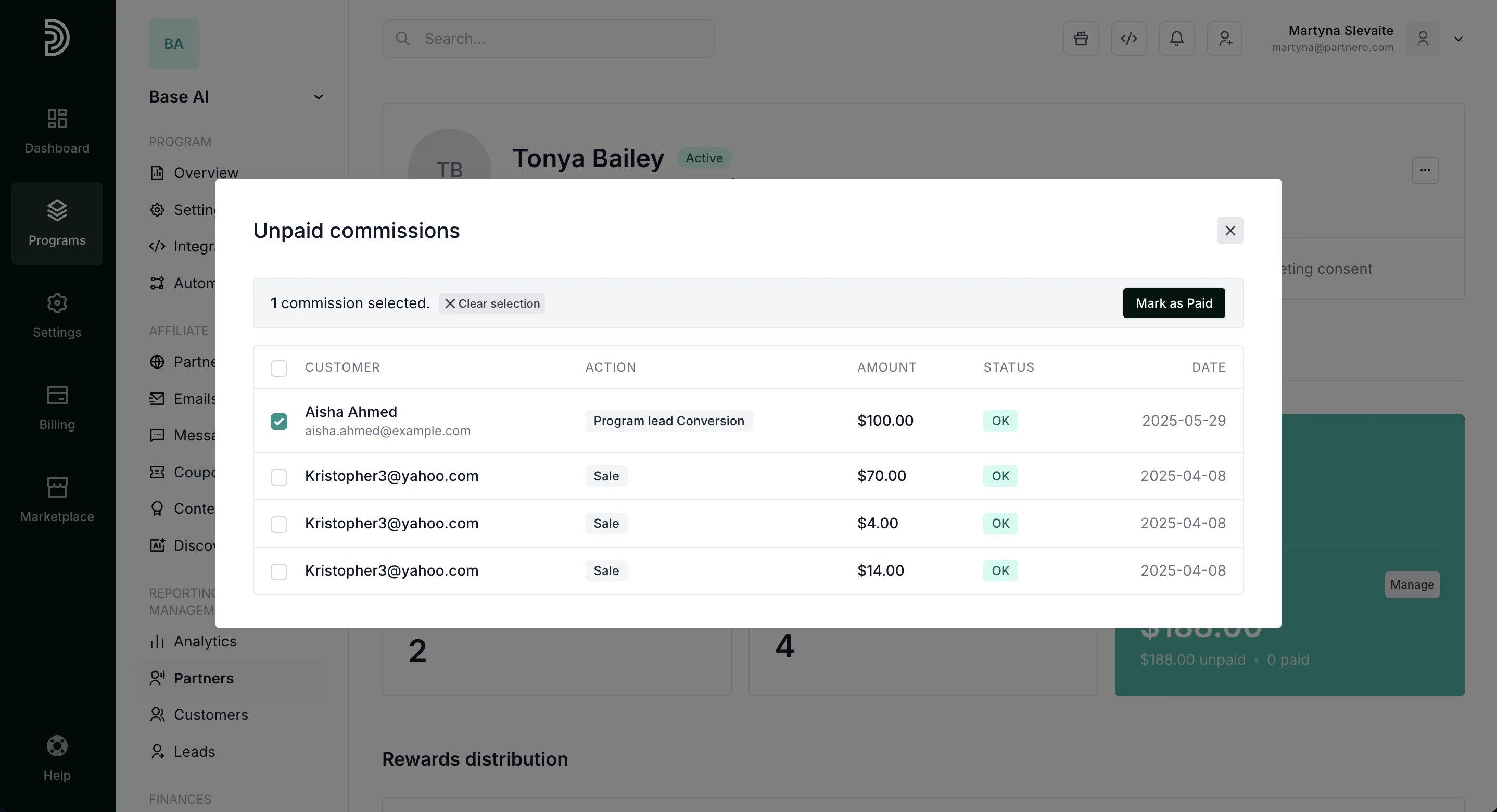 4. A payout record is automatically created and visible in the partner's Payout history:
 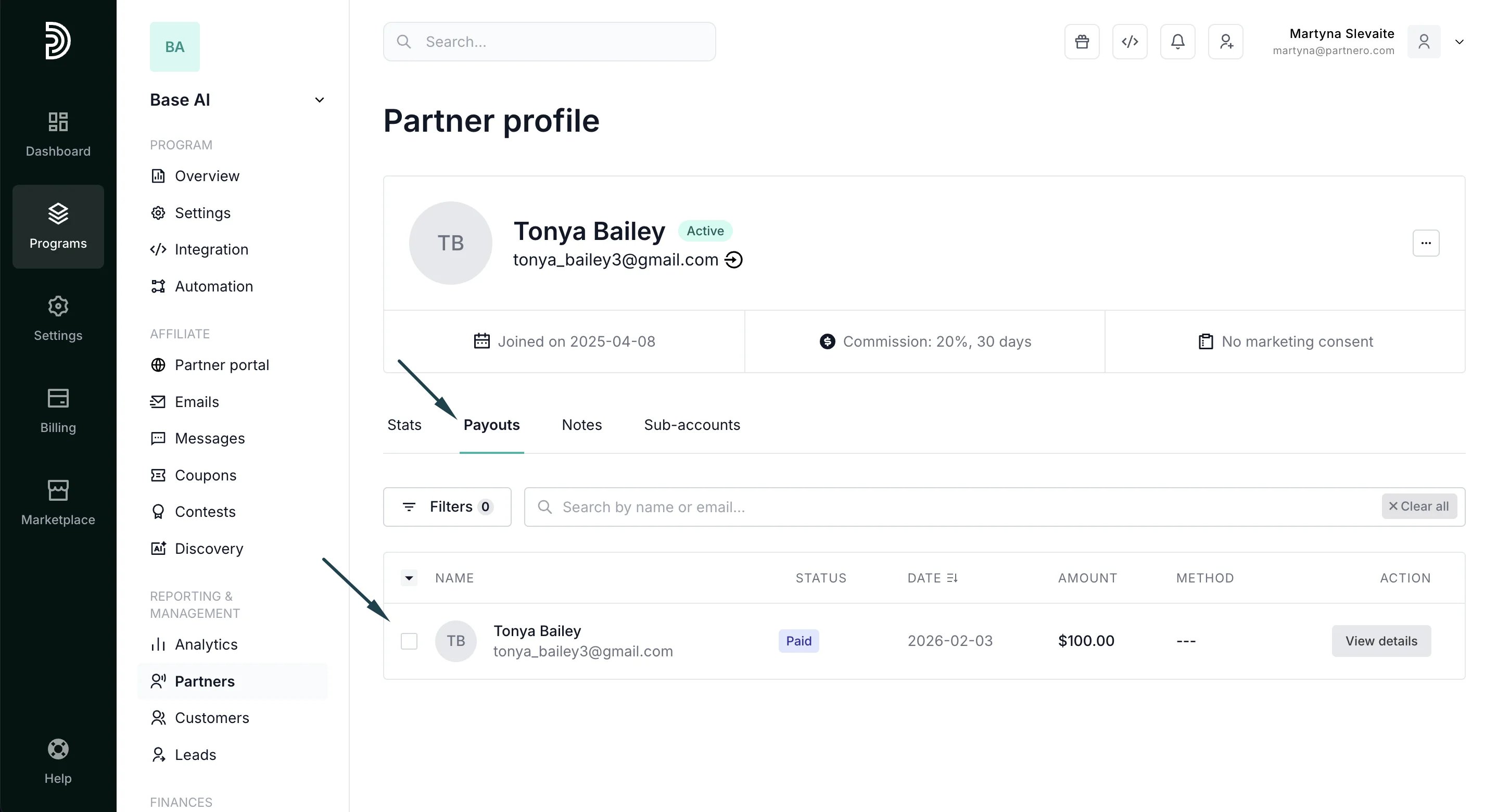 Perfect for when you pay partners outside the platform (cash, check, alternative payment methods) and need to keep records accurate.
***
### Approve or decline commissions in review
If you have commission review periods enabled, you'll see a **Manage** button next to Generated Revenue when there are pending commissions, where you can approve or reject them.
To review pending commissions:
1. Go to **Partners** and select a partner to view their profile.
2. In the Stats tab, the Generated Revenue section, click **Manage** (appears when there are commissions in review):
Perfect for when you pay partners outside the platform (cash, check, alternative payment methods) and need to keep records accurate.
***
### Approve or decline commissions in review
If you have commission review periods enabled, you'll see a **Manage** button next to Generated Revenue when there are pending commissions, where you can approve or reject them.
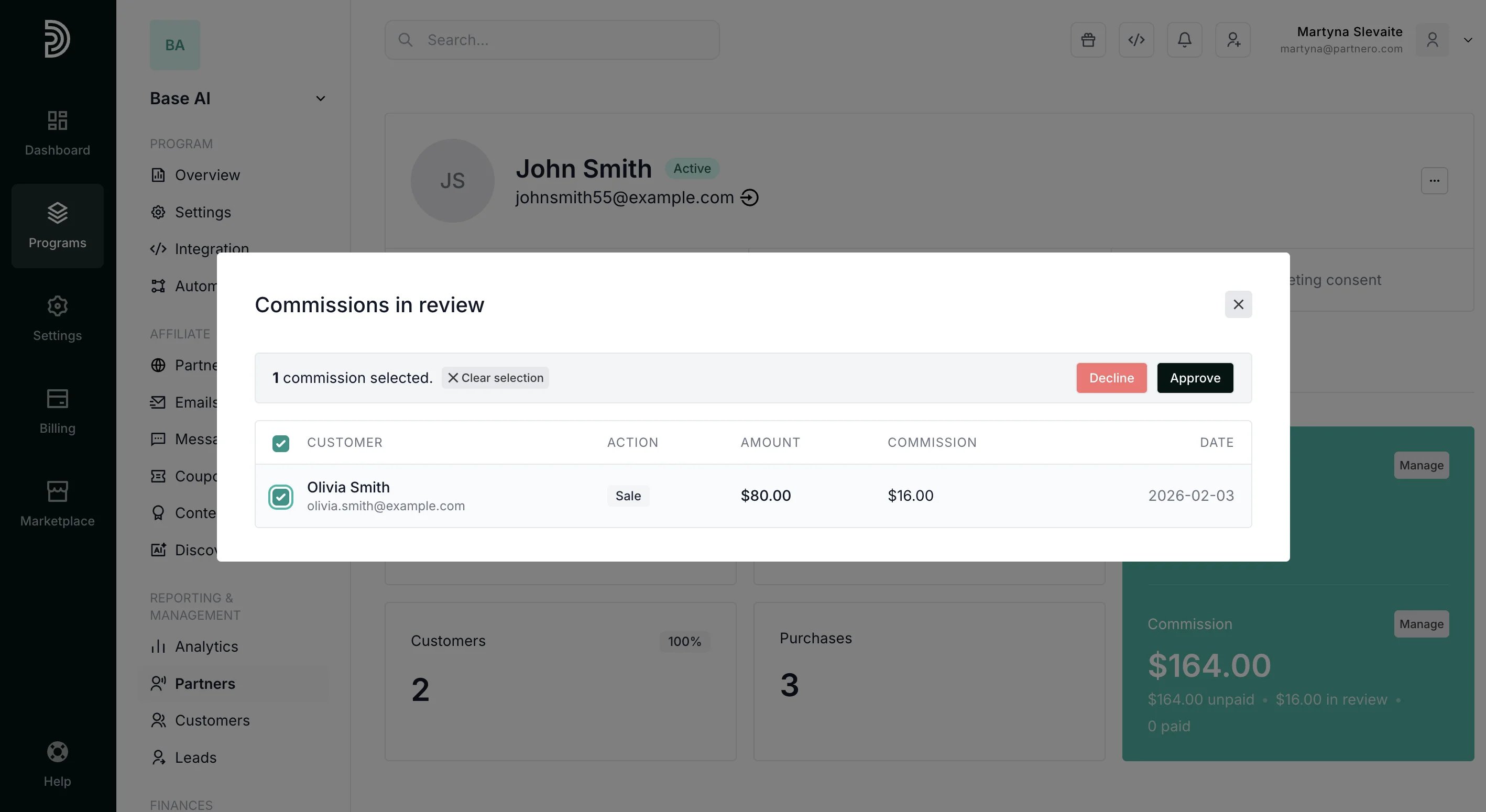
To review pending commissions:
1. Go to **Partners** and select a partner to view their profile.
2. In the Stats tab, the Generated Revenue section, click **Manage** (appears when there are commissions in review): 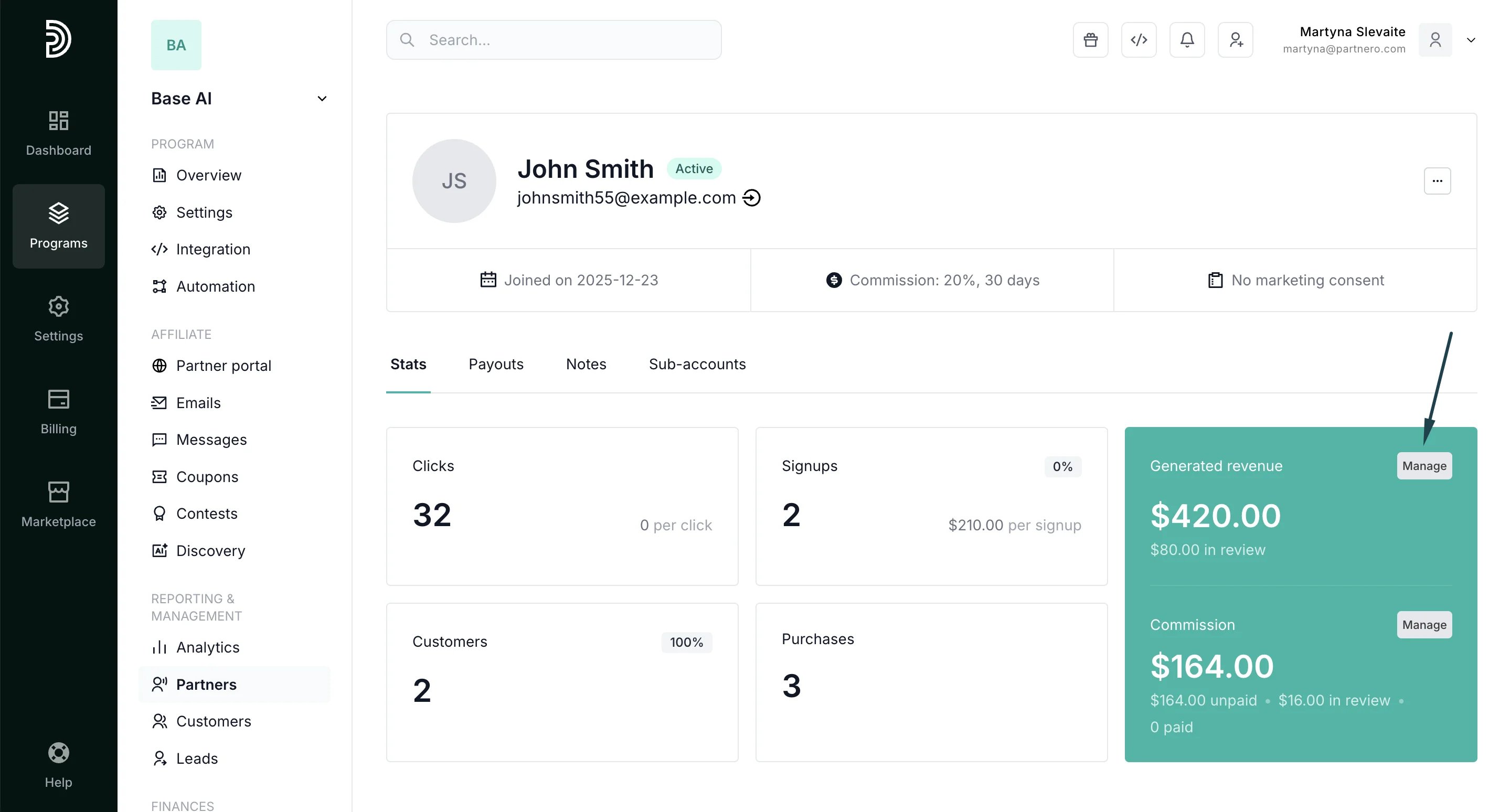 3. Select commissions and click **Approve** or **Decline**:
  This documentation is built and hosted on [Mintlify](https://mintlify.com), a developer documentation platform.