> ## Documentation Index
> Fetch the complete documentation index at: https://docs.partnero.com/llms.txt
> Use this file to discover all available pages before exploring further.
# Assigning additional partners to a customer
A customer in your affiliate program has one main partner who referred them. With additional partners, you can link a customer to other partners as well, and those partners will earn rewards on the customer's sales too, alongside the main partner.
This is useful when more than one partner contributed to bringing in or supporting a customer, and you want each of them rewarded.
***
### Rewards for additional partners
Once an additional partner is assigned, they earn a reward on every sale recorded for that customer, calculated from their own commission settings, the same way the main partner's reward is calculated.
***
### Assigning an additional partner
To assign an additional partner to a customer:
1. Go to **Customers** in your affiliate program, find the customer by name or email, and open their profile.
2. Click the three dots in the upper right and select **Manage**: 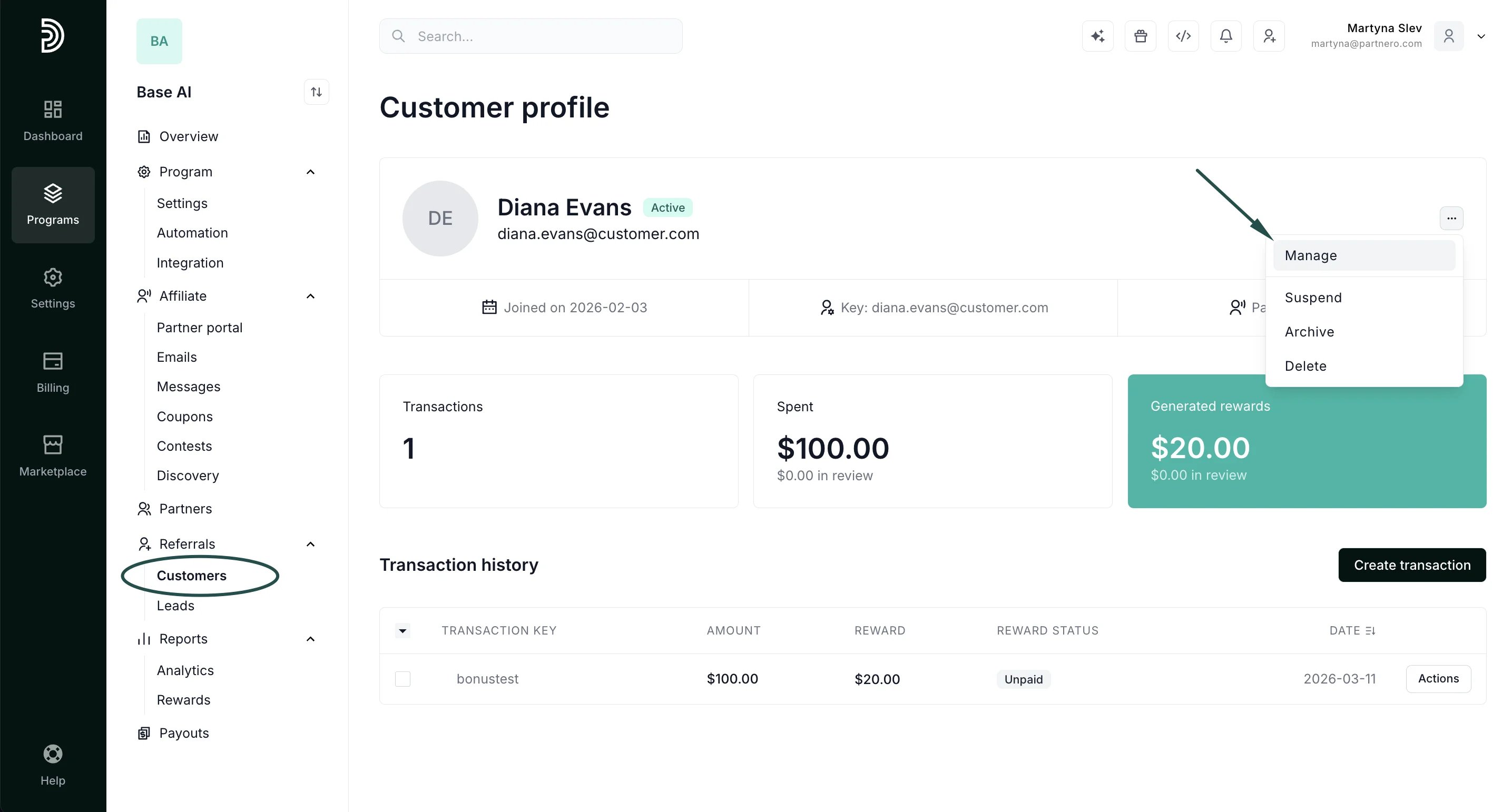 3. In the modal, switch to the **Additional Partners** tab.
 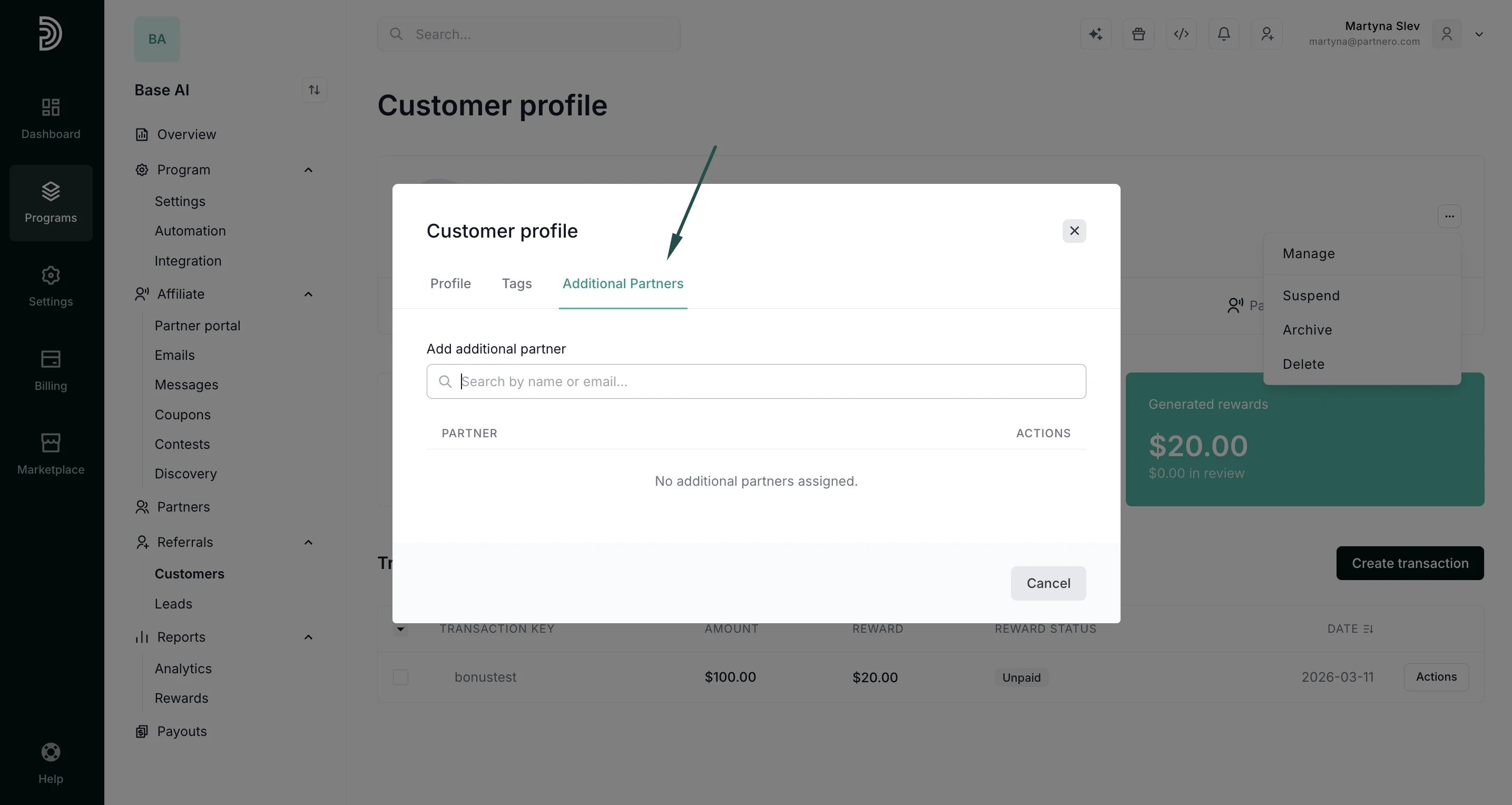 4. Use the search field to find a partner by name or email.
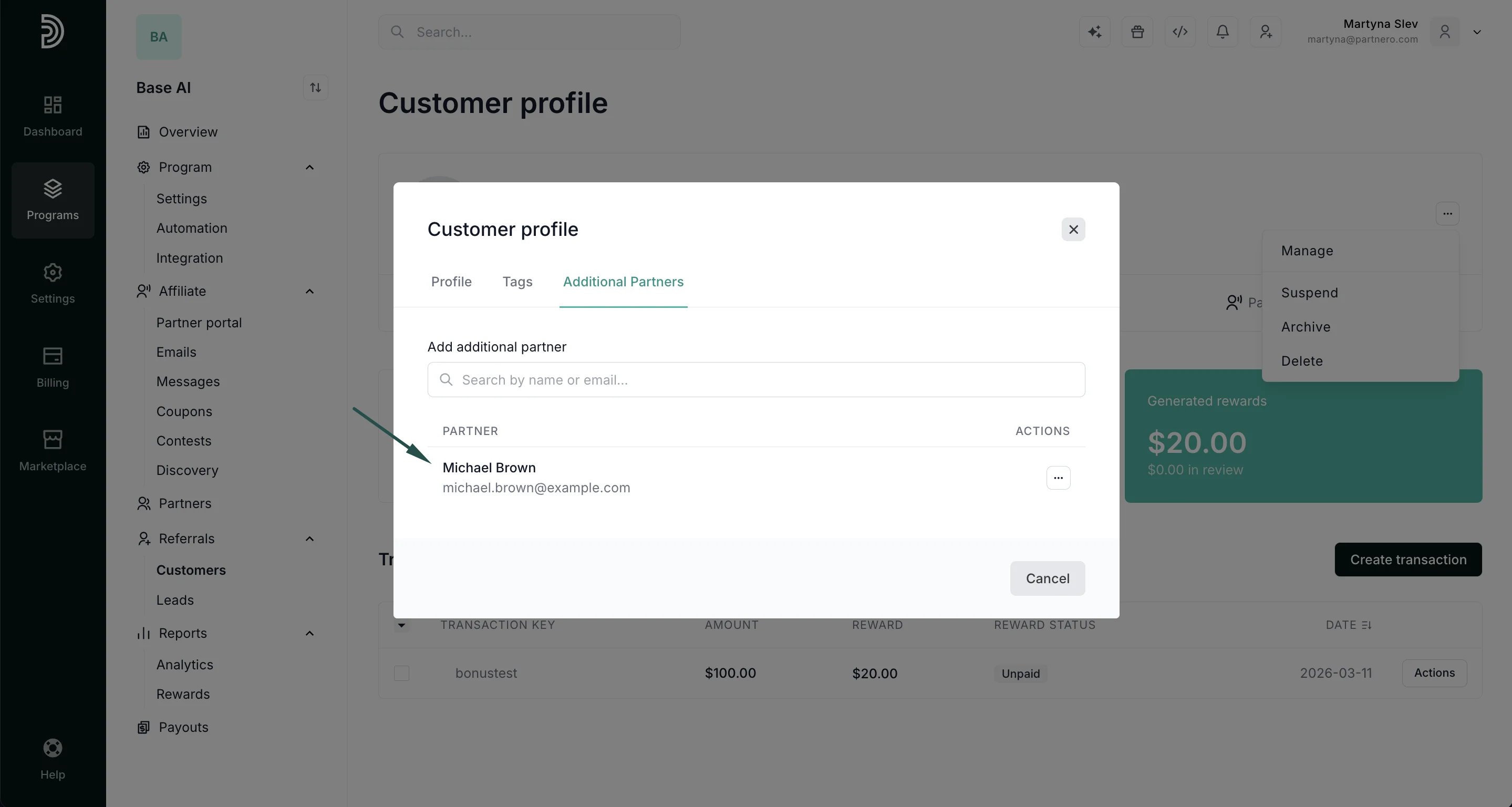
 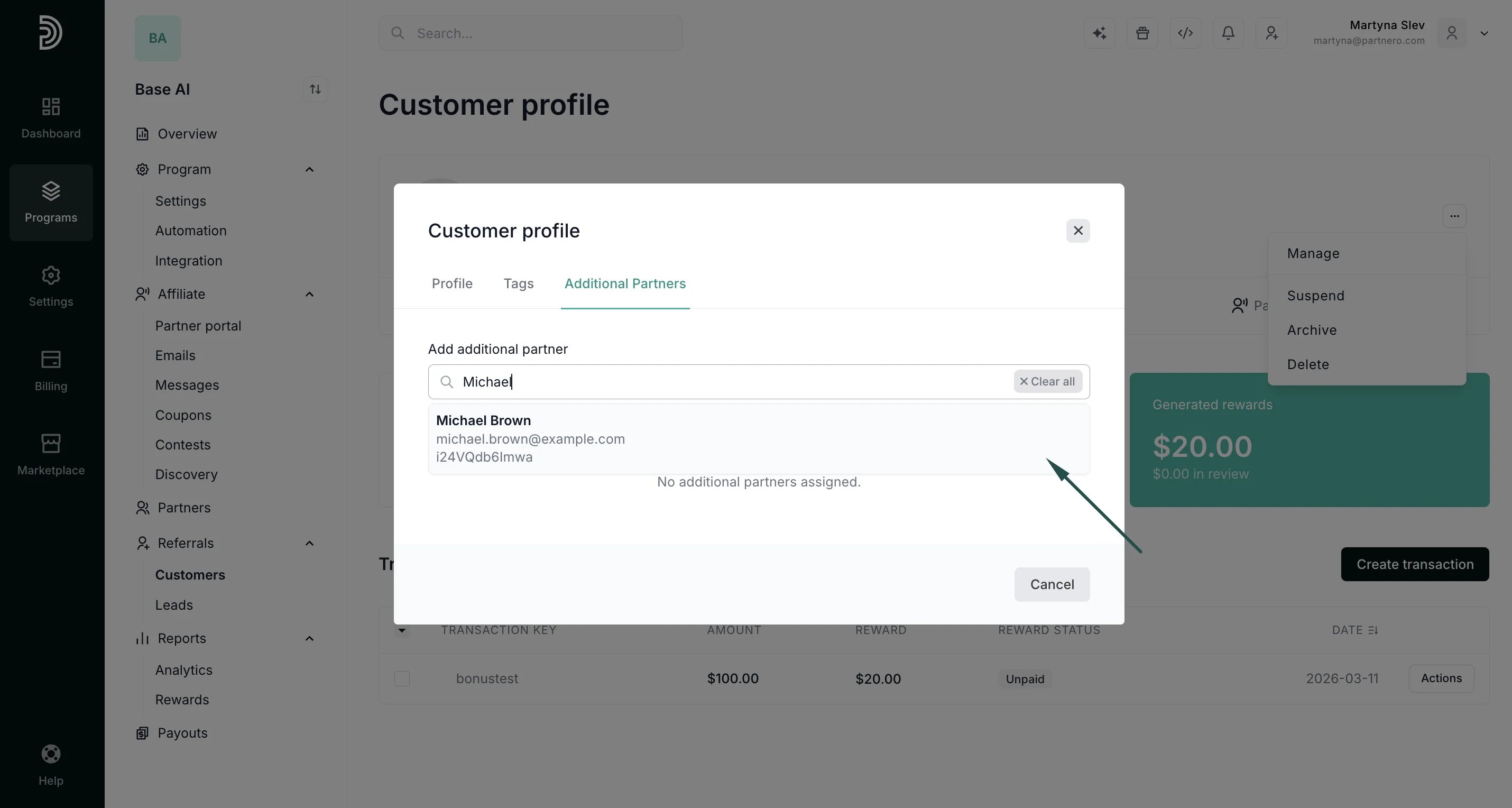 5. Select the partner from the results to assign them.
  ***
### Removing an additional partner
1. Open the customer's **Additional Partne**rs tab.
2. Find the partner in the assigned list.
3. Open the Actions menu next to their name and select **Unassign**.
***
### Removing an additional partner
1. Open the customer's **Additional Partne**rs tab.
2. Find the partner in the assigned list.
3. Open the Actions menu next to their name and select **Unassign**. 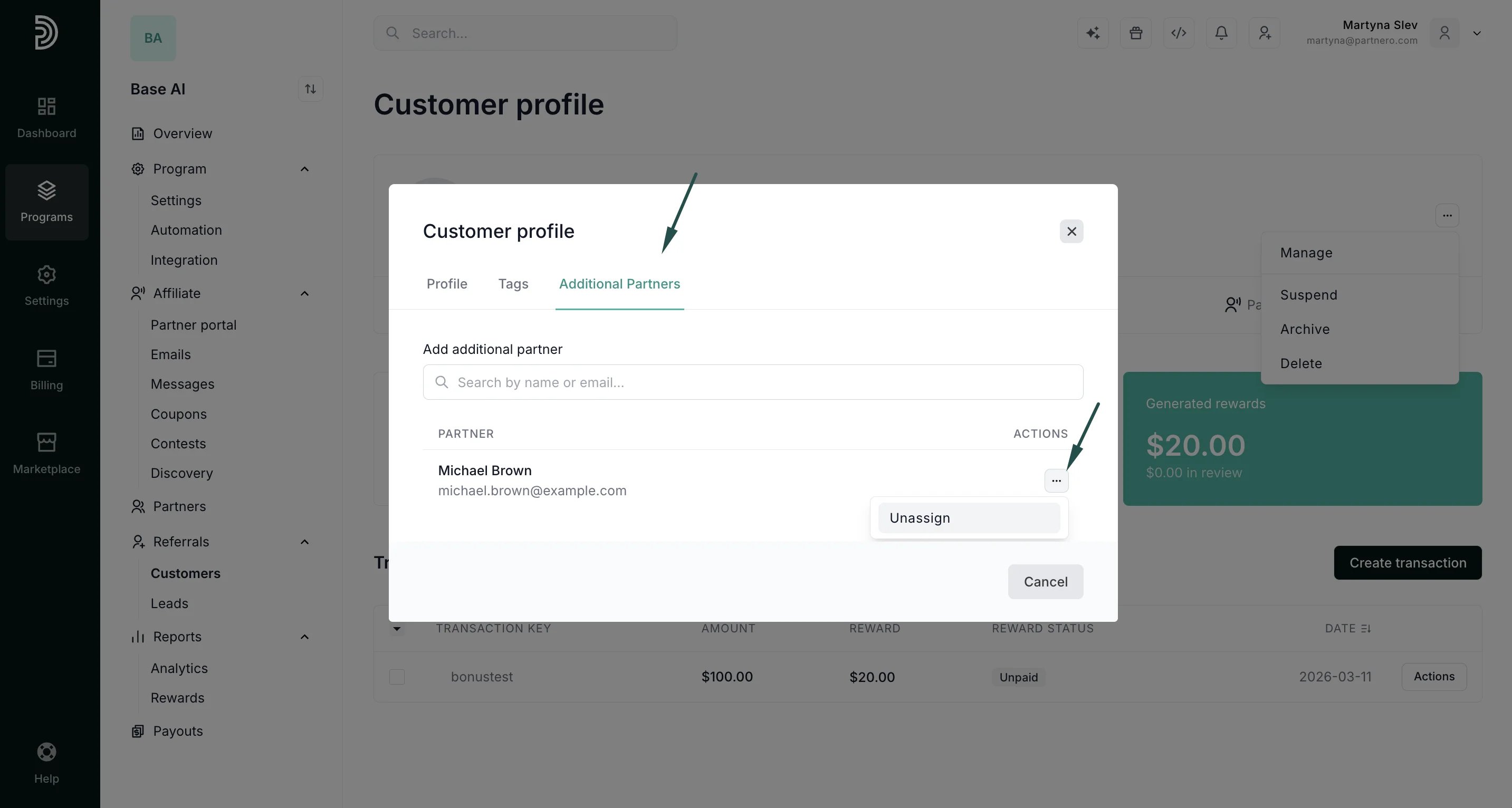 ***
This documentation is built and hosted on [Mintlify](https://mintlify.com), a developer documentation platform.
***
This documentation is built and hosted on [Mintlify](https://mintlify.com), a developer documentation platform.