> ## Documentation Index
> Fetch the complete documentation index at: https://docs.partnero.com/llms.txt
> Use this file to discover all available pages before exploring further.
# Creating a lead submission page
### What is a lead submission page?
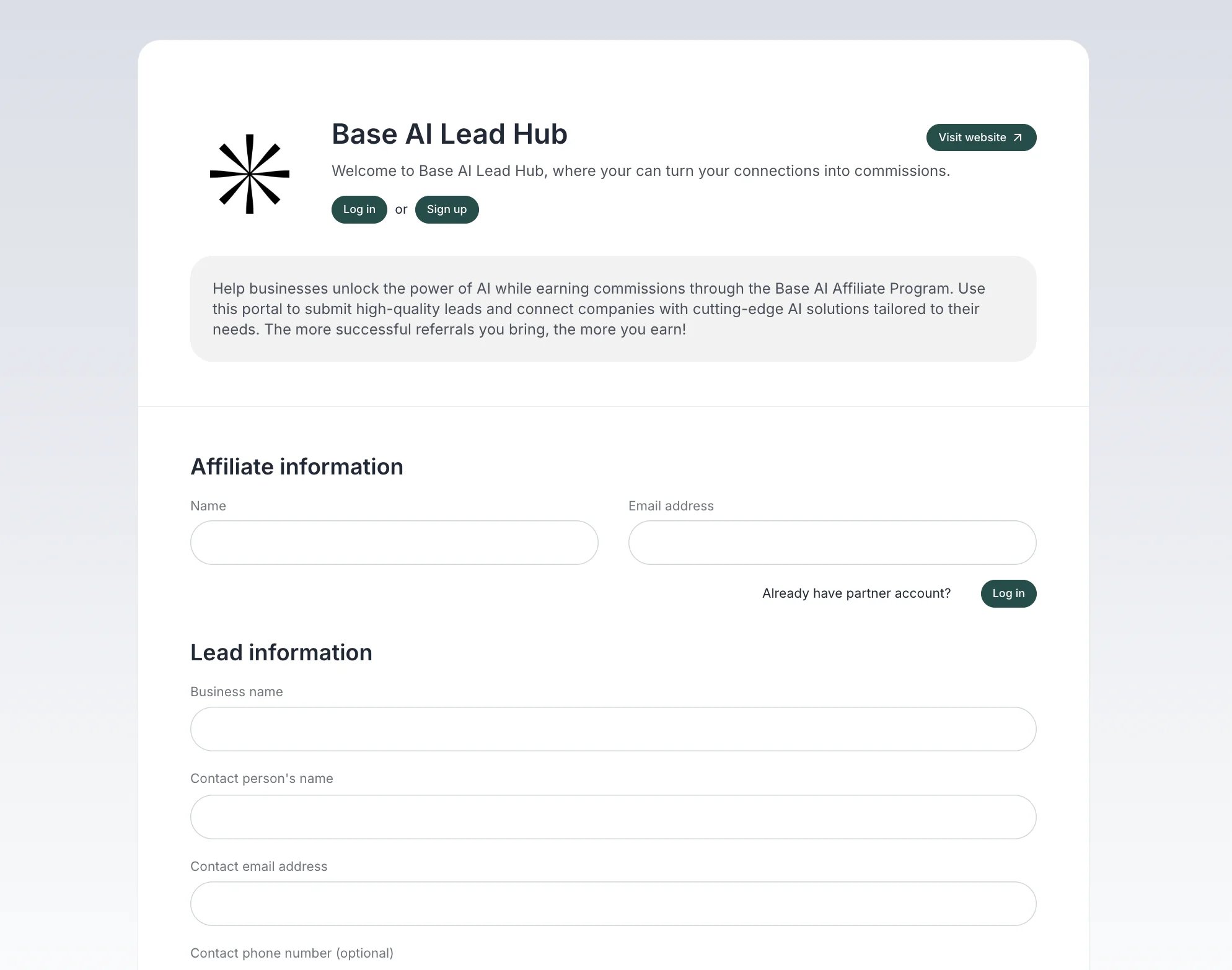
A **lead submission page** is a dedicated page on your partner portal where leads can be submitted by partners, affiliates, or other contributors. It works as a stand-alone page, allowing anyone with the link to submit leads, while registered affiliates can also submit leads directly from within the partner portal.
#### Leads page link (URL)
The leads page will be hosted on the same domain as your partner portal, at */submit*. For example:
Partner portal URL:
partners.company.com
Leads page URL:
partners.company.com/submit
To find your leads page link and preview, open the program **Overview** tab and click **View** next to **Leads page**: 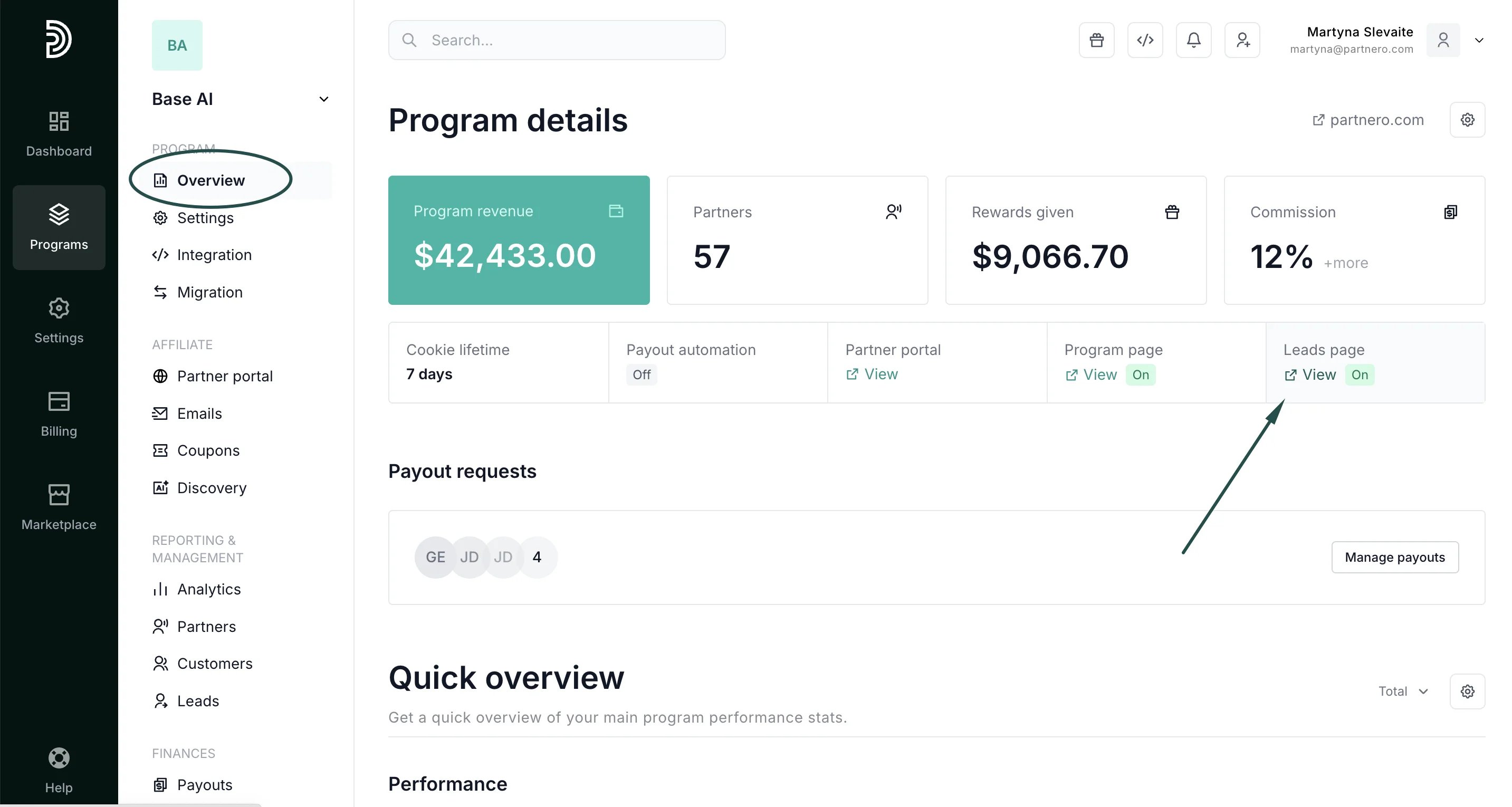
 ***
### Add leads page content
To add content to your leads page:
1. Click on **Partner portal** under **Affiliate**.
2. On the **Pages & Conten**t tab, switch to **Leads page**:
***
### Add leads page content
To add content to your leads page:
1. Click on **Partner portal** under **Affiliate**.
2. On the **Pages & Conten**t tab, switch to **Leads page**: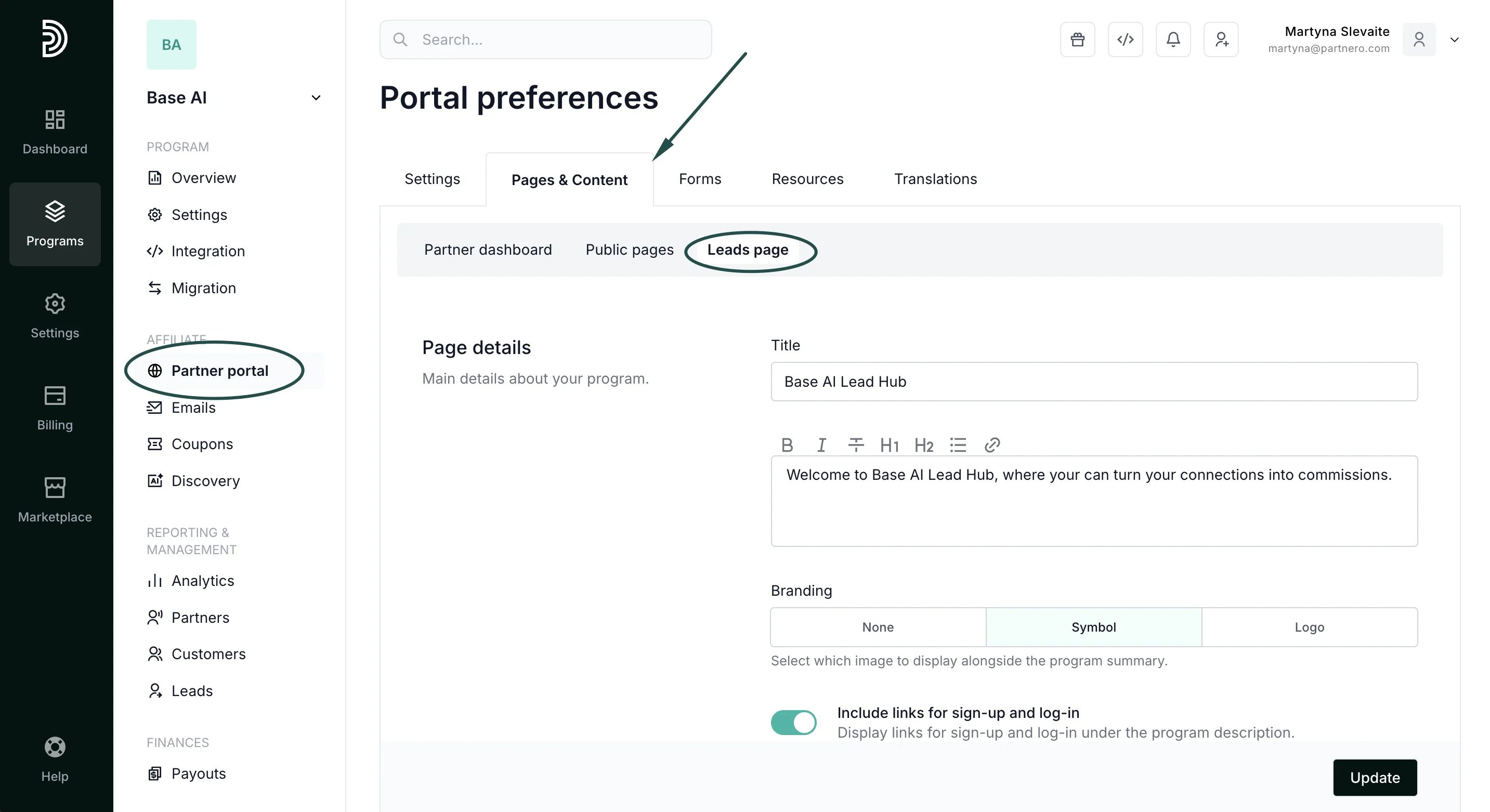 Let's go through each section in this page.
#### Page details
Let's go through each section in this page.
#### Page details
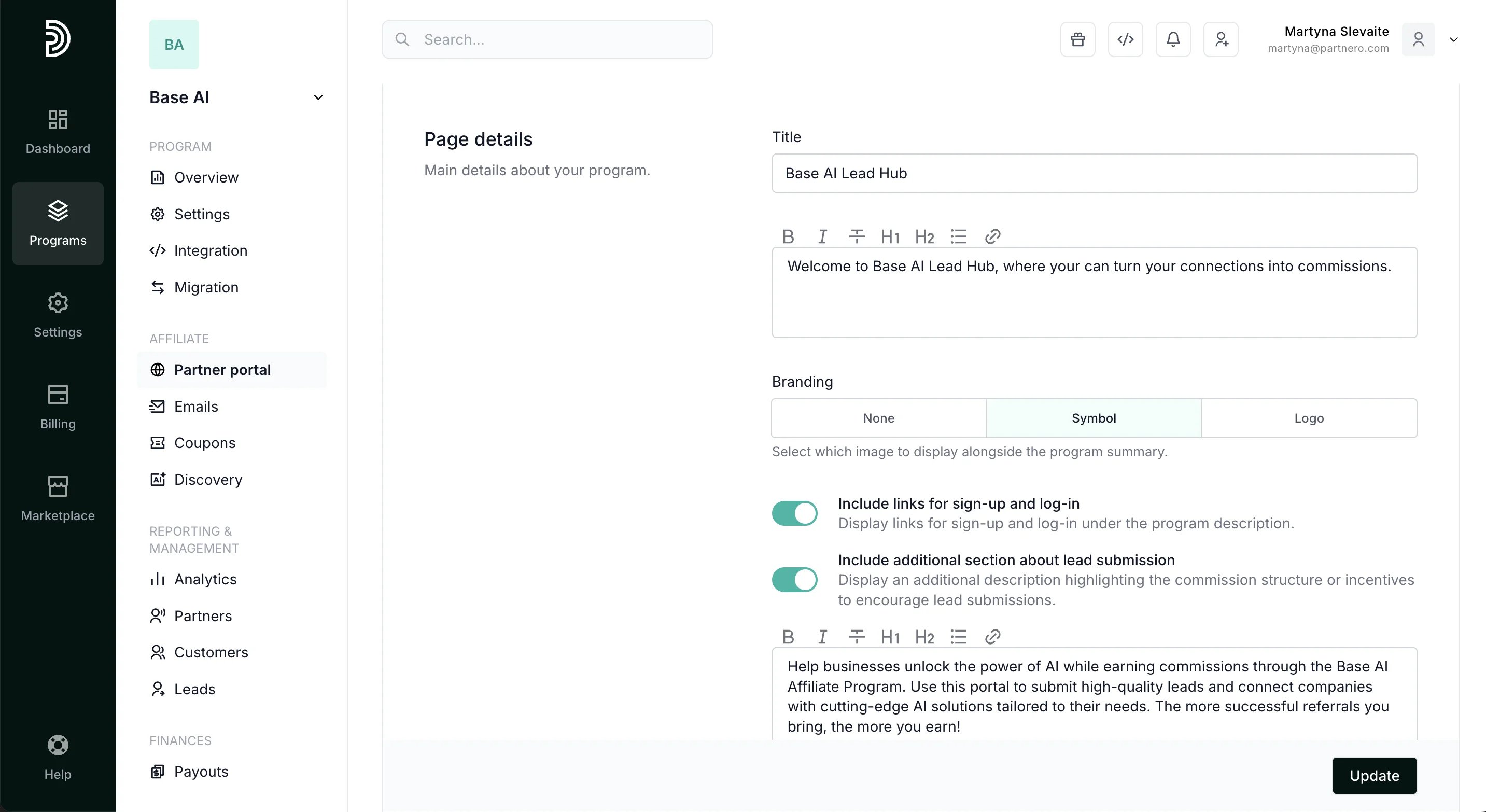 Here, you can
* enter the page title and description;
* select between different branding options;
* include links for partner portal sign-up and log-in;
* include an additional section where you can promote program benefits, for example:
Here, you can
* enter the page title and description;
* select between different branding options;
* include links for partner portal sign-up and log-in;
* include an additional section where you can promote program benefits, for example: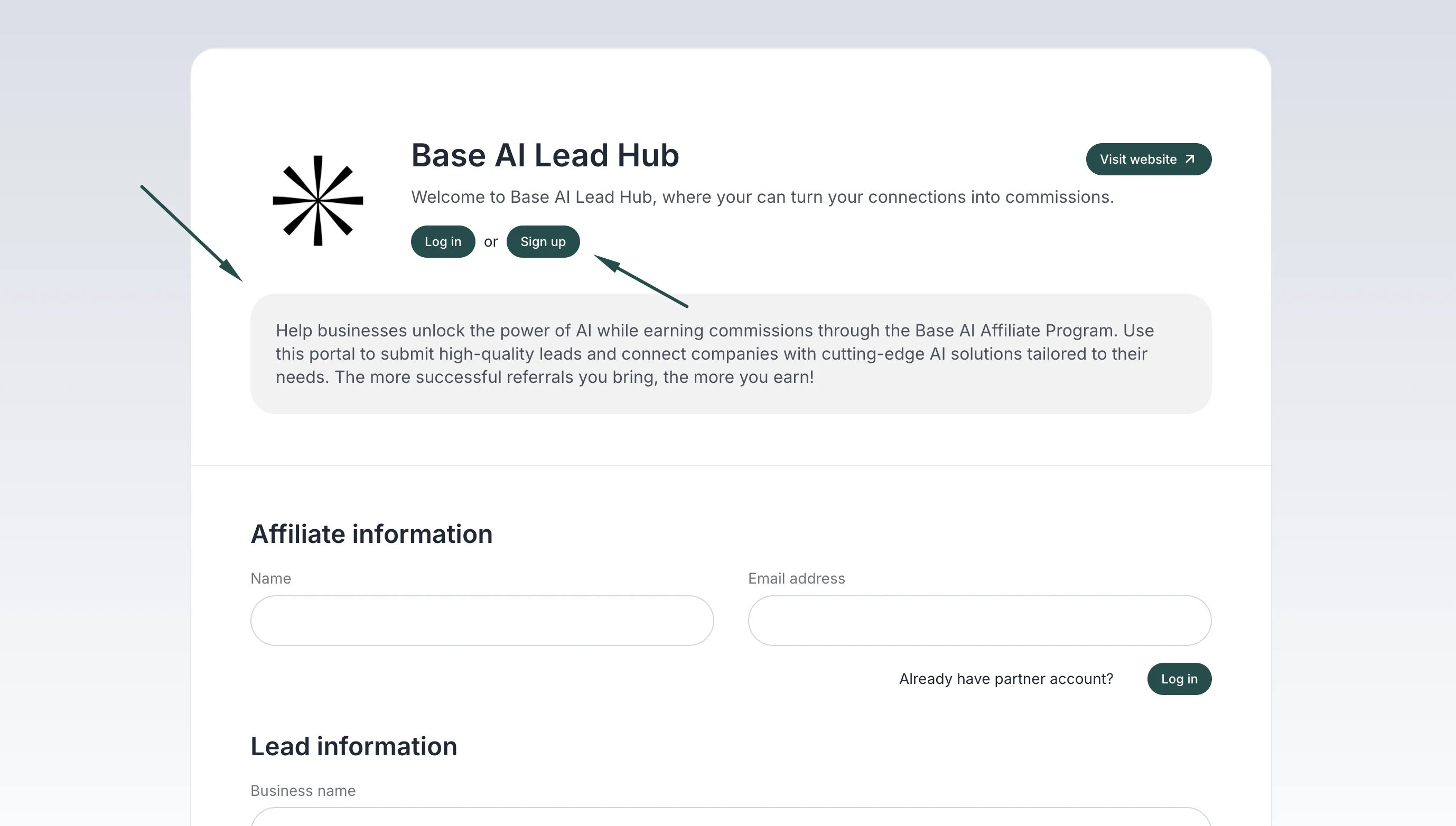 #### Commission structure
Next, you'll find the **Commission structure** section. You can choose to use your existing program commission structure or offer custom rewards for converted leads; for example, offer a fixed commission amount:
#### Commission structure
Next, you'll find the **Commission structure** section. You can choose to use your existing program commission structure or offer custom rewards for converted leads; for example, offer a fixed commission amount: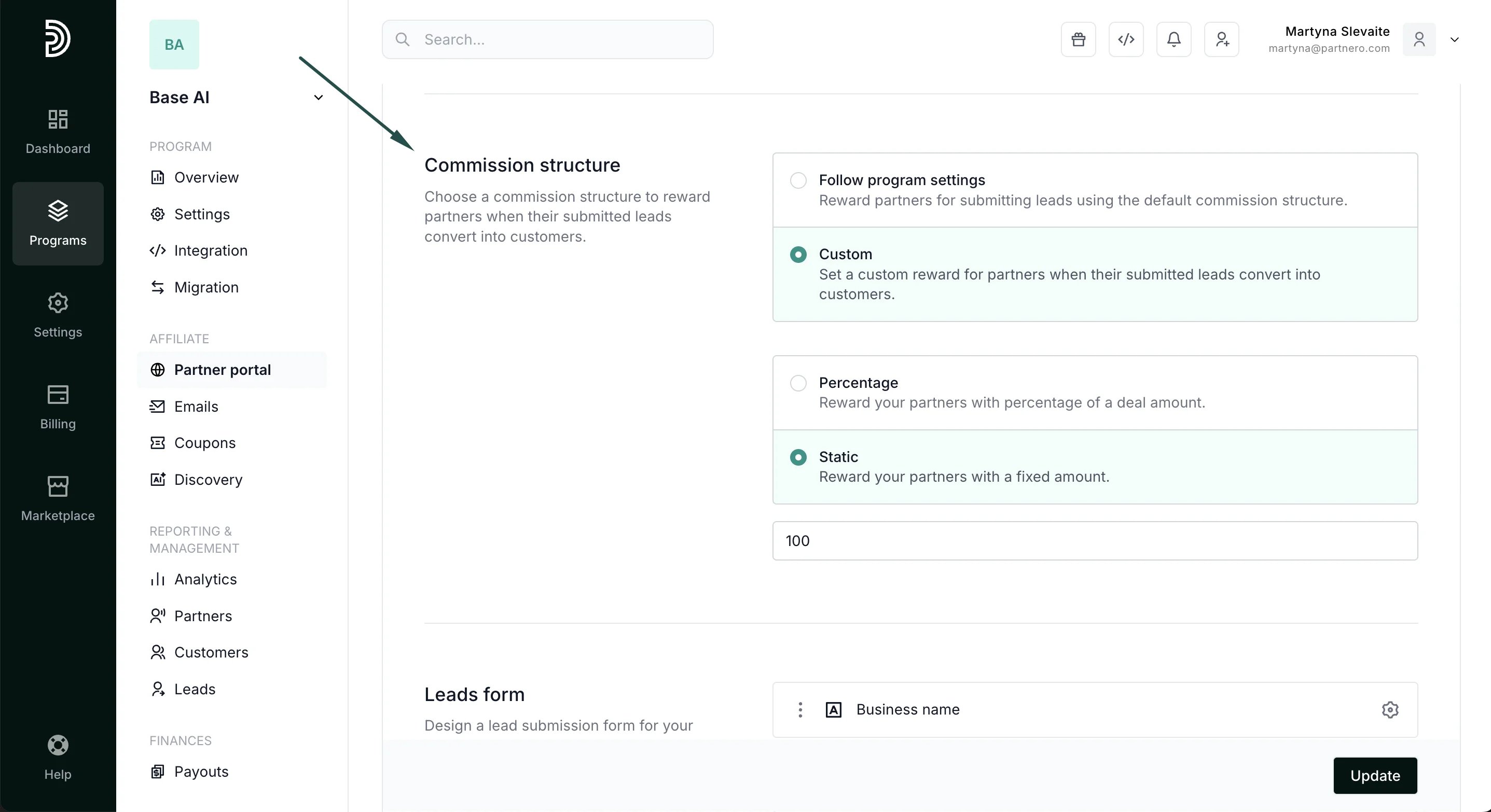 #### Lead form
Lastly, you can customize the submission form. Click **Add field** to add more fields to the form and select from the available options:
#### Lead form
Lastly, you can customize the submission form. Click **Add field** to add more fields to the form and select from the available options:
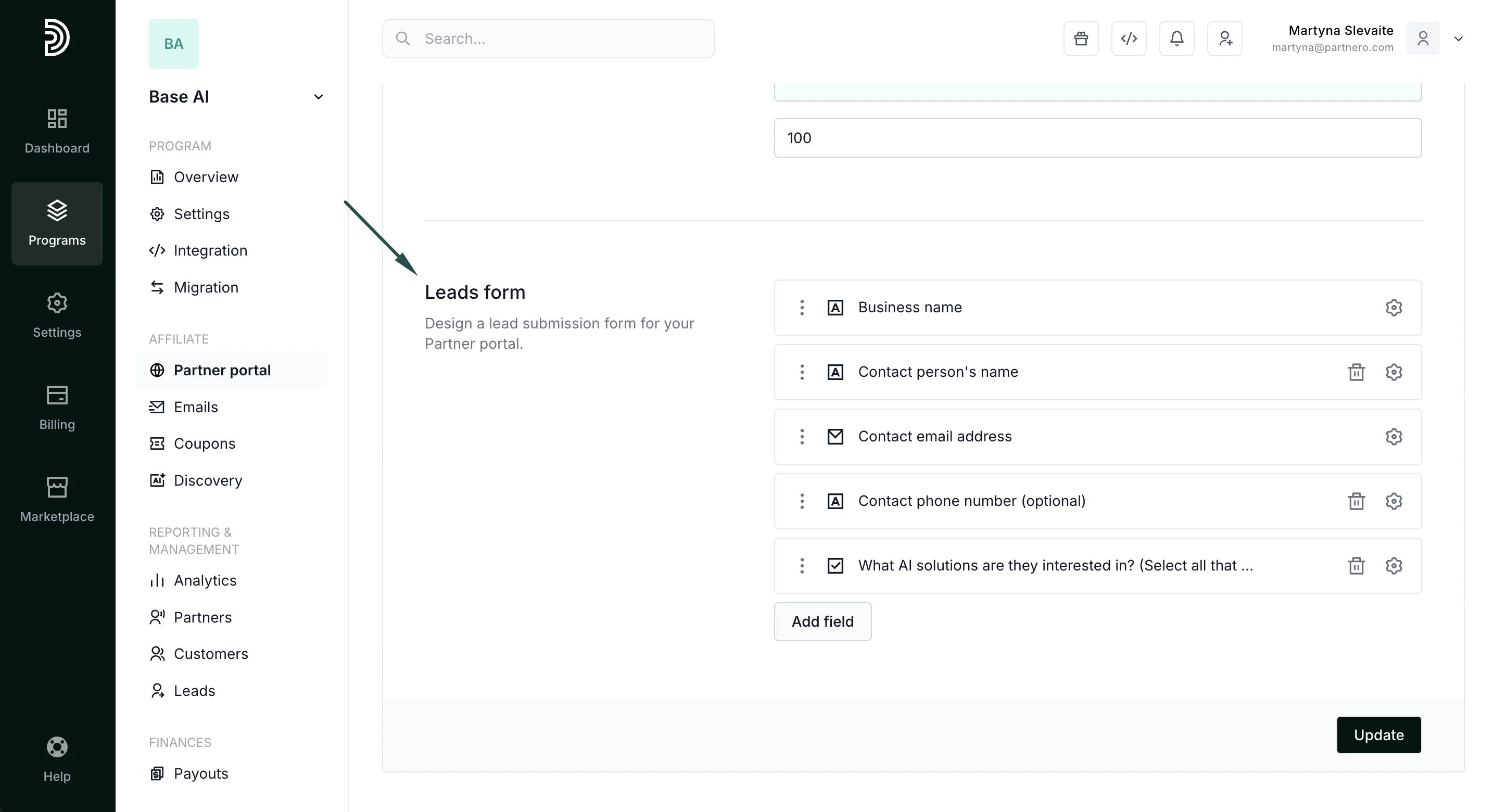 Then, add the label (question) and, if the field requires, answer options:
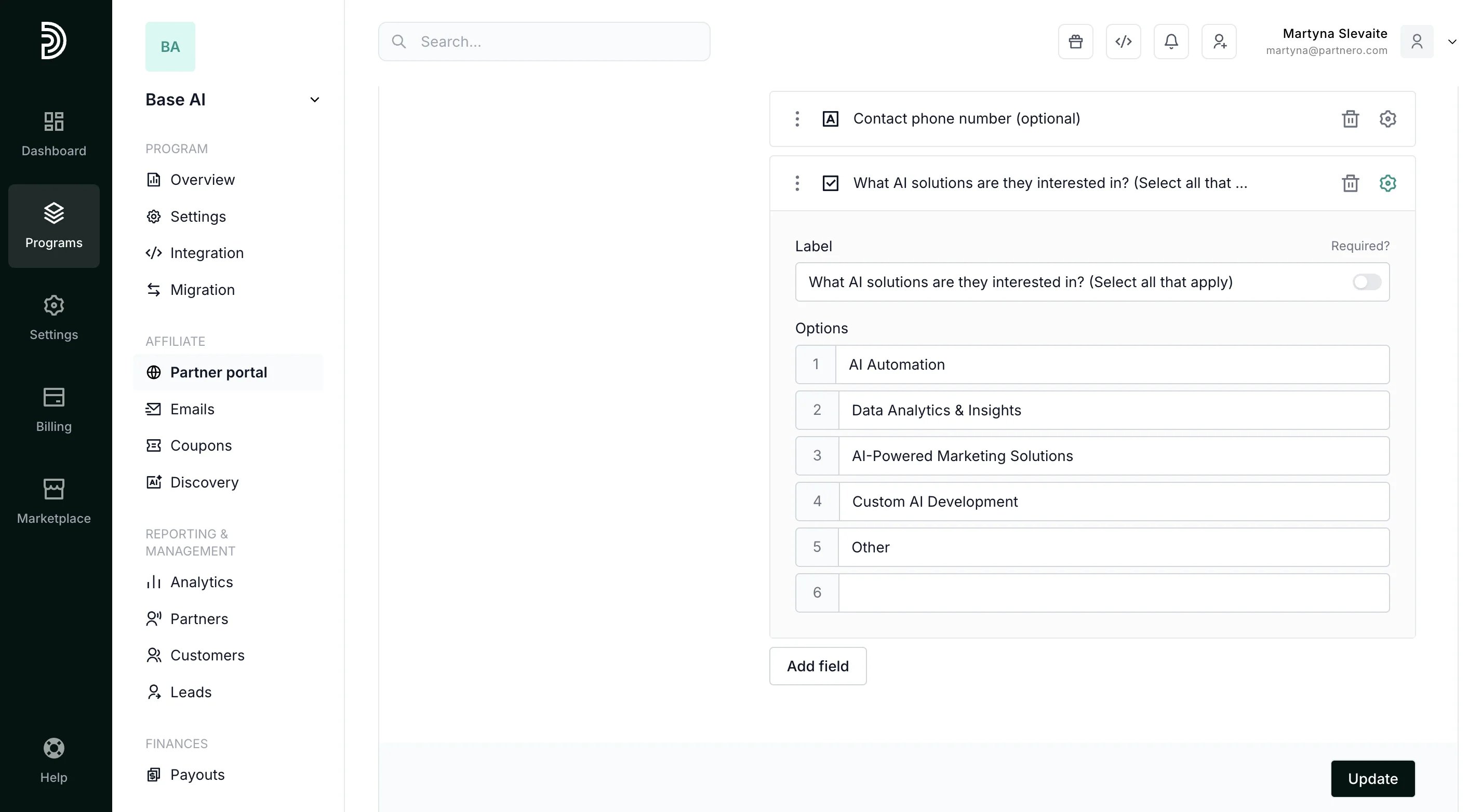 Don't forget to click **Update** to save your changes!
You can add the following fields:
* Text: include any text in your form, such as an explanation, additional details, etc.;
* Input: free-form text question with a field for the submitter to type a short answer to;
* Textarea: free-form text question with a field for the submitter to type a long answer to;
* Checkbox: allows to select from one or multiple predefined options;
* Radio: allows to select one predefined option;
* Select: allows to select one predefined option from a dropdown;
* Countries: adds a list of countries to select.
Here's an example of how each field type would look like in a lead submission page:
Don't forget to click **Update** to save your changes!
You can add the following fields:
* Text: include any text in your form, such as an explanation, additional details, etc.;
* Input: free-form text question with a field for the submitter to type a short answer to;
* Textarea: free-form text question with a field for the submitter to type a long answer to;
* Checkbox: allows to select from one or multiple predefined options;
* Radio: allows to select one predefined option;
* Select: allows to select one predefined option from a dropdown;
* Countries: adds a list of countries to select.
Here's an example of how each field type would look like in a lead submission page: 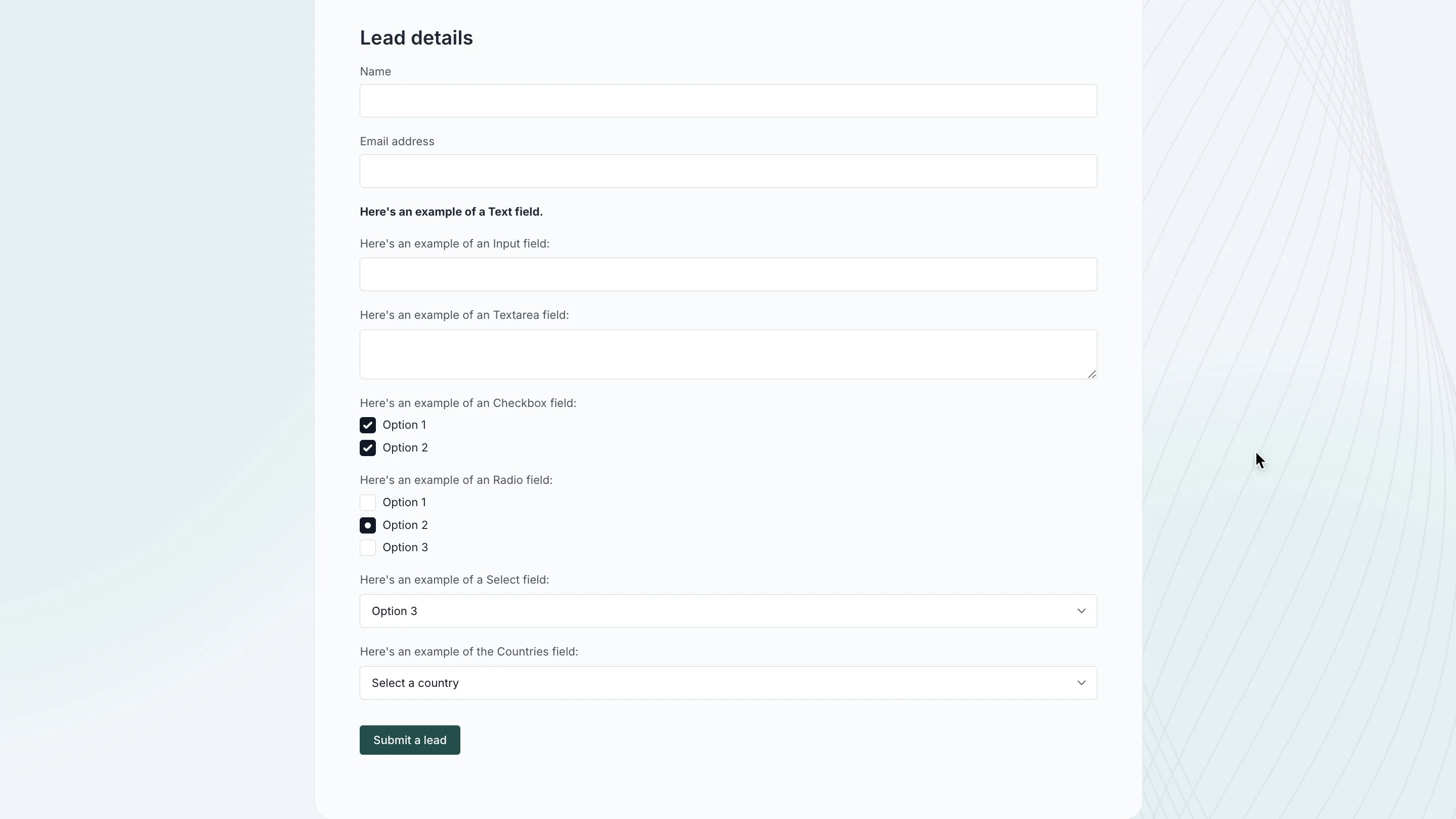 ***
### Design the leads page appearance
Use Live Designer to update the page design (and edit content or other settings):
1. Go to **Partner portal** under **Affiliate**.
2. In the **Settings** tab → **General** section, click Edit design:
***
### Design the leads page appearance
Use Live Designer to update the page design (and edit content or other settings):
1. Go to **Partner portal** under **Affiliate**.
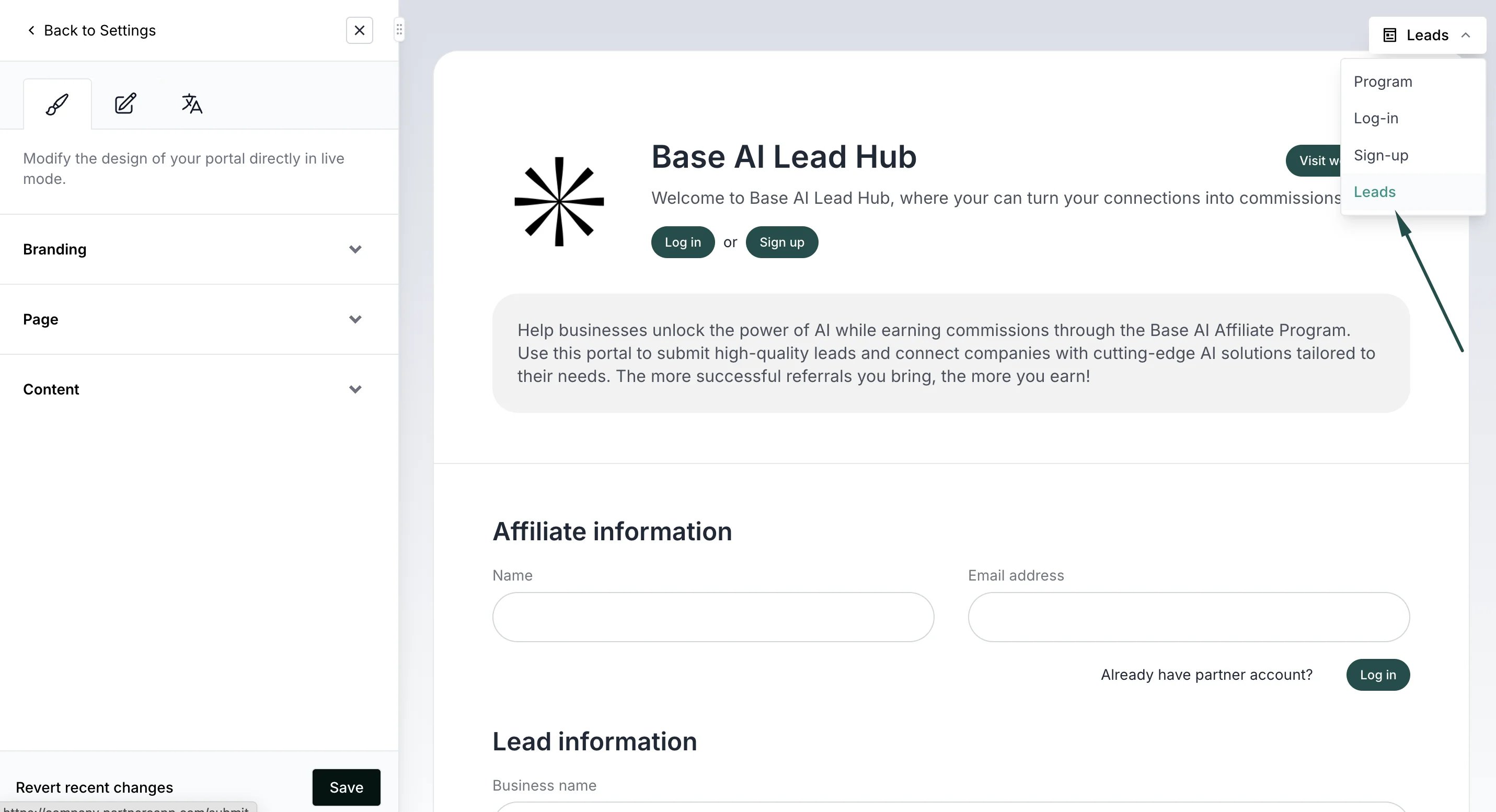
2. In the **Settings** tab → **General** section, click Edit design: 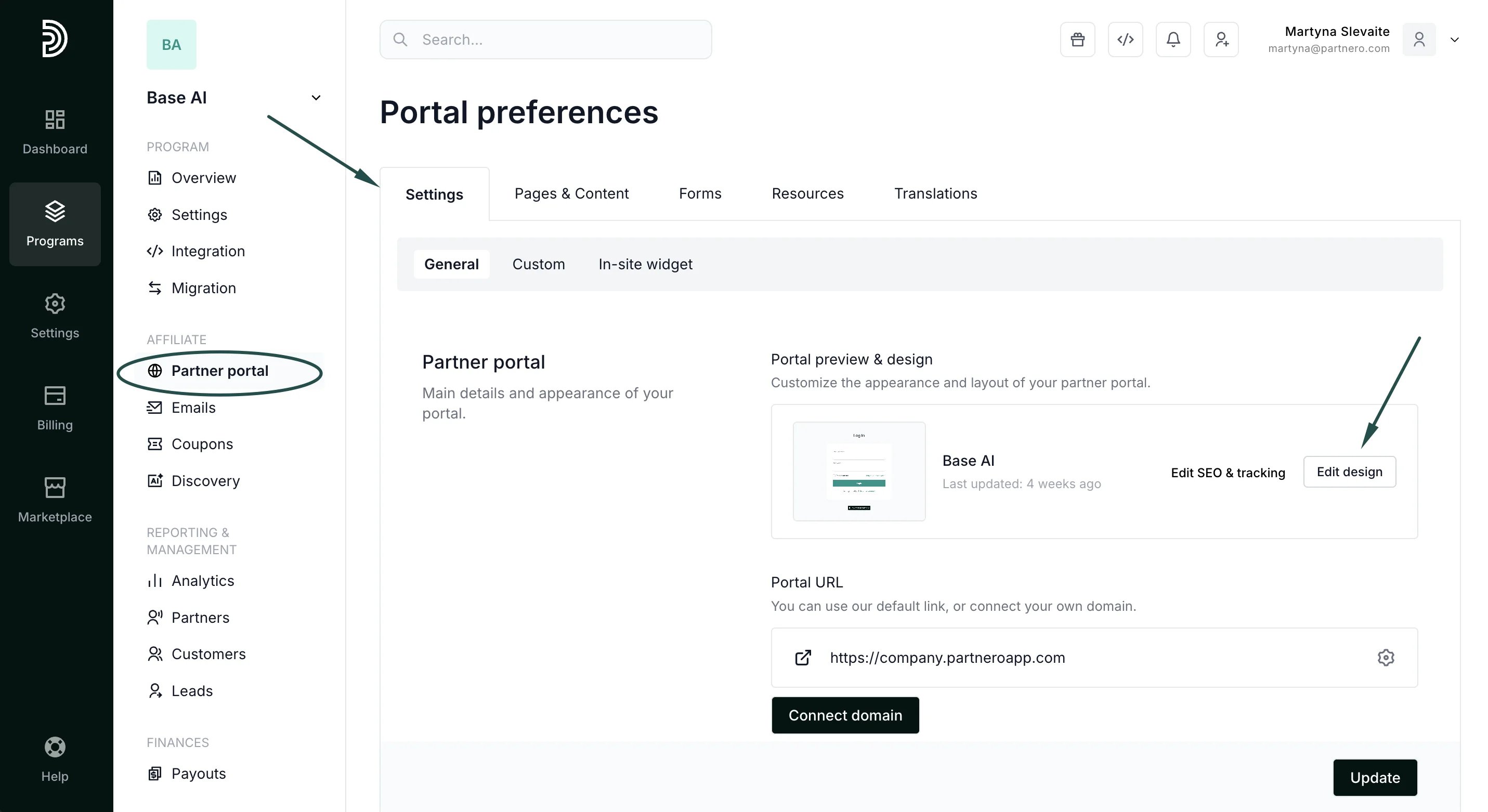 3. You will be presented with the Live Designer view, with the editor on the left and a real-time preview in the center. In the top right corner, switch to edit the **Leads page**:
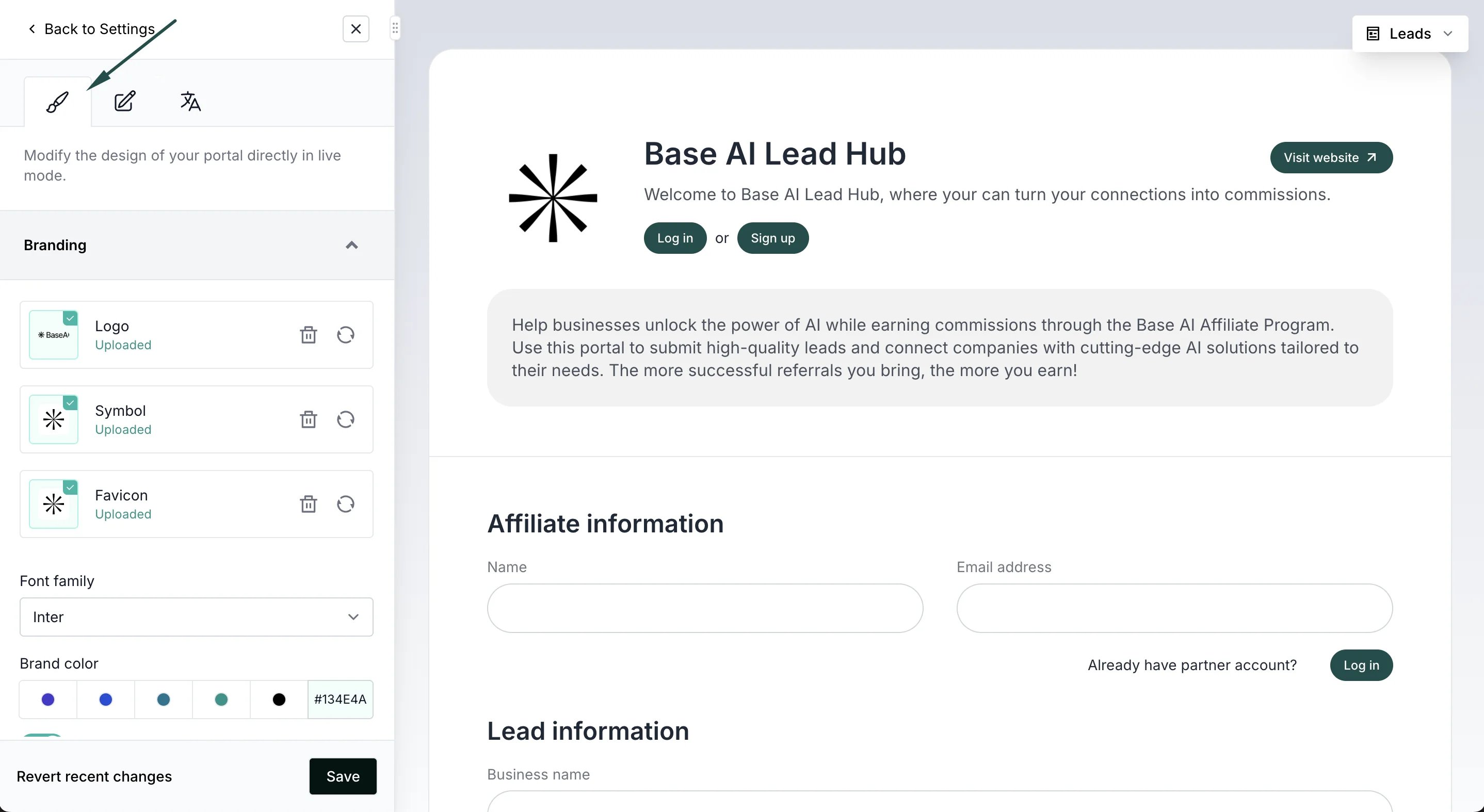
 4. Use the design tab on the editor to change colors, layouts, and other design elements:
 5. Use the content tab to change page settings and add content blocks:
 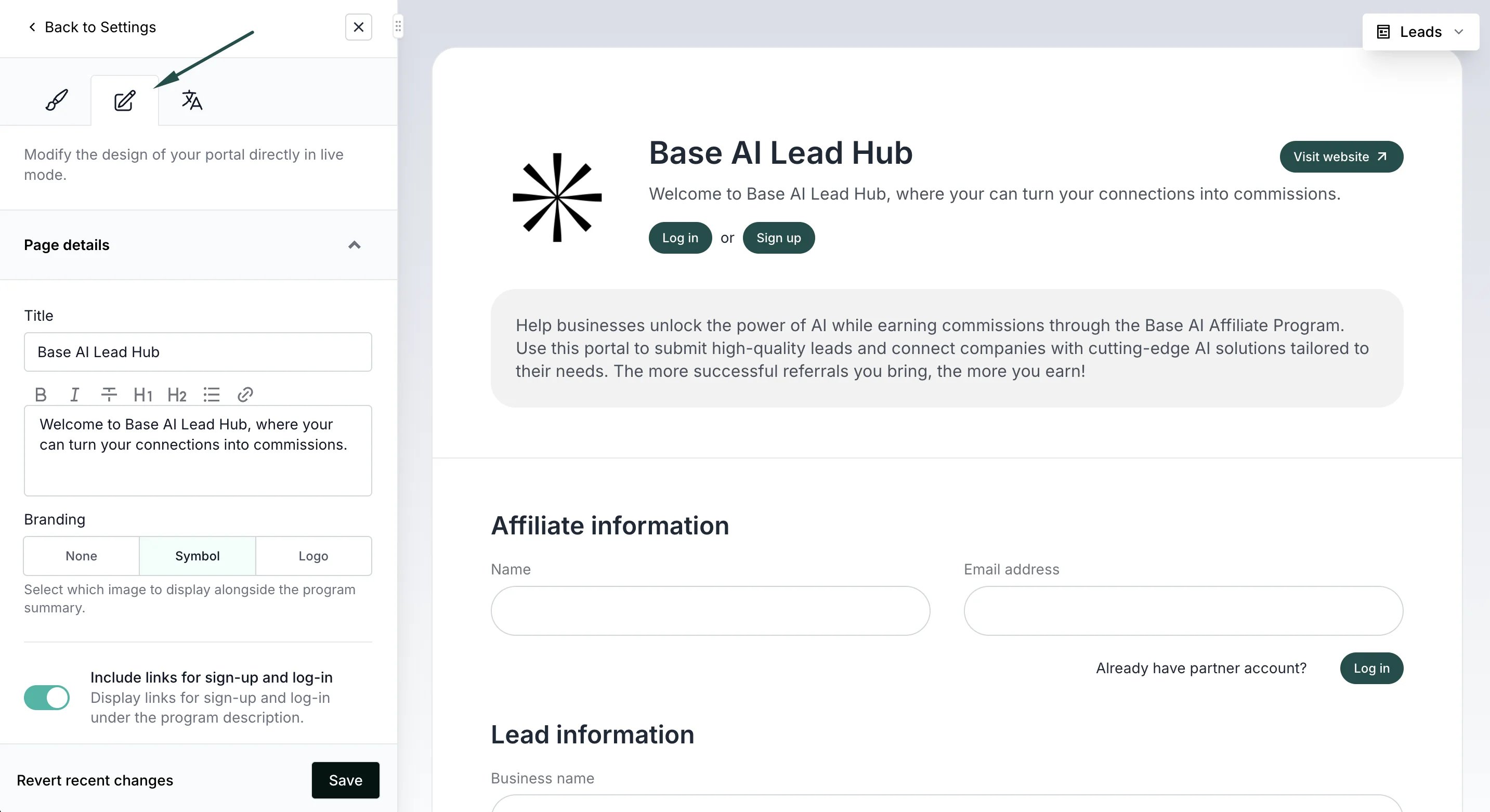 6. Additionally, you can hover your mouse over any component of the lead page preview to edit it in line:
 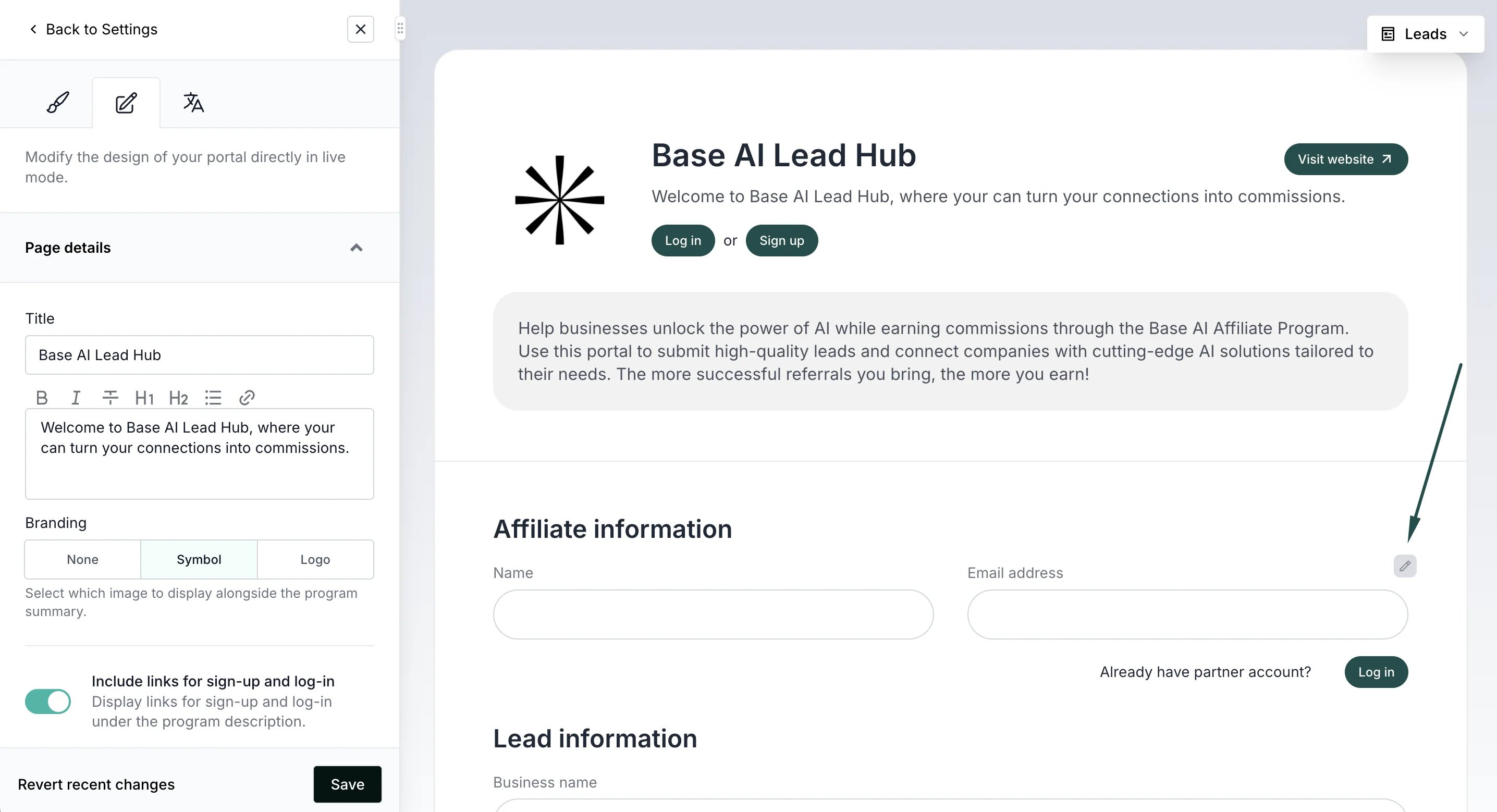 7. Don't forget to click **Save** when you're happy with the edits.
Read more about using Live Designer [here](/knowledge-base/program-management/live-designer-overview).
***
### Confirmation emails
A confirmation email will be sent when:
* someone submits a lead;
* a lead is converted;
* a lead is rejected.
Confirmation emails can be viewed and edited under **Emails** section:
7. Don't forget to click **Save** when you're happy with the edits.
Read more about using Live Designer [here](/knowledge-base/program-management/live-designer-overview).
***
### Confirmation emails
A confirmation email will be sent when:
* someone submits a lead;
* a lead is converted;
* a lead is rejected.
Confirmation emails can be viewed and edited under **Emails** section: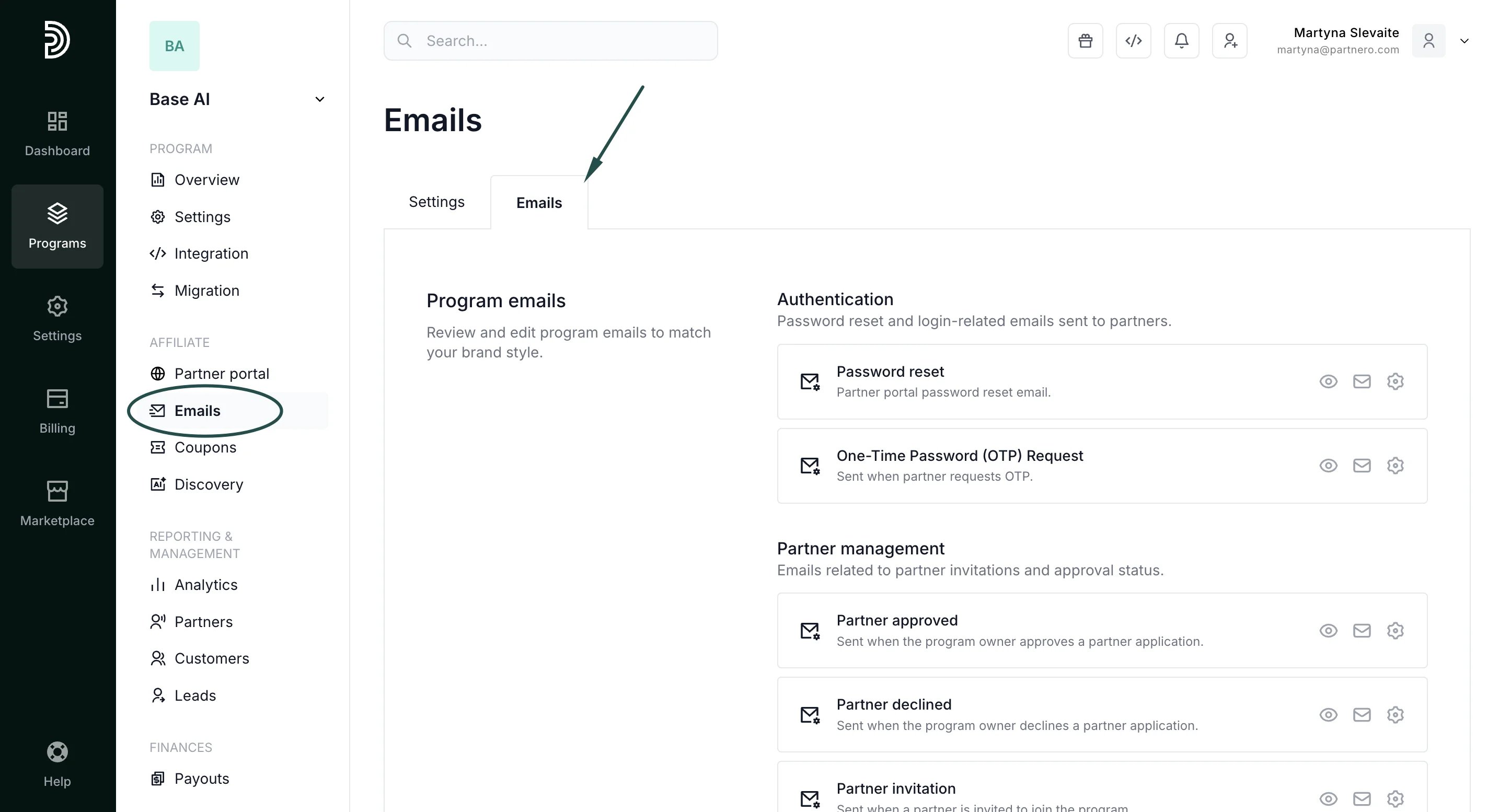 Switch to the **Emails** tab and scroll down to the **Program Leads** section:
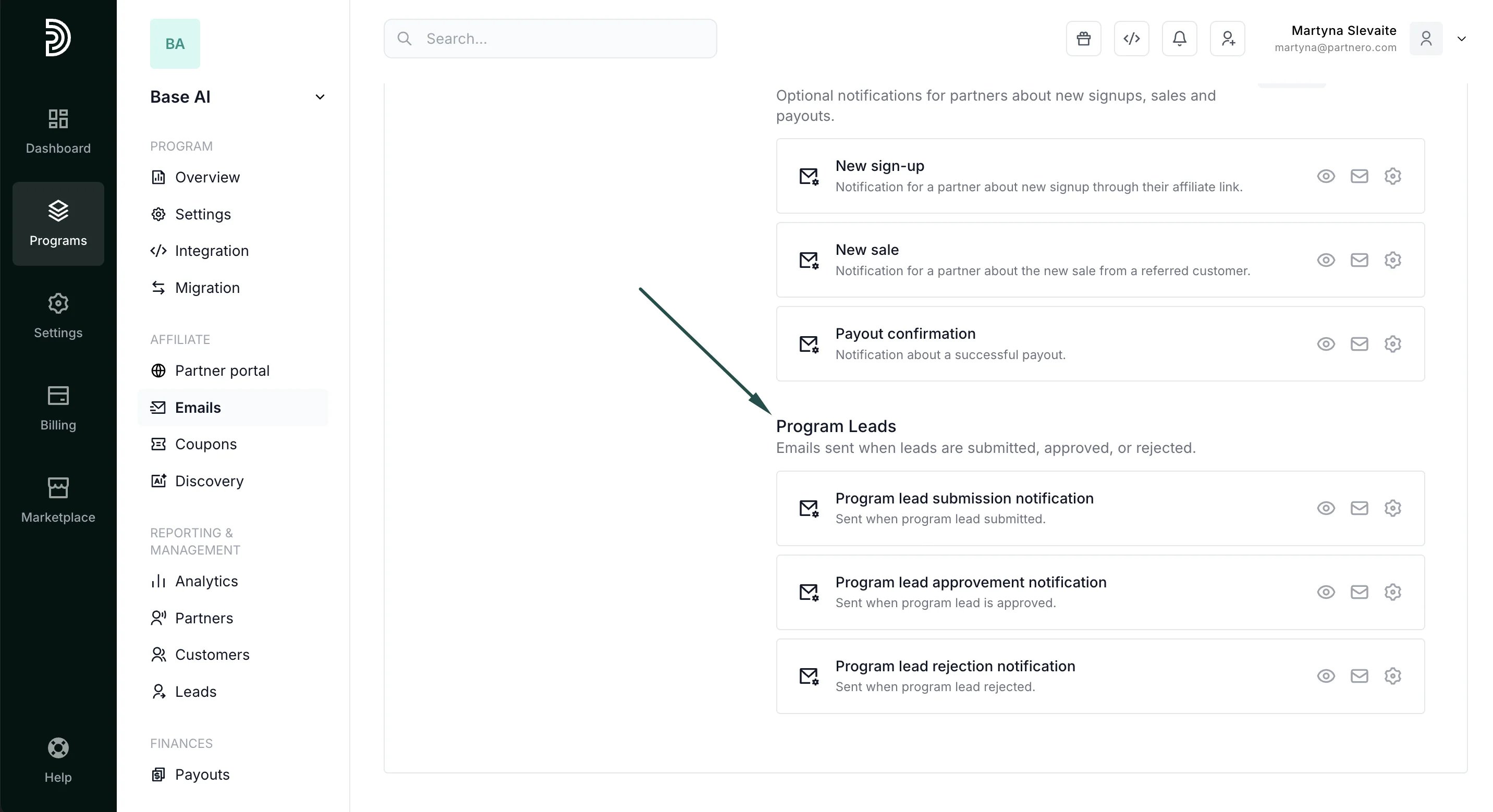 For every email, you can click on the:
* **Eye icon** to preview the email;
* **Envelope icon** to send a test email;
* **Gear icon** to edit the email subject, copy, or design.
For every email, you can click on the:
* **Eye icon** to preview the email;
* **Envelope icon** to send a test email;
* **Gear icon** to edit the email subject, copy, or design.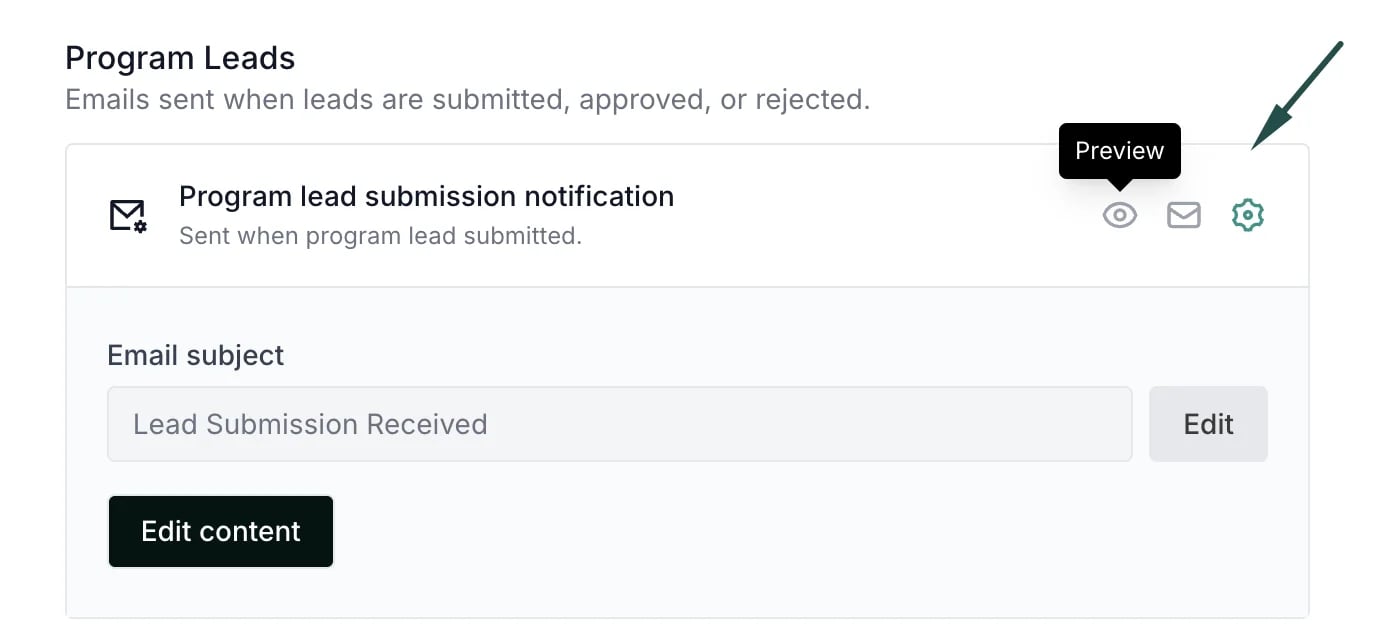 [Read more about program emails](/knowledge-base/program-emails/email-settings).
***
[Read more about lead submission process here.](/knowledge-base/customers-leads/lead-submission-process)
[Read more about managing submitted leads here.](/knowledge-base/customers-leads/review-reject-and-convert-leads)
This documentation is built and hosted on [Mintlify](https://mintlify.com), a developer documentation platform.
[Read more about program emails](/knowledge-base/program-emails/email-settings).
***
[Read more about lead submission process here.](/knowledge-base/customers-leads/lead-submission-process)
[Read more about managing submitted leads here.](/knowledge-base/customers-leads/review-reject-and-convert-leads)
This documentation is built and hosted on [Mintlify](https://mintlify.com), a developer documentation platform.