> ## Documentation Index
> Fetch the complete documentation index at: https://docs.partnero.com/llms.txt
> Use this file to discover all available pages before exploring further.
# How to create a customer
You might need to manually create a customer (referral), for example, if the customer didn’t use the affiliate link. Every customer must be linked to a specific partner. In Partnero, you can create a customer in two ways: from the **Customer list** or directly from a **partner’s profile**. Here’s how to do both.
***
### Create a customer from the Customer list
To create a customer from the customer list:
1. On your program, navigate to **Customers** under **Reporting and management**.
2. Click **Create customer** at the top right corner: 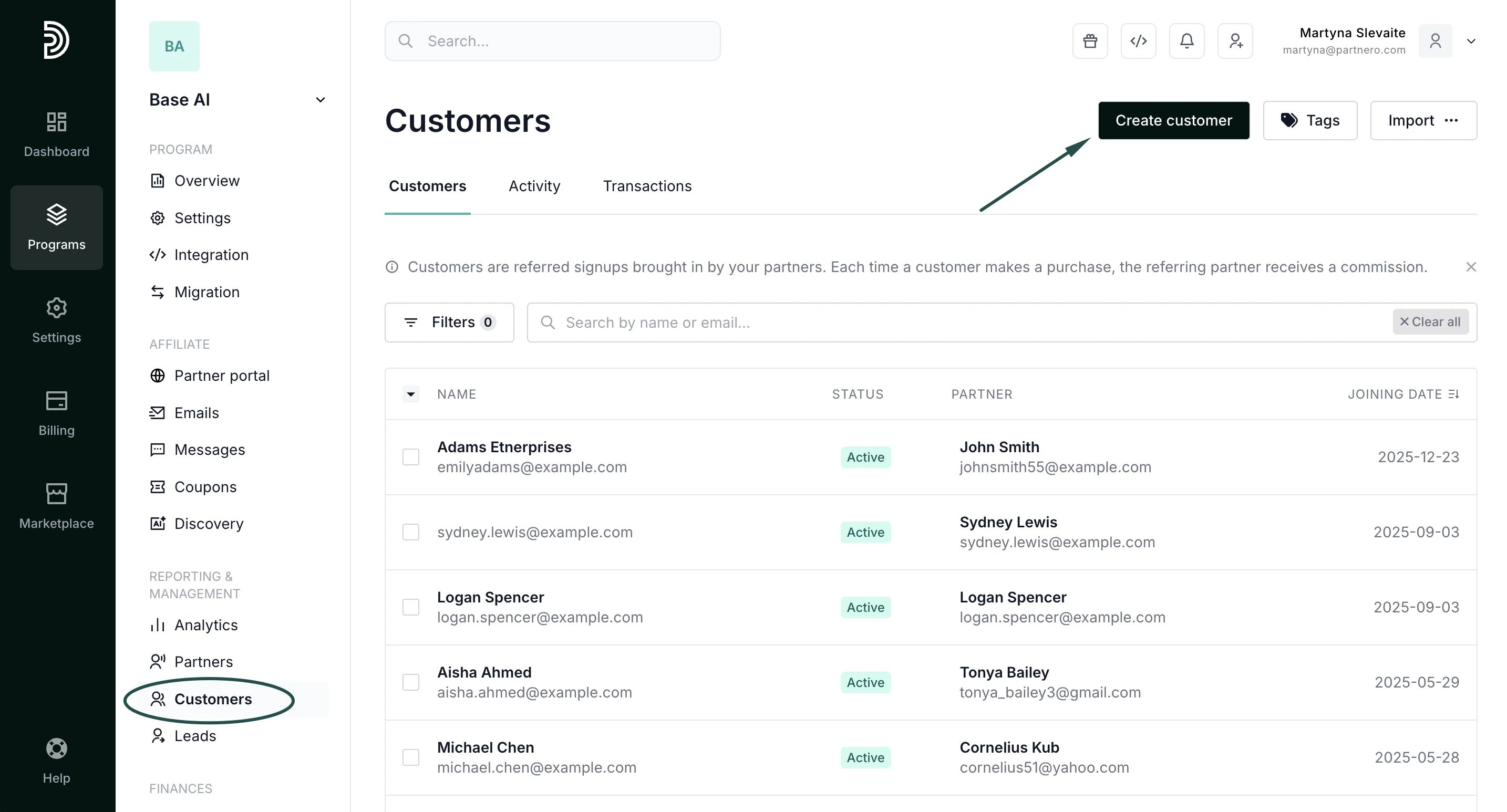 3. Fill out the modal. The customer's email address and the referring partner's email address are mandatory. Additional information can be provided if needed:
 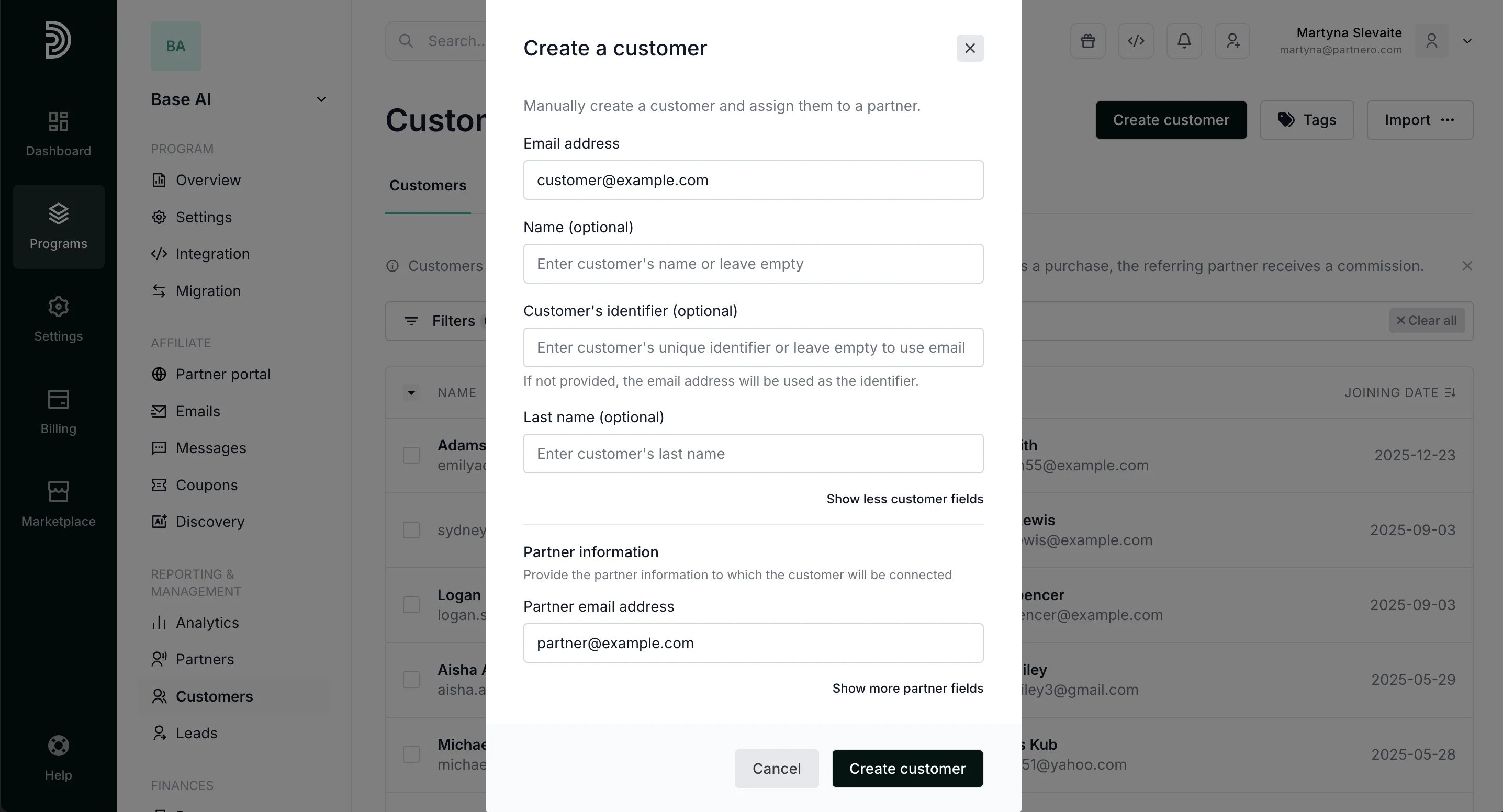 4. Click **Create customer**.
***
### Create a customer from a partner's profile
To create a customer from a partner's profile:
1. On your program, navigate to **Partners** under **Reporting and management**. Find the partner that the customer is associated with (you can search by name or email address):
4. Click **Create customer**.
***
### Create a customer from a partner's profile
To create a customer from a partner's profile:
1. On your program, navigate to **Partners** under **Reporting and management**. Find the partner that the customer is associated with (you can search by name or email address): 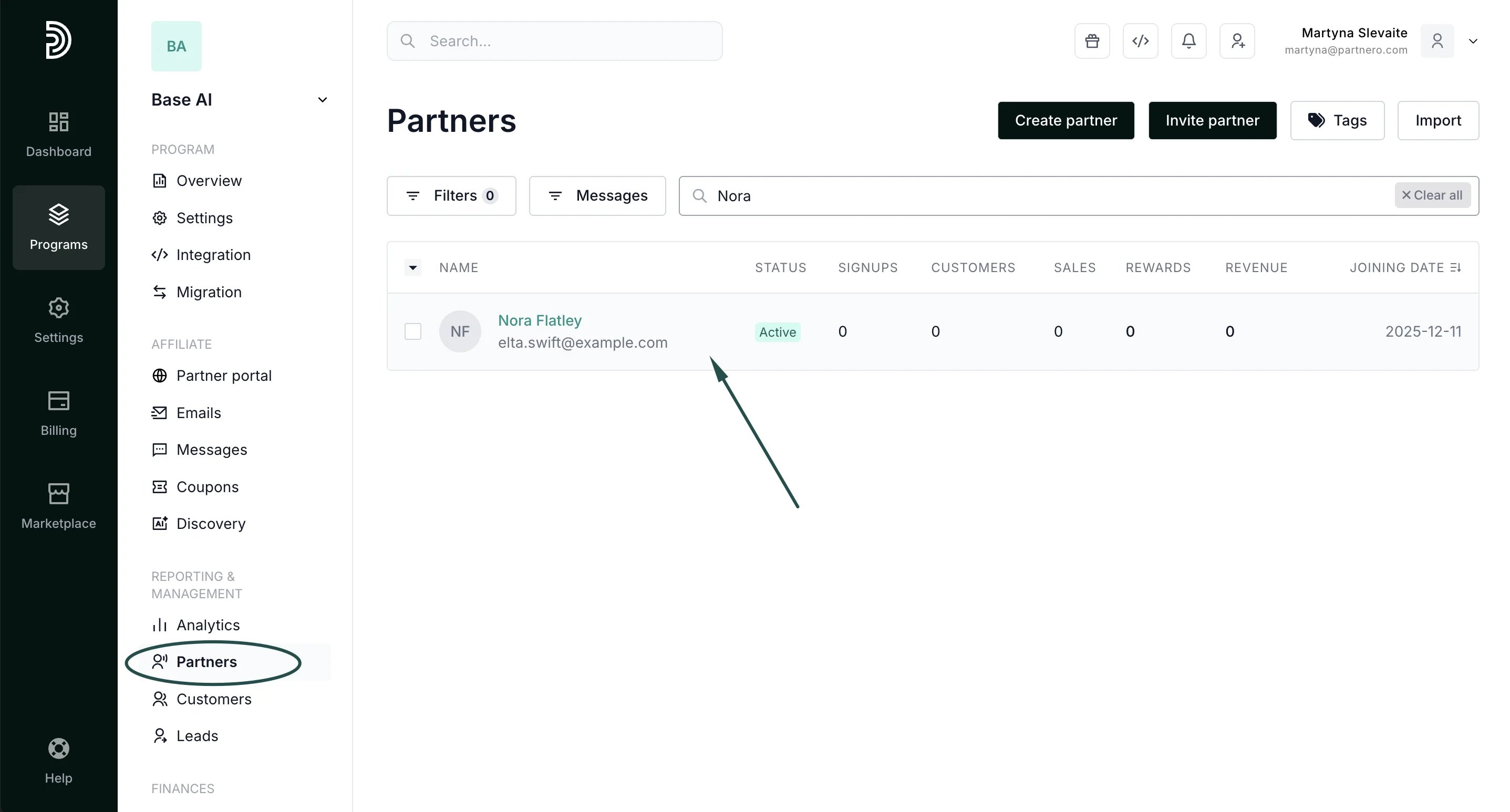 2. In the partner's profile, scroll down to **Customer activity** and click **Create customer**:
 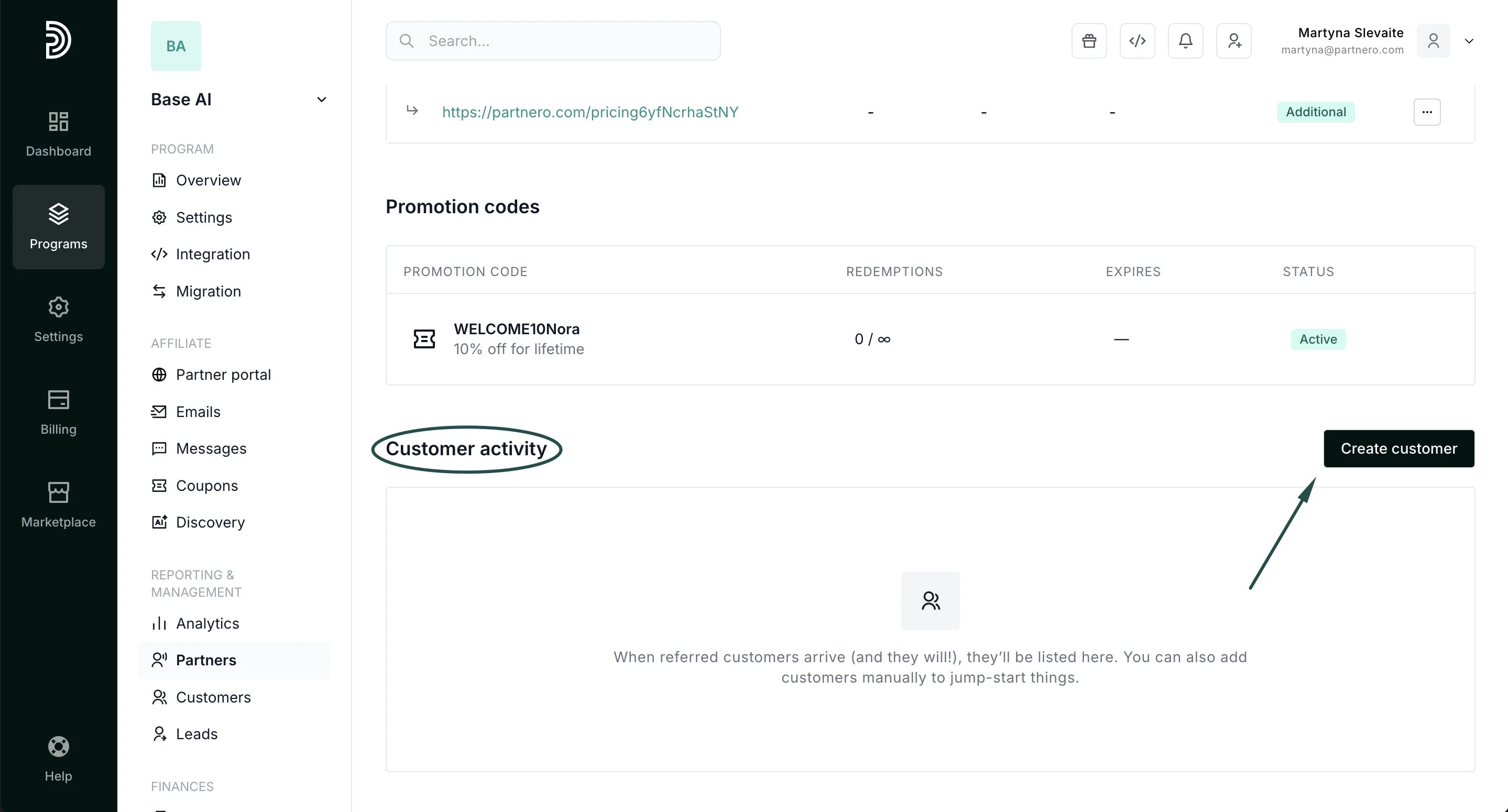 3. Fill out the modal:
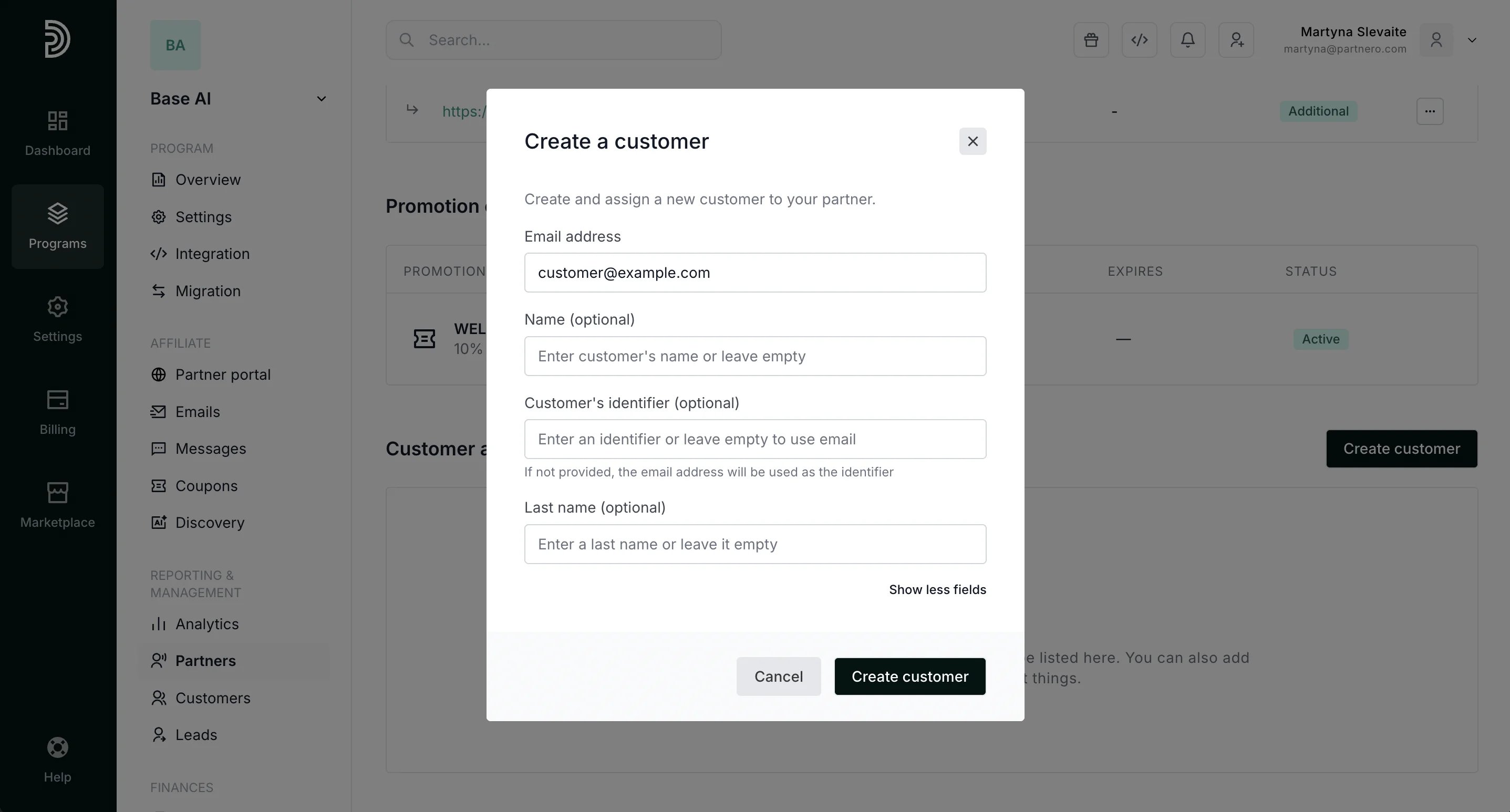 **Email address** is the only mandatory field.
The **Customer Identifier** can be any value you use in your system to identify a customer, such as an email address or internal ID. If no identifier is provided, Partnero will automatically use the customer’s email address as the default identifier.
Name and last name are optional.
4. Click **Create customer**.
The customer will be created as a **Signup** associated with the partner. You can also manually create a transaction - [read more on how to do it here.](/knowledge-base/customers-leads/how-to-create-a-transaction)
This documentation is built and hosted on [Mintlify](https://mintlify.com), a developer documentation platform.
**Email address** is the only mandatory field.
The **Customer Identifier** can be any value you use in your system to identify a customer, such as an email address or internal ID. If no identifier is provided, Partnero will automatically use the customer’s email address as the default identifier.
Name and last name are optional.
4. Click **Create customer**.
The customer will be created as a **Signup** associated with the partner. You can also manually create a transaction - [read more on how to do it here.](/knowledge-base/customers-leads/how-to-create-a-transaction)
This documentation is built and hosted on [Mintlify](https://mintlify.com), a developer documentation platform.