> ## Documentation Index
> Fetch the complete documentation index at: https://docs.partnero.com/llms.txt
> Use this file to discover all available pages before exploring further.
# How to create a transaction
You may need to manually create a transaction for a customer (e.g., if the customer or your partner forgot to use the affiliate link and the transaction was not created automatically).
***Note:** If the customer is not created as well, you will first need to create the customer.* [*Read more on how to do it here.*](/knowledge-base/customers-leads/how-to-create-a-customer)
To create a transaction:
1. Navigate to **Customers** under **Reporting and Management**.
2. Find the customer who needs the transaction created (search by name or email address) and click to view their profile: 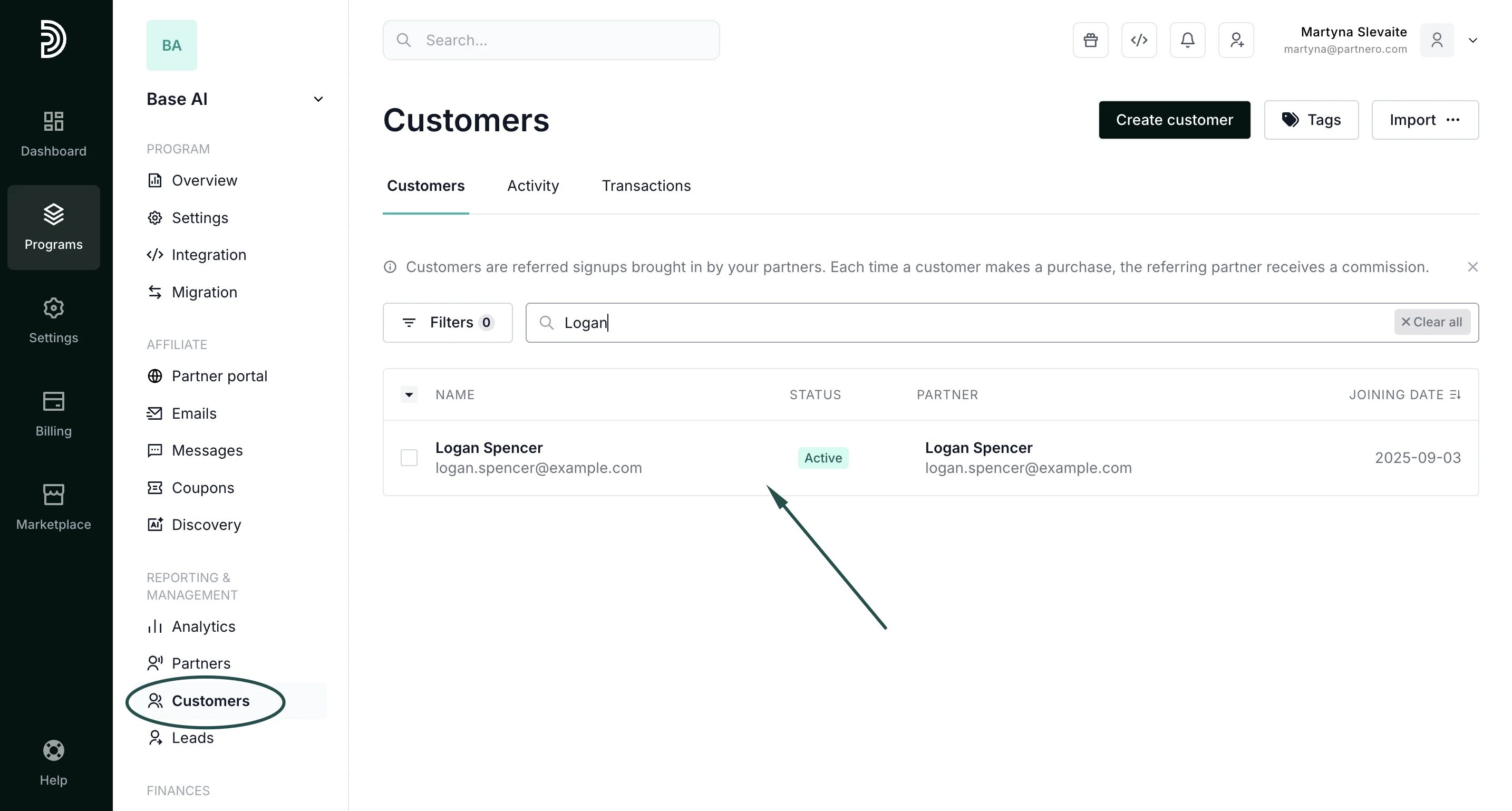 3. In the customer profile, click **Create transaction** next to the **Transaction history** block:
 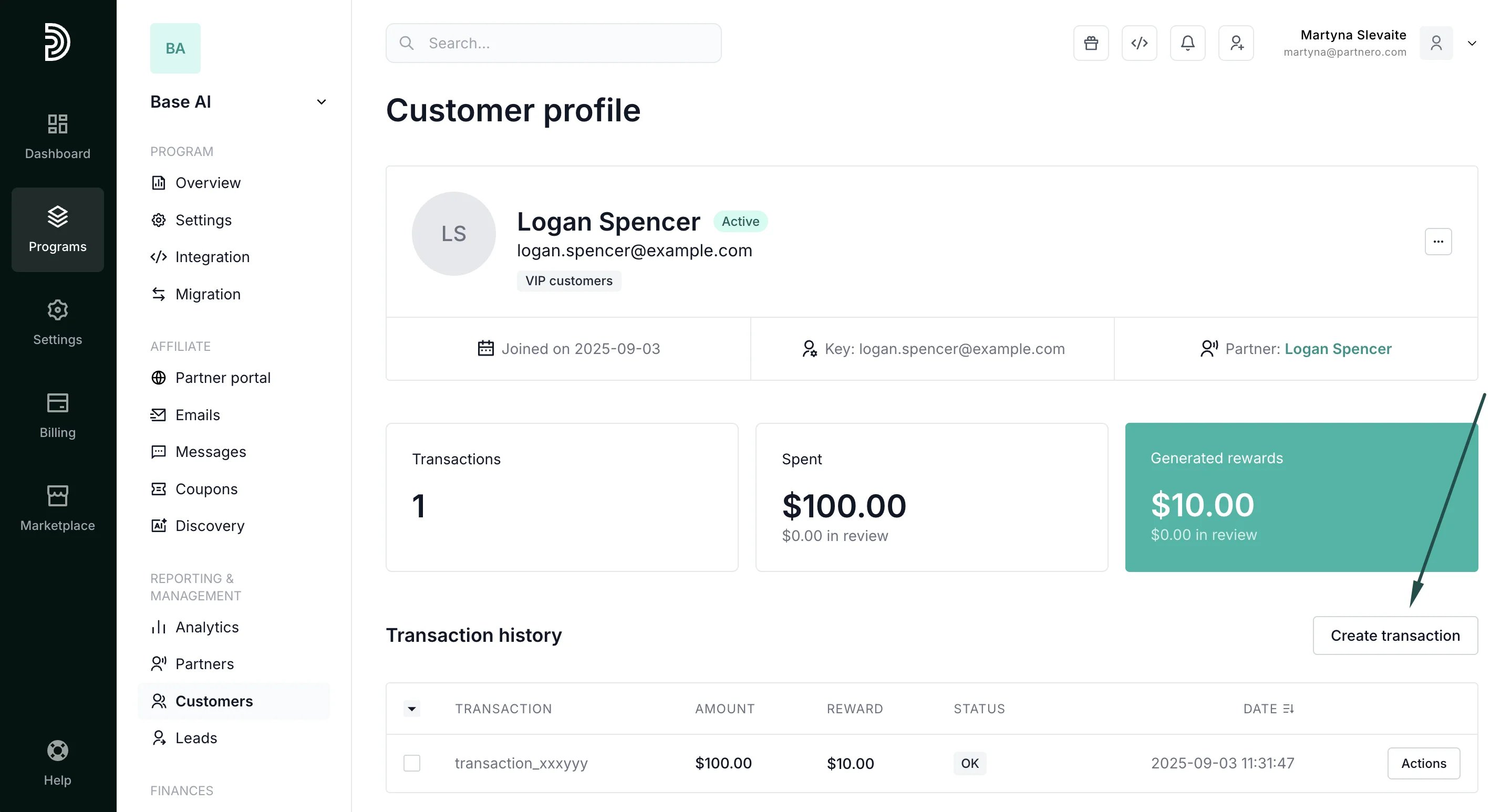 4. Fill out the transaction information in the modal:
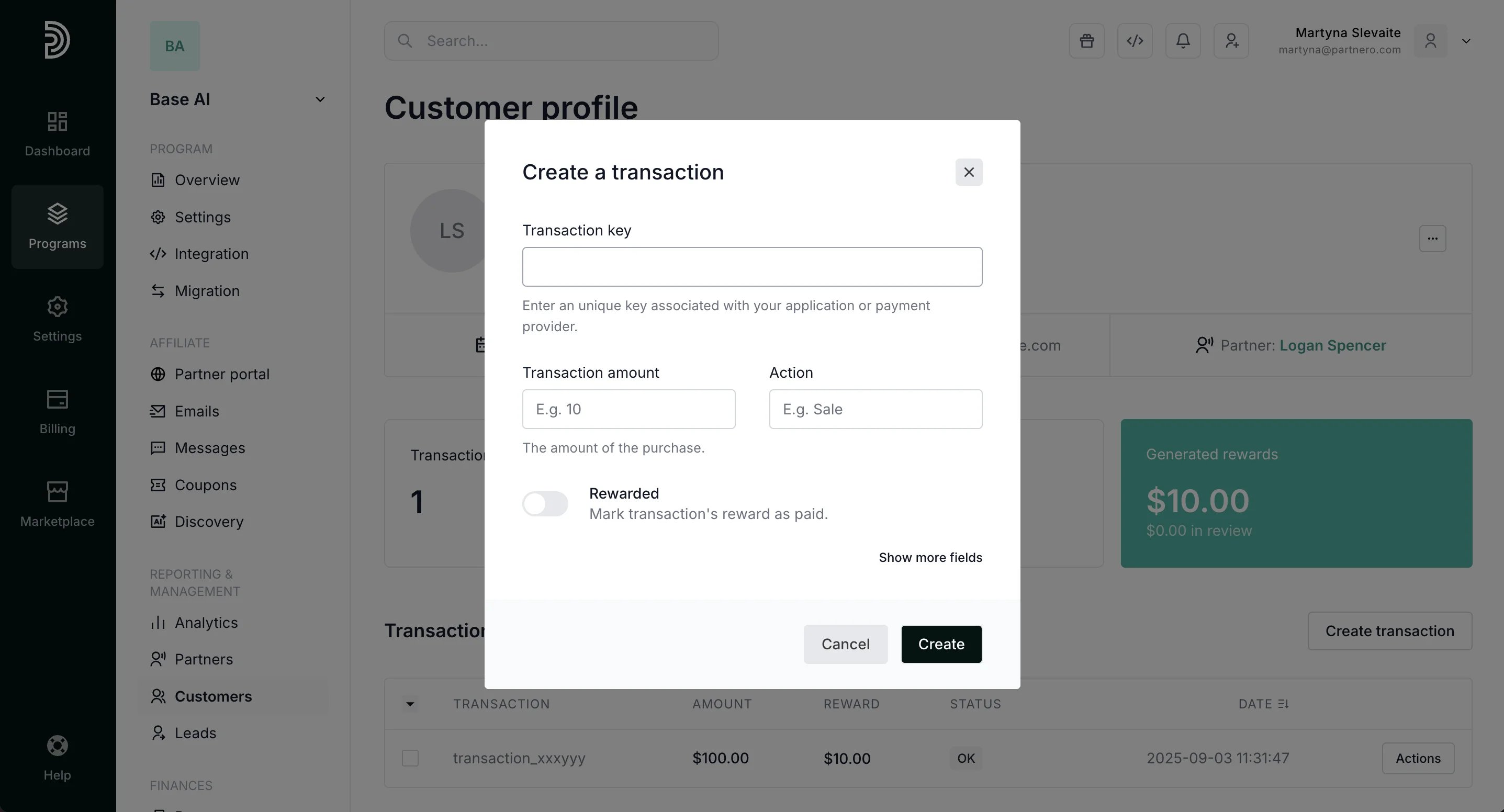 **Transaction key**: a unique key associated with your application or payment provider.
**Transaction amount**: the full amount of the purchase, based on which the partner commission will be calculated.
**Action**: the name displayed to the partner, for example, *Sale*.
**Rewarded** toggle: define if the reward for the transaction has already been paid.
Additionally, you can click to show more fields to add more information about the transaction, such as product id or type:
**Transaction key**: a unique key associated with your application or payment provider.
**Transaction amount**: the full amount of the purchase, based on which the partner commission will be calculated.
**Action**: the name displayed to the partner, for example, *Sale*.
**Rewarded** toggle: define if the reward for the transaction has already been paid.
Additionally, you can click to show more fields to add more information about the transaction, such as product id or type: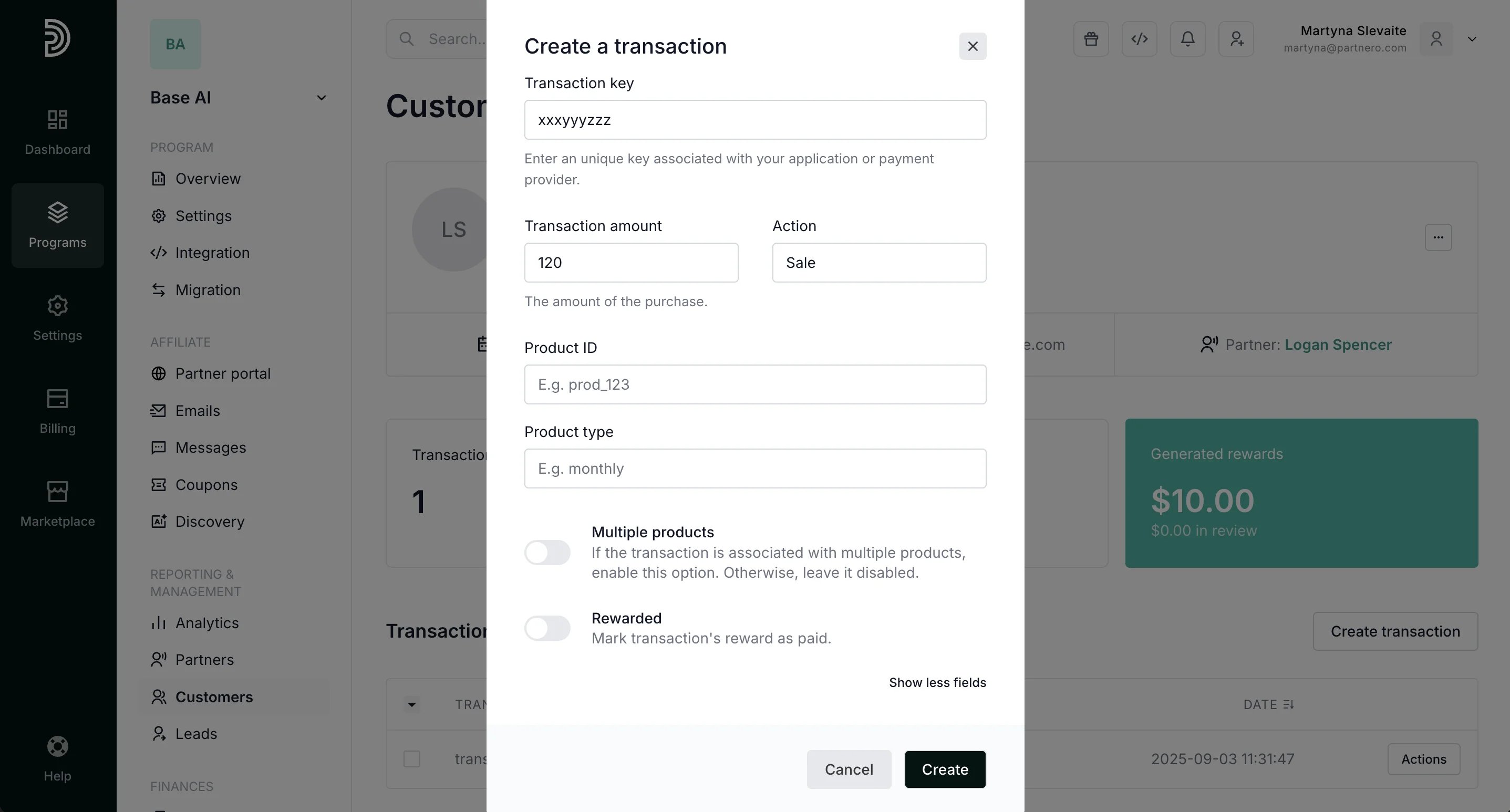 5. Click **Create**.
This documentation is built and hosted on [Mintlify](https://mintlify.com), a developer documentation platform.
5. Click **Create**.
This documentation is built and hosted on [Mintlify](https://mintlify.com), a developer documentation platform.