> ## Documentation Index
> Fetch the complete documentation index at: https://docs.partnero.com/llms.txt
> Use this file to discover all available pages before exploring further.
# How to export customers, transactions and activity
This article shows how to download CSV exports of customers, transactions, and activity (program-level or specific customer).
***
### Customer data export
To export customers:
1. In your affiliate program, go to **Customers** under **Reporting & Management**.
2. Select the customers you'd like to export. You can also click to *Select All* or *Select Visible*: 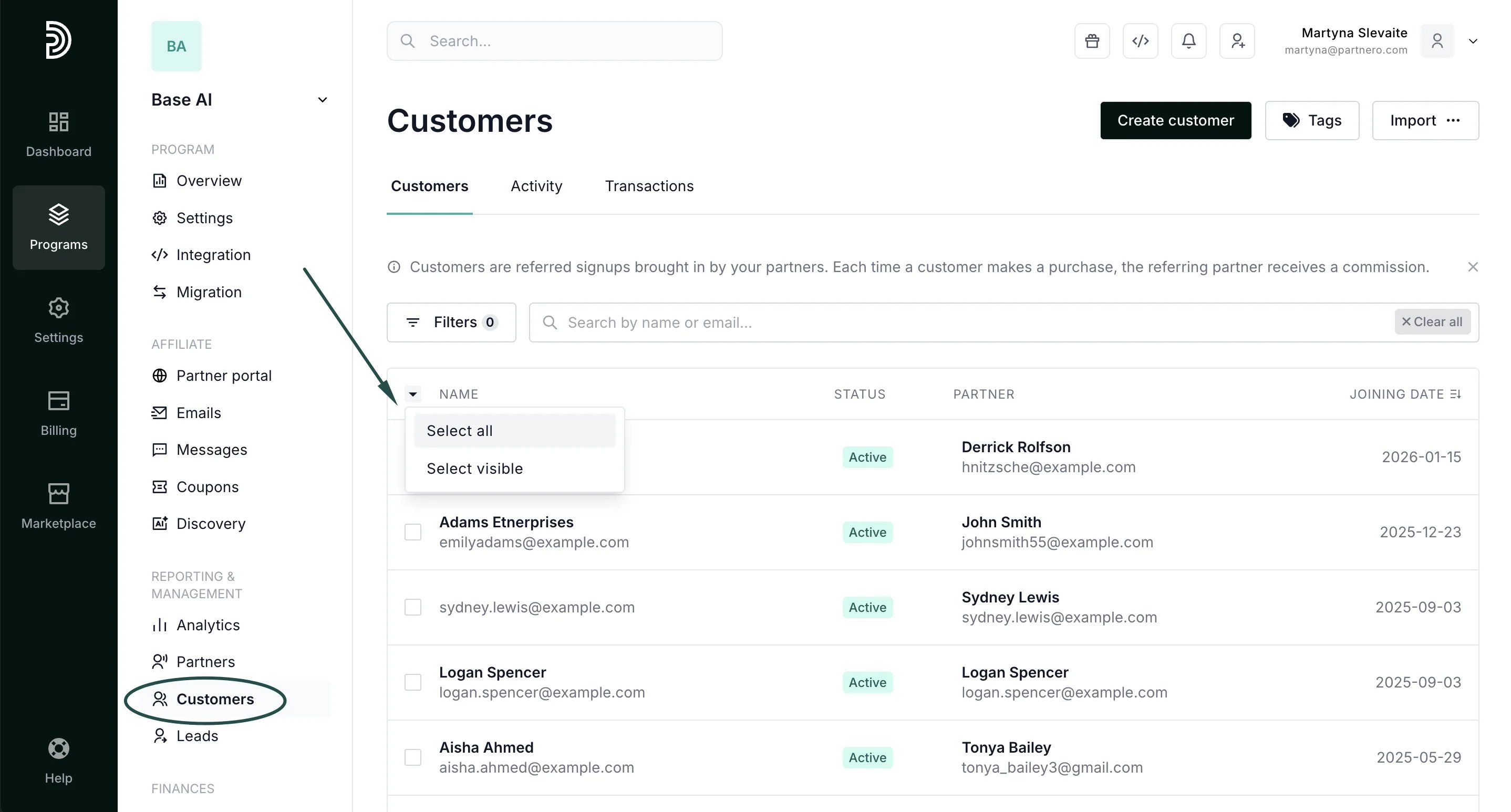 3. Click **Export**:
 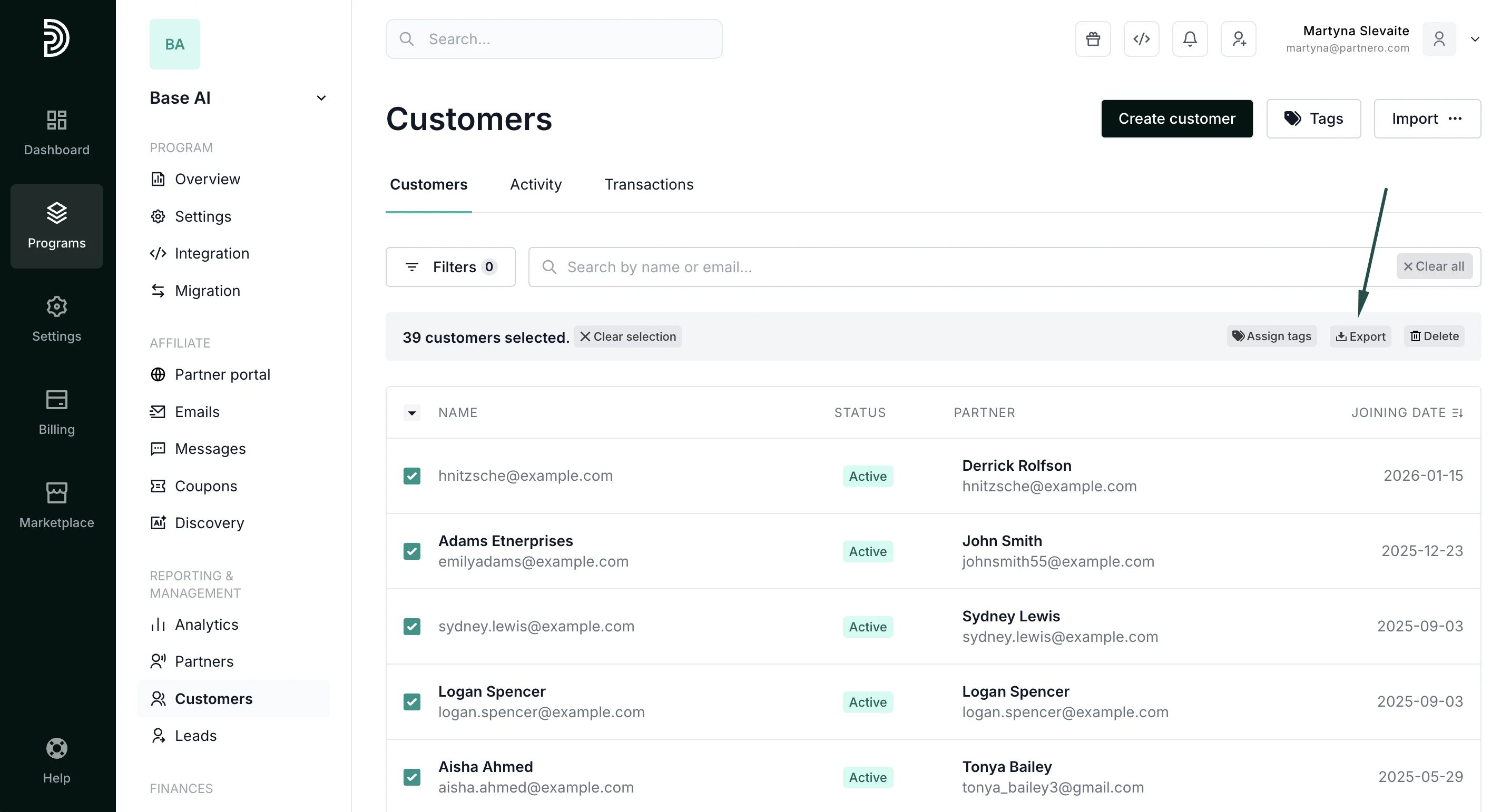 4. You'll see a progress bar and the option to download the list once the export is complete. Click **Download**:
 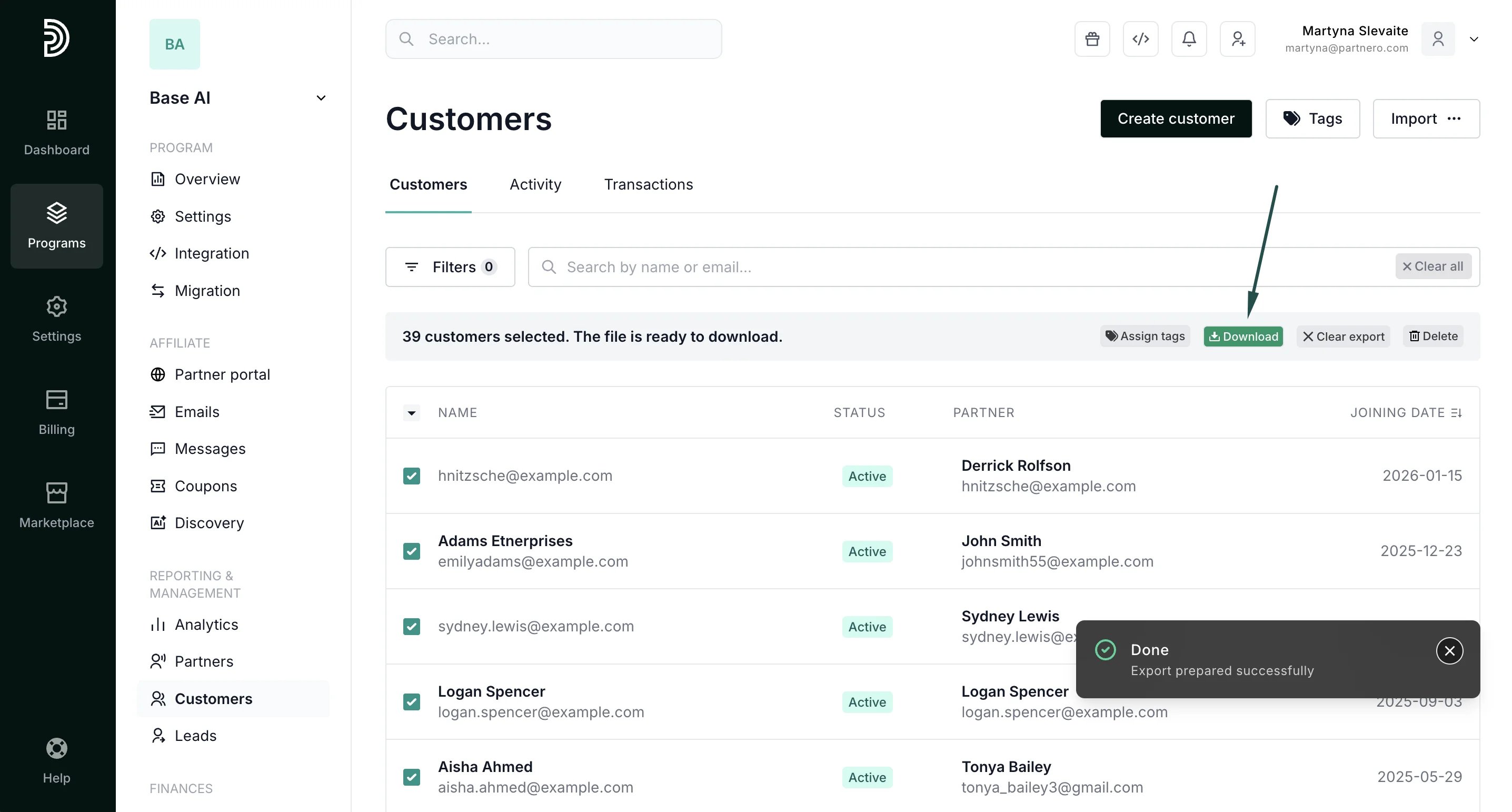 The export contains: Customer name, Customer email, Customer Key, Status, Joining date, Transactions, Spent, Generated rewards, Partner ID, Partner Email, Partner Key.
***
### Transaction data export: program level
To find and export program transactions:
1. Go to **Customers** and Reporting & Management. Switch to the **Transactions** tab:
The export contains: Customer name, Customer email, Customer Key, Status, Joining date, Transactions, Spent, Generated rewards, Partner ID, Partner Email, Partner Key.
***
### Transaction data export: program level
To find and export program transactions:
1. Go to **Customers** and Reporting & Management. Switch to the **Transactions** tab: 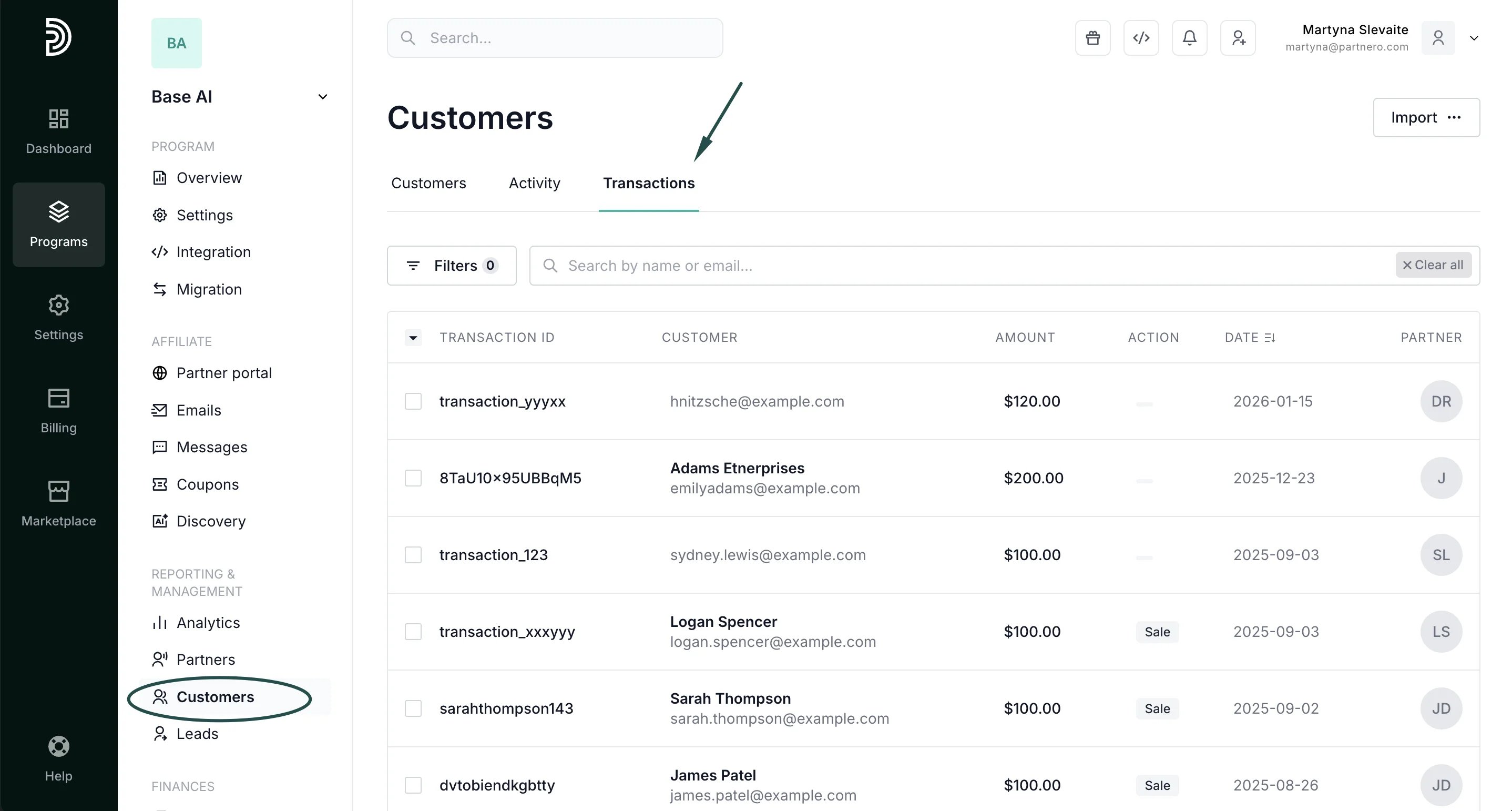 2. Select transactions and click **Export**:
 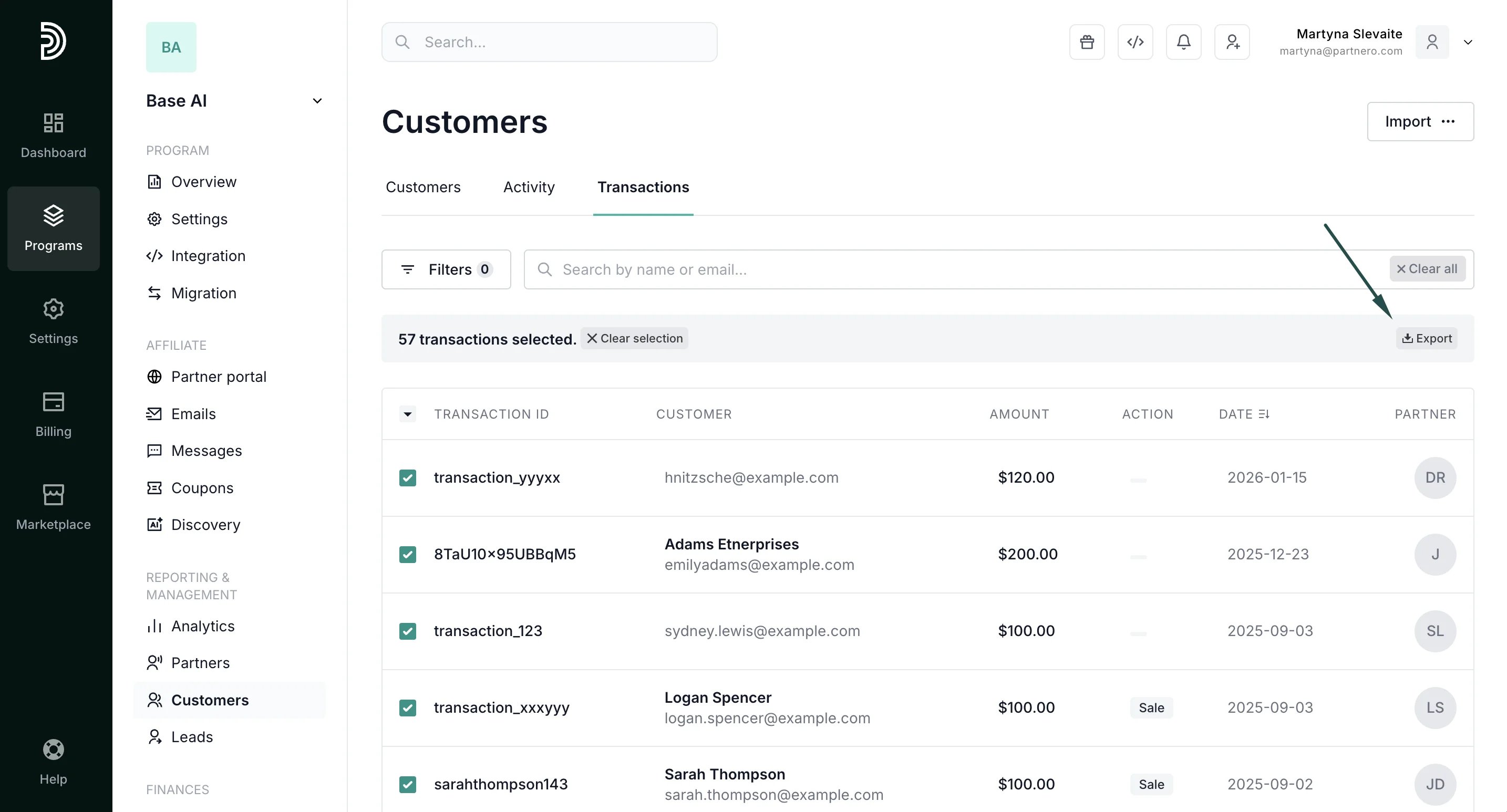 3. Download the export, once completed:
 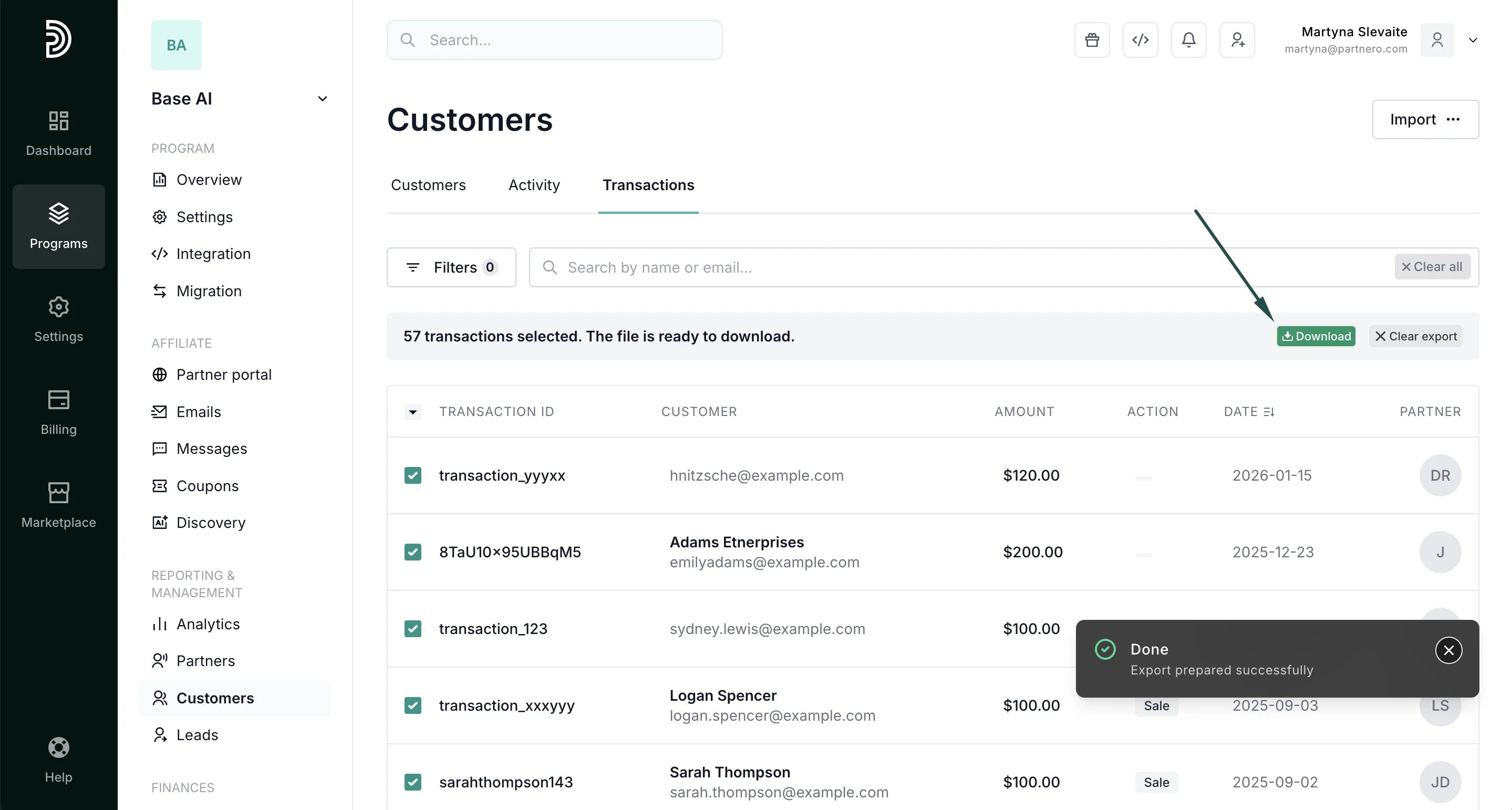 The export contains: Transaction ID, Customer Name, Customer Email, Amount, Amount Units, Action, Partner Email, Partner Key, Date.
***
### Transaction data export: specific customer
To export a complete list of transactions for a specific customer:
1. Go to **Customers** under **Reporting & Management**. Find the required customer using their name or email address, and click to open their profile:
The export contains: Transaction ID, Customer Name, Customer Email, Amount, Amount Units, Action, Partner Email, Partner Key, Date.
***
### Transaction data export: specific customer
To export a complete list of transactions for a specific customer:
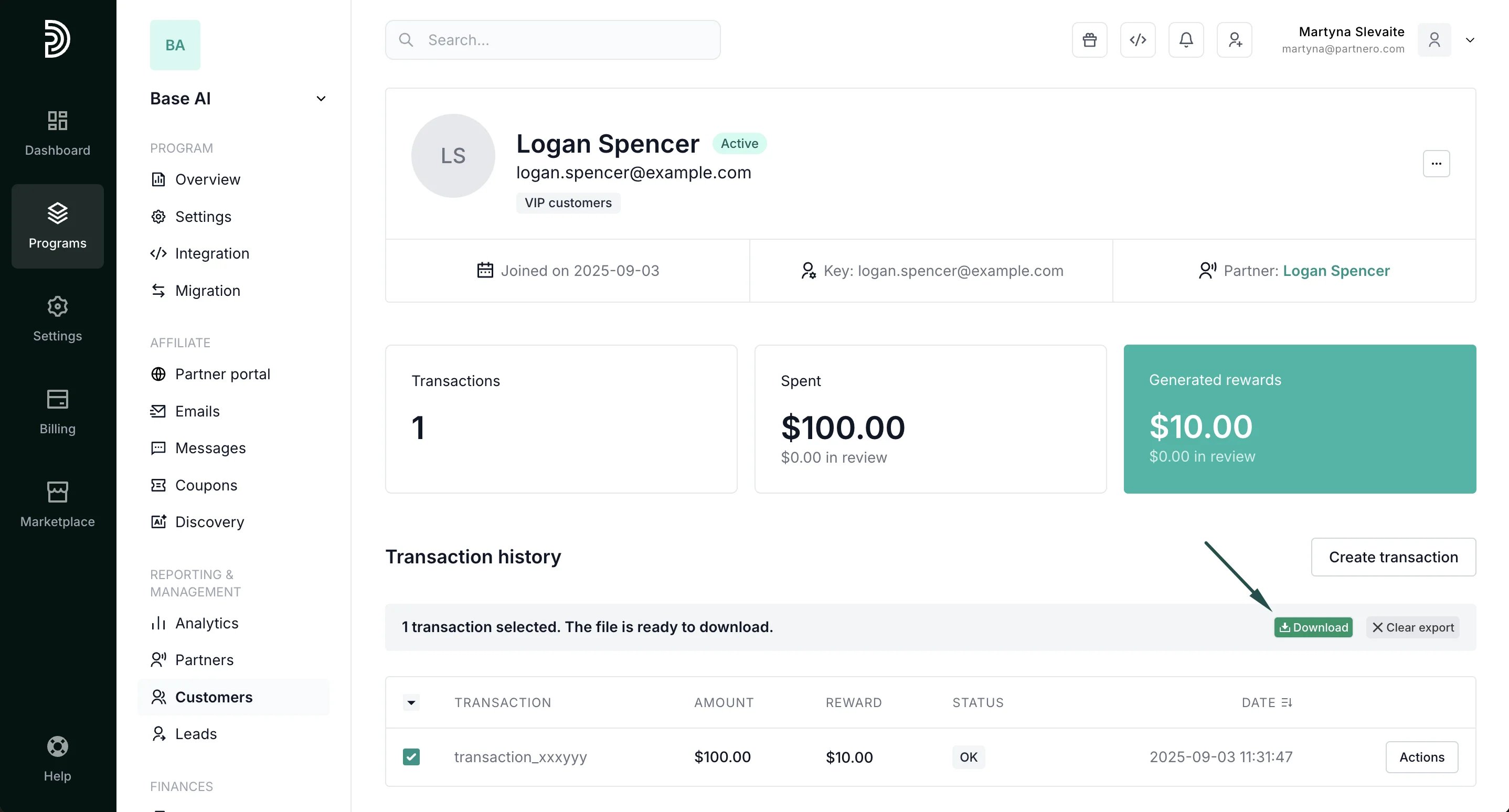
1. Go to **Customers** under **Reporting & Management**. Find the required customer using their name or email address, and click to open their profile: 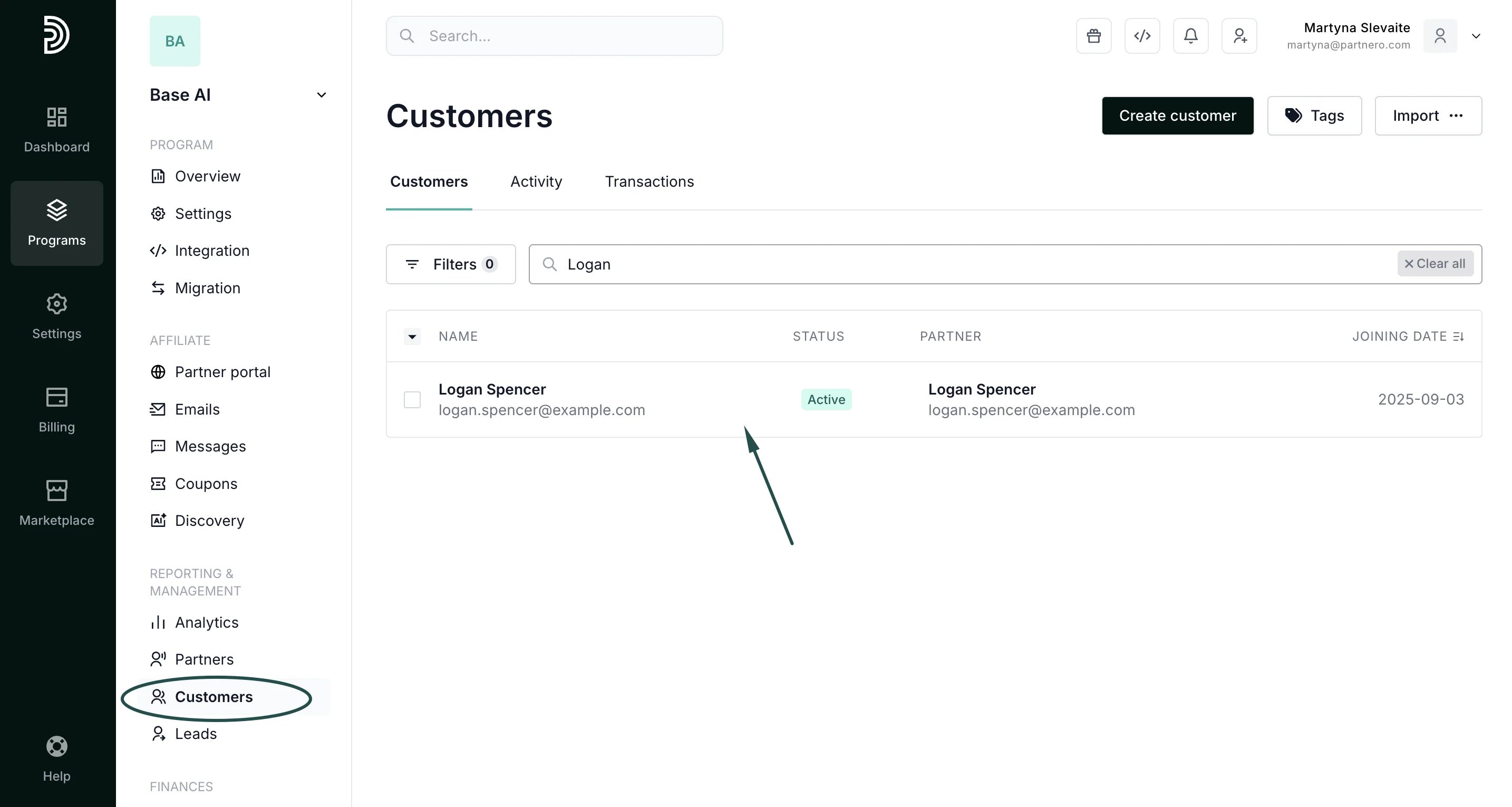 2. On the customer's profile, scroll down to the **Transaction history** section. You can *Select all* or *Select visible* transactions and click **Export**:
 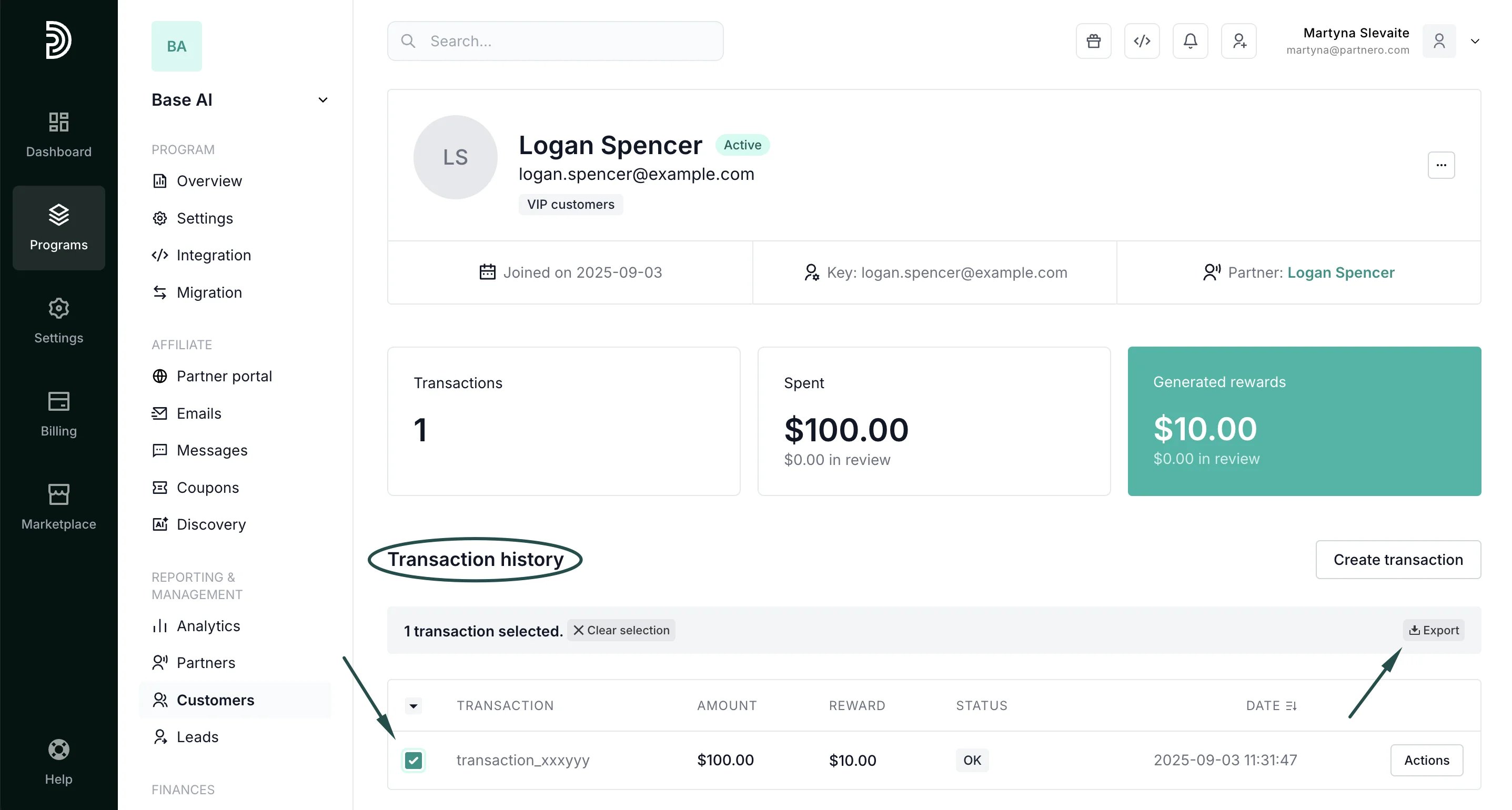 3. You'll see a progress bar and the option to download the list once the export is complete. Click **Download**:
  ***
### Activity data export
To export activity:
1. Go to **Customers** under **Reporting & Management**. Switch to the **Activity** tab:
***
### Activity data export
To export activity:
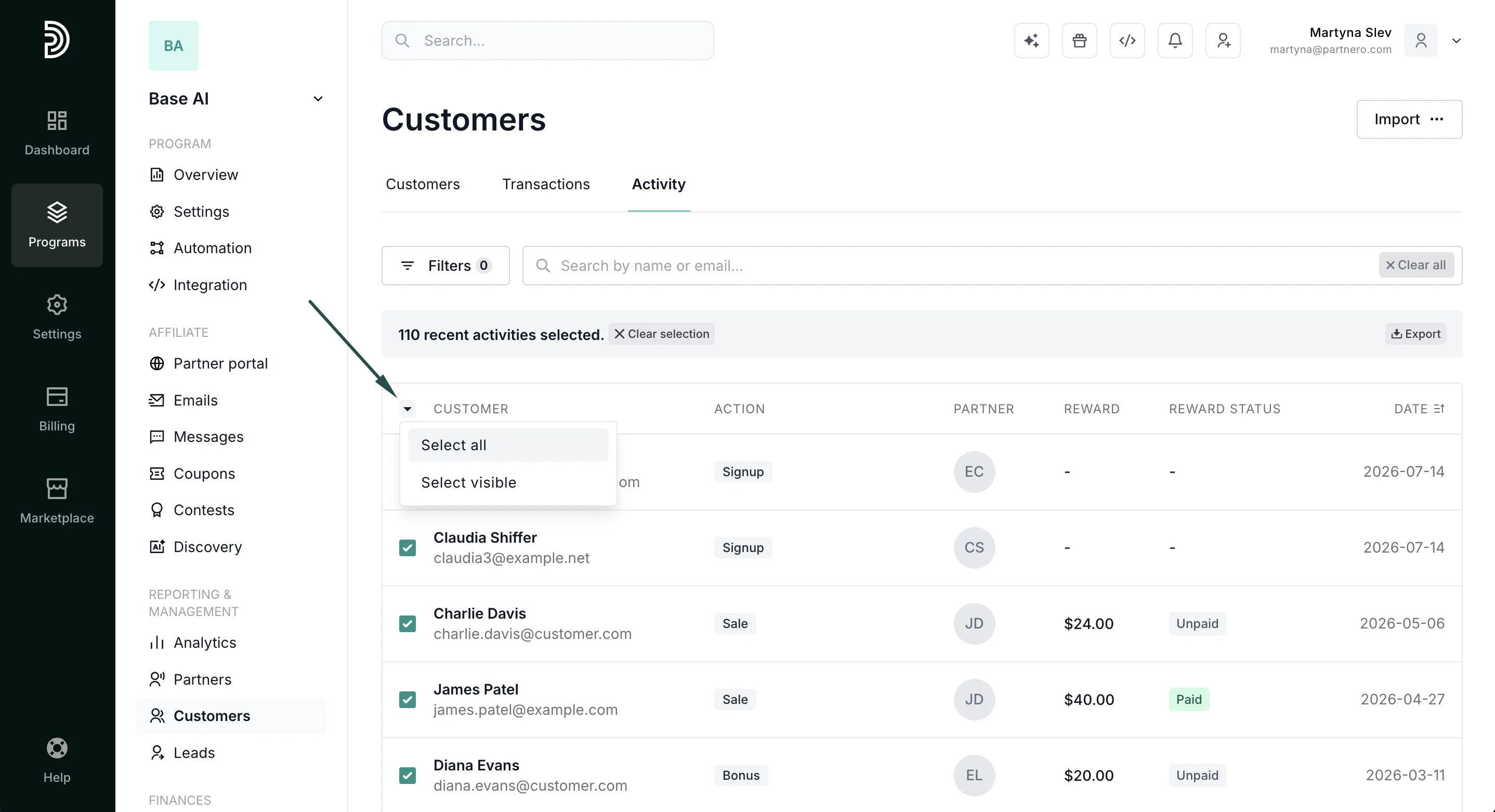
1. Go to **Customers** under **Reporting & Management**. Switch to the **Activity** tab: 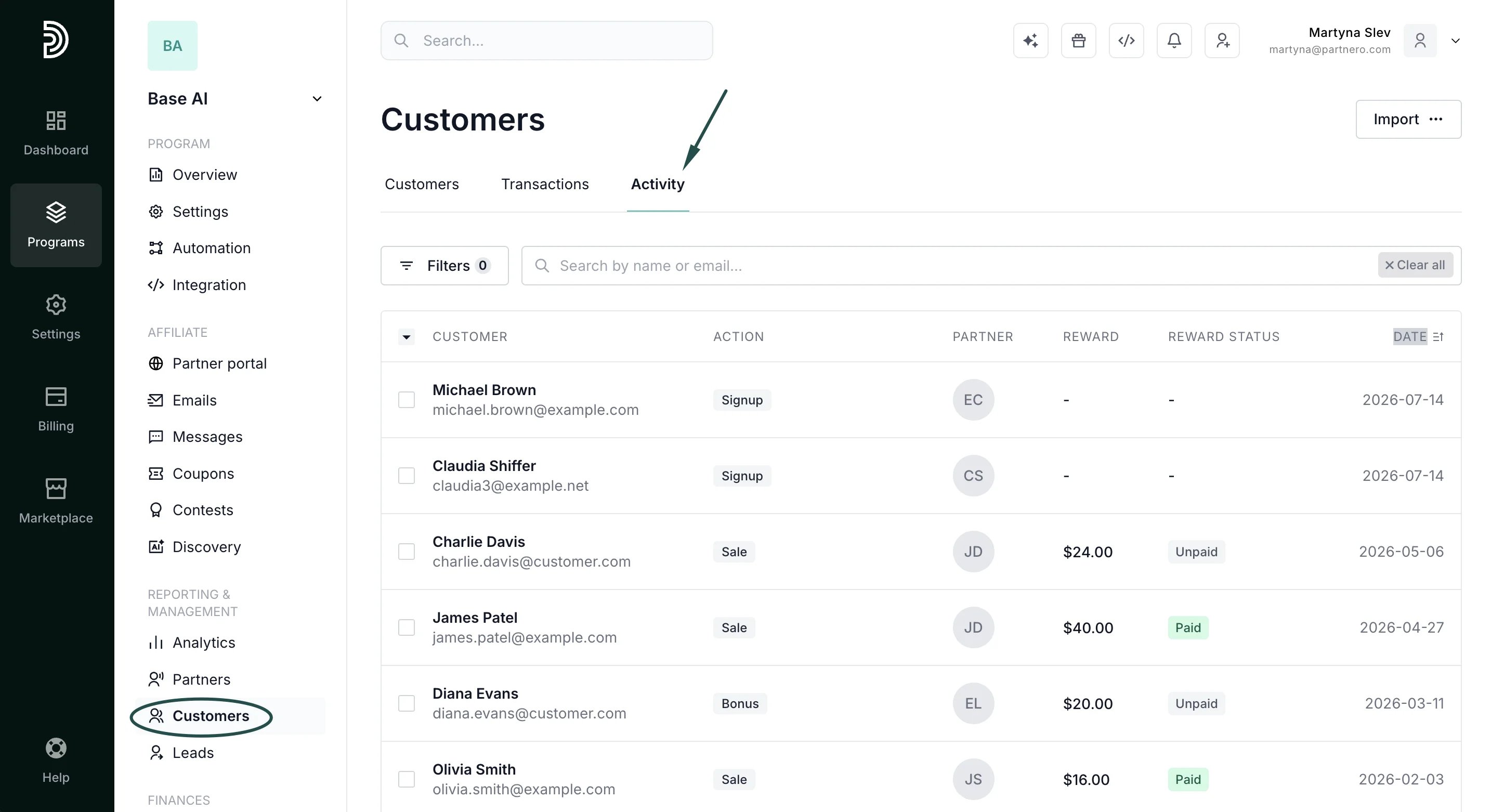 2. Select the activity entries you'd like to export. You can also click to *Select All* or *Select Visible*.
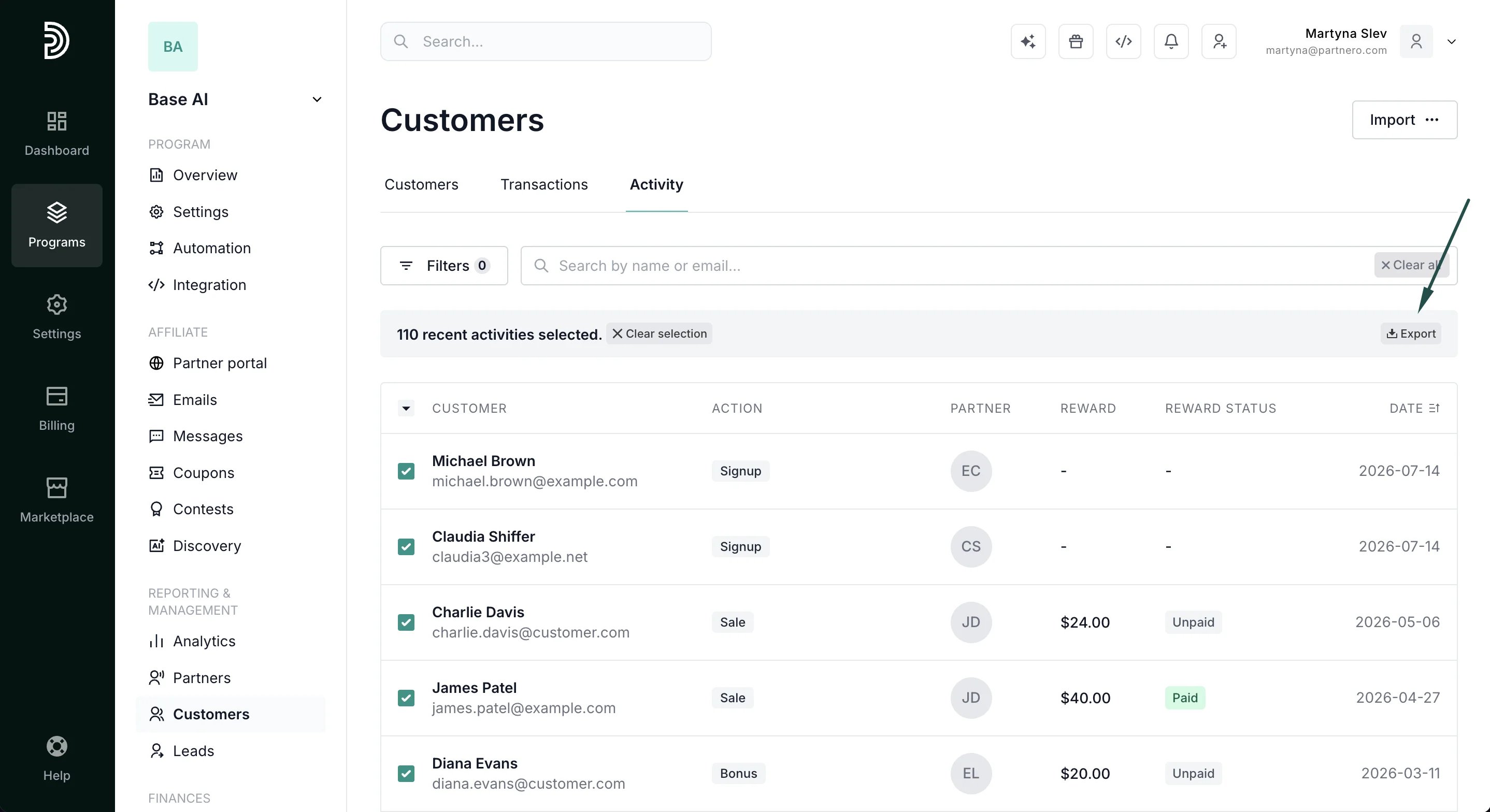
  3. Click **Export**.
  4. You'll see a progress bar and the option to download the list once the export is complete. Click **Download**.
 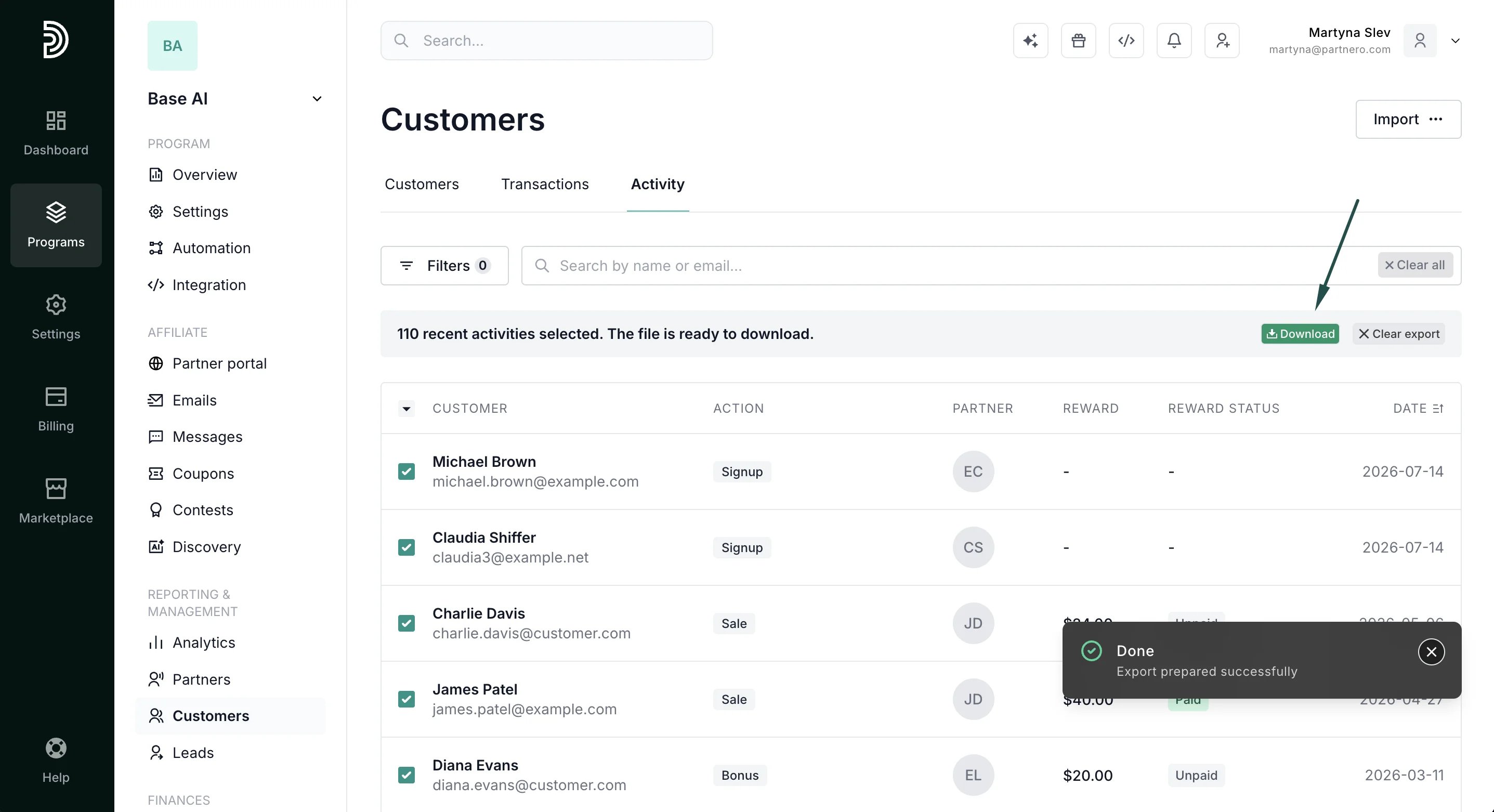 The export contains: Full name, Email, Reward, Action, Status, Date, Partner email, Partner key.
This documentation is built and hosted on [Mintlify](https://mintlify.com), a developer documentation platform.
The export contains: Full name, Email, Reward, Action, Status, Date, Partner email, Partner key.
This documentation is built and hosted on [Mintlify](https://mintlify.com), a developer documentation platform.