> ## Documentation Index
> Fetch the complete documentation index at: https://docs.partnero.com/llms.txt
> Use this file to discover all available pages before exploring further.
# Import partners, customers and transactions
You can bring existing data into Partnero by importing partners, customers, and transactions in bulk. This article explains how to prepare your files and upload them so your program reflects historical activity, aligns with your current systems, and ensures accurate tracking and rewards.
→ [Click here](https://docs.google.com/spreadsheets/d/1ddUdHInvYyXRCOHA77vByr0wN8XWzhqlaCjzpuelKoo/edit?usp=sharing) to access an example file showing how partners, customers, and transactions can be imported and associated with each other.
***
### How to import partners
1. In your program, go to **Partners** under **Reporting & Management**. Click **Import**: 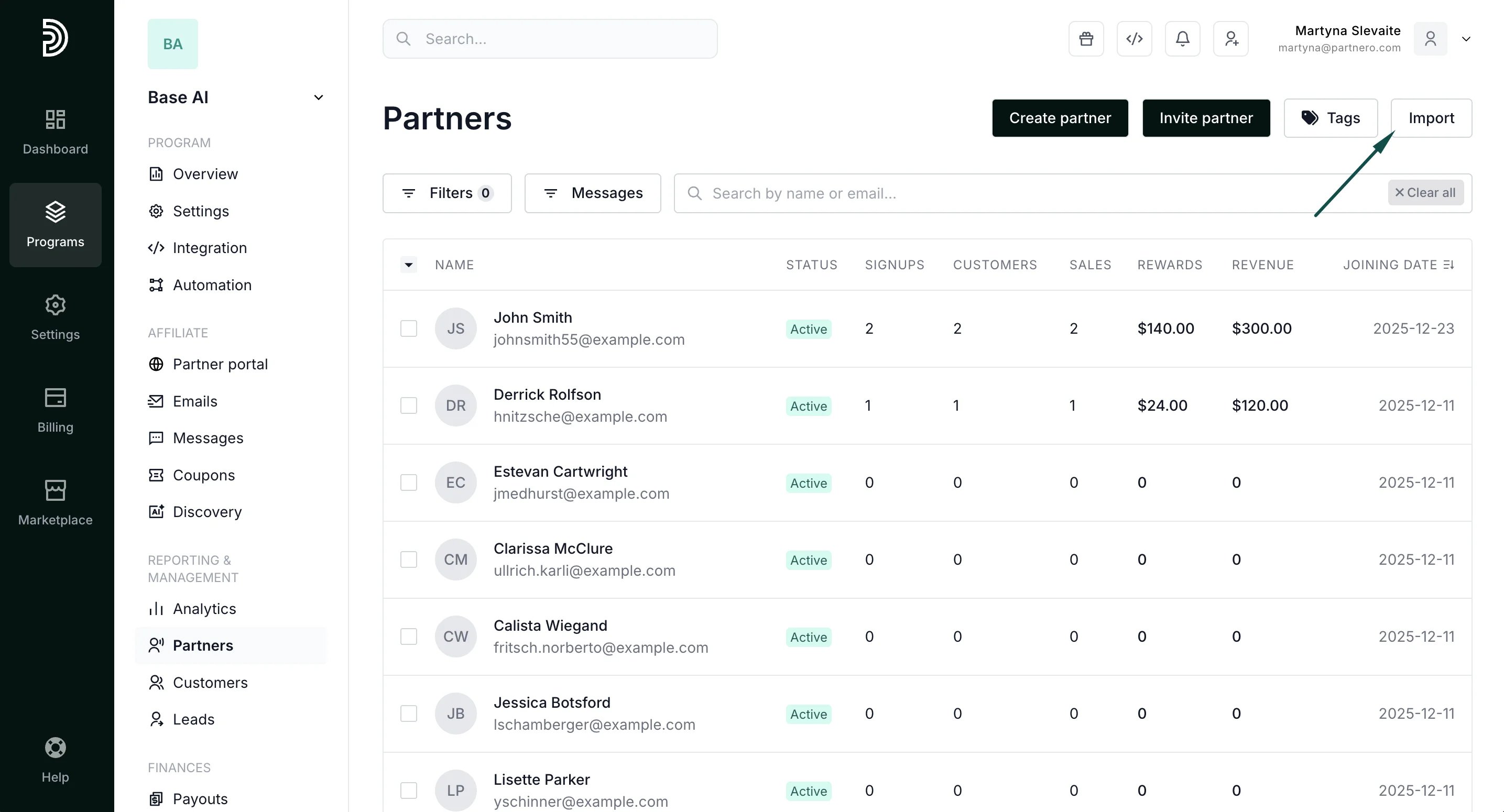 2. Upload your CSV file and click **Import**.
3. Match the corresponding fields:
2. Upload your CSV file and click **Import**.
3. Match the corresponding fields: 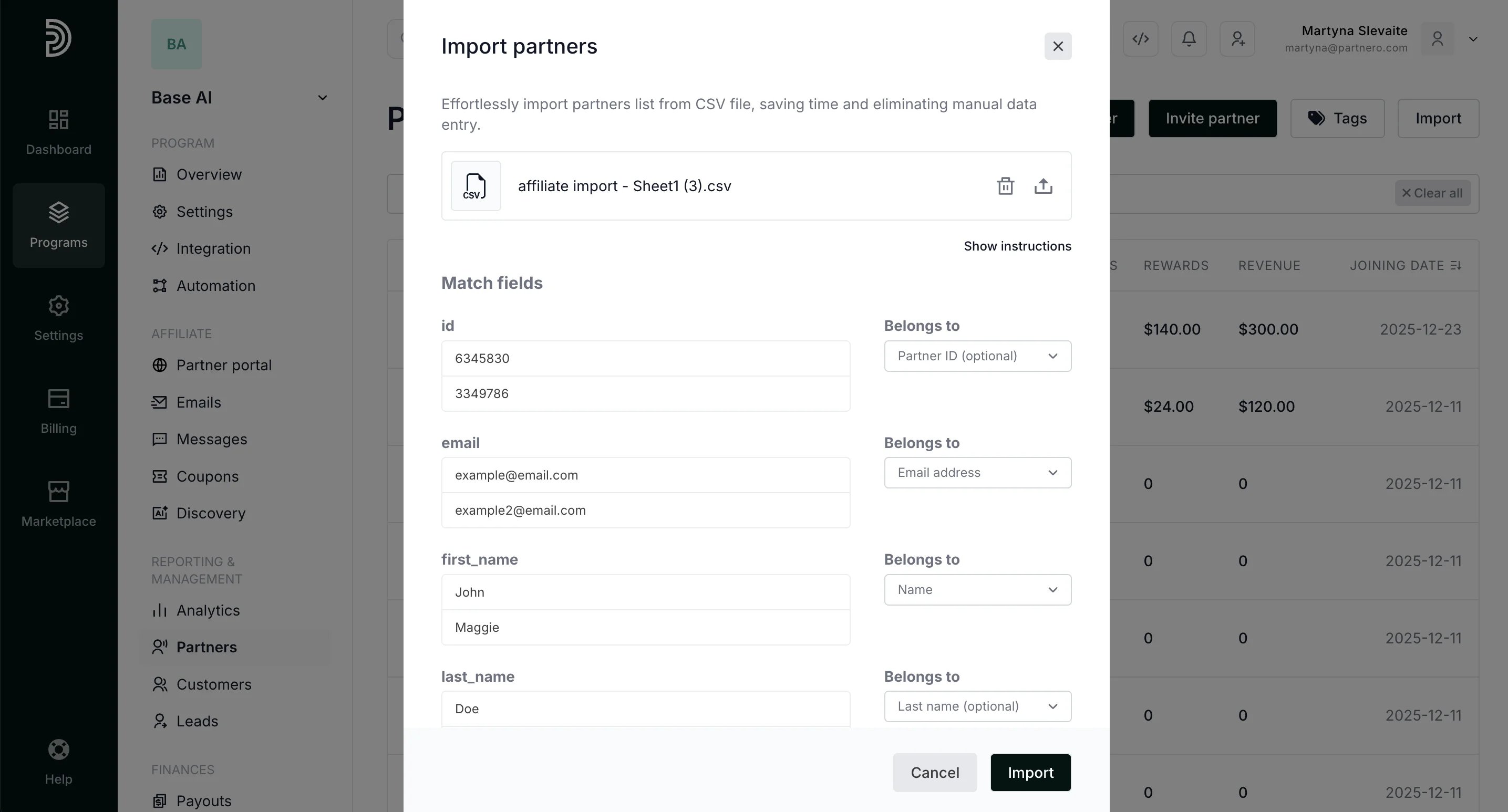 4. Click **Import**.
#### Instructions for the CSV file
To easily import your CSV file, ensure that the headers in the first row of the worksheet are appropriately named. Provide a header for each respective column. Once you upload the file, you will be prompted to confirm the matching fields. The following list contains required and optional columns for import:
* Partner ID (optional)
* Name
* Last name (optional)
* Partner key (optional)
* Email address
* Joining date
To avoid any issues, it's important to adhere to the limit of 100 characters for the first and last name, 64 characters for the key, and 255 for other fields.
Please ensure that the *Partner key* and *Email* columns contain unique values. This is crucial for accurate data processing and to prevent potential conflicts.
For the *Joining date* column, please format the dates using the *Y-m-d* format. This standard format ensures consistency and compatibility with the import process
**Example**:
| name | last\_name | email | identifier | token | joining\_date |
| - | - | - | - | - | - |
| John | Doe | [john.doe@example.com](mailto:john.doe@example.com) | partner-001 | ref-john-doe | 2024-01-15 |
| Jane | Smith | [jane.smith@example.com](mailto:jane.smith@example.com) | partner-002 | ref-jane-smith | 2024-02-20 |
| Michael | Johnson | [michael.j@example.com](mailto:michael.j@example.com) | partner-003 | ref-michael-j | 2024-03-10 |
| | | | | | |
###
***
How to import customers
1. Go to **Customers** under **Reporting & Management**. Click **Import** > **Import Customers**:
4. Click **Import**.
#### Instructions for the CSV file
To easily import your CSV file, ensure that the headers in the first row of the worksheet are appropriately named. Provide a header for each respective column. Once you upload the file, you will be prompted to confirm the matching fields. The following list contains required and optional columns for import:
* Partner ID (optional)
* Name
* Last name (optional)
* Partner key (optional)
* Email address
* Joining date
To avoid any issues, it's important to adhere to the limit of 100 characters for the first and last name, 64 characters for the key, and 255 for other fields.
Please ensure that the *Partner key* and *Email* columns contain unique values. This is crucial for accurate data processing and to prevent potential conflicts.
For the *Joining date* column, please format the dates using the *Y-m-d* format. This standard format ensures consistency and compatibility with the import process
**Example**:
| name | last\_name | email | identifier | token | joining\_date |
| - | - | - | - | - | - |
| John | Doe | [john.doe@example.com](mailto:john.doe@example.com) | partner-001 | ref-john-doe | 2024-01-15 |
| Jane | Smith | [jane.smith@example.com](mailto:jane.smith@example.com) | partner-002 | ref-jane-smith | 2024-02-20 |
| Michael | Johnson | [michael.j@example.com](mailto:michael.j@example.com) | partner-003 | ref-michael-j | 2024-03-10 |
| | | | | | |
###
***
How to import customers
1. Go to **Customers** under **Reporting & Management**. Click **Import** > **Import Customers**: 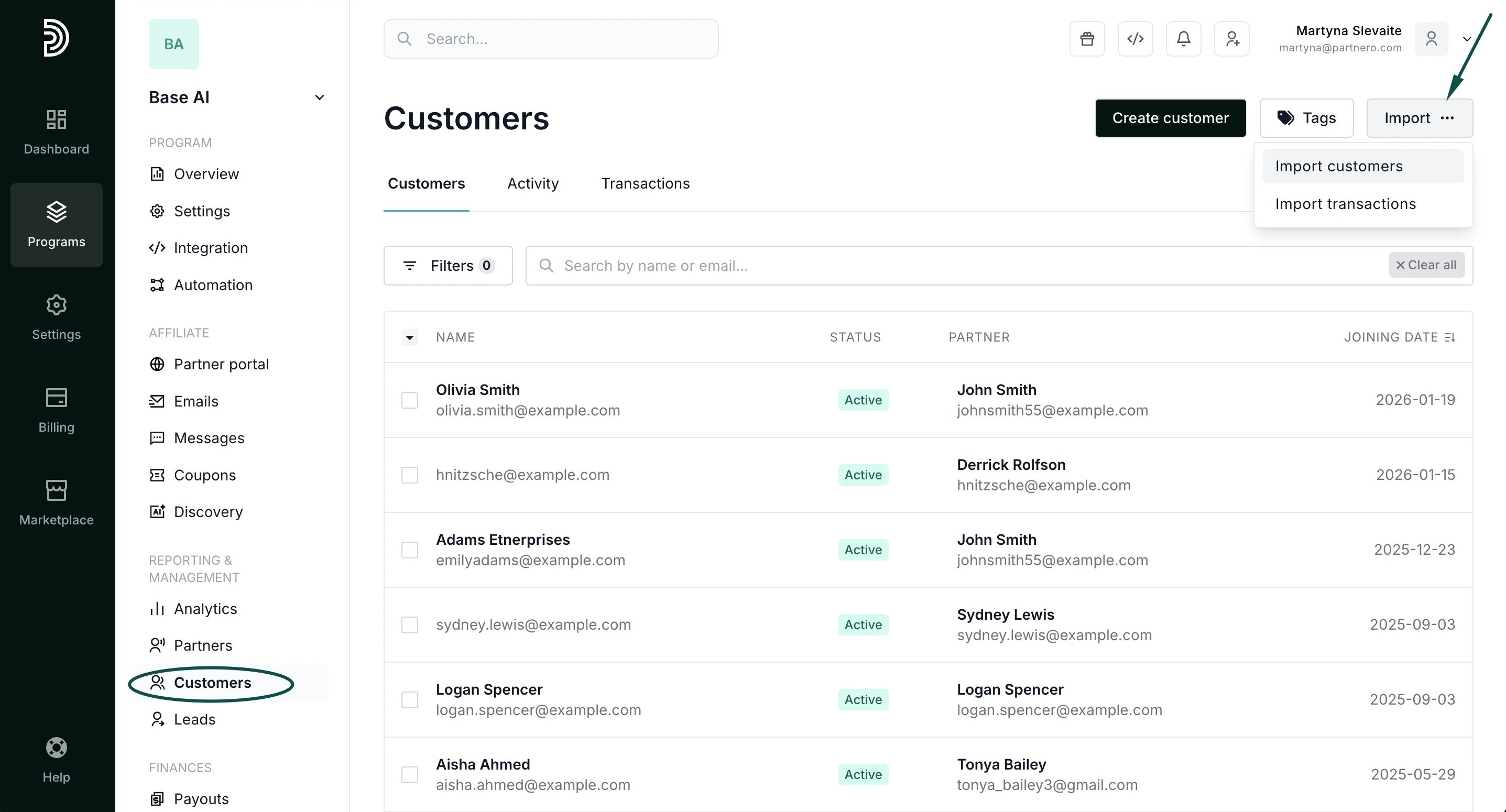 2. Upload your CSV file and click Import.
3. Match the corresponding fields.
4. Click **Import**.
#### Instructions for the CSV file
To easily import your CSV file, ensure that the headers in the first row of the worksheet are appropriately named. Provide a header for each respective column. Once you upload the file, you will be prompted to confirm the matching fields. The following list contains required and optional columns for import:
* Name
* Last name (optional)
* Email address
* Customer key
* Partner key (optional if partner email is provided)
* Partner email (optional if partner key is provided)
* Joining date
Please make sure that the *Customer key* and *Email* columns contain unique values. Also, make sure the provided *Partner key* and/or *Partner Email* are from existing partners in the Partnero app.
For the *Joining date* column, please format the dates in *Y-m-d* format.
**Example**:
| **name** | **last\_ name** | **email** | **customer\_ key** | **partner\_ identifier** | **partner\_key** | **partner\_email** | **joining date** | | |
| - | - | - | - | - | - | - | - | - | - |
| Alice | Cooper | [alice@customer.com](mailto:alice@customer.com) | cust-001 | partner-01 | | | 2024-01-20 | | |
| Bob | Martin | [bob@customer.com](mailto:bob@customer.com) | cust-002 | partner-01 | | | 2024-01-28 | | |
| Charlie | Davis | [charlie@customer.com](mailto:charlie@customer.com) | cust-003 | | ref-jane-smith | | 2024-02-28 | | |
| Diana | Evans | [diana@customer.com](mailto:diana@customer.com) | cust-004 | | | [michael@email.com](mailto:michael@email.com) | 2024-03-15 | | |
| | | | | | | | | | |
***
### How to import transactions
1. Go to **Customers** under **Reporting & Management**. Click **Import** > **Import transactions**:
2. Upload your CSV file and click Import.
3. Match the corresponding fields.
4. Click **Import**.
#### Instructions for the CSV file
To easily import your CSV file, ensure that the headers in the first row of the worksheet are appropriately named. Provide a header for each respective column. Once you upload the file, you will be prompted to confirm the matching fields. The following list contains required and optional columns for import:
* Name
* Last name (optional)
* Email address
* Customer key
* Partner key (optional if partner email is provided)
* Partner email (optional if partner key is provided)
* Joining date
Please make sure that the *Customer key* and *Email* columns contain unique values. Also, make sure the provided *Partner key* and/or *Partner Email* are from existing partners in the Partnero app.
For the *Joining date* column, please format the dates in *Y-m-d* format.
**Example**:
| **name** | **last\_ name** | **email** | **customer\_ key** | **partner\_ identifier** | **partner\_key** | **partner\_email** | **joining date** | | |
| - | - | - | - | - | - | - | - | - | - |
| Alice | Cooper | [alice@customer.com](mailto:alice@customer.com) | cust-001 | partner-01 | | | 2024-01-20 | | |
| Bob | Martin | [bob@customer.com](mailto:bob@customer.com) | cust-002 | partner-01 | | | 2024-01-28 | | |
| Charlie | Davis | [charlie@customer.com](mailto:charlie@customer.com) | cust-003 | | ref-jane-smith | | 2024-02-28 | | |
| Diana | Evans | [diana@customer.com](mailto:diana@customer.com) | cust-004 | | | [michael@email.com](mailto:michael@email.com) | 2024-03-15 | | |
| | | | | | | | | | |
***
### How to import transactions
1. Go to **Customers** under **Reporting & Management**. Click **Import** > **Import transactions**: 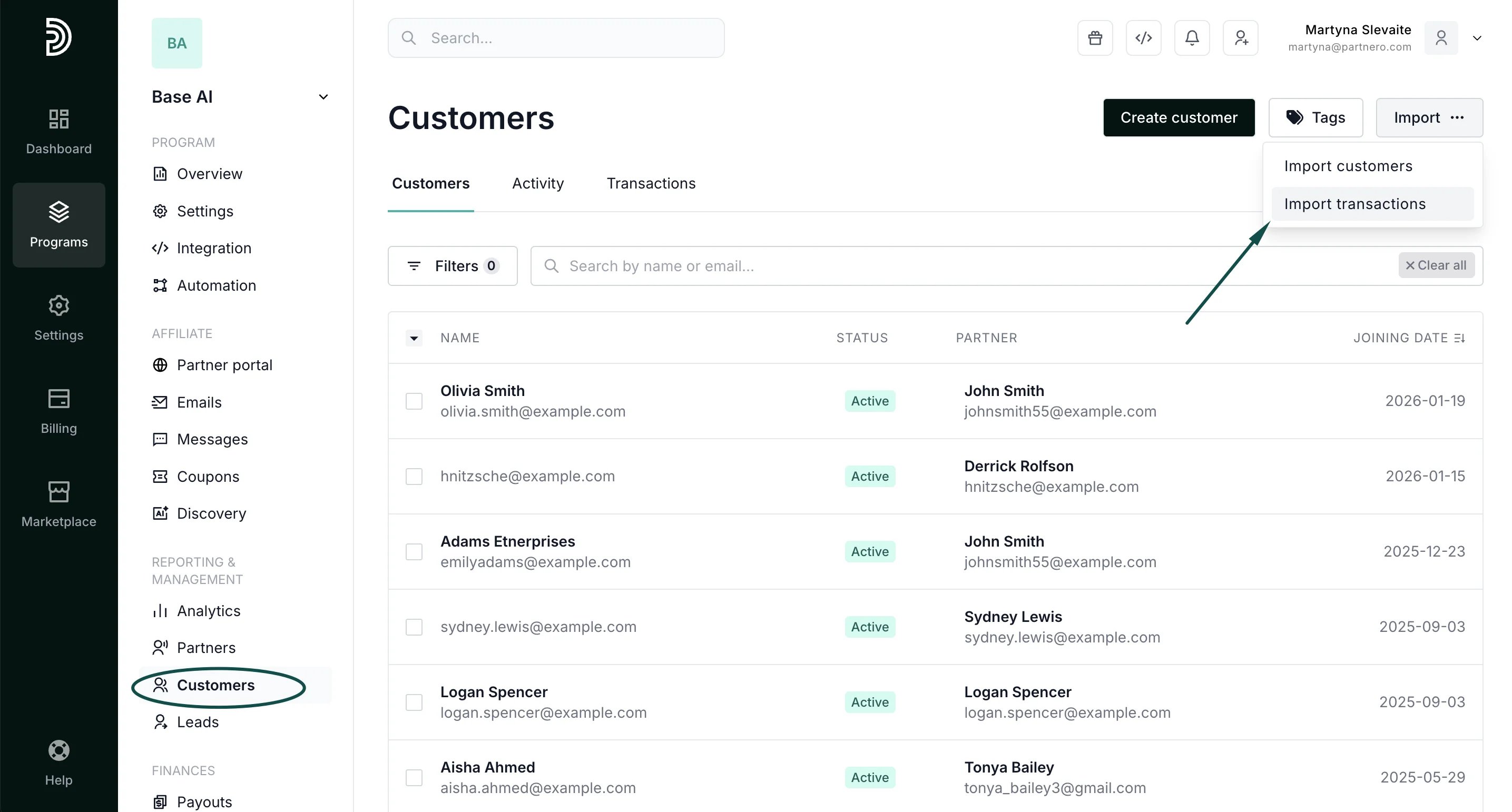 2. Upload your CSV file and click Import.
3. Match the corresponding fields.
4. Click **Import**.
#### Instructions for the CSV file
To easily import your CSV file, ensure that the headers in the first row of the worksheet are appropriately named. Provide a header for each respective column. Once you upload the file, you will be prompted to confirm the matching fields. The following list contains required and optional columns for import:
* Transaction name (optional)
* Customer key
* Action (signup/sale)
* Reward date
* Reward amount
* Amount (optional)
Before proceeding with the import, please ensure you have filled in the data in the corresponding fields. Additionally, it's important to adhere to the limit of 100 characters for the *Transaction name* and 64 characters for the *Customer key*.
Also, make sure you provide the Customer key of existing partners.
For the Reward date column, please format the dates using the Y-m-d format.
**Example**:
| name | customer\_key | action | reward\_date | reward\_amount | amount | rewarded | product\_id | product\_type |
| - | - | - | - | - | - | - | - | - |
| txn-001 | cust-001 | sale | 2024-02-01 | 25 | 250 | FALSE | prod-101 | subscription |
| txn-002 | cust-001 | sale | 2024-03-01 | 25 | 250 | FALSE | prod-101 | subscription |
| txn-003 | cust-002 | sale | 2024-02-15 | 15 | 150 | TRUE | prod-102 | one-time |
| txn-004 | cust-003 | sale | 2024-03-10 | 50 | 500 | FALSE | prod-103 | subscription |
| | | | | | | | | |
This documentation is built and hosted on [Mintlify](https://mintlify.com), a developer documentation platform.
2. Upload your CSV file and click Import.
3. Match the corresponding fields.
4. Click **Import**.
#### Instructions for the CSV file
To easily import your CSV file, ensure that the headers in the first row of the worksheet are appropriately named. Provide a header for each respective column. Once you upload the file, you will be prompted to confirm the matching fields. The following list contains required and optional columns for import:
* Transaction name (optional)
* Customer key
* Action (signup/sale)
* Reward date
* Reward amount
* Amount (optional)
Before proceeding with the import, please ensure you have filled in the data in the corresponding fields. Additionally, it's important to adhere to the limit of 100 characters for the *Transaction name* and 64 characters for the *Customer key*.
Also, make sure you provide the Customer key of existing partners.
For the Reward date column, please format the dates using the Y-m-d format.
**Example**:
| name | customer\_key | action | reward\_date | reward\_amount | amount | rewarded | product\_id | product\_type |
| - | - | - | - | - | - | - | - | - |
| txn-001 | cust-001 | sale | 2024-02-01 | 25 | 250 | FALSE | prod-101 | subscription |
| txn-002 | cust-001 | sale | 2024-03-01 | 25 | 250 | FALSE | prod-101 | subscription |
| txn-003 | cust-002 | sale | 2024-02-15 | 15 | 150 | TRUE | prod-102 | one-time |
| txn-004 | cust-003 | sale | 2024-03-10 | 50 | 500 | FALSE | prod-103 | subscription |
| | | | | | | | | |
This documentation is built and hosted on [Mintlify](https://mintlify.com), a developer documentation platform.