> ## Documentation Index
> Fetch the complete documentation index at: https://docs.partnero.com/llms.txt
> Use this file to discover all available pages before exploring further.
# Everything about your plan and billing
All information about your current plan and payment details can be found in the **Billing** section on the left sidebar of your [Partnero](https://app.partnero.com/login) account.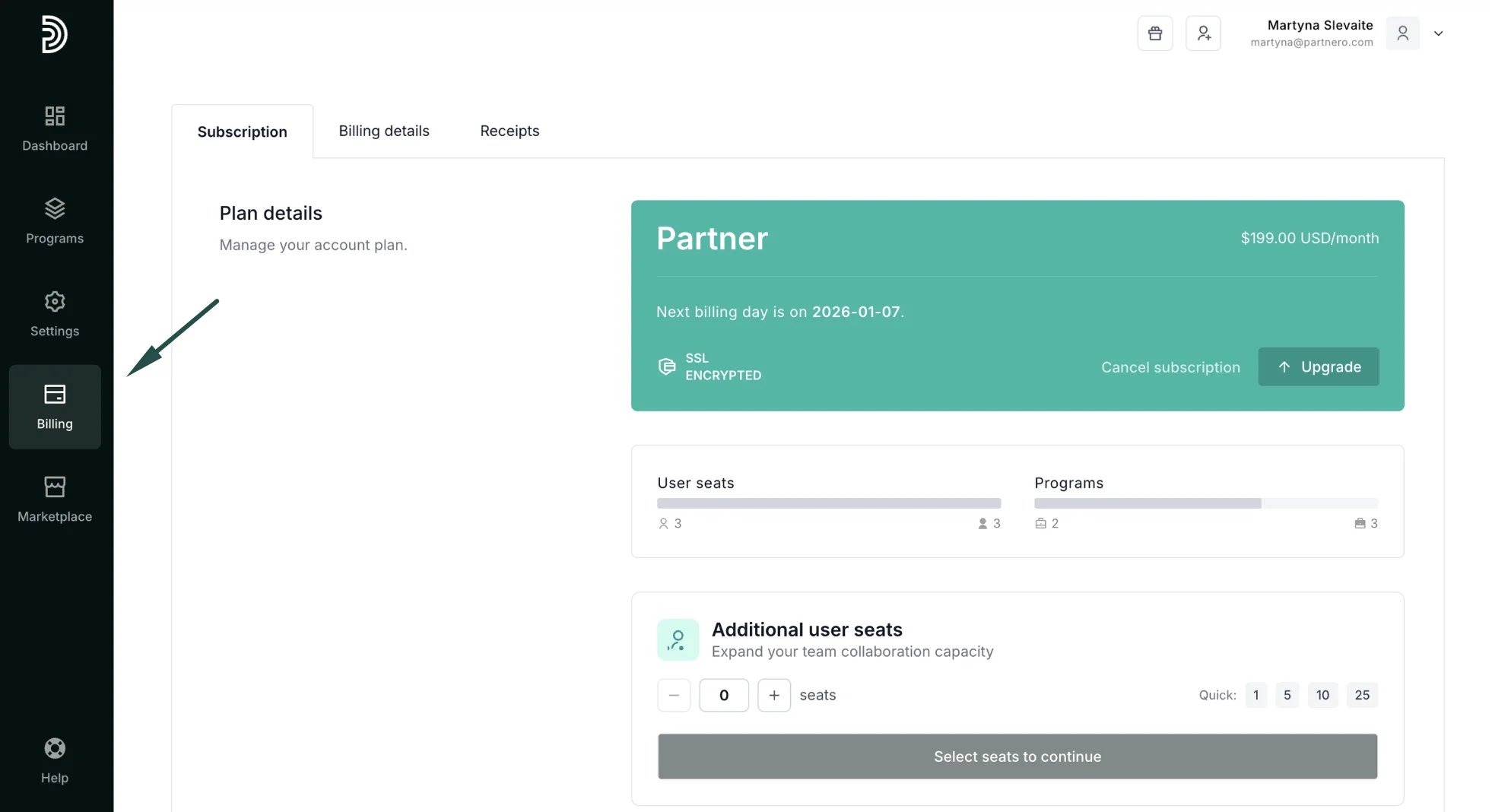 ***
### Plans and how to pay
Partnero offers three plans: *Starter*, *Partner*, and *Enterprise*. You can compare the features between these plans on the [Pricing page](https://www.partnero.com/pricing). The paid plans are offered on a monthly or annual subscription basis. Each plan includes a specific range of programs and other features available. Additional user seats can be added to any plan for \$29/mo per user.
Prices don't include VAT or other taxes of any kind (where applicable).
For monthly plans, you can pay with a credit or debit card. They will automatically renew every 30 days until you cancel.
***
### How to add billing details
To add your billing information:
1. Log in to [Partnero](https://app.partnero.com/login).
2. Click on **Billing** on the left sidebar.
3. Switch to the **Billing details** tab:
***
### Plans and how to pay
Partnero offers three plans: *Starter*, *Partner*, and *Enterprise*. You can compare the features between these plans on the [Pricing page](https://www.partnero.com/pricing). The paid plans are offered on a monthly or annual subscription basis. Each plan includes a specific range of programs and other features available. Additional user seats can be added to any plan for \$29/mo per user.
Prices don't include VAT or other taxes of any kind (where applicable).
For monthly plans, you can pay with a credit or debit card. They will automatically renew every 30 days until you cancel.
***
### How to add billing details
To add your billing information:
1. Log in to [Partnero](https://app.partnero.com/login).
2. Click on **Billing** on the left sidebar.
3. Switch to the **Billing details** tab:
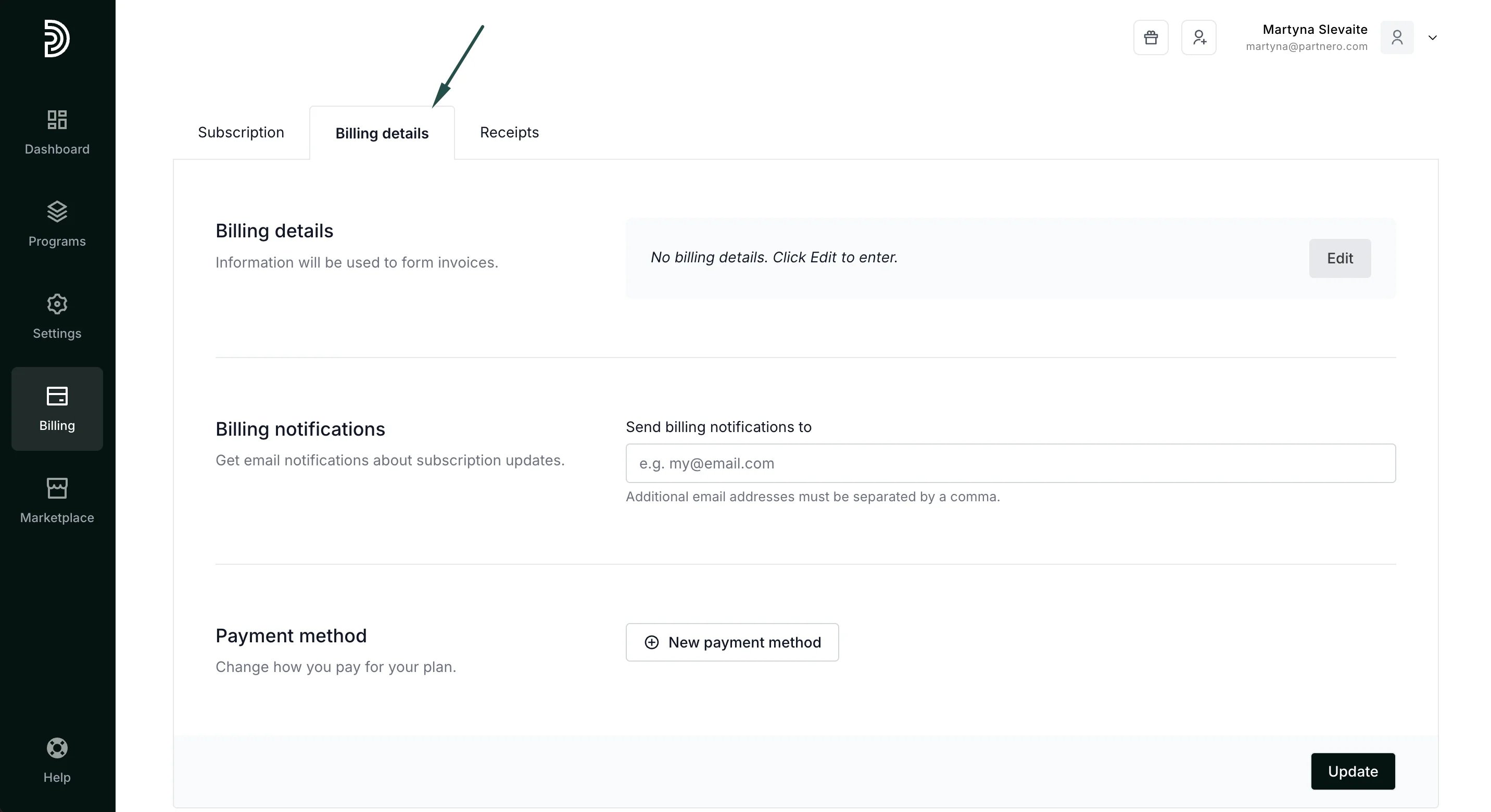 Here you'll be able to fill out the following information:
* **Billing details:** add information that we will use to form invoices, such as your name, company name, and address.
* **Billing notifications:** add an email address where you'd like to receive subscription update notifications (optional).
* **Payment method:** add your card information.
Click **Update** after you're done!
***
### How to buy or upgrade your plan
1. In your Partnero account, click on **Billing** on the left sidebar.
2. In the **Subscription** tab, select one of the available plans (for first-time subscription) or click **Upgrade**.
Here you'll be able to fill out the following information:
* **Billing details:** add information that we will use to form invoices, such as your name, company name, and address.
* **Billing notifications:** add an email address where you'd like to receive subscription update notifications (optional).
* **Payment method:** add your card information.
Click **Update** after you're done!
***
### How to buy or upgrade your plan
1. In your Partnero account, click on **Billing** on the left sidebar.
2. In the **Subscription** tab, select one of the available plans (for first-time subscription) or click **Upgrade**. 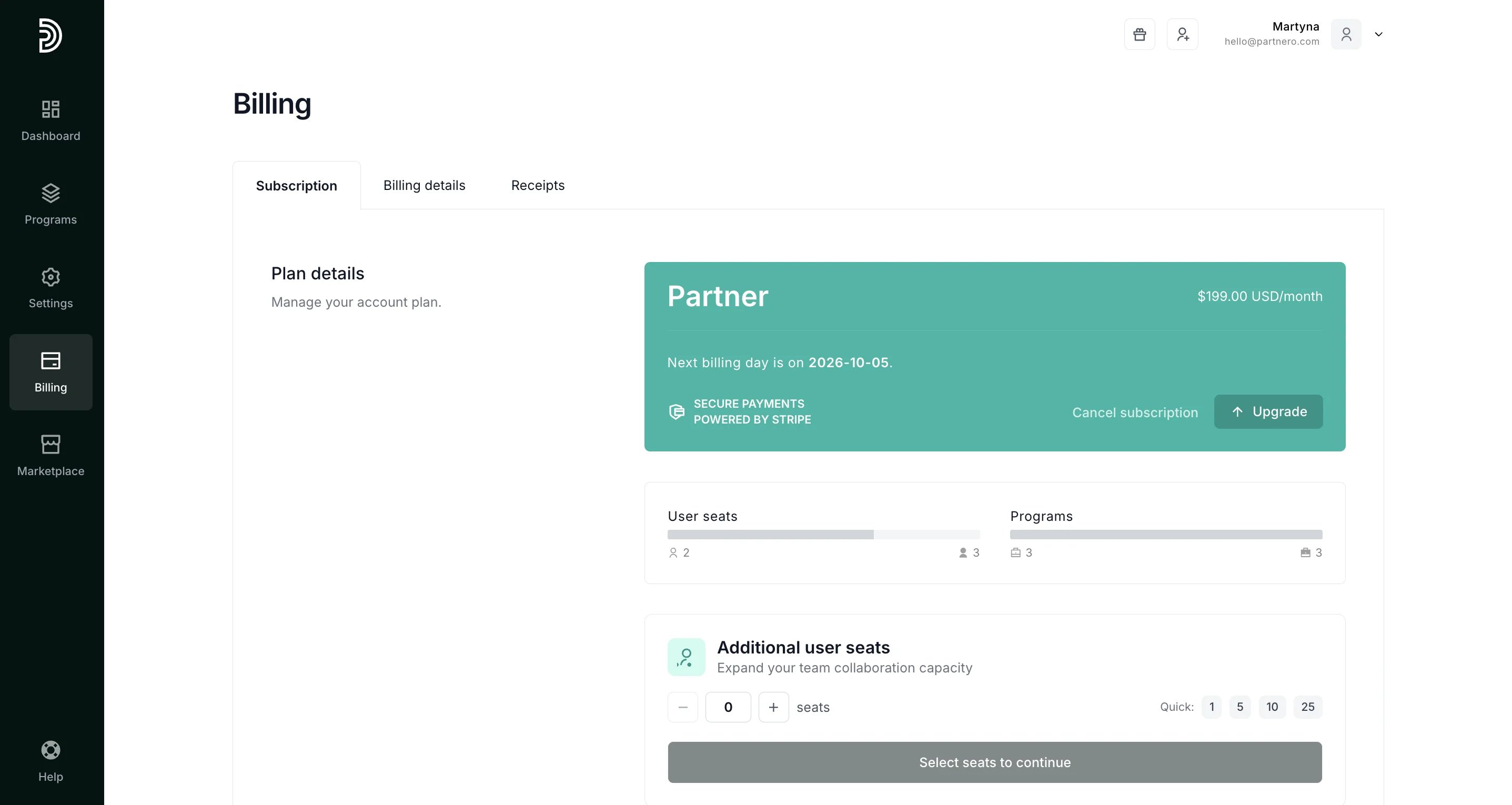 3. Select the plan that best suits your needs.
4. Click **Purchase**.
Note: If you haven't added your billing details and payment method yet, you can do so at this step.
5. Click **Purchase** again.
#### What happens if you upgrade an existing plan before the expiration date
You don’t lose any money when you upgrade to a new plan before the expiration date of your current plan.
We calculate the unused time/money from your current plan and subtract it from the full price of the new plan. The expiration date of the plan is also updated according to the amount of time purchased.
###
***
Where to find billing receipts
You can find and download all your billing receipts in the Billing section, **Receipts** tab:
3. Select the plan that best suits your needs.
4. Click **Purchase**.
Note: If you haven't added your billing details and payment method yet, you can do so at this step.
5. Click **Purchase** again.
#### What happens if you upgrade an existing plan before the expiration date
You don’t lose any money when you upgrade to a new plan before the expiration date of your current plan.
We calculate the unused time/money from your current plan and subtract it from the full price of the new plan. The expiration date of the plan is also updated according to the amount of time purchased.
###
***
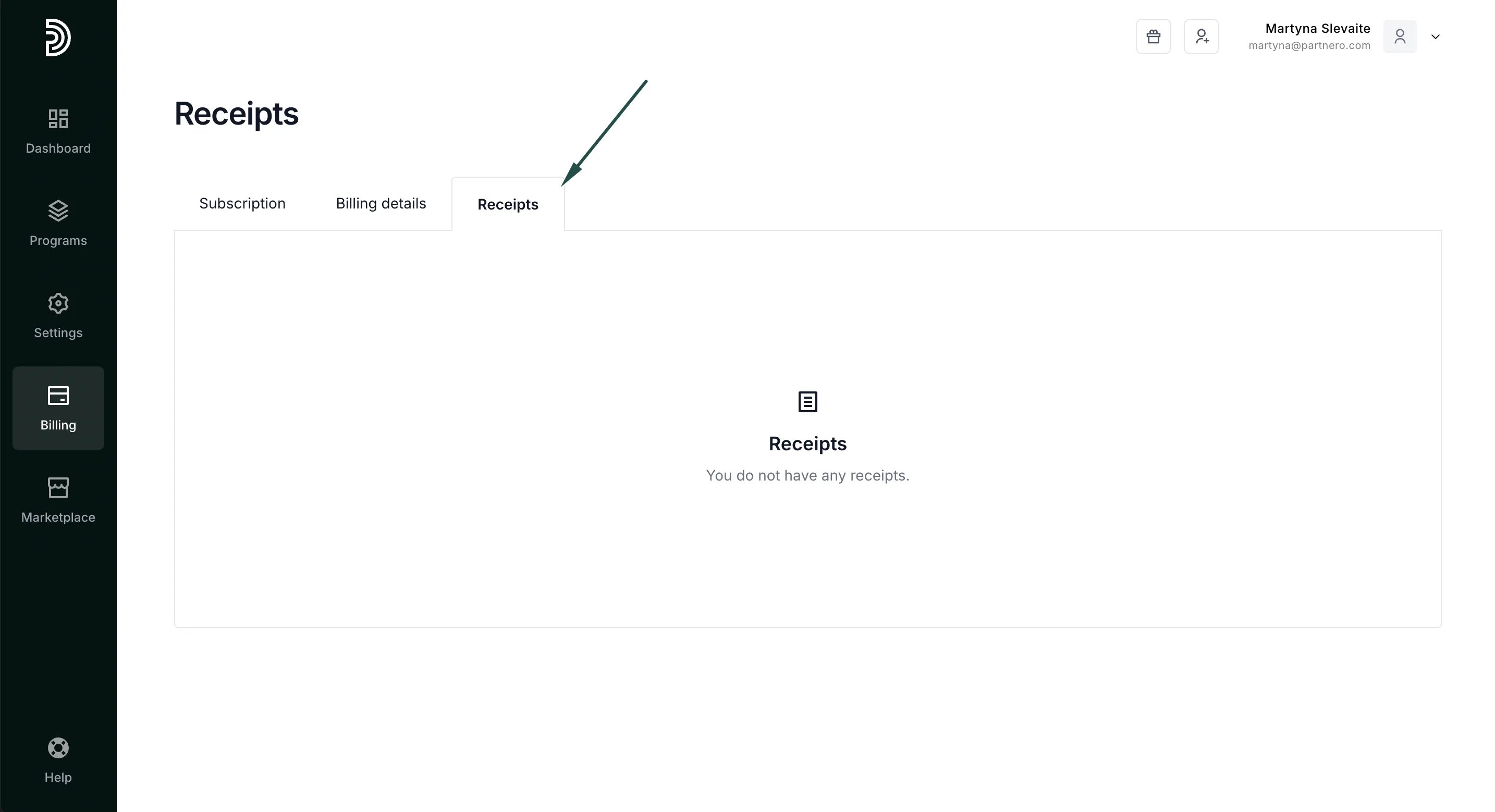
Where to find billing receipts
You can find and download all your billing receipts in the Billing section, **Receipts** tab:
 ***
### How to cancel a plan
When you cancel your plan, you will keep your current plan until it expires, but you will not be automatically charged for the next month.
Since monthly plans renew automatically every 30 days, they can be canceled at any time. When downgrading, your original plan will complete the current billing cycle, and the new (lower) plan will start at the next billing cycle.
To cancel a monthly plan:
1. Log in to [Partnero](https://app.partnero.com/login).
2. Click on **Billing** on the left sidebar.
3. Click **Cancel subscription**.
***
### Add-ons
At the moment, Partnero offers one add-on: additional user seats. This costs \$29/mo per user and can be added to any plan.
To purchase additional seats, see [Purchase additional user seats for your account](/knowledge-base/getting-started/purchase-additional-user-seats-for-your-account).
This documentation is built and hosted on [Mintlify](https://mintlify.com), a developer documentation platform.
***
### How to cancel a plan
When you cancel your plan, you will keep your current plan until it expires, but you will not be automatically charged for the next month.
Since monthly plans renew automatically every 30 days, they can be canceled at any time. When downgrading, your original plan will complete the current billing cycle, and the new (lower) plan will start at the next billing cycle.
To cancel a monthly plan:
1. Log in to [Partnero](https://app.partnero.com/login).
2. Click on **Billing** on the left sidebar.
3. Click **Cancel subscription**.
***
### Add-ons
At the moment, Partnero offers one add-on: additional user seats. This costs \$29/mo per user and can be added to any plan.
To purchase additional seats, see [Purchase additional user seats for your account](/knowledge-base/getting-started/purchase-additional-user-seats-for-your-account).
This documentation is built and hosted on [Mintlify](https://mintlify.com), a developer documentation platform.