> ## Documentation Index
> Fetch the complete documentation index at: https://docs.partnero.com/llms.txt
> Use this file to discover all available pages before exploring further.
# Migrate from FirstPromoter
Partnero provides a built-in option to automatically import your existing program data from FirstPromoter, making it easy to switch platforms without losing history.
***
### What gets migrated?
During the migration, Partnero will import all available data from your Rewardful account, including:
* Partner details (name, email, and other available profile information)
* Customer information
* Clicks, signups, and transactions
* Revenue and reward data
> The exact data imported may vary depending on what’s accessible in your Rewardful account
***
### How to start the migration
To start the migration process:
1. [Create a new affiliate program](/knowledge-base/program-management/create-and-customize-an-affiliate-program) on Partnero, if you haven't yet.
2. Open the program, click **Integration** to expand the menu, then select **Migration**.
3. Click Connect next to *FirstPromoter: 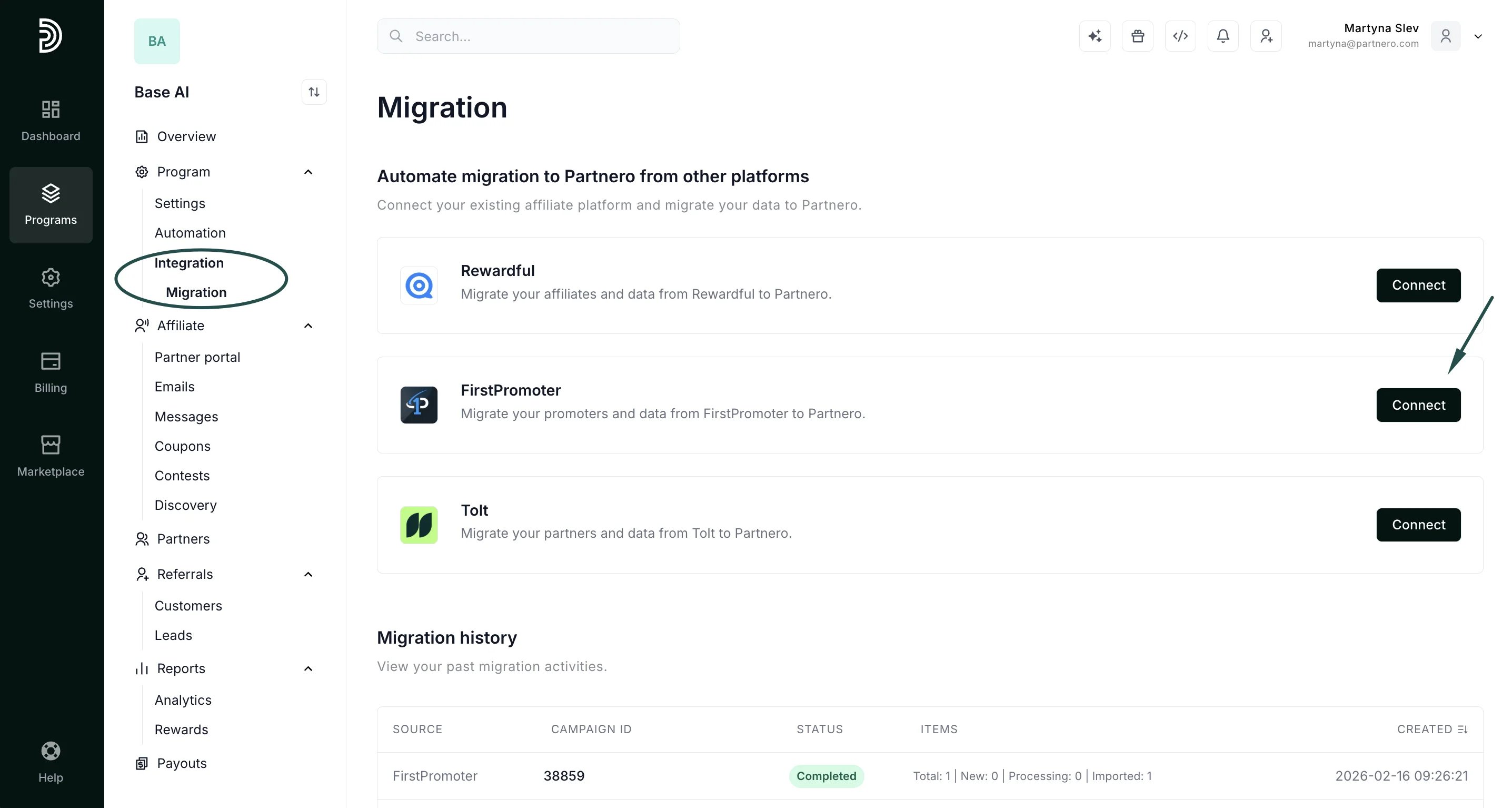 *
4. When prompted, enter your FirstPromoter API Key and Account ID.
* To find your API key, open FirstPromoter and go to Settings → Integrations → Manage API Keys.
* You can find your Account ID in FirstPromoter under Settings → Integrations.
5. Click **Connect**:
*
4. When prompted, enter your FirstPromoter API Key and Account ID.
* To find your API key, open FirstPromoter and go to Settings → Integrations → Manage API Keys.
* You can find your Account ID in FirstPromoter under Settings → Integrations.
5. Click **Connect**: 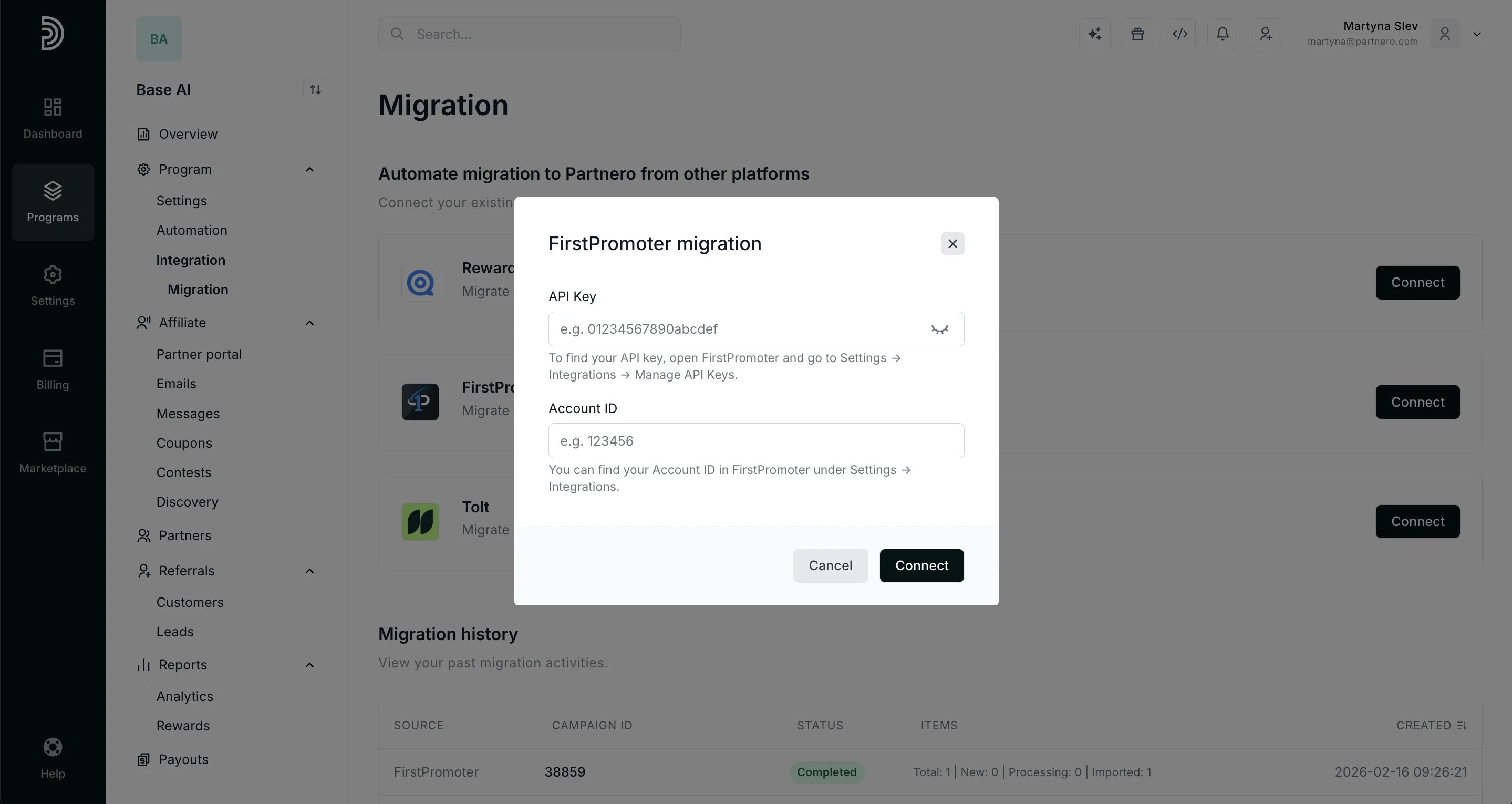 6. When connected, click **Migrate**:
 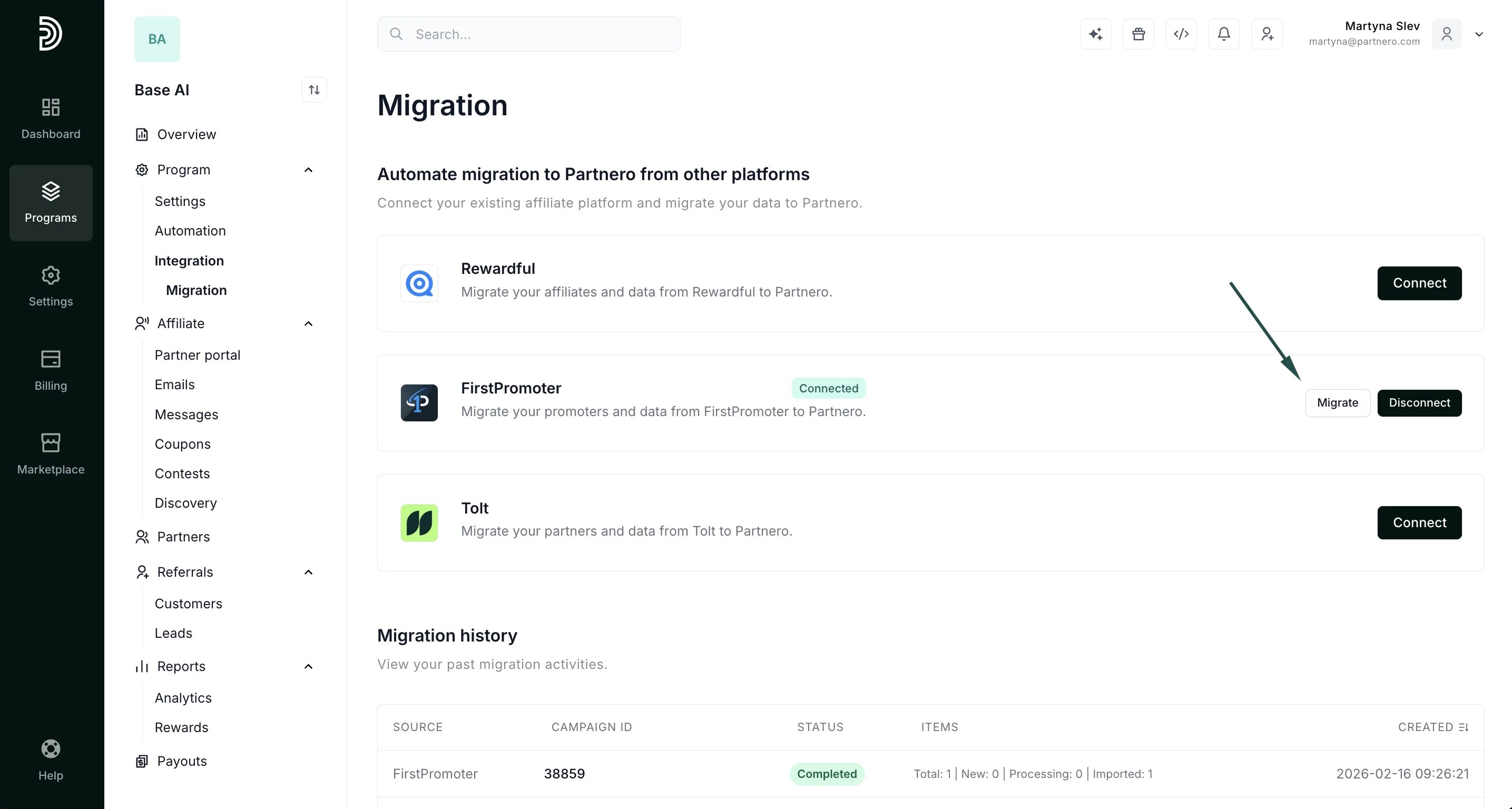 7. Select your campaign (program) and click **Process**:
 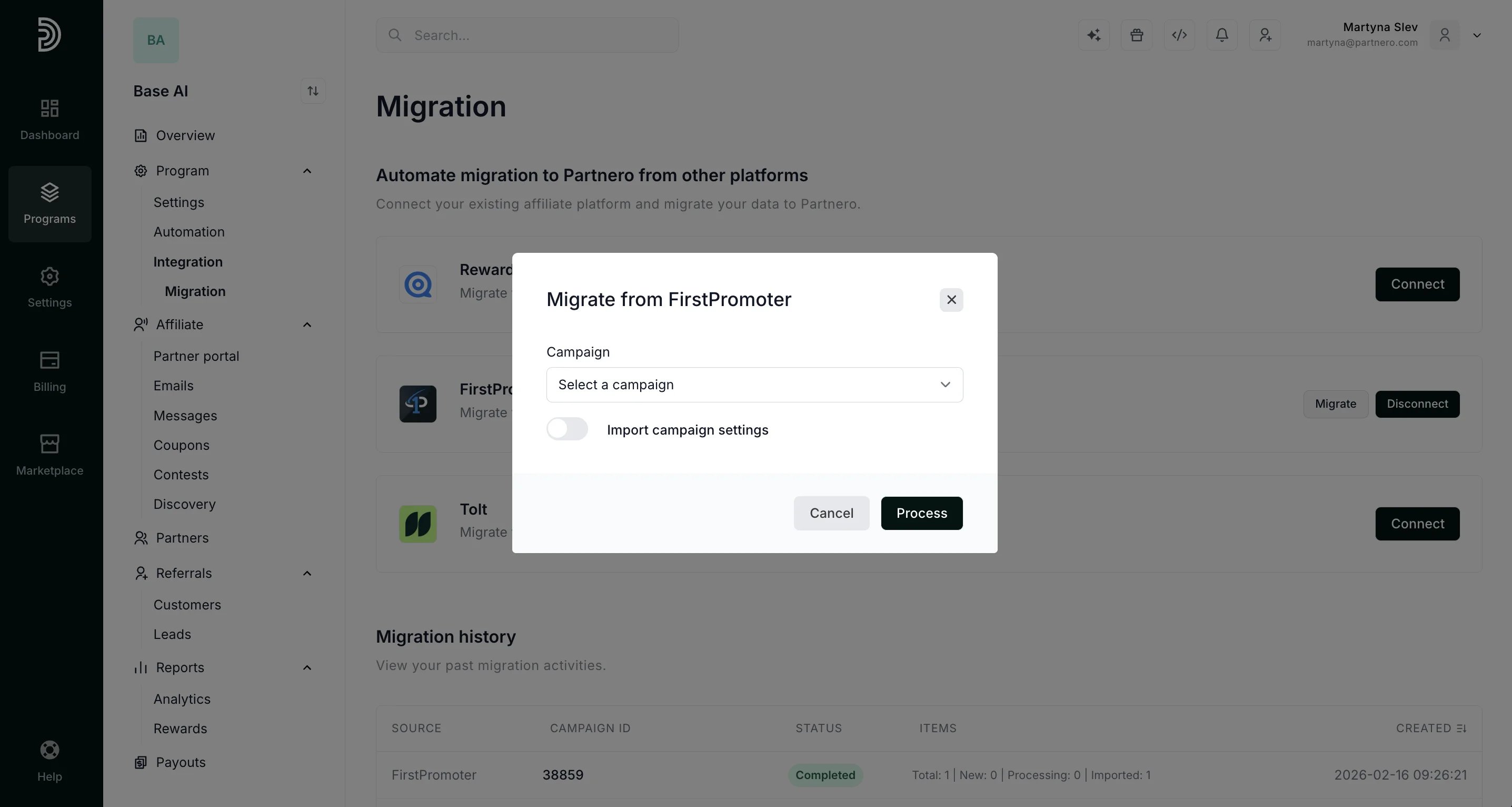 You can also opt to import campaign settings (optional).
8. Once the process is finished, the status will change to **Completed** in the Migration history section.
You can also opt to import campaign settings (optional).
8. Once the process is finished, the status will change to **Completed** in the Migration history section. 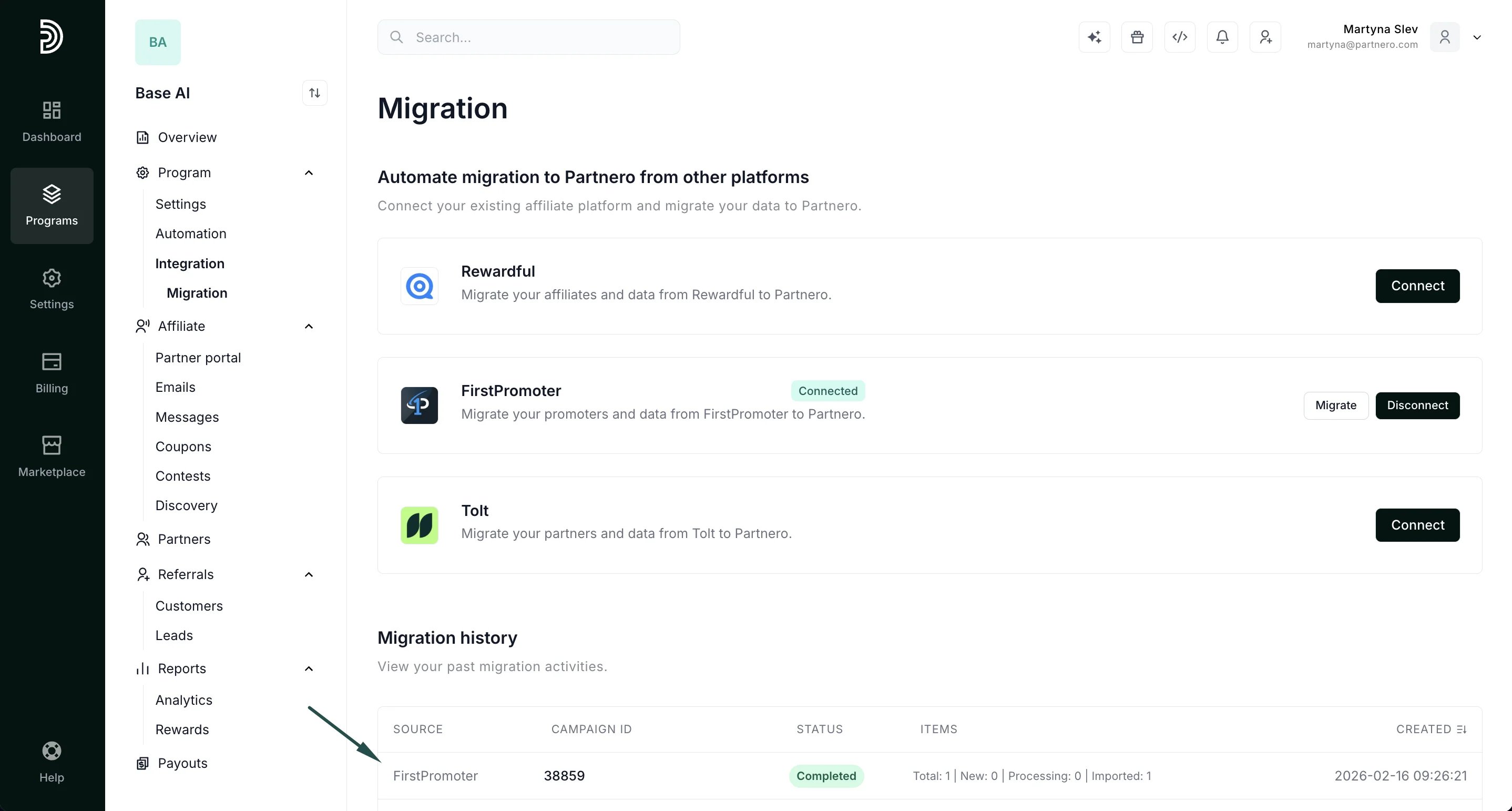 That's it - the data migration is now complete. You can now view your imported data under your Partner and Customer lists.
This documentation is built and hosted on [Mintlify](https://mintlify.com), a developer documentation platform.
That's it - the data migration is now complete. You can now view your imported data under your Partner and Customer lists.
This documentation is built and hosted on [Mintlify](https://mintlify.com), a developer documentation platform.