> ## Documentation Index
> Fetch the complete documentation index at: https://docs.partnero.com/llms.txt
> Use this file to discover all available pages before exploring further.
# MailerLite automations for newsletter referral programs
Every newsletter referral program is connected to an email service provider, where your subscribers are managed.
You can [automatically fulfill rewards with Partnero](/knowledge-base/newsletter-referral-programs/how-to-setup-a-newsletter-referral-program) or create workflow automations using your email service provider to deliver rewards or create more elaborate marketing strategies for subscriber engagement, e.g.:
* deliver your rewards with additional information, notes, instructions, etc.
* send a series of emails with multiple rewards, e.g., a three-piece online course;
* follow up and ask for feedback a few days after the reward has been sent;
* motivate subscribers by reminding them that they need only x referrals to get a reward.
These are just a few examples of how you can use automation workflows to deliver a great experience to your subscribers!
***
### What information is sent to MailerLite
When you connect Partnero with MailerLite, we automatically generate a unique referral link for each subscriber and synchronize the data between Partnero and MailerLite.
We will add the following custom fields to the subscriber's profile:
* \{\$partnero\_newsletter\_portal\_link} - URL of the subscribe portal;
* \{\$partnero\_newsletter\_share\_link} - subscriber's unique referral link;
* \{\$partnero\_newsletter\_reward} - reward name;
* \{\$partnero\_newsletter\_referral\_count} - the number of referrals the subscriber has brought in.
***
### How to create and trigger MailerLite automation
MailerLite offers various ways to trigger automation workflows. The fields listed above can be used to trigger automation workflows by using the **Updated field** trigger.
Below we'll share an example of the following scenario: your newsletter referral program sends an Amazon Gift card after someone refers ten subscribers. As a program owner, you'd like to send a follow-up and a reminder after a subscriber has referred 5 to keep them motivated. Here's how to achieve it:
1. Log in to your [MailerLite account](https://accounts.mailerlite.com/).
2. Go to Automation and click **New automation**.
3. When setting up the automation trigger, choose the **Updated field** option: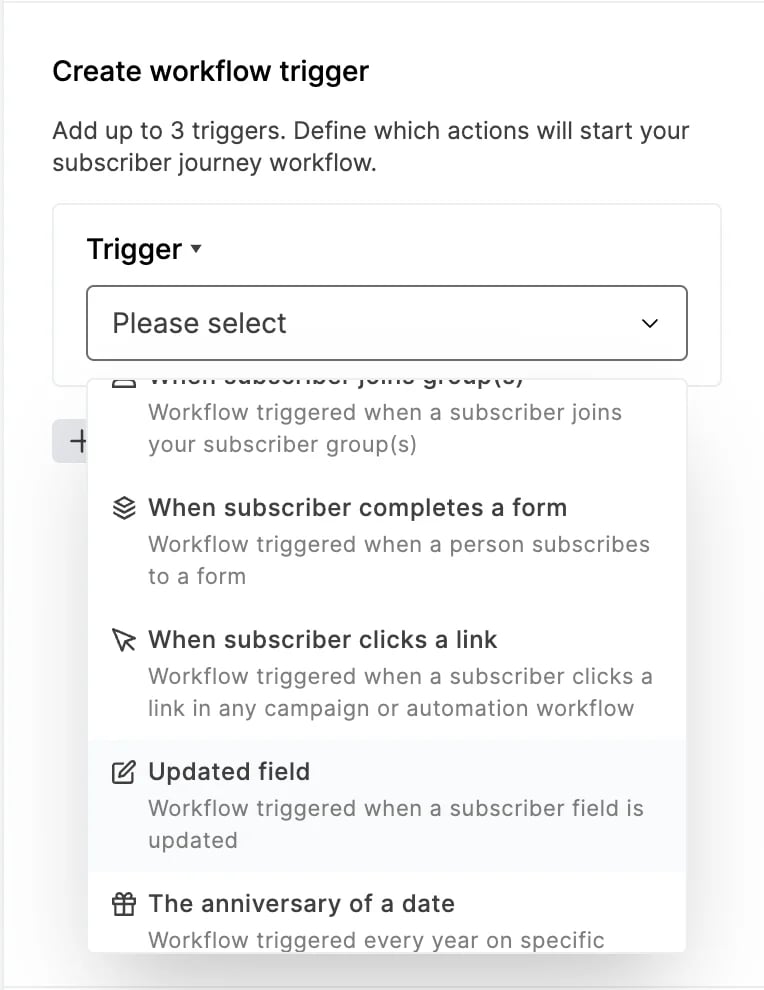 4. Set the following condition: Custom field *Partnero Newsletter Referral Count* is equal to 5:
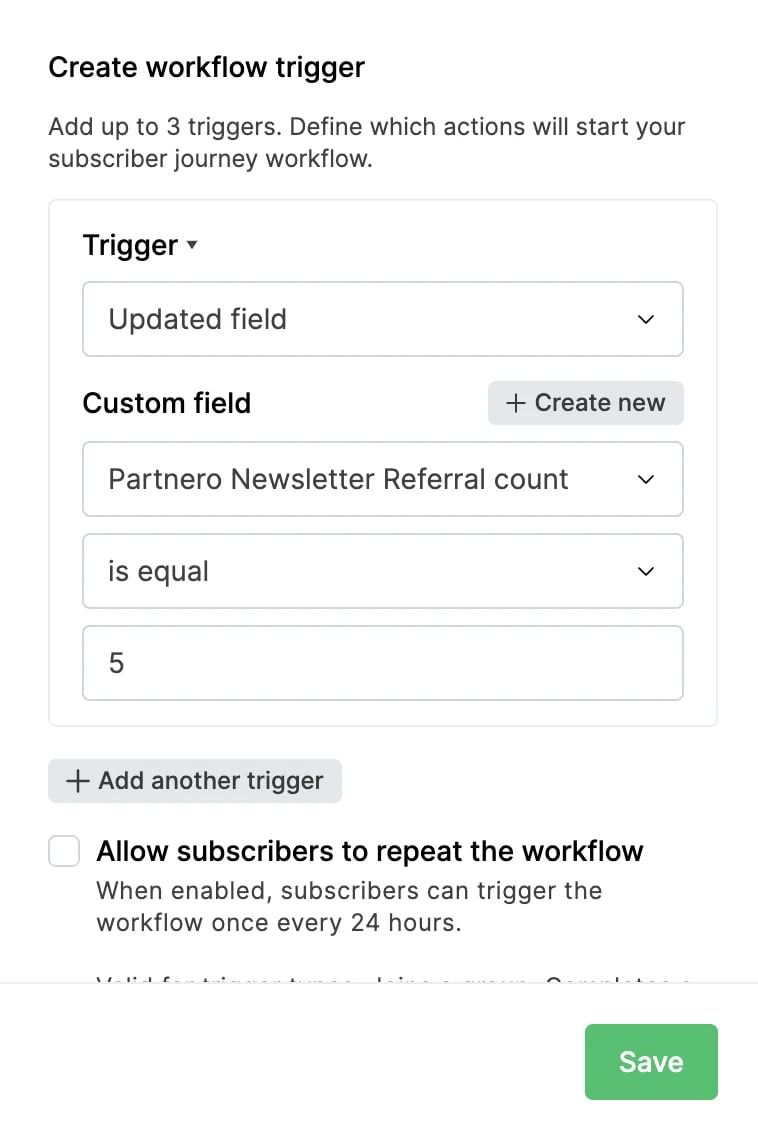 5. Click **Save**.
6. Once the trigger is set, you can add the following steps, including delays and the emails containing your rewards. That's it!
5. Click **Save**.
6. Once the trigger is set, you can add the following steps, including delays and the emails containing your rewards. That's it!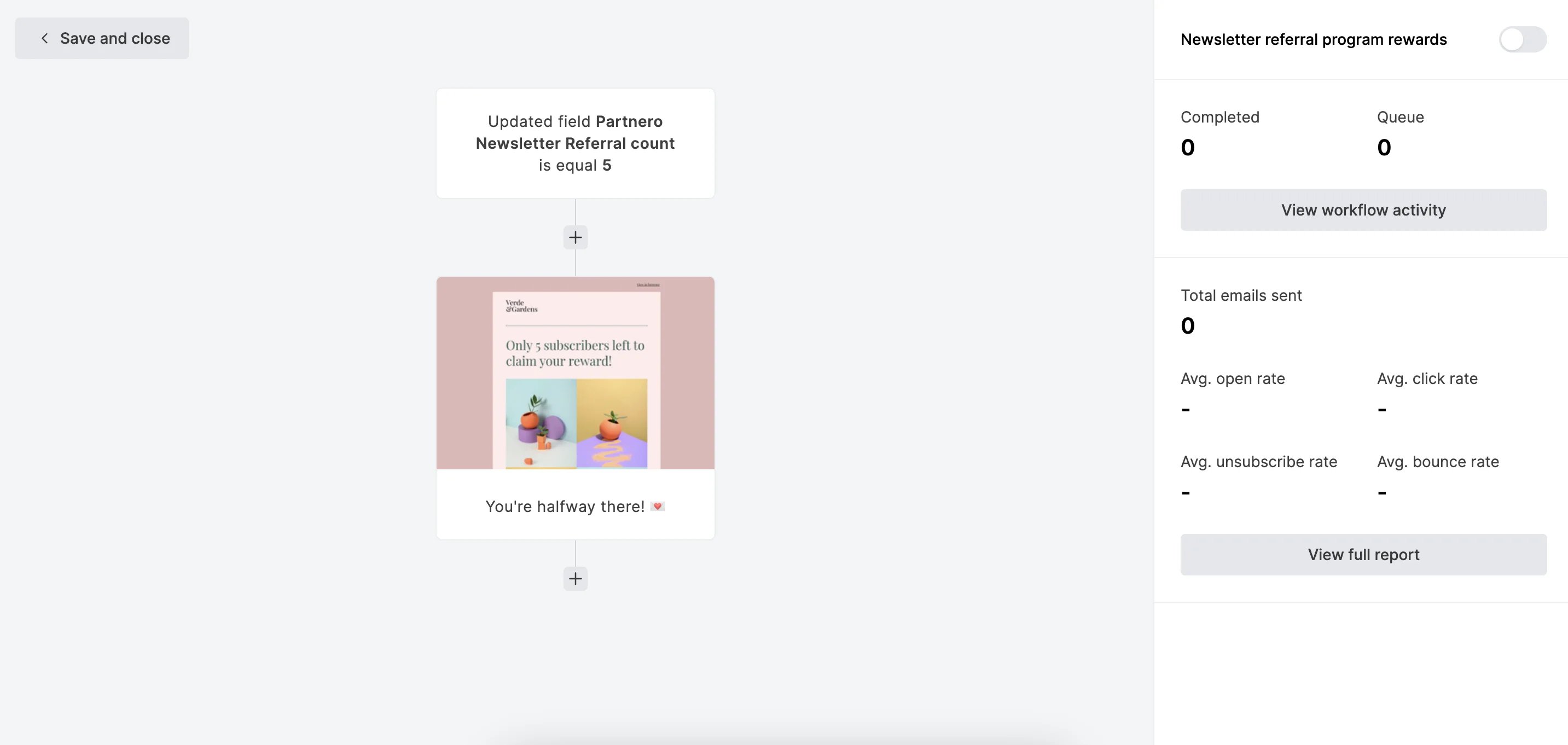 7. Don't forget to **turn the workflow on** after you're done!
###
***
Additional tips and further reading
When you use the workflow trigger **Updated field**, the workflow will be triggered when a subscriber field you select is updated and matches the trigger rule.
A subscriber will trigger the workflow as soon as the field selected meets the rule. This includes:
* When you manually update a subscriber’s field in their profile;
* When a subscriber’s field is updated by an action step in any workflow;
* When a subscriber is added as a single subscriber.
MailerLite offers detailed how-to articles on setting up a workflow automation:
* \[How to create an automation workflow]\(\)
* [How to set up automation triggers](https://www.mailerlite.com/help/how-to-set-up-automation-triggers)
* [How to use automation steps](https://www.mailerlite.com/help/how-to-use-automation-steps)
This documentation is built and hosted on [Mintlify](https://mintlify.com), a developer documentation platform.
7. Don't forget to **turn the workflow on** after you're done!
###
***
Additional tips and further reading
When you use the workflow trigger **Updated field**, the workflow will be triggered when a subscriber field you select is updated and matches the trigger rule.
A subscriber will trigger the workflow as soon as the field selected meets the rule. This includes:
* When you manually update a subscriber’s field in their profile;
* When a subscriber’s field is updated by an action step in any workflow;
* When a subscriber is added as a single subscriber.
MailerLite offers detailed how-to articles on setting up a workflow automation:
* \[How to create an automation workflow]\(\)
* [How to set up automation triggers](https://www.mailerlite.com/help/how-to-set-up-automation-triggers)
* [How to use automation steps](https://www.mailerlite.com/help/how-to-use-automation-steps)
This documentation is built and hosted on [Mintlify](https://mintlify.com), a developer documentation platform.