> ## Documentation Index
> Fetch the complete documentation index at: https://docs.partnero.com/llms.txt
> Use this file to discover all available pages before exploring further.
# Newsletter referral program emails
### What are newsletter referral program emails?
Within a newsletter referral program, there are 2 transactional emails:
* Reward notification: sent when a referring subscriber unlocks a reward.
* Double opt-in emails: sent to referred subscribers to confirm subscription.
Additionally, you can opt in to receive notifications when your subscribers unlock a reward.
***
### Email settings
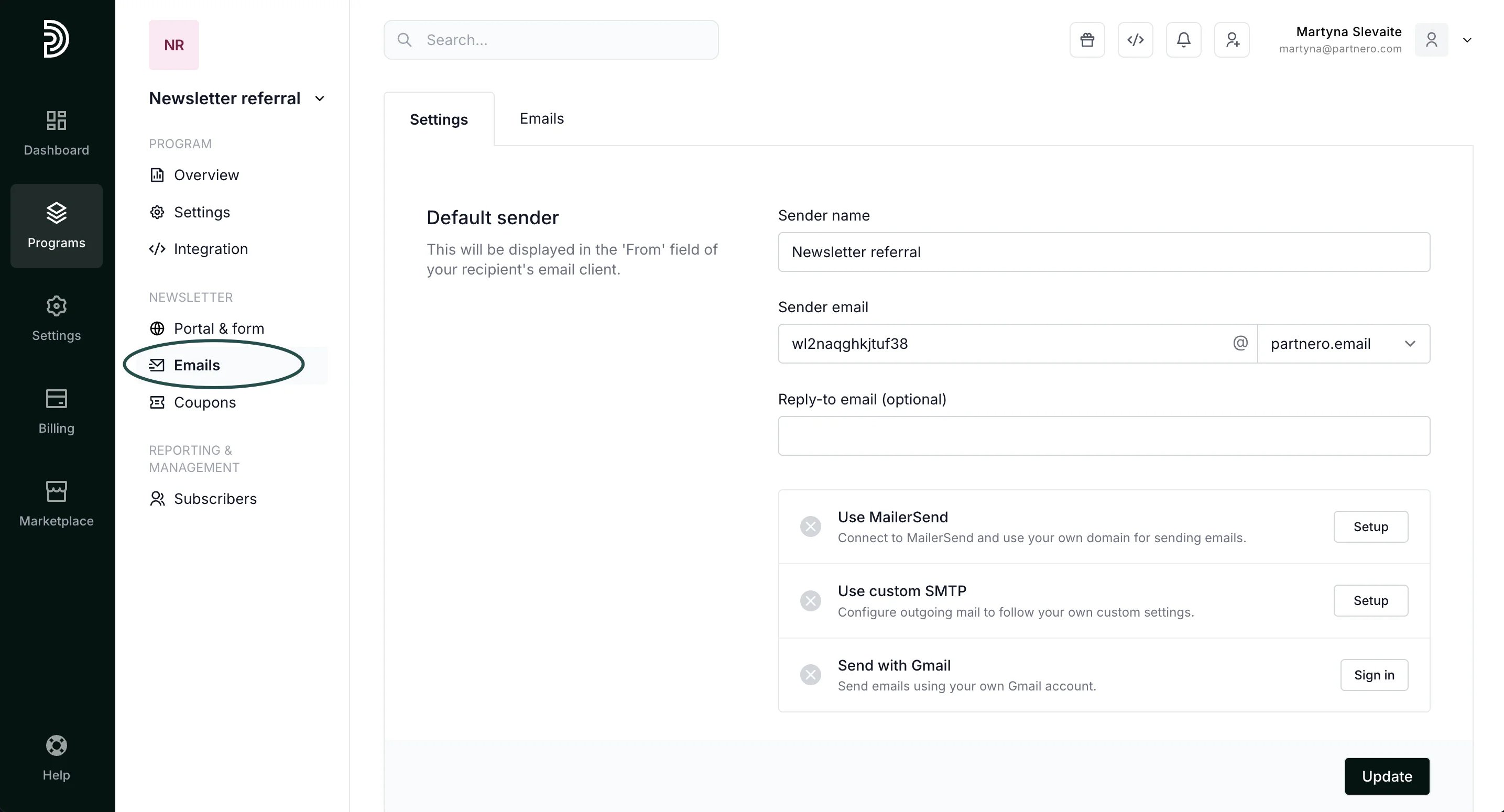
Navigate to **Emails** under **Features**. In the **Settings** tab, you’ll find the following sections:
#### Default sender
| Sender name | Here, you can enter the Sender name that will appear in the 'From' field of your recipient's email client. |
| - | - |
| Sender email | All emails are sent from a default domain [\_@partnero.email](mailto:_@partnero.email).\_ Here, you can enter your preferred email prefix (e.g., *[yourbrand@partnero.email](mailto:yourbrand@partnero.email)*). |
| Reply-to email | This optional field allows you to enter an inbox email address to receive your partners’ replies (e.g., your customer support email address). |
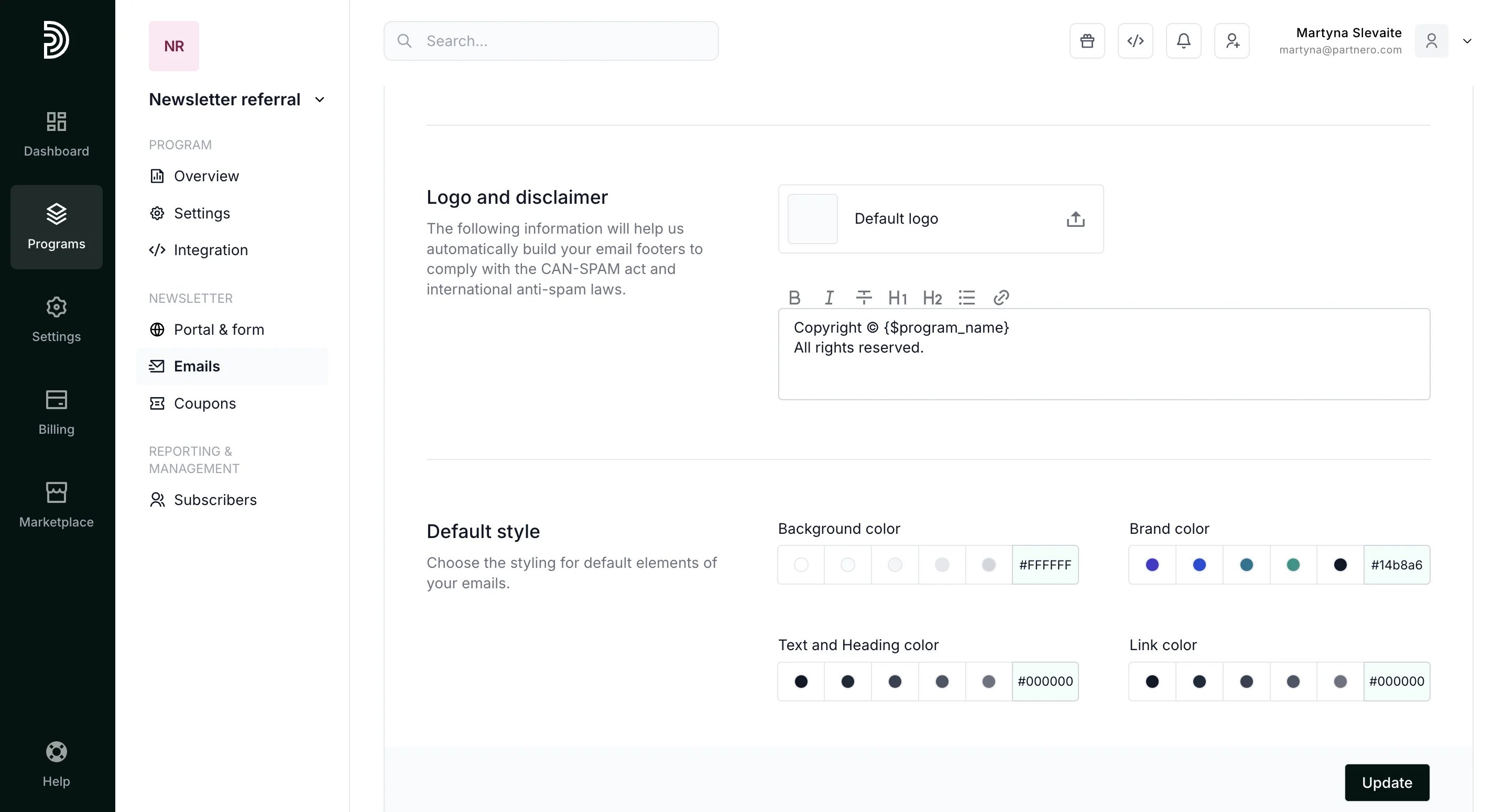
 Further down in the **Settings** tab, you'll find options to add your logo and disclaimer, as well as to set default styling for email elements.
 ***
### Connect your domain for email sending
We recommend connecting your own domain to send program emails, as it improves deliverability and makes your emails more recognizable to your customers.
#### Connect your domain through MailerSend
1. Under **Emails**, **Settings** tab, click **Setup** next to **MailerSend**.
2. Enter your MailerSend API token ([here’s how to find it](https://www.mailersend.com/help/managing-api-tokens)).
3. Click **Connect**.
4. Once your domain is successfully connected, you will see it listed as an option under the **Sender email** domain select:
***
### Connect your domain for email sending
We recommend connecting your own domain to send program emails, as it improves deliverability and makes your emails more recognizable to your customers.
#### Connect your domain through MailerSend
1. Under **Emails**, **Settings** tab, click **Setup** next to **MailerSend**.
2. Enter your MailerSend API token ([here’s how to find it](https://www.mailersend.com/help/managing-api-tokens)).
3. Click **Connect**.
4. Once your domain is successfully connected, you will see it listed as an option under the **Sender email** domain select: 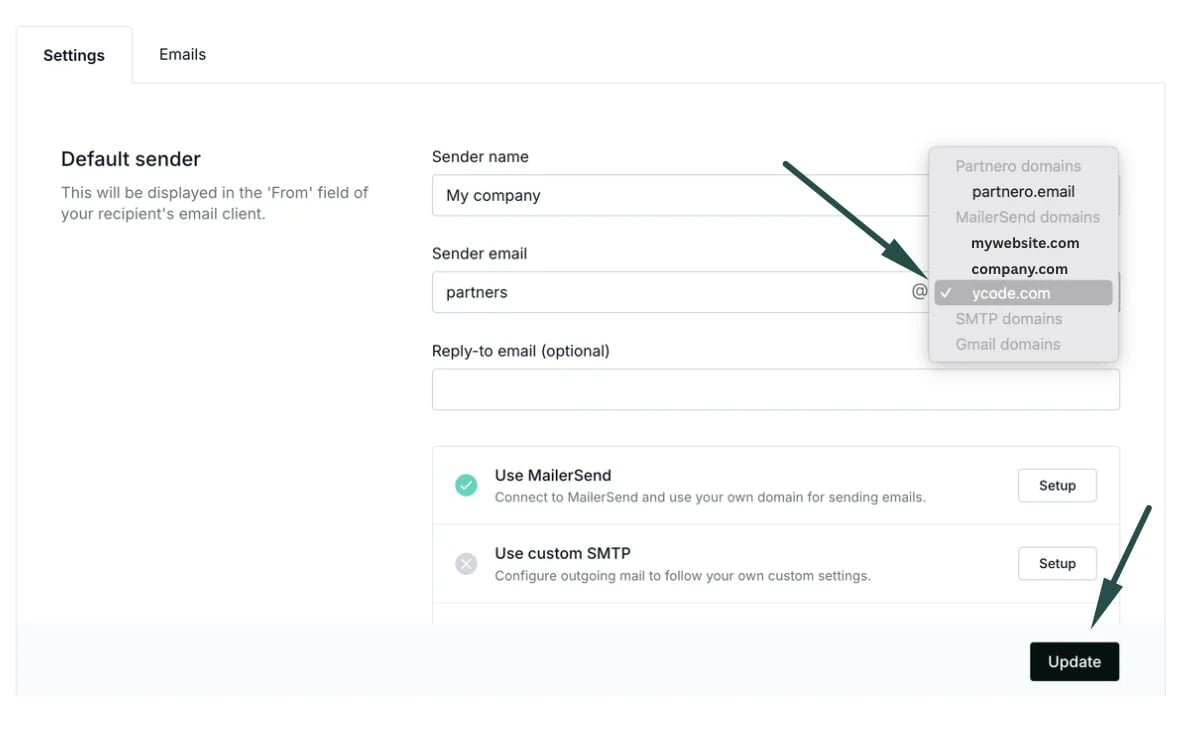 5. Select the newly connected domain and click **Update**.
#### Connect your domain through custom SMTP
1. Under **Emails**, **Settings** tab, click **Setup** next to **SMTP**.
2. Enter your server information, username, password, and the “From” email address.
3. Click **Connect**.
4. Once your domain is successfully connected, you will see it listed as an option under **Sender email** domain select.
5. Select the newly connected domain and click **Update**.
#### Connect your domain through Gmail
[Click here](/knowledge-base/program-emails/send-program-emails-with-gmail) to read more on how to connect your domain through Gmail.
***
### Customize the email content
Each email can be edited to fit your brand colors and voice. To edit the emails:
1. Open the newsletter referral program you'd like to work with.
2. Go to **Emails** under **Features**. Switch to the **Emails** tab:
5. Select the newly connected domain and click **Update**.
#### Connect your domain through custom SMTP
1. Under **Emails**, **Settings** tab, click **Setup** next to **SMTP**.
2. Enter your server information, username, password, and the “From” email address.
3. Click **Connect**.
4. Once your domain is successfully connected, you will see it listed as an option under **Sender email** domain select.
5. Select the newly connected domain and click **Update**.
#### Connect your domain through Gmail
[Click here](/knowledge-base/program-emails/send-program-emails-with-gmail) to read more on how to connect your domain through Gmail.
***
### Customize the email content
Each email can be edited to fit your brand colors and voice. To edit the emails:
1. Open the newsletter referral program you'd like to work with.
2. Go to **Emails** under **Features**. Switch to the **Emails** tab: 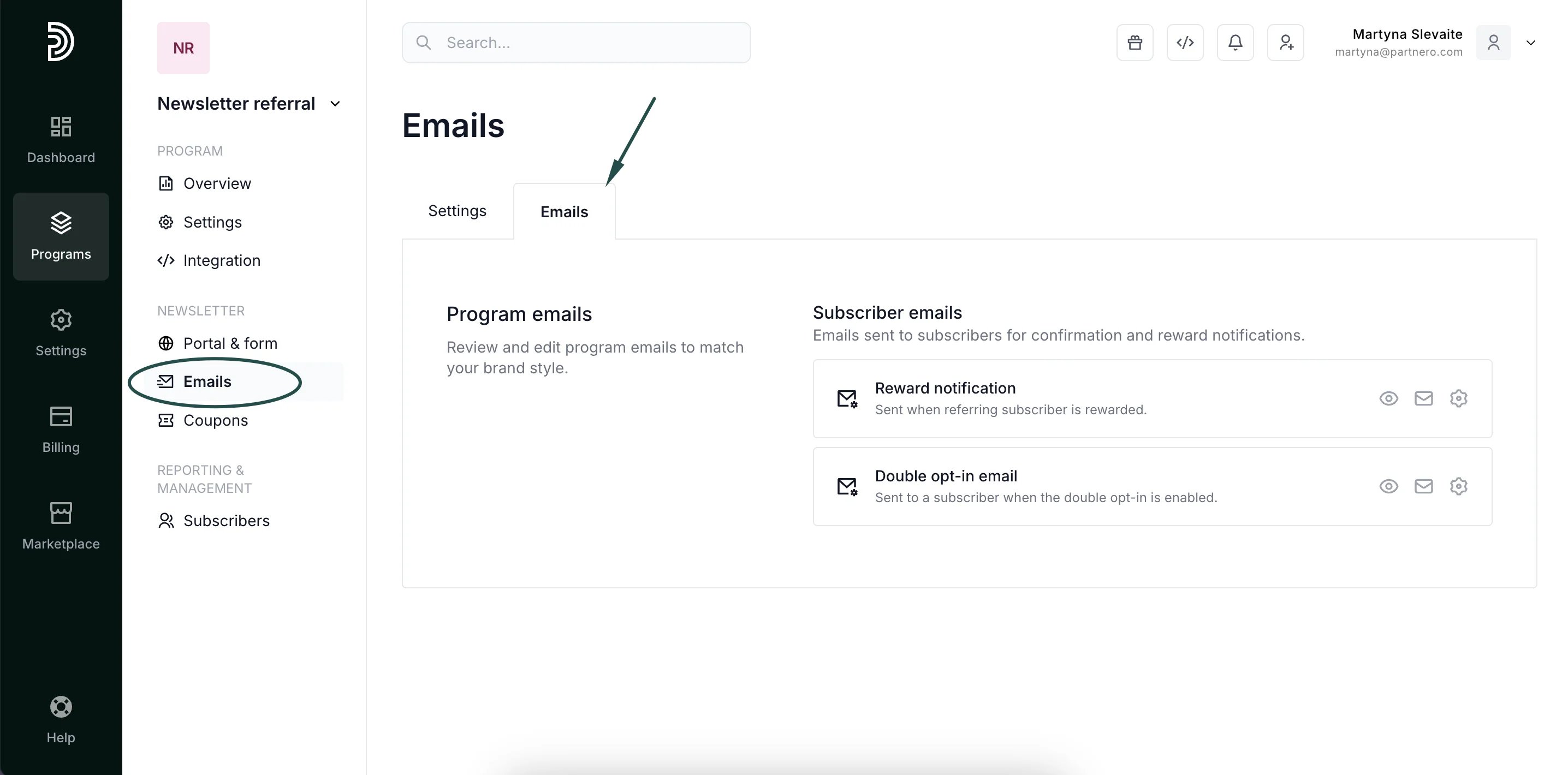 3. To edit an email, click on the gear icon and click **Edit content**.
 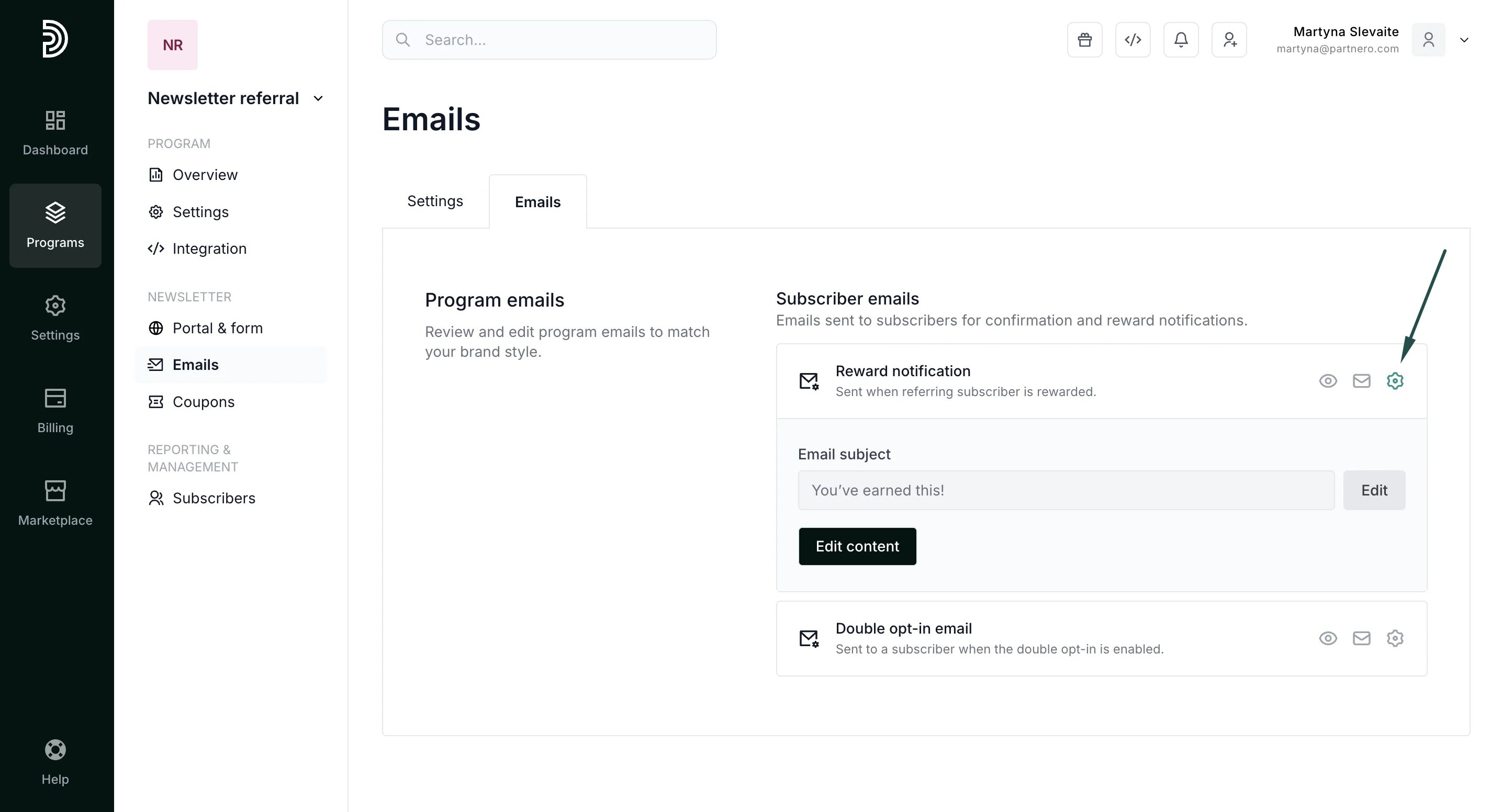 Here, you can also edit the Email subject, preview the email, and send a test email.
4. Change the text and layout to fit your needs:
Here, you can also edit the Email subject, preview the email, and send a test email.
4. Change the text and layout to fit your needs: 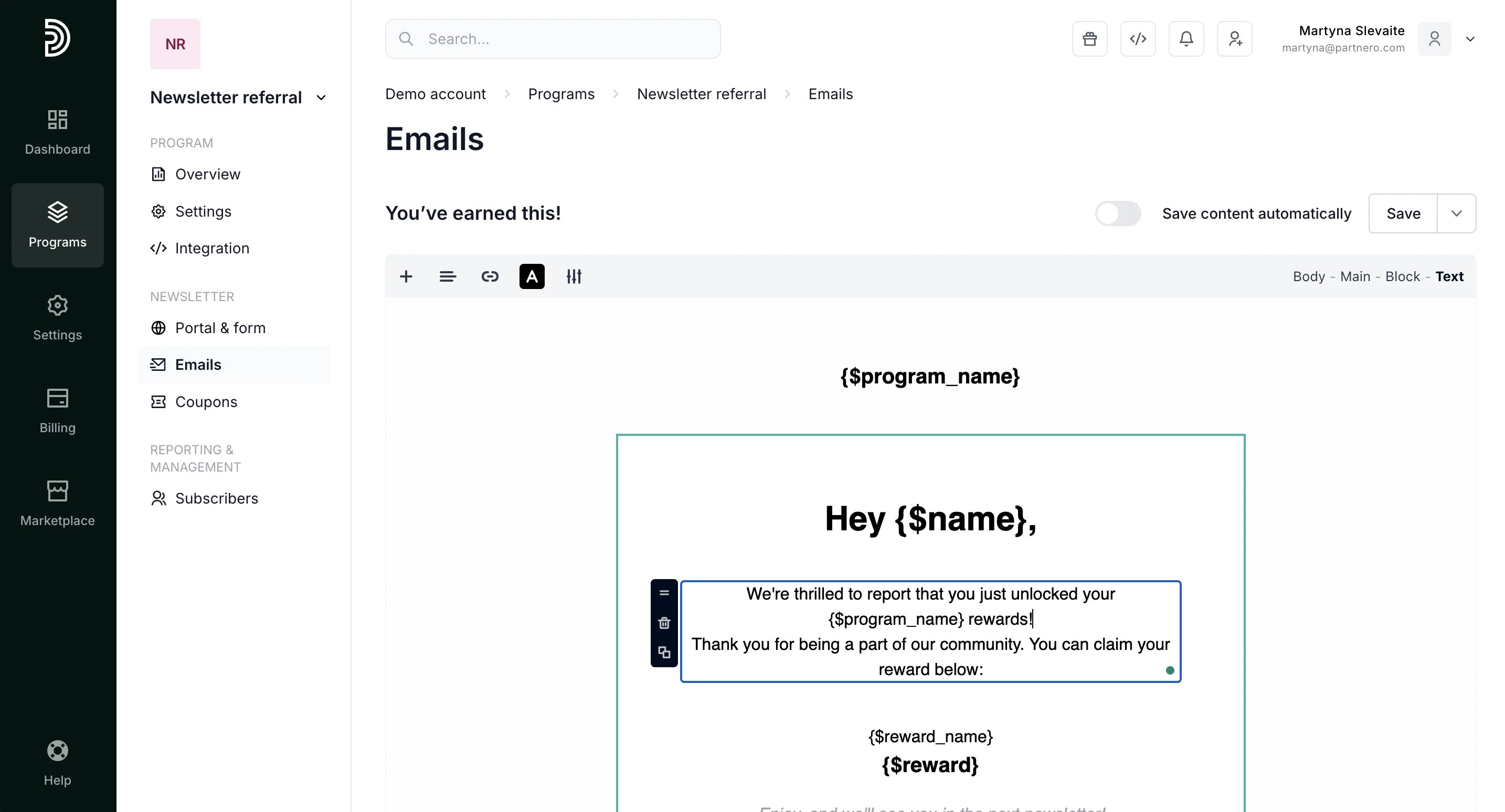 5. To add additional blocks, click the **+** sign:
 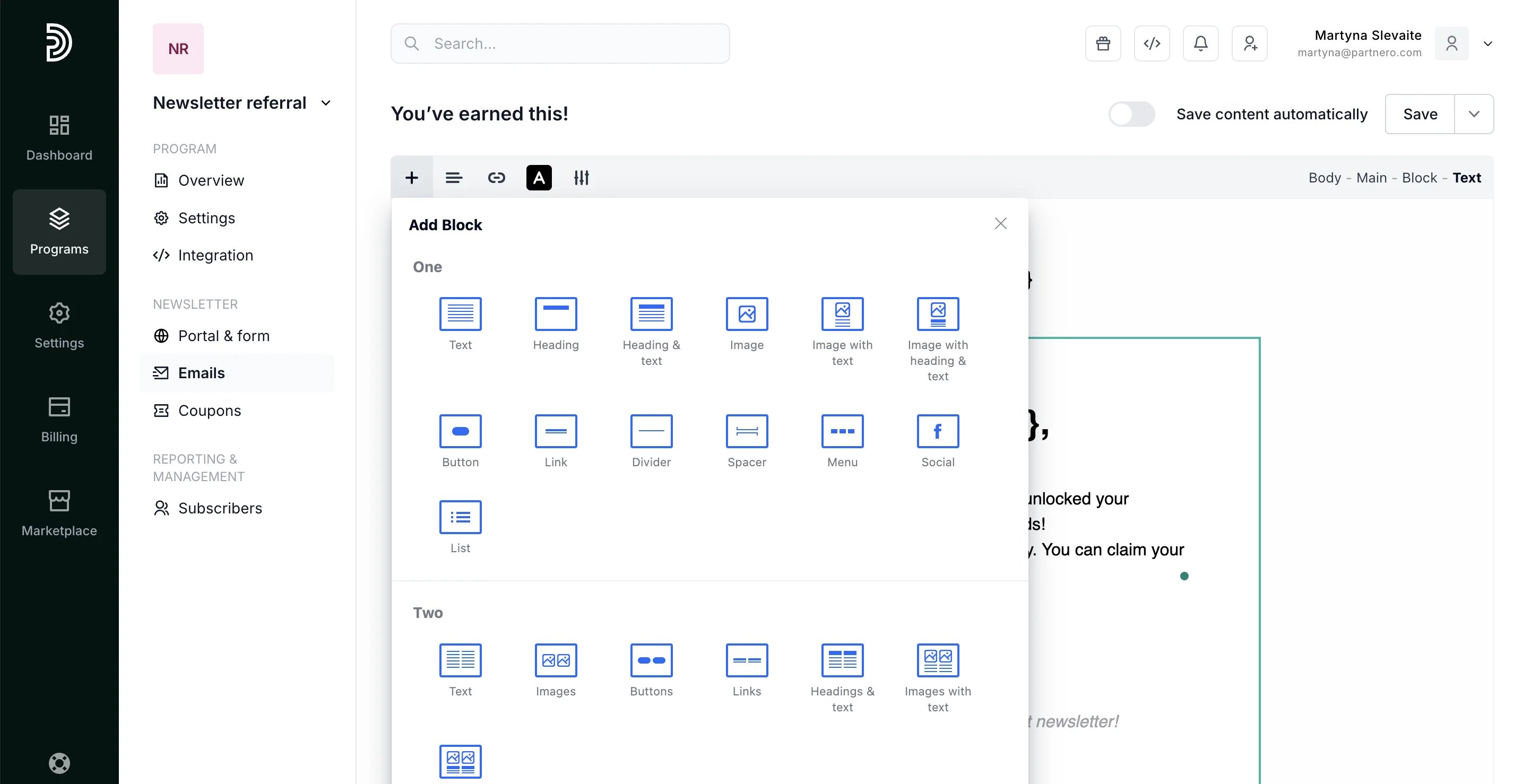 6. Click **Save** once you're done.
***
### Receive notifications when your customers unlock rewards
If you wish to be notified when your subscribers unlock a reward:
1. Navigate to **Settings** under **Program**. Switch to the **Notifications** tab:
6. Click **Save** once you're done.
***
### Receive notifications when your customers unlock rewards
If you wish to be notified when your subscribers unlock a reward:
1. Navigate to **Settings** under **Program**. Switch to the **Notifications** tab: 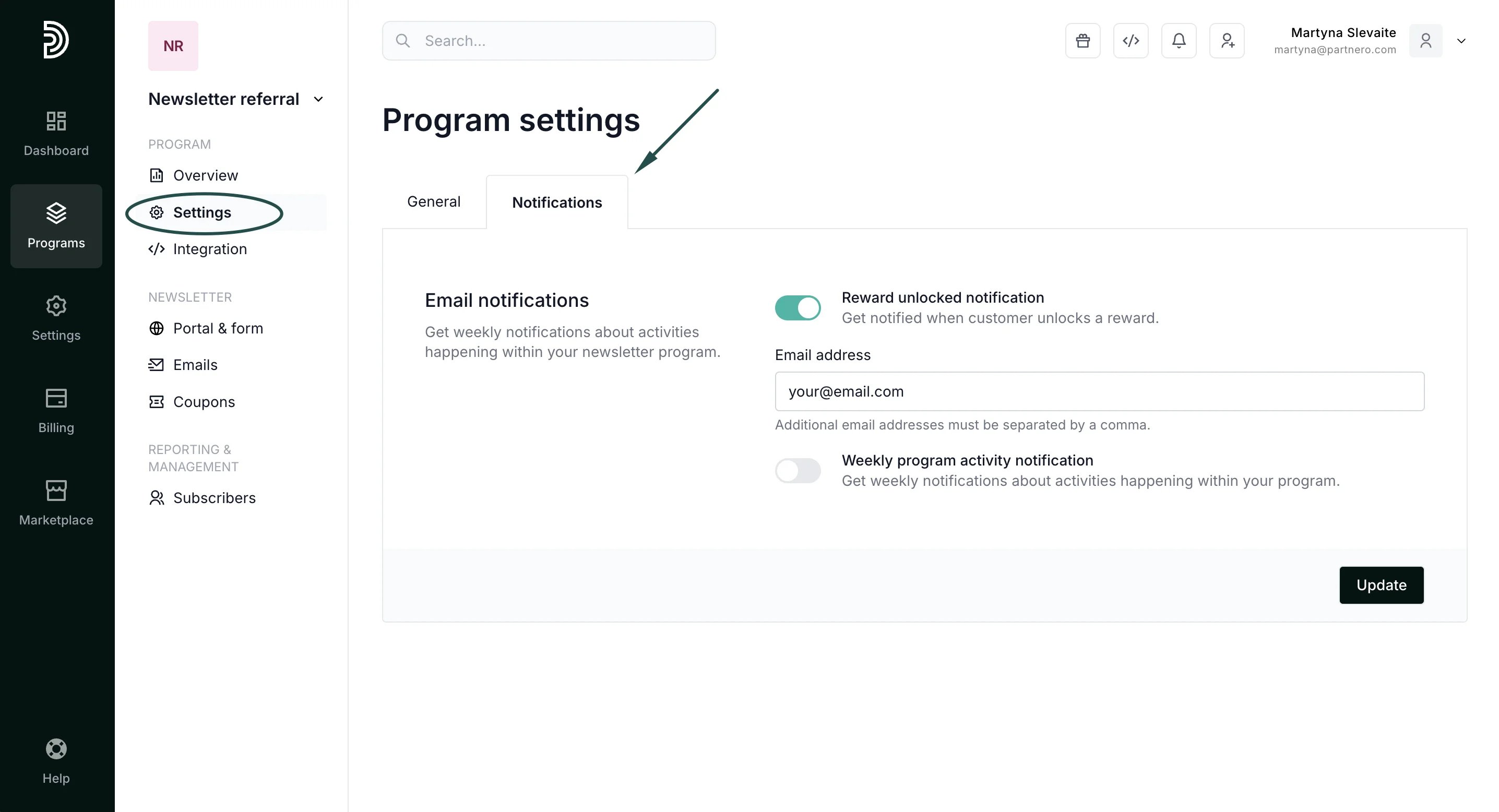 2. Toggle "Rewards unlocked notification" and enter your email address.
3. Click **Update**.
***
This documentation is built and hosted on [Mintlify](https://mintlify.com), a developer documentation platform.
2. Toggle "Rewards unlocked notification" and enter your email address.
3. Click **Update**.
***
This documentation is built and hosted on [Mintlify](https://mintlify.com), a developer documentation platform.