> ## Documentation Index
> Fetch the complete documentation index at: https://docs.partnero.com/llms.txt
> Use this file to discover all available pages before exploring further.
# Using Zapier to sync subscribers for newsletter referral programs
Partnero currently offers direct integrations with the following email service providers (ESPs) for newsletter referral programs:
* MailerLite (and MailerLite Classic)
* Mailchimp
* ConvertKit
* ActiveCampaign
* Klaviyo
If you're using a different ESP, you can sync subscribers between Partnero and your ESP using Zapier.
***
### Creating a program
If you haven't yet, you'll need to create a newsletter referral program first:
1. Open your Partnero account, then click **Programs** in the left-hand menu.
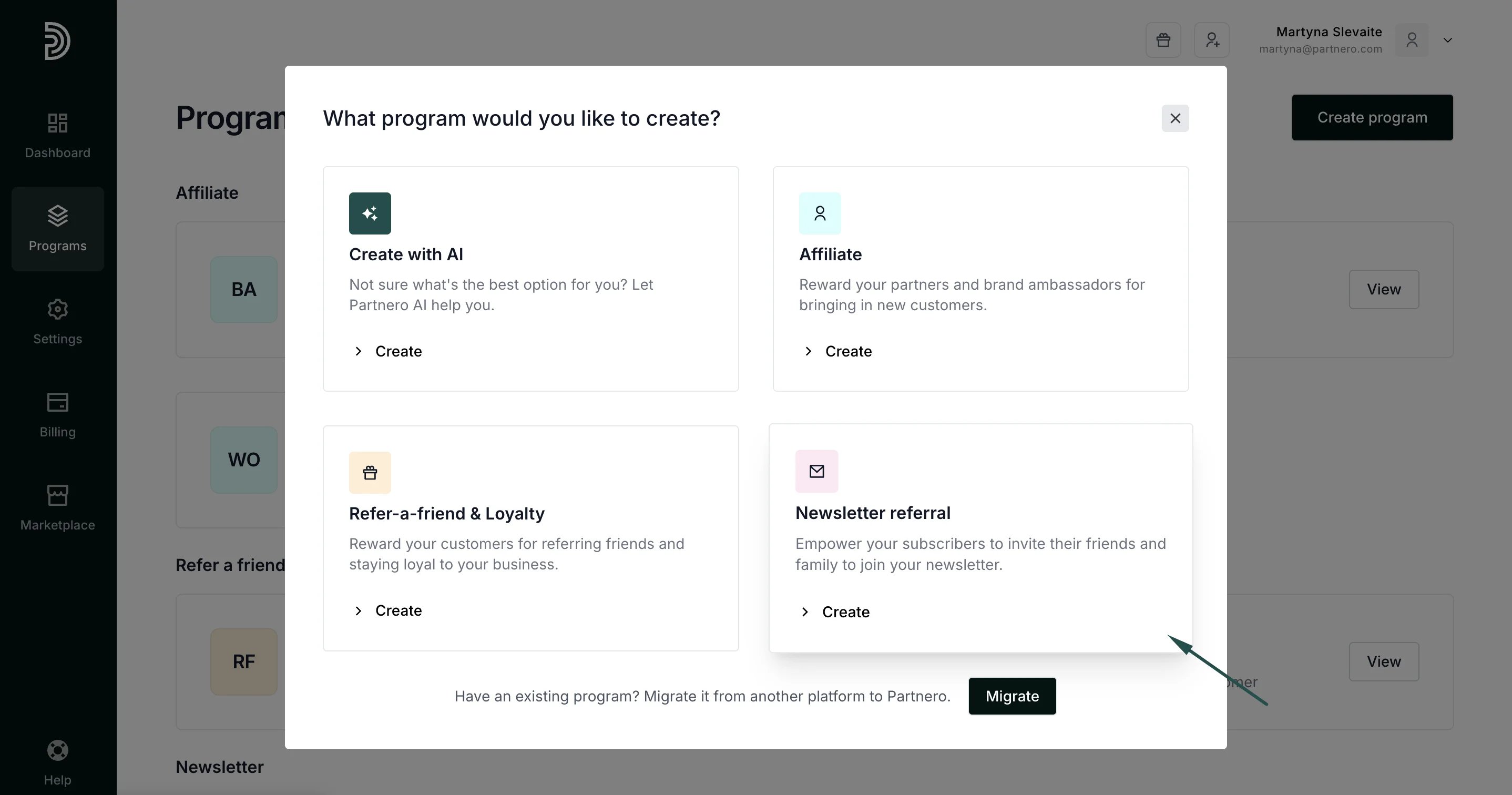
2. Click **Create program** in the top right corner and select **Newsletter referral**:
 3. Enter your program name and select **Custom** under the ESP integration:
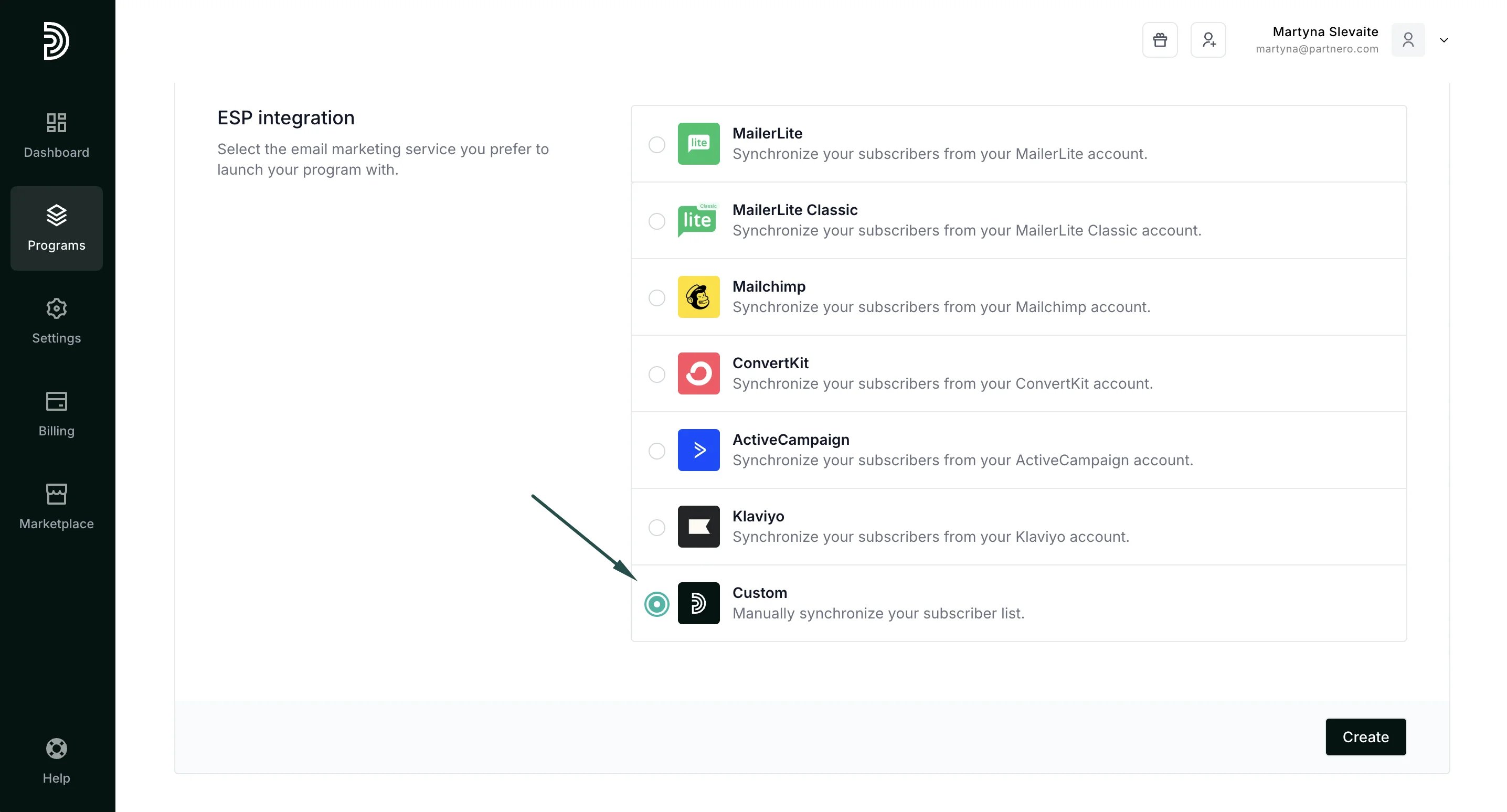 4. Click **Create**.
***
### Using Zapier
Next, you'll need to head over to your Zapier account and create three zaps to perform the following actions:
1. Send new subscribers from your ESP to Partnero.
2. Send the referral program data (such as the referral link) from Partnero back to your ESP.
3. Send referred subscribers from Partnero to your ESP.
Each step is outlined below.
***
#### Step 1: Send new subscribers to Partnero
The goal of this step is to automatically add all new subscribers to your Partnero account so they can receive referral links and participate in the program.
1. Log in to Zapier and click **+Create** in the upper left corner to create a new Zap.
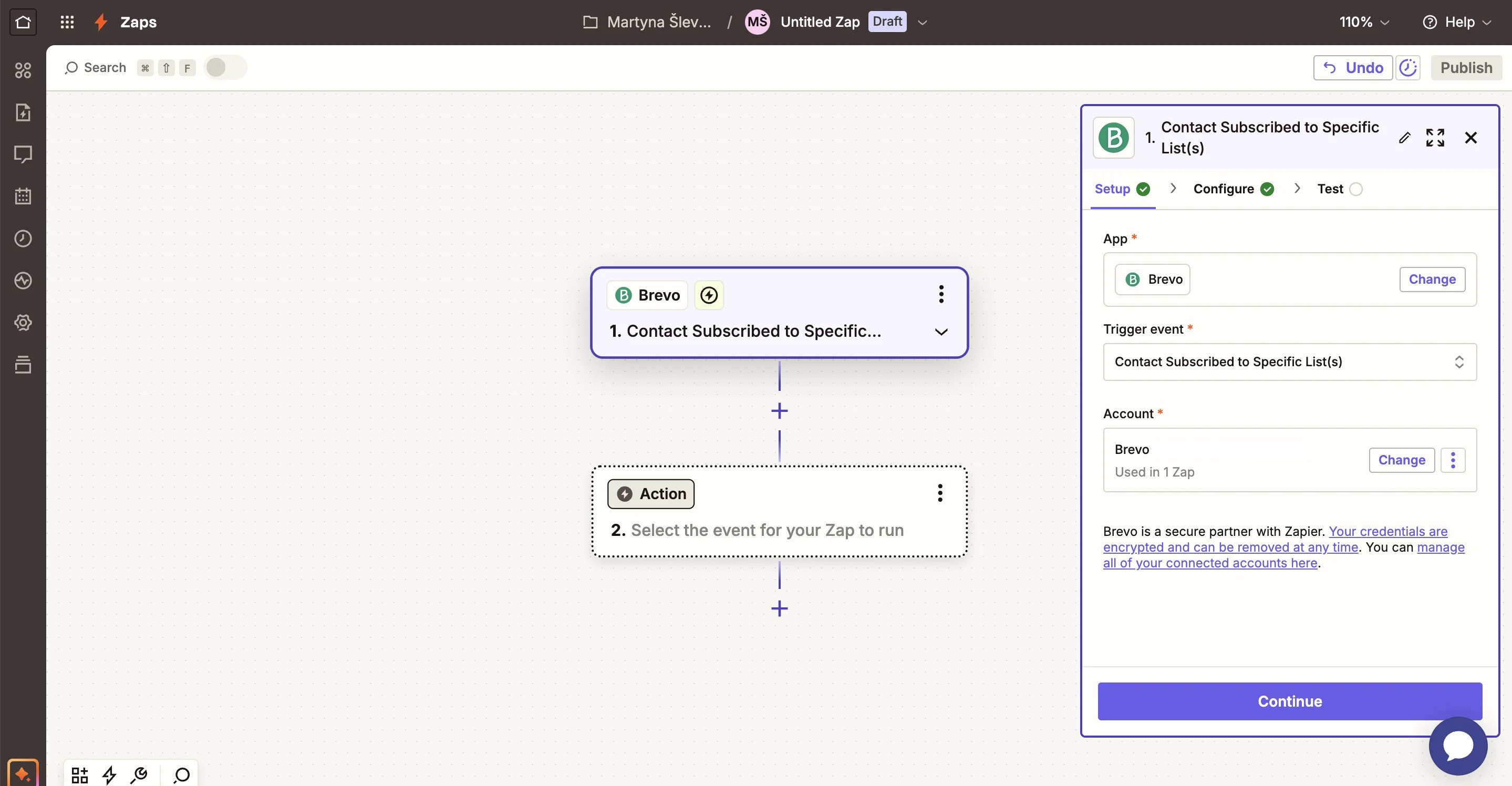
2. Under **Trigger**, select your ESP. In this example, we'll use Brevo. The **Trigger event** description might vary slightly based on your ESP, but generally, it will be **when a new subscriber joins a list** (group):
4. Click **Create**.
***
### Using Zapier
Next, you'll need to head over to your Zapier account and create three zaps to perform the following actions:
1. Send new subscribers from your ESP to Partnero.
2. Send the referral program data (such as the referral link) from Partnero back to your ESP.
3. Send referred subscribers from Partnero to your ESP.
Each step is outlined below.
***
#### Step 1: Send new subscribers to Partnero
The goal of this step is to automatically add all new subscribers to your Partnero account so they can receive referral links and participate in the program.
1. Log in to Zapier and click **+Create** in the upper left corner to create a new Zap.
2. Under **Trigger**, select your ESP. In this example, we'll use Brevo. The **Trigger event** description might vary slightly based on your ESP, but generally, it will be **when a new subscriber joins a list** (group):
 3. Next, configure your Zap by selecting your subscriber list (group):
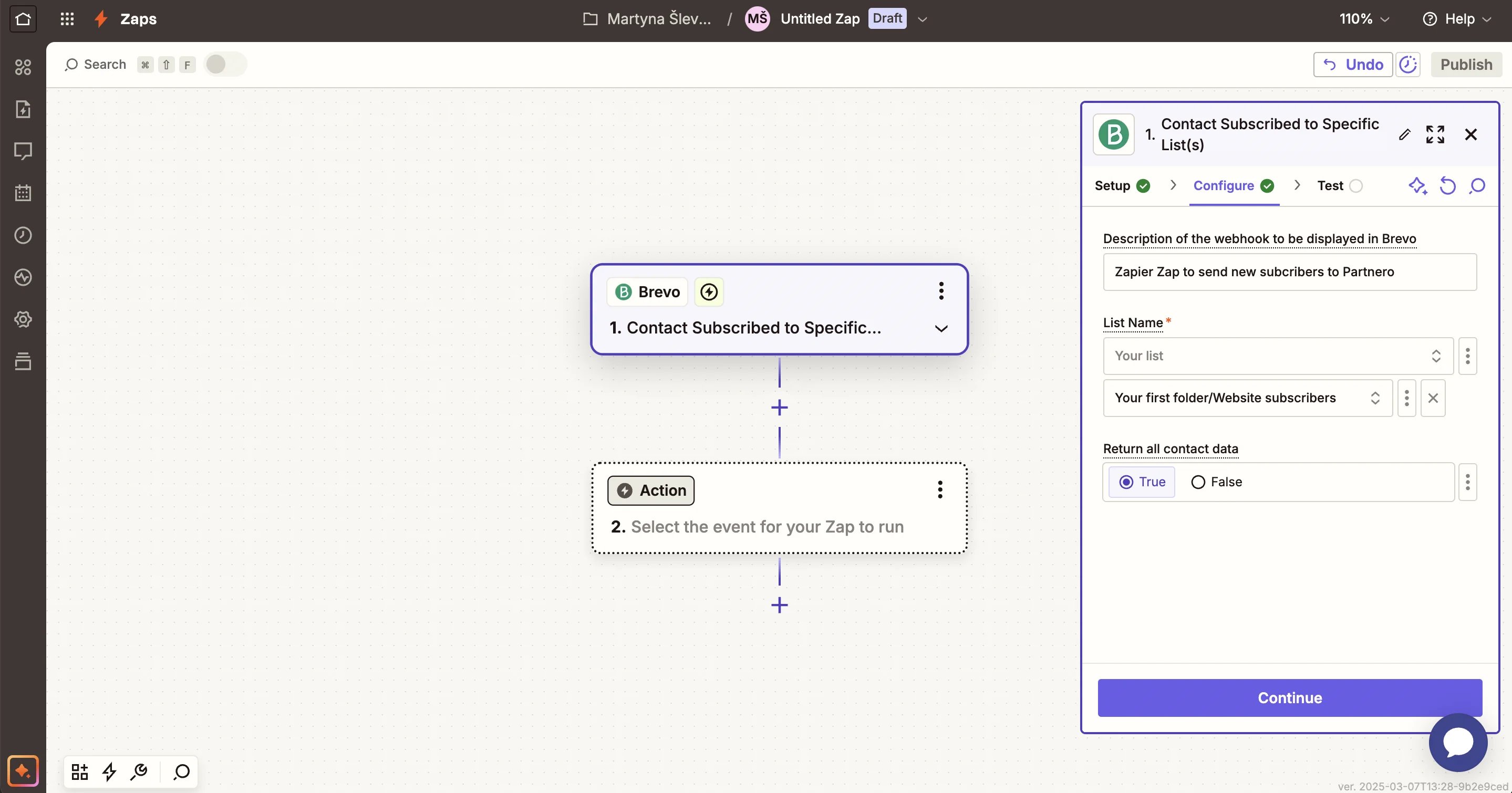 Select the subscriber group (or list) that you would like to participate in the referral program.
4. Finally, test your trigger to make sure everything works as expected.
5. Next, you'll need to configure the **Action**. Find Partnero in the app list.
6. As the Action trigger, select **Create a new subscriber**.
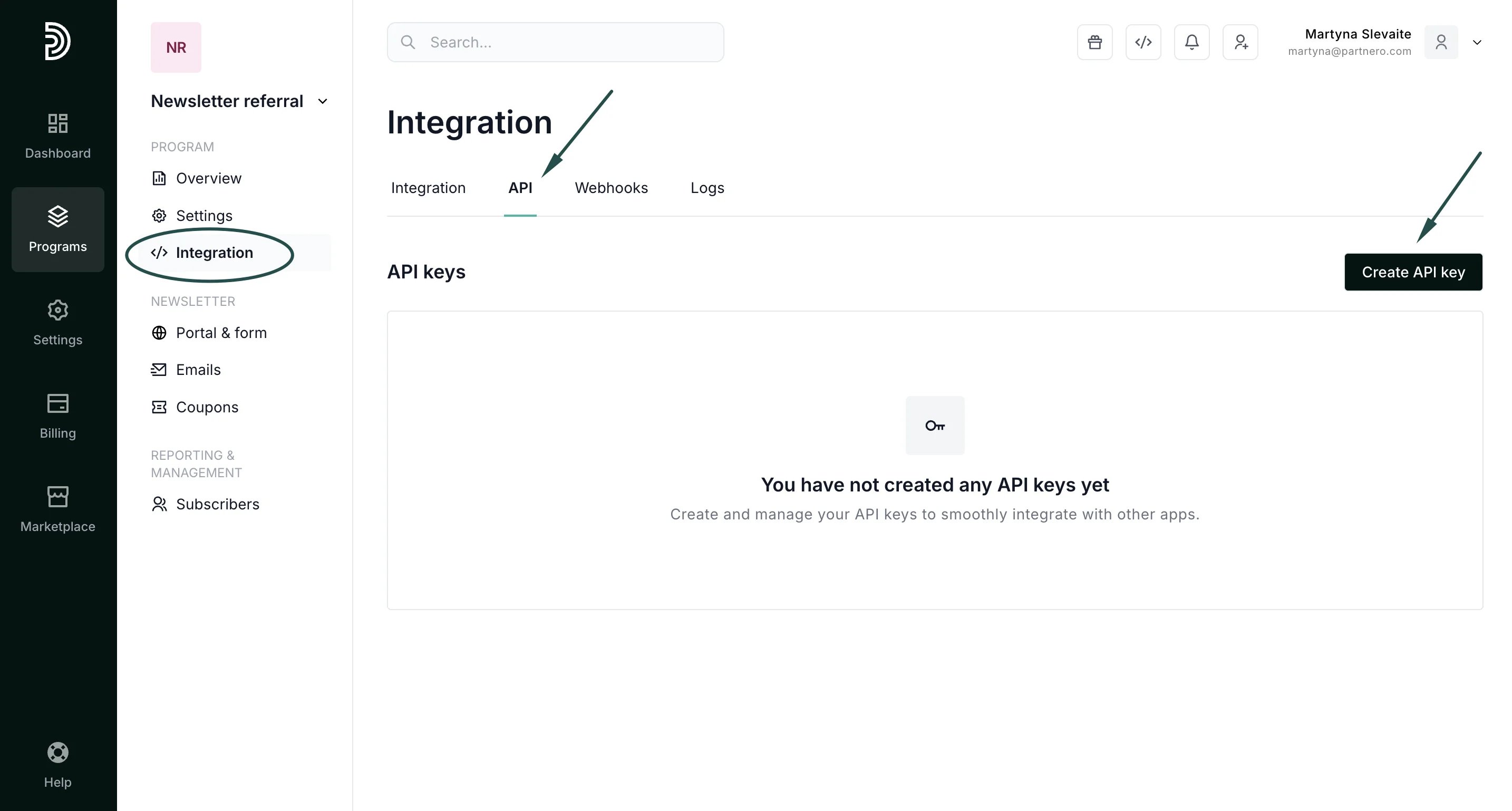
7. You'll then need to connect your Partnero account. In your newsletter referral program, click on **Integrations** and scroll down to **API Keys**. Click **Create API key**:
Select the subscriber group (or list) that you would like to participate in the referral program.
4. Finally, test your trigger to make sure everything works as expected.
5. Next, you'll need to configure the **Action**. Find Partnero in the app list.
6. As the Action trigger, select **Create a new subscriber**.
7. You'll then need to connect your Partnero account. In your newsletter referral program, click on **Integrations** and scroll down to **API Keys**. Click **Create API key**:
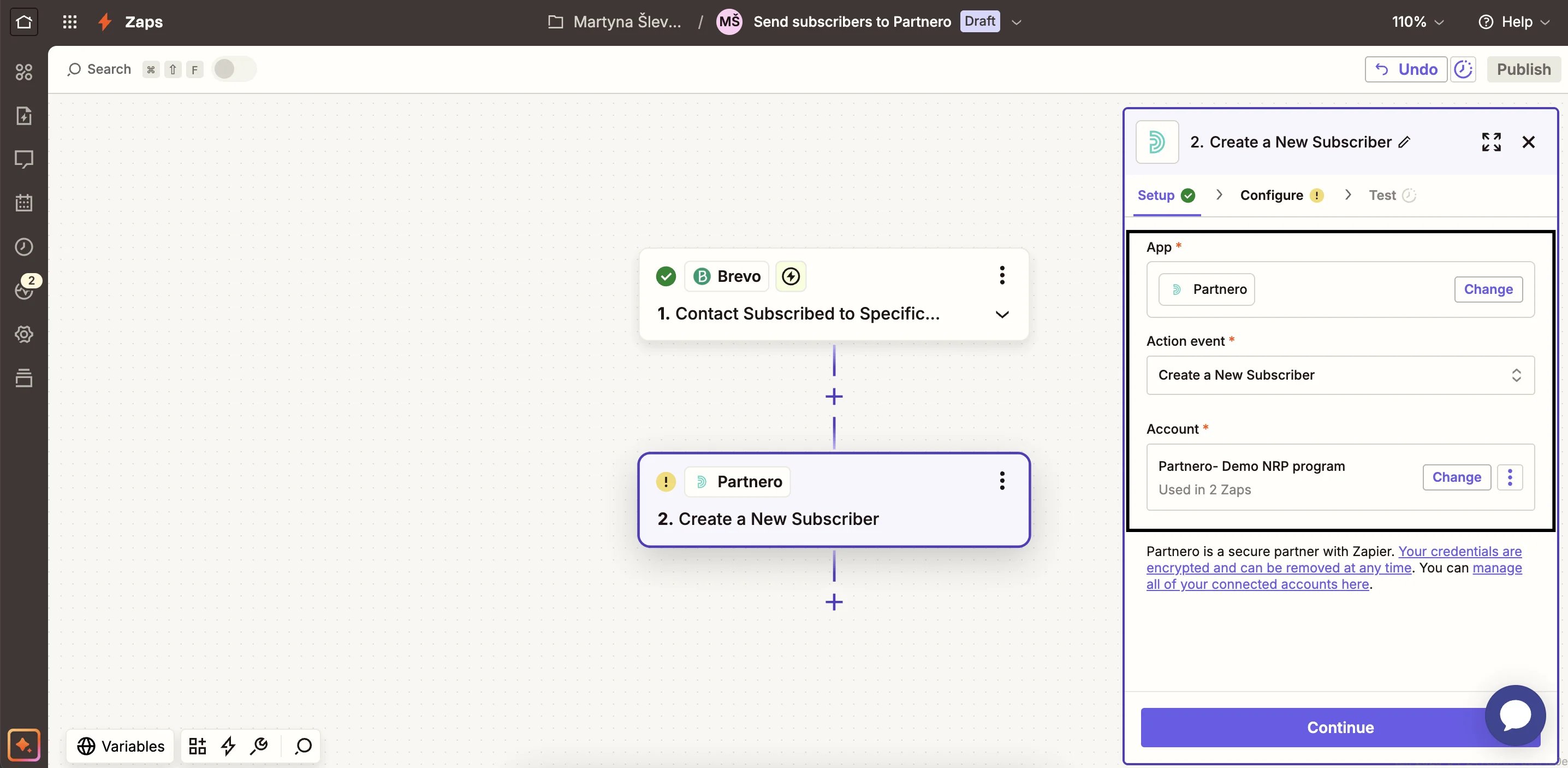
 8. Name the API key (for example, "Zapier - Brevo"). Then, copy and paste the key to the Zapier authentication window to complete the connection.
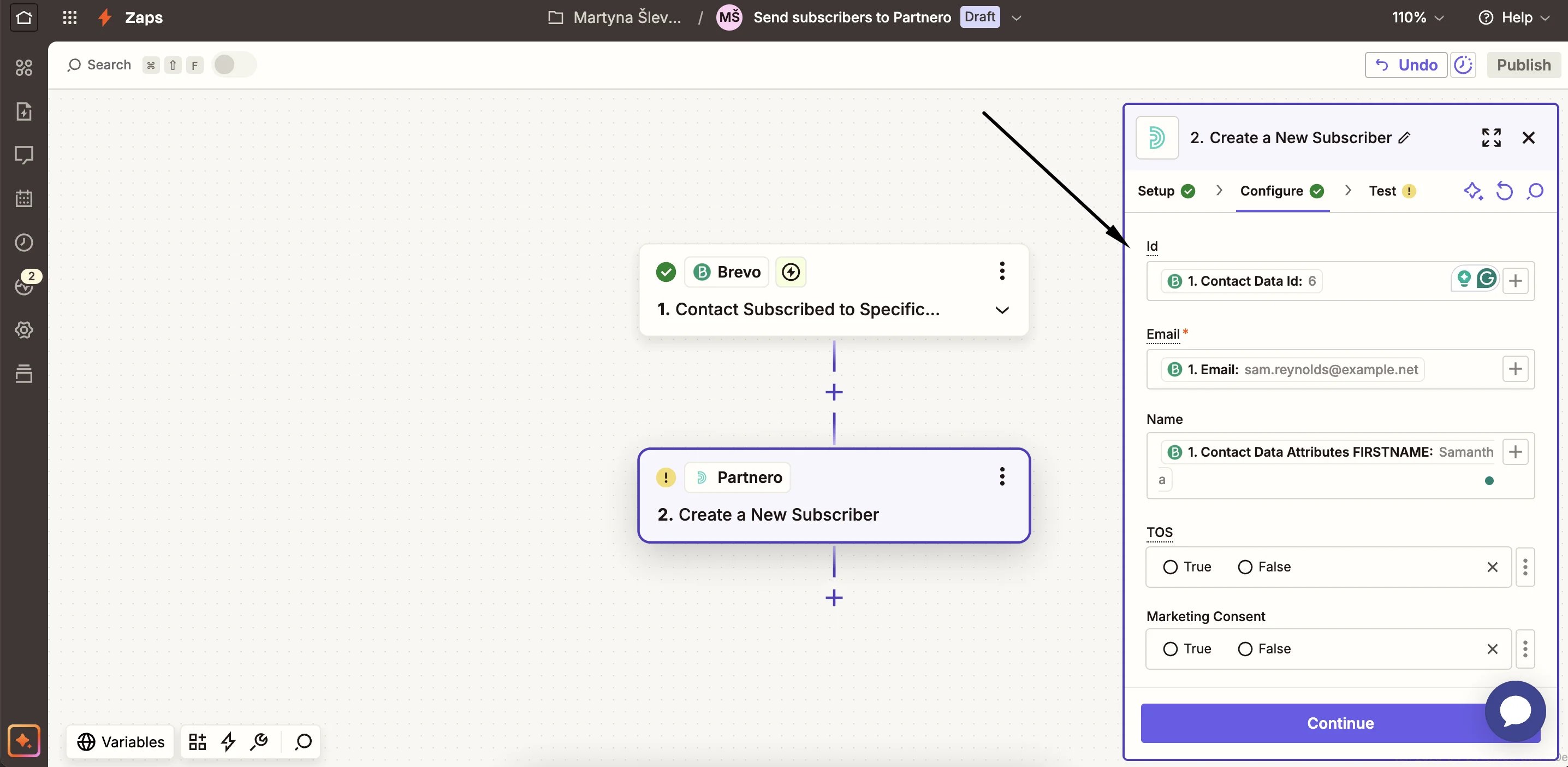
 9. Next, proceed to configure the Zap. Map the fields, such as subscriber email, name, and ID:
 10. Test and publish the ZAP.
***
#### Step 2: Send program data to your ESP
The next step is to make sure that your ESP subscriber list is updated with the referral program information:
* subscriber's referral link
* subscriber's portal link
* subscriber's referral count
First, you'll have to create custom fields (or custom attributes) on your ESP to save this data. The steps will differ based on your ESP; however, generally, the steps would be the following:
1. Go to your subscriber (contact) list on your ESP;
2. Go to subscriber settings (custom fields, subscriber attributes, or similar naming);
3. Click to create a new field (attribute);
4. Create **three** new custom fields for each value:
1. referral link
2. subscriber portal link
3. referral count
Now that you have the custom fields set up, go back to Zapier and create a new Zap:
1. For the **Trigger**, select your Partnero account.
2. For the **Trigger event**, select **Subscriber updated**:
**
10. Test and publish the ZAP.
***
#### Step 2: Send program data to your ESP
The next step is to make sure that your ESP subscriber list is updated with the referral program information:
* subscriber's referral link
* subscriber's portal link
* subscriber's referral count
First, you'll have to create custom fields (or custom attributes) on your ESP to save this data. The steps will differ based on your ESP; however, generally, the steps would be the following:
1. Go to your subscriber (contact) list on your ESP;
2. Go to subscriber settings (custom fields, subscriber attributes, or similar naming);
3. Click to create a new field (attribute);
4. Create **three** new custom fields for each value:
1. referral link
2. subscriber portal link
3. referral count
Now that you have the custom fields set up, go back to Zapier and create a new Zap:
1. For the **Trigger**, select your Partnero account.
2. For the **Trigger event**, select **Subscriber updated**:
**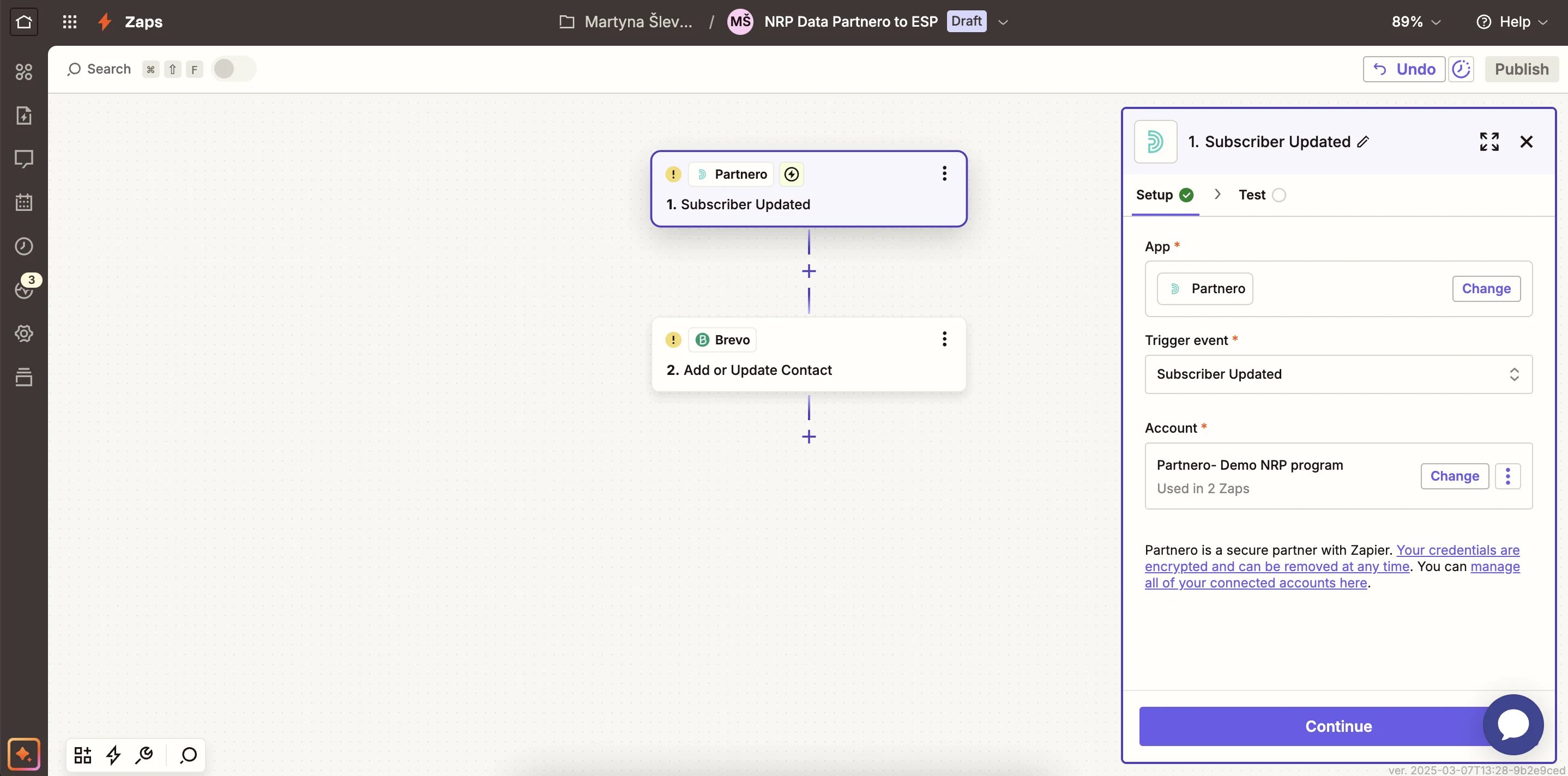 **
3. For the **Action**, select your ESP account. **Action event** - Add or Update Contact (Subscriber):
**
3. For the **Action**, select your ESP account. **Action event** - Add or Update Contact (Subscriber):
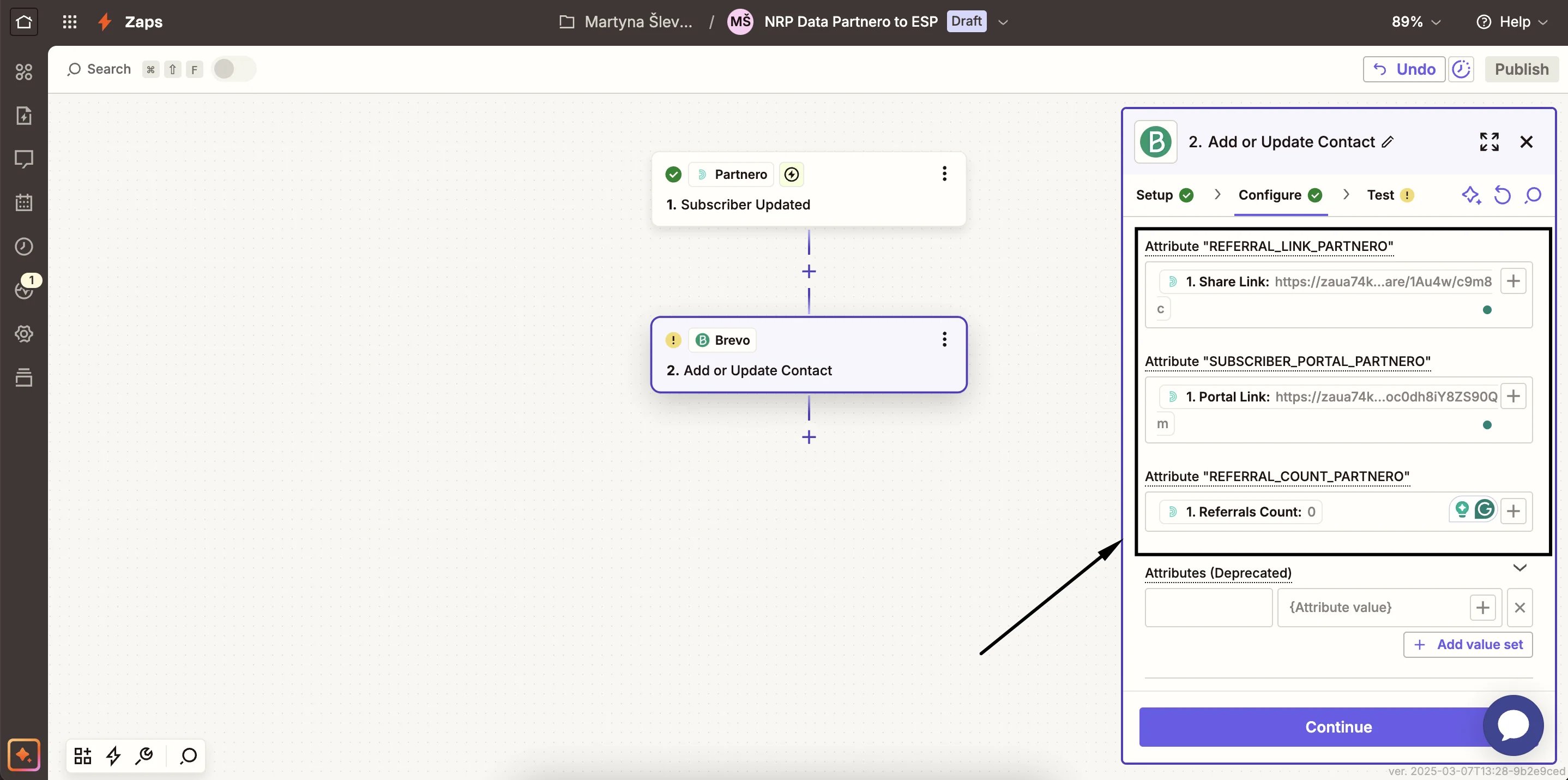
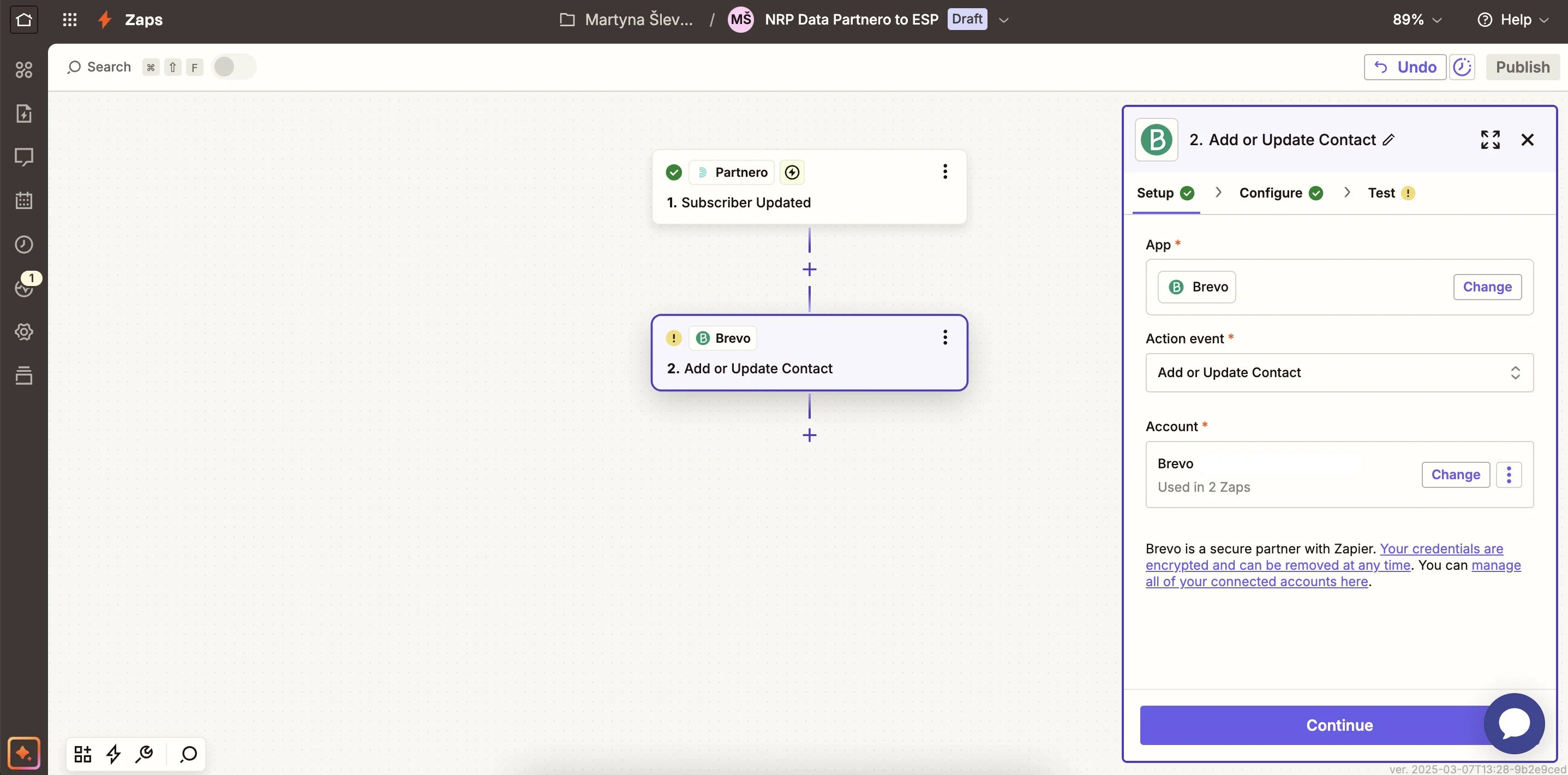 4. In the **Configure** step, match the referral share link, portal link, and the referral count to the corresponding fields (attributes):
 5. Click **Publish**.
***
#### Step 3: Send referred subscribers to your ESP
Finally, you'll need to send referred subscribers to your email service provider. When someone subscribes to your newsletter through the referral portal, the subscriber will first be created on Partnero. The goal here is to send them to your ESP.
As the first step, we recommend creating a **separate subscriber group** (list) **for referred subscribers** on your email service provider (ESP), allowing you to easily differentiate between them.
For example, here are the two subscriber lists on our Brevo account:
5. Click **Publish**.
***
#### Step 3: Send referred subscribers to your ESP
Finally, you'll need to send referred subscribers to your email service provider. When someone subscribes to your newsletter through the referral portal, the subscriber will first be created on Partnero. The goal here is to send them to your ESP.
As the first step, we recommend creating a **separate subscriber group** (list) **for referred subscribers** on your email service provider (ESP), allowing you to easily differentiate between them.
For example, here are the two subscriber lists on our Brevo account: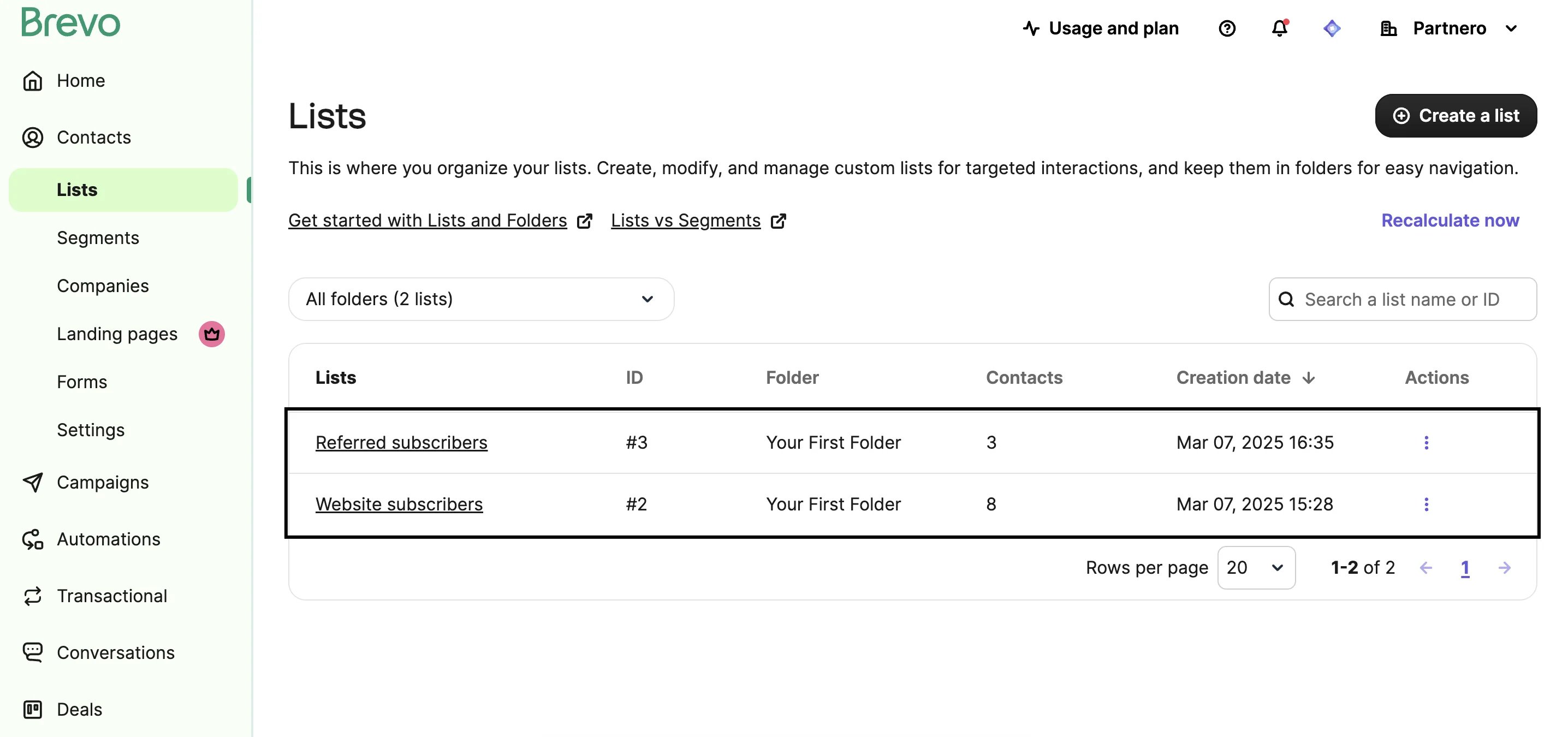 Next, let's create the Zap:
1. On your Zapier account, click to create a new zap. For the **Trigger**, select Partnero. Trigger action - **Referred s\*\*\*\*ubscriber created**. Then, select your newsletter referral program:
Next, let's create the Zap:
1. On your Zapier account, click to create a new zap. For the **Trigger**, select Partnero. Trigger action - **Referred s\*\*\*\*ubscriber created**. Then, select your newsletter referral program: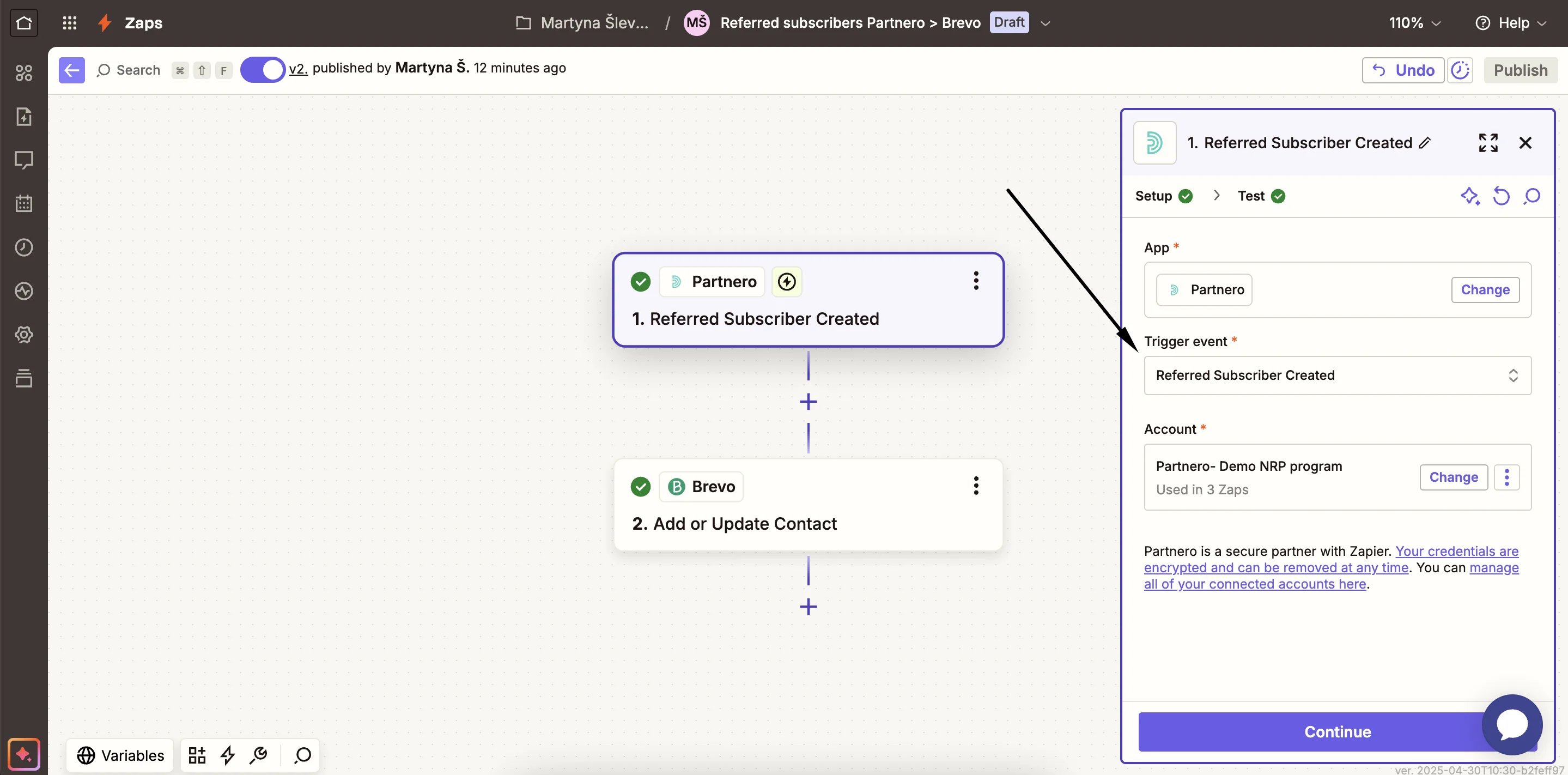 **Important:** make sure to use the "**Referred subscriber created**" trigger and not the "Subscriber created" trigger.
2. Then configure the **Action** step. Select your ESP as the App (Brevo, in this example), the Action - to **A\*\*\*\*dd or update a contact** (subscriber), and select your ESP account:
**Important:** make sure to use the "**Referred subscriber created**" trigger and not the "Subscriber created" trigger.
2. Then configure the **Action** step. Select your ESP as the App (Brevo, in this example), the Action - to **A\*\*\*\*dd or update a contact** (subscriber), and select your ESP account: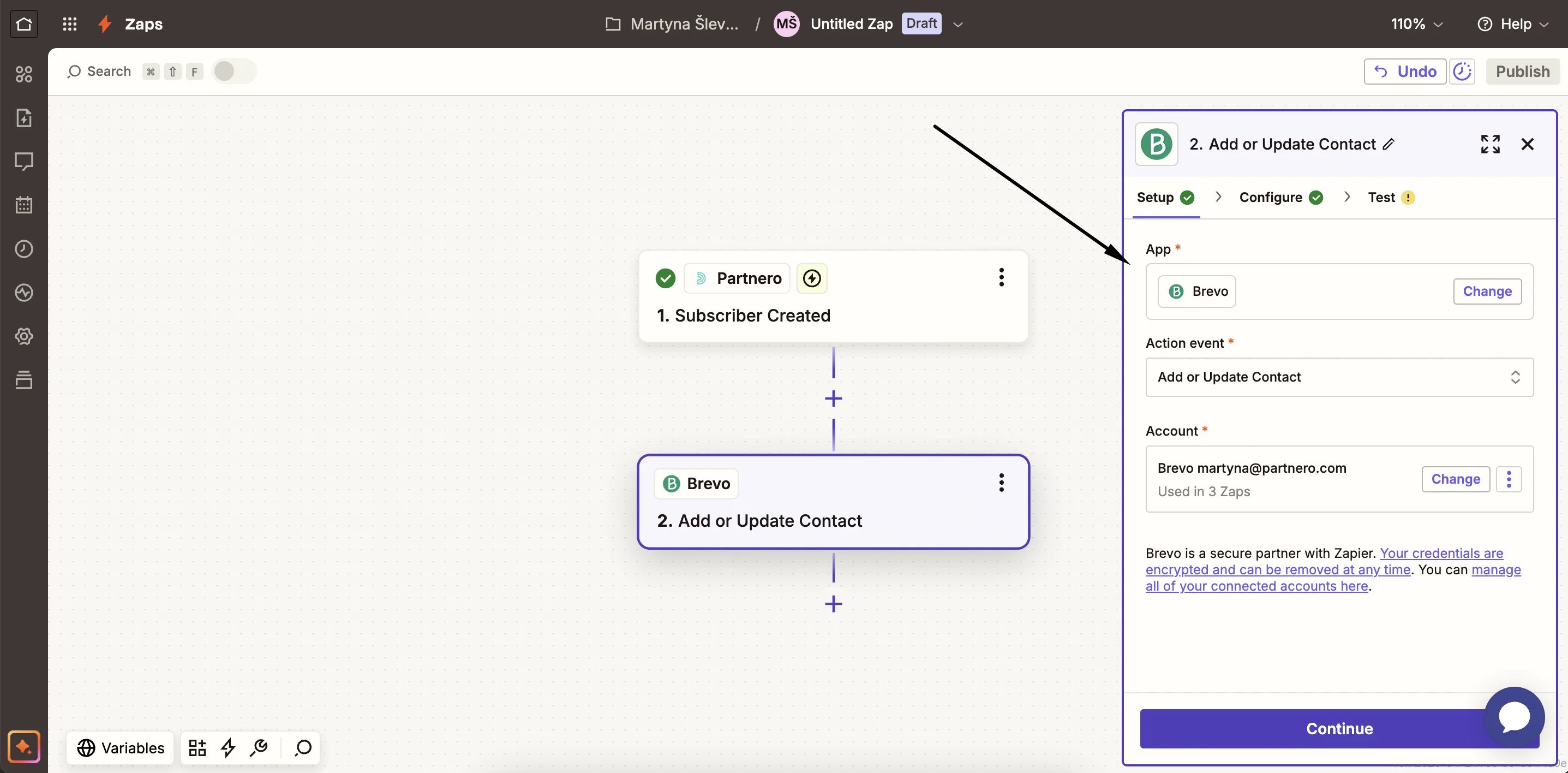 3. Next, configure the data and its destination. The fields that you are allowed to map will depend on your ESP. The most important details are the email address and the subscriber's name (if your referral subscriber form requests it). Also, ensure that you select the list (or group) where **referred subscribers will be added**. We recommend using a group dedicated to referred subscribers only.
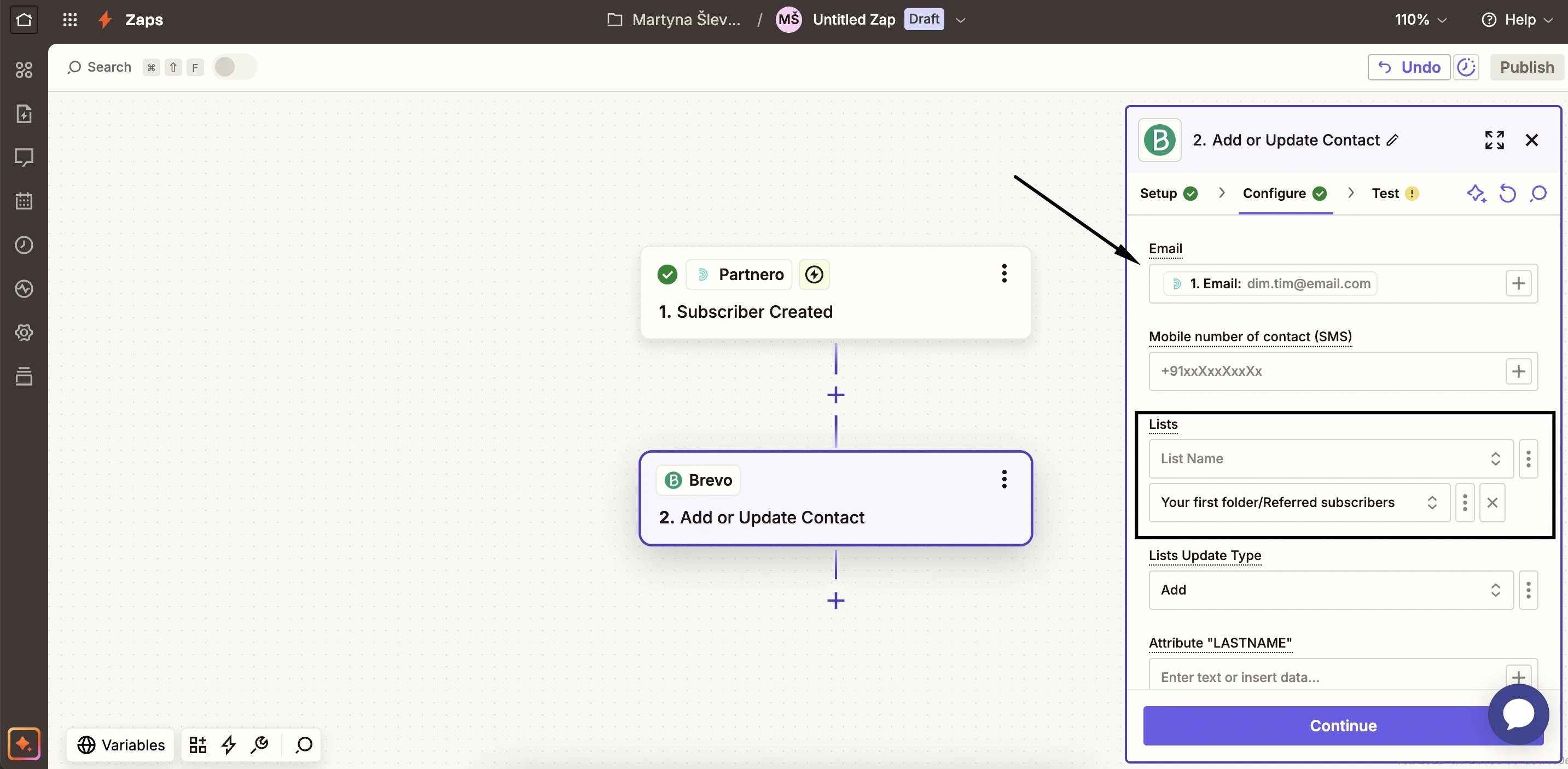 4. Test and publish the zap.
Done! With these three steps, you should have a complete setup to run a newsletter referral program automatically.
This documentation is built and hosted on [Mintlify](https://mintlify.com), a developer documentation platform.
4. Test and publish the zap.
Done! With these three steps, you should have a complete setup to run a newsletter referral program automatically.
This documentation is built and hosted on [Mintlify](https://mintlify.com), a developer documentation platform.