> ## Documentation Index
> Fetch the complete documentation index at: https://docs.partnero.com/llms.txt
> Use this file to discover all available pages before exploring further.
# Managing partner approval requests
Your affiliate program can be open to everyone, or you may decide to review and approve new partners before granting them access. Read more about how to create and enable an approval form [here](/knowledge-base/partner-portal/create-an-approval-form).
When your approval form is ready to go and approvals are enabled, you’ll have to review each new partner and either approve or reject their application.
***
### Where to find pending approval requests
New approval requests can be accessed through the **Program** > **Overview** section by clicking on **Manage approvals** in the Approval requests box: 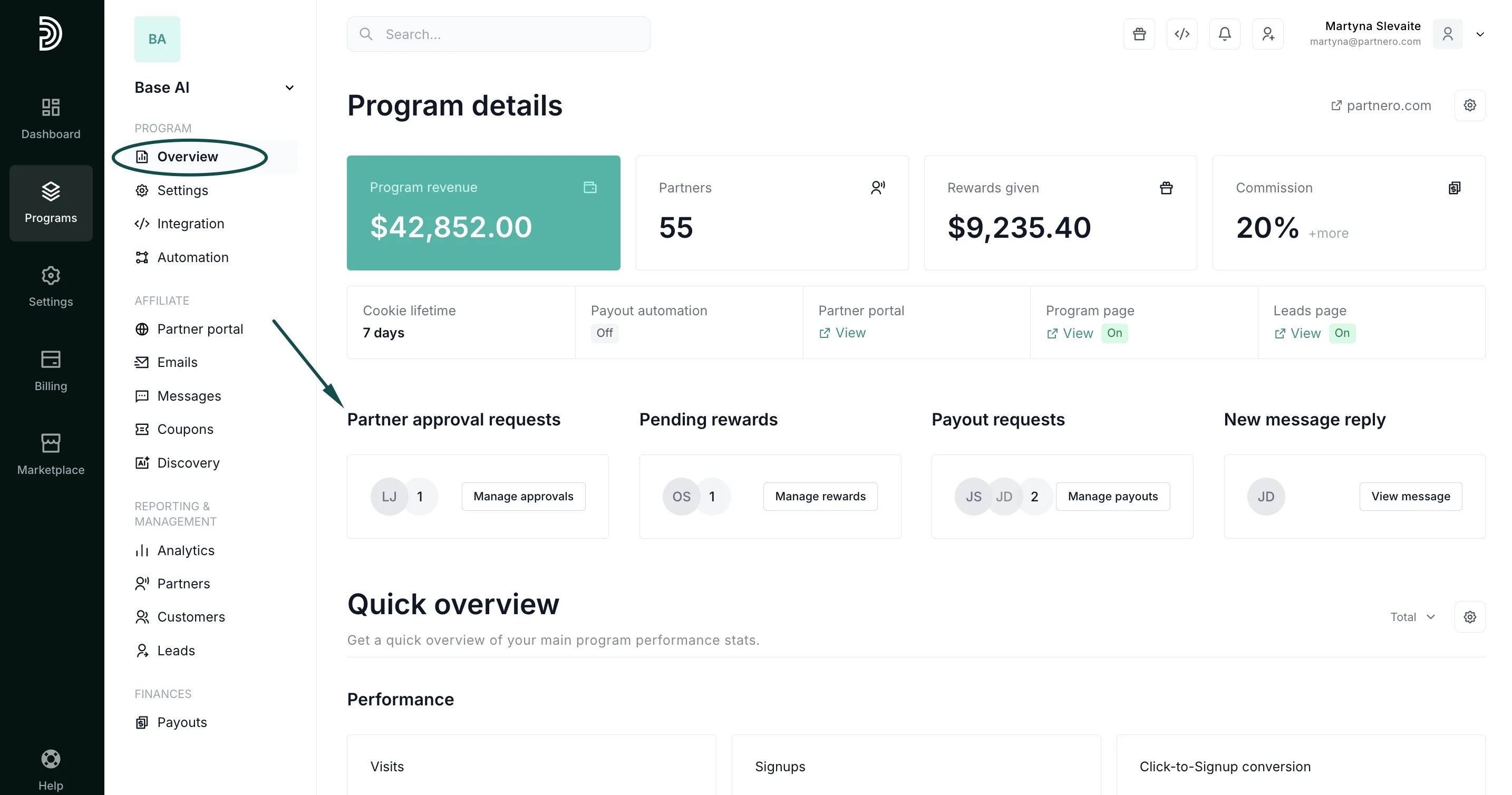 Alternatively:
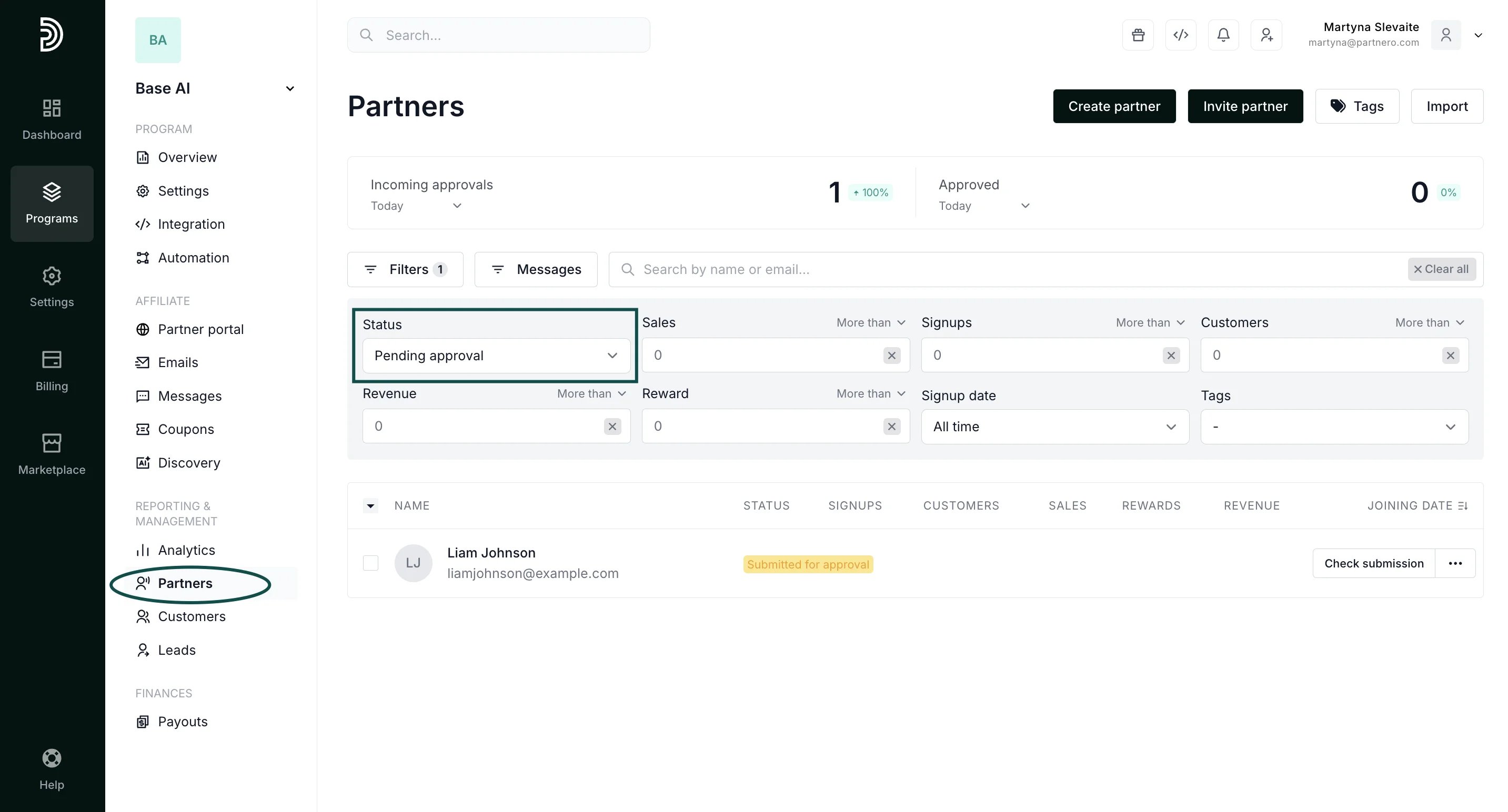
1. Go to **Partners** under **Reporting** **and Management**.
2. Expand the **Filters** section.
3. Select **Pending approval** under **Status**.
Alternatively:
1. Go to **Partners** under **Reporting** **and Management**.
2. Expand the **Filters** section.
3. Select **Pending approval** under **Status**.
 ***
### How to review a request
1. Open the pending approval requests list.
2. Click **Check submission** next to the partner's name:
***
### How to review a request
1. Open the pending approval requests list.
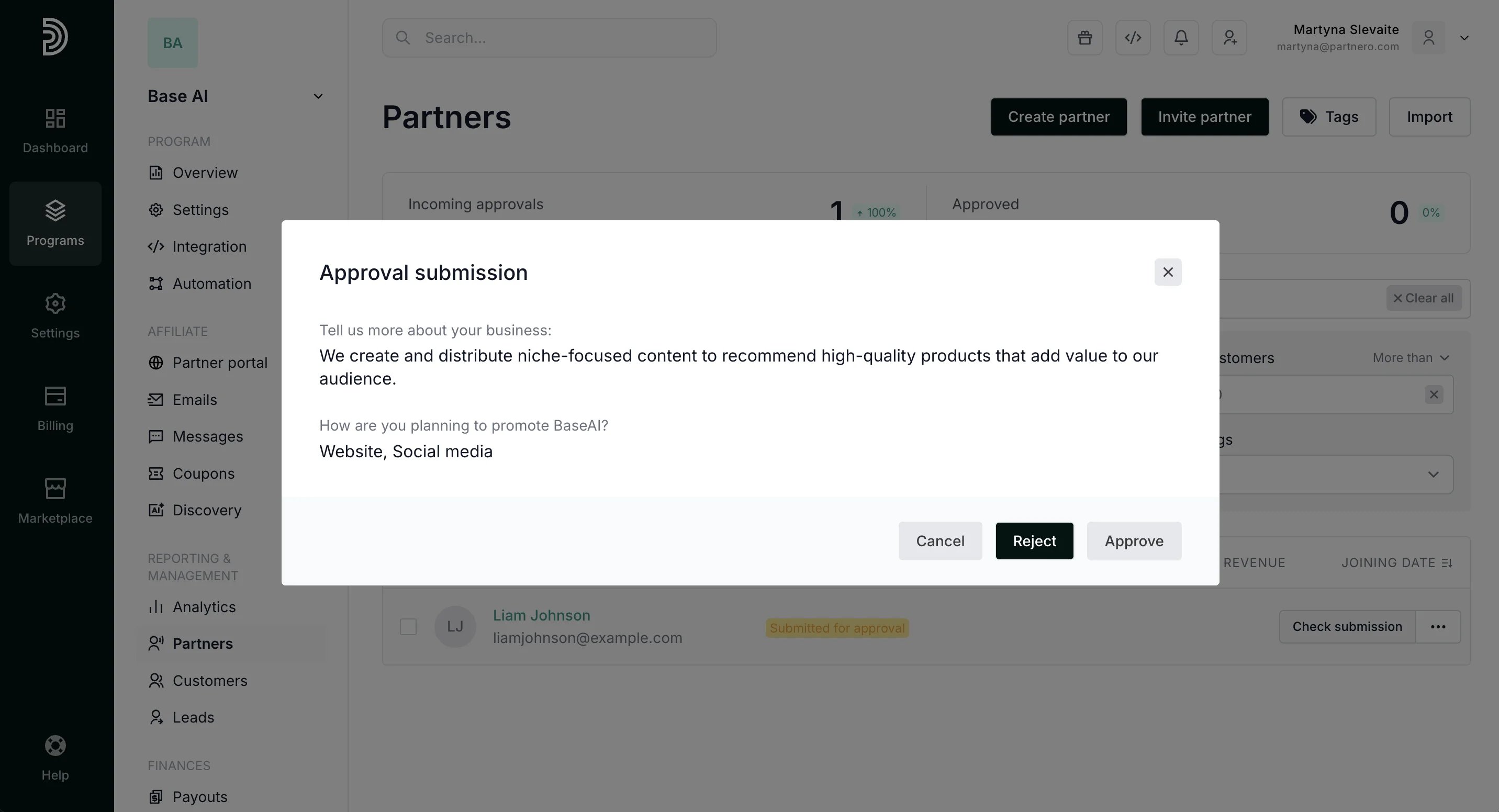
2. Click **Check submission** next to the partner's name: 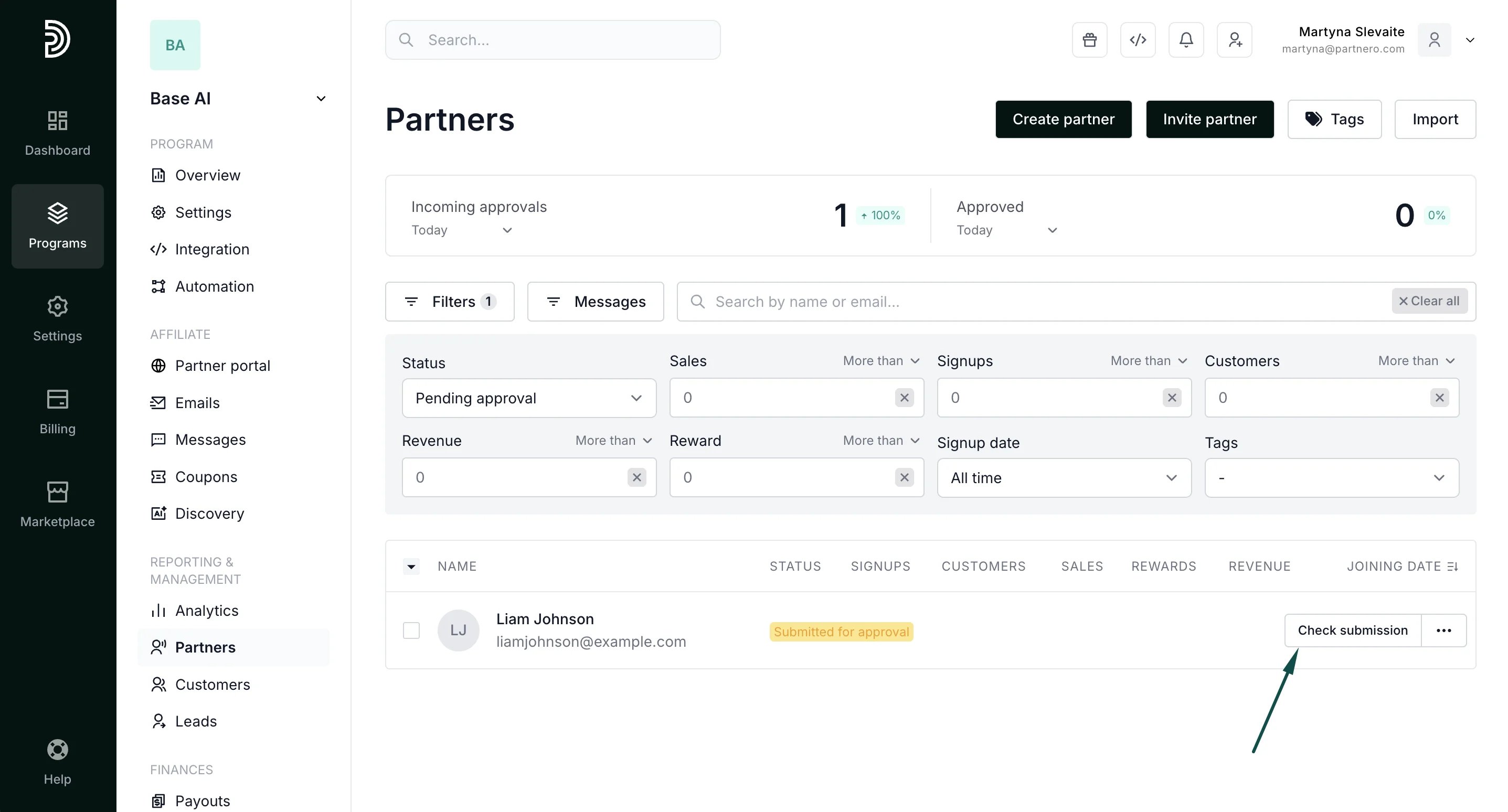 3. Review the answers to your questions and click **Approve** or **Reject**:
  ###
***
Approval email notifications
Email notifications are sent when partners are approved or rejected. The emails can be configured under **Program** > **Emails**. Read more about email management [here](/knowledge-base/program-emails/email-settings).
When you **reject** a partner, you will be asked to provide a rejection reason. This reason will be shown in the partner portal and in the rejection email notification.
When you **approve** a partner, they will automatically receive the approval email.
***
### How to approve a partner who has been rejected previously
It may happen that a rejected partner will reach out to provide further details, and you’ll decide to approve their application. In order to do that:
1. Go to **Partners** under **Reporting and Management**.
2. Search for the partner by using their name or email address.
###
***
Approval email notifications
Email notifications are sent when partners are approved or rejected. The emails can be configured under **Program** > **Emails**. Read more about email management [here](/knowledge-base/program-emails/email-settings).
When you **reject** a partner, you will be asked to provide a rejection reason. This reason will be shown in the partner portal and in the rejection email notification.
When you **approve** a partner, they will automatically receive the approval email.
***
### How to approve a partner who has been rejected previously
It may happen that a rejected partner will reach out to provide further details, and you’ll decide to approve their application. In order to do that:
1. Go to **Partners** under **Reporting and Management**.
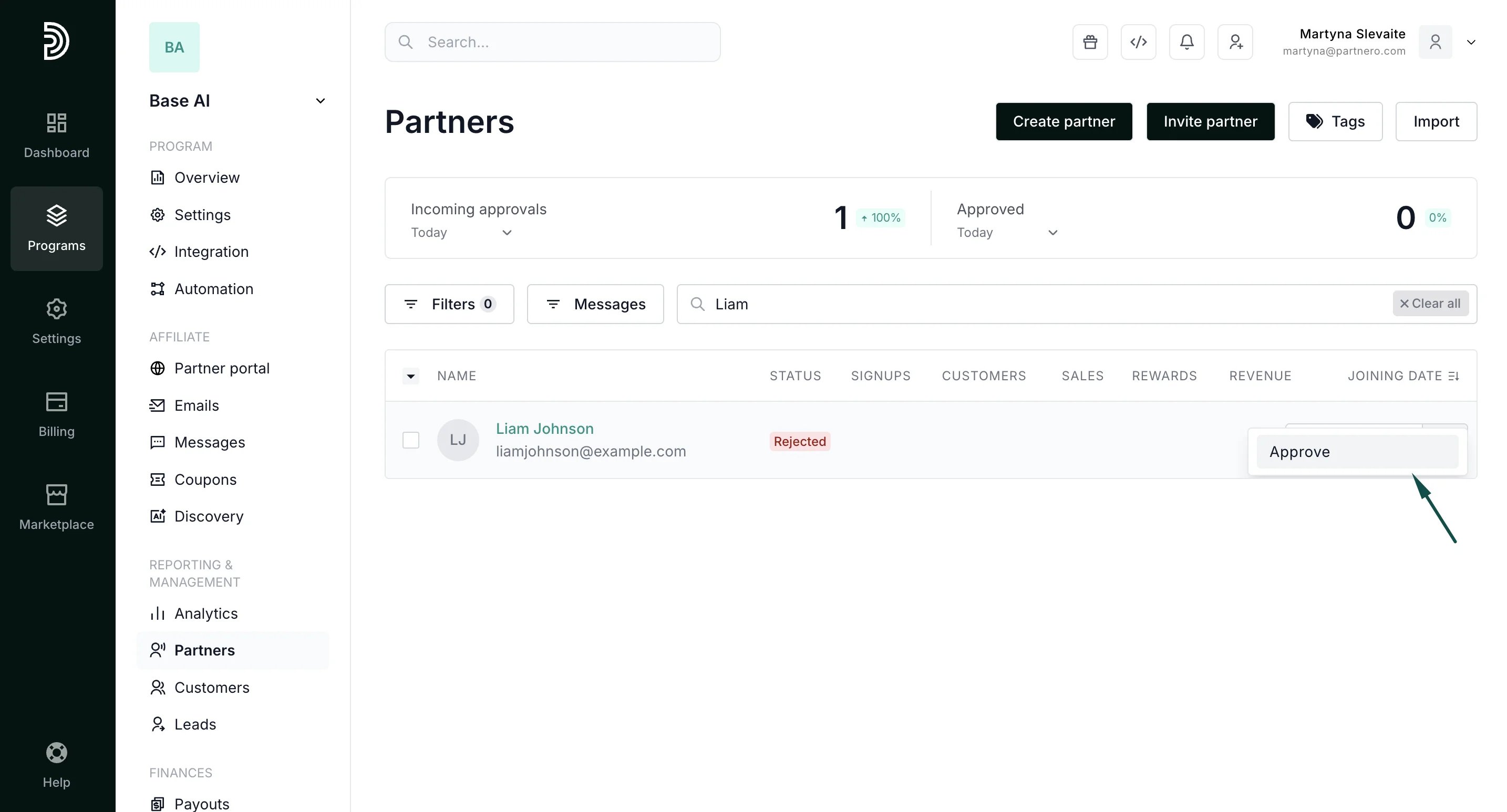
2. Search for the partner by using their name or email address. 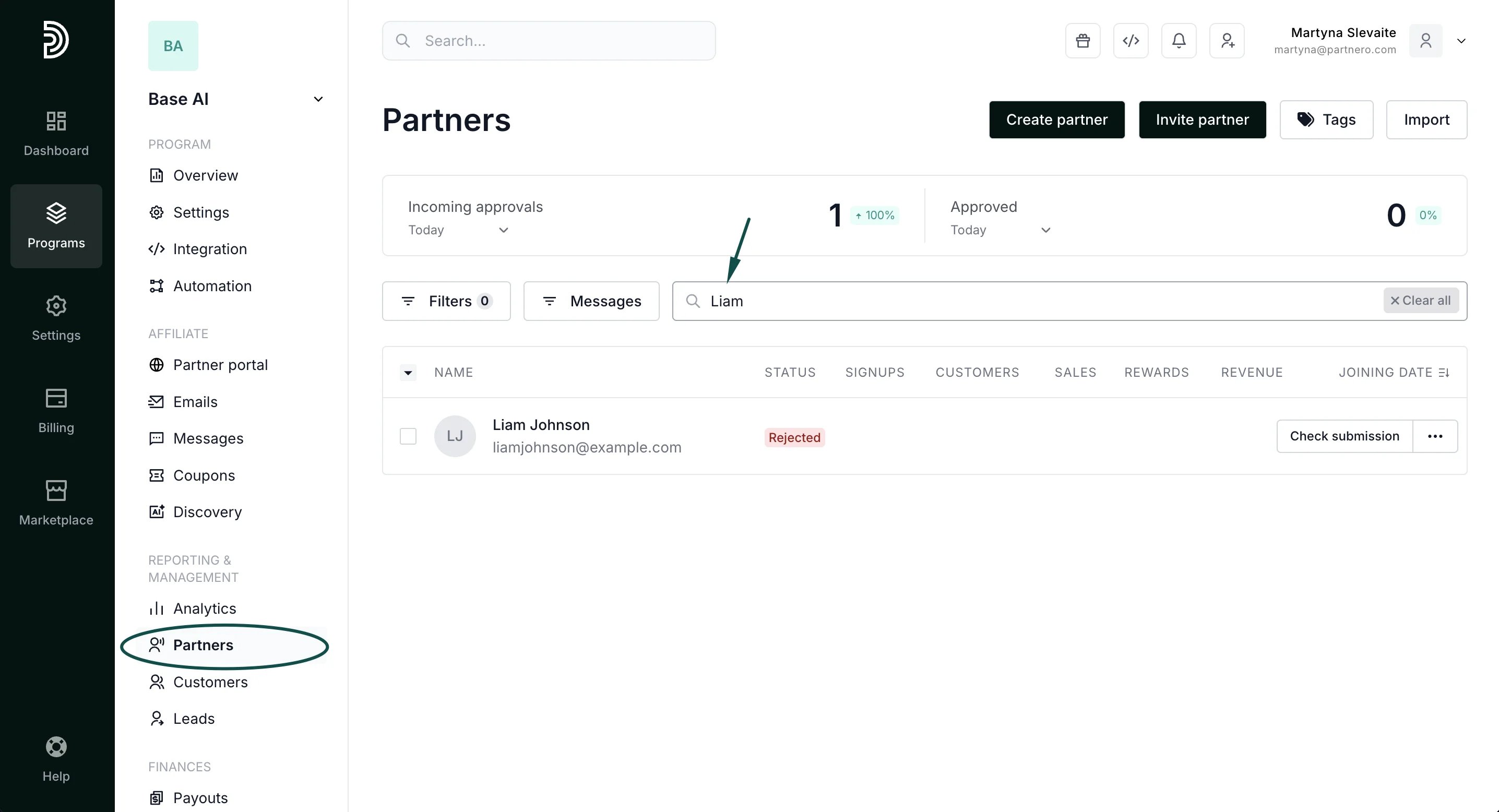 3. Click **Check submission** next to the partner's name and click **Approve**:
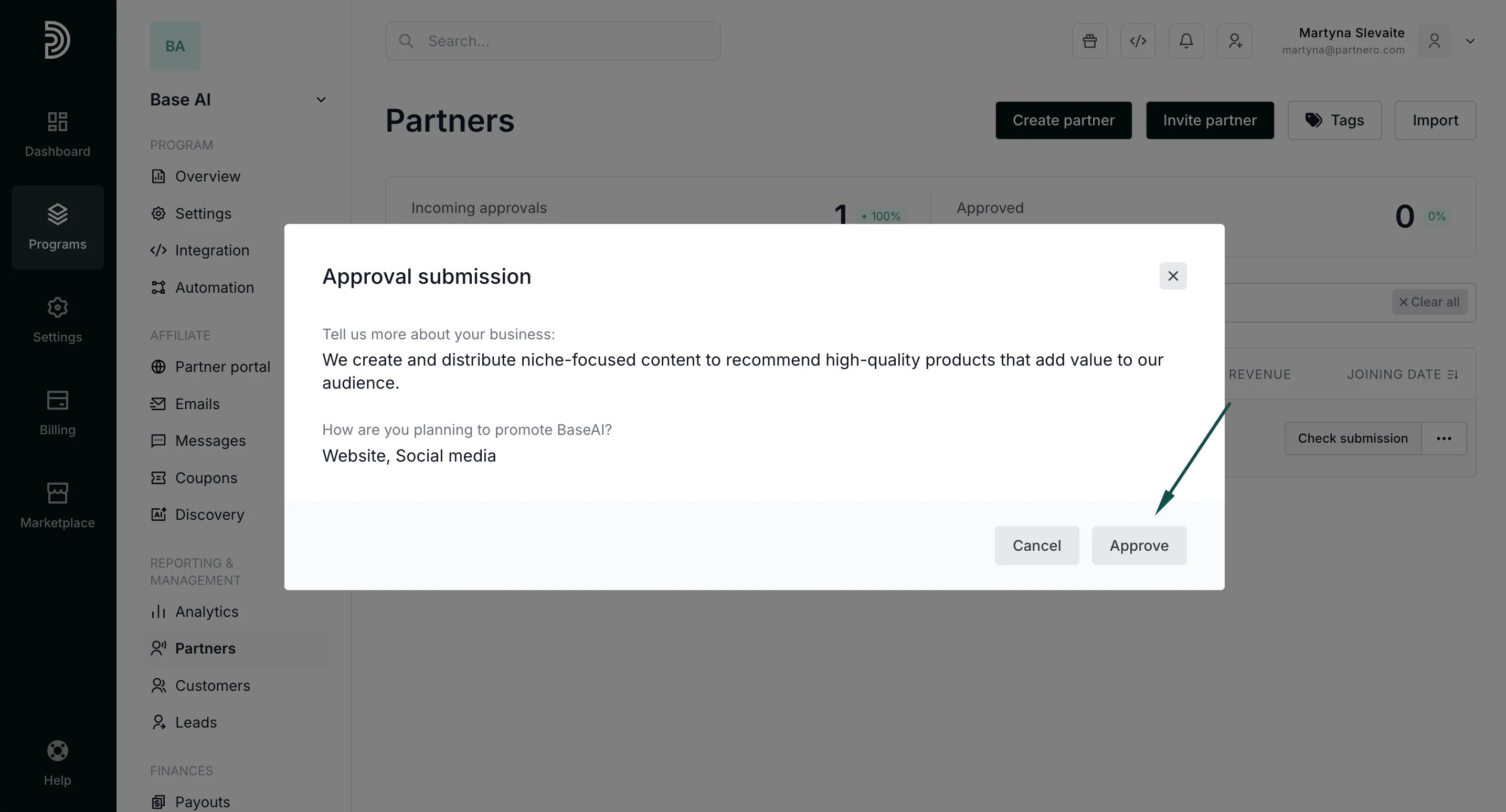 Alternatively, click the three dots next to **Check submission,** then select **Approve**:
  This documentation is built and hosted on [Mintlify](https://mintlify.com), a developer documentation platform.