> ## Documentation Index
> Fetch the complete documentation index at: https://docs.partnero.com/llms.txt
> Use this file to discover all available pages before exploring further.
# Partners list overview
The **Partners list** is where you view, filter, and manage all partners in your program. You'll find it under Partners in the left-hand menu: 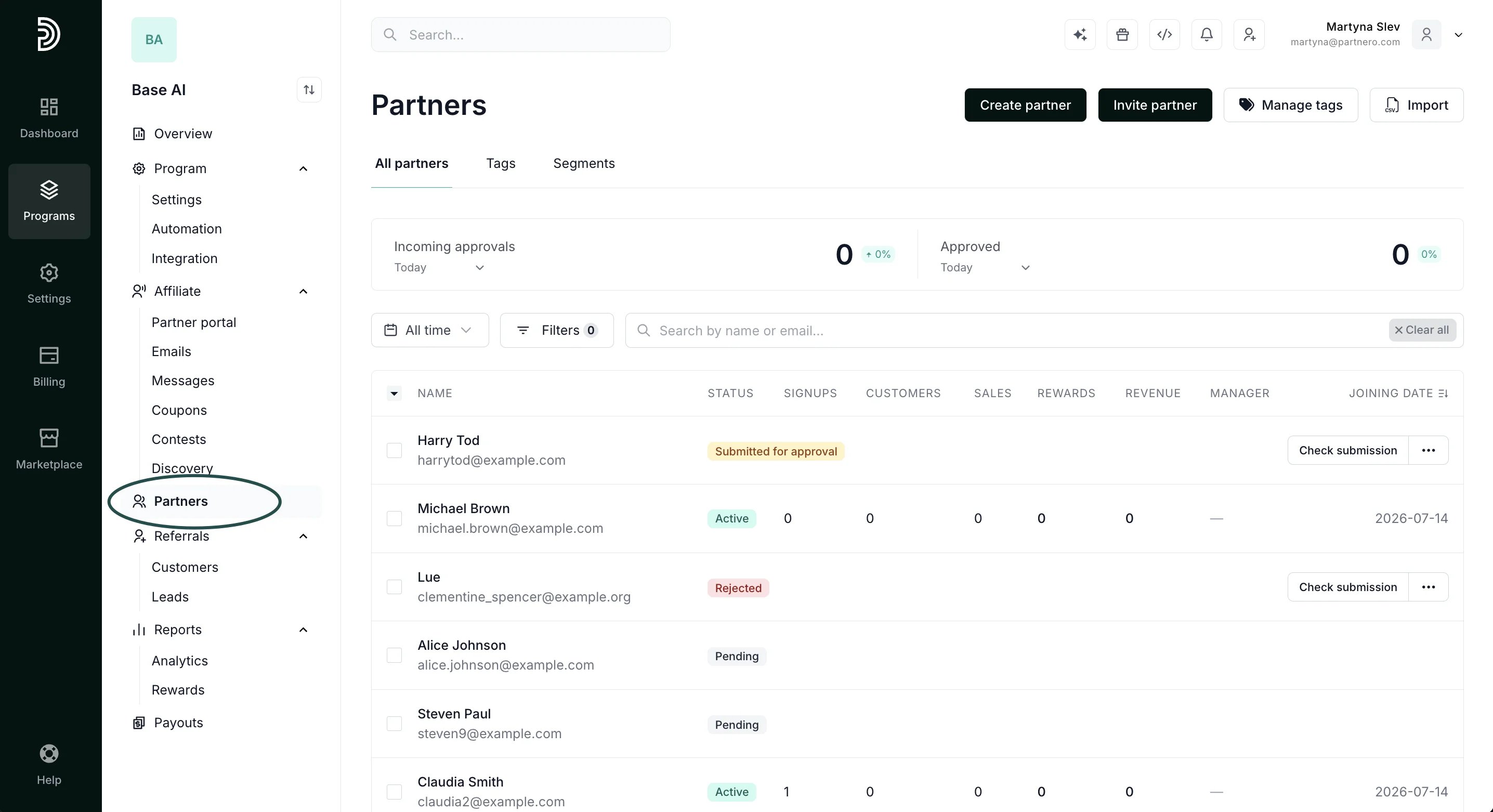 ***
### Filtering partners
Click on **Filters** to expand the filters panel, where you'll find the option to filter by status, sales, signups, customers, revenue, rewards, tags, partner managers, and messages:
***
### Filtering partners
Click on **Filters** to expand the filters panel, where you'll find the option to filter by status, sales, signups, customers, revenue, rewards, tags, partner managers, and messages: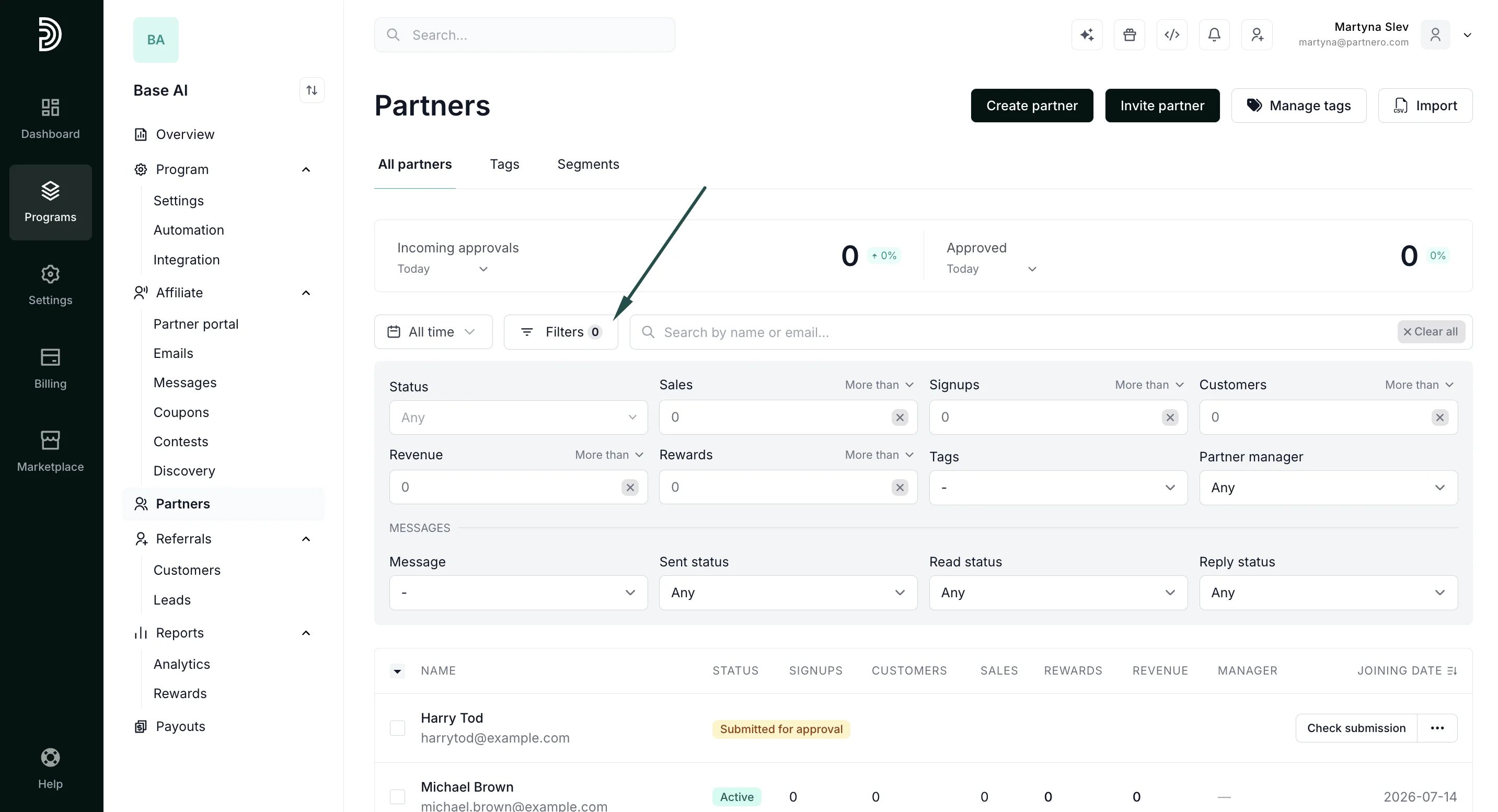 Good to know: Non-archived status filters (like Active) only return non-archived partners. The Any view is the exception and continues to include archived partners.
**Status** filters support multi-select, so you can filter by a few statuses at once, for example Active and Pending approval together.
Good to know: Non-archived status filters (like Active) only return non-archived partners. The Any view is the exception and continues to include archived partners.
**Status** filters support multi-select, so you can filter by a few statuses at once, for example Active and Pending approval together. 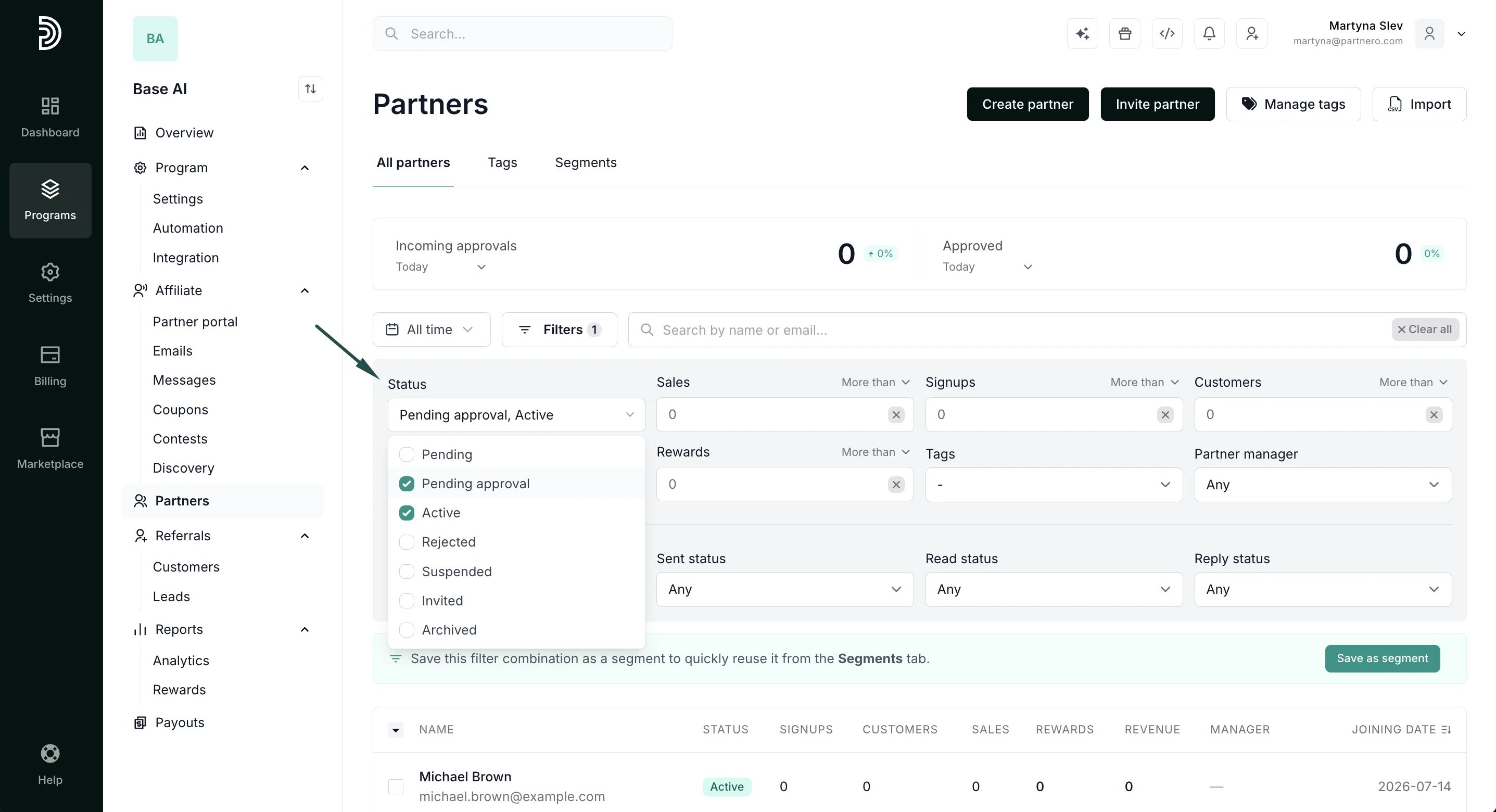 **Date range**: Use the date picker next to the search bar to filter partners by a date range. All time is the default.
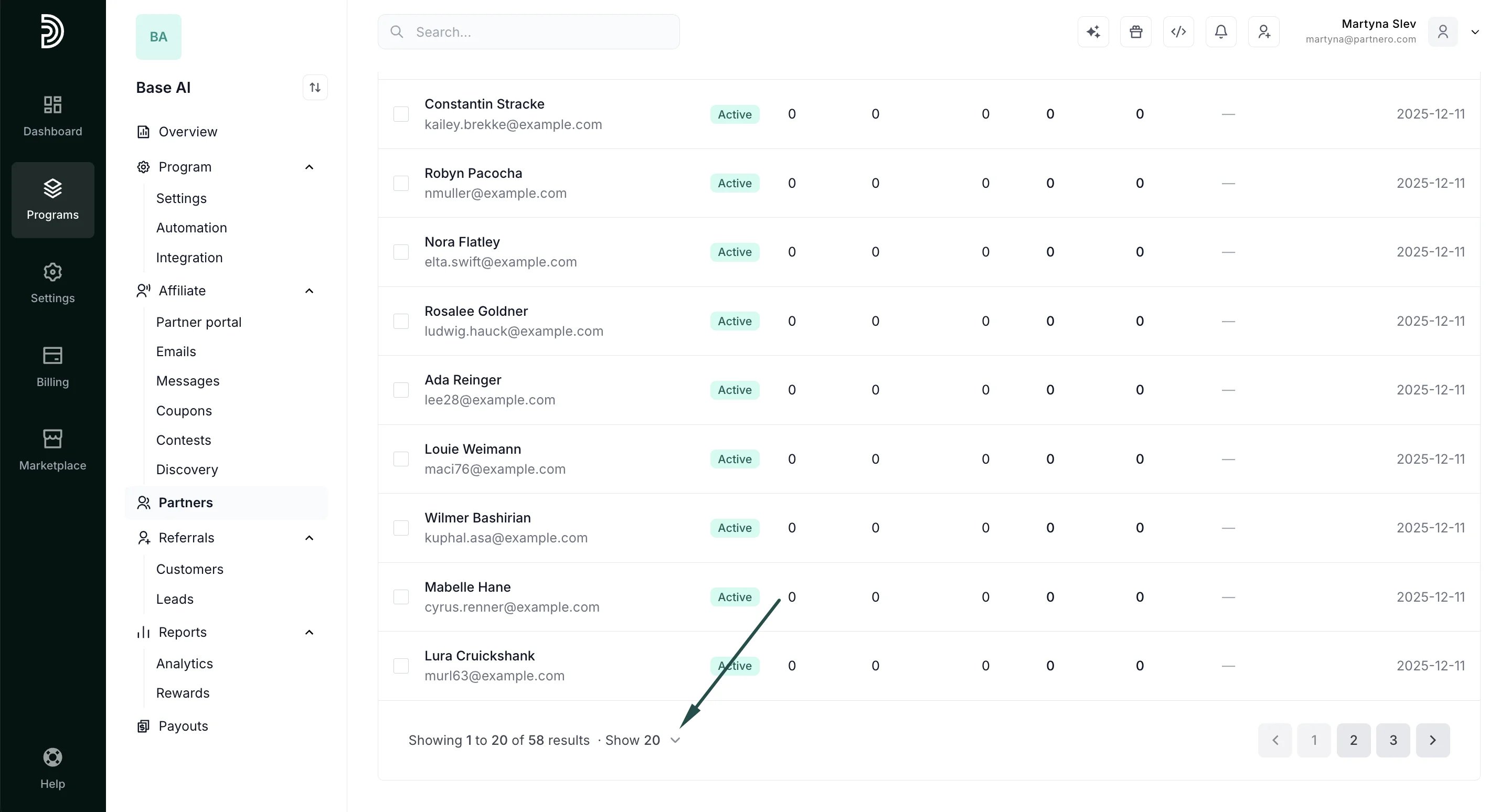
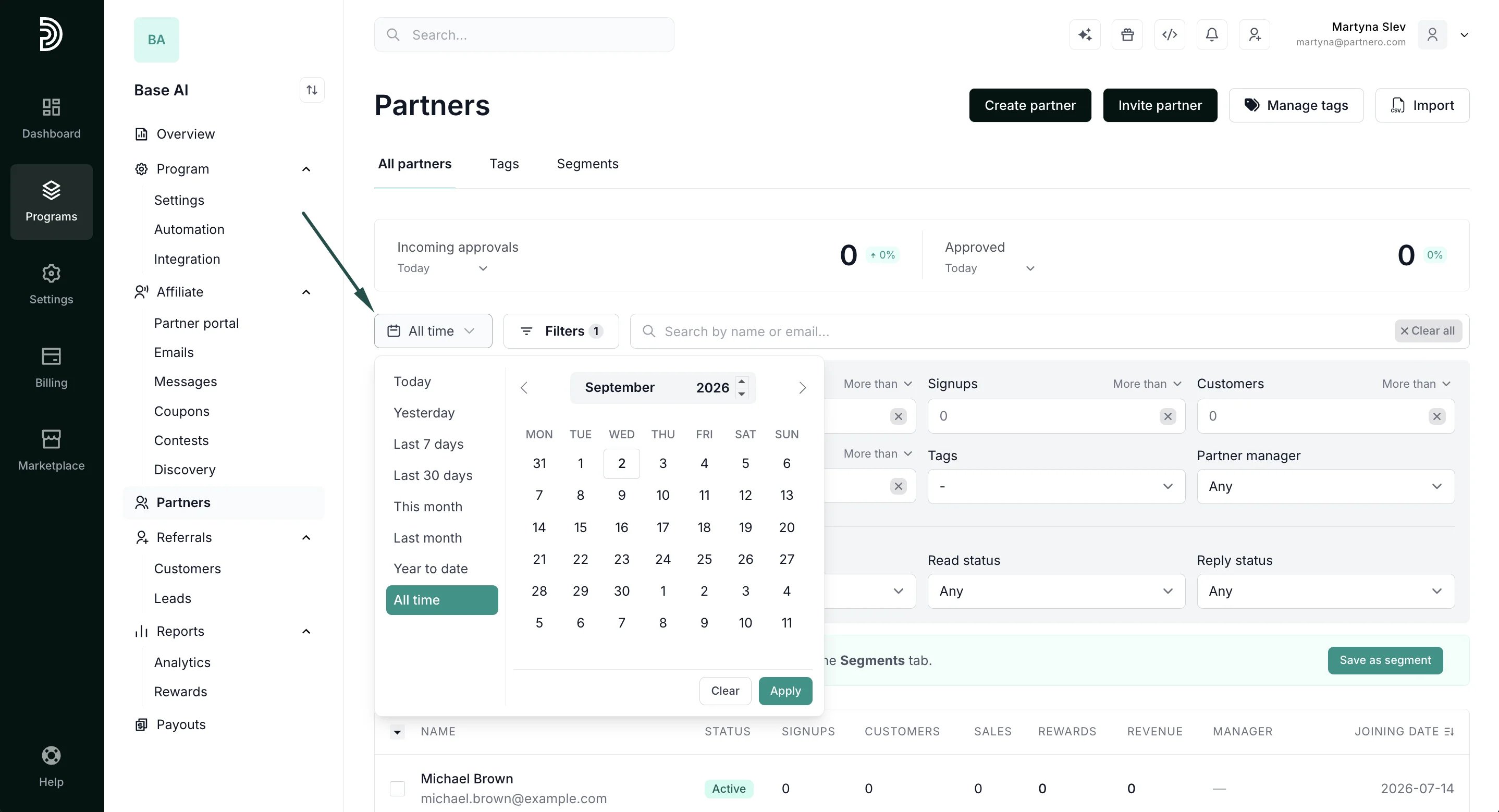 **Rows per page:** Use the rows-per-page selector to control how many partners are shown per page.
  ***
### More you can do from this view
Beyond viewing and filtering, the Partners list is also where you:
* [Import partners in bulk](/knowledge-base/customers-leads/import-partners-customers-and-transactions)
* [Invite new partners to your program](/knowledge-base/partner-management/invite-a-partner)
* [Export your partner list](/knowledge-base/partner-management/how-to-export-partners)
* [Group partners into tags](/knowledge-base/partner-management/partner-tags-overview)
* [Save filters as segments](/knowledge-base/partner-management/partner-segments)
This documentation is built and hosted on [Mintlify](https://mintlify.com), a developer documentation platform.
***
### More you can do from this view
Beyond viewing and filtering, the Partners list is also where you:
* [Import partners in bulk](/knowledge-base/customers-leads/import-partners-customers-and-transactions)
* [Invite new partners to your program](/knowledge-base/partner-management/invite-a-partner)
* [Export your partner list](/knowledge-base/partner-management/how-to-export-partners)
* [Group partners into tags](/knowledge-base/partner-management/partner-tags-overview)
* [Save filters as segments](/knowledge-base/partner-management/partner-segments)
This documentation is built and hosted on [Mintlify](https://mintlify.com), a developer documentation platform.