> ## Documentation Index
> Fetch the complete documentation index at: https://docs.partnero.com/llms.txt
> Use this file to discover all available pages before exploring further.
# Partner sub-accounts overview
Partner sub-accounts allow affiliate partners to create and manage additional users within their organization, giving team members role-based access to the Partner Portal.
***
### Enabling partner sub-accounts
Before your partners can use sub-accounts, the feature must be enabled for your program. To turn it on:
1. Open your program and navigate to **Partner Portal** under Affiliate.
2. In the **Settings →** **General** tab, scroll down to the **Behaviour** section.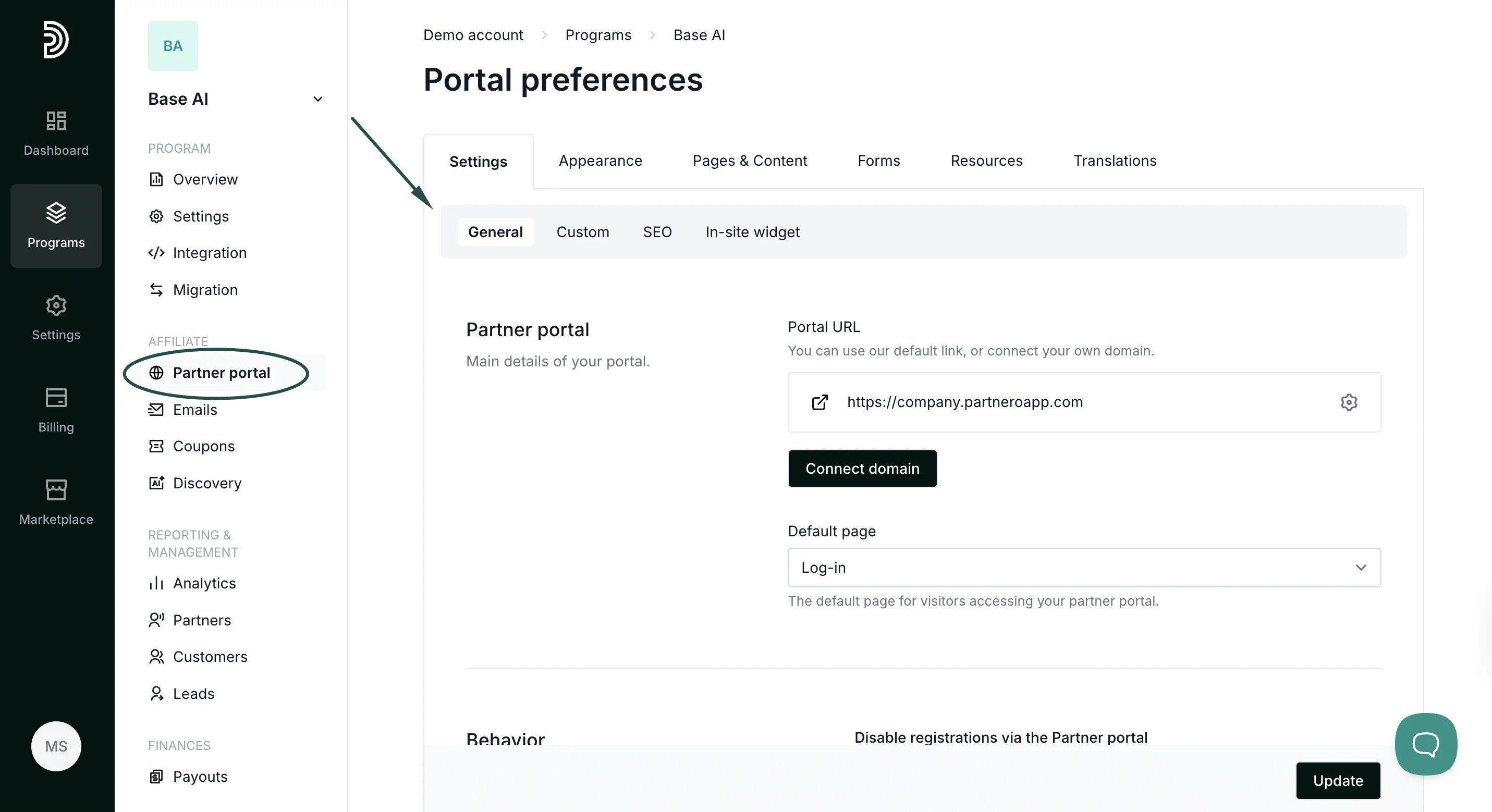 3. Toggle **Partner Sub-Accounts** to enable the feature.
4. Click **Update** to save your changes.
3. Toggle **Partner Sub-Accounts** to enable the feature.
4. Click **Update** to save your changes.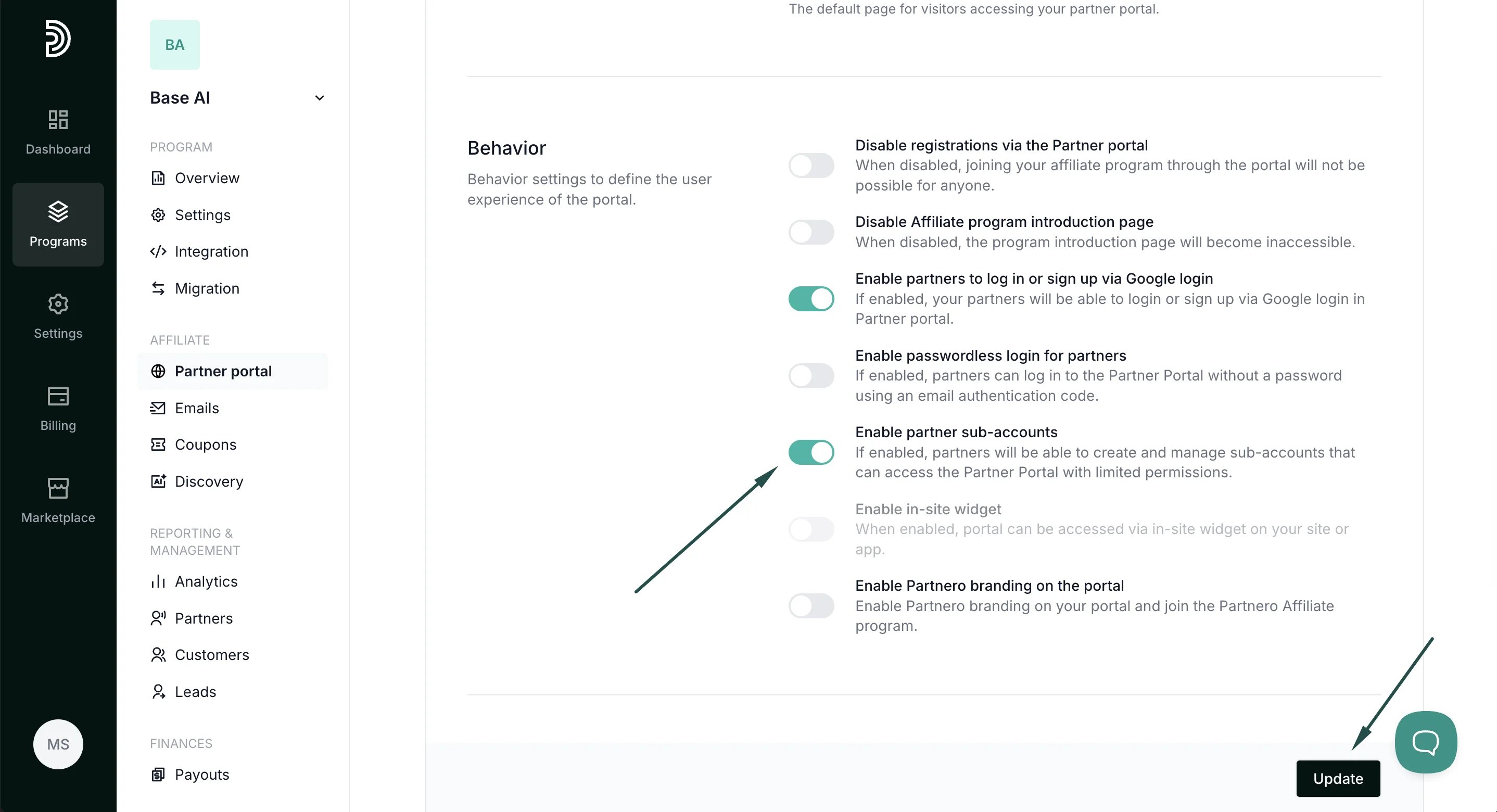 ***
### Managing sub-accounts as a partner
Once enabled, partners will see a new **Accounts** section in the Partner Portal where they can invite and manage sub-users.
To invite a new user:
1. Click on your profile, then select **Accounts**.
***
### Managing sub-accounts as a partner
Once enabled, partners will see a new **Accounts** section in the Partner Portal where they can invite and manage sub-users.
To invite a new user:
1. Click on your profile, then select **Accounts**.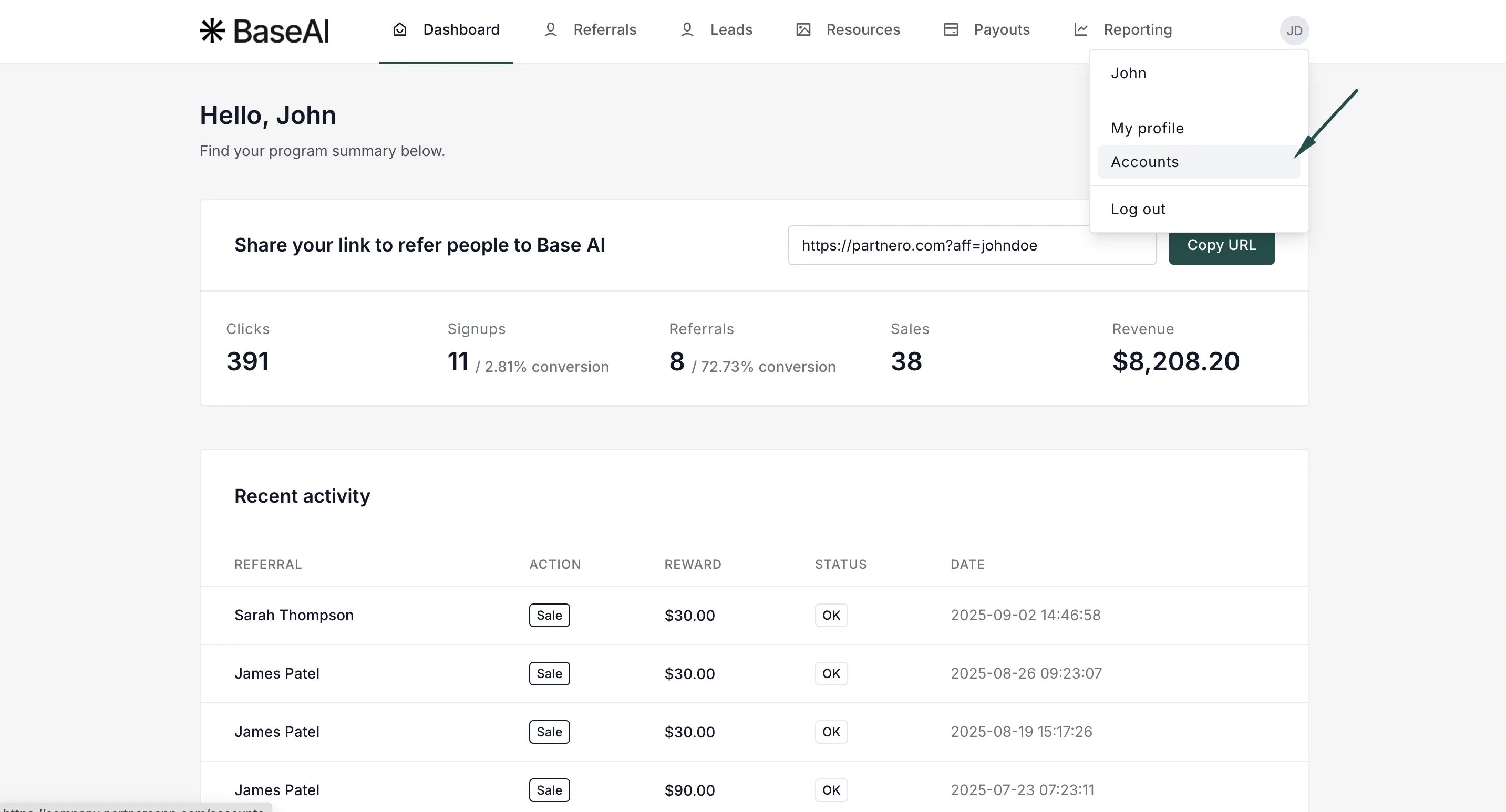 2. Click **Create Account**.
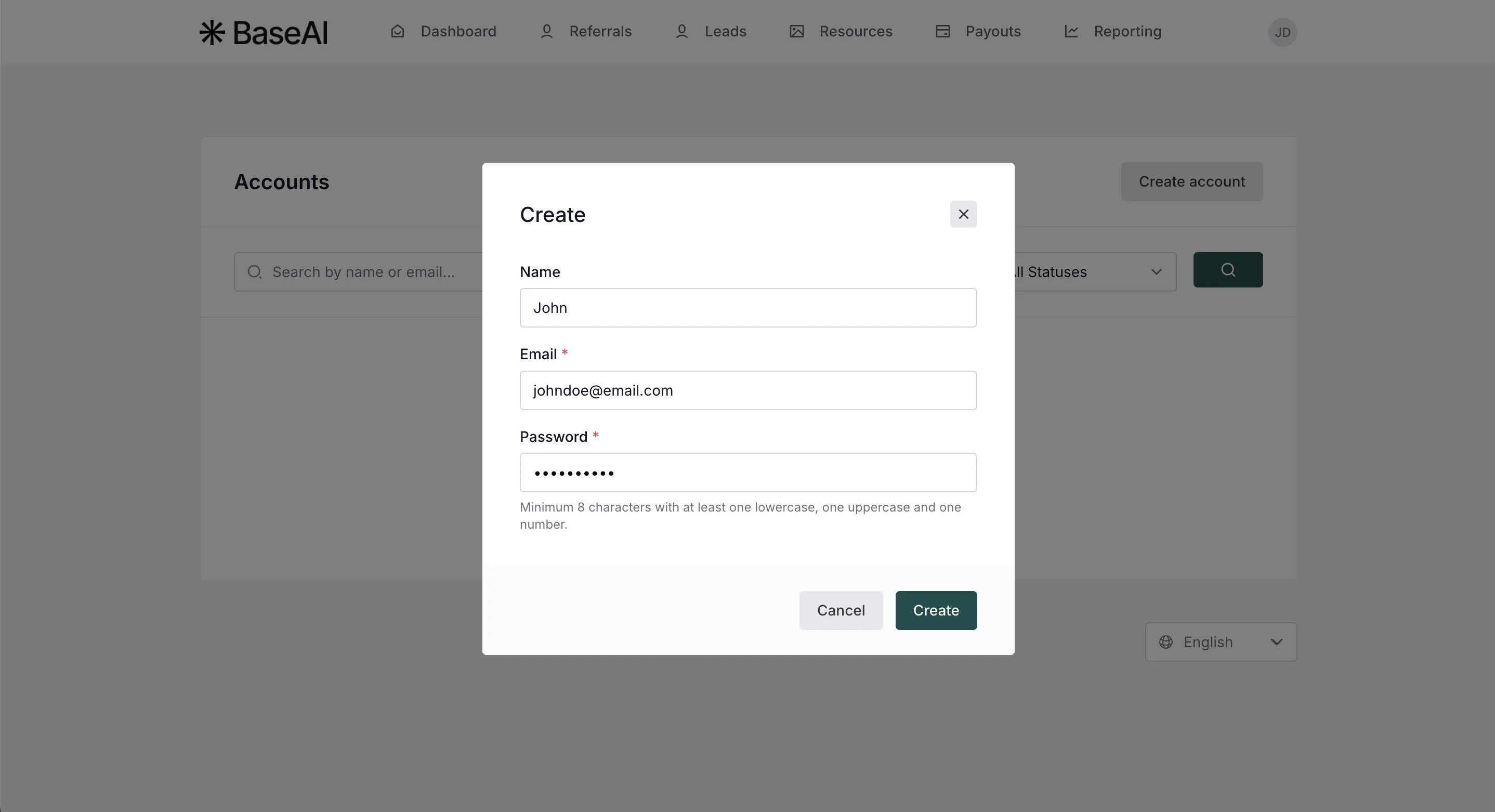
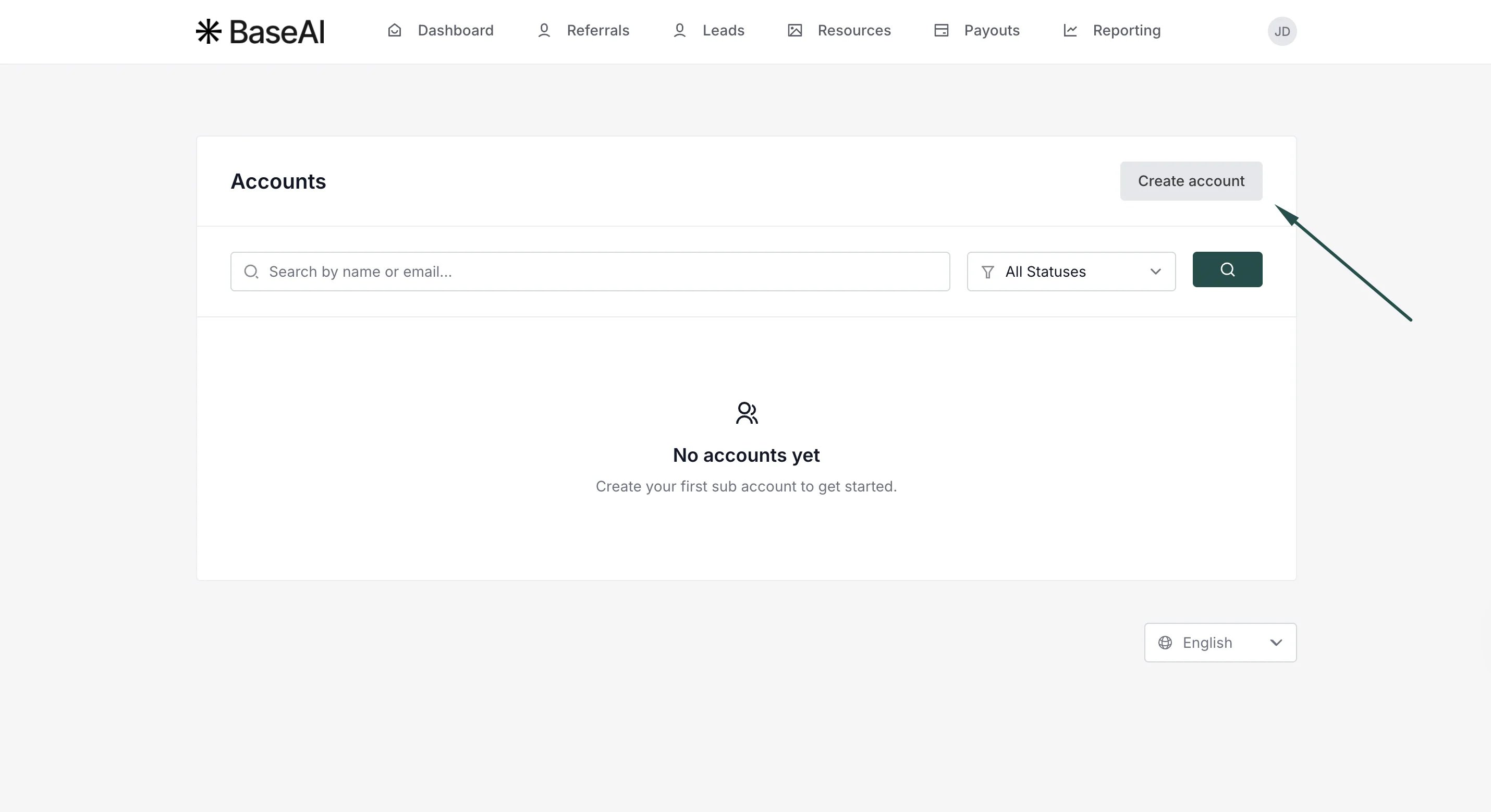 3. Enter the name (optional), email address and password. Click **Create**.
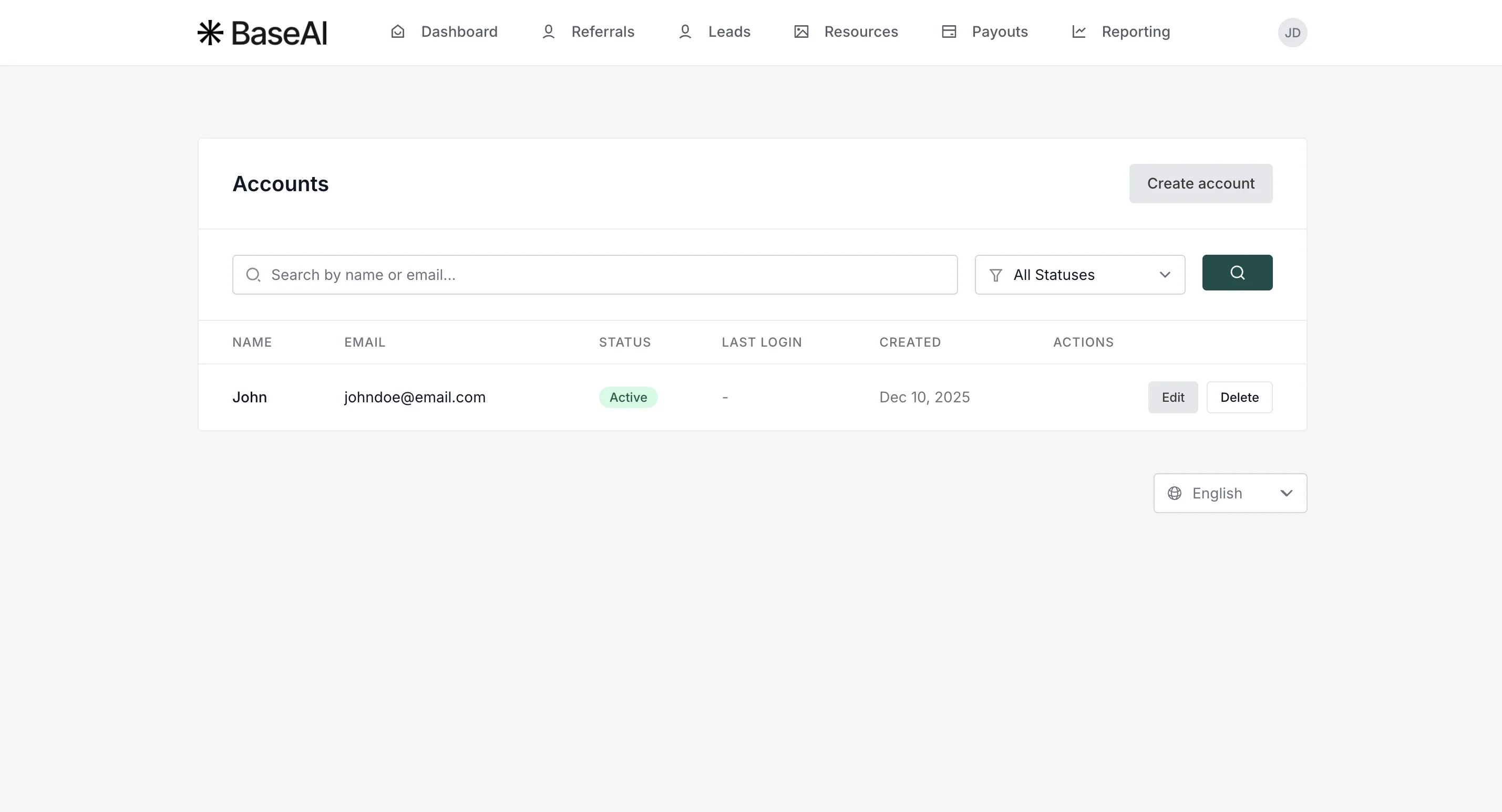
 4. You'll see the newly created sub-account. You can edit the details, suspend, or delete the subaccount here.
 The partner can now share the login details with the new team member.
#### Sub-account user login
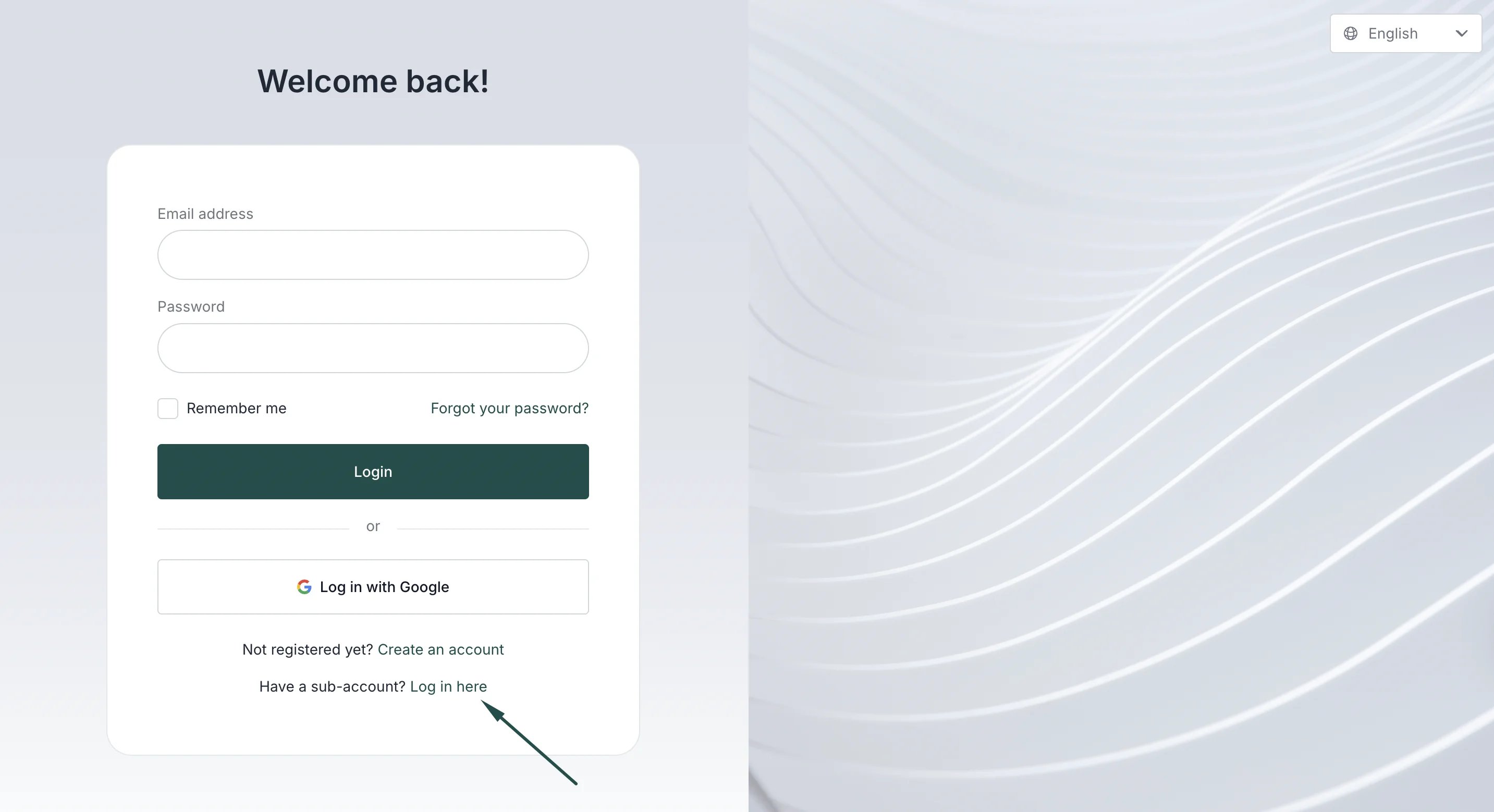
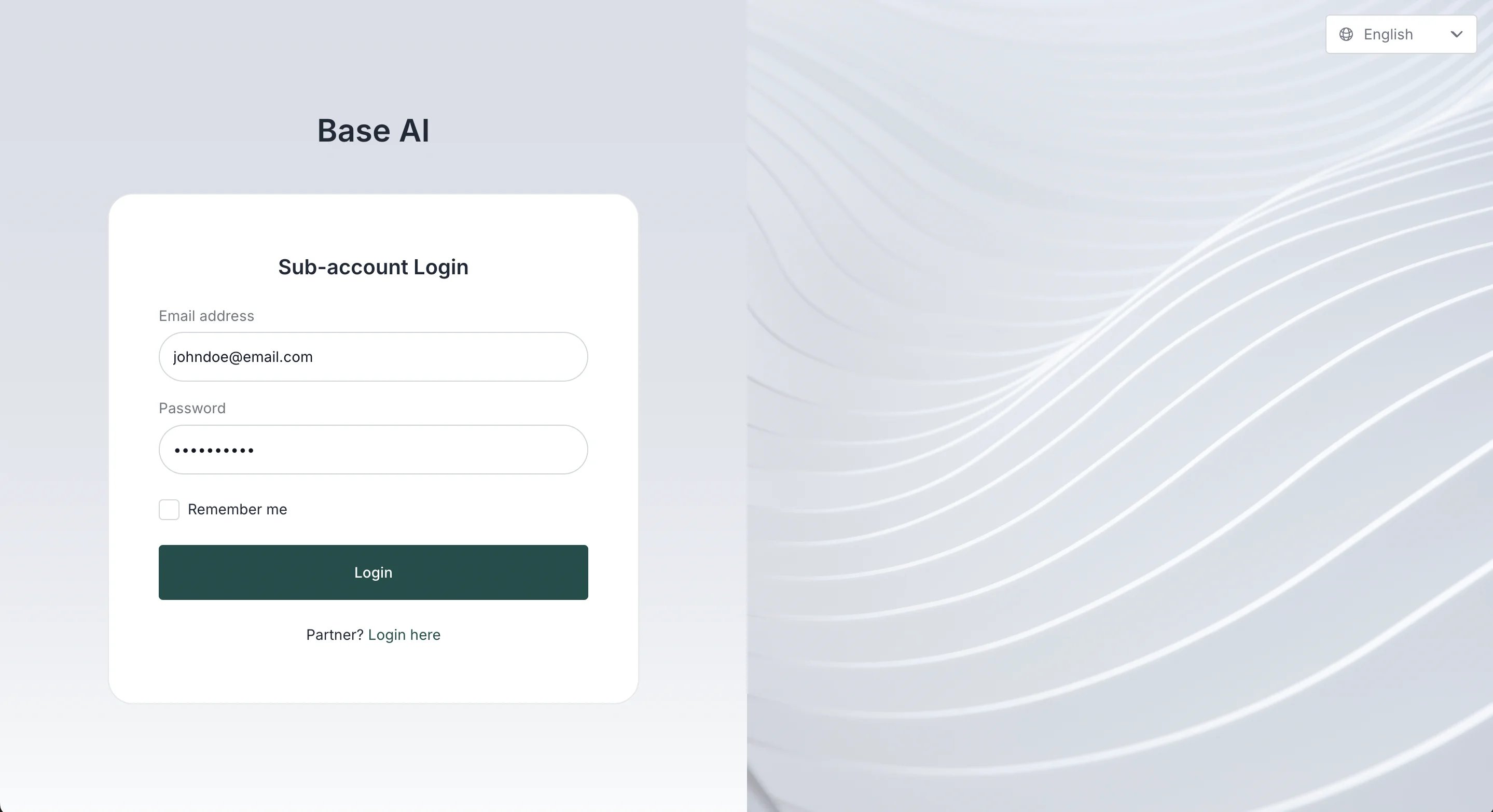
Sub-account users will have a separate login page, that is accessible through the main partner portal login:
The partner can now share the login details with the new team member.
#### Sub-account user login
Sub-account users will have a separate login page, that is accessible through the main partner portal login:
 ####
####  Sub-account user permissions
Sub-account users will **not** be able to:
* Add new sub-accounts to the partner portal
* Delete the partner account.
***
### Managing sub-accounts as the program owner
As the program owner, you can view and manage existing sub-accounts via the partner profile:
1. Find the partner in your partner list:
Sub-account user permissions
Sub-account users will **not** be able to:
* Add new sub-accounts to the partner portal
* Delete the partner account.
***
### Managing sub-accounts as the program owner
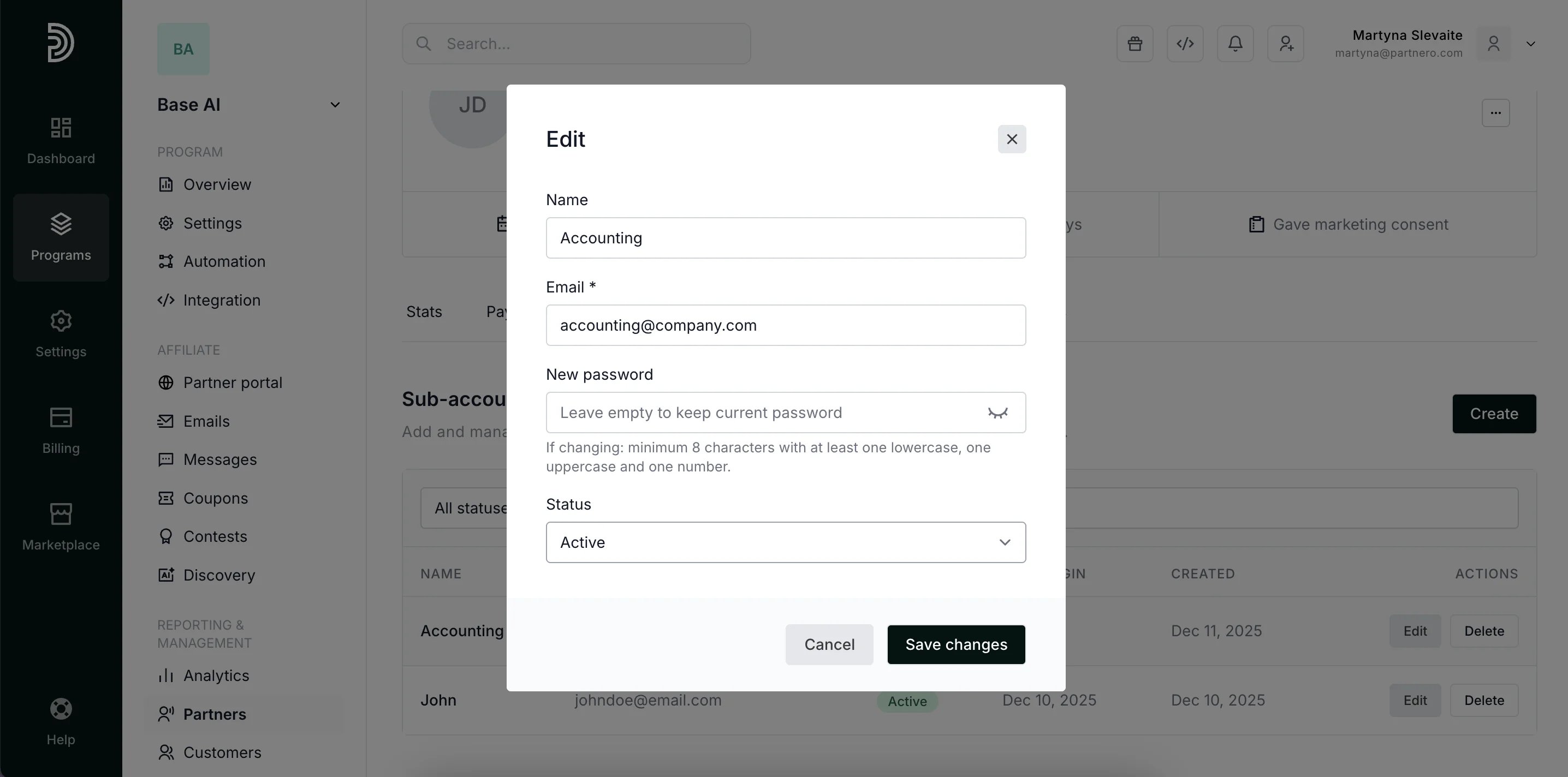
As the program owner, you can view and manage existing sub-accounts via the partner profile:
1. Find the partner in your partner list: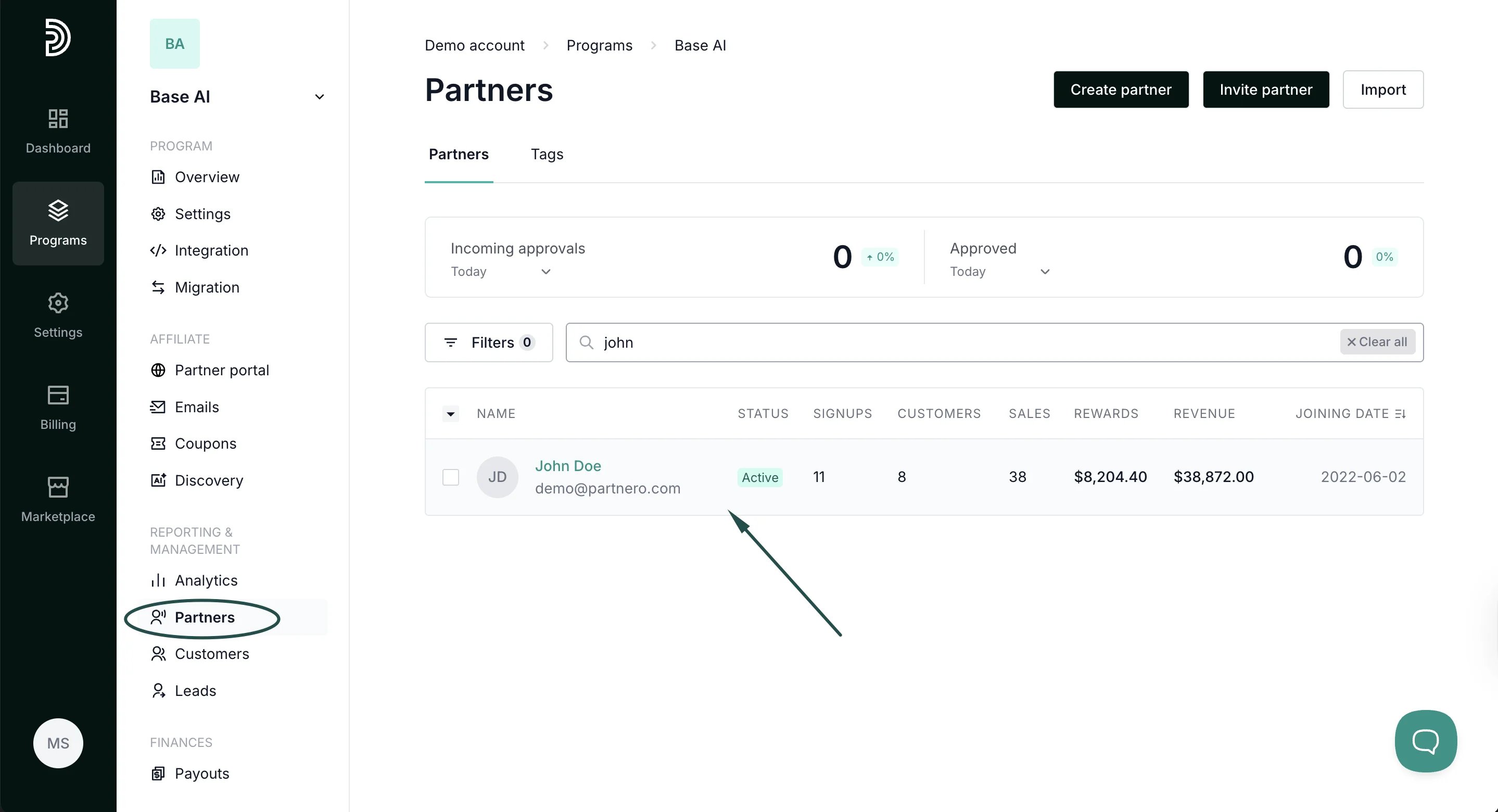 2. Open their profile and switch to the **Sub-accounts** tab:
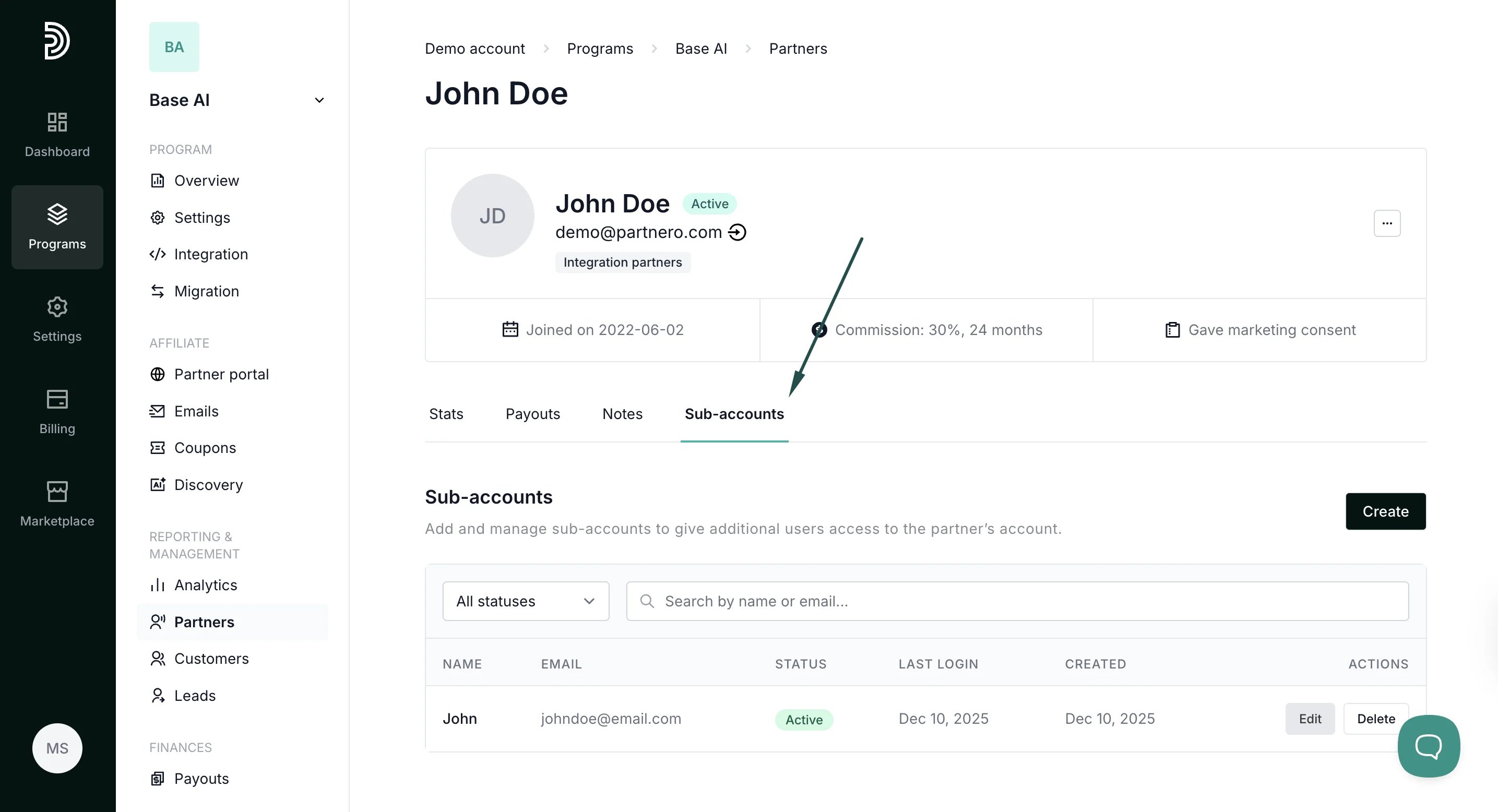 3. Here, you can **Create** new and **Edit** or **Delete** existing sub-accounts:
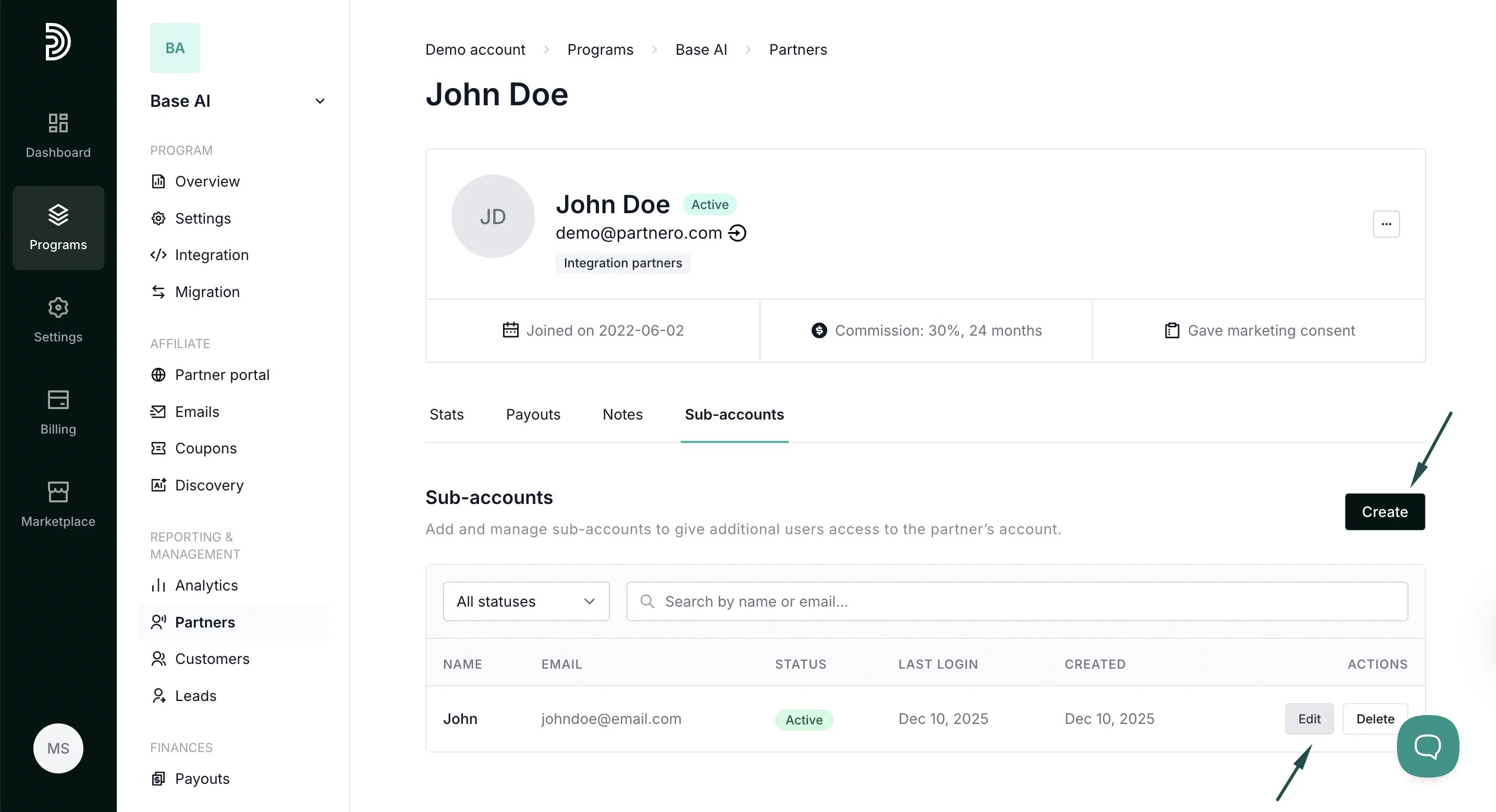 4. Click **Edit** to view and update account name, password, and status (Active or Suspended):
 ***
This documentation is built and hosted on [Mintlify](https://mintlify.com), a developer documentation platform.
***
This documentation is built and hosted on [Mintlify](https://mintlify.com), a developer documentation platform.