> ## Documentation Index
> Fetch the complete documentation index at: https://docs.partnero.com/llms.txt
> Use this file to discover all available pages before exploring further.
# Partner tags overview
Partner tags let you organize your affiliate base into meaningful groups and act on each one differently. From commission rules to portal content to performance reporting, tags are what make it possible to run a segmented program without managing every partner individually.
***
### How to manage tags
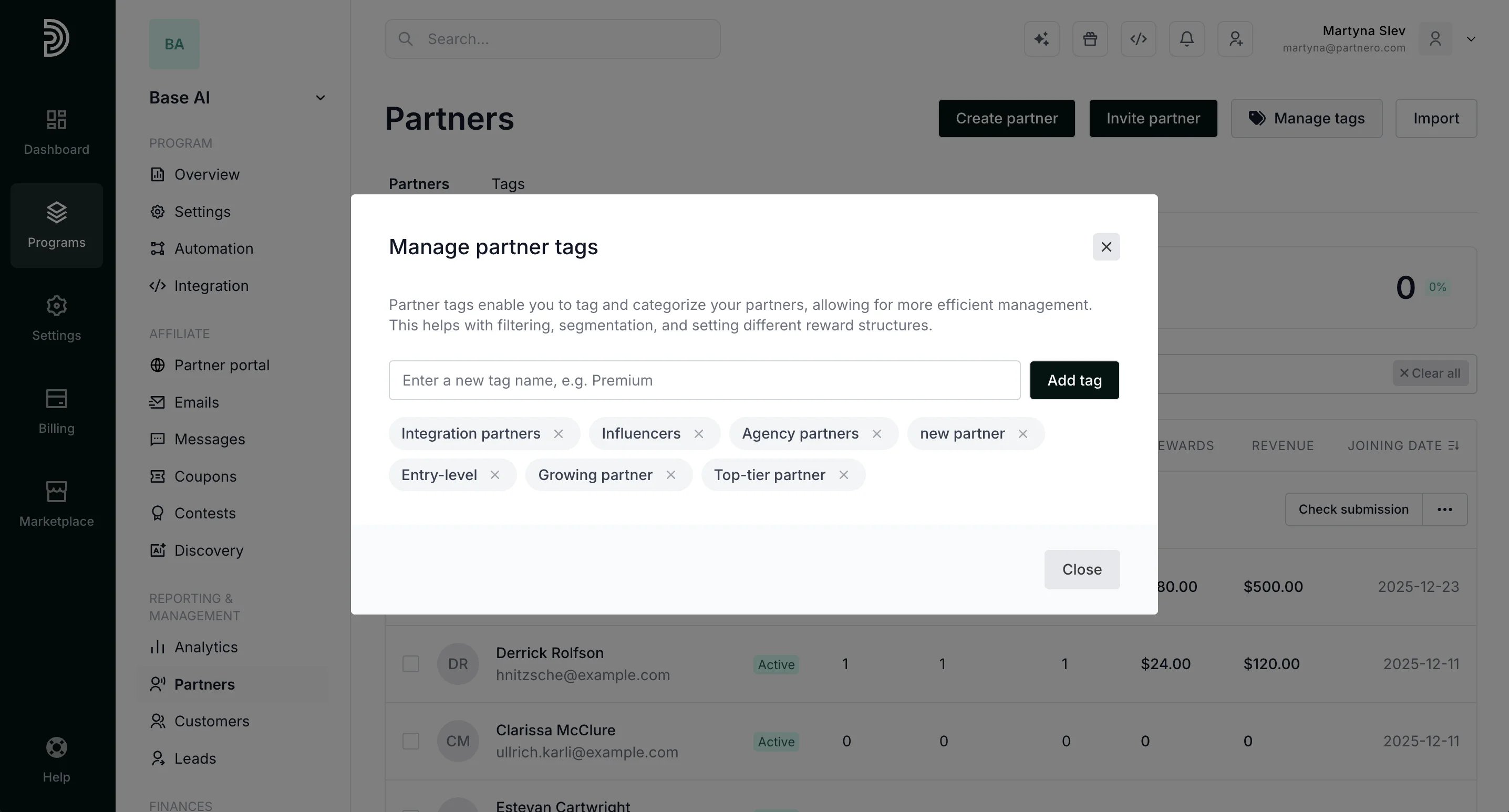
To create, view existing, or delete tags:
1. In your program, click on **Partners** in the left-hand side menu.
2. Click **Manage t\*\*\*\*ags** in the upper right-hand corner: 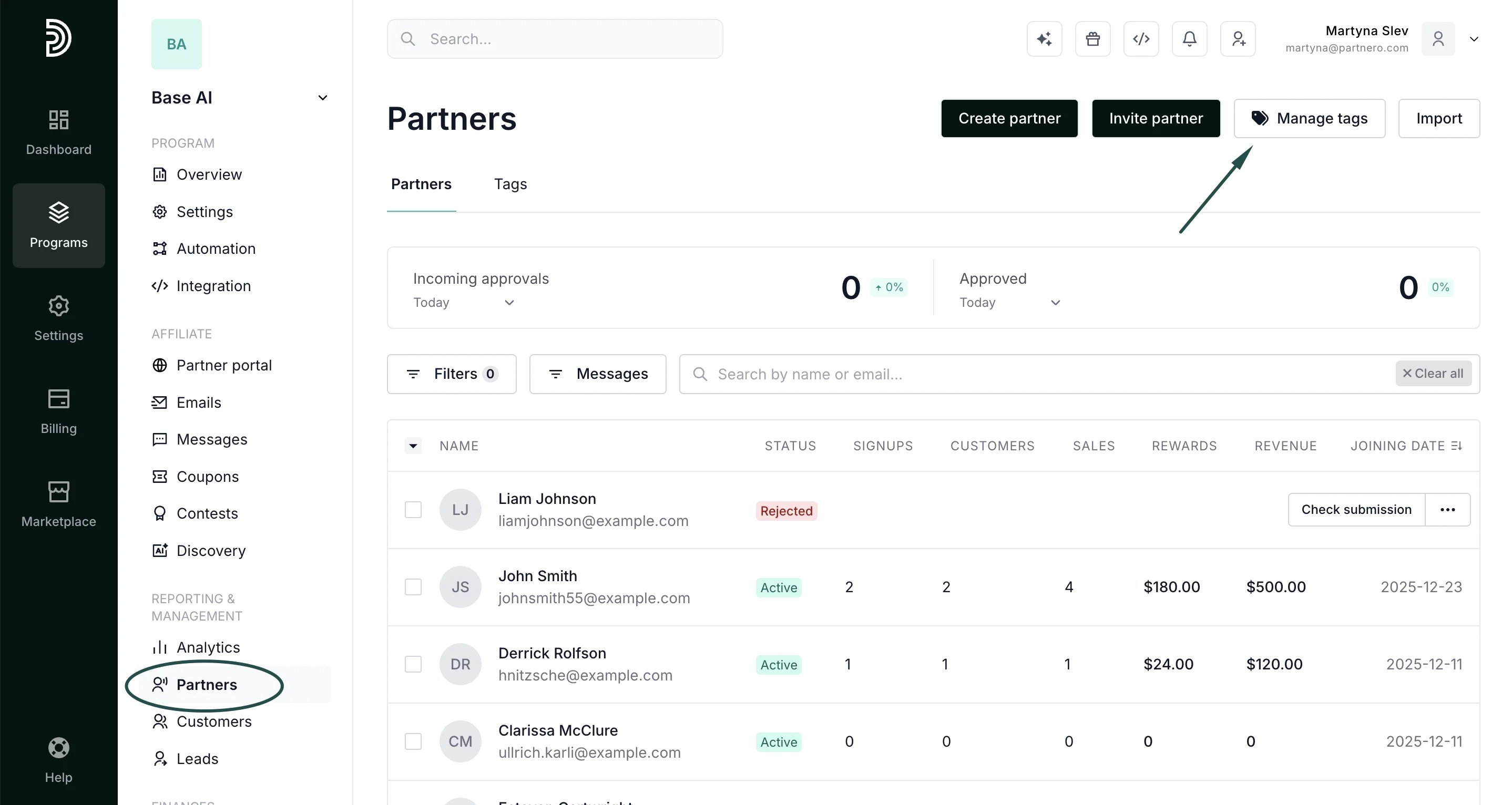 3. Here, you can remove existing tags and create new ones:
  ***
### How to assign partner tags
Tags can be assigned to a partner from their profile or from the Partners table.
To assign tags from the **Partners table**:
1. In your program, click on **Partners** in the left-hand side menu.
2. Find and select the partners you'd like to tag and click **Assign tags**:
***
### How to assign partner tags
Tags can be assigned to a partner from their profile or from the Partners table.
To assign tags from the **Partners table**:
1. In your program, click on **Partners** in the left-hand side menu.
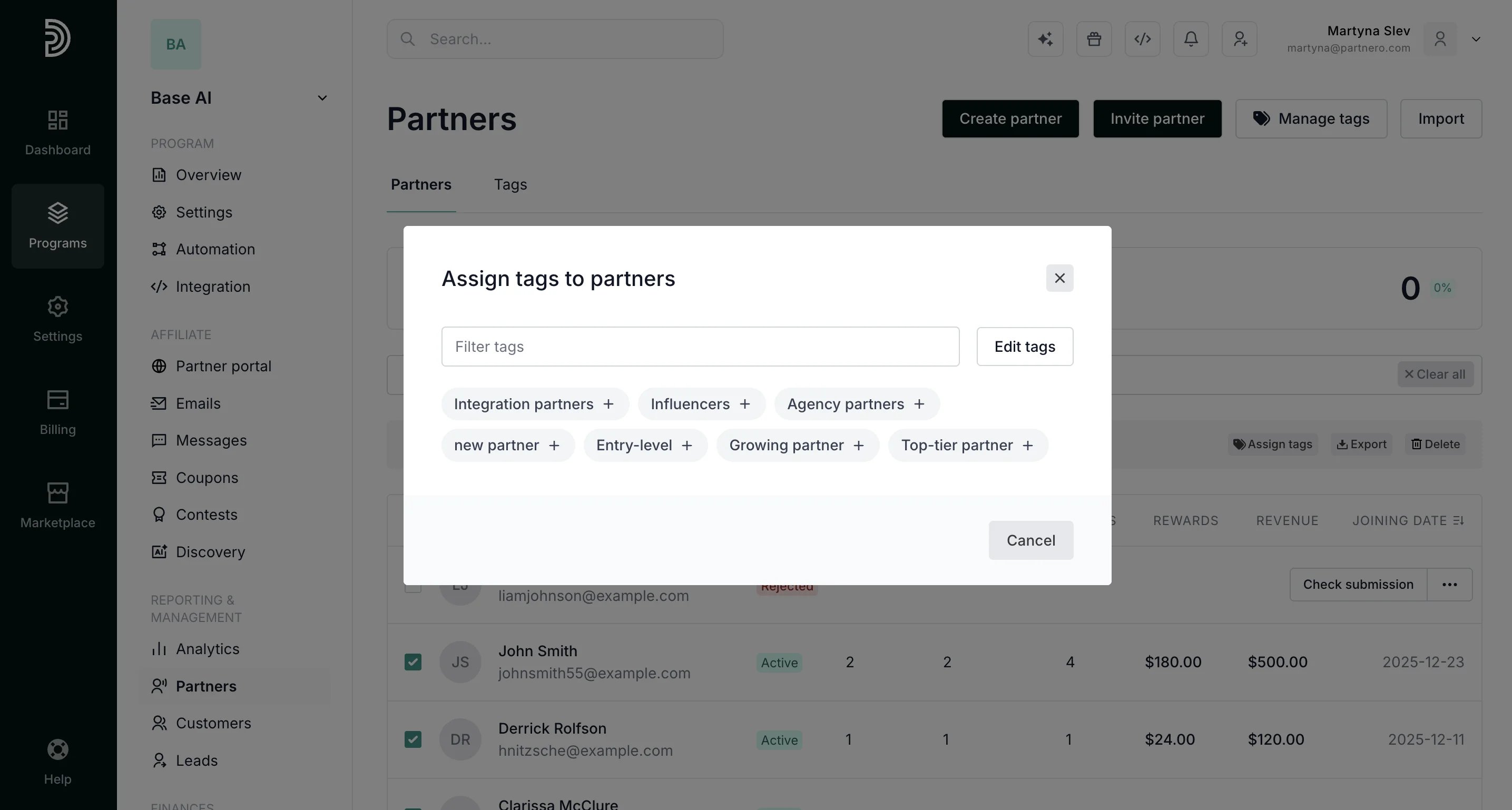
2. Find and select the partners you'd like to tag and click **Assign tags**: 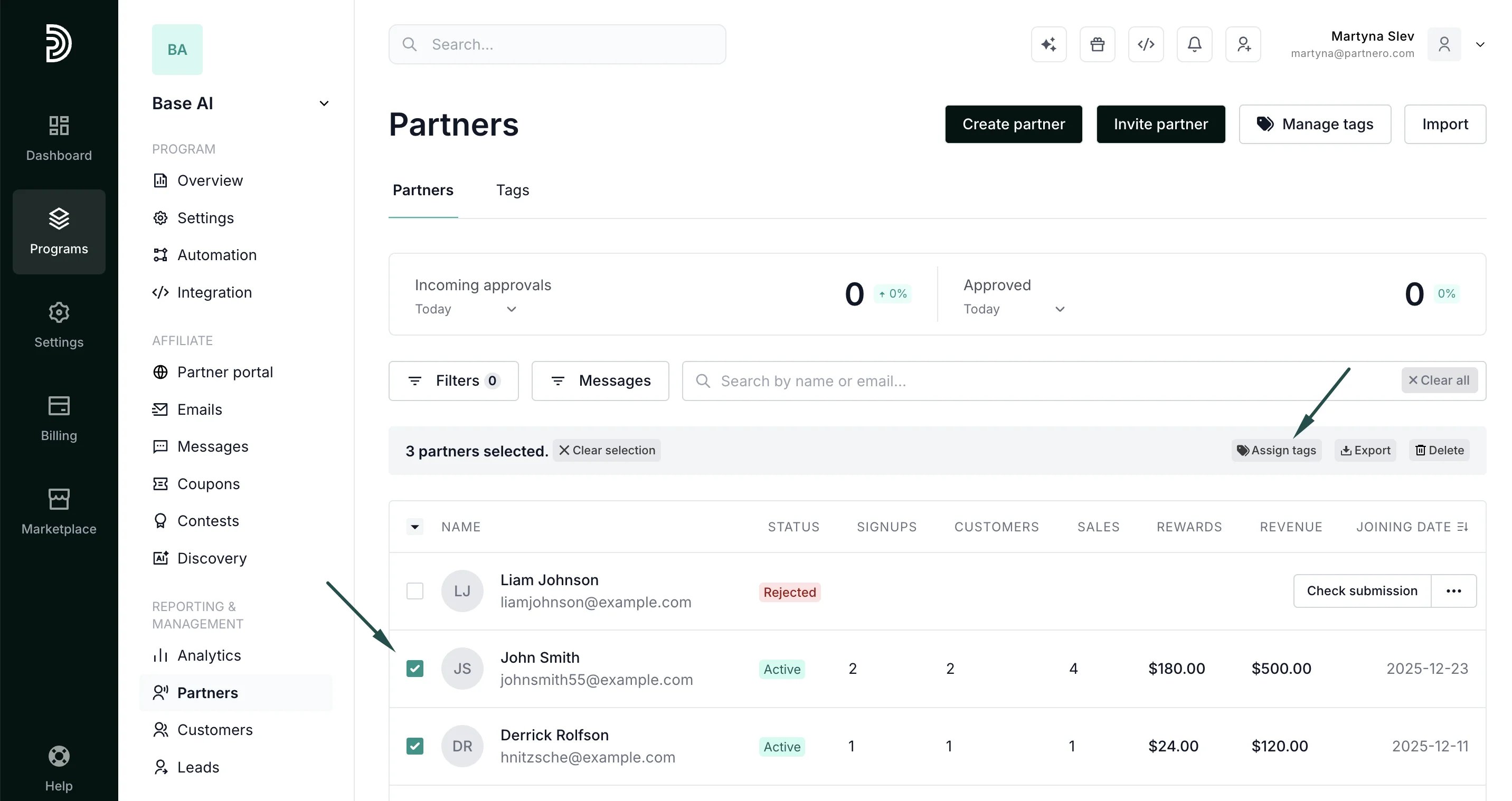 3. Click on the existing tags you'd like to assign, or click Edit tags to create and assign new ones.
  To assign tags to an **individual partner**:
1. In your program, click on **Partners** in the left-hand side menu.
2. Find a partner using their name or email and open their profile. Click **Manage**:
To assign tags to an **individual partner**:
1. In your program, click on **Partners** in the left-hand side menu.
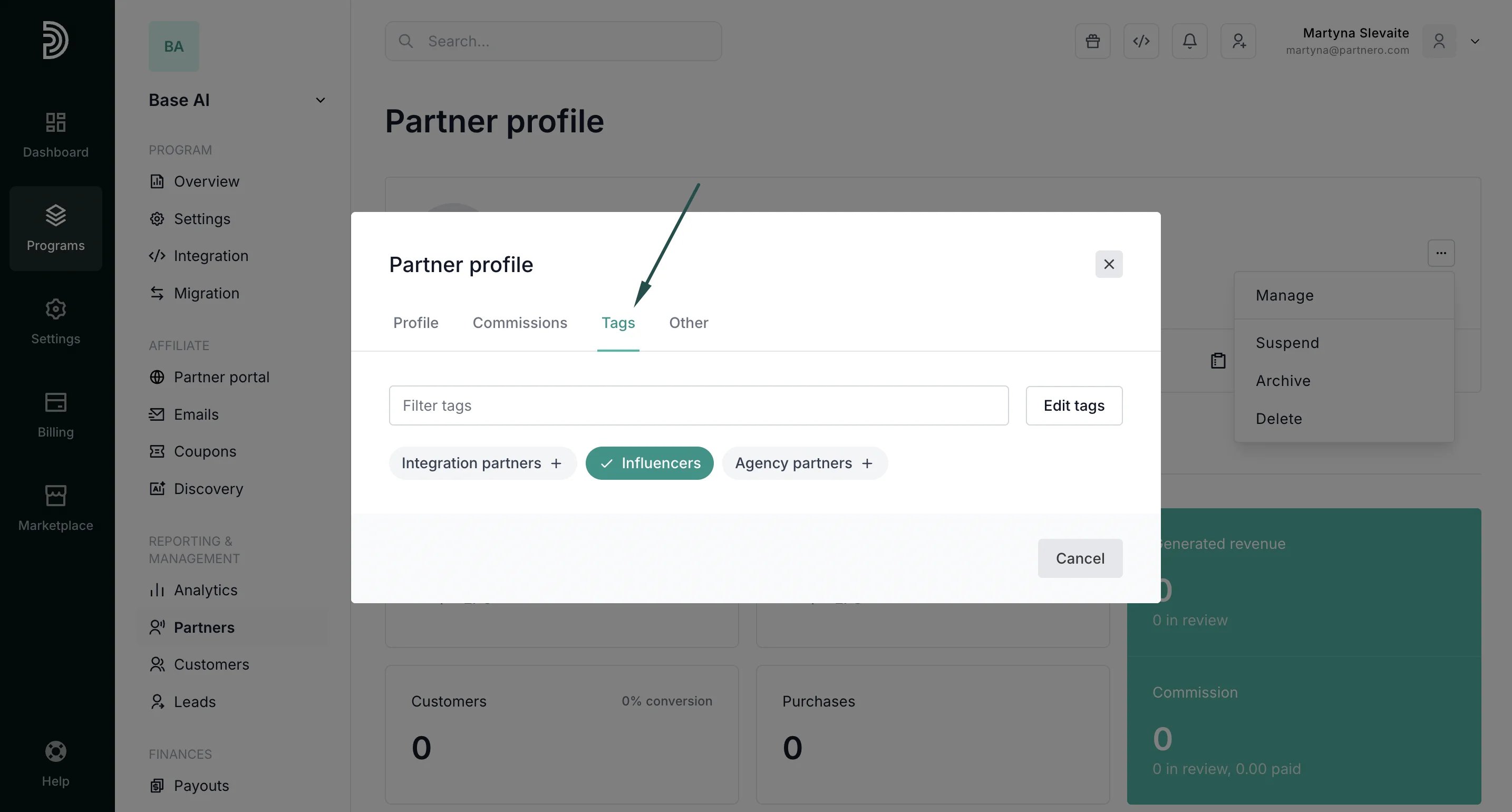
2. Find a partner using their name or email and open their profile. Click **Manage**: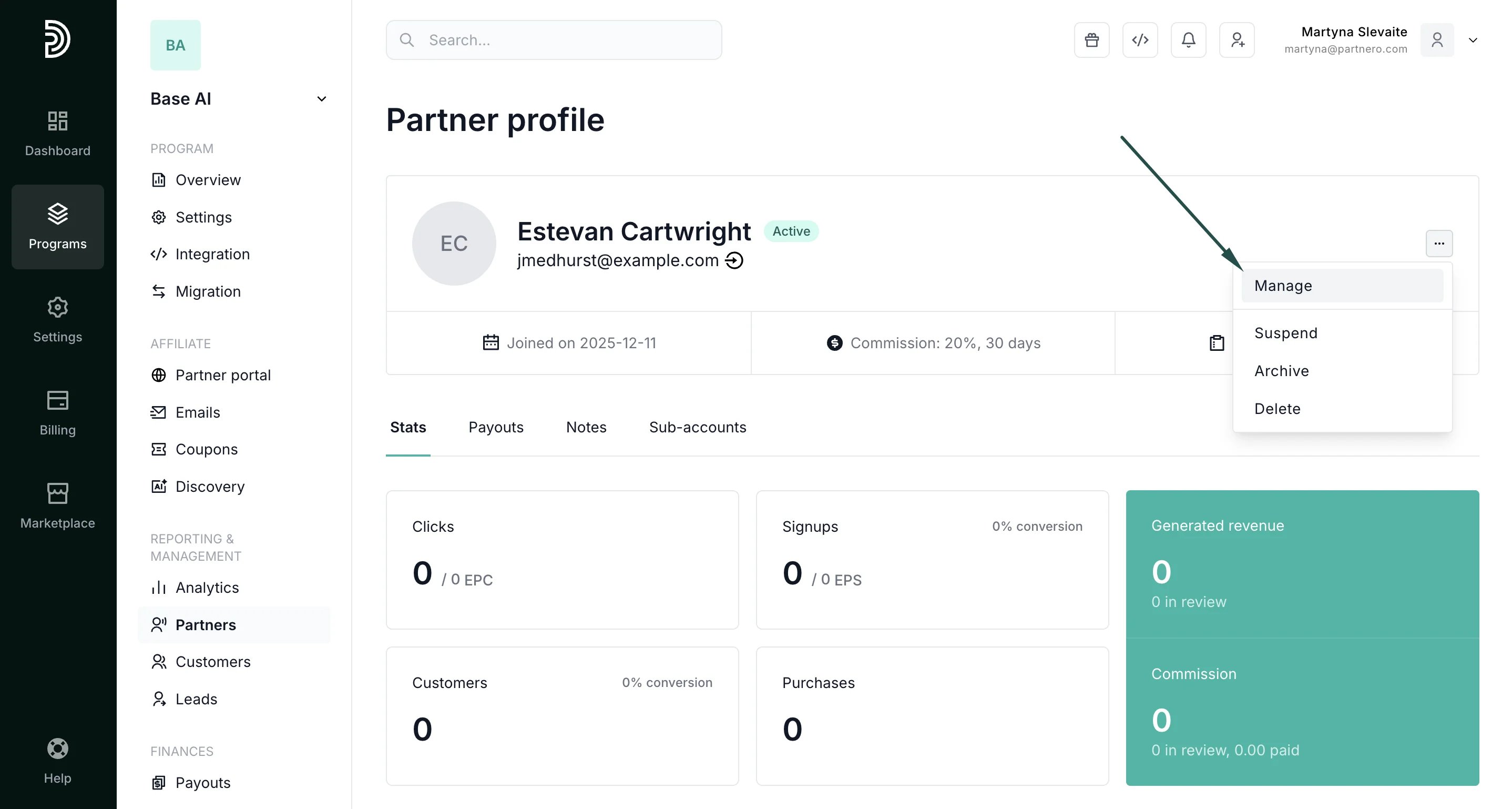 3. Switch to the Tags tab. Click on existing tags to assign one, or click Edit tags to create a new tag:
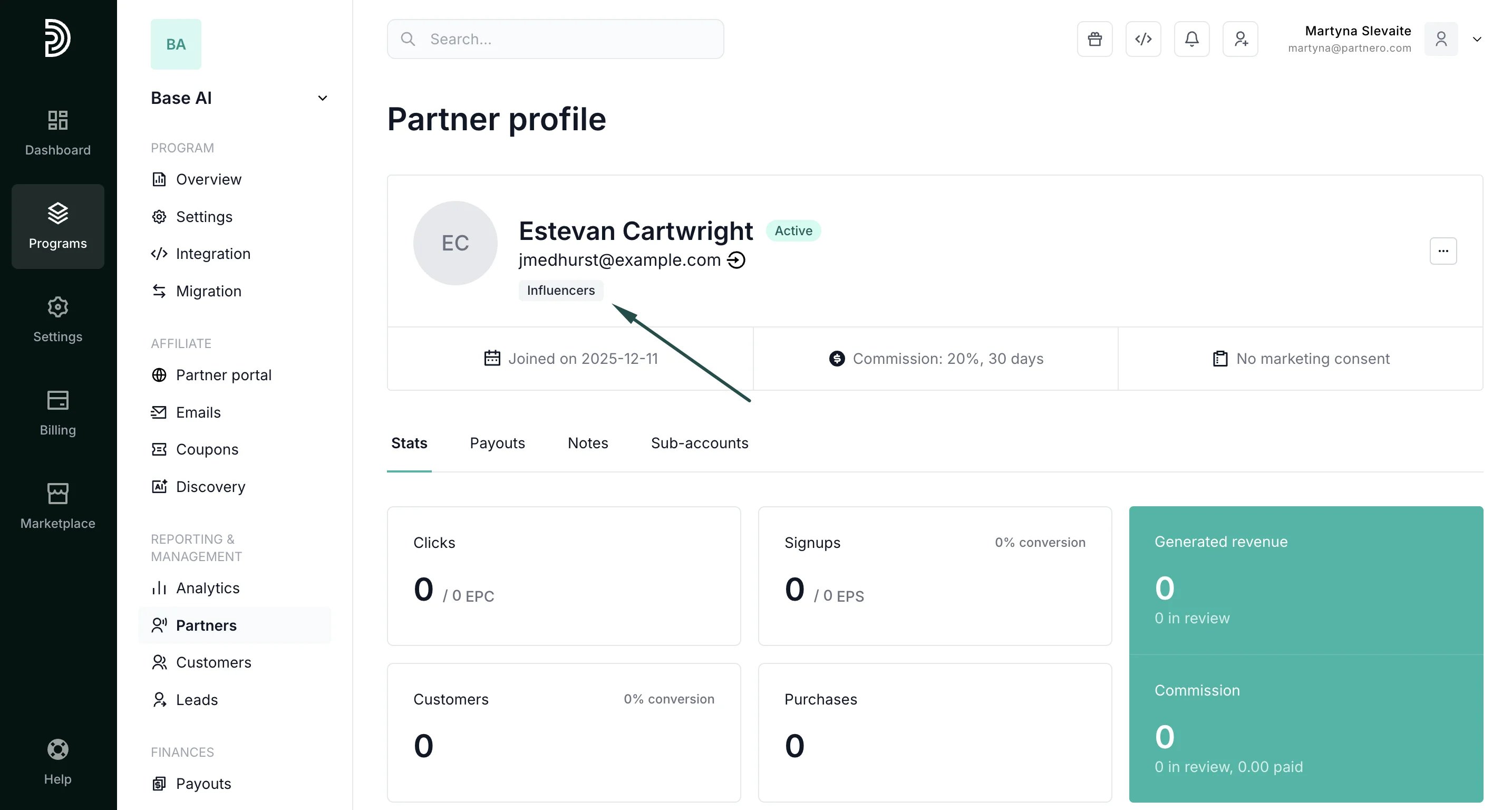
 4. You will see the assigned tag displayed in the partner's profile:
 ***
### How to set up commissions for specific tags
Each partner tag can have an individual commission structure. To set up rewards:
1. Go to **Settings** under **Program** and click **Commission rules**. If you already have other advanced commissions set up, click **Edit**:
***
### How to set up commissions for specific tags
Each partner tag can have an individual commission structure. To set up rewards:
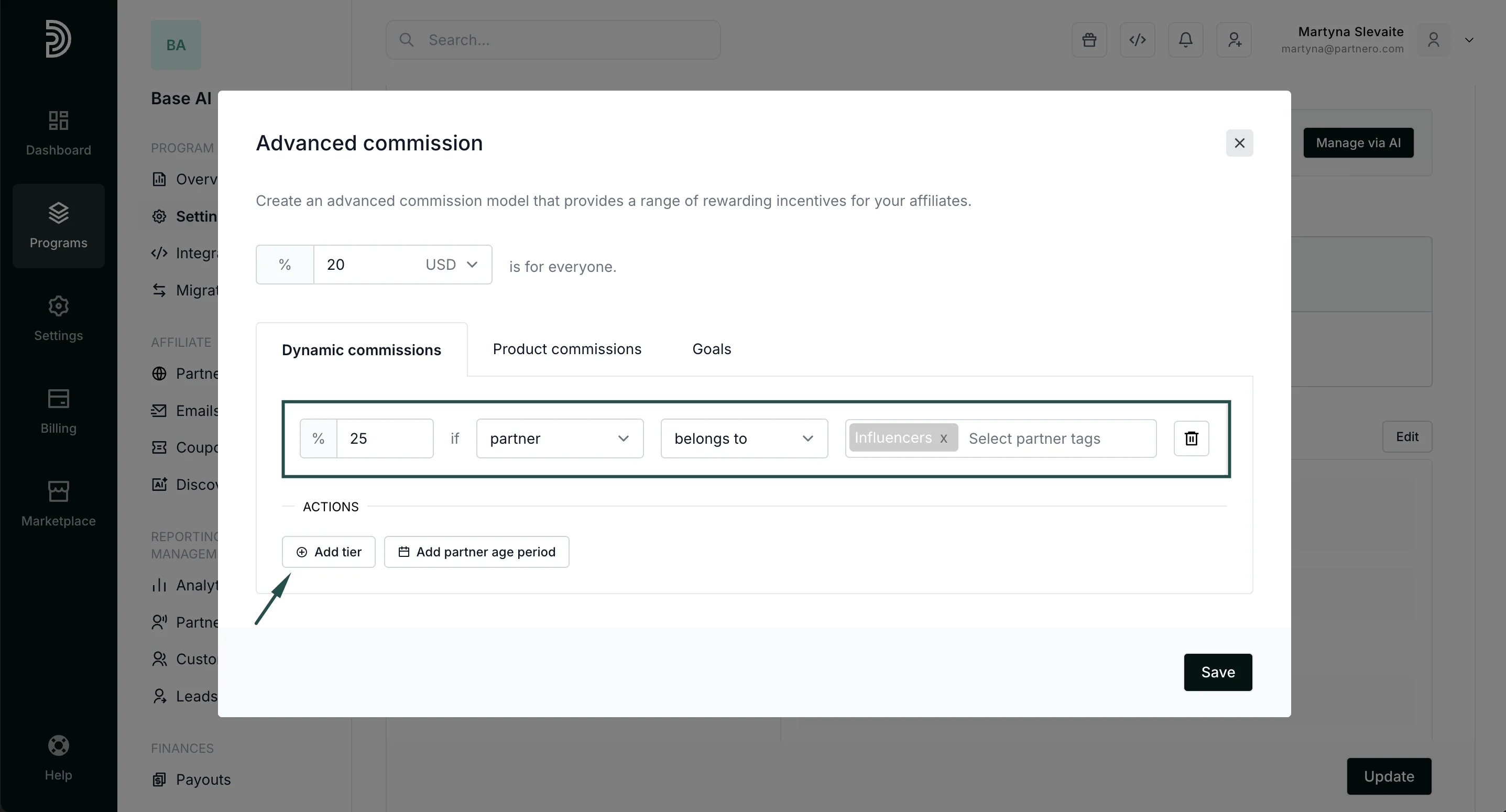
1. Go to **Settings** under **Program** and click **Commission rules**. If you already have other advanced commissions set up, click **Edit**: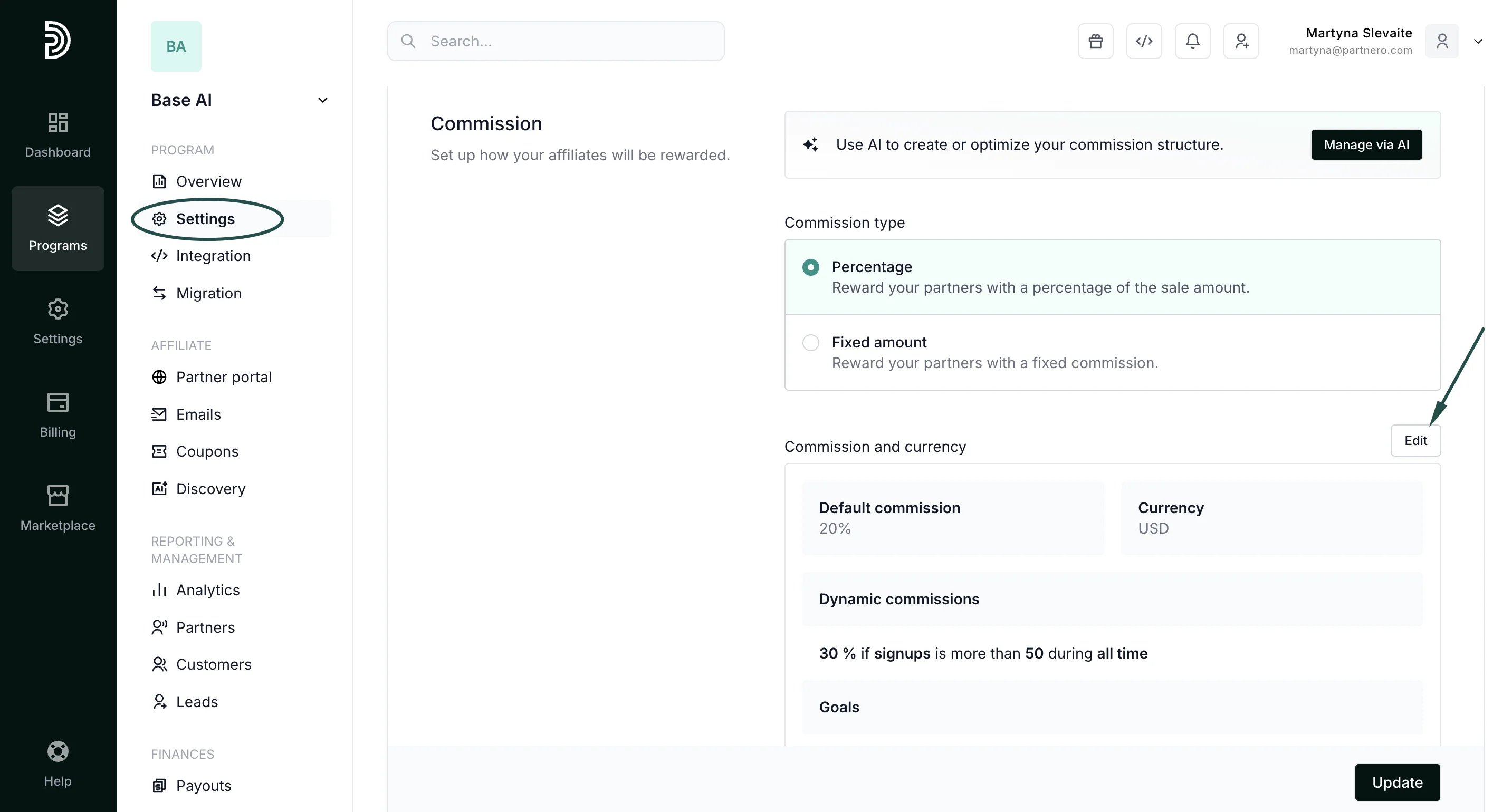 2. In the **Dynamic commissions** tab, click **+Add tier** and set up the reward condition. In the example below, we're offering 25% commission if a *partner* > *belongs to >* *"Influencers"*:
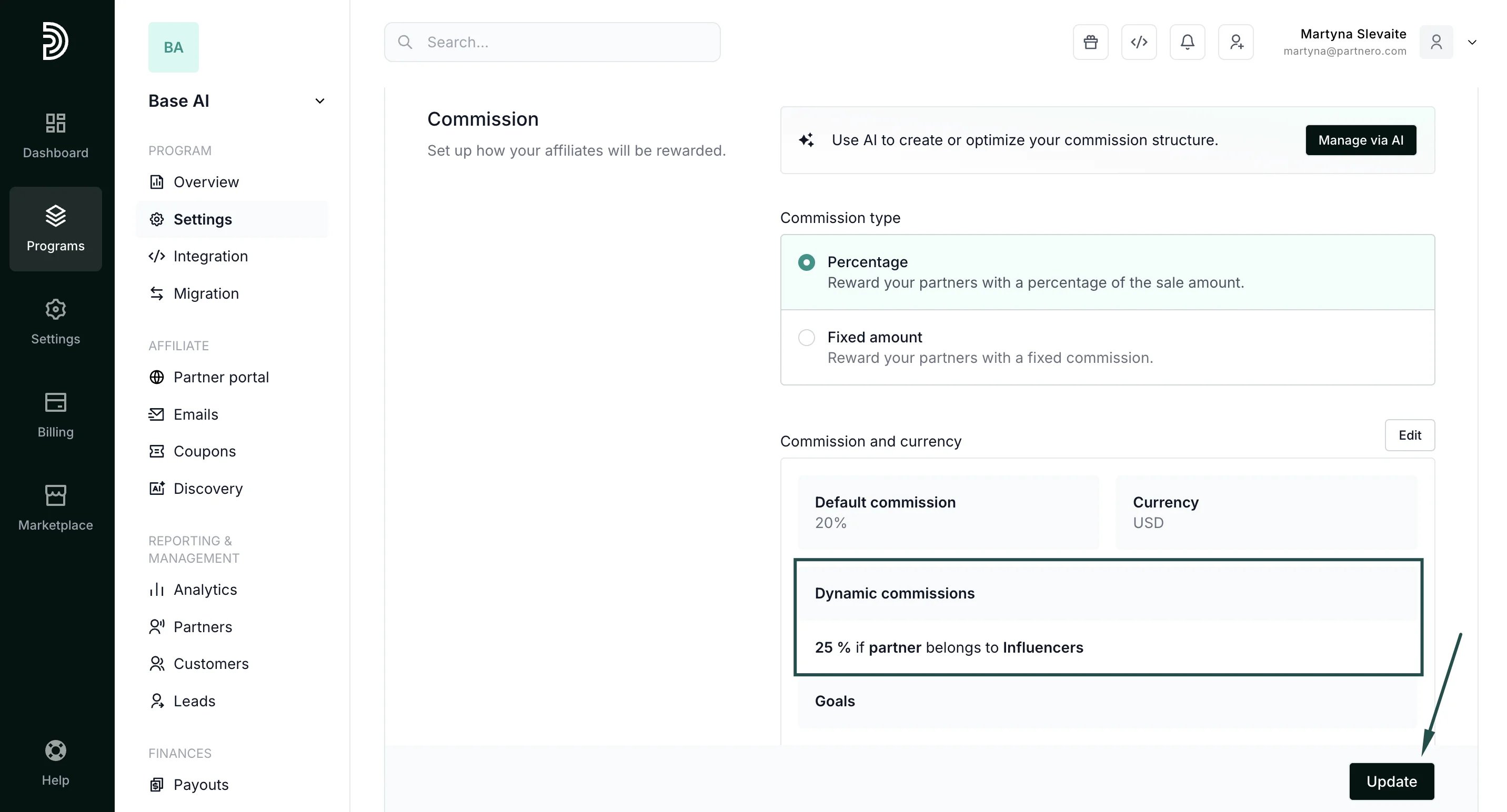
  3. Click **Save** to close the modal, and then **Update** to save the new settings:
 ***
### Performance overview by tags
You can view all your existing tags and track performance by group under **Partners → Tags** tab:
***
### Performance overview by tags
You can view all your existing tags and track performance by group under **Partners → Tags** tab: 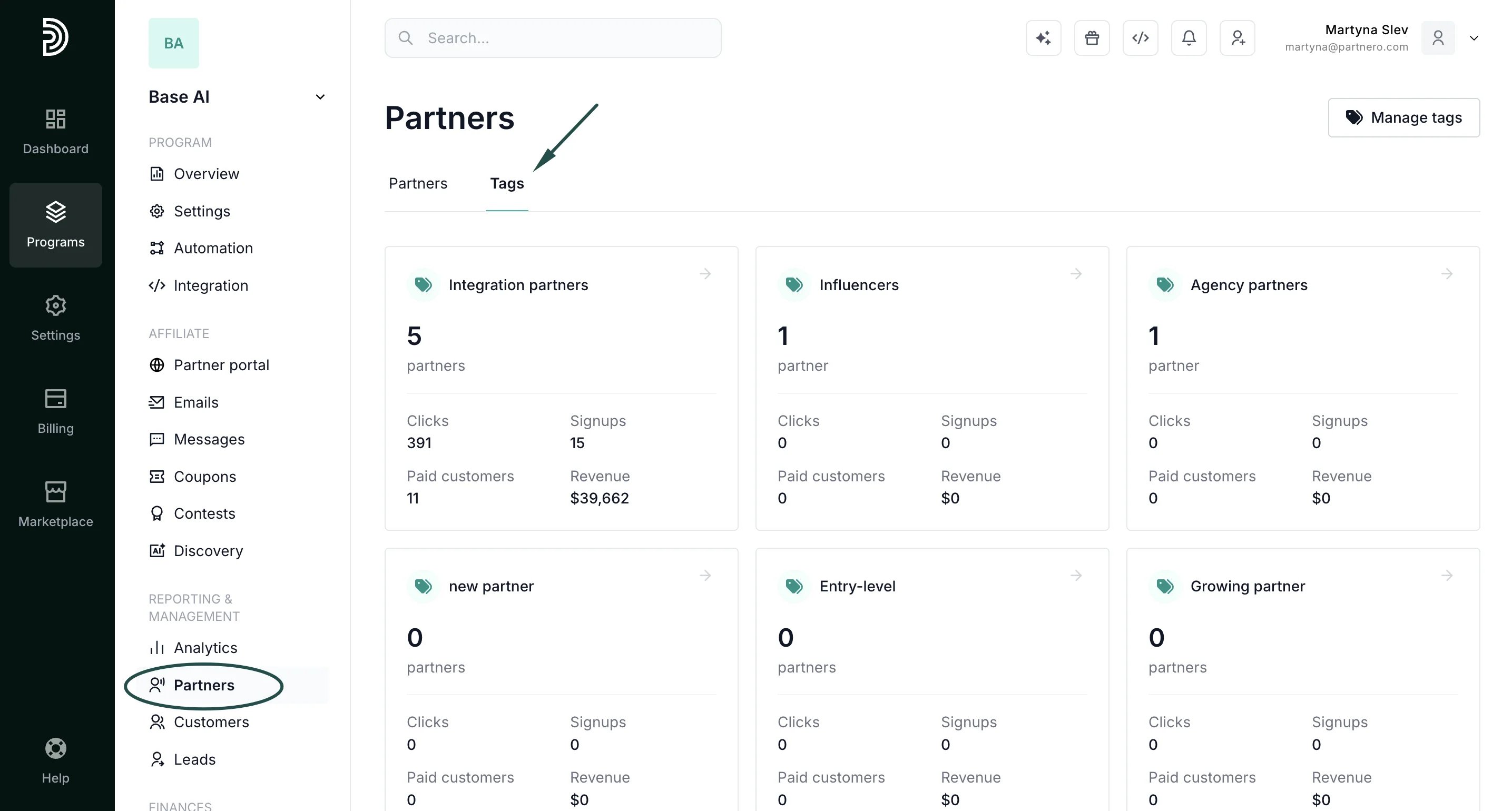 The overview shows the number of partners, signups, clicks, paid customers, and revenue per tag. Click any tag to see the full list of partners in that group:
 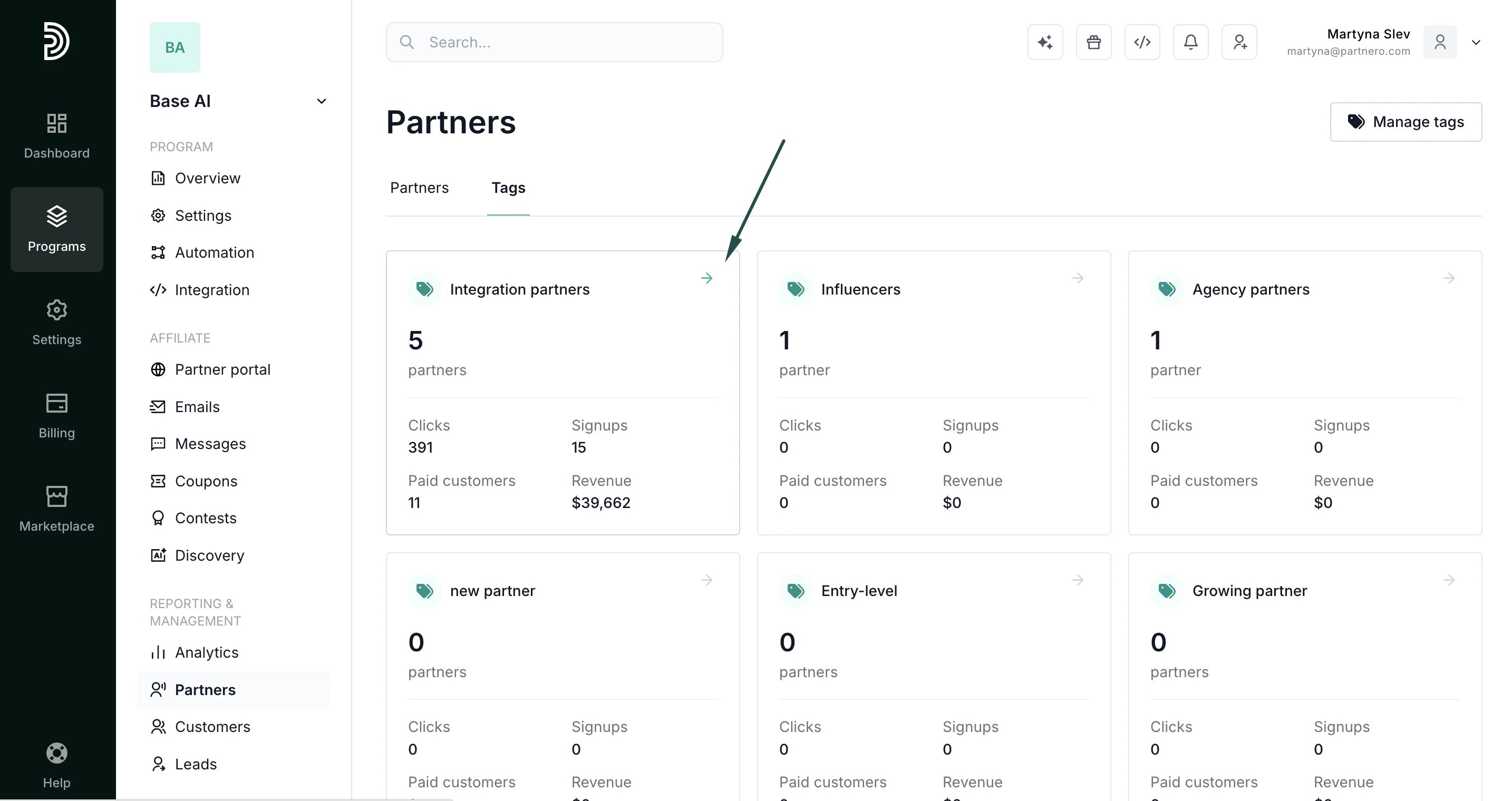 The totals on each tag card match the sum of the columns in the partner list you land on when clicking the tag. Specifically:
* *Paid customers* counts referred customers with at least one qualifying reward (the same definition as the partner list's Customers column).
* *Revenue* is the reward-based revenue attributed to the partners, shown in your program's reward currency (and per currency where applicable).
#### How metrics are calculated
| **Metric** | **Definition** |
| - | - |
| Clicks | Tracked pageview/link clicks for the group's partners. |
| Signups | Non-archived referred customers of the group's partners. |
| Paid customers | Non-archived referred customers with at least one qualifying reward (rewardable or rejected, excluding goal rewards). |
| Revenue | Sum of reward-attributed revenue for payable or rejected rewards, excluding goal rewards, grouped by currency. |
This documentation is built and hosted on [Mintlify](https://mintlify.com), a developer documentation platform.
The totals on each tag card match the sum of the columns in the partner list you land on when clicking the tag. Specifically:
* *Paid customers* counts referred customers with at least one qualifying reward (the same definition as the partner list's Customers column).
* *Revenue* is the reward-based revenue attributed to the partners, shown in your program's reward currency (and per currency where applicable).
#### How metrics are calculated
| **Metric** | **Definition** |
| - | - |
| Clicks | Tracked pageview/link clicks for the group's partners. |
| Signups | Non-archived referred customers of the group's partners. |
| Paid customers | Non-archived referred customers with at least one qualifying reward (rewardable or rejected, excluding goal rewards). |
| Revenue | Sum of reward-attributed revenue for payable or rejected rewards, excluding goal rewards, grouped by currency. |
This documentation is built and hosted on [Mintlify](https://mintlify.com), a developer documentation platform.