> ## Documentation Index
> Fetch the complete documentation index at: https://docs.partnero.com/llms.txt
> Use this file to discover all available pages before exploring further.
# Applying a design theme to your partner portal
Themes let you restyle your affiliate partner portal in one click. Instead of adjusting colors, fonts, and layout individually, you can pick a professionally designed starting point and fine-tune from there.
***
## What is a theme?
A theme is a curated bundle of design settings: colors, fonts, layout, corner style, navigation style, and the login/signup sidebar. Applying one updates all of those settings at once so your portal instantly gets a cohesive look.
Themes are a starting point: after applying one, you can still adjust any individual setting in the other Live Designer tabs.
***
## How to apply a theme
1. Go to Partner portal → **Edit Design** (Live Designer). 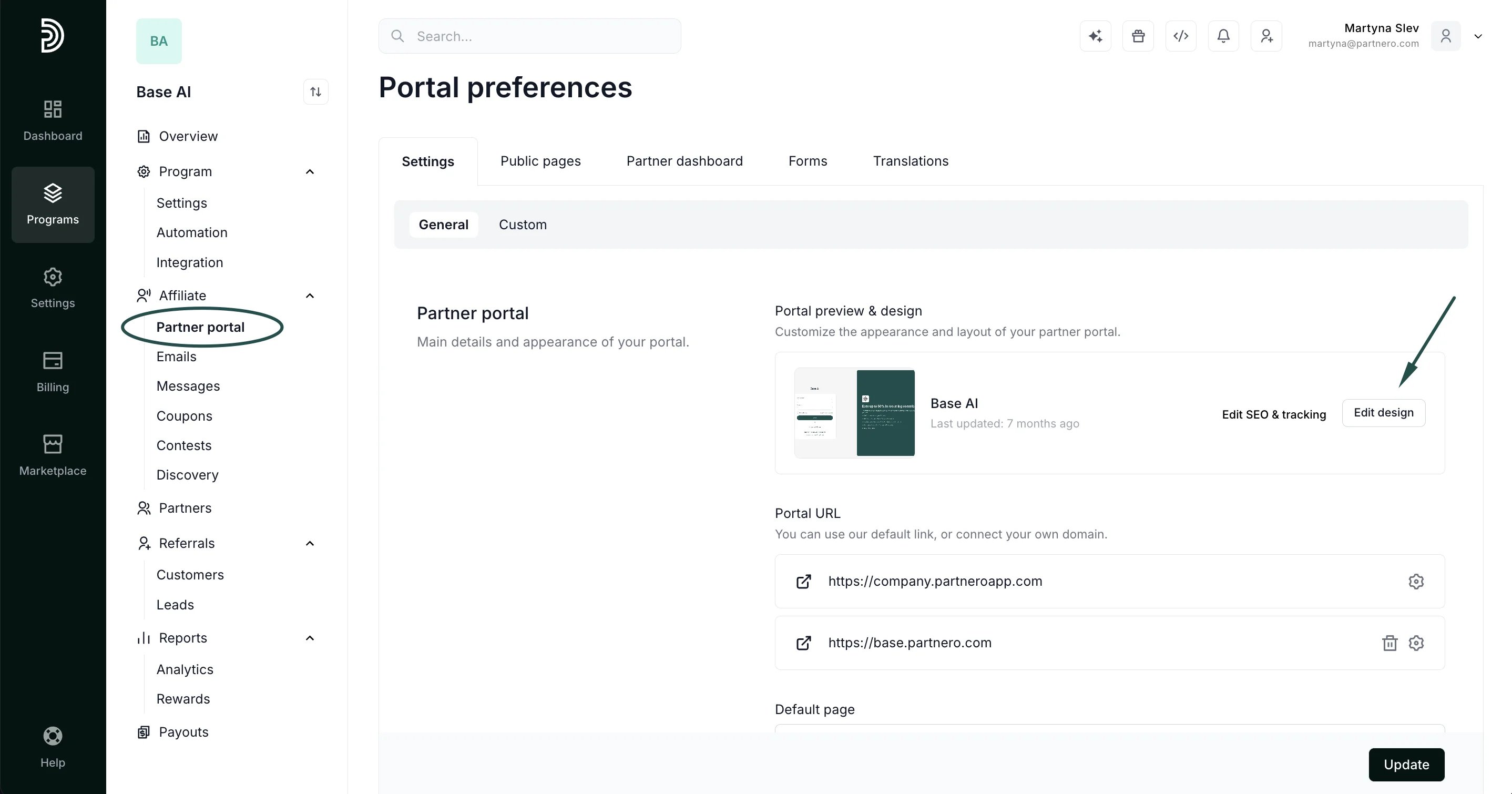 2. Select the **Themes** tab.
 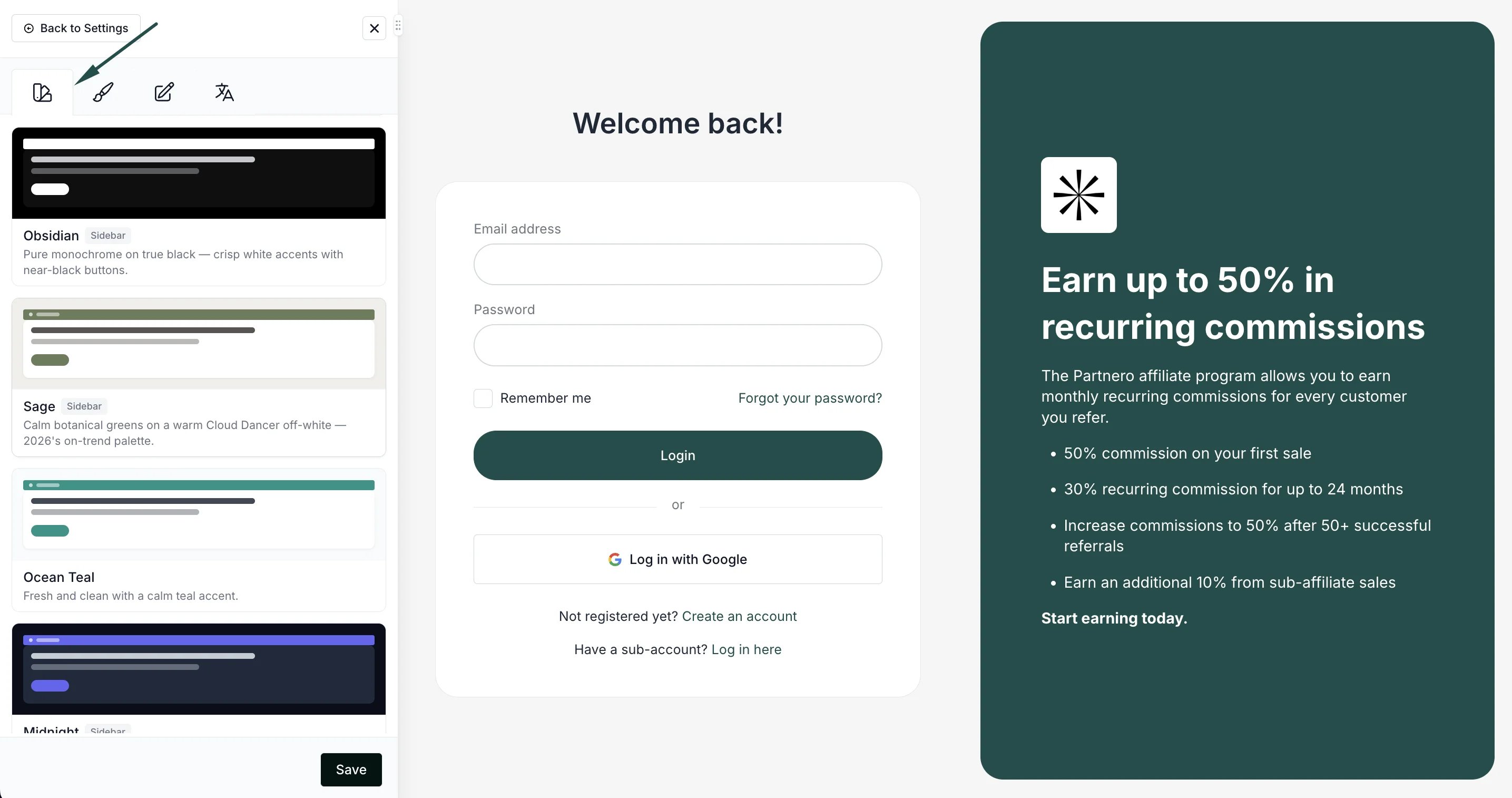 3. Browse the theme library and click a theme to apply it. Your portal preview updates immediately.
 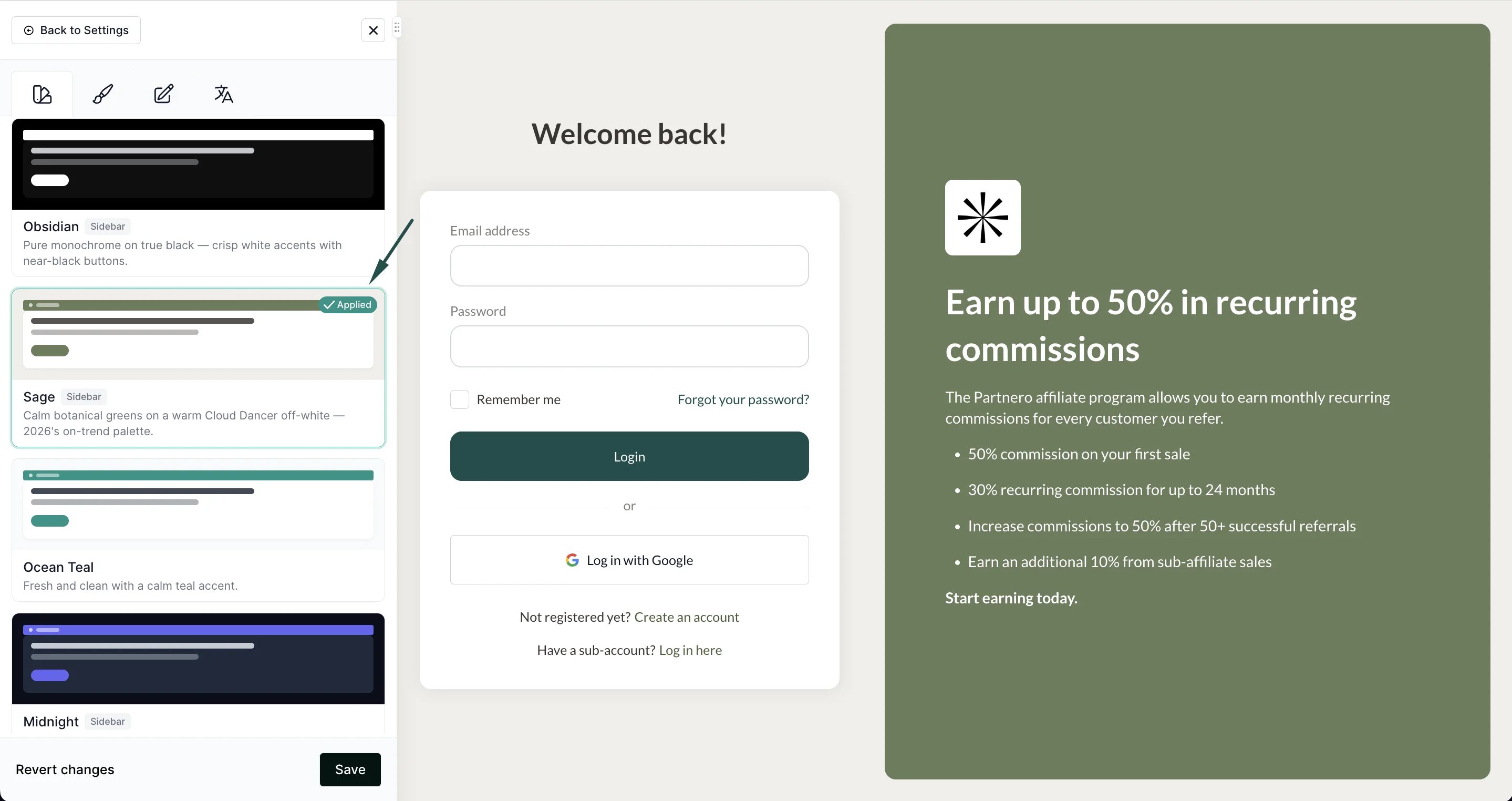 4. Optionally, fine-tune colors, fonts, or layout in the Branding, Colors, and Layout tabs.
5. Click **Save** to publish your changes.
> Changes are only visible to your partners after you click Save. Until then, you're free to preview and switch between themes.
***
## What gets updated and what's kept
Updated when you apply a theme:
* Brand color, link color, and button color
* Font family
* Dashboard layout, card style, and corner rounding
* Navigation color and link style
* Login and signup page sidebar
Always kept:
* Your logo and any uploaded images
* Your content and translations
***
## Light and dark themes
The library includes both light themes and true-dark themes (such as Onyx, Obsidian, and Midnight). Dark themes automatically adjust dashboard elements such as cards, inputs, and text for readability on a dark background.
This documentation is built and hosted on [Mintlify](https://mintlify.com), a developer documentation platform.
4. Optionally, fine-tune colors, fonts, or layout in the Branding, Colors, and Layout tabs.
5. Click **Save** to publish your changes.
> Changes are only visible to your partners after you click Save. Until then, you're free to preview and switch between themes.
***
## What gets updated and what's kept
Updated when you apply a theme:
* Brand color, link color, and button color
* Font family
* Dashboard layout, card style, and corner rounding
* Navigation color and link style
* Login and signup page sidebar
Always kept:
* Your logo and any uploaded images
* Your content and translations
***
## Light and dark themes
The library includes both light themes and true-dark themes (such as Onyx, Obsidian, and Midnight). Dark themes automatically adjust dashboard elements such as cards, inputs, and text for readability on a dark background.
This documentation is built and hosted on [Mintlify](https://mintlify.com), a developer documentation platform.