> ## Documentation Index
> Fetch the complete documentation index at: https://docs.partnero.com/llms.txt
> Use this file to discover all available pages before exploring further.
# Customize partner portal dashboard
The **p\*\*\*\*artner portal dashboard** is the first screen partners see after they log in to the partner portal. It provides performance metrics and activity summaries relevant to their participation in your program.
This article explains how you can **customize the layout and content** of the partner dashboard using blocks and sections. You’ll learn how to:
* rearrange or remove default elements
* add informational blocks, links, and content sections
* tailor the dashboard to better match your program’s needs and communication style
Customizing the dashboard helps ensure partners see the most relevant information and resources as soon as they log in.
***
### How to customize the dashboard
1. Open the program you'd like to work with.
2. Go to **Partner portal** under **Affiliate**.
3. Open the **Partner dashboard** tab: 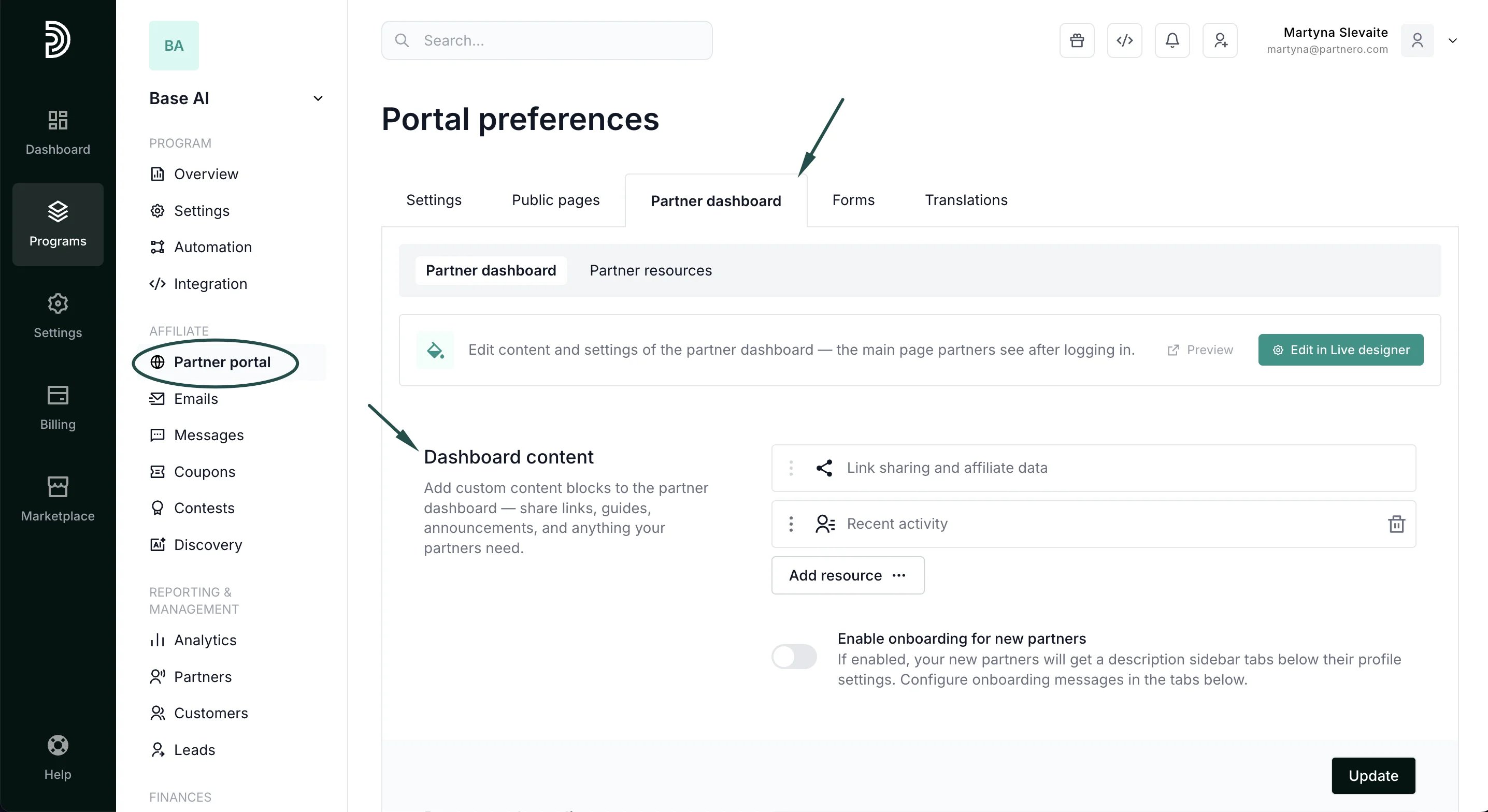 In **Dashboard content**, you'll find two sections that will be displayed by default:
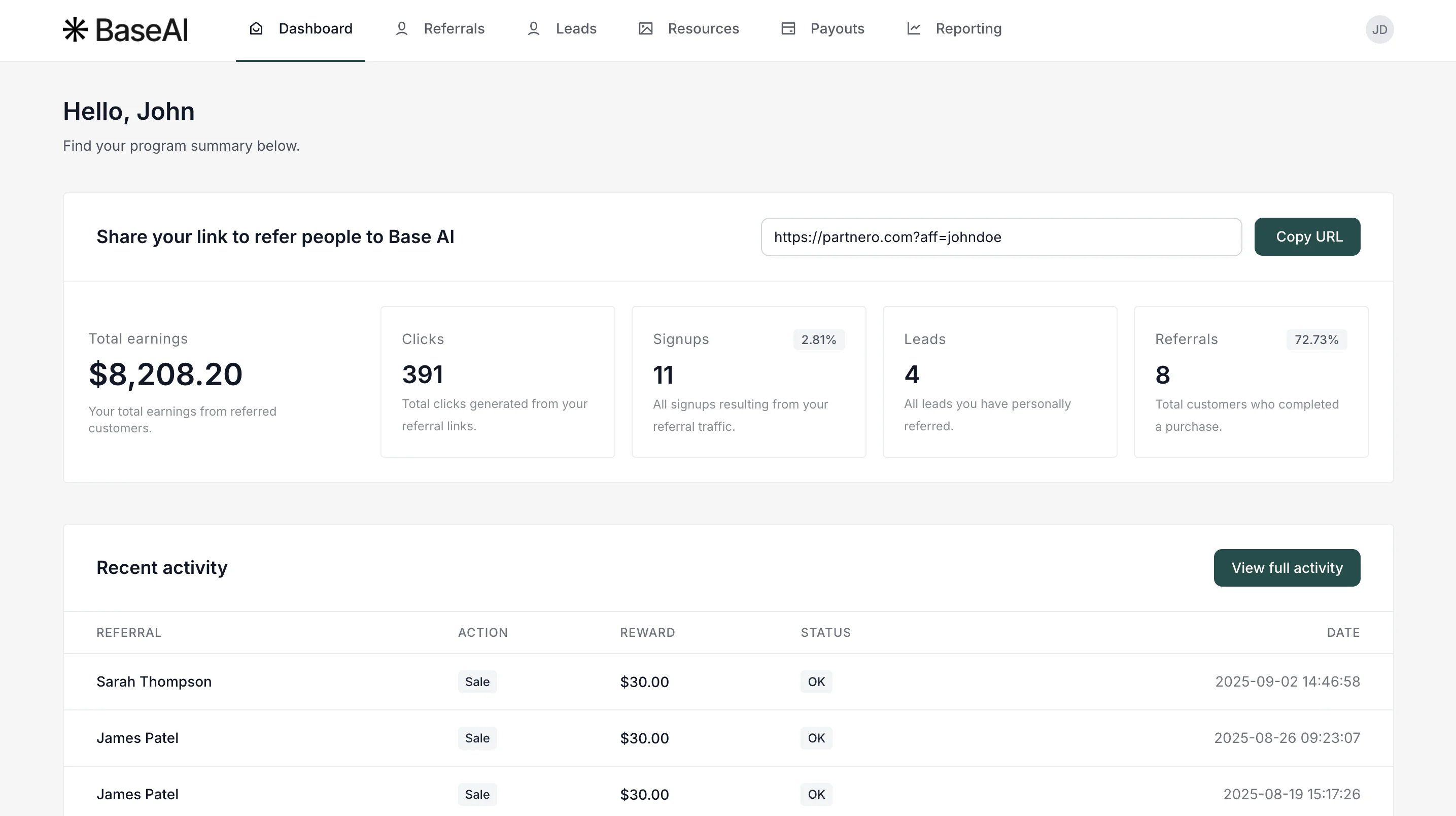
1. **Link sharing and affiliate data**: this section displays the main performance metrics and the affiliate URL. It cannot be removed from the dashboard.
2. **Recent activity**: shows the most recent signups and sales. This section can be deleted or rearranged.
Here's how these sections look on the partner portal:
In **Dashboard content**, you'll find two sections that will be displayed by default:
1. **Link sharing and affiliate data**: this section displays the main performance metrics and the affiliate URL. It cannot be removed from the dashboard.
2. **Recent activity**: shows the most recent signups and sales. This section can be deleted or rearranged.
Here's how these sections look on the partner portal:
 To customize the dashboard, you can add the following blocks:
* **Recent activity**: show latest partner conversions (visible by default).
* **Program overview**: display main program details.
* **Universal section**: allows combining different resources for a custom view.
* **Text**: add rich text content.
* **Content section**: add images, titles, descriptions, and buttons with links.
* **Links**: share links to important articles.
* **Accordion / FAQ**: add a collapsible FAQ section.
* **Commission structure**: display the program commission structure, including available tiers and goals.
* **Earnings calculator**: show an interactive potential earnings preview.
* **Embed code**: add custom HTML or embed code.
To add any of these blocks, click **Add resource** and select what you'd like to add:
To customize the dashboard, you can add the following blocks:
* **Recent activity**: show latest partner conversions (visible by default).
* **Program overview**: display main program details.
* **Universal section**: allows combining different resources for a custom view.
* **Text**: add rich text content.
* **Content section**: add images, titles, descriptions, and buttons with links.
* **Links**: share links to important articles.
* **Accordion / FAQ**: add a collapsible FAQ section.
* **Commission structure**: display the program commission structure, including available tiers and goals.
* **Earnings calculator**: show an interactive potential earnings preview.
* **Embed code**: add custom HTML or embed code.
To add any of these blocks, click **Add resource** and select what you'd like to add: 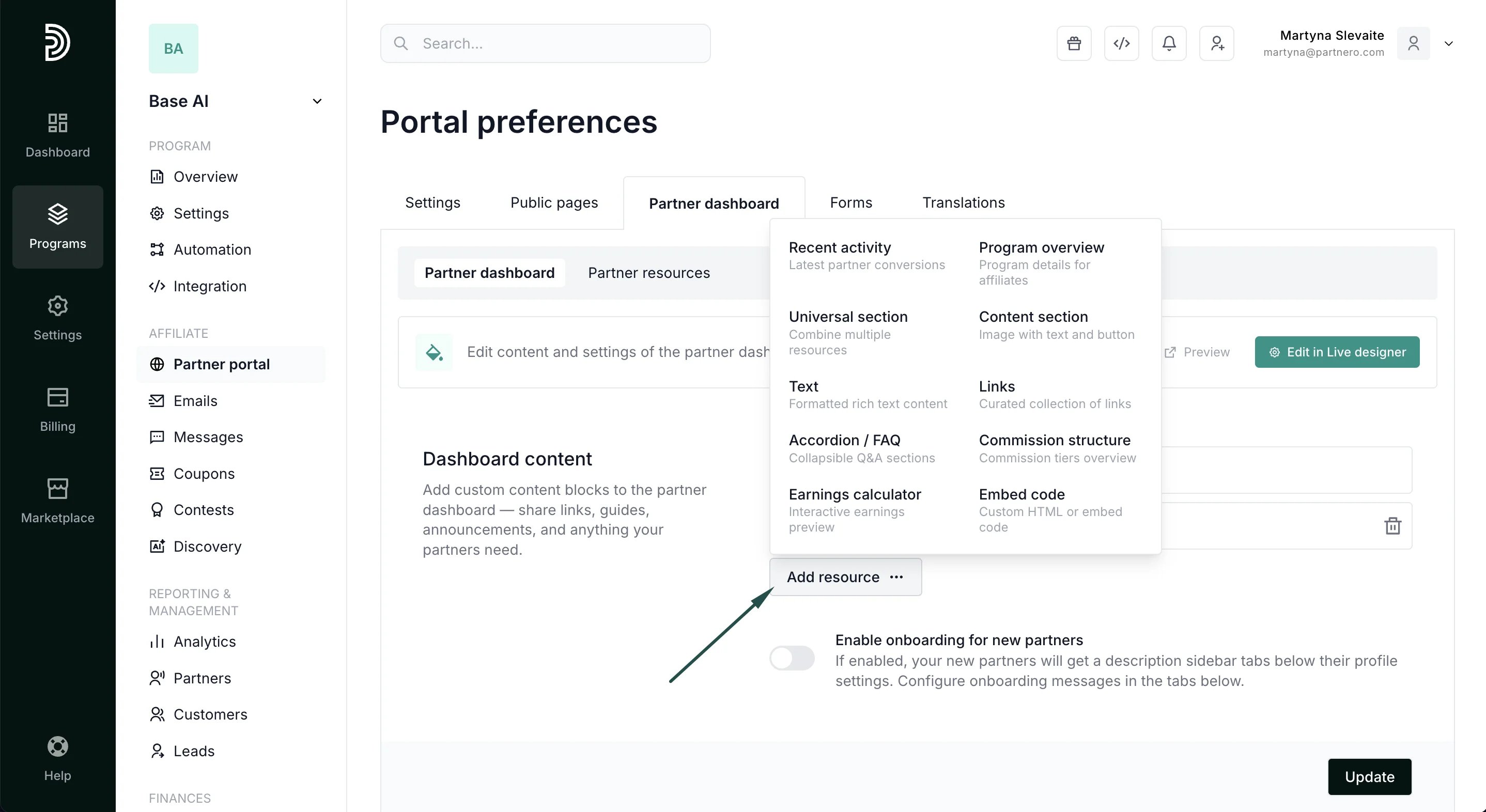 Enter all the required data and click **Update**. All changes will be live immediately after you click **Update**.
***
### Example A: Content section
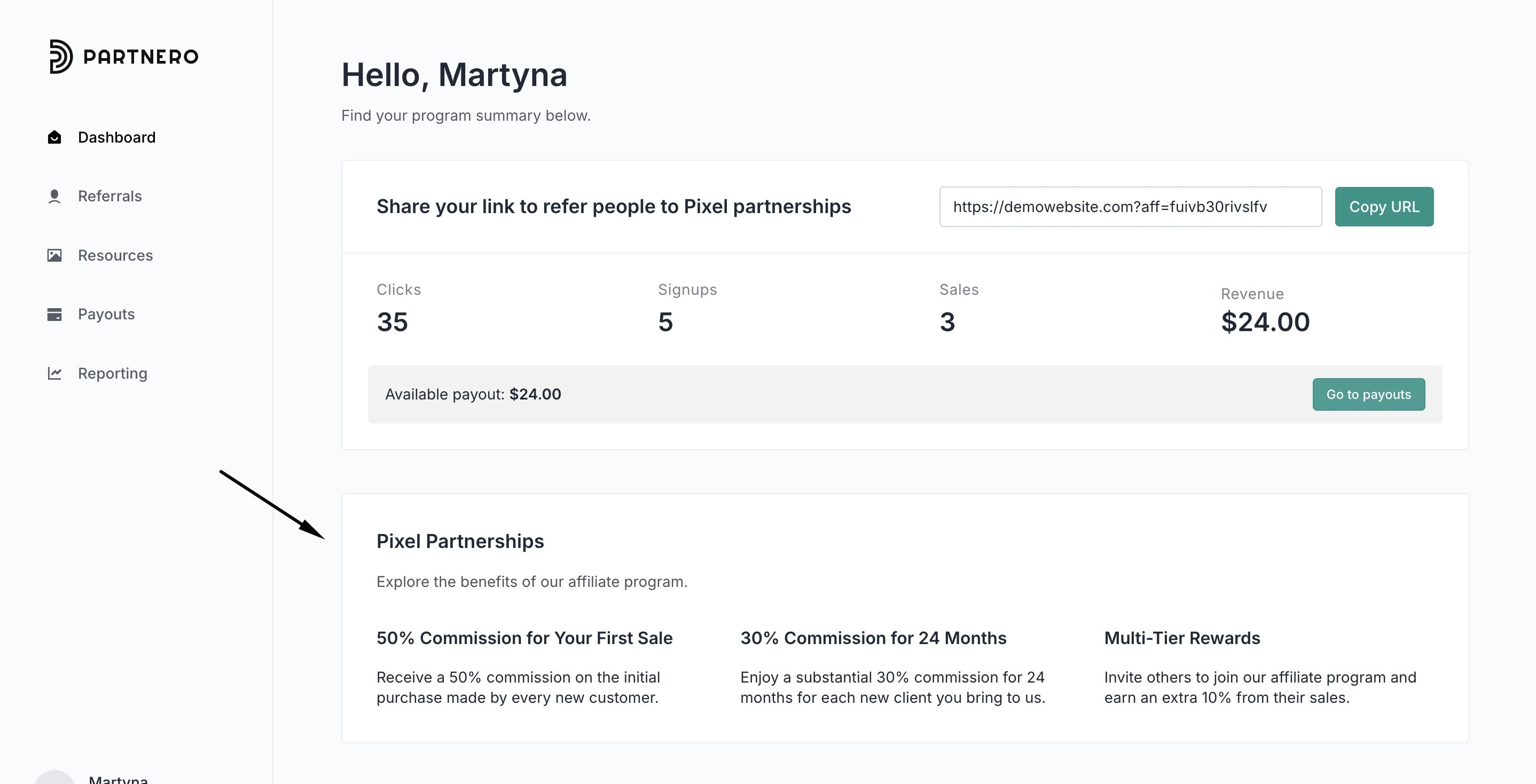
Here's a **Content** block example highlighting the benefits of the program:
Enter all the required data and click **Update**. All changes will be live immediately after you click **Update**.
***
### Example A: Content section
Here's a **Content** block example highlighting the benefits of the program:
 To achieve this for your program:
1. Click **Add Resource** and select **Content section**:
To achieve this for your program:
1. Click **Add Resource** and select **Content section**: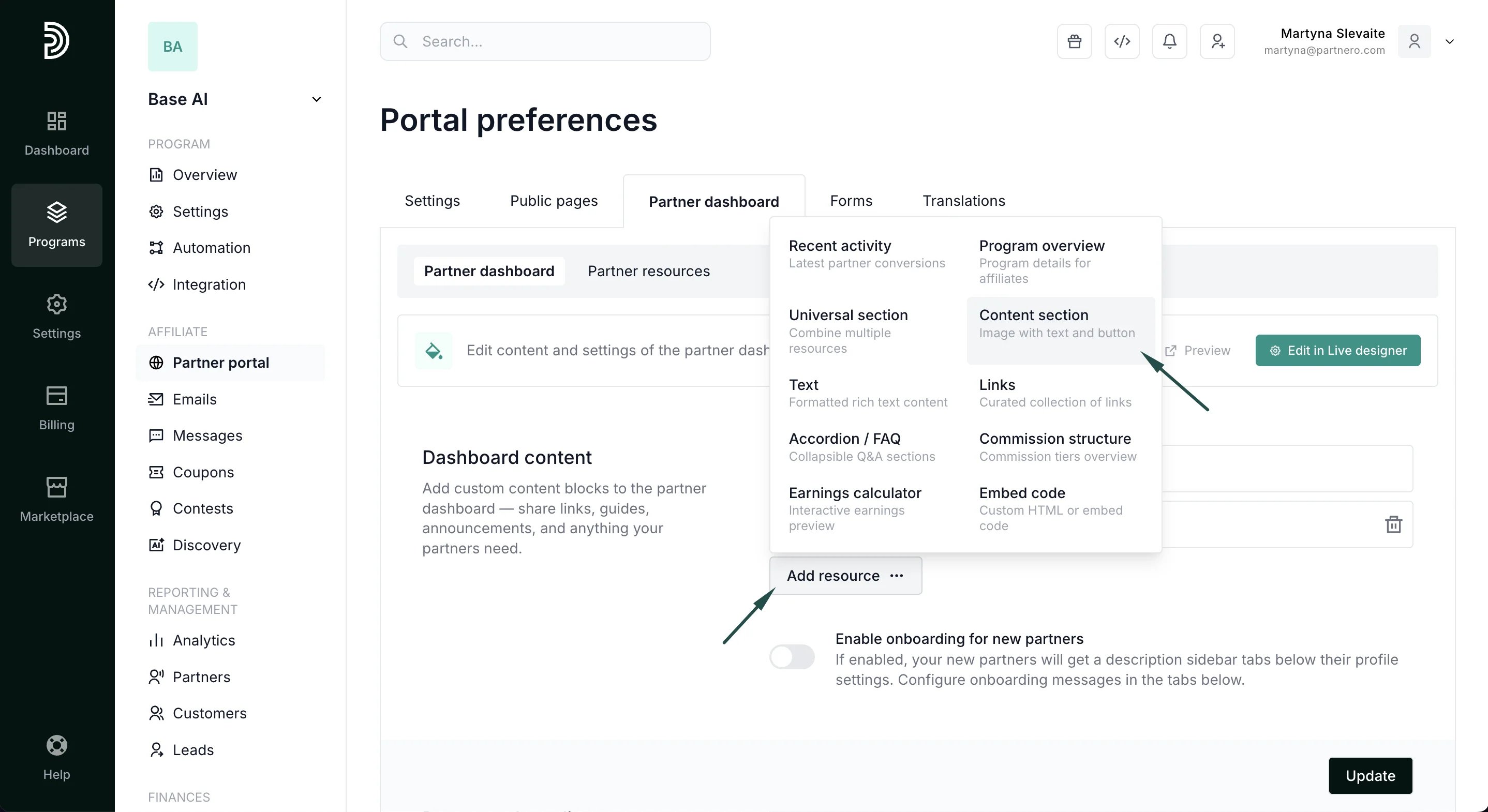 2. Add title and description (optional).
3. Click **Add content block** under **Content** and toggle **Display blocks in columns**:
2. Add title and description (optional).
3. Click **Add content block** under **Content** and toggle **Display blocks in columns**: 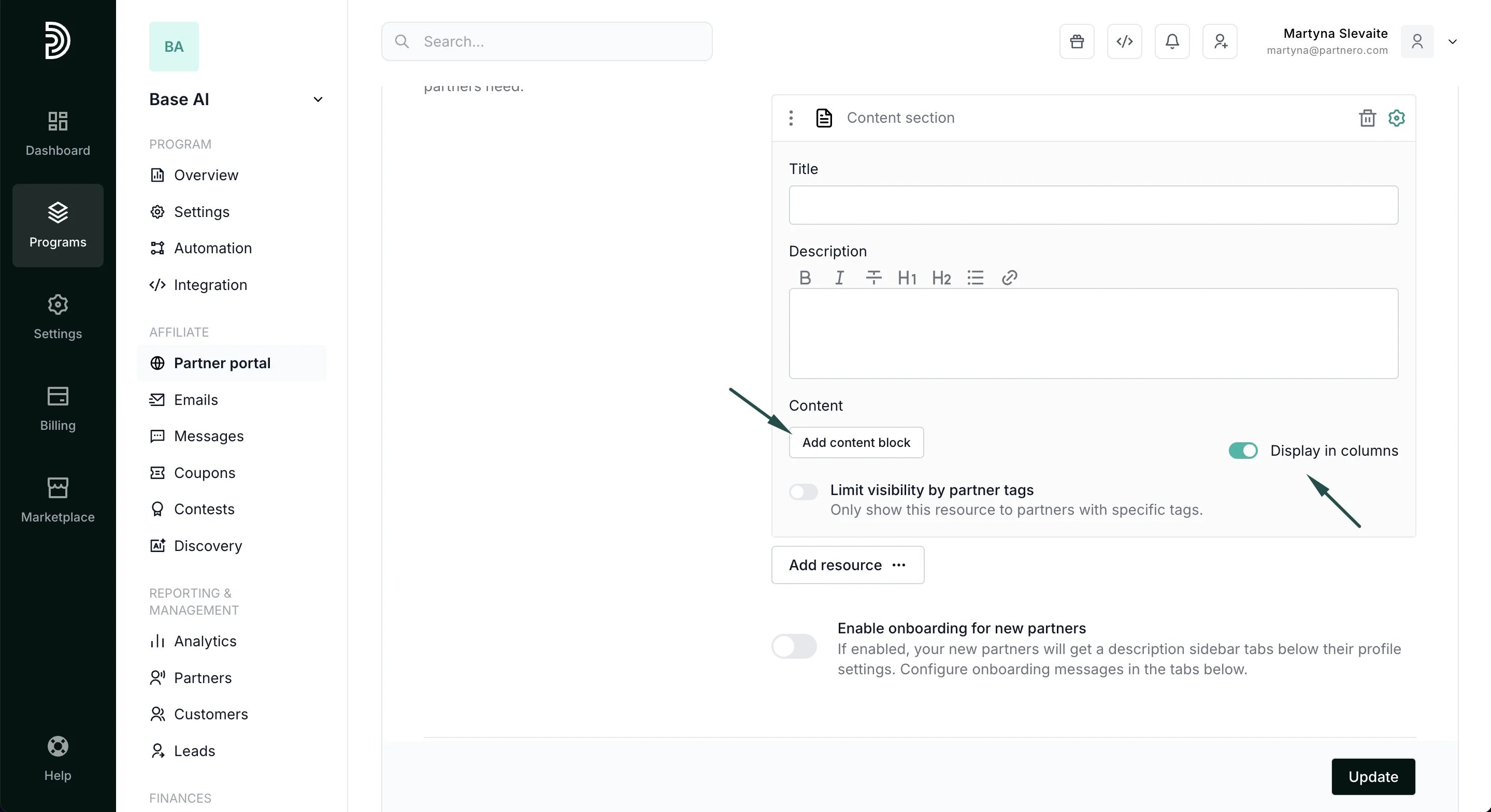 Here, you can add as many content pieces as you need. The example above has three blocks added.
4. You can enter the title and text for each block. Additionally, if you'd like to link to something, you can add a button name and a URL for each content piece you want to share. If the button fields are left empty, no button will be shown.
Here, you can add as many content pieces as you need. The example above has three blocks added.
4. You can enter the title and text for each block. Additionally, if you'd like to link to something, you can add a button name and a URL for each content piece you want to share. If the button fields are left empty, no button will be shown. 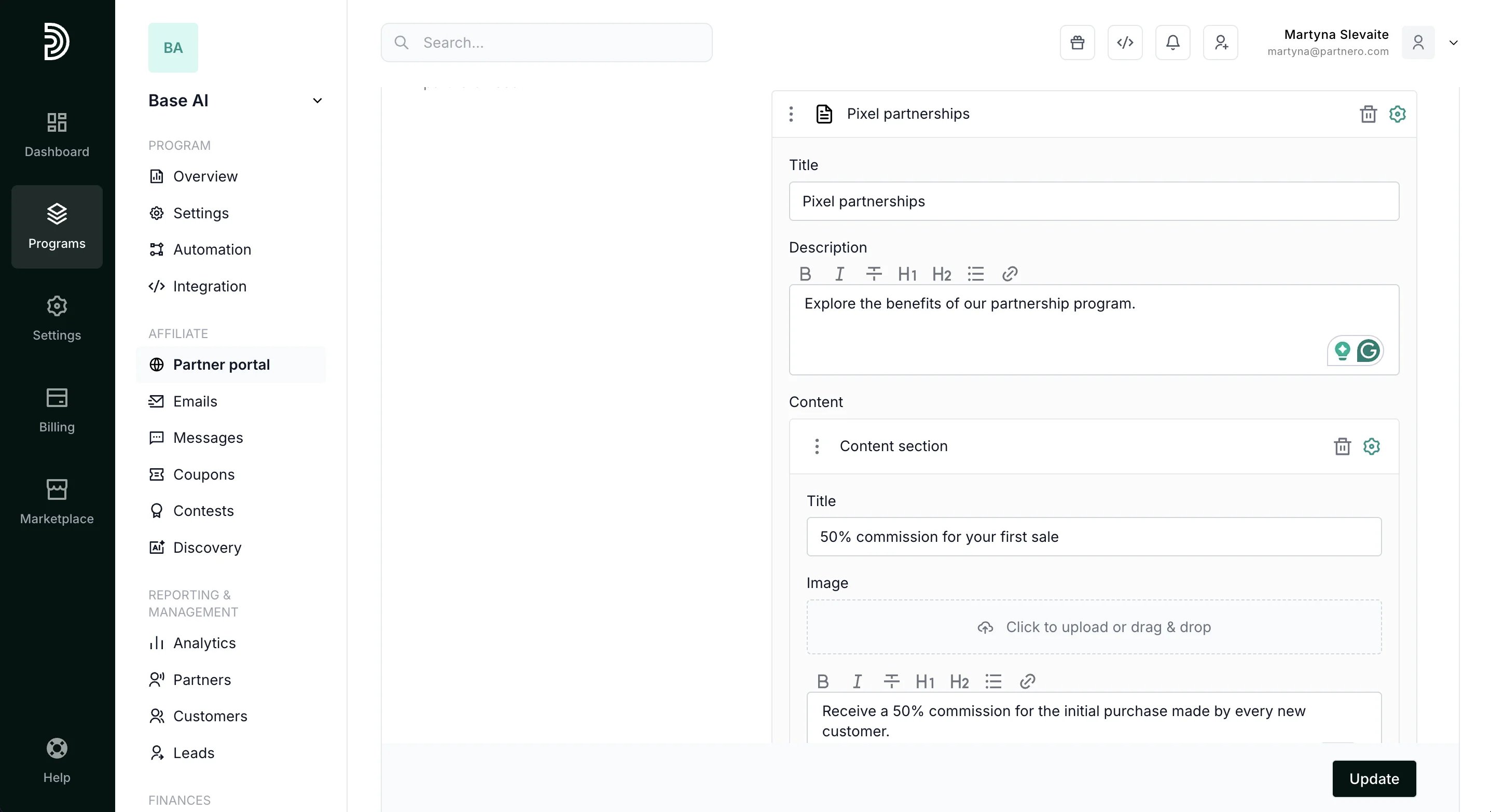 5. Click **Update**.
The added blocks will be visible to your partners immediately. You can add, edit, and remove them at any time.
***
### Example B: Commission structure
Here's a partner dashboard showing the current commission structure as well as available tiers and goals:
5. Click **Update**.
The added blocks will be visible to your partners immediately. You can add, edit, and remove them at any time.
***
### Example B: Commission structure
Here's a partner dashboard showing the current commission structure as well as available tiers and goals: 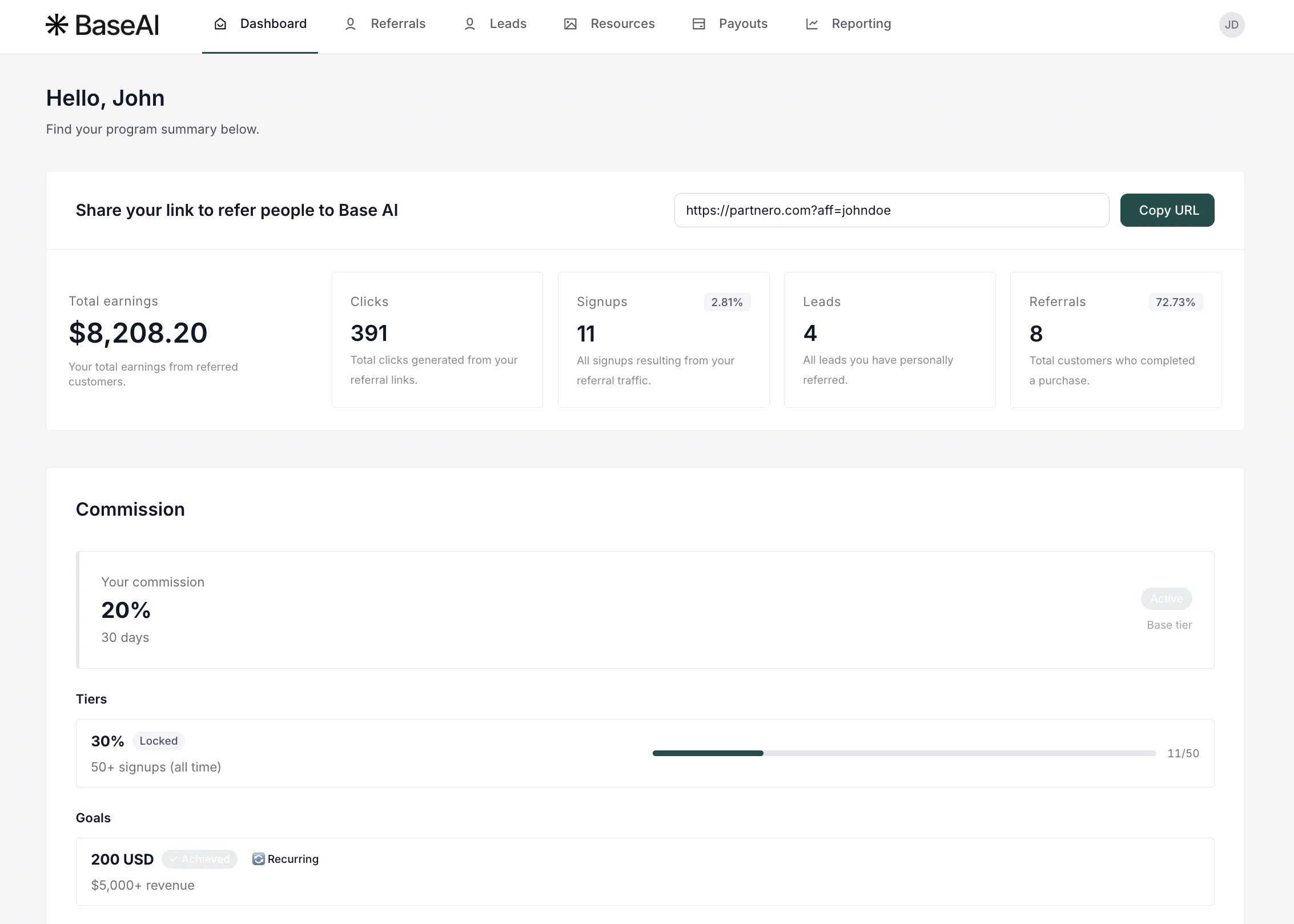 To achieve this for your program:
1. Navigate to the Partner dashboard page and click to **Add resource**. Select **Commission structure**:
To achieve this for your program:
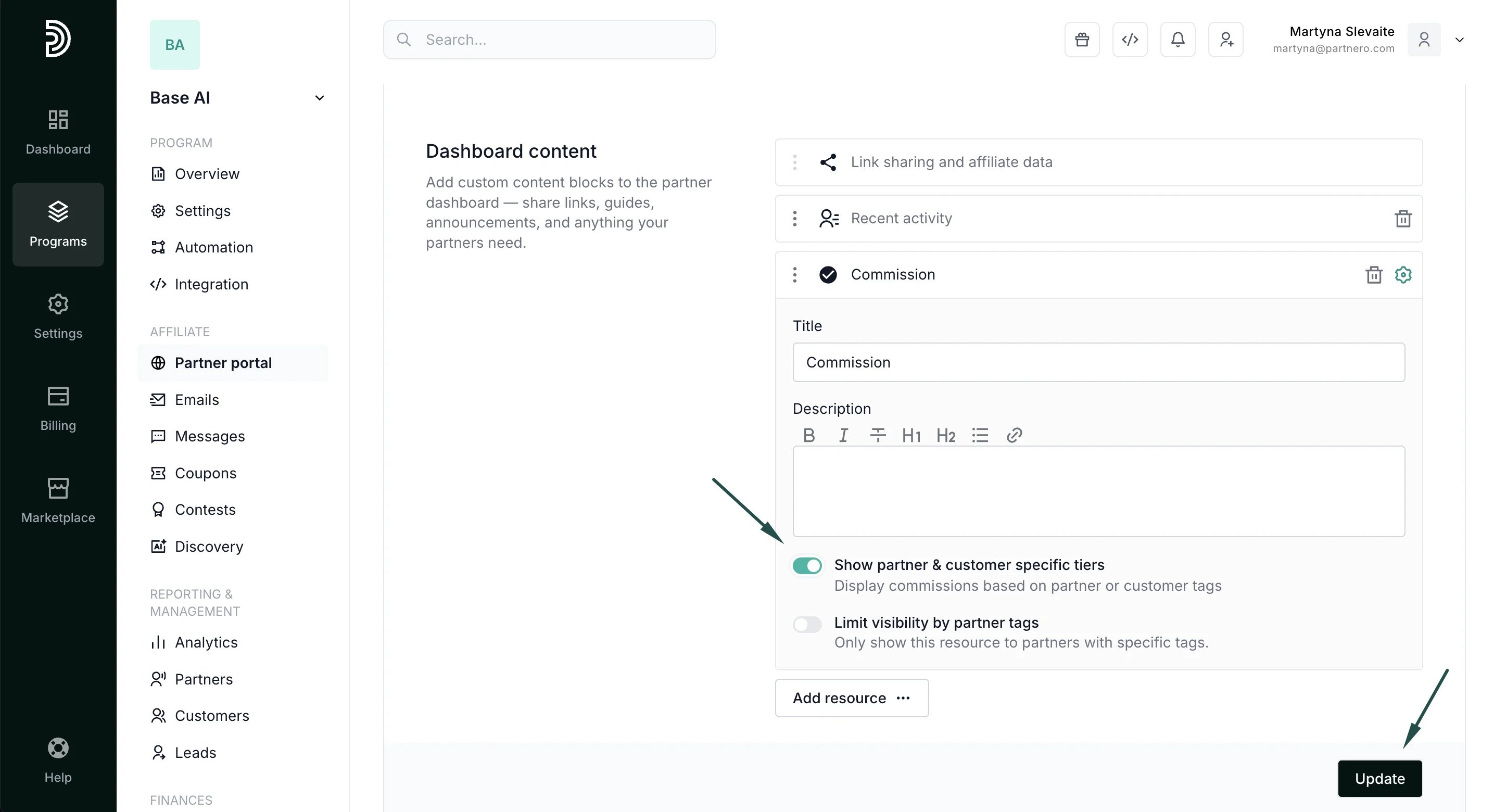
1. Navigate to the Partner dashboard page and click to **Add resource**. Select **Commission structure**: 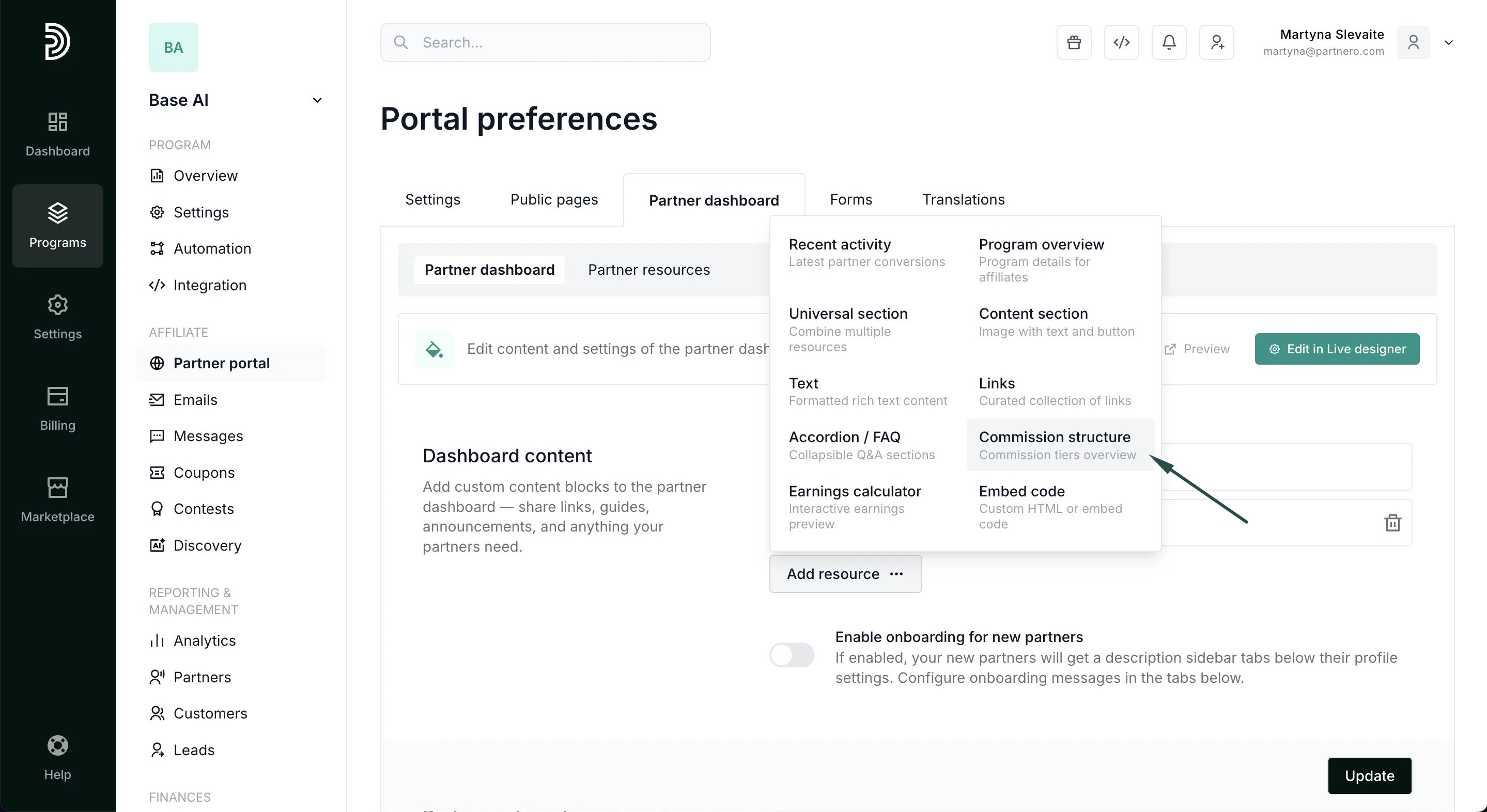 2. Toggle to **Show partner & customer-specific tiers**. If you'd like, edit the title and add a description (optional; the example shown has no description):
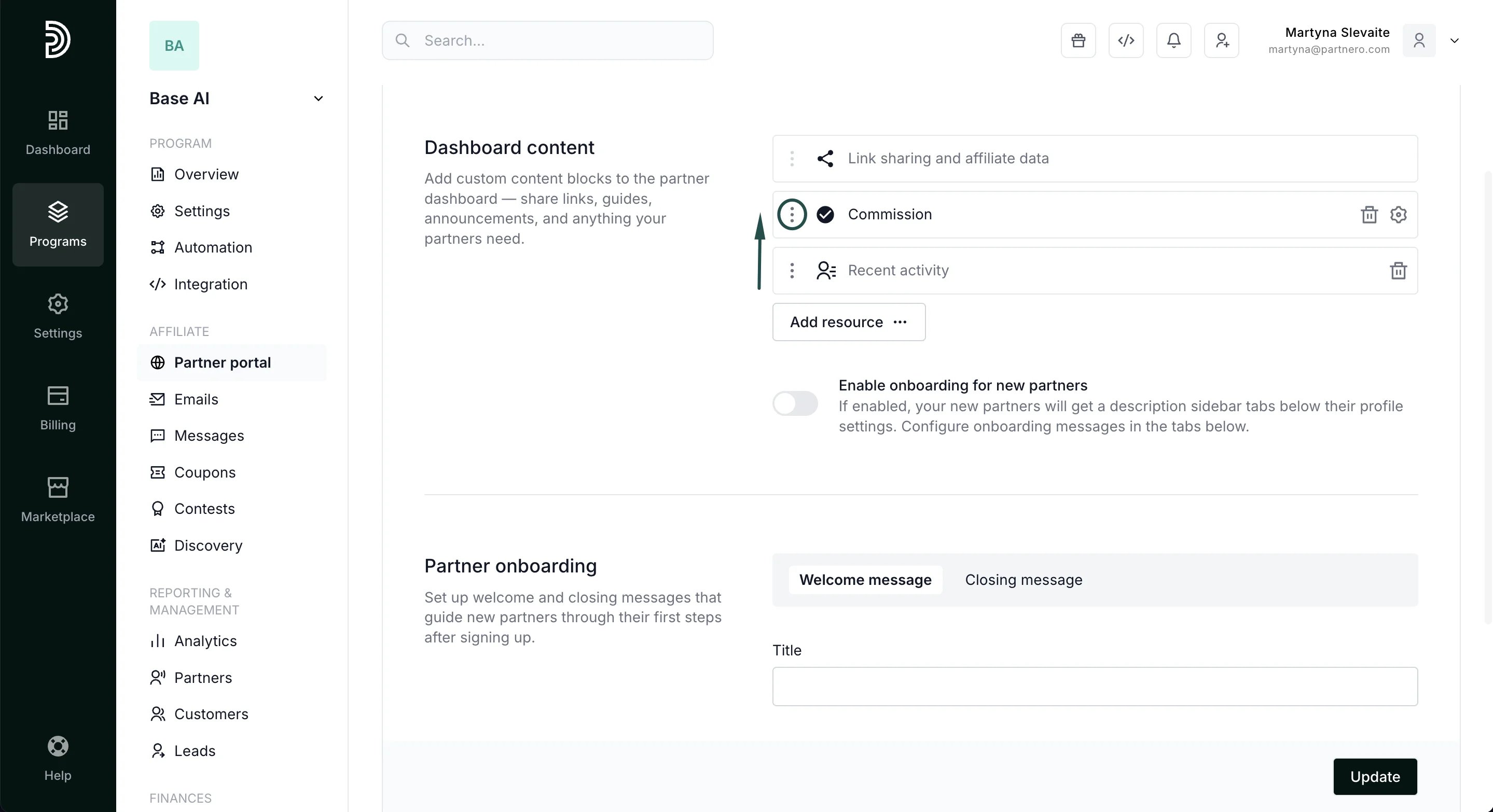
  3. Click the gear icon to collapse the modal, then use the **three-dot menu** on the new row to **drag** it into the second position in the layout:
  4. Click **Update** to save the changes.
***
→ [Add program overview to the portal dashboard](/knowledge-base/partner-portal/add-program-overview-to-partner-dashboard).
This documentation is built and hosted on [Mintlify](https://mintlify.com), a developer documentation platform.
4. Click **Update** to save the changes.
***
→ [Add program overview to the portal dashboard](/knowledge-base/partner-portal/add-program-overview-to-partner-dashboard).
This documentation is built and hosted on [Mintlify](https://mintlify.com), a developer documentation platform.