> ## Documentation Index
> Fetch the complete documentation index at: https://docs.partnero.com/llms.txt
> Use this file to discover all available pages before exploring further.
# Customize signup and login pages
In this article, you'll learn how to customize the Partner Portal's signup and login pages. We’ll cover how to adjust the appearance, modify content, configure forms, manage marketing permissions, and tweak other settings to create a tailored experience for your partners.
***
### Appearance settings
To customize the appearance settings for signup and login pages:
1. On the left sidebar, click on **Partner Portal** under **Affiliate**.
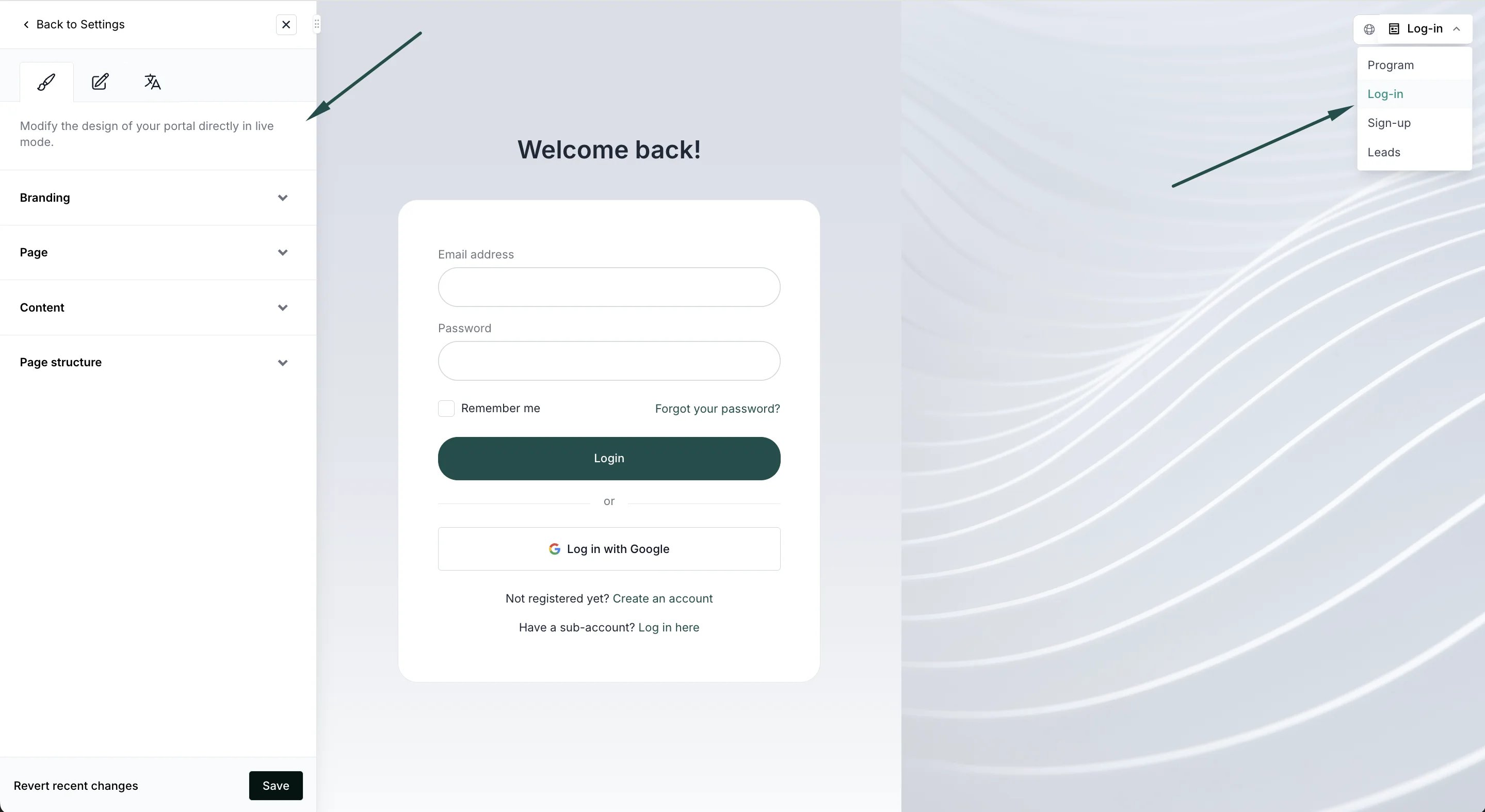
2. In the **Settings** tab → **General** section, click **Edit design**: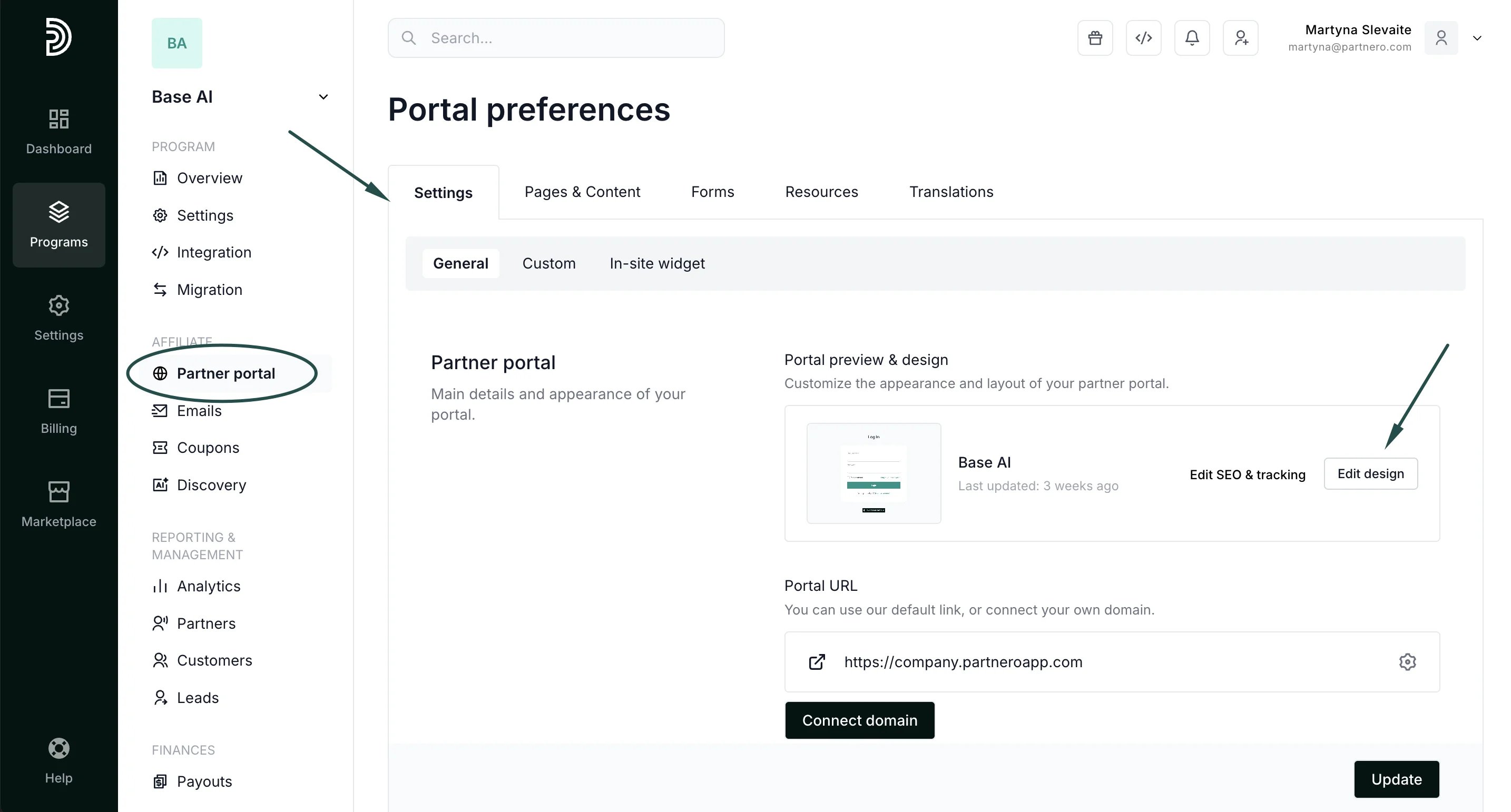 3. This will open the Live Designer. You'll see the live preview on your partner portal with the editor on the left side. Switch between the signup and login pages in the upper right corner:
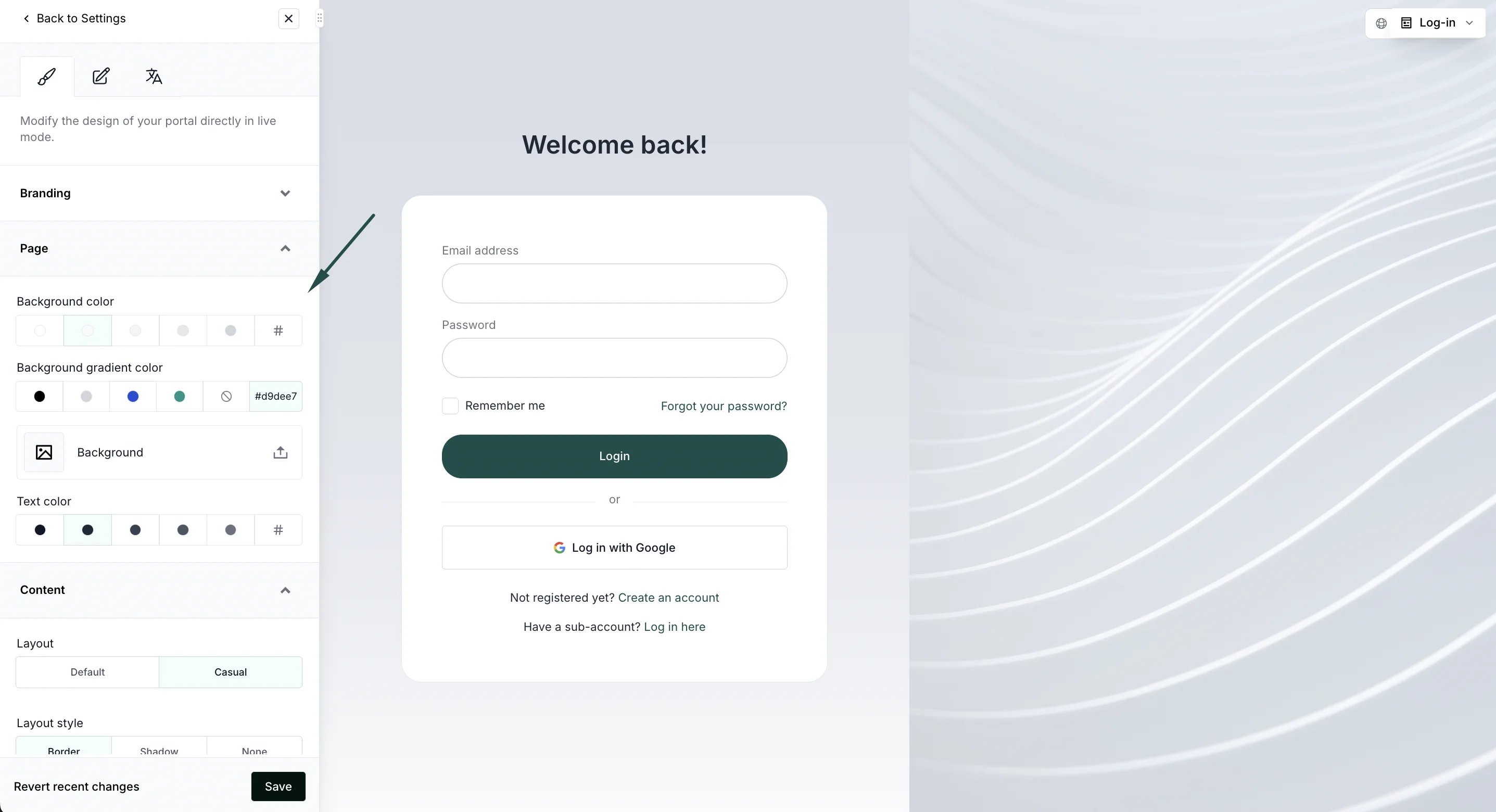
 4. Use the editor on the right to change branding, content, and page structure:
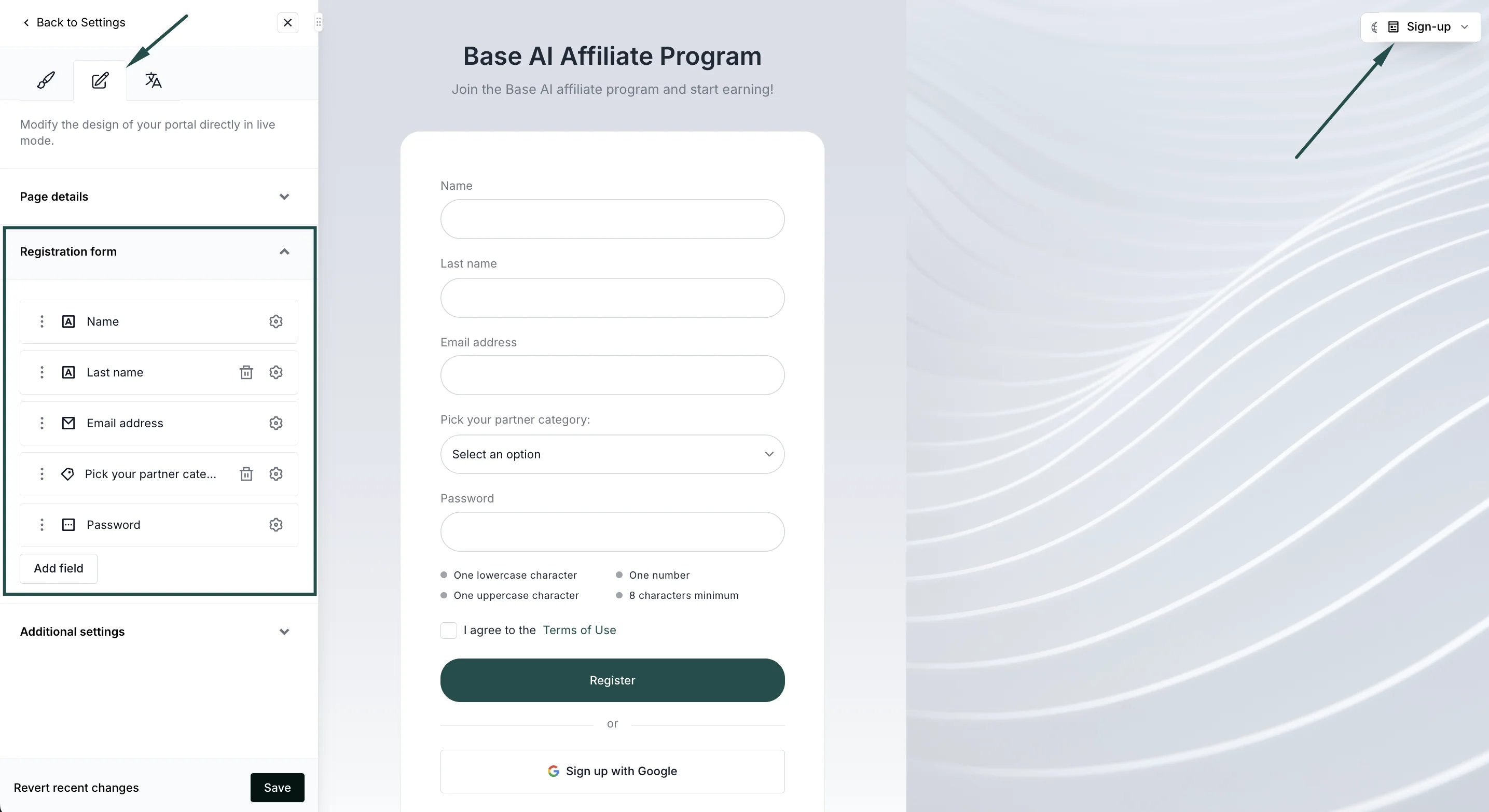
 5. For the signup page, switch to the form tab to edit registration form fields and other settings:
 6. Click **Save** to publish your changes.
[Read more about using the Live Designer here](/knowledge-base/program-management/live-designer-overview).
***
### Signup page settings
Alternatively, you can edit the signup page settings and content in the **Pages & Content** tab.
1. On the left sidebar, click on **Partner Portal** under **Affiliate**.
2. Navigate to the **Pages &** **Content** tab, **Public pages,** and then **Sign-up page**:
6. Click **Save** to publish your changes.
[Read more about using the Live Designer here](/knowledge-base/program-management/live-designer-overview).
***
### Signup page settings
Alternatively, you can edit the signup page settings and content in the **Pages & Content** tab.
1. On the left sidebar, click on **Partner Portal** under **Affiliate**.
2. Navigate to the **Pages &** **Content** tab, **Public pages,** and then **Sign-up page**: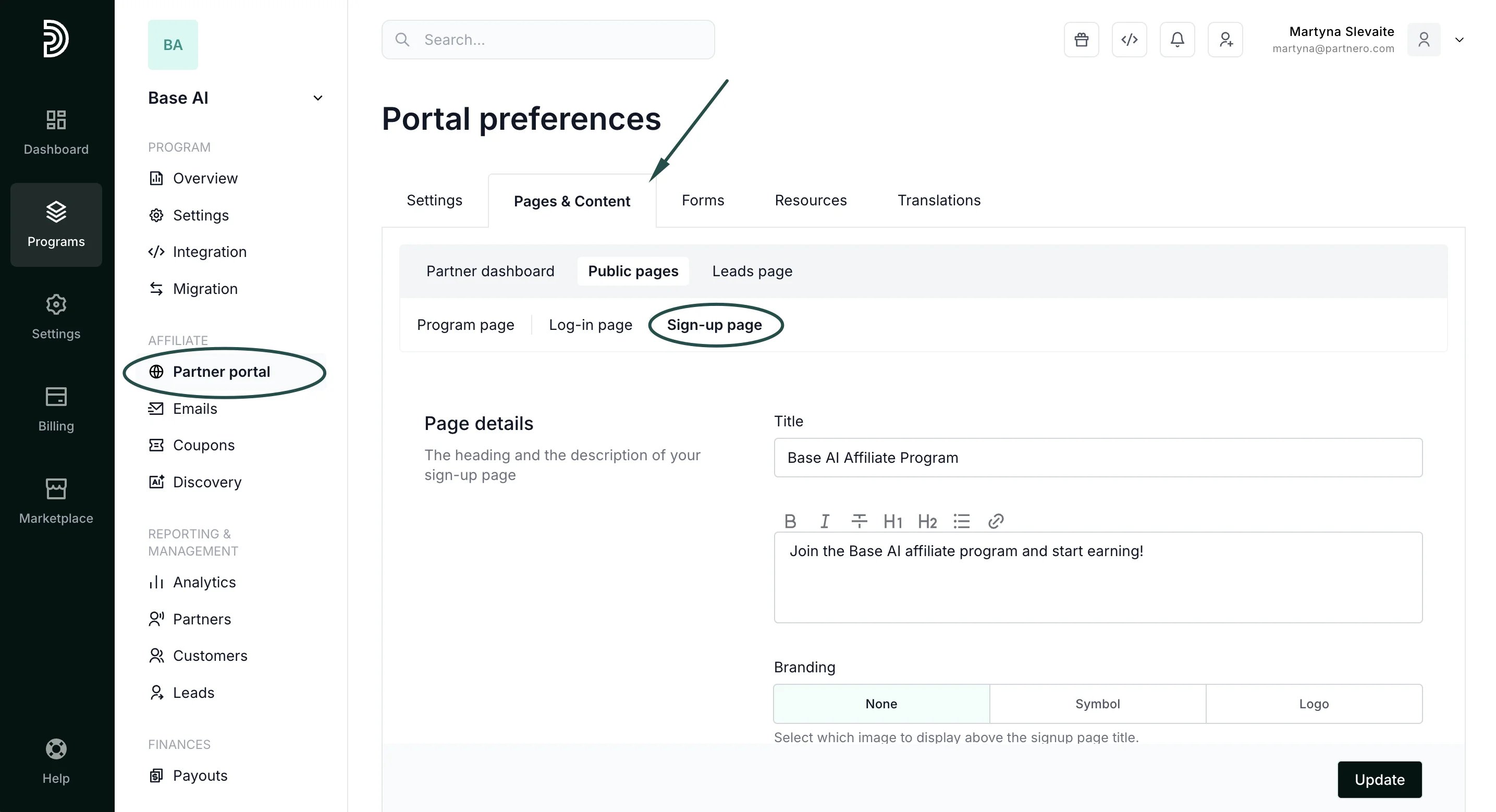 Here you’ll find the following sections:
#### Page details
Add a title and description to welcome your new partners. Choose your branding option and enable [partner approval forms](/knowledge-base/partner-portal/create-an-approval-form).
Here you’ll find the following sections:
#### Page details
Add a title and description to welcome your new partners. Choose your branding option and enable [partner approval forms](/knowledge-base/partner-portal/create-an-approval-form).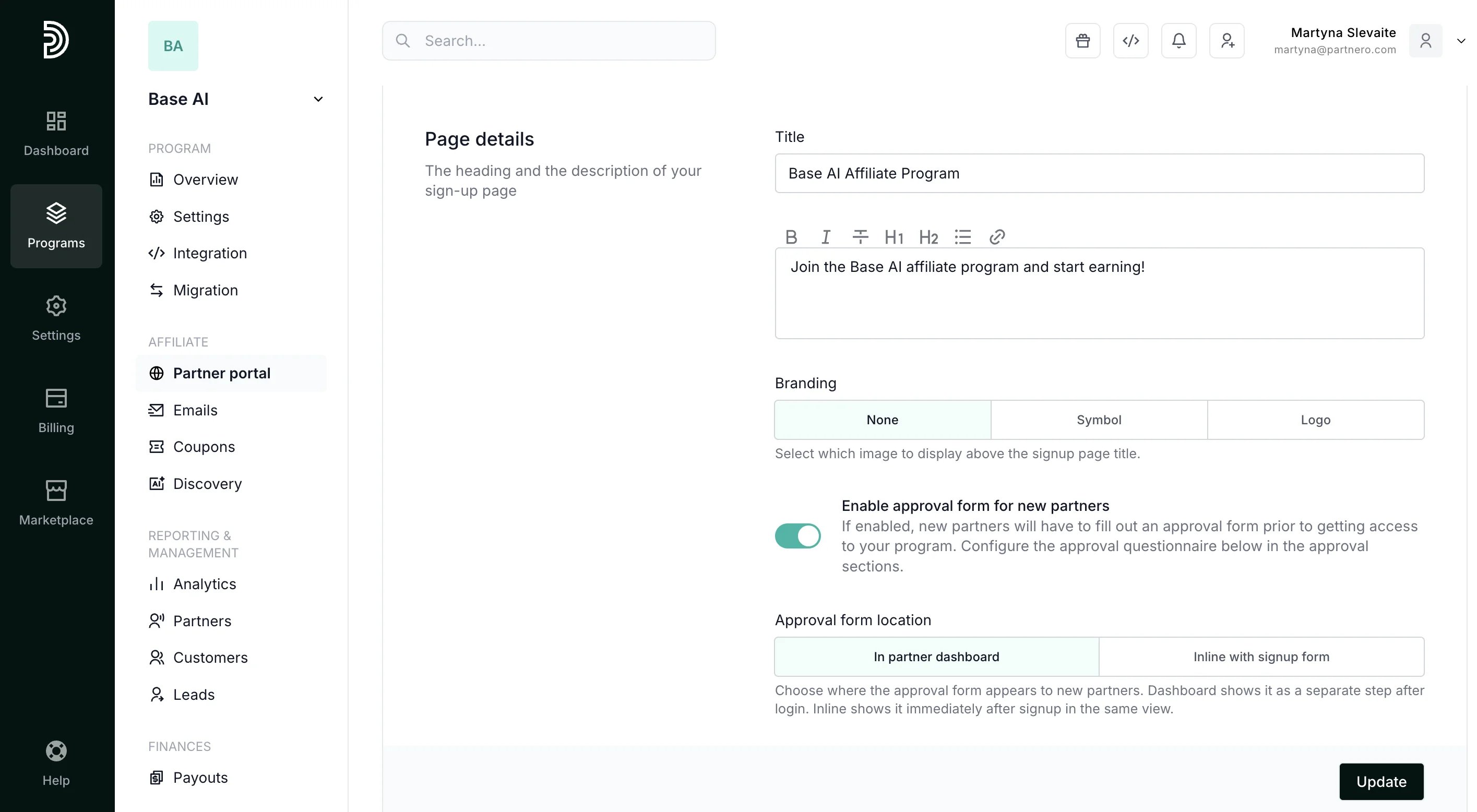 #### Registration form
Customize your registration form fields, add terms of use, and collect marketing permissions:
#### Registration form
Customize your registration form fields, add terms of use, and collect marketing permissions: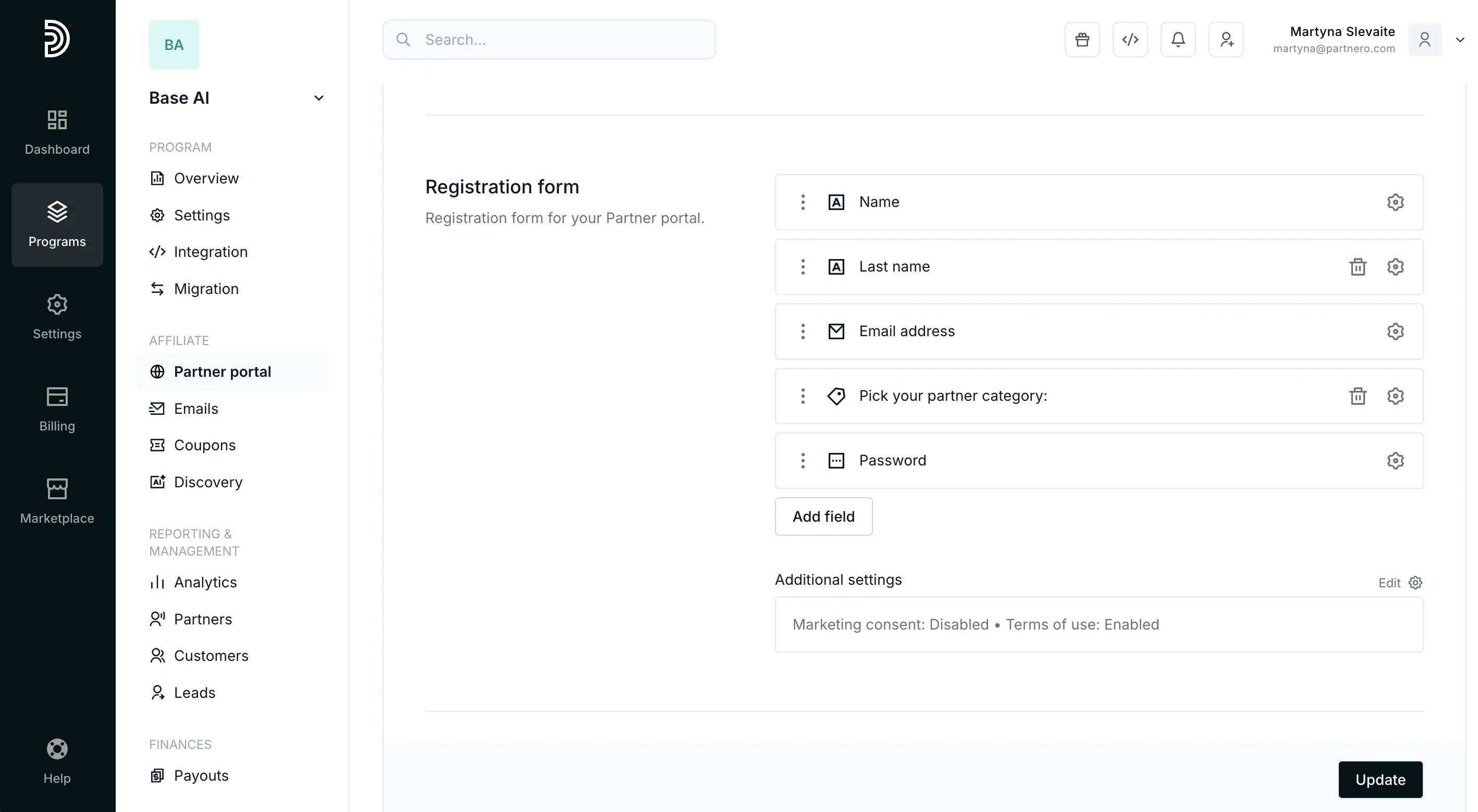 **Terms of use** - add a link to your partner program terms. Once added, a checkbox will be shown under the registration form. Partners will have to check the box to proceed with the registration. Alternatively, you can save program terms on Partnero. [Read more](/knowledge-base/program-management/save-your-program-terms-on-partnero).
**Marketing consent** (optional) - allows for collecting marketing permissions to send marketing newsletters to your partners. Once the text is entered into this field, a checkbox will appear under your signup form.
**Terms of use** - add a link to your partner program terms. Once added, a checkbox will be shown under the registration form. Partners will have to check the box to proceed with the registration. Alternatively, you can save program terms on Partnero. [Read more](/knowledge-base/program-management/save-your-program-terms-on-partnero).
**Marketing consent** (optional) - allows for collecting marketing permissions to send marketing newsletters to your partners. Once the text is entered into this field, a checkbox will appear under your signup form.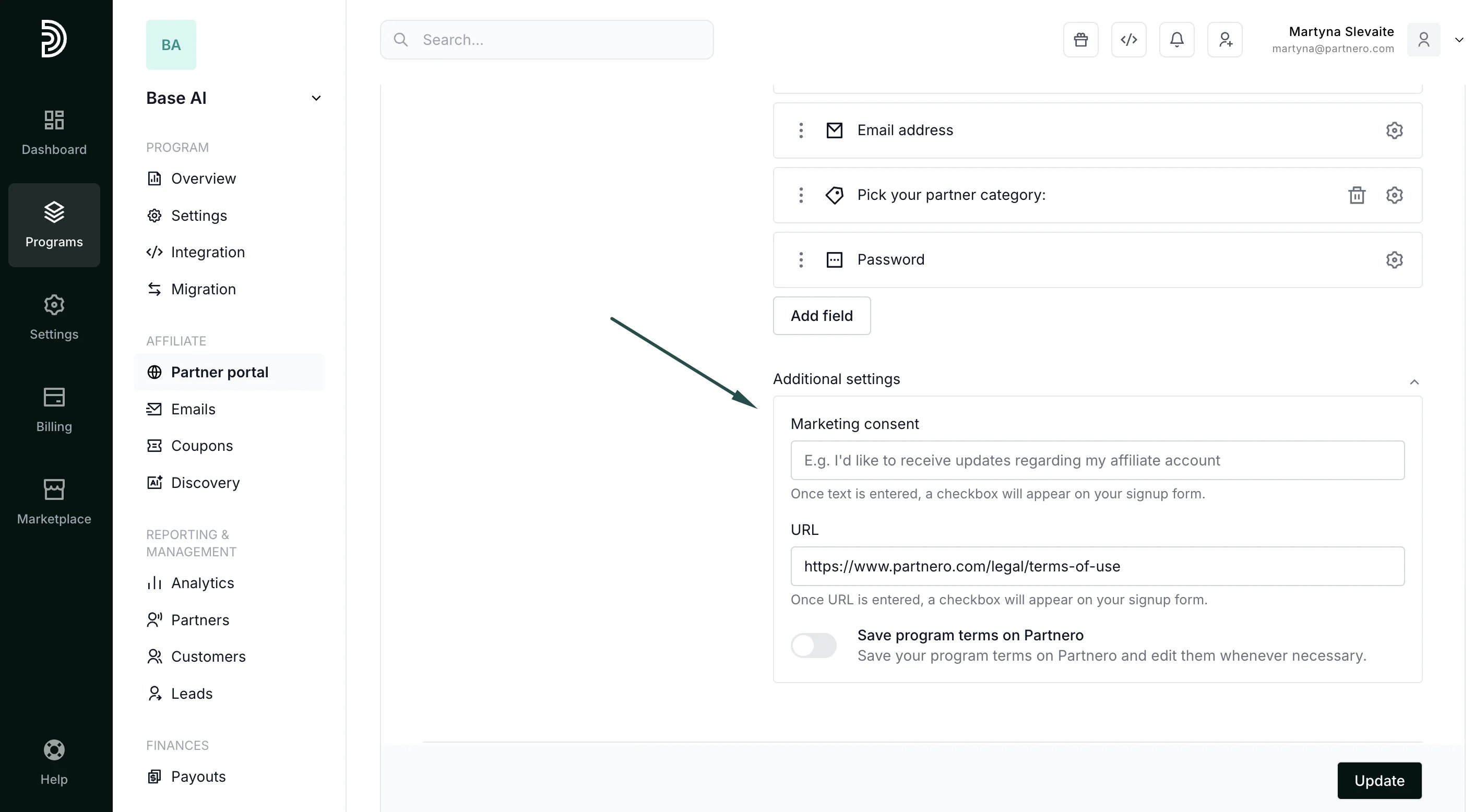 #### Approval content and form
Lastly, you'll be able to customize the content and form for the approval process. [Read more](/knowledge-base/partner-portal/create-an-approval-form).
#### Approval content and form
Lastly, you'll be able to customize the content and form for the approval process. [Read more](/knowledge-base/partner-portal/create-an-approval-form).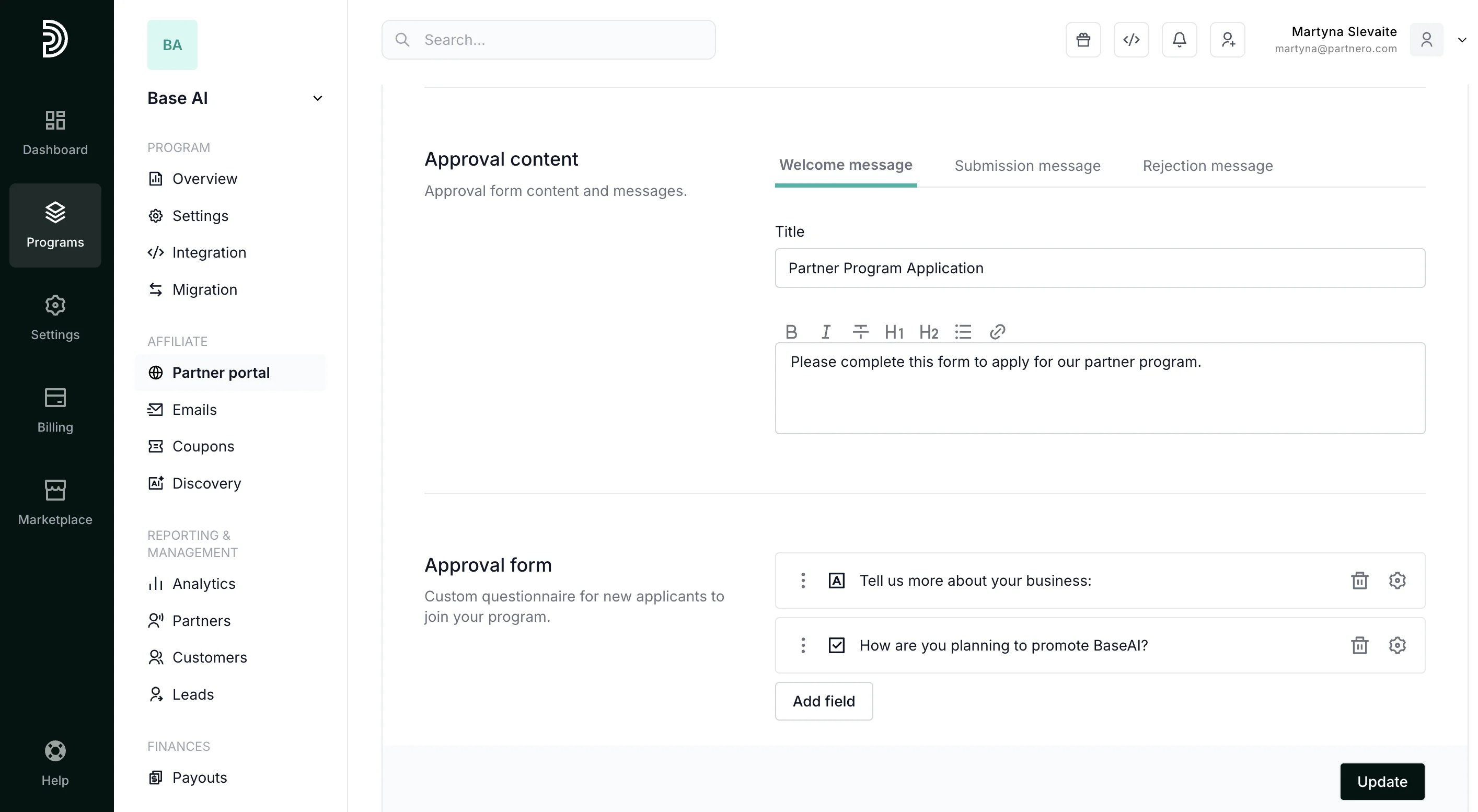 ####
***
### Login page settings
To customize the login page:
1. On the left sidebar, click on **Partner Portal** under **Affiliate**.
2. Navigate to **Pages & C\*\*\*\*ontent** tab, **Public pages**, and then **Log-in page**:
####
***
### Login page settings
To customize the login page:
1. On the left sidebar, click on **Partner Portal** under **Affiliate**.
2. Navigate to **Pages & C\*\*\*\*ontent** tab, **Public pages**, and then **Log-in page**: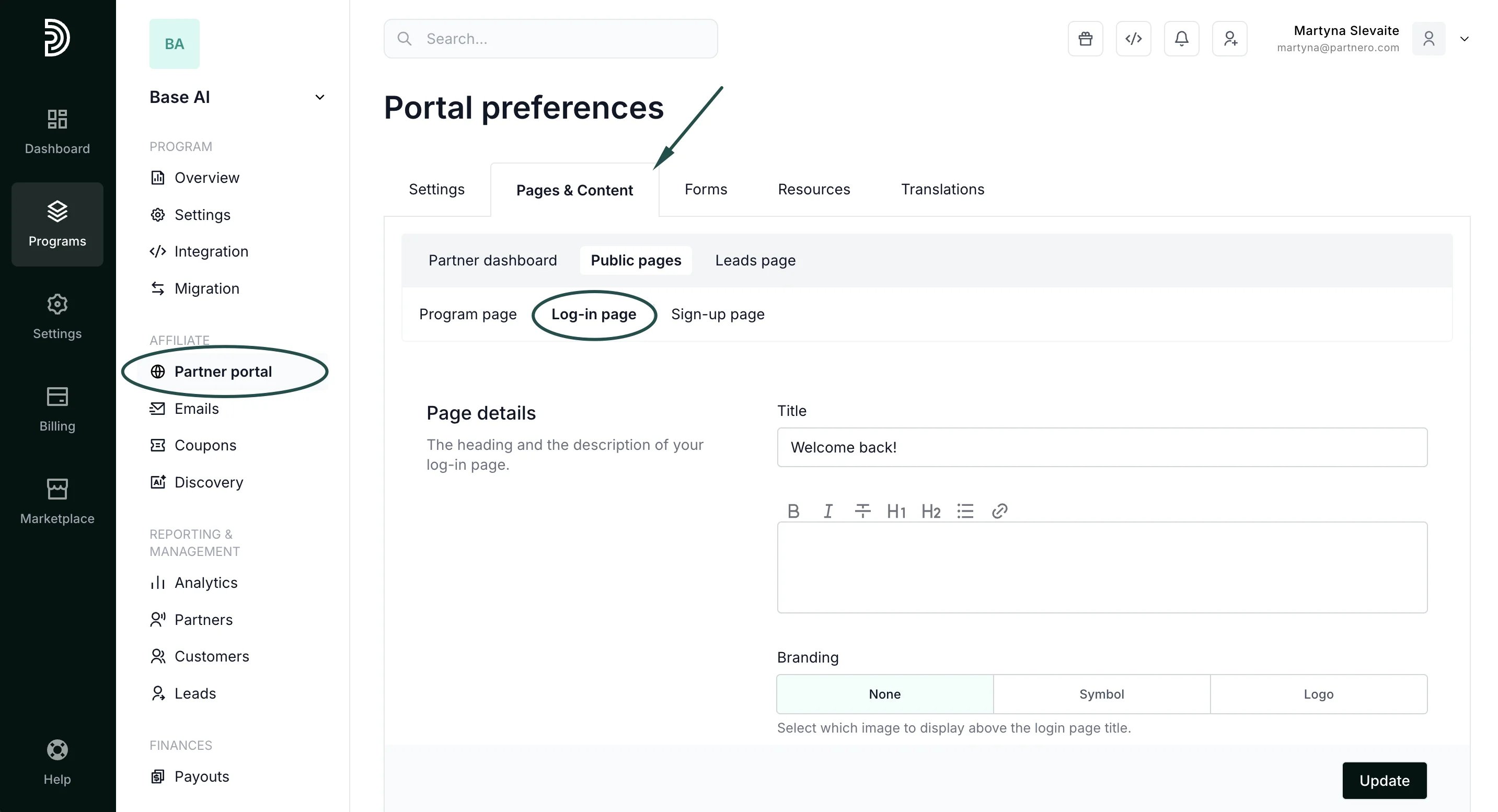 Here, you’ll find **Page details** - add a title and description to welcome your partners and branding options.
Don't forget to click **Update** to save your changes!
This documentation is built and hosted on [Mintlify](https://mintlify.com), a developer documentation platform.
Here, you’ll find **Page details** - add a title and description to welcome your partners and branding options.
Don't forget to click **Update** to save your changes!
This documentation is built and hosted on [Mintlify](https://mintlify.com), a developer documentation platform.