> ## Documentation Index
> Fetch the complete documentation index at: https://docs.partnero.com/llms.txt
> Use this file to discover all available pages before exploring further.
# In-site widget for affiliate programs
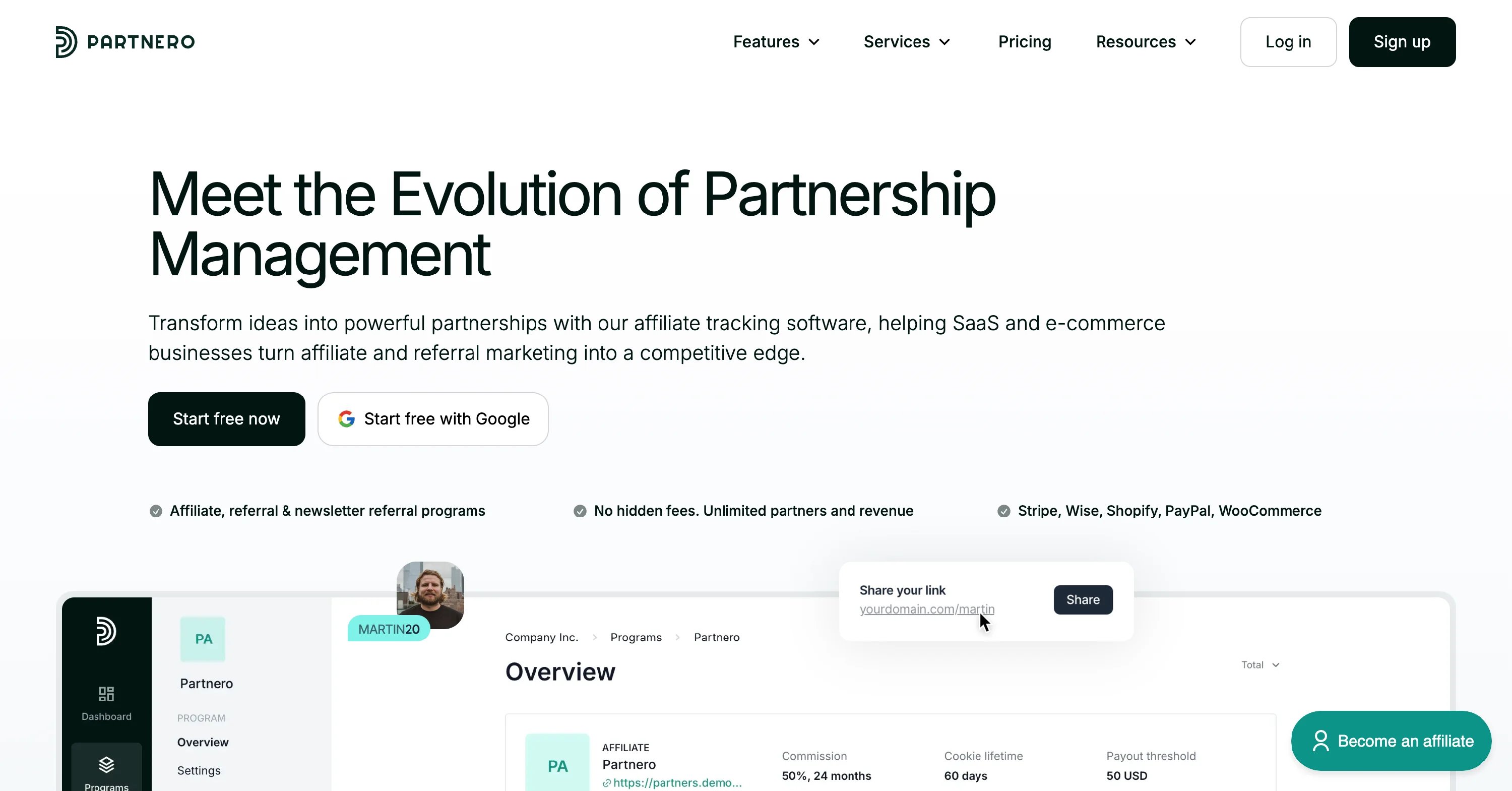
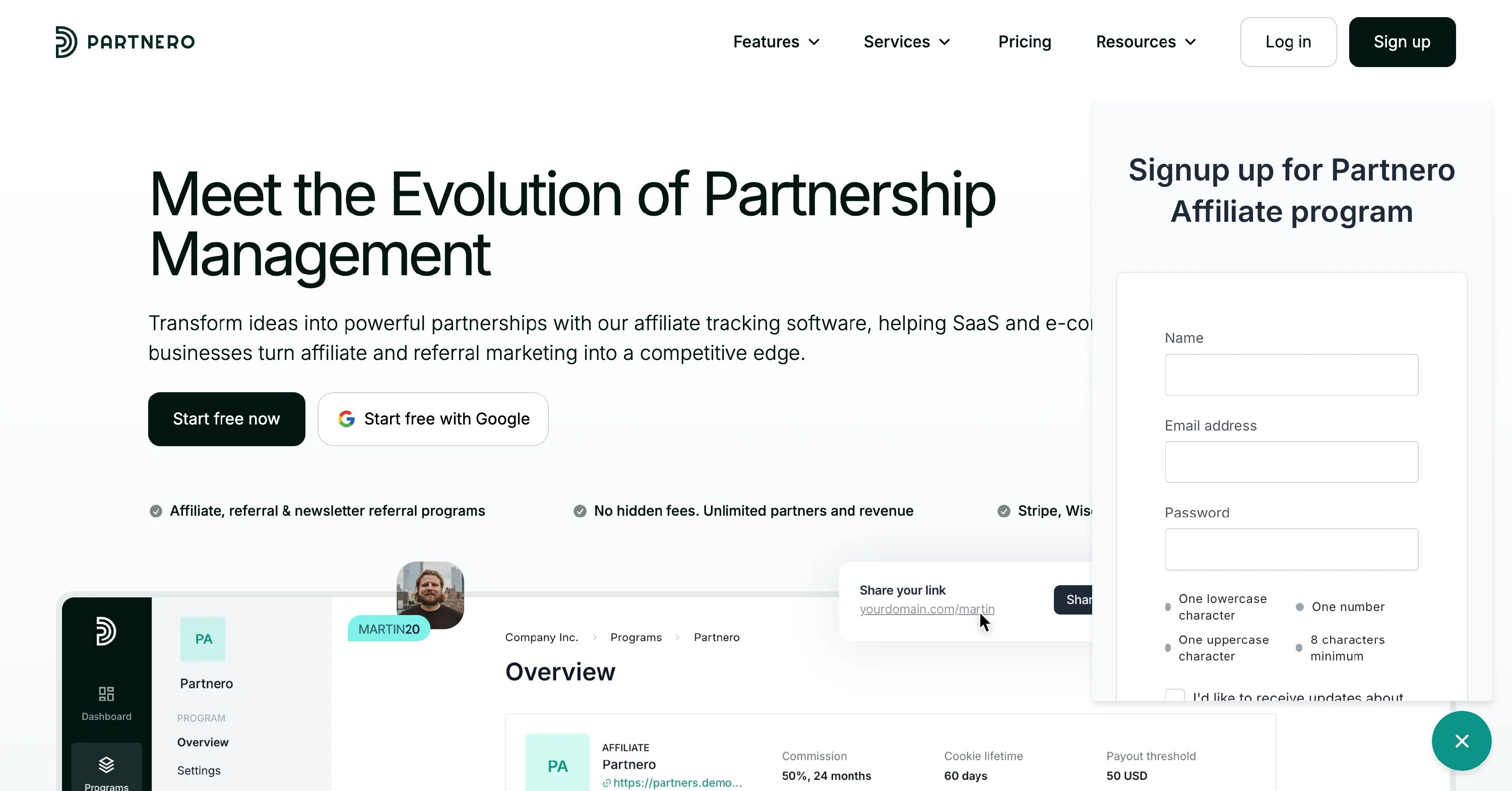
With Partnero, you can seamlessly integrate your partner portal into your website using an in-site widget. This increases portal visibility to website visitors, making it easier to convert them into affiliates.
 ***
### Design the in-site widget
To format and design the in-site widget:
1. Open your program and go to **Partner portal** under **Affiliate**.
2. On the **Settings** tab, switch to the **In-site widget** section:
***
### Design the in-site widget
To format and design the in-site widget:
1. Open your program and go to **Partner portal** under **Affiliate**.
2. On the **Settings** tab, switch to the **In-site widget** section: 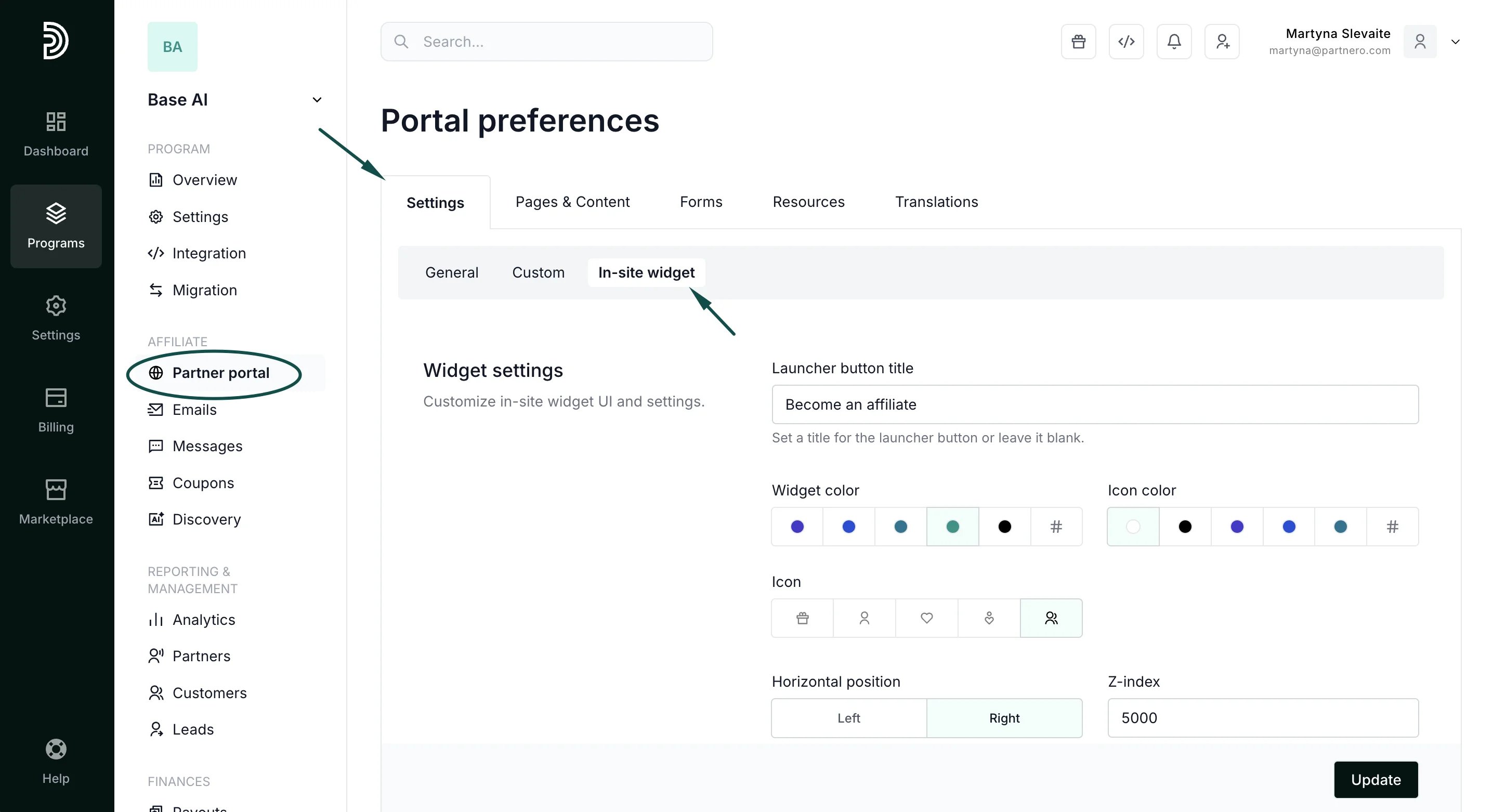 Here you can:
* Add the launcher button title.
* Select the widget and icon colors.
* Select the widget icon.
* Define the widget position.
***
### Add the widget to your website
\*\*Step 1:
\*\*Partnero integration on your website must be completed before the widget can be visible.
Also, you'll need to connect a custom partner portal domain to use the in-site widget feature. [Here's how to do that](/knowledge-base/partner-portal/connect-a-partner-portal-domain).
\*\*Step 2:
\*\*Now that you have a custom domain connected, go to **Partner portal** under **Affiliate**. You'll land on the **Settings** tab, **General** section:
Here you can:
* Add the launcher button title.
* Select the widget and icon colors.
* Select the widget icon.
* Define the widget position.
***
### Add the widget to your website
\*\*Step 1:
\*\*Partnero integration on your website must be completed before the widget can be visible.
Also, you'll need to connect a custom partner portal domain to use the in-site widget feature. [Here's how to do that](/knowledge-base/partner-portal/connect-a-partner-portal-domain).
\*\*Step 2:
\*\*Now that you have a custom domain connected, go to **Partner portal** under **Affiliate**. You'll land on the **Settings** tab, **General** section: 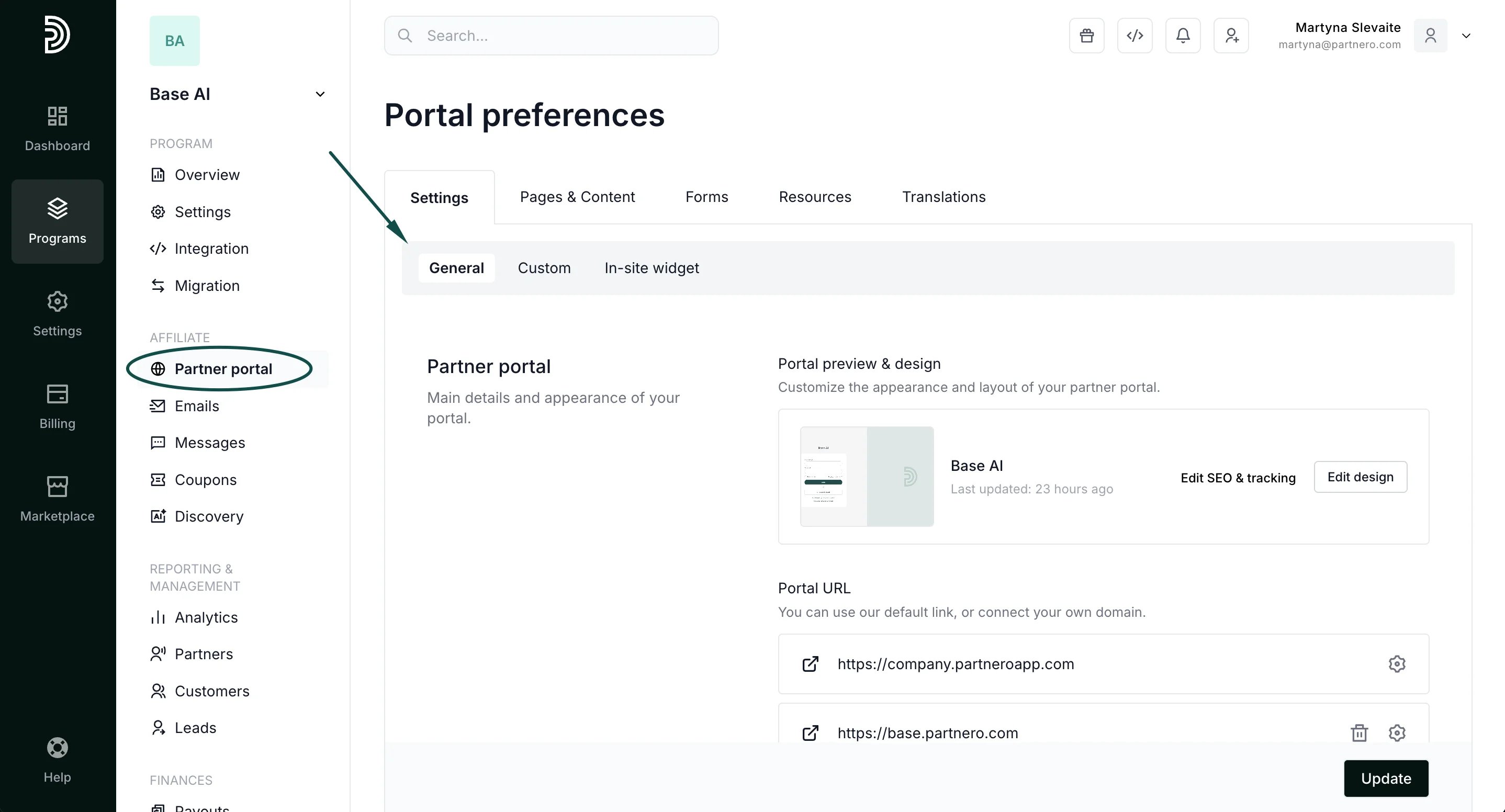 Scroll down to the **Portal features** section, and toggle **Enable in-site widget**:
 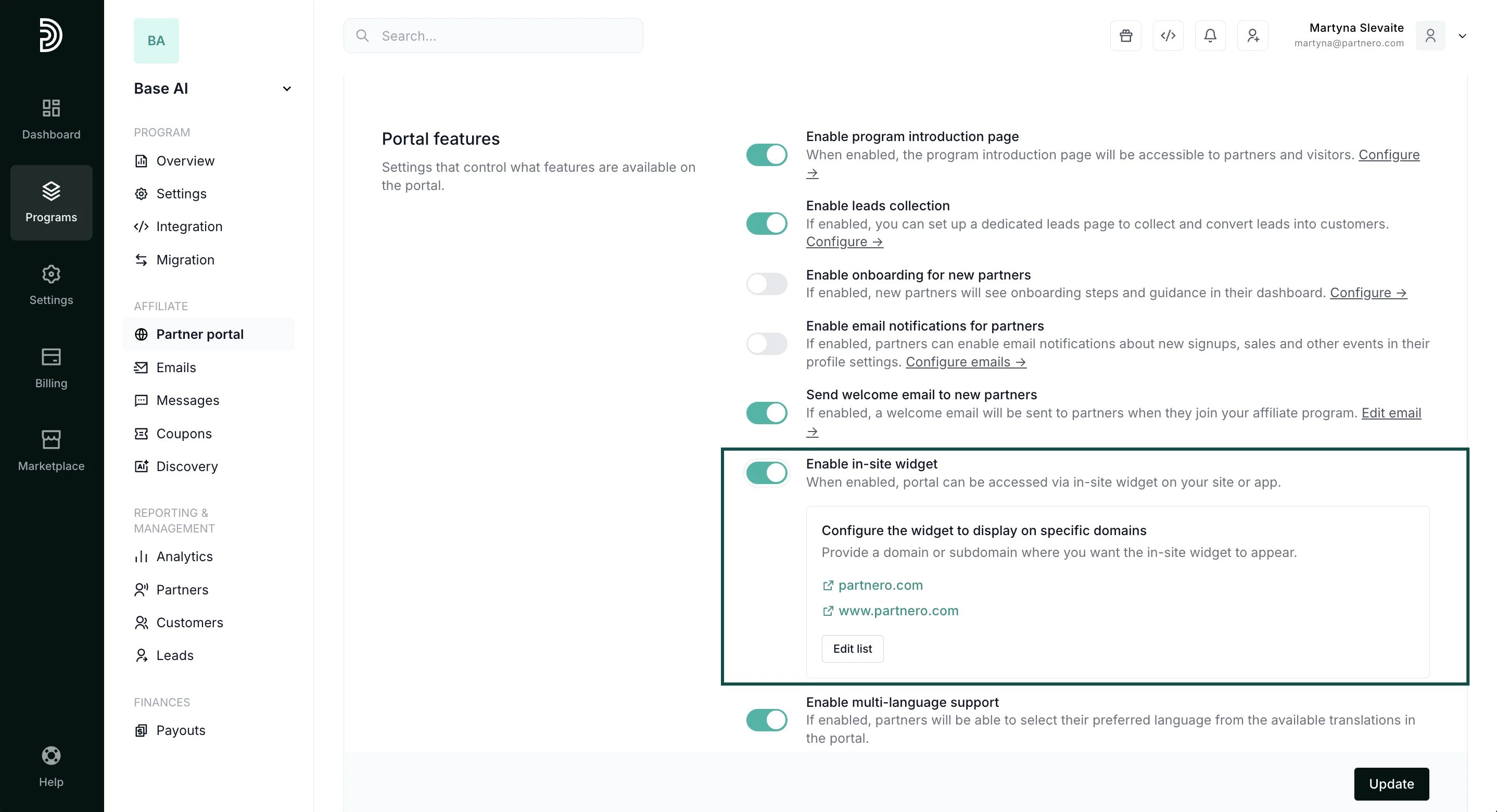 > *The option will be grayed out if a custom partner portal domain is not connected (Step 1).*
Add the domains where the widget should be visible:
> *The option will be grayed out if a custom partner portal domain is not connected (Step 1).*
Add the domains where the widget should be visible:
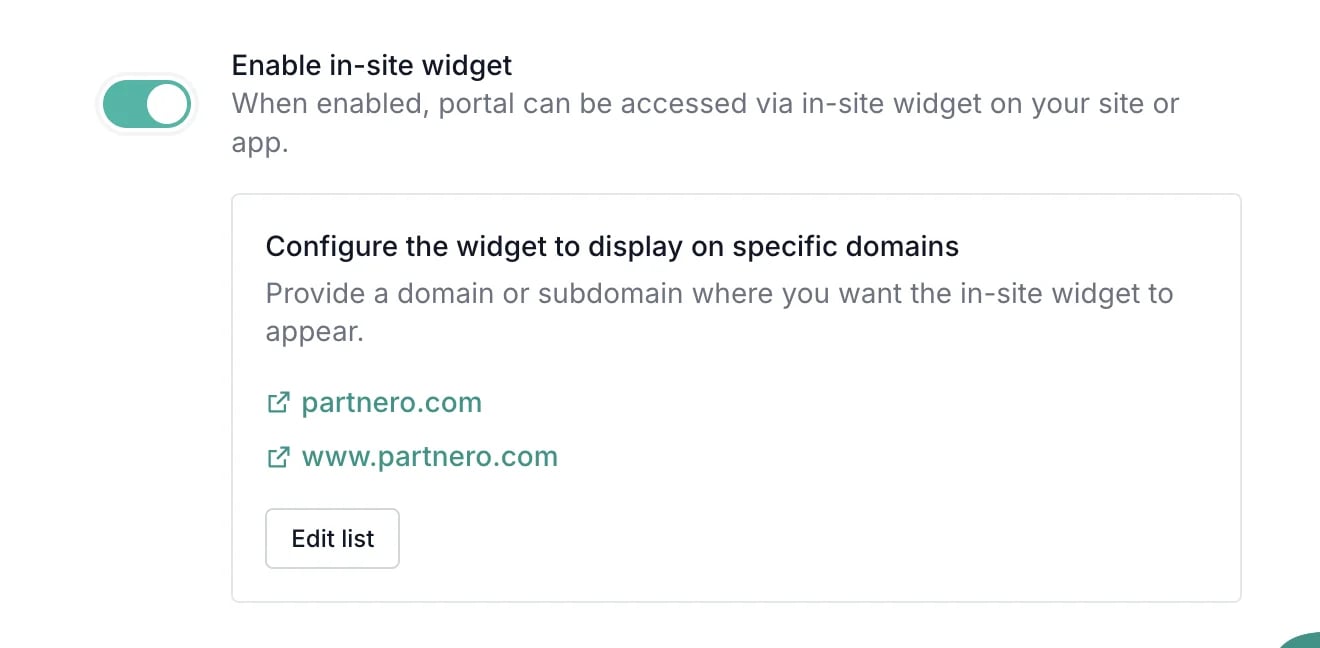 **Important**: The whitelisted domains should match the custom domain configured in Step 1 (primary or subdomain).
For example, if your partner portal custom domain is **partners.mywebsite.com**, the in-site widget can be added to **mywebsite.com**, or \*\*\*.\*\***mywebsite.com**.
Click **Update** to save your changes!
***
This documentation is built and hosted on [Mintlify](https://mintlify.com), a developer documentation platform.
**Important**: The whitelisted domains should match the custom domain configured in Step 1 (primary or subdomain).
For example, if your partner portal custom domain is **partners.mywebsite.com**, the in-site widget can be added to **mywebsite.com**, or \*\*\*.\*\***mywebsite.com**.
Click **Update** to save your changes!
***
This documentation is built and hosted on [Mintlify](https://mintlify.com), a developer documentation platform.