> ## Documentation Index
> Fetch the complete documentation index at: https://docs.partnero.com/llms.txt
> Use this file to discover all available pages before exploring further.
# New partner onboarding
With Partnero, you can enable custom onboarding cards to welcome new partners to your program and provide key resources. The onboarding process has three main steps:
1. Welcome message.
2. *My profile* review (default).
3. Closing message.
***
### Set up welcome and closing messages
1. Open the program you’d like to work with.
2. Navigate to **Partner portal** under **Affiliate**.
3. Go to **Pages &** **Content** tab, **Partner dashboard** section: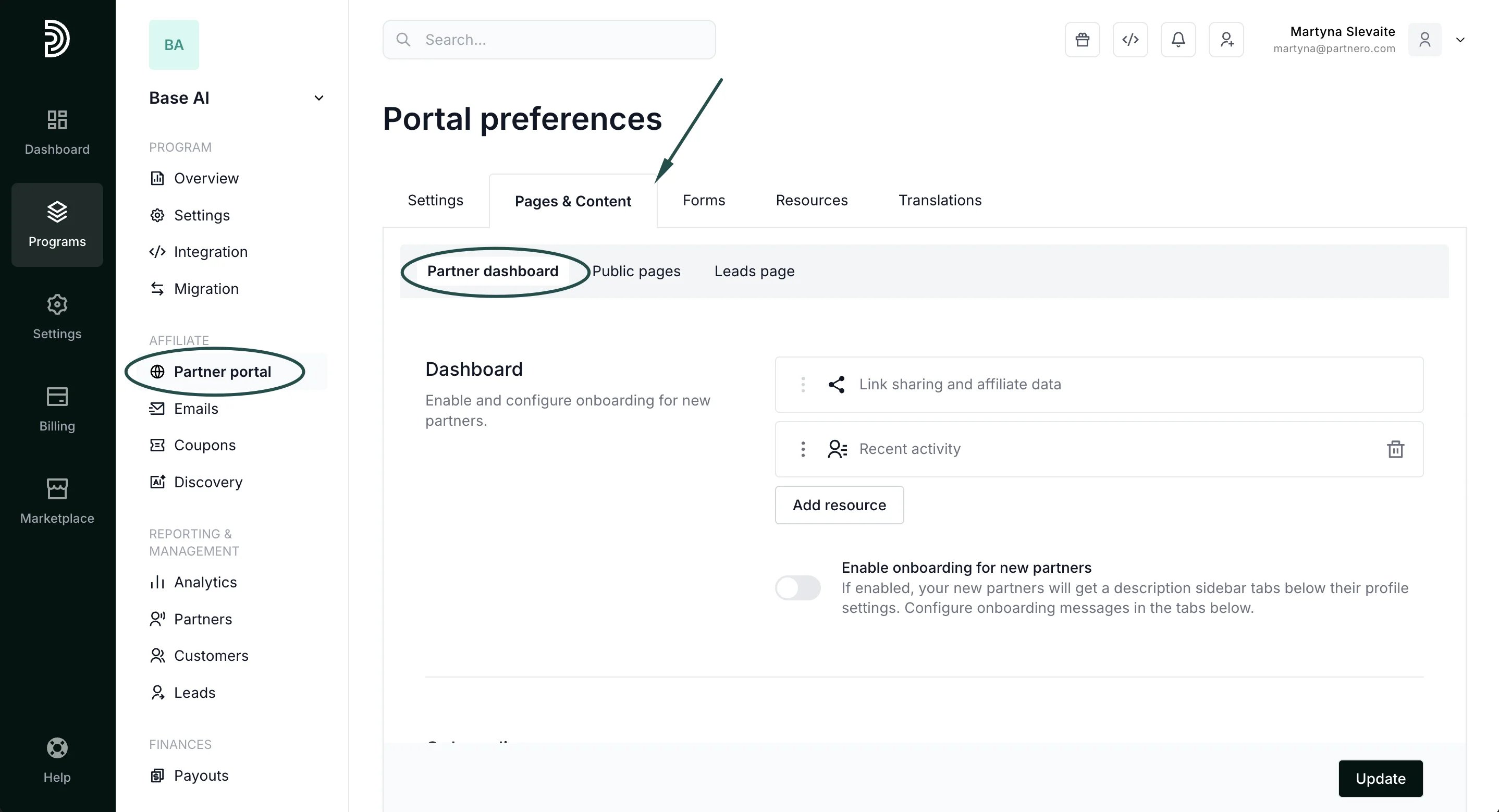 4. Scroll down to find the **Onboarding** section:
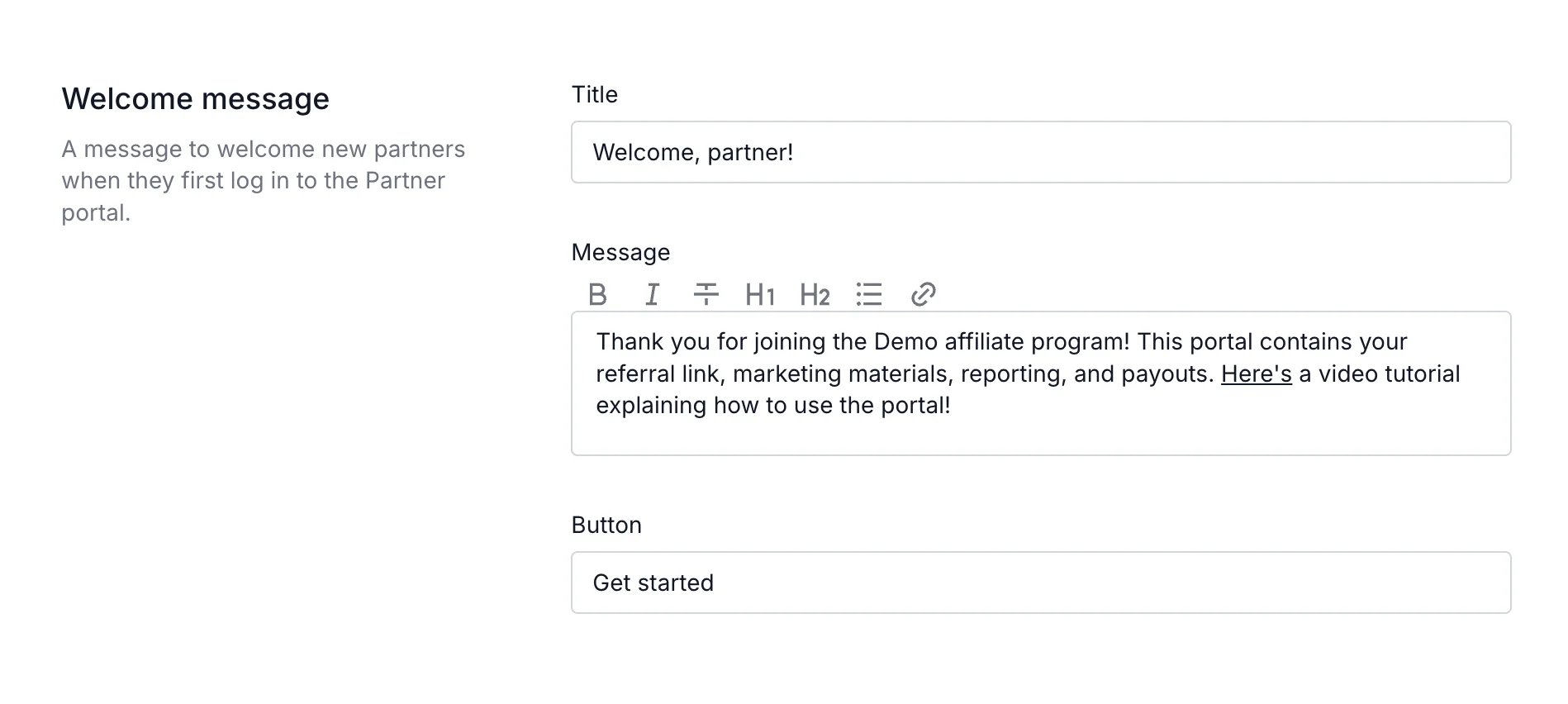
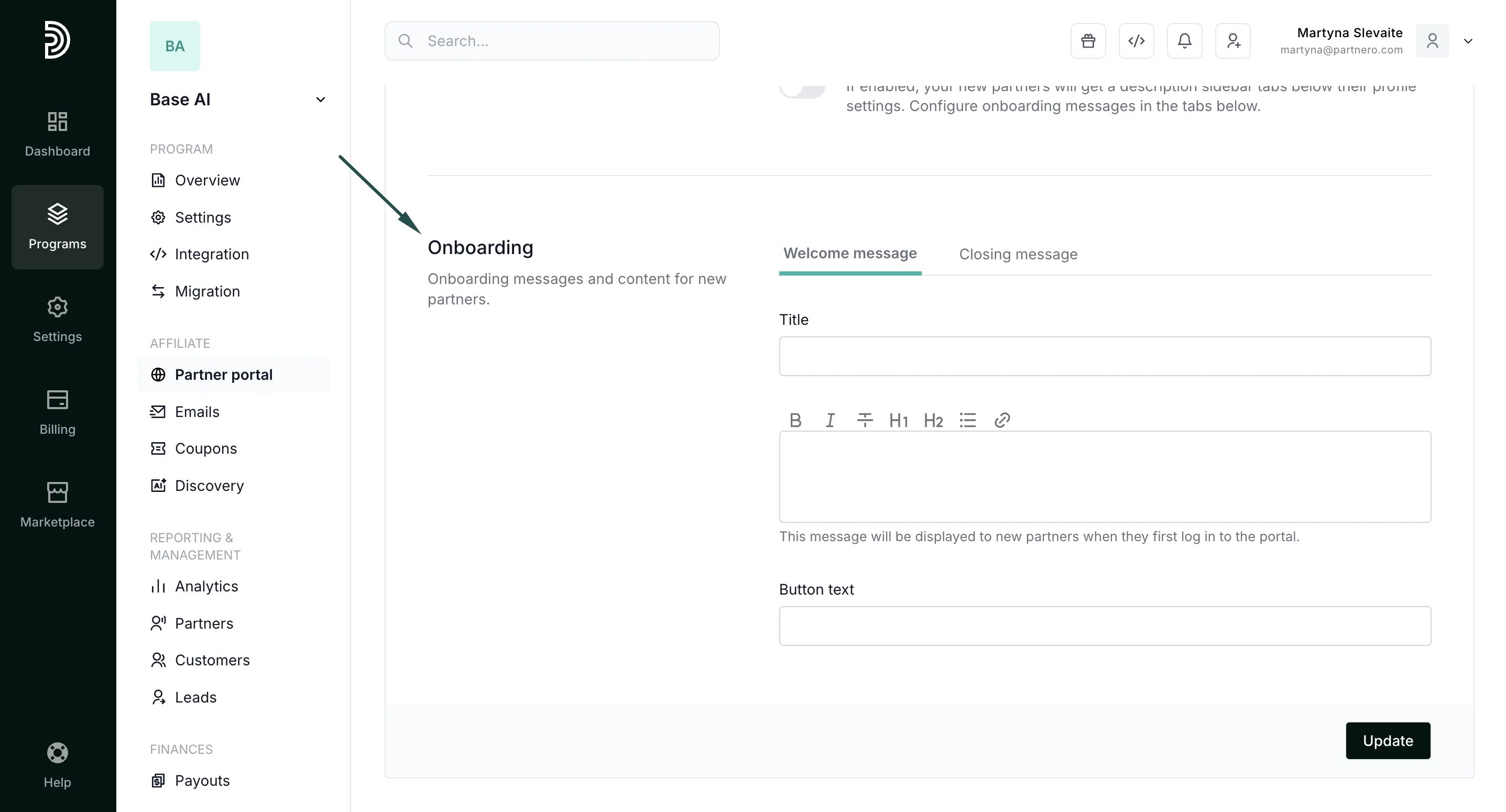 **Step 1: Welcome message** This section contains *Title*, *Message*, and *Button text* fields. Your goal here should be to welcome new partners and tell them more about what they should expect and share important information. Example below:
 \*\*Step 2: My profile
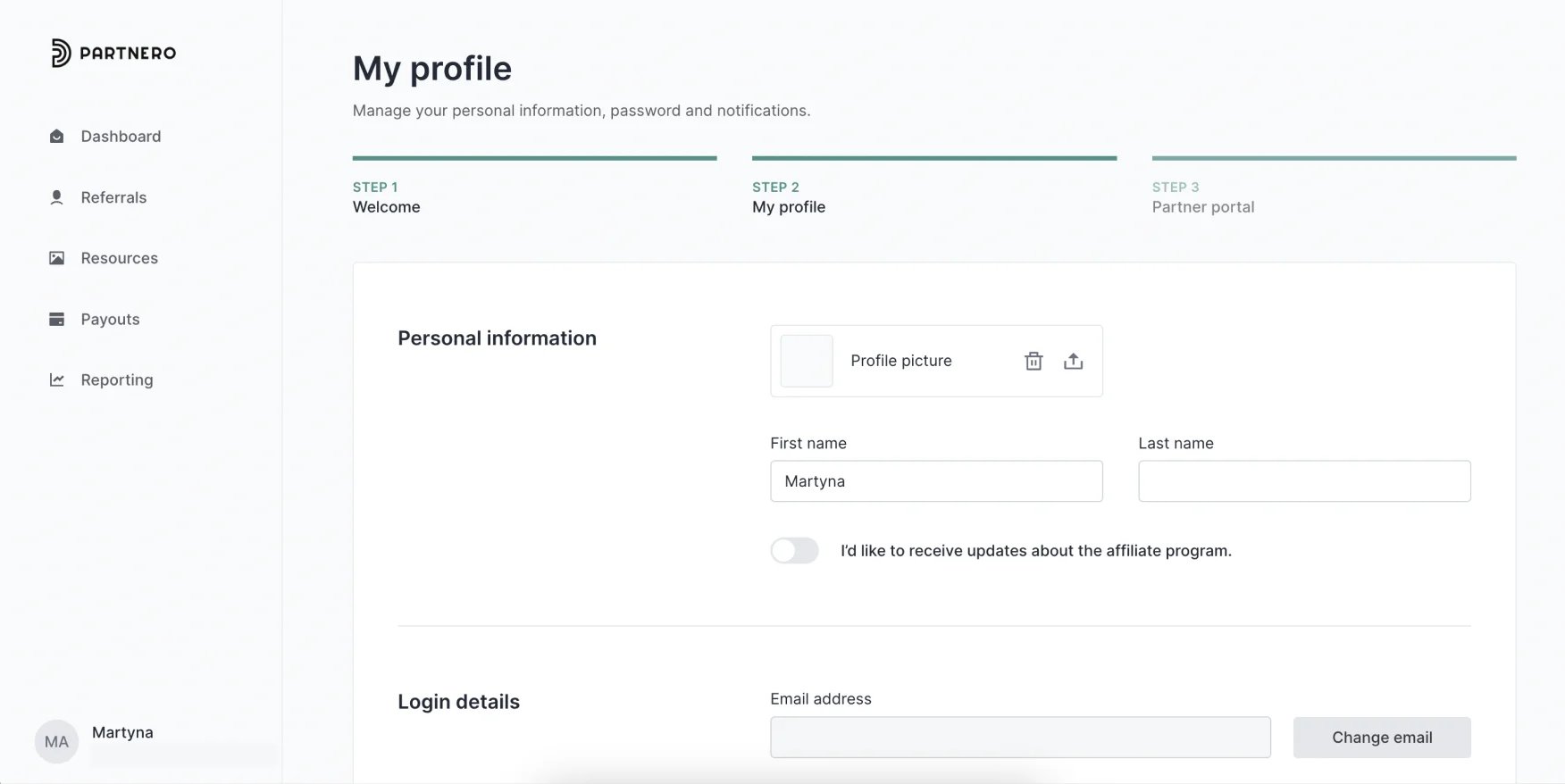
\*\*After the welcome message, your partners will be shown the “My profile” section. Here, they can review and edit any personal information if needed. This step does not include editable sections.
**Step 3: Closing message**
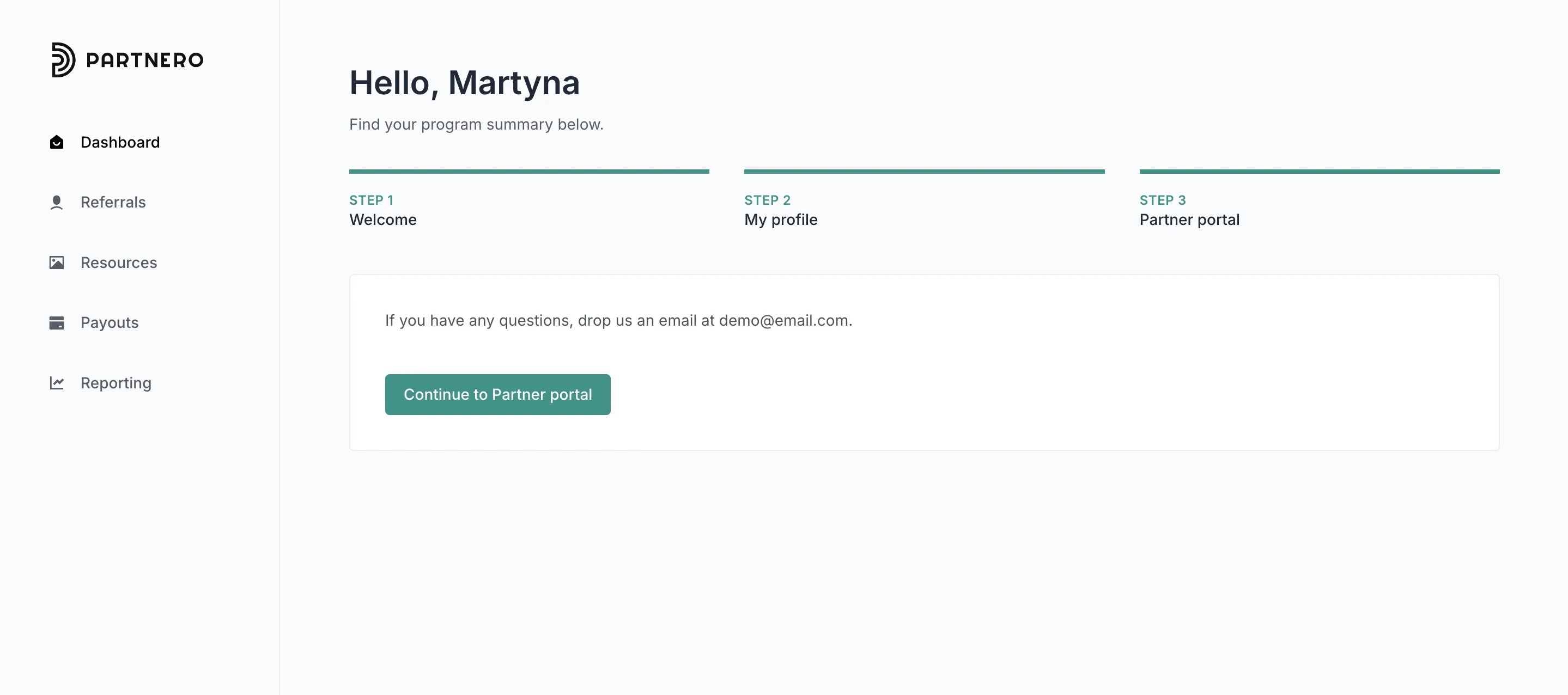
This message will be shown at the end as the last step before your partners proceed to the partner portal. You can share tips, your contact details, or anything else you think would be essential or helpful.
\*\*Step 2: My profile
\*\*After the welcome message, your partners will be shown the “My profile” section. Here, they can review and edit any personal information if needed. This step does not include editable sections.
**Step 3: Closing message**
This message will be shown at the end as the last step before your partners proceed to the partner portal. You can share tips, your contact details, or anything else you think would be essential or helpful. 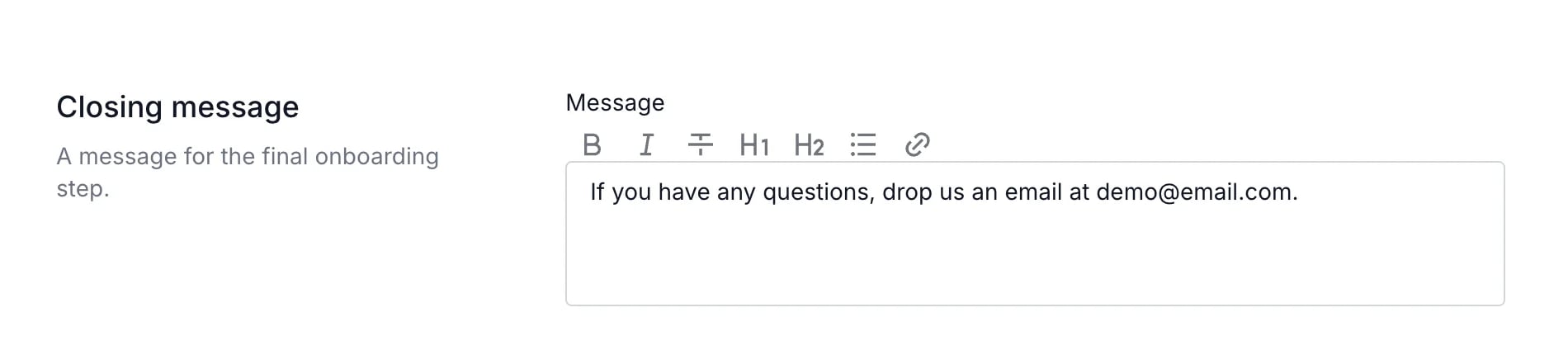 > Make sure to click **Update** after you make any changes!
***
### Enable onboarding
Now that your onboarding is ready, make sure to enable it:
1. Go to **Partner portal** under **Affiliate**:
> Make sure to click **Update** after you make any changes!
***
### Enable onboarding
Now that your onboarding is ready, make sure to enable it:
1. Go to **Partner portal** under **Affiliate**: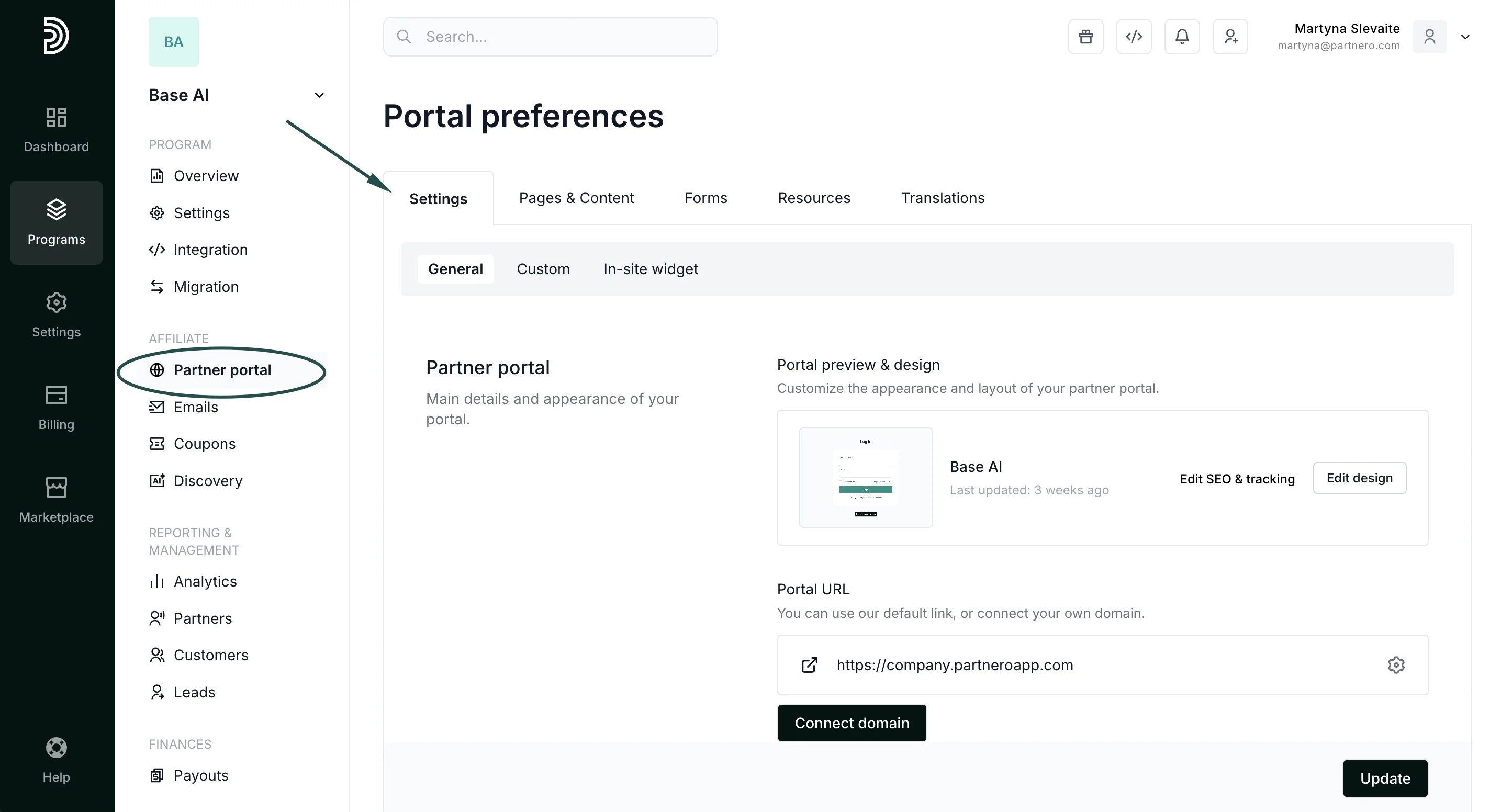 2. In the **General** tab, scroll down to the **Portal features** section. Toggle “**Enable onboarding for new partners**”:
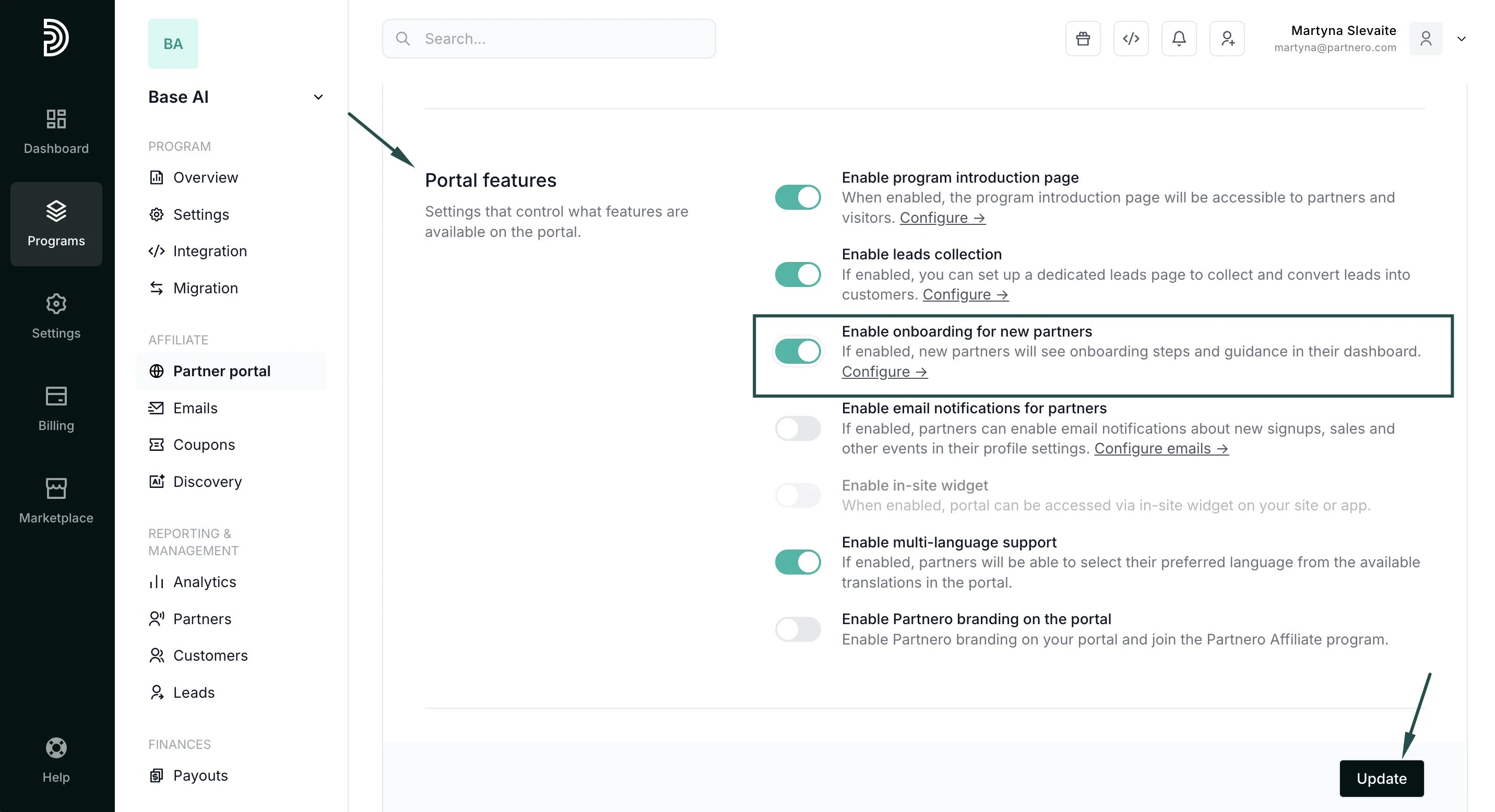 3. Click **Update**.
***
### Examples
Here's an example of how the onboarding cards look on the partner portal:
Step 1: Welcome message
3. Click **Update**.
***
### Examples
Here's an example of how the onboarding cards look on the partner portal:
Step 1: Welcome message 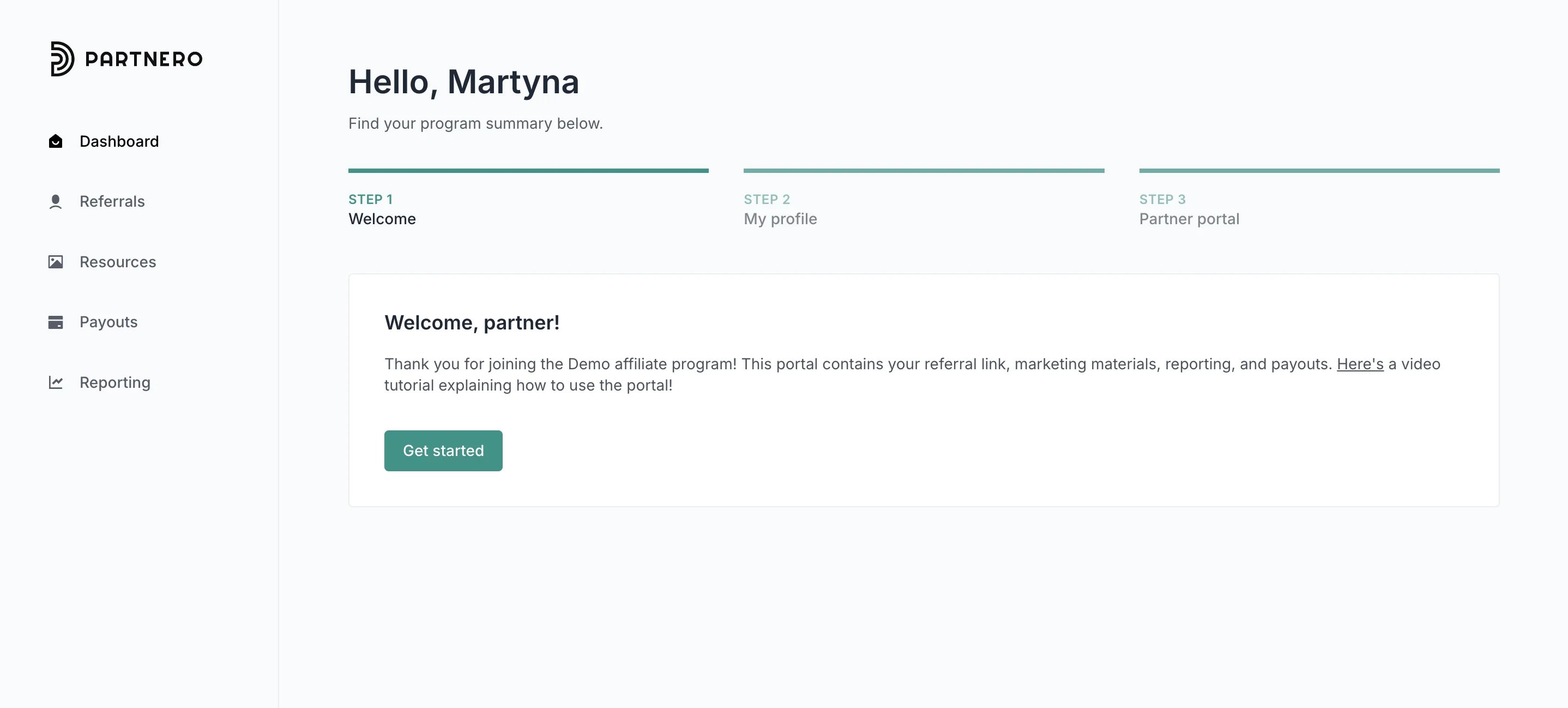 Step 2: My profile section
 Step 3: Closing message
 This documentation is built and hosted on [Mintlify](https://mintlify.com), a developer documentation platform.