> ## Documentation Index
> Fetch the complete documentation index at: https://docs.partnero.com/llms.txt
> Use this file to discover all available pages before exploring further.
# Partner portal: Appearance
To access Partner portal appearance settings:
1. Open the program you’d like to work with.
2. On the left sidebar, click on **Partner Portal** under **Affiliate**.
3. Switch to the **Appearance** tab: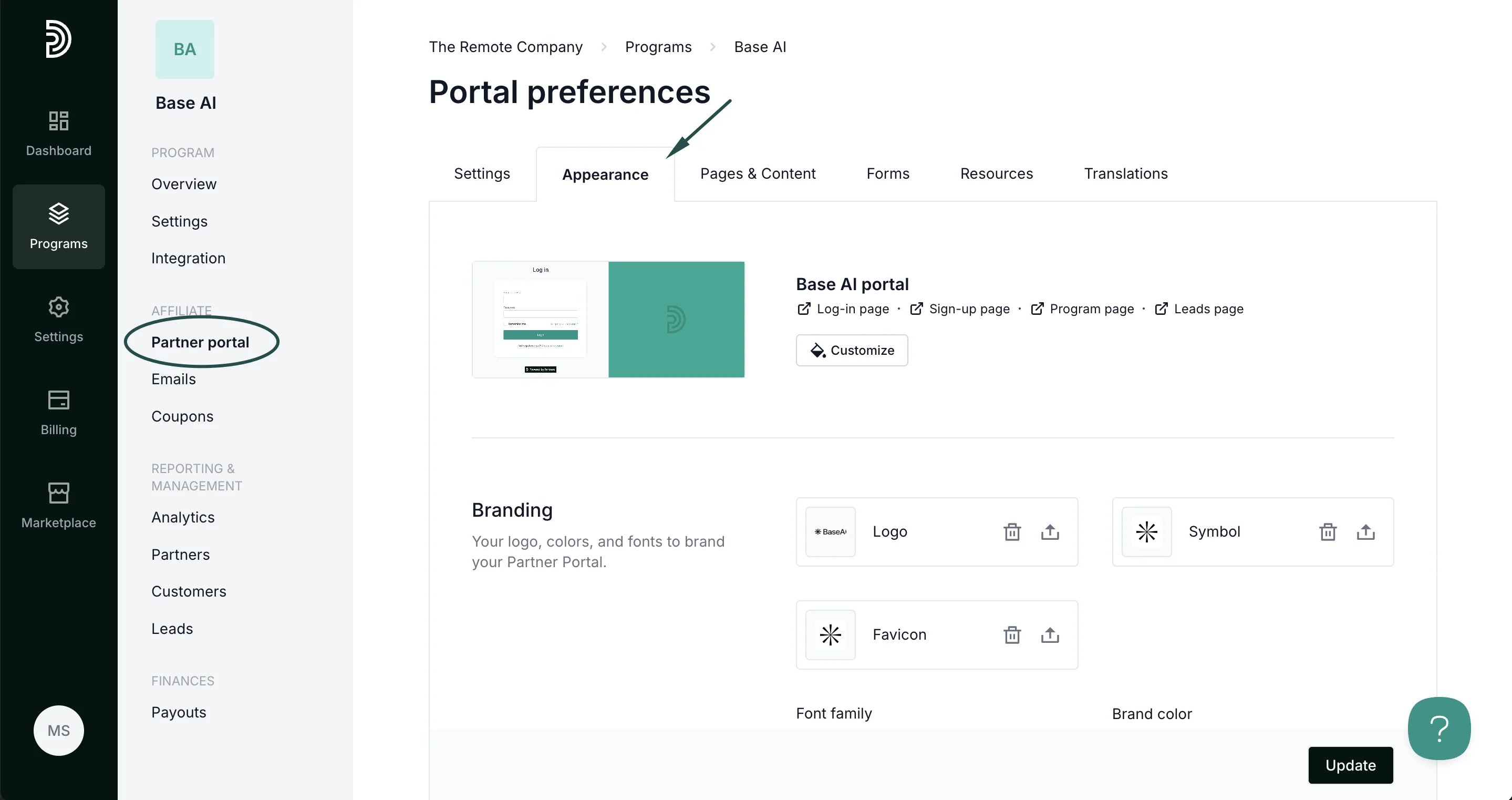 Here, you can apply branding and appearance settings for your Partner dashboard and Public pages
***
### Live Designer
You can choose to edit all settings on the Appearance tab. Alternatively, you can click **Customize** to use the Live Designer feature:
Here, you can apply branding and appearance settings for your Partner dashboard and Public pages
***
### Live Designer
You can choose to edit all settings on the Appearance tab. Alternatively, you can click **Customize** to use the Live Designer feature: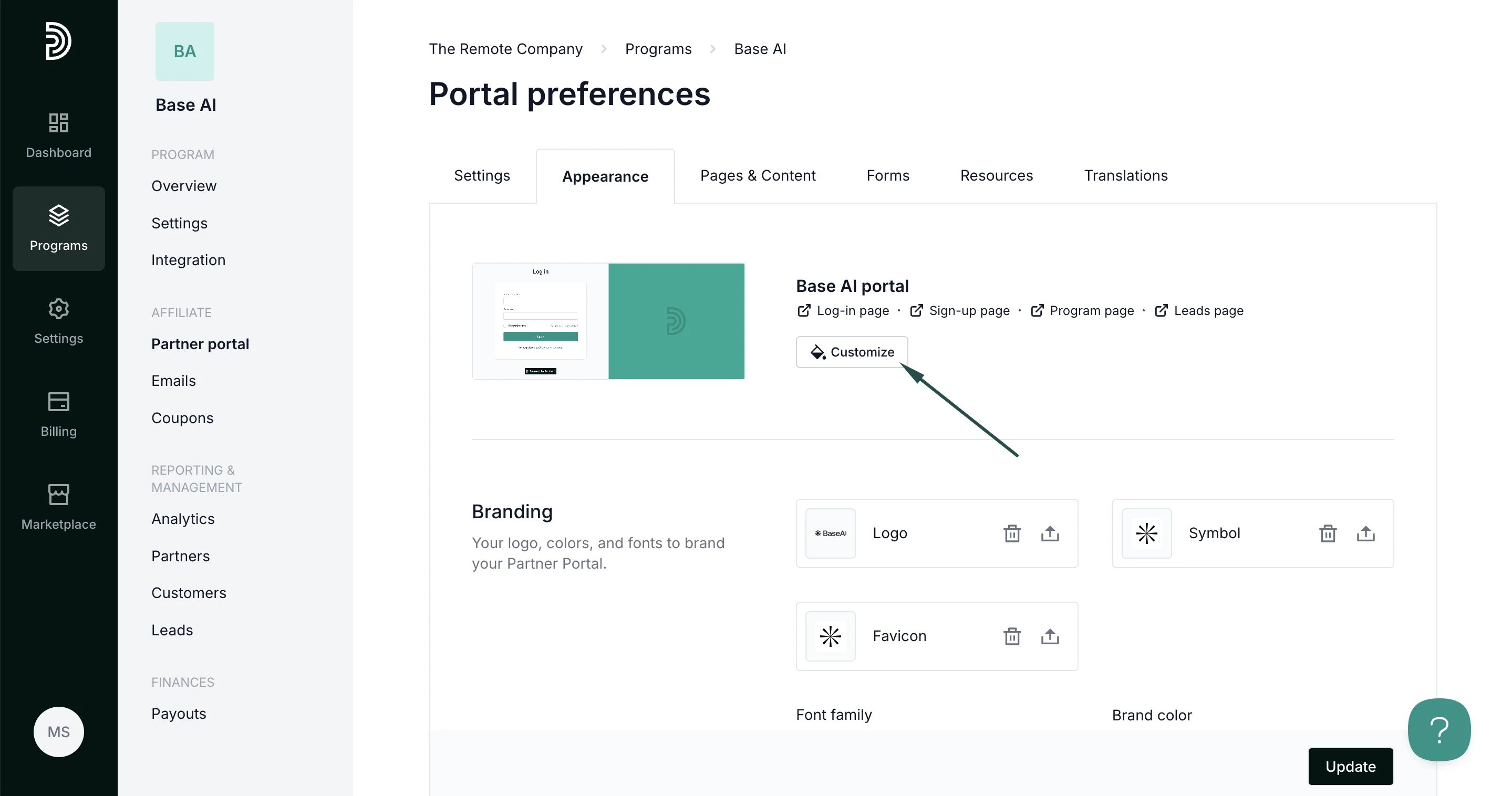 You will be presented with a live editor mode, where you can see all changes in action. Switch between different program pages in the upper right corner of the live editor mode:
 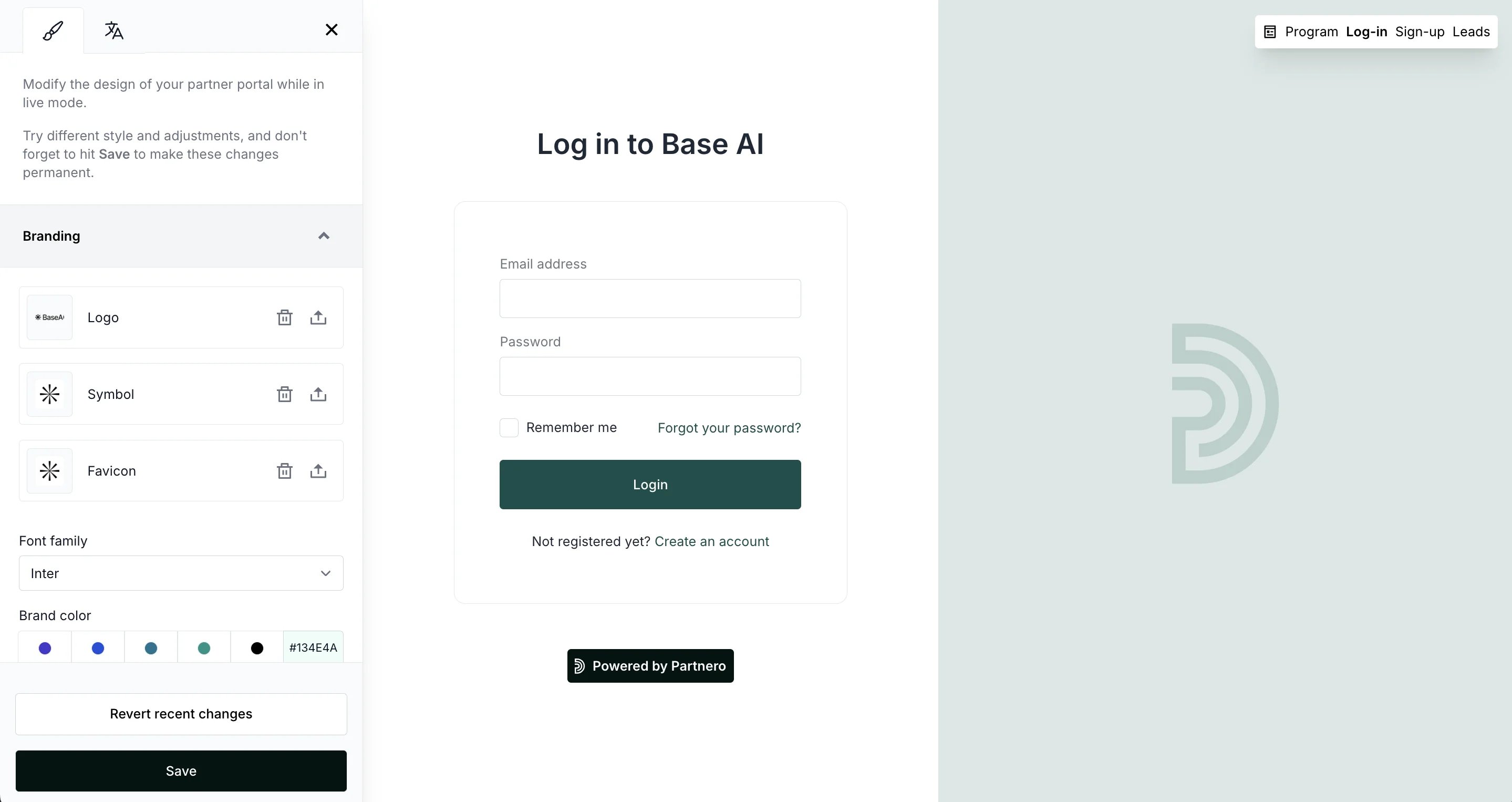 [Read more about using the Live Designer here.](/knowledge-base/program-management/live-designer-overview)
***
### Branding
The **Branding** section allows you to upload your logo, symbol, and favicon, which will be used in the Partner portal. Additionally, you can select your font family and the main brand color.
To upload your logo:
1. Open the **Appearance** tab.
2. Click the upload sign next to the Logo section:
[Read more about using the Live Designer here.](/knowledge-base/program-management/live-designer-overview)
***
### Branding
The **Branding** section allows you to upload your logo, symbol, and favicon, which will be used in the Partner portal. Additionally, you can select your font family and the main brand color.
To upload your logo:
1. Open the **Appearance** tab.
2. Click the upload sign next to the Logo section: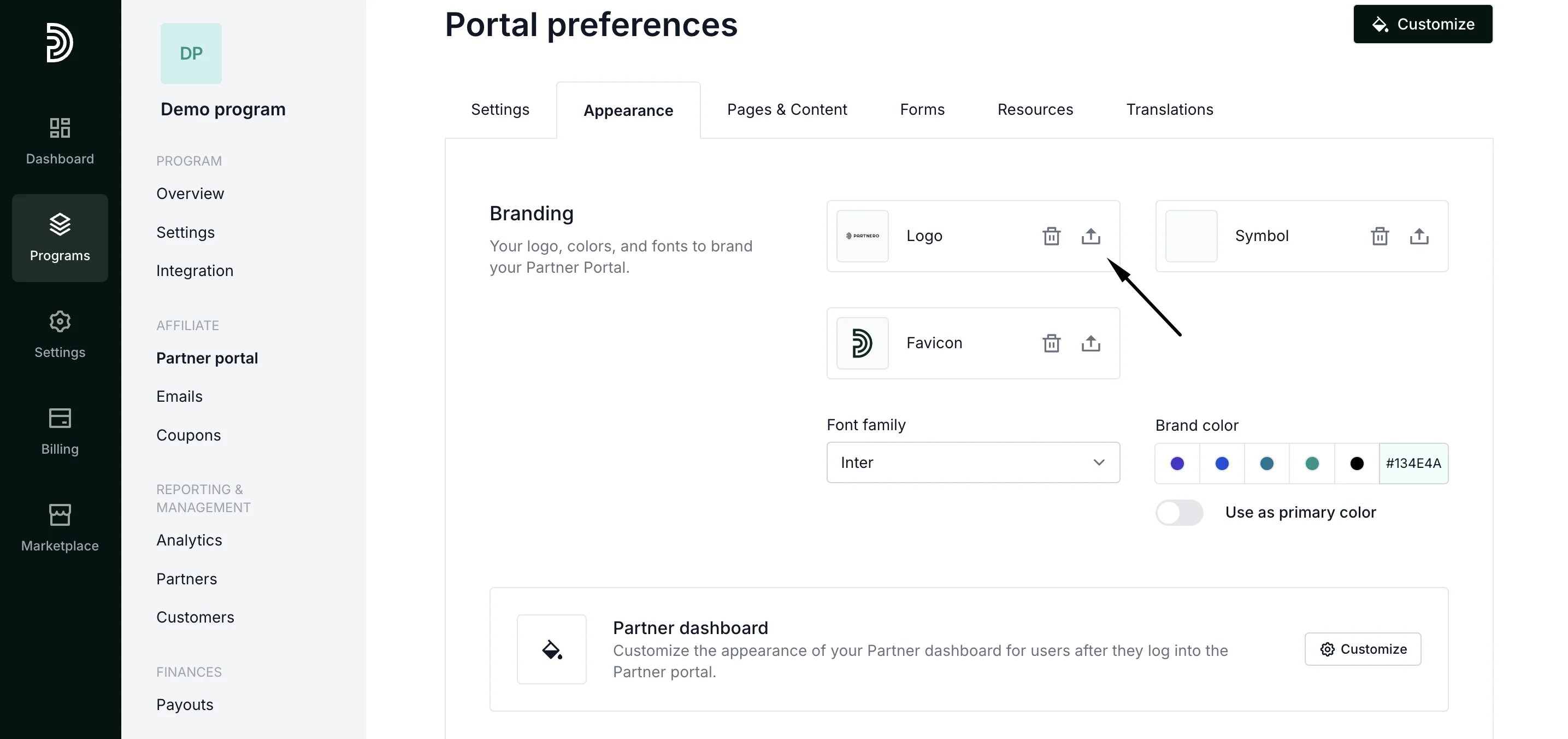 3. Select the file and upload it.
4. Click **Update** at the bottom right corner to save your changes.
***
### Partner Dashboard
The **Partner dashboard** section allows you to customize how the dashboard will look like. You can select the main colors, change the layout and navigation.
3. Select the file and upload it.
4. Click **Update** at the bottom right corner to save your changes.
***
### Partner Dashboard
The **Partner dashboard** section allows you to customize how the dashboard will look like. You can select the main colors, change the layout and navigation.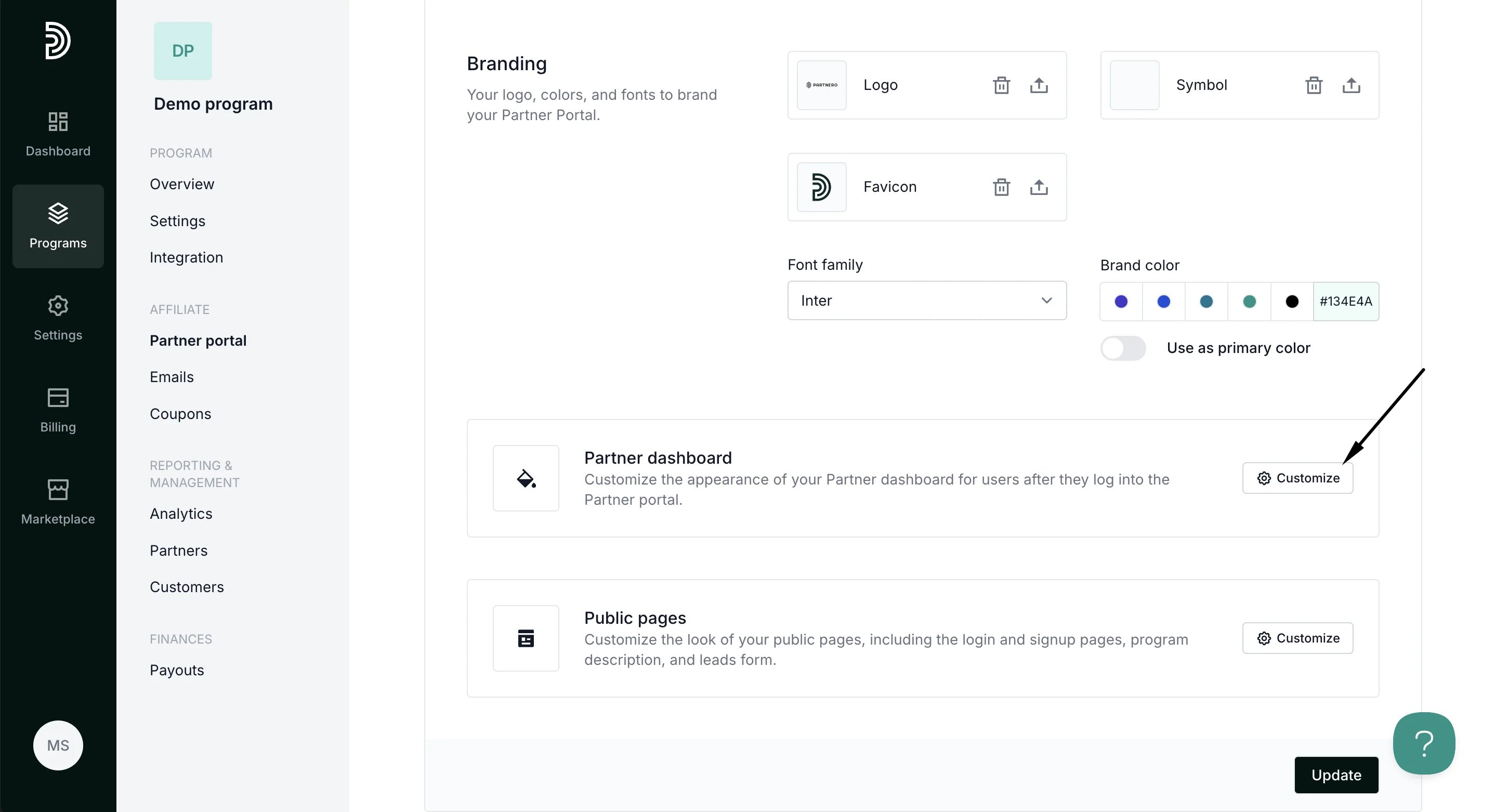 ###
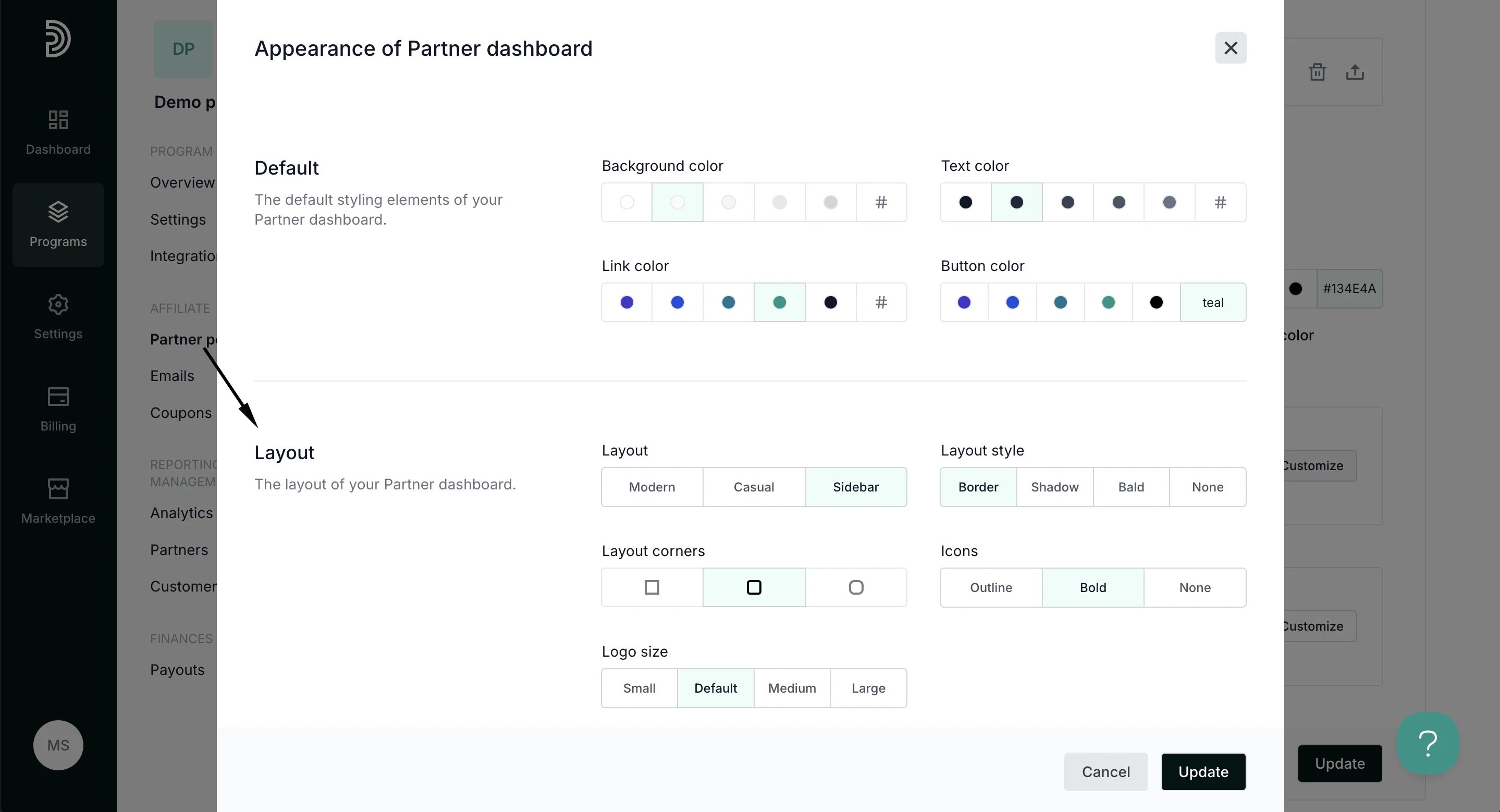
To change the Partner portal layout:
1. In the Appearance tab, scroll down to Partner dashboard and click Customize.
2. In the Layout section, choose the layout style you prefer:
###
To change the Partner portal layout:
1. In the Appearance tab, scroll down to Partner dashboard and click Customize.
2. In the Layout section, choose the layout style you prefer:
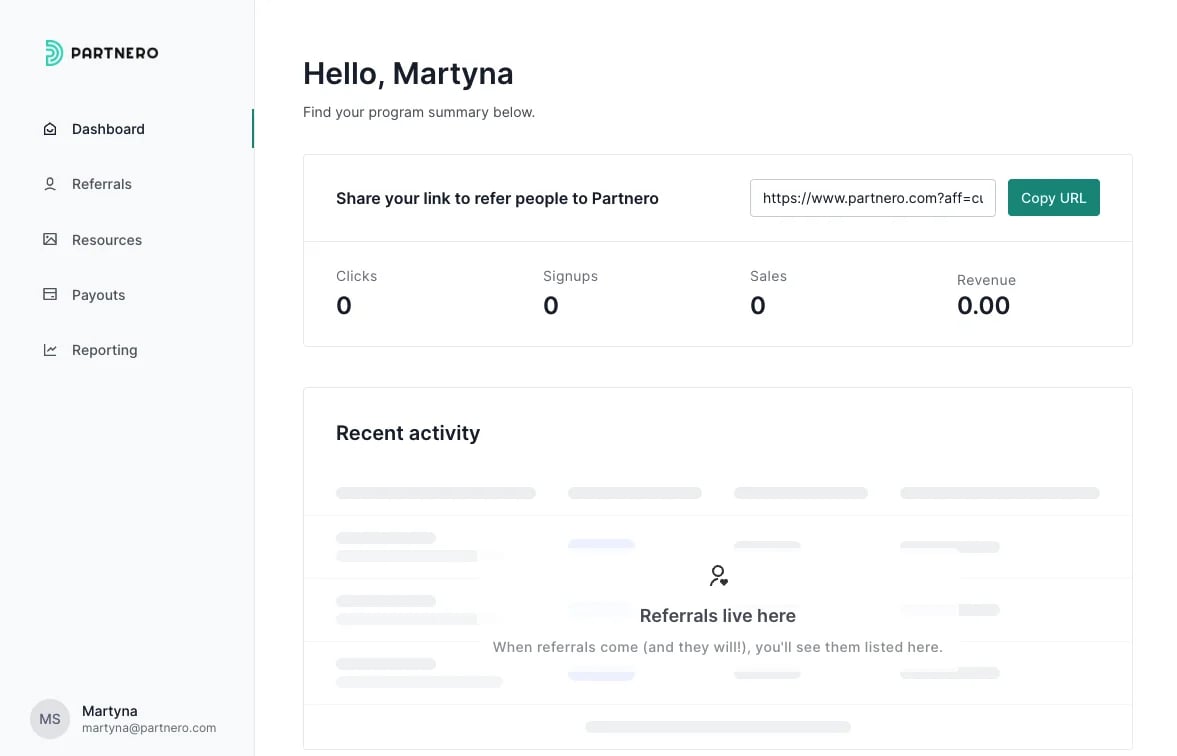
 Below are some examples of what the different layouts look like.
Modern:
Below are some examples of what the different layouts look like.
Modern: 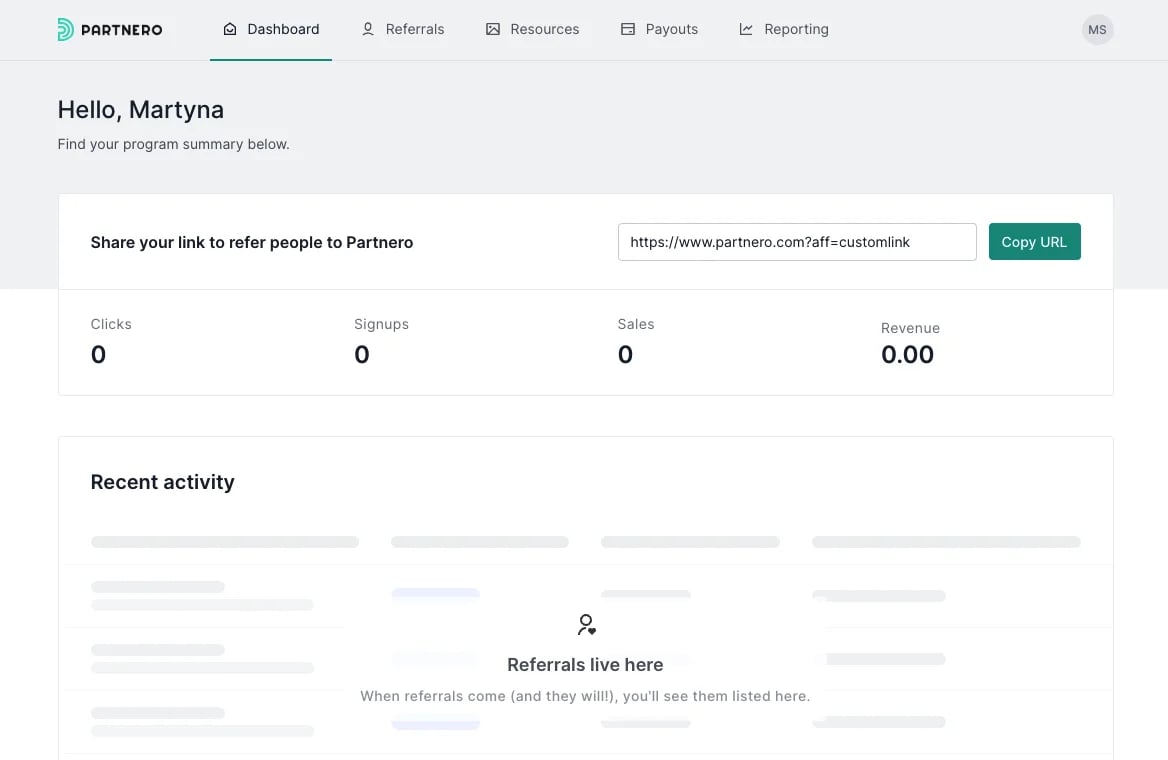 Casual:
 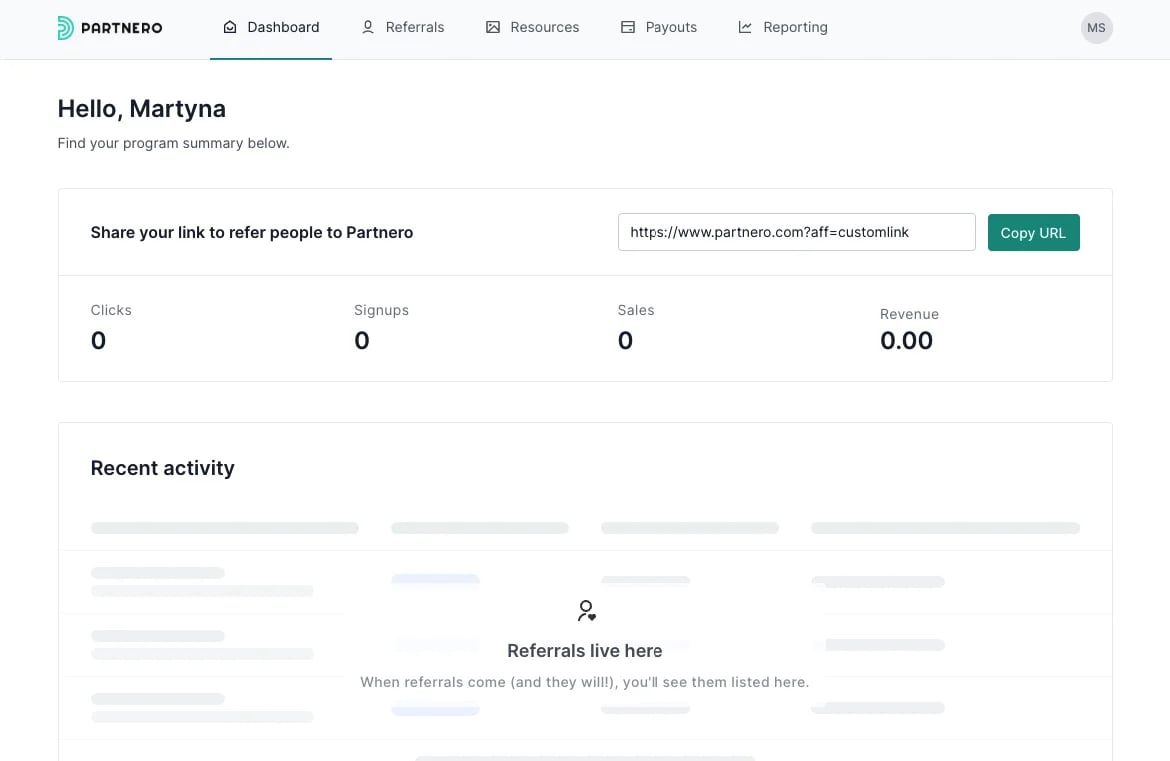 Sidebar:
  3. Click Update to save your changes.
To style the Navigation menu:
Click to Customize the Partner dashboard and scroll down to the Navigation section:
3. Click Update to save your changes.
To style the Navigation menu:
Click to Customize the Partner dashboard and scroll down to the Navigation section: 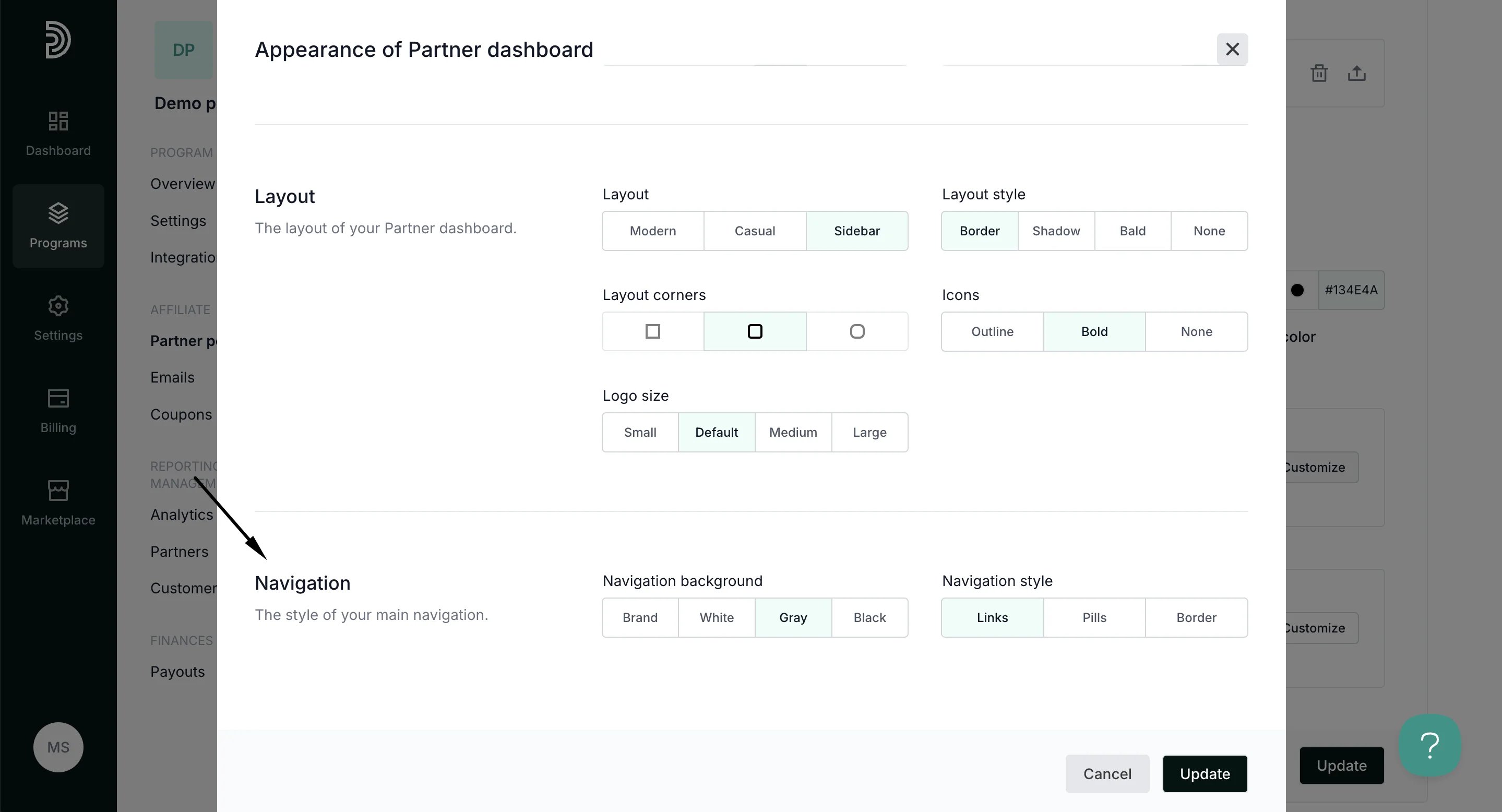 Here, you'll find two sections:
1. Navigation background - we will use your main brand color for the navigation menu. However, you can change it to black, gray, or white.
2. Navigation style - select how the currently open page should be highlighted:
| Links |
Here, you'll find two sections:
1. Navigation background - we will use your main brand color for the navigation menu. However, you can change it to black, gray, or white.
2. Navigation style - select how the currently open page should be highlighted:
| Links |  |
| - | - |
| Pills |
|
| - | - |
| Pills |  |
| Border |
|
| Border |  |
***
Public pages
Here, you can customize the settings for the signup and login pages.
|
***
Public pages
Here, you can customize the settings for the signup and login pages.
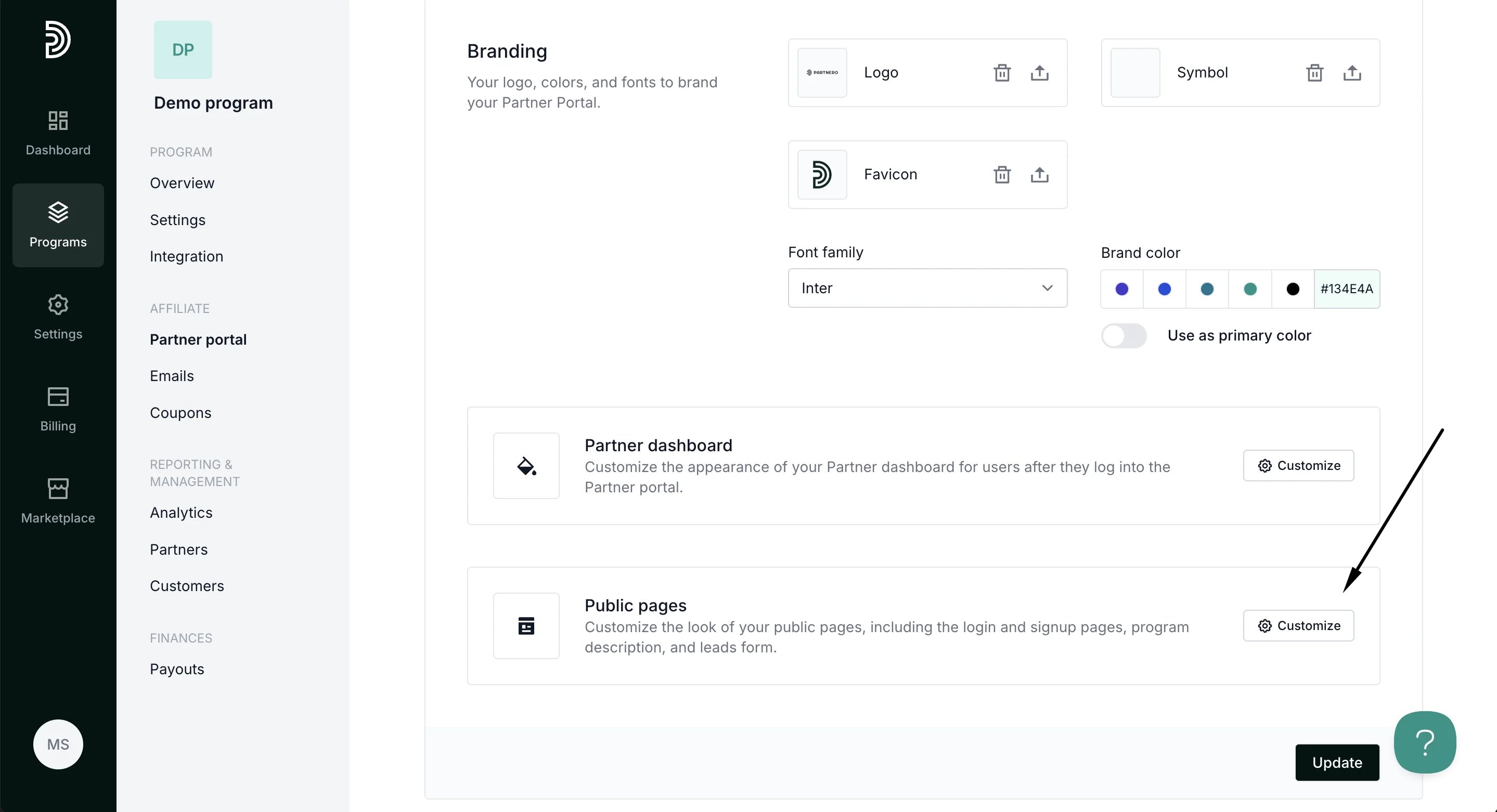 You can select the colors and styling and upload an image to be used. [Read more.](/knowledge-base/partner-portal/customize-signup-and-login-pages)
This documentation is built and hosted on [Mintlify](https://mintlify.com), a developer documentation platform.
You can select the colors and styling and upload an image to be used. [Read more.](/knowledge-base/partner-portal/customize-signup-and-login-pages)
This documentation is built and hosted on [Mintlify](https://mintlify.com), a developer documentation platform.