> ## Documentation Index
> Fetch the complete documentation index at: https://docs.partnero.com/llms.txt
> Use this file to discover all available pages before exploring further.
# Enable auto-payouts without requests
By default, affiliate partners have to **manually request payouts** after reaching the set payout threshold. With the auto-payouts setting, you can **automatically create payout requests** without requiring partners to request them. Additionally, you can choose whether these requests should be auto-approved and paid immediately or require manual review and approval before payment is processed.
***
### How auto-payouts work
If auto-payouts and automatic approval are enabled:
* Payouts are automatically processed on the **set schedule**.
* Partners will be paid as soon as they reach the **payout threshold amount**.
* **No manual request is needed** from the partner.
If auto-payouts are enabled, but automatic approval is not enabled:
* Payout requests are **automatically created** when partners reach the payout threshold amount.
* Program owner has to **review and approve** payout requests.
* Payouts are processed on the **set schedule**.
> 💡 **Important**: Auto payouts will only be processed when affiliates have added their payout information in the Partner Portal. This ensures payments are sent securely and to the correct destination.
***
### **Requirements for auto-payouts**
To enable auto-payouts, you must have at least one of the following payout automation methods configured:
* [PayPal or Wise payout automation](/knowledge-base/payout-management/payout-automation)
* [Intermediary payouts](/knowledge-base/payout-management/intermediary-payouts)
**Note:** This option is not available if you're using manual payouts outside of Partnero or processing payouts without a schedule.
***
### **How to enable auto-payouts**
1. Go to **Settings** under **Program**. Scroll down to **Payout Settings**.
2. Toggle the **Enable a\*\*\*\*uto-payouts without requests** option to enable automatic processing: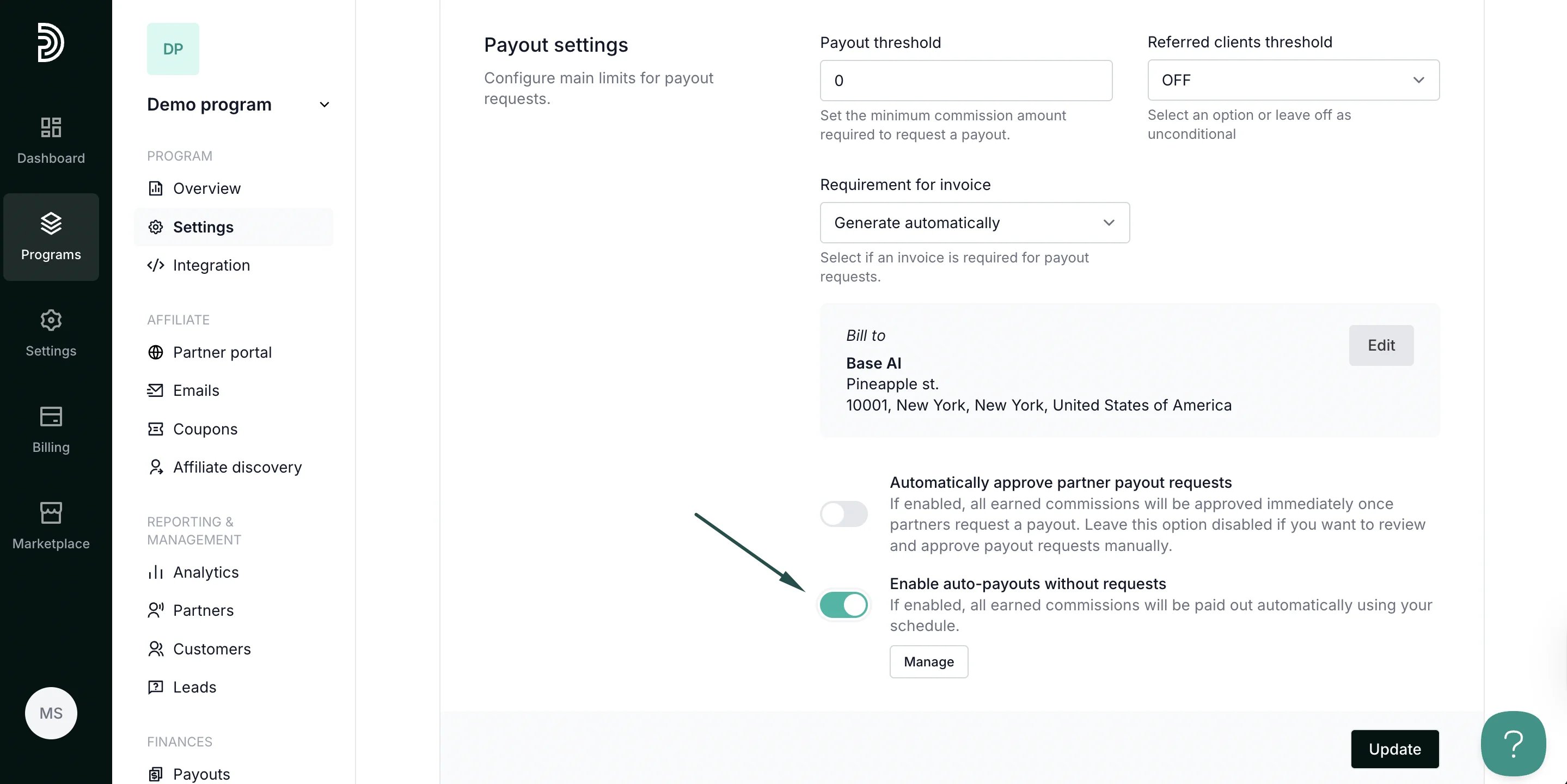 3. You can also enable automatic approval by toggling the setting:
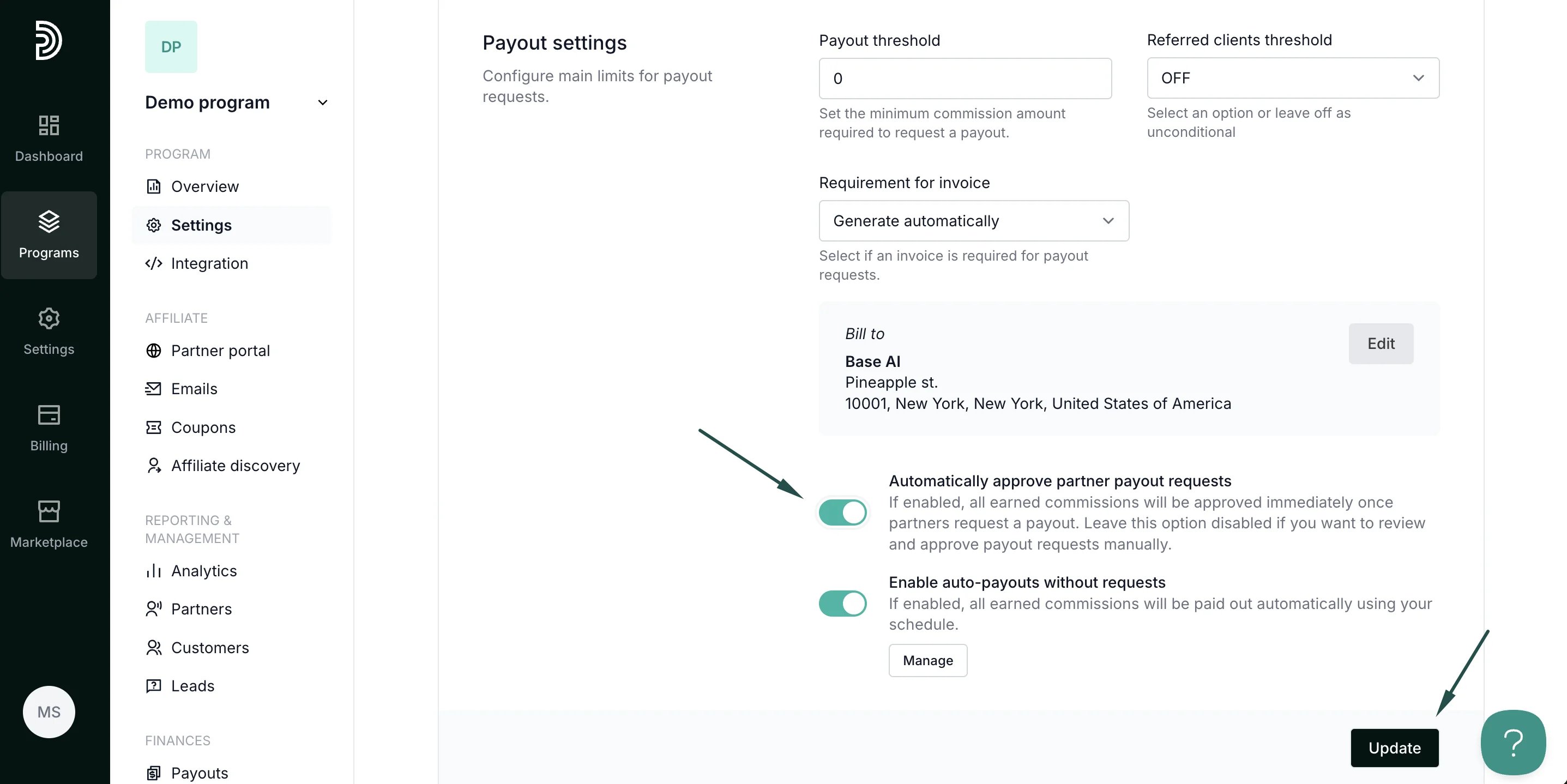 4. Click **Update** to save changes.
This documentation is built and hosted on [Mintlify](https://mintlify.com), a developer documentation platform.
4. Click **Update** to save changes.
This documentation is built and hosted on [Mintlify](https://mintlify.com), a developer documentation platform.