> ## Documentation Index
> Fetch the complete documentation index at: https://docs.partnero.com/llms.txt
> Use this file to discover all available pages before exploring further.
# Managing payouts
Partners can submit payout requests when they reach the minimum payout threshold you’ve defined. This article explains how to **review those requests**, **approve or reject them**, and **mark payouts as paid** when you’ve completed payment outside of Partnero.
Read more about [Payout settings](/knowledge-base/payout-management/payout-settings).
***
### Pending payout requests
When your partners start earning commissions, they can request a payout once the payout threshold is reached.
To access all pending payout requests:
1. Go to **Program** > **Overview**.
2. Click **Manage payouts** under **Payout requests**: 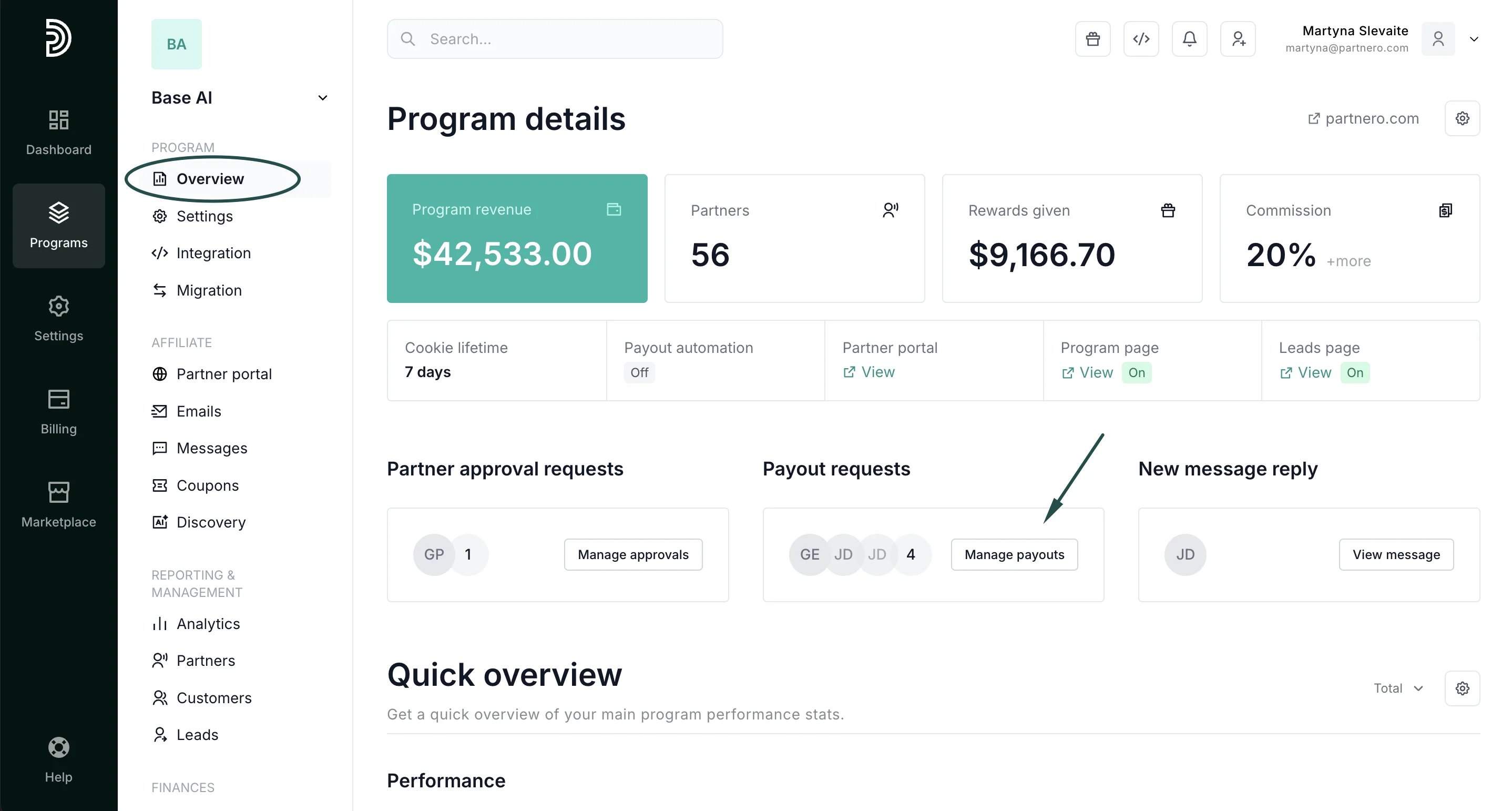 Alternatively, you can:
1. Go to **Payouts** under **Finances**.
2. Expand the filters and under **Status**, select **Action required**:
Alternatively, you can:
1. Go to **Payouts** under **Finances**.
2. Expand the filters and under **Status**, select **Action required**: 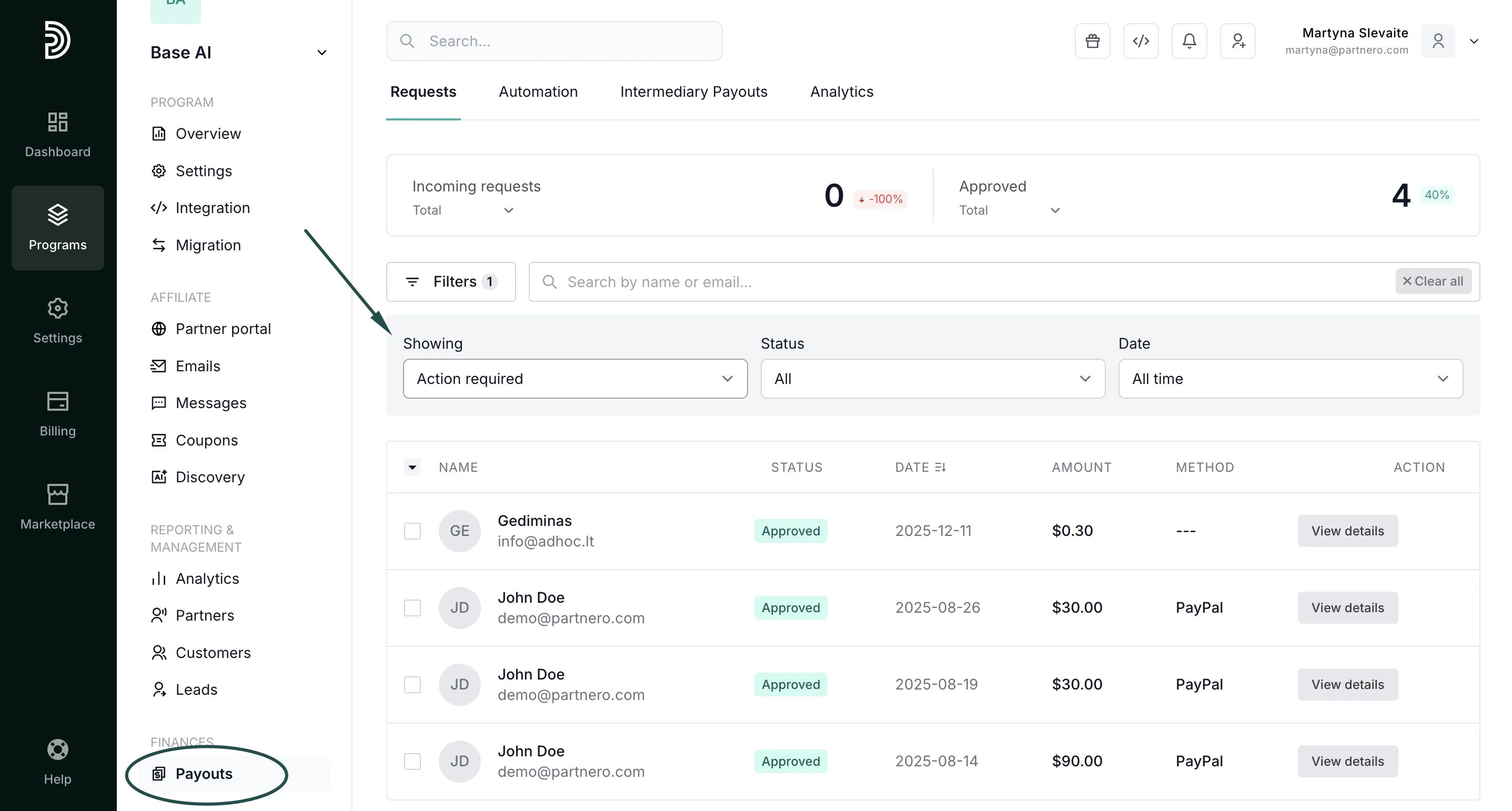 ***
### Payout request actions
Once you’ve accessed the payout requests list, you can click **View details** next to individual payout requests.
***
### Payout request actions
Once you’ve accessed the payout requests list, you can click **View details** next to individual payout requests. 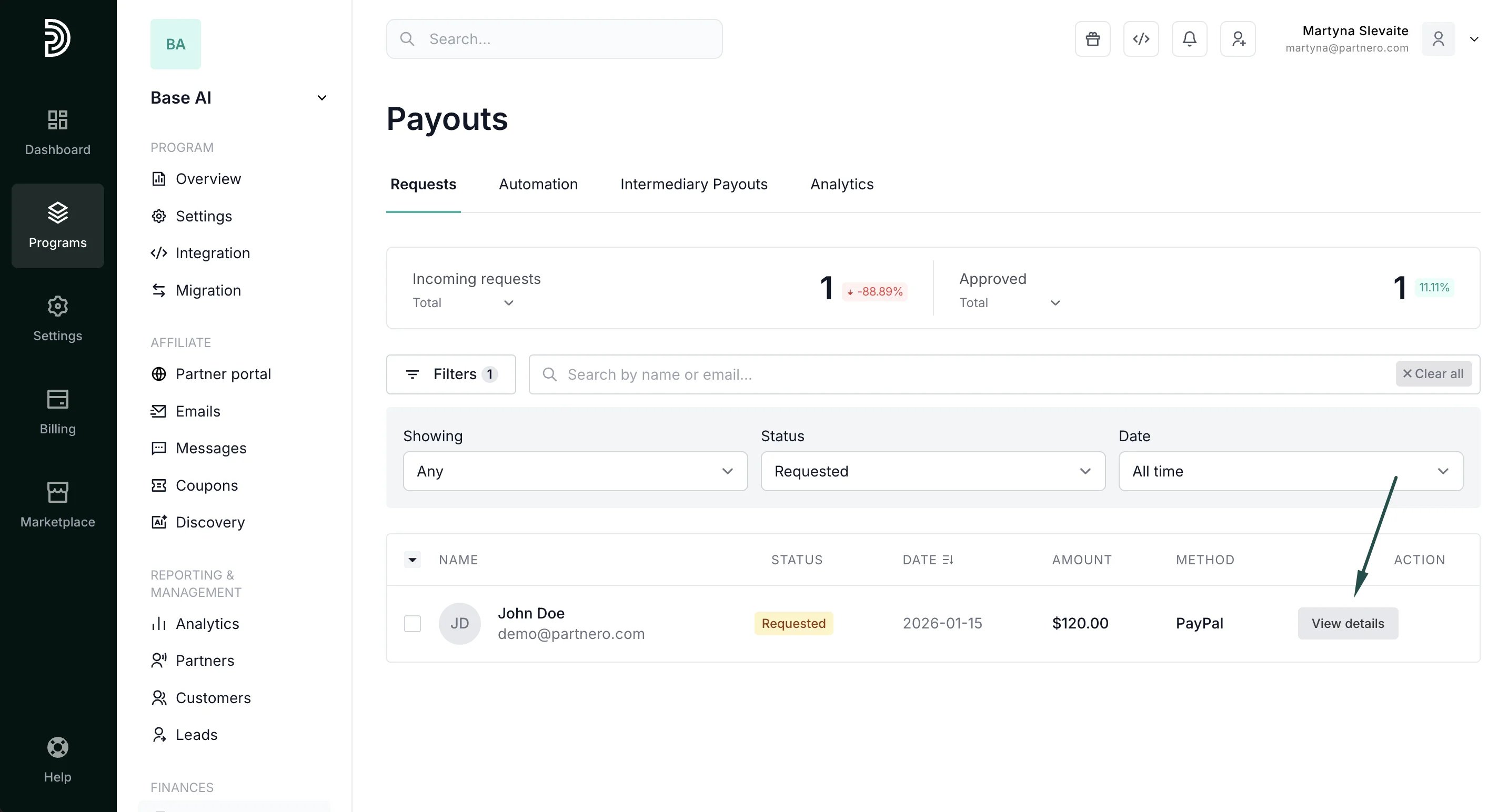 Here you’ll see the payout request form your partner has filled out when submitting the request:
 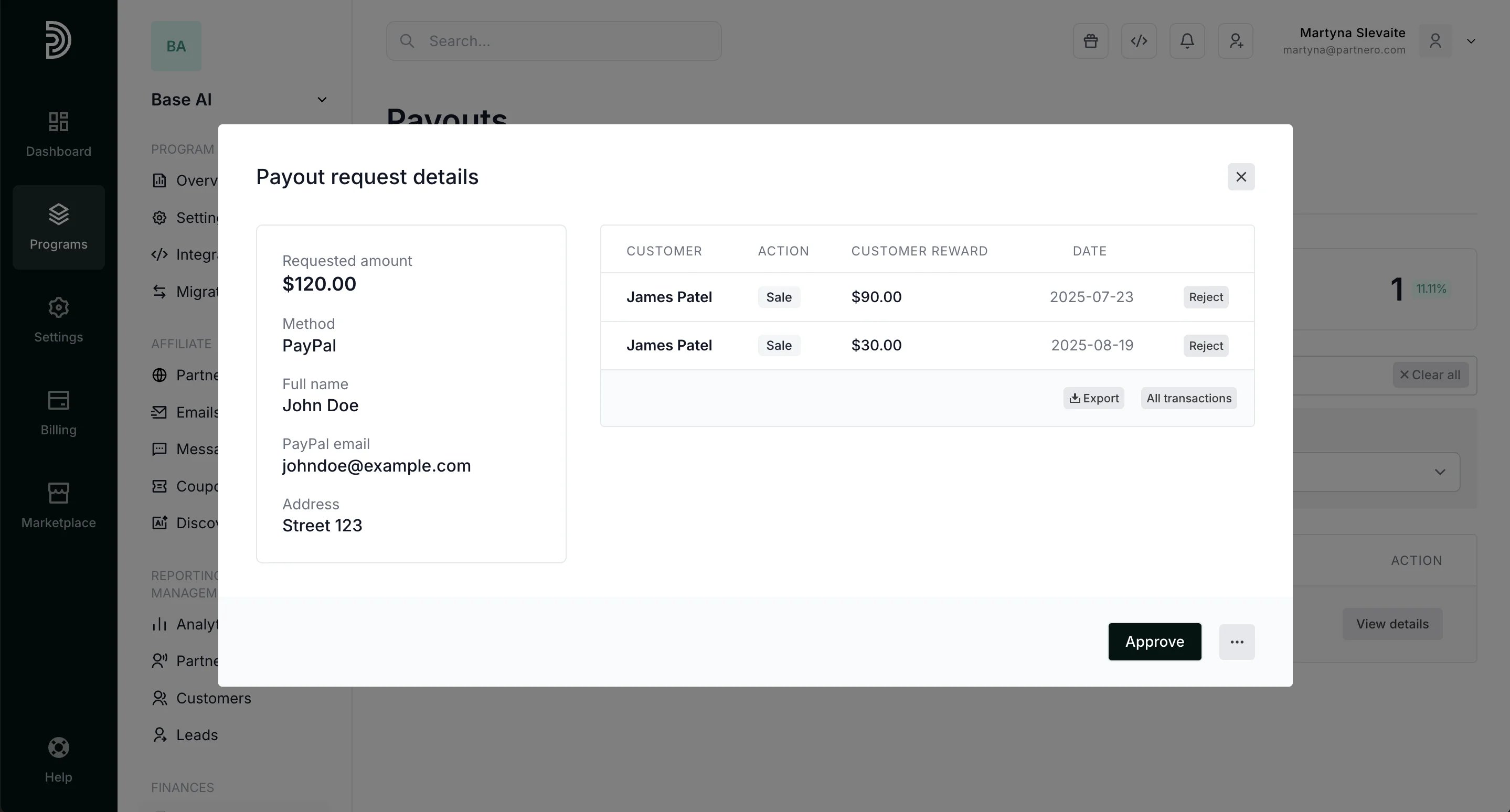 The information you’ll see will depend on whether you allow bank transfer payouts and Paypal.For Paypal transfers, the form will display:
\- Requested amount
\- Full name
\- Paypal email address
\- Address
For bank transfers, the form will display:
\- Account holder
\- Country
\- Address
\- IBAN
\- Bank name
\- SWIFT/BIC code
You can perform the following actions with a payout request:
The information you’ll see will depend on whether you allow bank transfer payouts and Paypal.For Paypal transfers, the form will display:
\- Requested amount
\- Full name
\- Paypal email address
\- Address
For bank transfers, the form will display:
\- Account holder
\- Country
\- Address
\- IBAN
\- Bank name
\- SWIFT/BIC code
You can perform the following actions with a payout request: 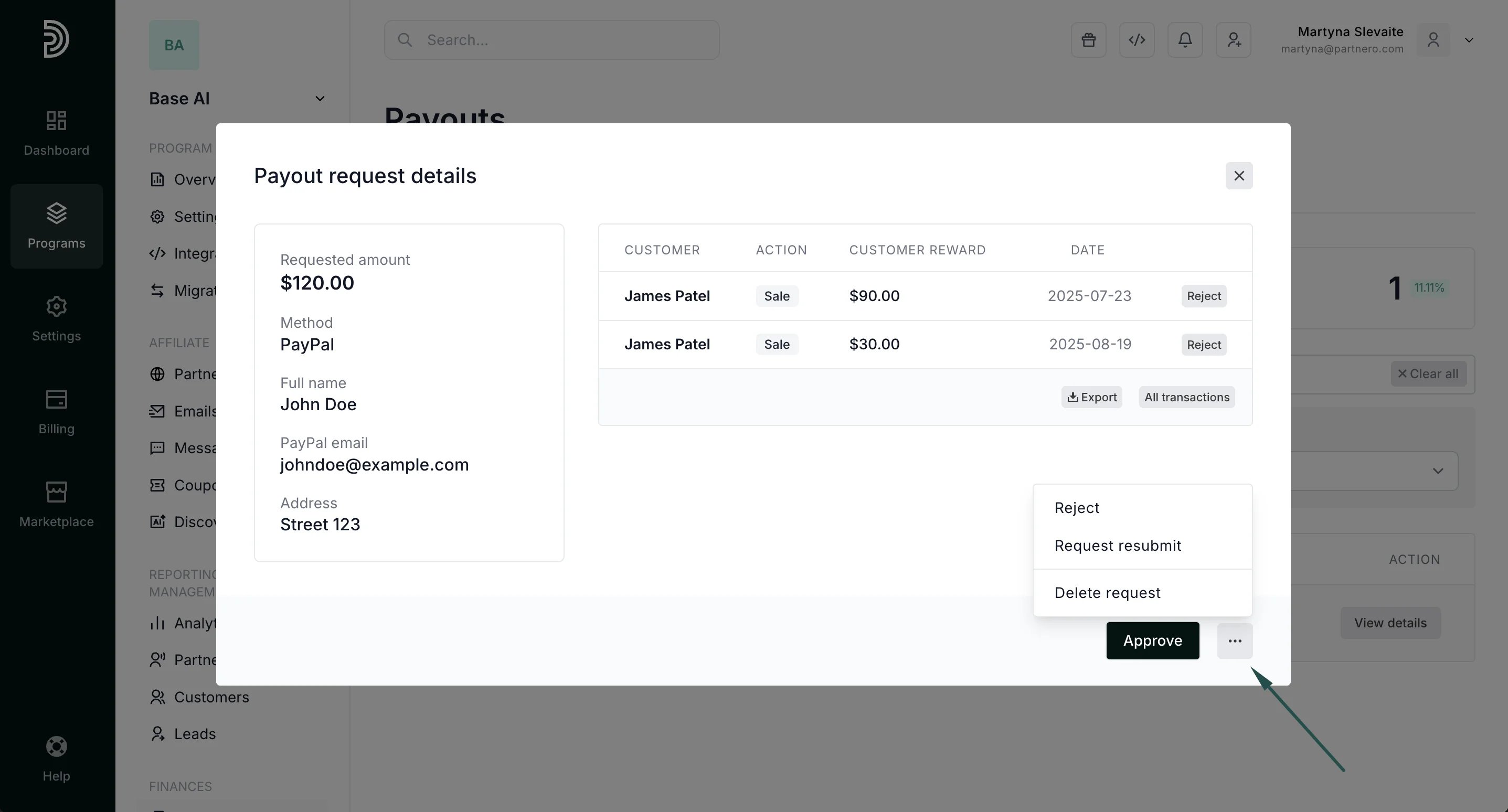 * **Approve** - payout request is accepted and can be paid out.
* **Reject** - payout request is permanently rejected, the partner will not be able to request the same commission to be paid out again.
* **Request resubmit** - payout request returned to the partner asking for additional information, e.g. there was an incorrect Paypal email address or IBAN provided. If you click to Resubmit request, you will be prompted to enter the resubmit reason. Partner will automatically receive an email with the resubmit reason and will be able to edit the payout request form and submit the request again.
* **Delete request** - the payout request is deleted, and partners can submit the request again when needed. This feature can be used when a partner asks to delete the request, for example, they submitted it by accident, want to change some details, or wait until they have more commission.
###
***
Mark payout requests as paid
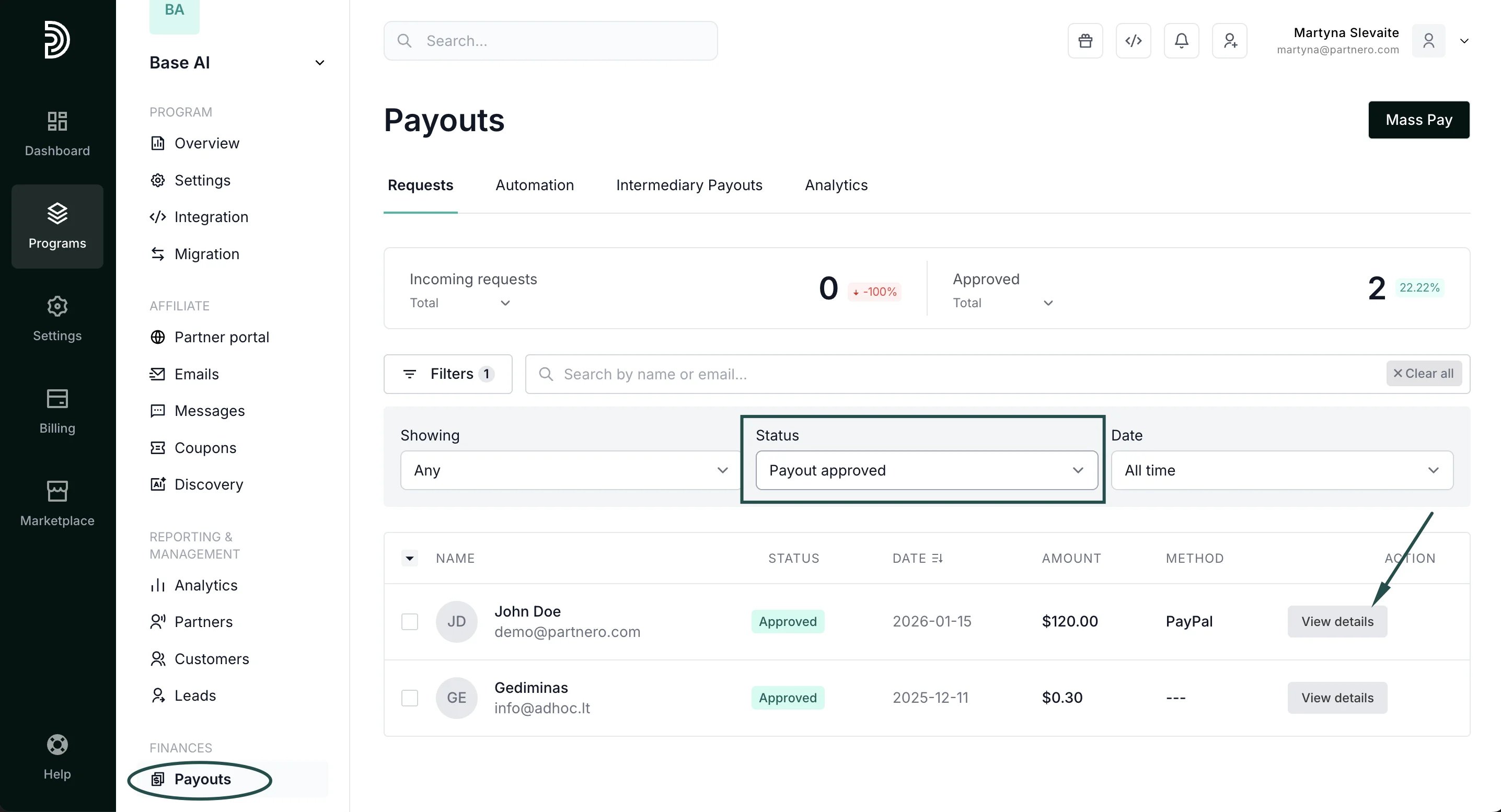
Once the payout request has been approved and you’ve processed the payment, you can mark the payout as paid. To find the payout request, go to **Payouts** under **Finances**. You can view all or select **Status: Payout approved** to filter:
* **Approve** - payout request is accepted and can be paid out.
* **Reject** - payout request is permanently rejected, the partner will not be able to request the same commission to be paid out again.
* **Request resubmit** - payout request returned to the partner asking for additional information, e.g. there was an incorrect Paypal email address or IBAN provided. If you click to Resubmit request, you will be prompted to enter the resubmit reason. Partner will automatically receive an email with the resubmit reason and will be able to edit the payout request form and submit the request again.
* **Delete request** - the payout request is deleted, and partners can submit the request again when needed. This feature can be used when a partner asks to delete the request, for example, they submitted it by accident, want to change some details, or wait until they have more commission.
###
***
Mark payout requests as paid
Once the payout request has been approved and you’ve processed the payment, you can mark the payout as paid. To find the payout request, go to **Payouts** under **Finances**. You can view all or select **Status: Payout approved** to filter:
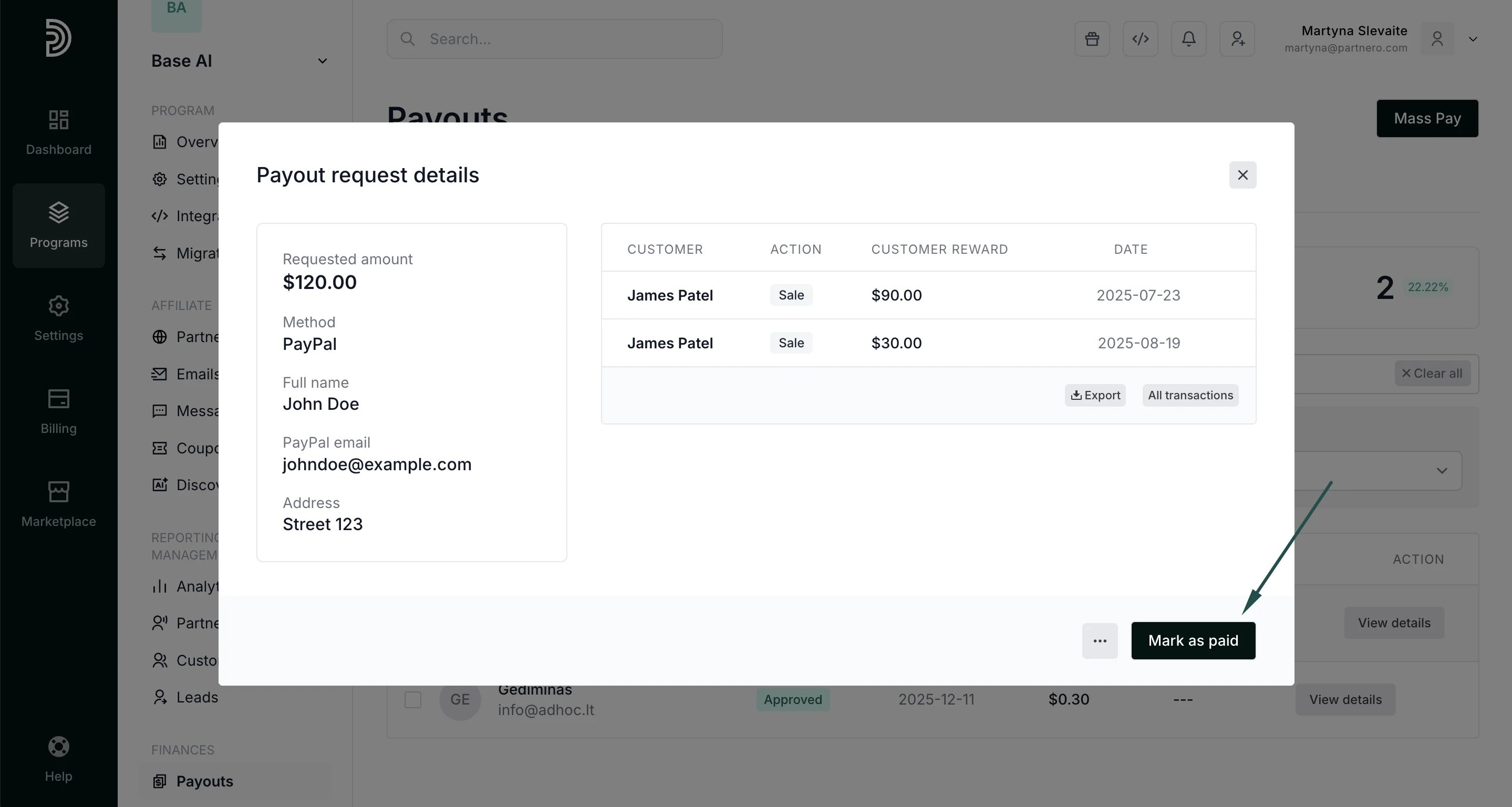
 Click **View details** next to the request and then click **Mark as paid**:
  ###
***
Payout automation options
With Partnero, you can process payouts in bulk with PayPal or Wise. Additionally, you can automate payouts based on a set schedule or use the intermediary payouts feature. Read more:
* [Payout automation](/knowledge-base/payout-management/payout-automation)
* [Intermediary payouts](/knowledge-base/payout-management/intermediary-payouts)
This documentation is built and hosted on [Mintlify](https://mintlify.com), a developer documentation platform.
###
***
Payout automation options
With Partnero, you can process payouts in bulk with PayPal or Wise. Additionally, you can automate payouts based on a set schedule or use the intermediary payouts feature. Read more:
* [Payout automation](/knowledge-base/payout-management/payout-automation)
* [Intermediary payouts](/knowledge-base/payout-management/intermediary-payouts)
This documentation is built and hosted on [Mintlify](https://mintlify.com), a developer documentation platform.