> ## Documentation Index
> Fetch the complete documentation index at: https://docs.partnero.com/llms.txt
> Use this file to discover all available pages before exploring further.
# Payout settings
Payout settings let you configure how and when your affiliate partners can receive their earned commissions. This includes defining which payout methods partners can use, setting minimum thresholds before partners can request payouts, and additional conditions, such as referred client requirements or invoice rules.
***
### Payout settings
To configure payout settings:
1. In your affiliate program, navigate to **Settings** under Program.
2. In the **General** tab, scroll to the **Payout settings** section: 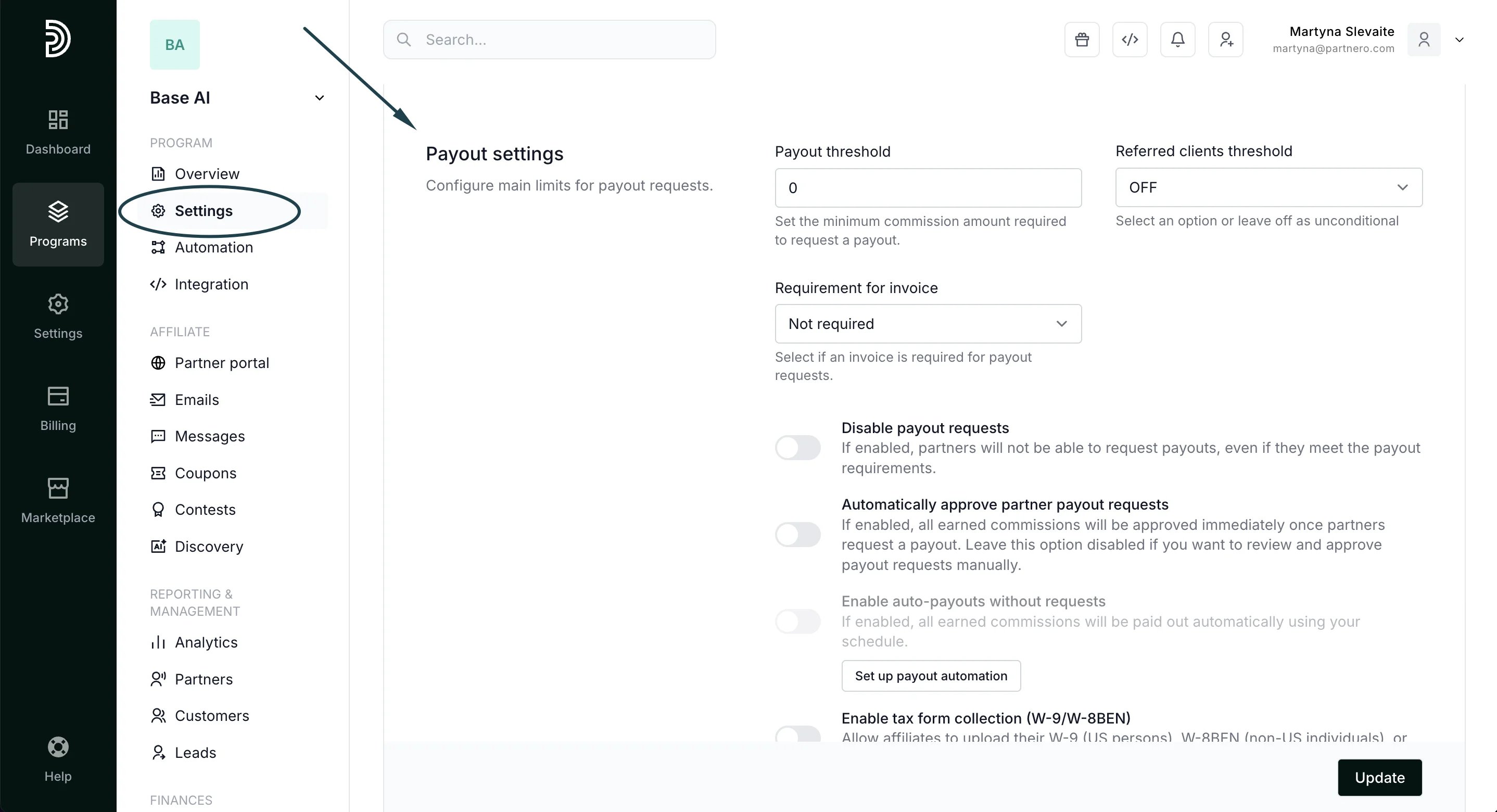 You'll find the following settings:
* **Payout threshold**: set how much commission a partner must earn before they can request a payout. For example, a partner must earn at least \$100 before requesting a payout.
You'll find the following settings:
* **Payout threshold**: set how much commission a partner must earn before they can request a payout. For example, a partner must earn at least \$100 before requesting a payout. 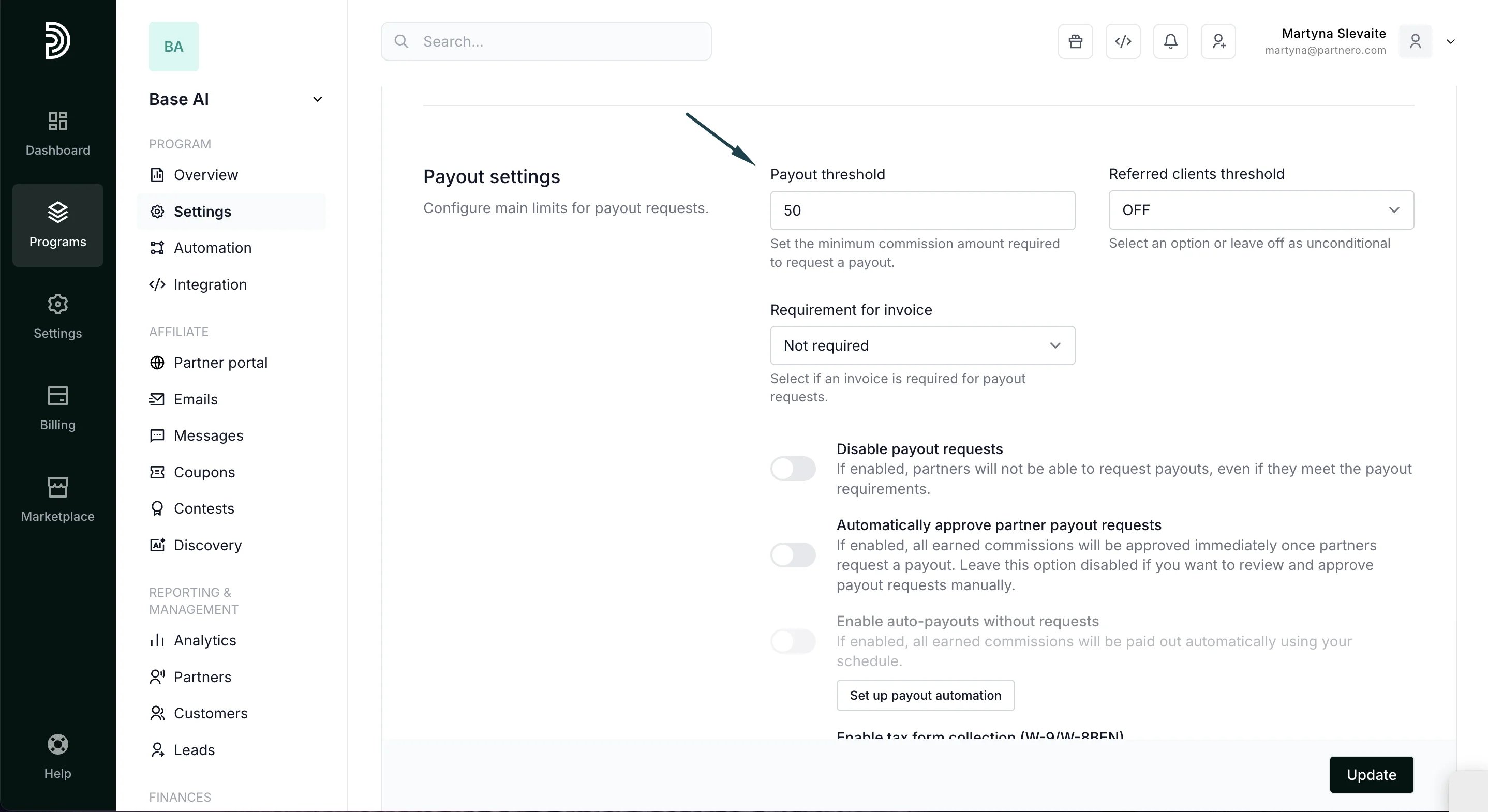 * **Referred clients threshold**: set the number of clients a partner must refer before they can request a payout. The number can be set as a total or per payout. For example, you can set a client to refer at least three clients before they can request a payout.
 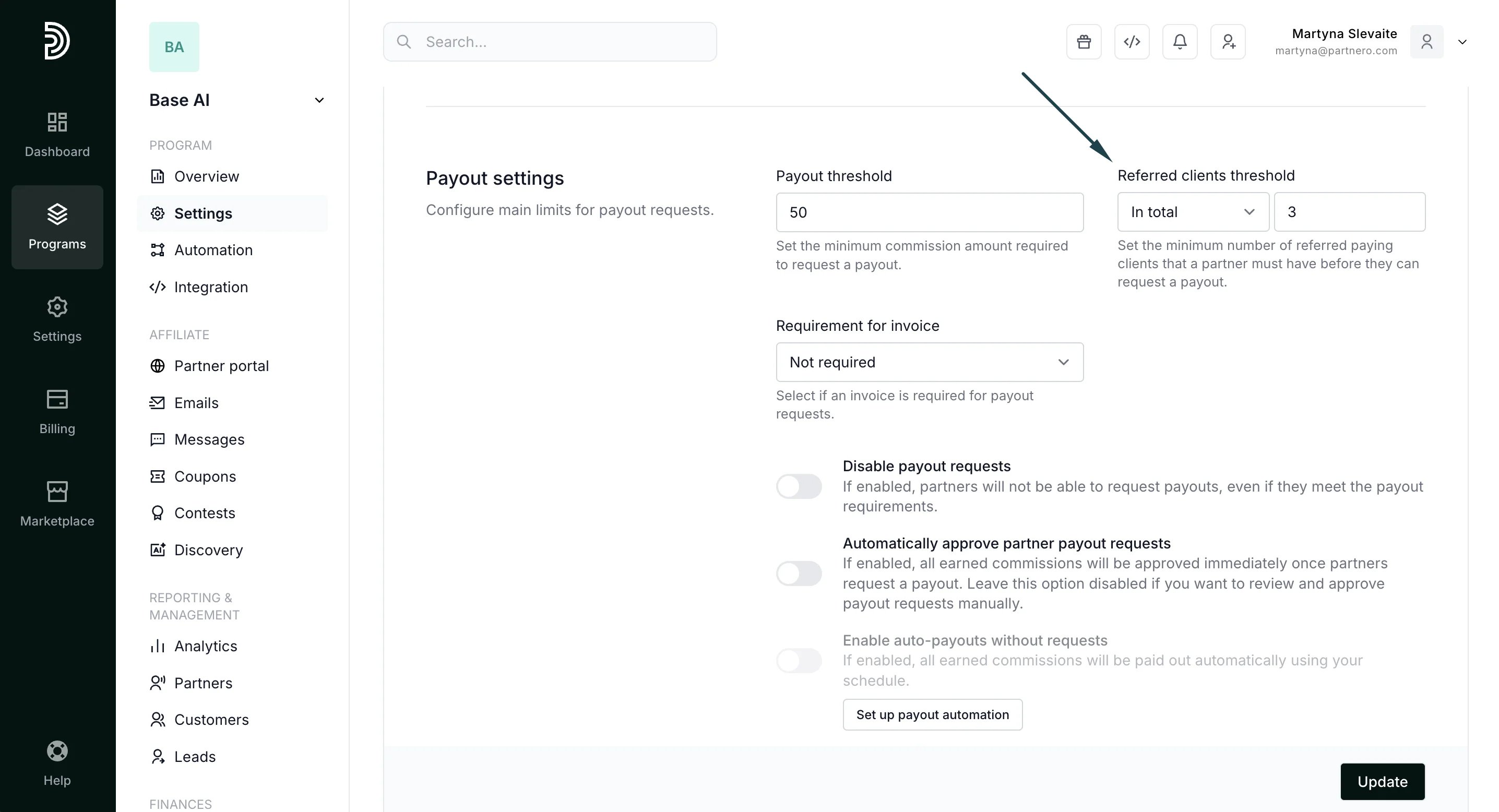 * **Requirement for invoice**: ask your partners to upload an invoice when they submit a payout request or generate one automatically:
 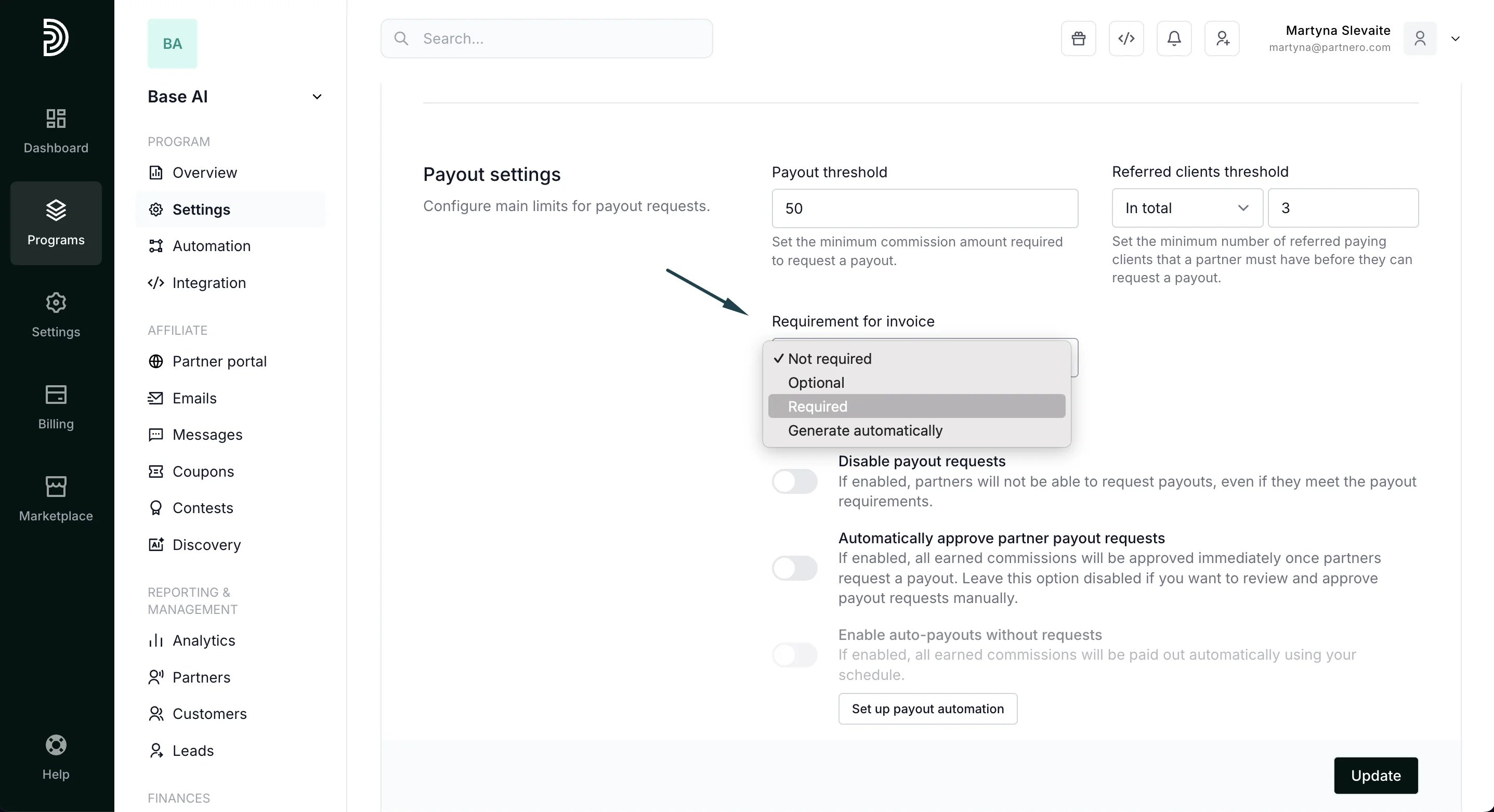 [Read more about invoices](/knowledge-base/payout-management/request-invoices-from-your-partners).
* **Disable payout requests**
If enabled, partners will not be able to request payouts.
* **Automatically approved partner payout requests**
If enabled, all earned commissions will be approved immediately once partners request a payout. Leave this option disabled if you want to review and approve payout requests manually.
* **Enable auto-payouts without requests**
If enabled, all earned commissions will be paid out automatically using your schedule. [Read more](/knowledge-base/payout-management/enable-auto-payouts-without-requests).
* \*\*Enable tax form collection (W-9/W-8BEN)
\*\*Allow affiliates to upload their W-9 (US persons), W-8BEN (non-US individuals), or W-8BEN-E (non-US entities) tax forms through their profile page.
[Read more about invoices](/knowledge-base/payout-management/request-invoices-from-your-partners).
* **Disable payout requests**
If enabled, partners will not be able to request payouts.
* **Automatically approved partner payout requests**
If enabled, all earned commissions will be approved immediately once partners request a payout. Leave this option disabled if you want to review and approve payout requests manually.
* **Enable auto-payouts without requests**
If enabled, all earned commissions will be paid out automatically using your schedule. [Read more](/knowledge-base/payout-management/enable-auto-payouts-without-requests).
* \*\*Enable tax form collection (W-9/W-8BEN)
\*\*Allow affiliates to upload their W-9 (US persons), W-8BEN (non-US individuals), or W-8BEN-E (non-US entities) tax forms through their profile page. 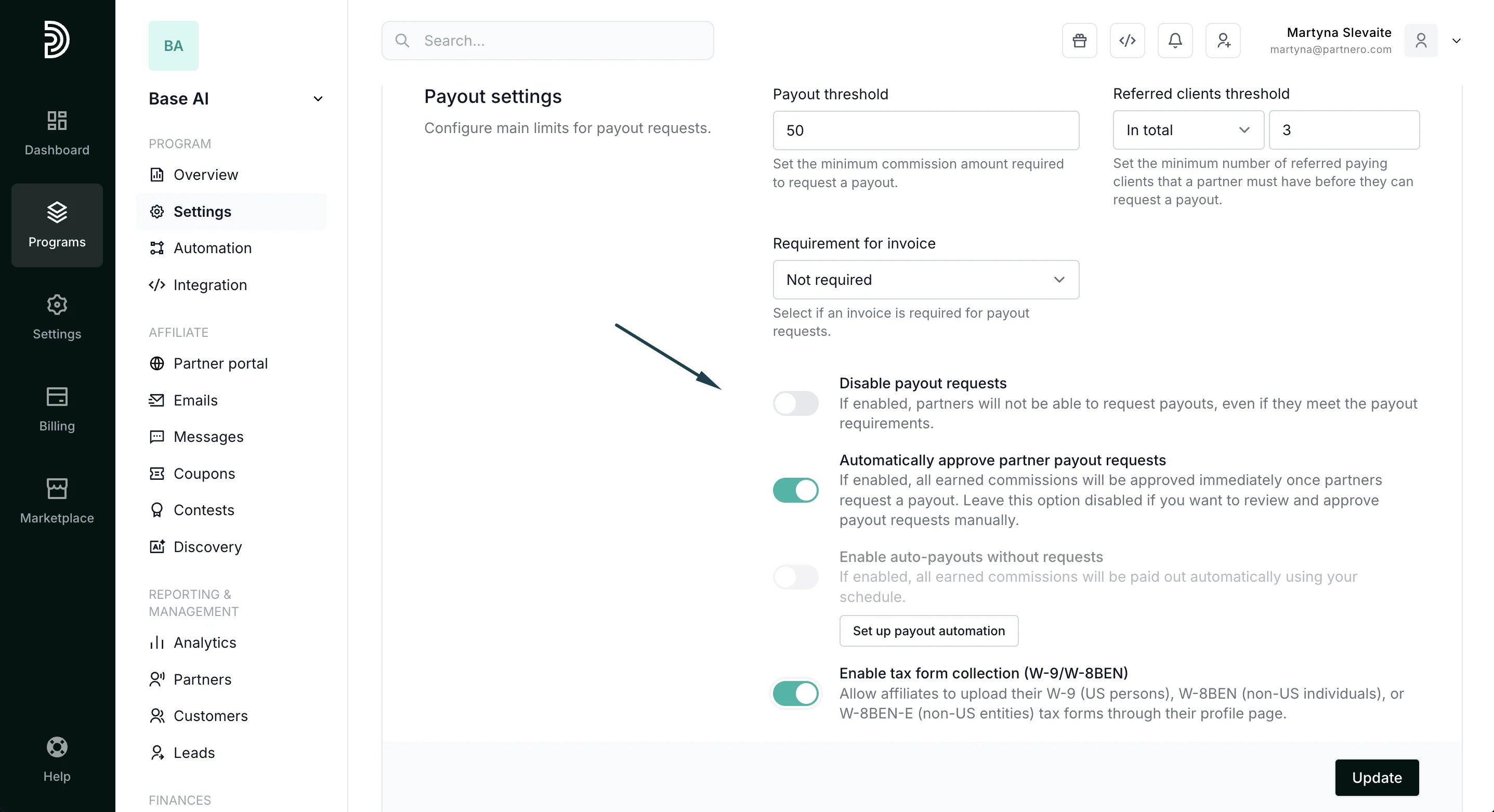 [Read more about tax form collection](/knowledge-base/payout-management/enable-tax-form-collection).
***
### Payout options
The payout options setting defines how affiliate partners can be paid out.
The available payout options are:
* \*\*PayPal
\*\*Funds will be paid to the affiliate's PayPal account. Payouts can be automated; [here's how](/knowledge-base/payout-management/payouts-using-paypal-mass-pay-integration).
* **Wire transfer**
Funds will be paid to the affiliate's bank account. Payouts can be done manually or automated through [Wise integration](/knowledge-base/payout-management/payouts-using-wise-integration).
* \*\*Crypto
\*\*Funds will be paid to the affiliate's crypto wallet. You will need to make payments outside of Partnero and manually mark the payout request as completed.
* **Venmo**
Funds will be paid to the affiliate's Venmo account.
You can allow one or more payout options for your partners. Enabled options will be shown to your affiliate partners when they request a payout. Here's an example of how a payout request form looks when all three options are allowed:
[Read more about tax form collection](/knowledge-base/payout-management/enable-tax-form-collection).
***
### Payout options
The payout options setting defines how affiliate partners can be paid out.
The available payout options are:
* \*\*PayPal
\*\*Funds will be paid to the affiliate's PayPal account. Payouts can be automated; [here's how](/knowledge-base/payout-management/payouts-using-paypal-mass-pay-integration).
* **Wire transfer**
Funds will be paid to the affiliate's bank account. Payouts can be done manually or automated through [Wise integration](/knowledge-base/payout-management/payouts-using-wise-integration).
* \*\*Crypto
\*\*Funds will be paid to the affiliate's crypto wallet. You will need to make payments outside of Partnero and manually mark the payout request as completed.
* **Venmo**
Funds will be paid to the affiliate's Venmo account.
You can allow one or more payout options for your partners. Enabled options will be shown to your affiliate partners when they request a payout. Here's an example of how a payout request form looks when all three options are allowed:
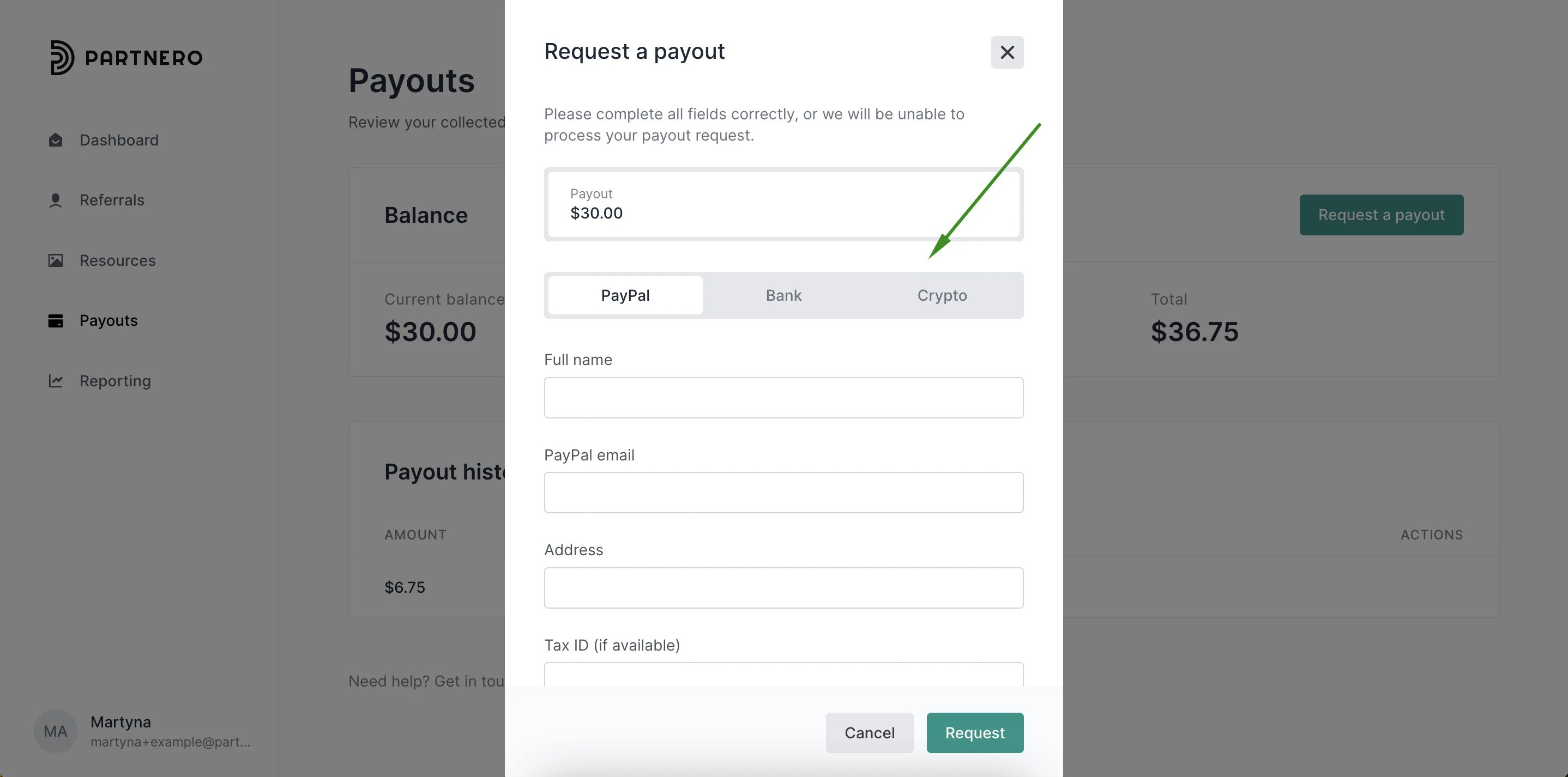 To select the available options:
1. In your affiliate program, navigate to **Settings** under **Program**.
2. In the **General** tab, scroll to the **Payout settings** section:
To select the available options:
1. In your affiliate program, navigate to **Settings** under **Program**.
2. In the **General** tab, scroll to the **Payout settings** section: 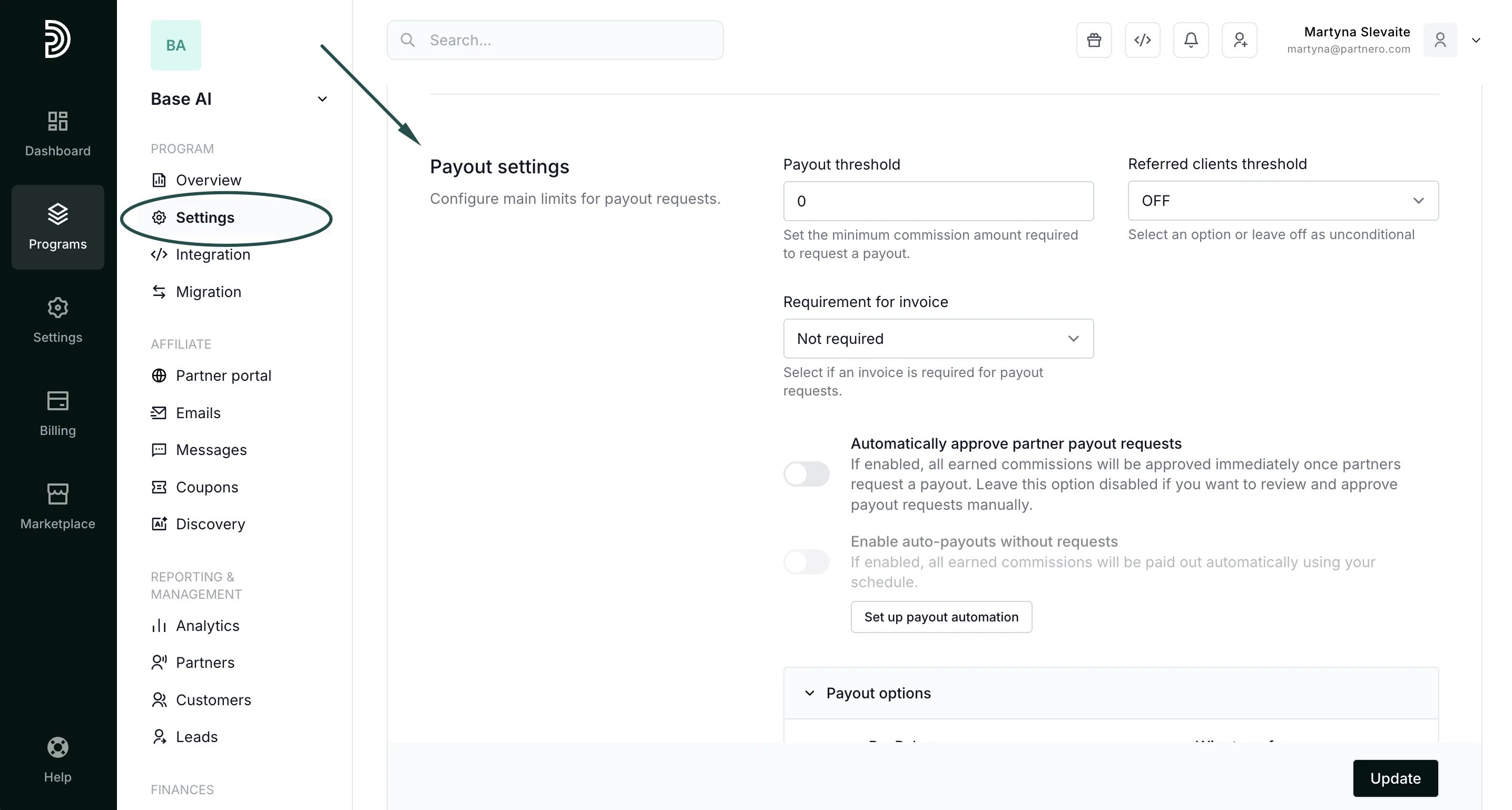 3. Under payout options, toggle which options you'd like to permit:
 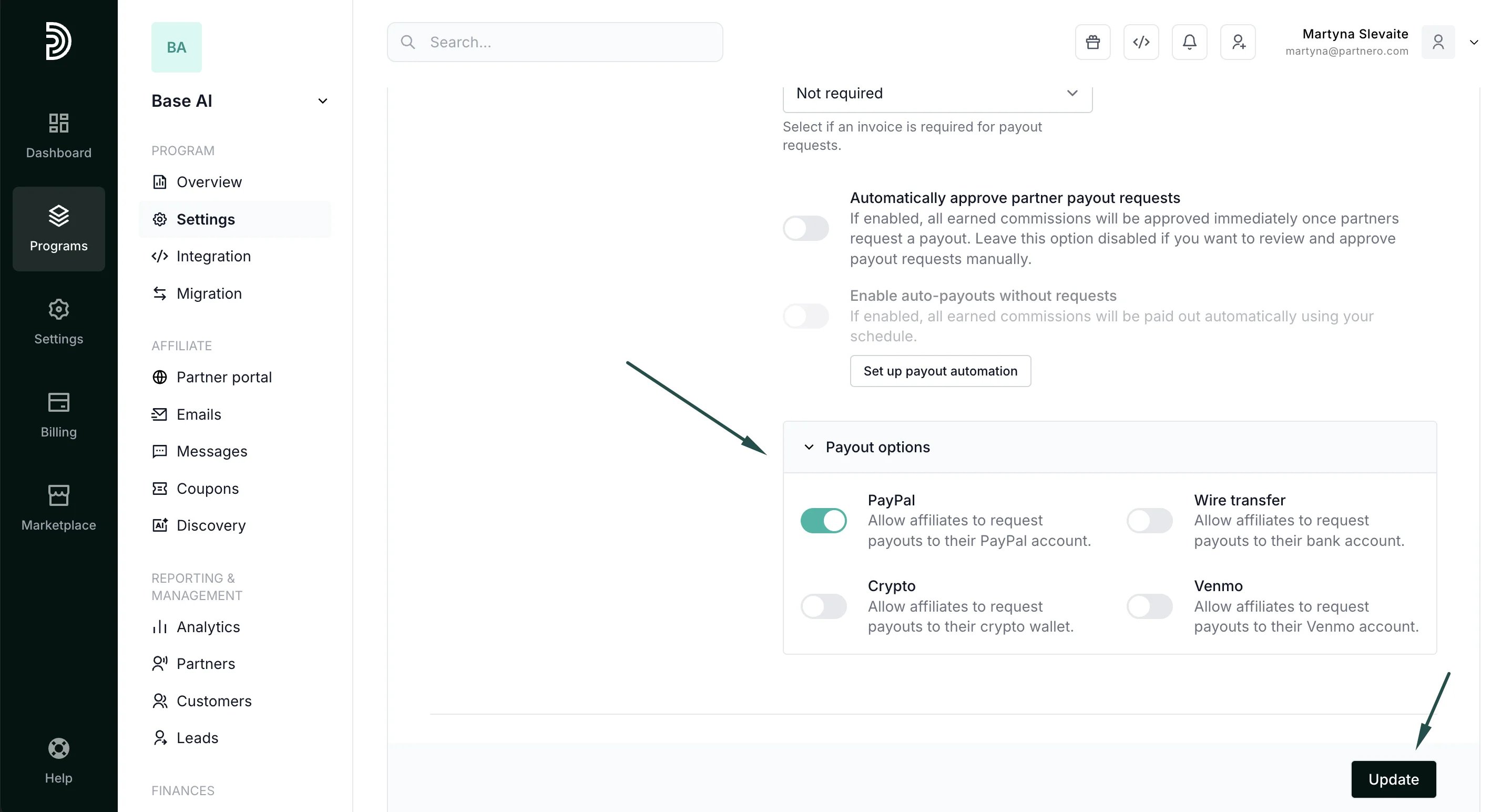 4. Click **Update**.
***
#### Further reading:
→ [Automated payouts](/knowledge-base/payout-management/payout-automation) (self-managed)
→ [Payouts by Partnero](/knowledge-base/payout-management/intermediary-payouts) (intermediary)
This documentation is built and hosted on [Mintlify](https://mintlify.com), a developer documentation platform.
4. Click **Update**.
***
#### Further reading:
→ [Automated payouts](/knowledge-base/payout-management/payout-automation) (self-managed)
→ [Payouts by Partnero](/knowledge-base/payout-management/intermediary-payouts) (intermediary)
This documentation is built and hosted on [Mintlify](https://mintlify.com), a developer documentation platform.