> ## Documentation Index
> Fetch the complete documentation index at: https://docs.partnero.com/llms.txt
> Use this file to discover all available pages before exploring further.
# Collect marketing permissions
As a program owner, you may want to send marketing newsletters to your partners - maybe you’re running a promotion, have new marketing materials, or have company news to share.
***Note:** Marketing newsletters are created on email service providers and are separate from program emails. If you wish to learn more about managing program emails, click* [here](/knowledge-base/program-emails/email-settings)*.*
Since these emails are a form of marketing, you have to collect marketing consent from your partners in order to comply with the CAN-SPAM act and international anti-spam laws. Partnero enables you to do that during the partner signup process.
***
### Collecting marketing permissions during signup
To collect marketing permissions during signup:
1. In your affiliate program, go to **Partner portal** under **Affiliate**.
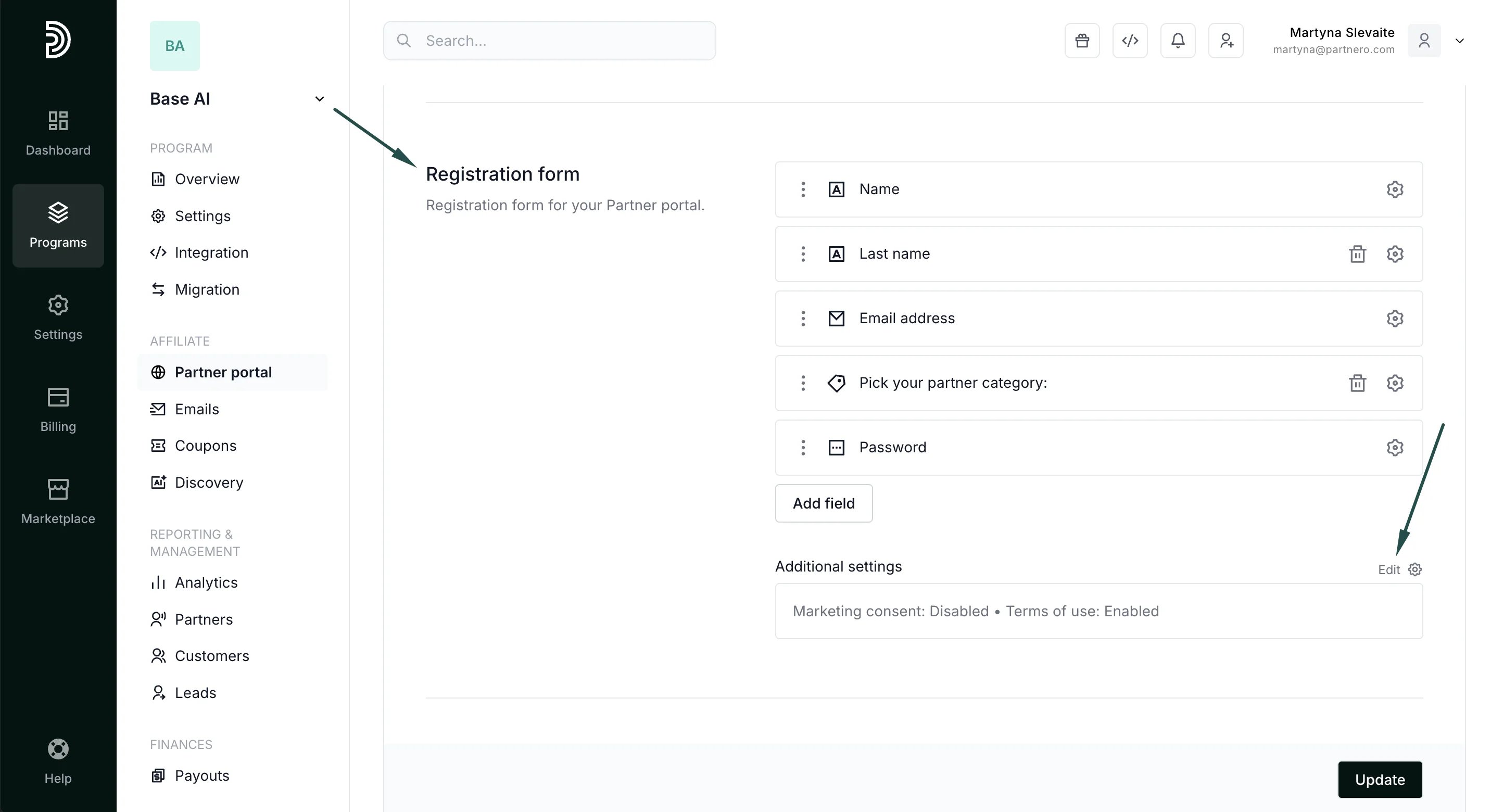
2. Switch to the **Pages & Content** tab → **Public pages** →: 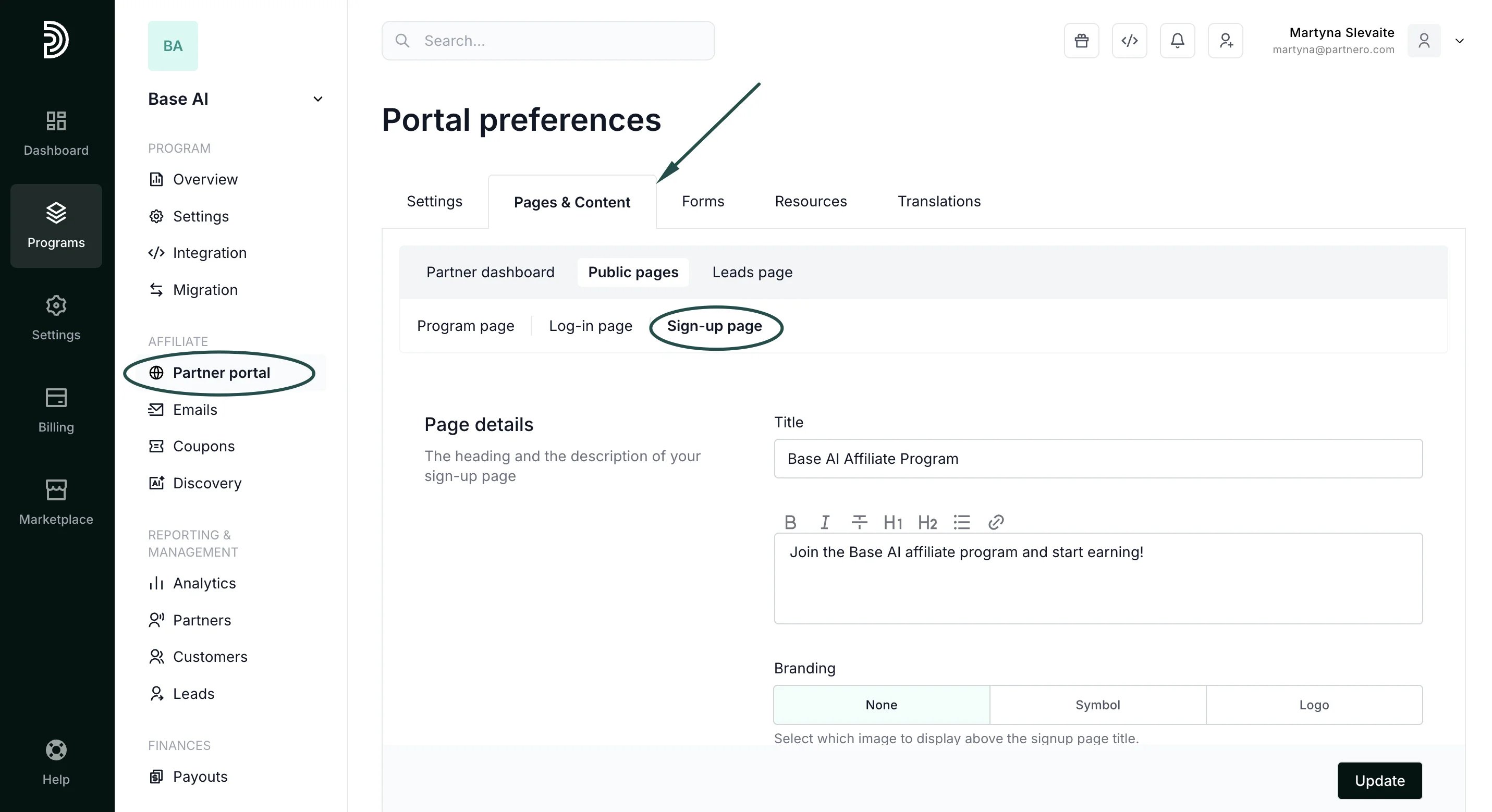 3. Scroll to the **Registration form** section and click **Edit** next to **Additional settings**:
 4. In the **Marketing consent** field, enter the desired text, e.g. “I’d like to receive updates about the affiliate program”:
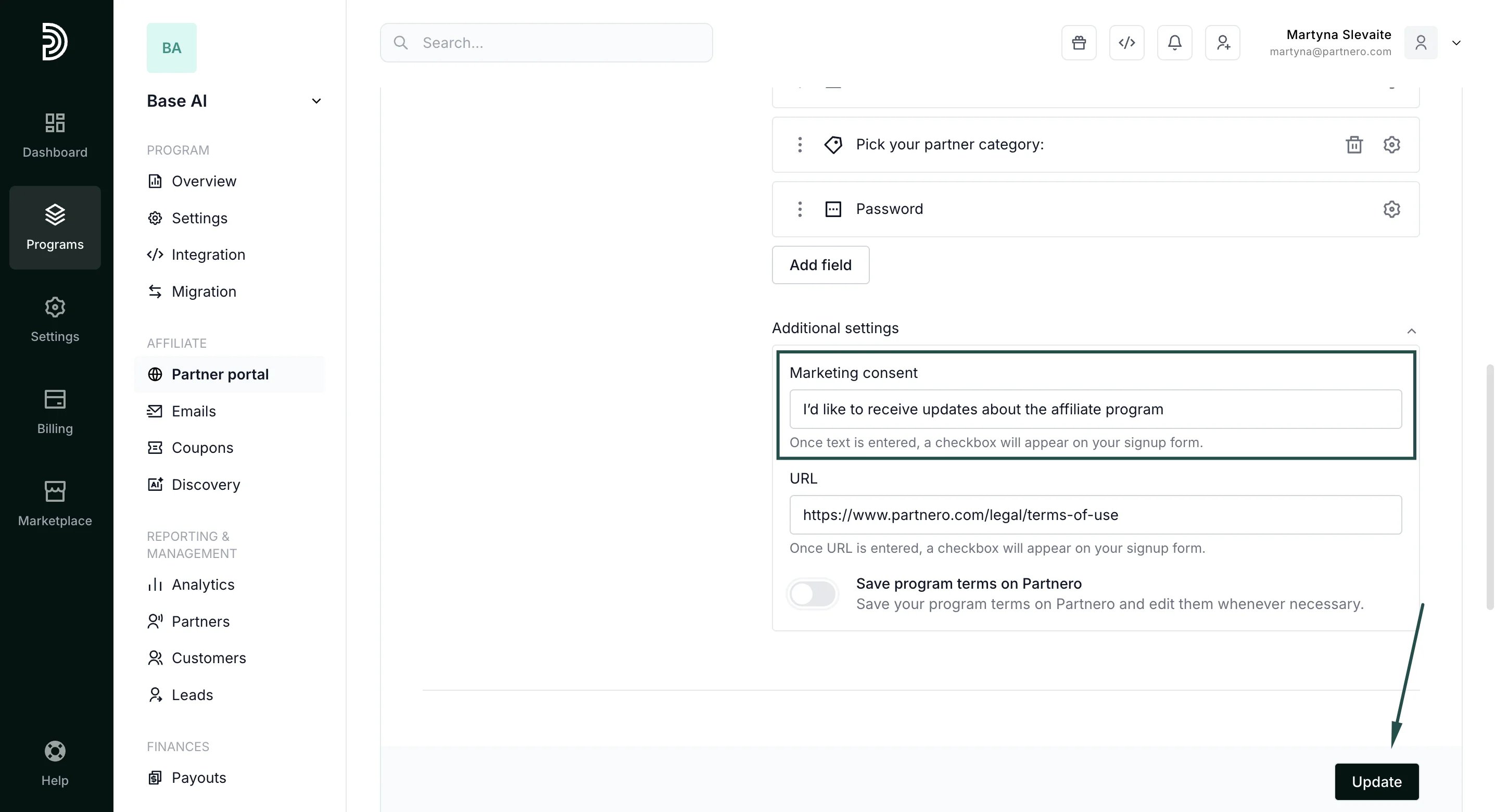 5. Click **Update**.
Once the text is entered, a checkbox will appear on your signup page:
5. Click **Update**.
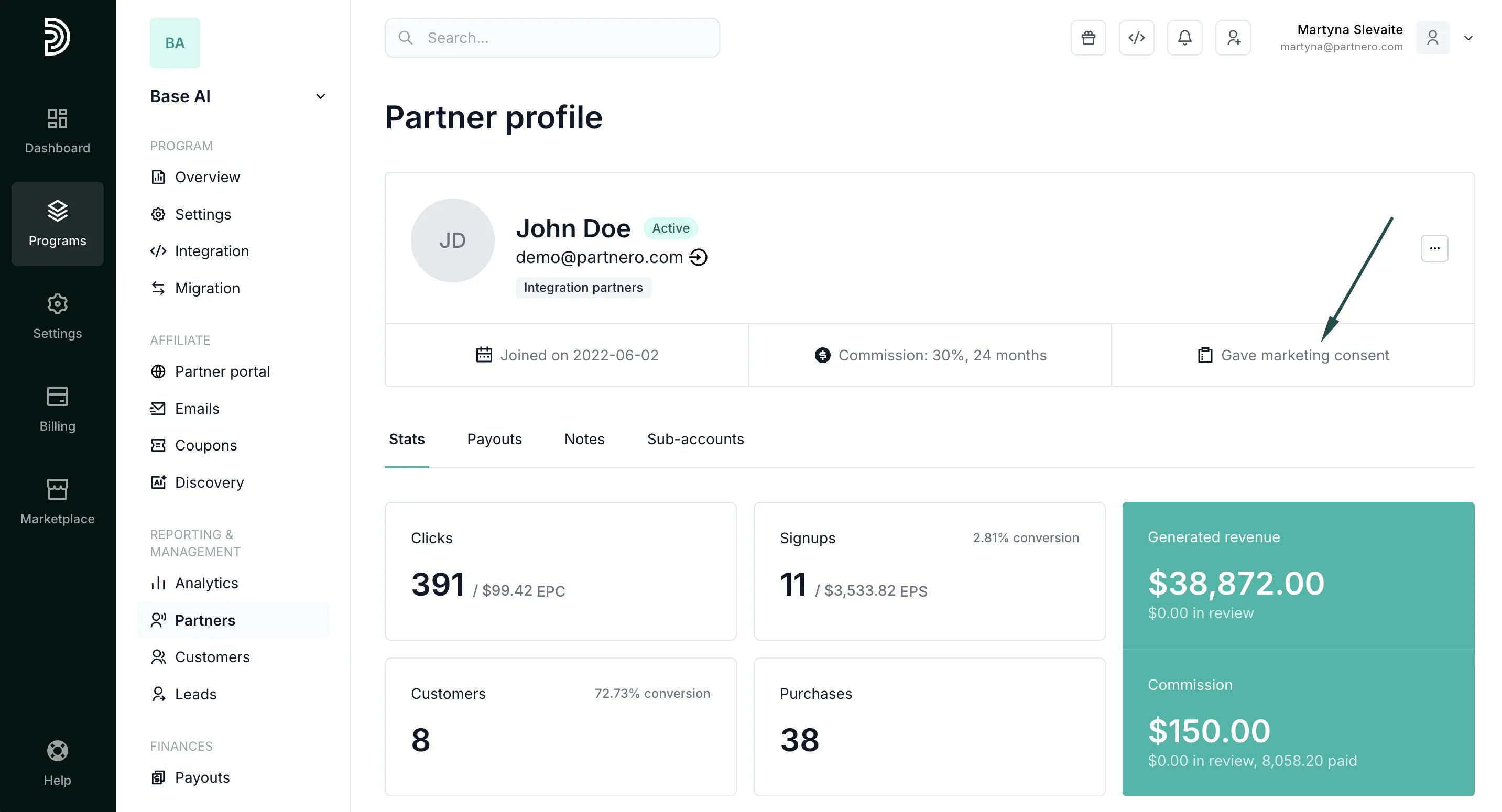
Once the text is entered, a checkbox will appear on your signup page: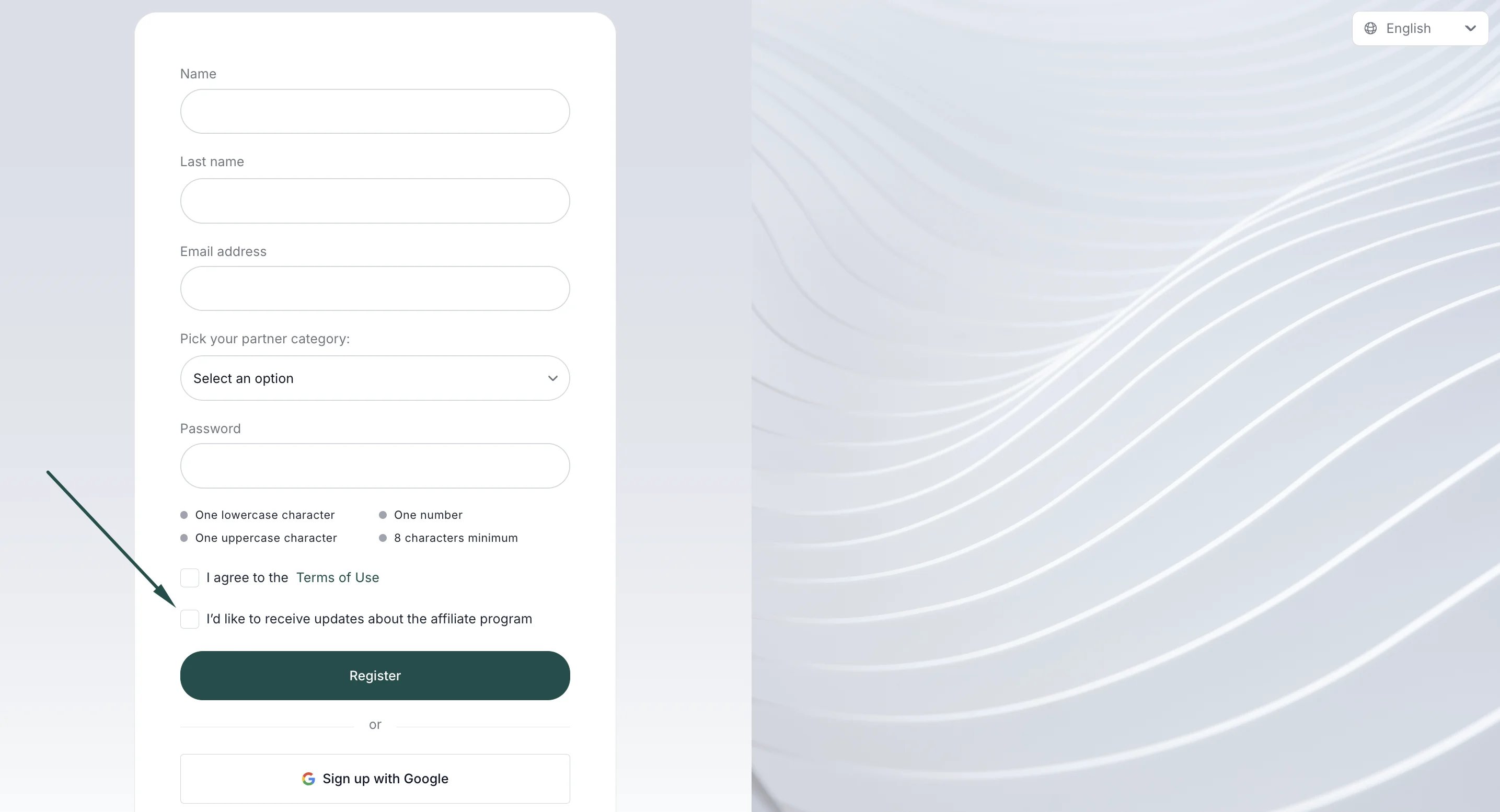 Partners’ profiles display whether they gave marketing consent:
 ####
***
### Collecting marketing permissions from existing partners
If an existing partner wants to start receiving newsletters, they can:
1. Log in to the Partner portal.
2. Navigate to **My Profile**.
3. Toggle **Accept marketing**:
####
***
### Collecting marketing permissions from existing partners
If an existing partner wants to start receiving newsletters, they can:
1. Log in to the Partner portal.
2. Navigate to **My Profile**.
3. Toggle **Accept marketing**: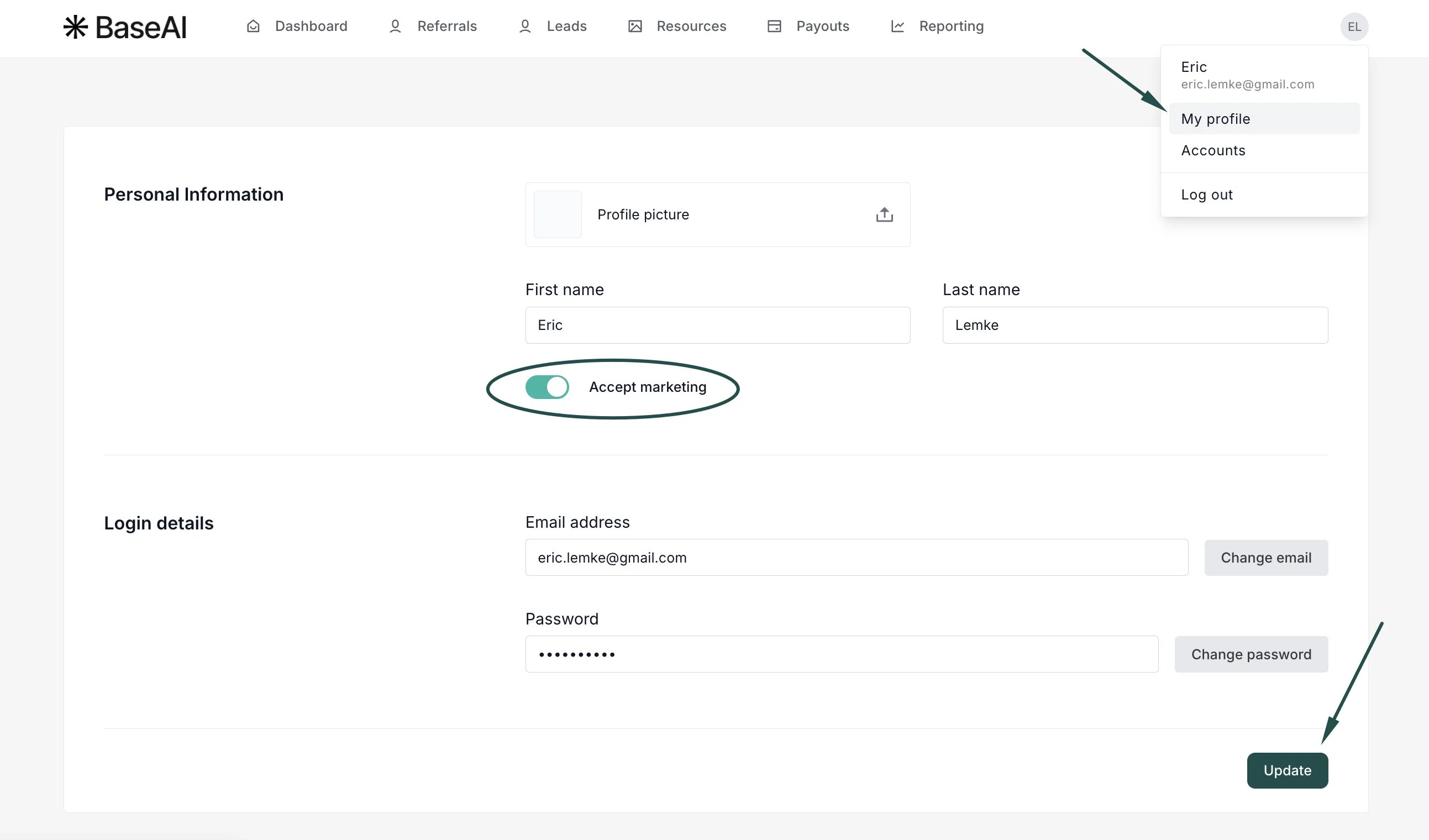 4. Click Update.
This documentation is built and hosted on [Mintlify](https://mintlify.com), a developer documentation platform.
4. Click Update.
This documentation is built and hosted on [Mintlify](https://mintlify.com), a developer documentation platform.