> ## Documentation Index
> Fetch the complete documentation index at: https://docs.partnero.com/llms.txt
> Use this file to discover all available pages before exploring further.
# Embed an in-site referral widget
You can embed an in-site referral portal widget that customers can access directly from your website or application. By embedding our in-site widget, your customers can easily view their referral data, making the process more transparent and user-friendly.

 Before the widget is embedded, make sure to:
1. [Enable the referral portal for your refer-a-friend program](/knowledge-base/referral-programs/referral-portal-explained);
2. [Customize the referral portal and the widget](/knowledge-base/referral-programs/customize-the-referral-portal).
***
### How to embed an in-site widget
The widget can be added in three simple steps. All three steps are required for the widget to work.
#### Step 1: Add the PartneroJS snippet
The first step is to insert the **PartneroJS** snippet before the closing \ tag in the HTML code of your website.
1. In your program, go to the **Integration** section:
Before the widget is embedded, make sure to:
1. [Enable the referral portal for your refer-a-friend program](/knowledge-base/referral-programs/referral-portal-explained);
2. [Customize the referral portal and the widget](/knowledge-base/referral-programs/customize-the-referral-portal).
***
### How to embed an in-site widget
The widget can be added in three simple steps. All three steps are required for the widget to work.
#### Step 1: Add the PartneroJS snippet
The first step is to insert the **PartneroJS** snippet before the closing \ tag in the HTML code of your website.
1. In your program, go to the **Integration** section: 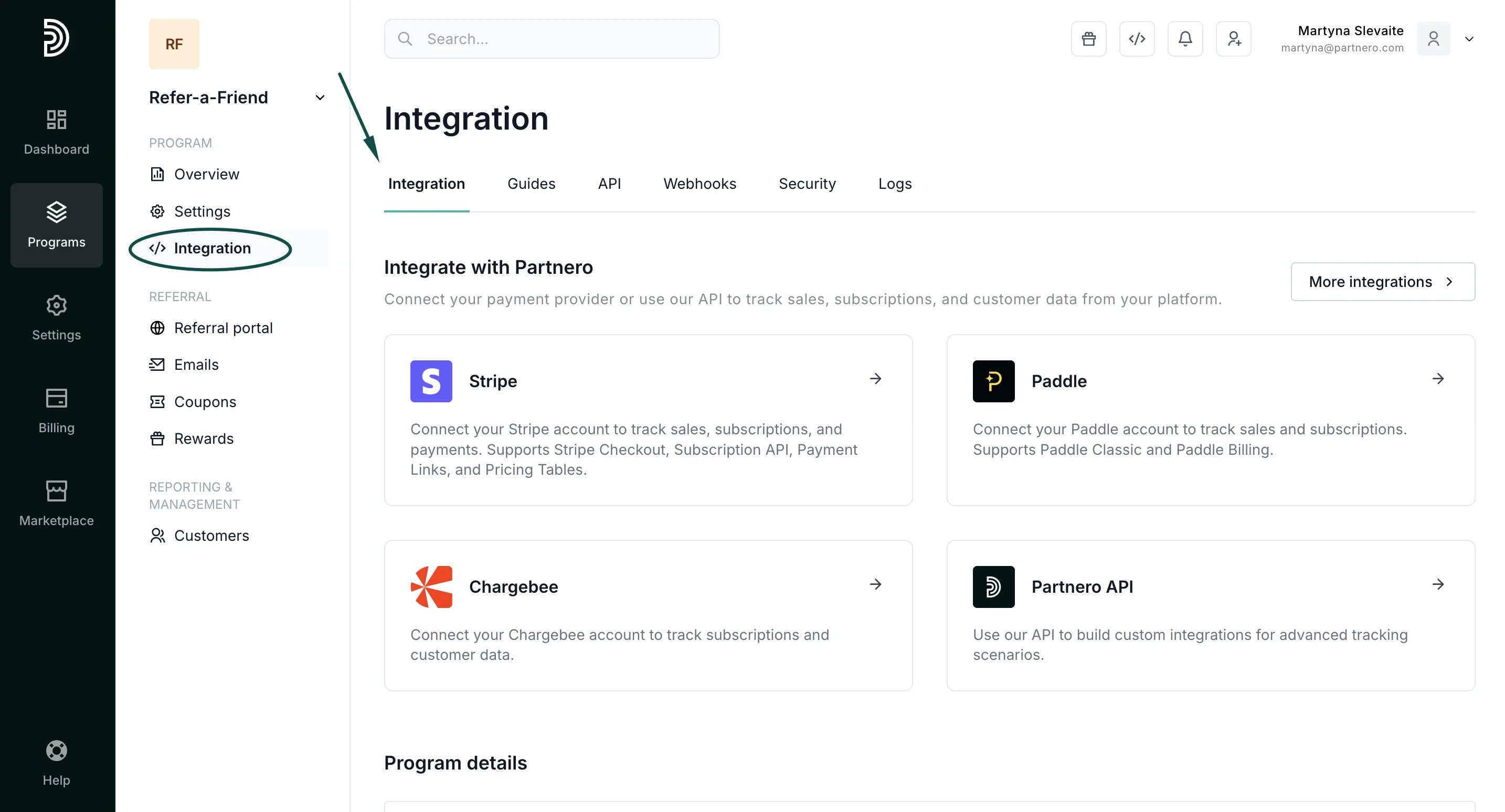 2. Scroll down to the **Program details** section and copy the PartneroJS snippet:
 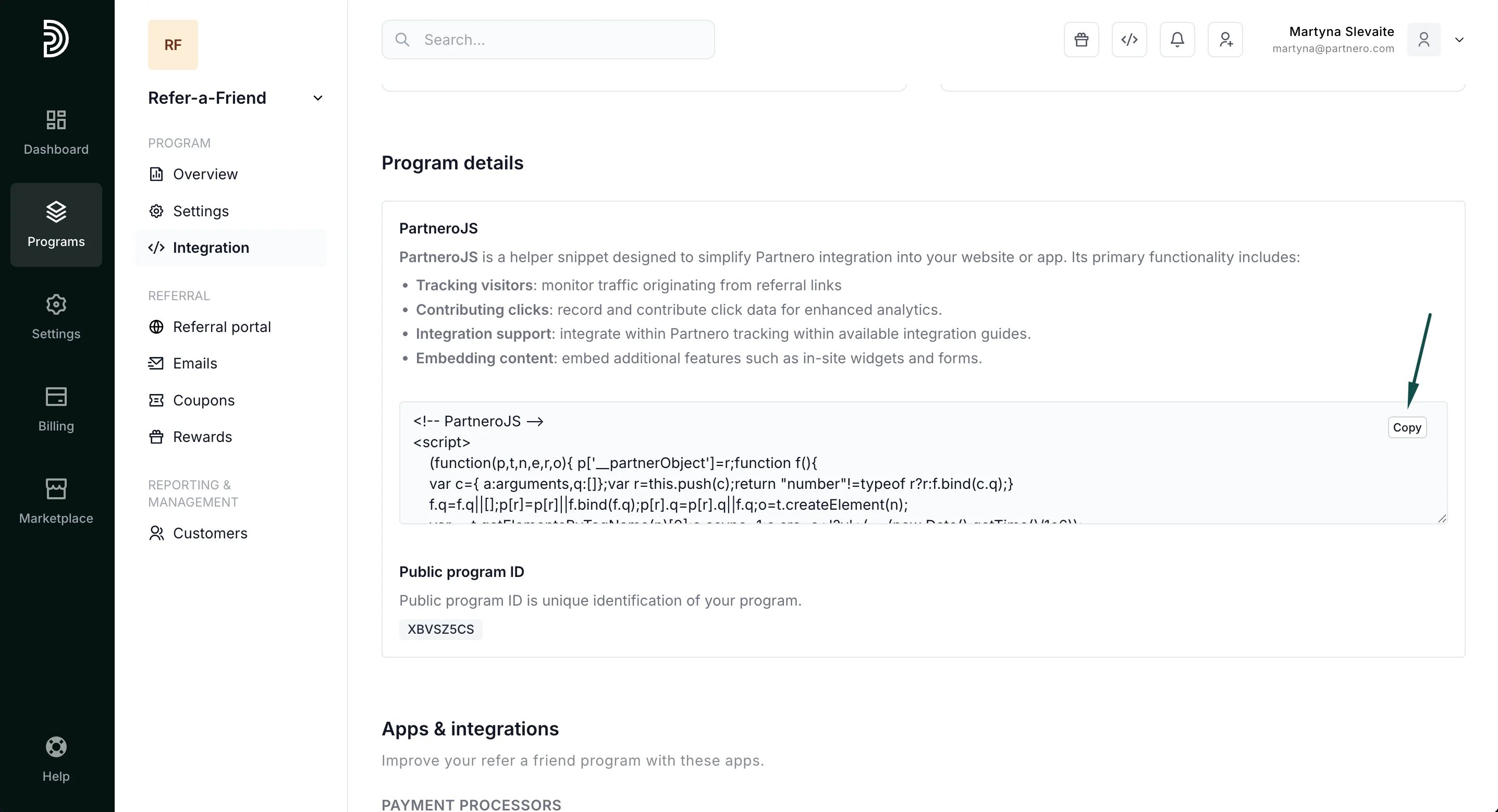 3. Paste the script before the closing \ tag in the HTML code of your website.
***
#### Step 2: Connect a referral portal domain
The referral portal must be connected with a subdomain and hosted on your domain to enable the widget.
3. Paste the script before the closing \ tag in the HTML code of your website.
***
#### Step 2: Connect a referral portal domain
The referral portal must be connected with a subdomain and hosted on your domain to enable the widget. 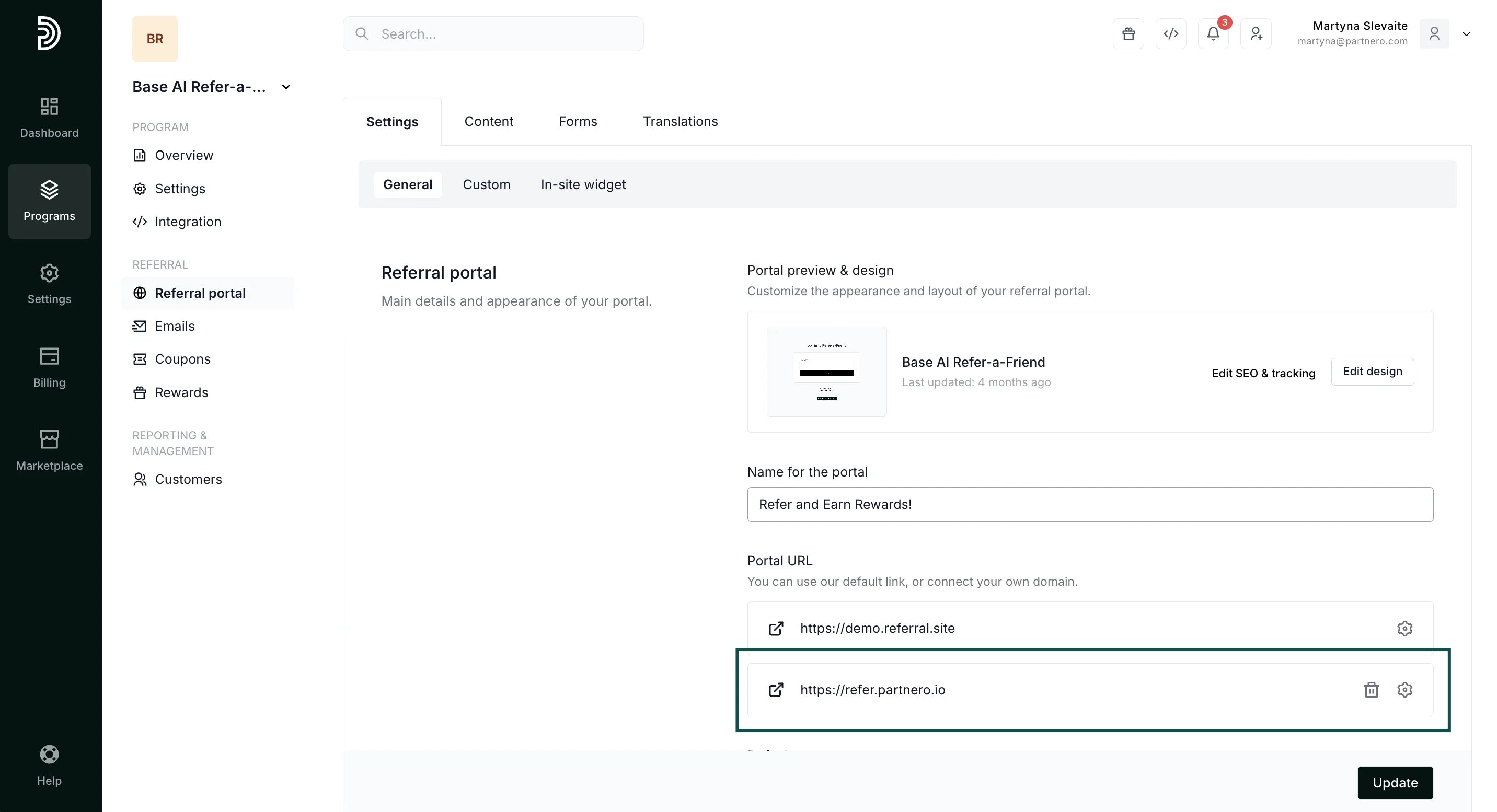 [How to connect a referral portal domain →](/knowledge-base/referral-programs/connect-a-custom-referral-portal-domain)
***
#### Step 3: Enable the in-site widget
Once you've completed the first two steps, the setting to enable the in-site widget will be available.
1. Go to **Referral portal →** **General** tab. Scroll down to **Portal features**.
2. Toggle to **Enable in-site widget**. You can also list which pages you'd like the widget to appear on:
[How to connect a referral portal domain →](/knowledge-base/referral-programs/connect-a-custom-referral-portal-domain)
***
#### Step 3: Enable the in-site widget
Once you've completed the first two steps, the setting to enable the in-site widget will be available.
1. Go to **Referral portal →** **General** tab. Scroll down to **Portal features**.
2. Toggle to **Enable in-site widget**. You can also list which pages you'd like the widget to appear on: 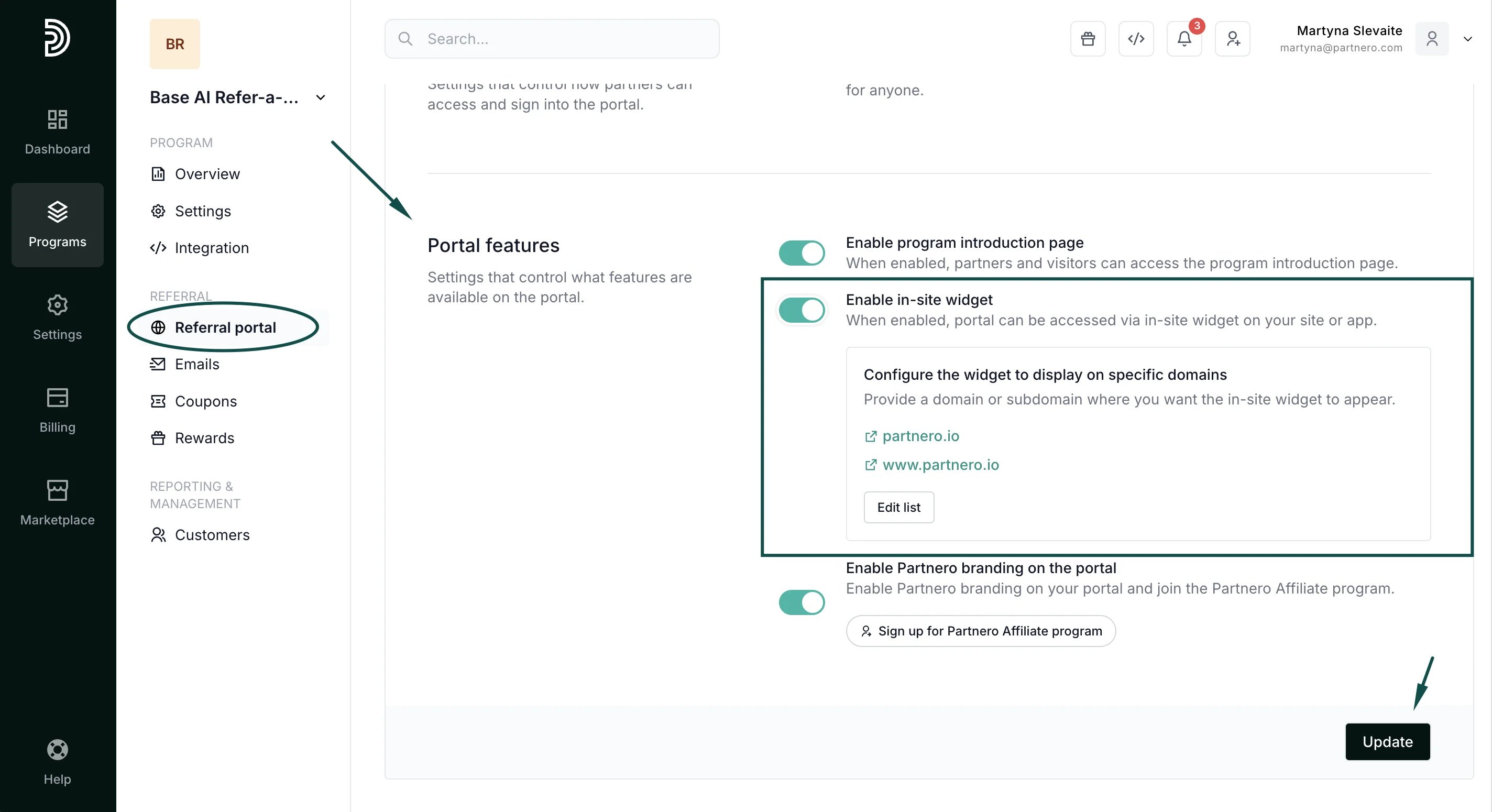 3. Click **Update** to save your changes.
***
This documentation is built and hosted on [Mintlify](https://mintlify.com), a developer documentation platform.
3. Click **Update** to save your changes.
***
This documentation is built and hosted on [Mintlify](https://mintlify.com), a developer documentation platform.