> ## Documentation Index
> Fetch the complete documentation index at: https://docs.partnero.com/llms.txt
> Use this file to discover all available pages before exploring further.
# Refer-a-friend monetary payouts
Refer-a-friend programs with currency rewards can opt into " **Pay out via Partnero**" — the same managed payout pipeline used by affiliate programs (request, approval, manual and automated mass payouts). Partners see a payout request button and history in their portal. Threshold and payout methods can be configured in a dedicated Payouts settings page.
***
### Create a commission (currency) reward
The first step is to create a commission reward. To do that:
1. In your referral program, go to **Rewards** under Referral. Click **New offer**: 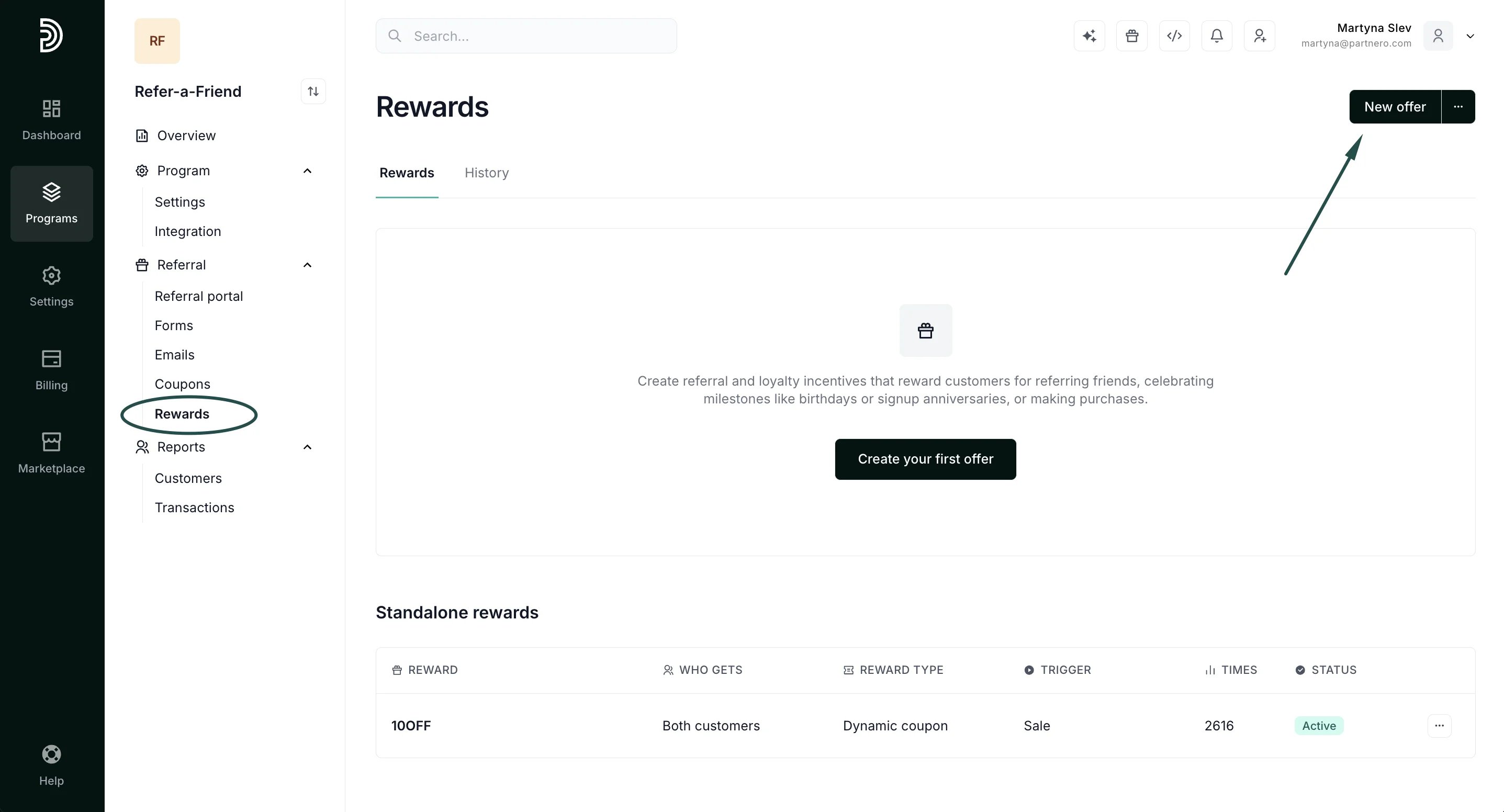 2. Fill out the offer details, such as name, description, and offer type.
3. Under **Reward type**, select **Commission (currency)**:
2. Fill out the offer details, such as name, description, and offer type.
3. Under **Reward type**, select **Commission (currency)**: 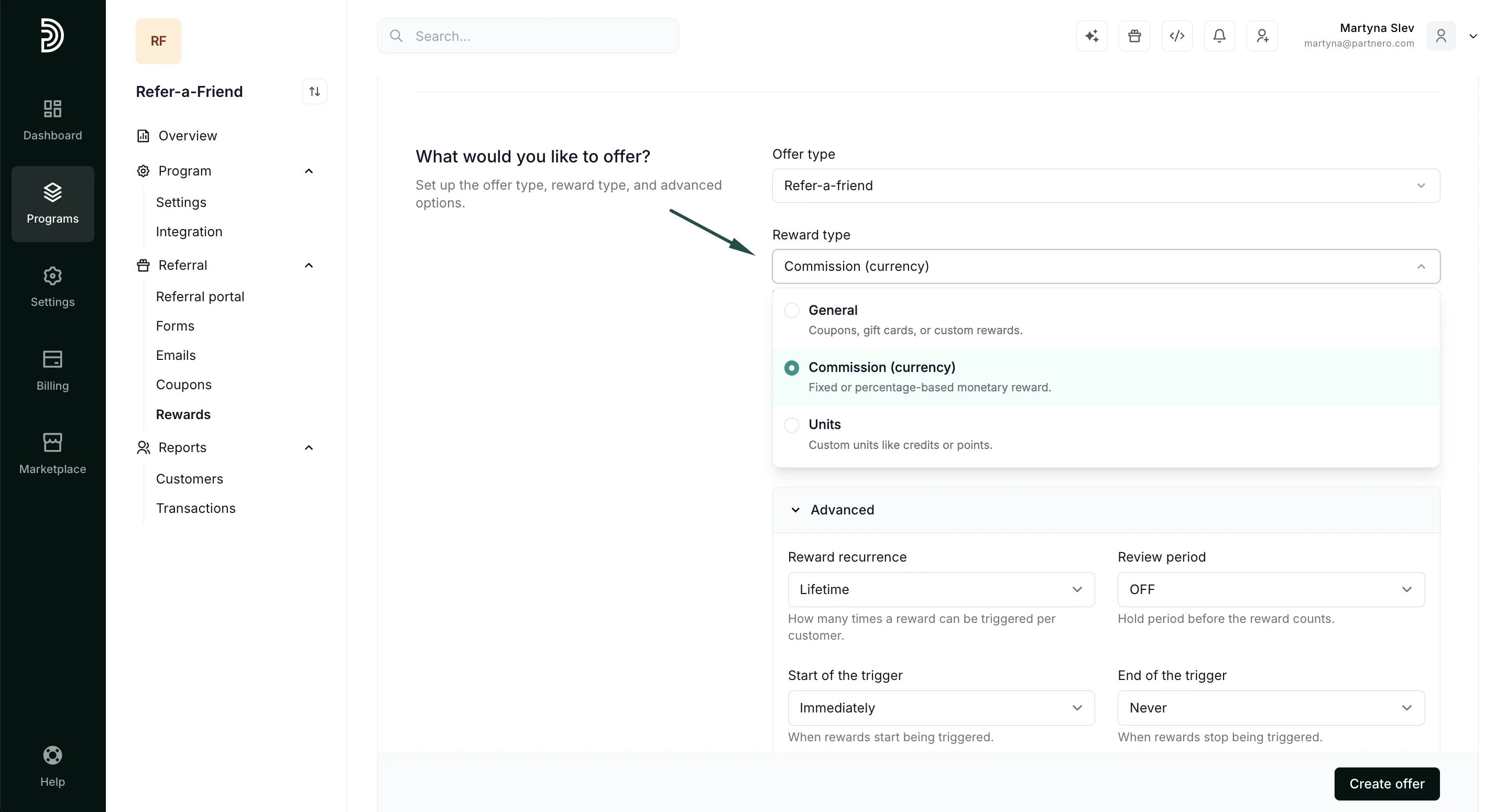 4. Toggle **Pay out via Partnero** and enter the minimum payout threshold (optional; minimum balance the referrer must reach before requesting a payout):
 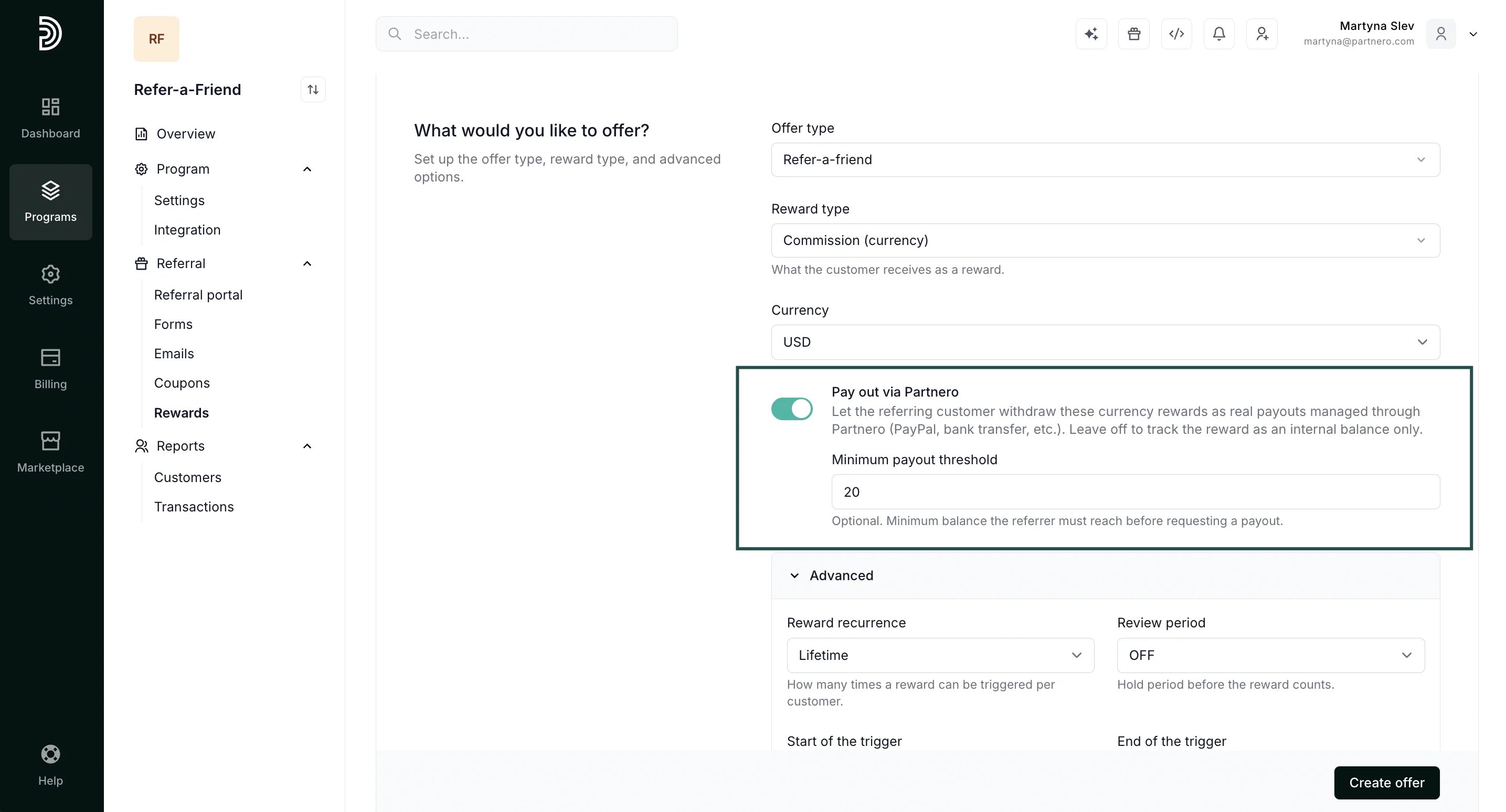 5. Fill out the rest of the details and click **Create offer**.
[Read more about reward settings here](/knowledge-base/referral-programs/how-to-create-a-reward).
***
### Configure payout settings
The next step is to configure the payout settings for your program. A new **Payouts** section will appear in the left-hand menu.
1. Go to **Payouts** → **Settings** tab.
5. Fill out the rest of the details and click **Create offer**.
[Read more about reward settings here](/knowledge-base/referral-programs/how-to-create-a-reward).
***
### Configure payout settings
The next step is to configure the payout settings for your program. A new **Payouts** section will appear in the left-hand menu.
1. Go to **Payouts** → **Settings** tab. 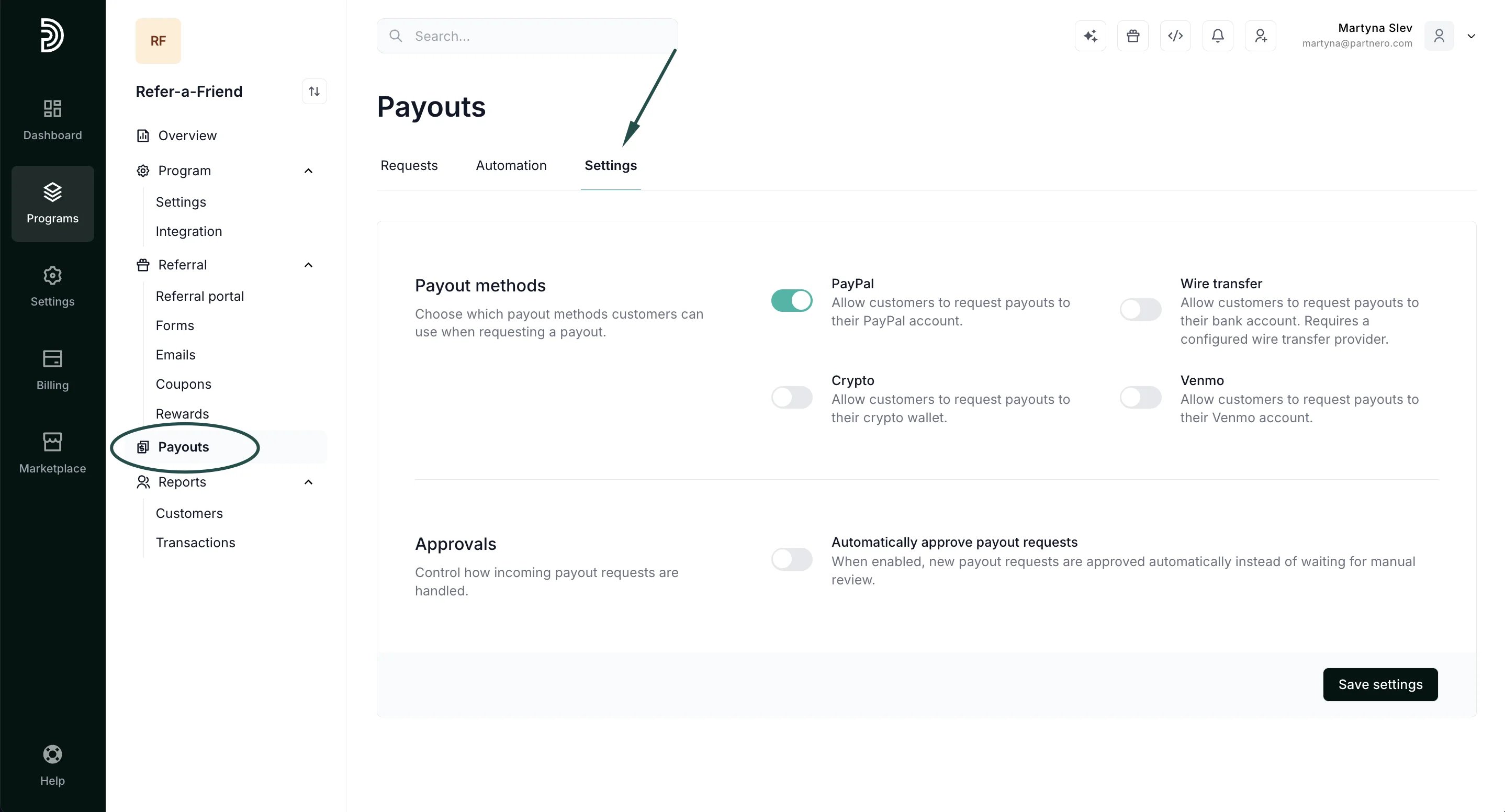 Select which payout methods will be available to your customers. Available options are:
1. **PayPal** - Allow customers to request payouts to their PayPal account.
2. **Wire transfer** - Allow customers to request payouts to their bank account. Requires a configured wire transfer provider.
3. **Crypto** - Allow customers to request payouts to their crypto wallet.
4. **Venmo** - Allow customers to request payouts to their Venmo account.
2. Next, select whether you’d like to automatically approve all payout requests or review and approve them manually.
Select which payout methods will be available to your customers. Available options are:
1. **PayPal** - Allow customers to request payouts to their PayPal account.
2. **Wire transfer** - Allow customers to request payouts to their bank account. Requires a configured wire transfer provider.
3. **Crypto** - Allow customers to request payouts to their crypto wallet.
4. **Venmo** - Allow customers to request payouts to their Venmo account.
2. Next, select whether you’d like to automatically approve all payout requests or review and approve them manually. 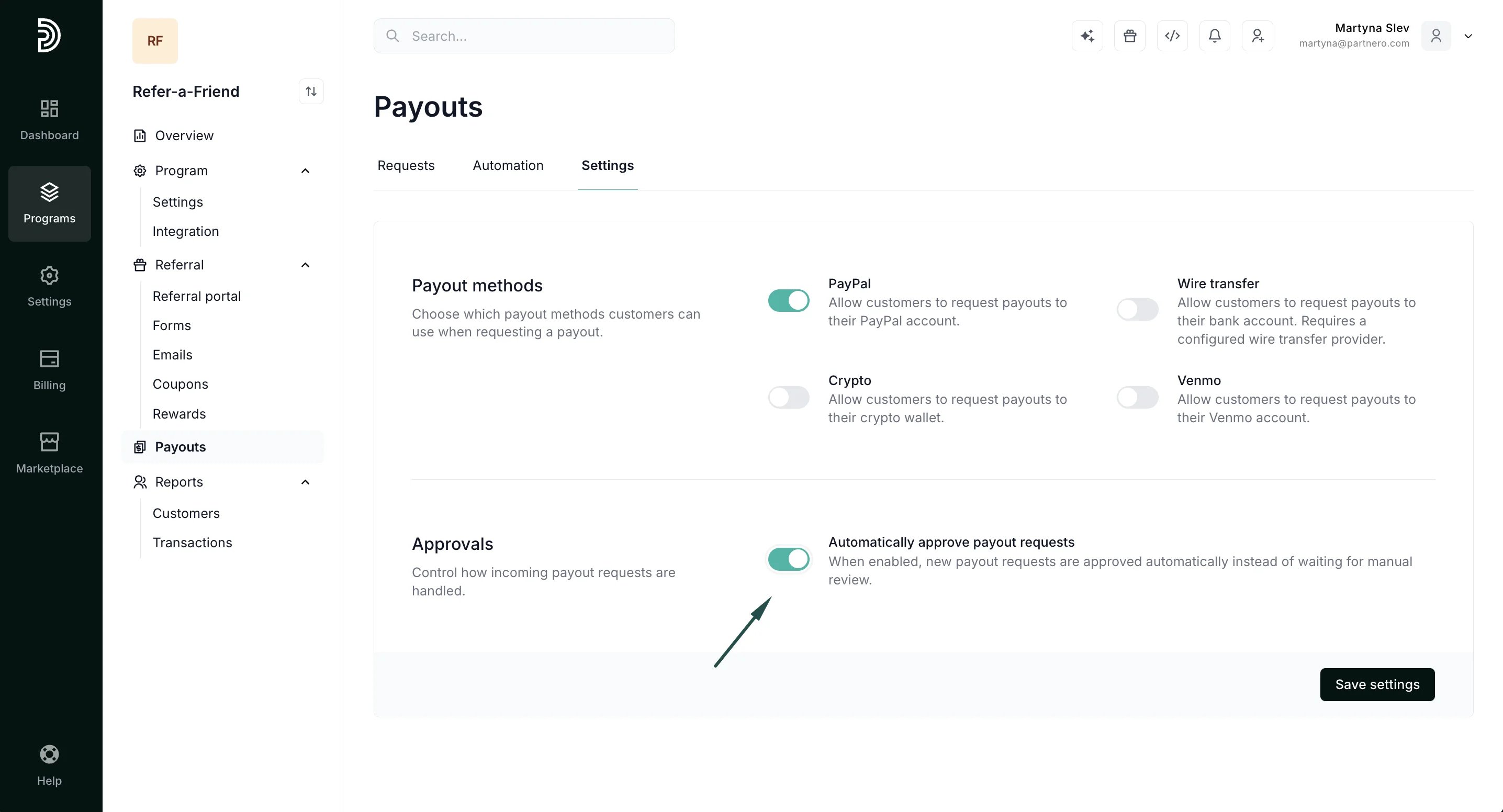 3. Click **Save settings**.
***
### Review and approve payouts
Monetary rewards are paid out through the same payout process used in affiliate programs. Rewards are tracked per referring customer, then move through request and approval (optional), and payment, so you stay in control of what gets paid and when.
The approval process is configured under **Payout** → **Settings** as described above.
When a customer requests a payout:
1. Navigate to **Payouts** → **Requests** tab:
3. Click **Save settings**.
***
### Review and approve payouts
Monetary rewards are paid out through the same payout process used in affiliate programs. Rewards are tracked per referring customer, then move through request and approval (optional), and payment, so you stay in control of what gets paid and when.
The approval process is configured under **Payout** → **Settings** as described above.
When a customer requests a payout:
1. Navigate to **Payouts** → **Requests** tab: 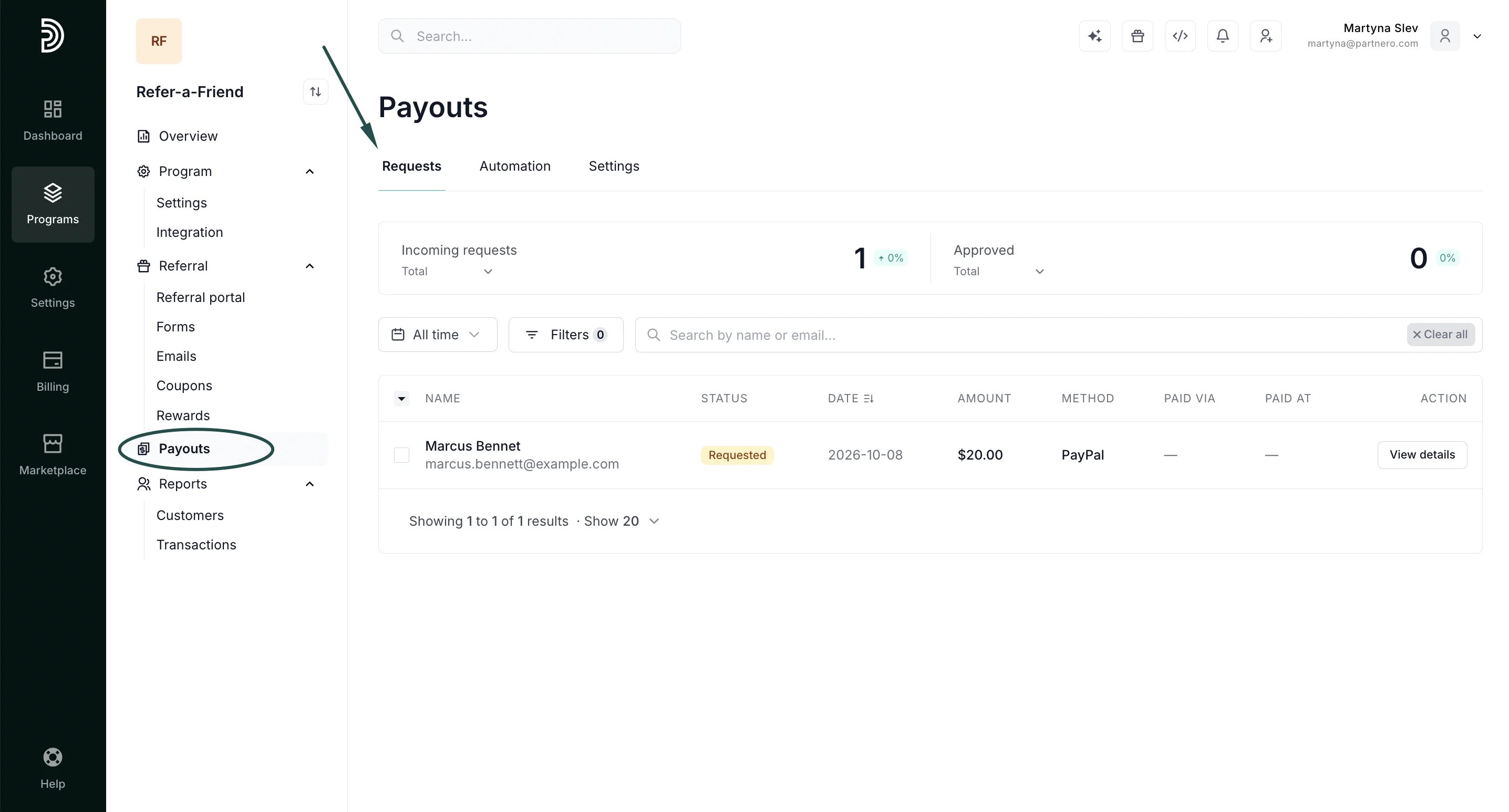 2. Here you'll find the list of requested payouts. Click **View details** to review the request:
 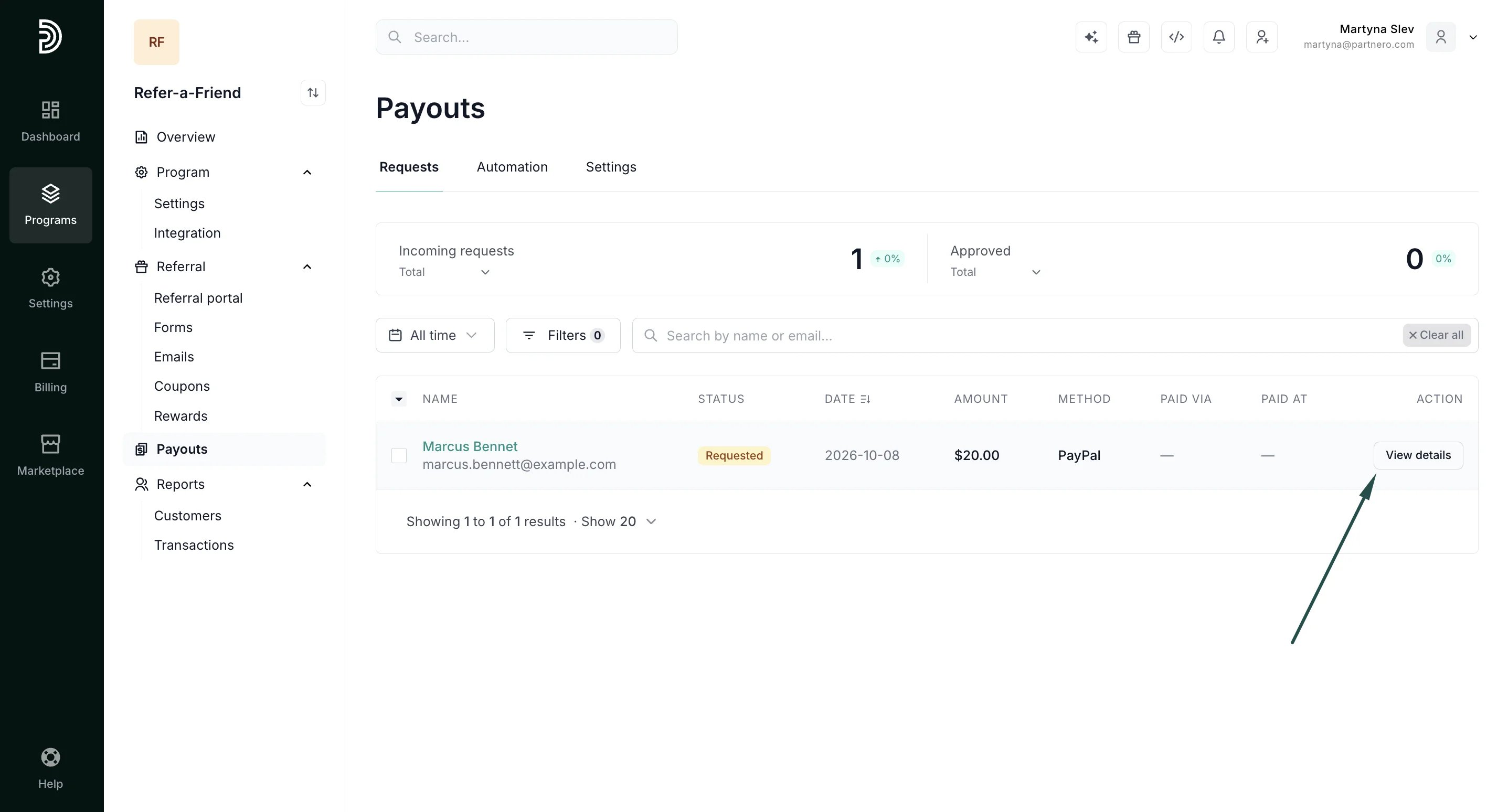 3. Here you'll be able to review customer information, payout details (such as PayPal email address or bank details), and the associated rewards:
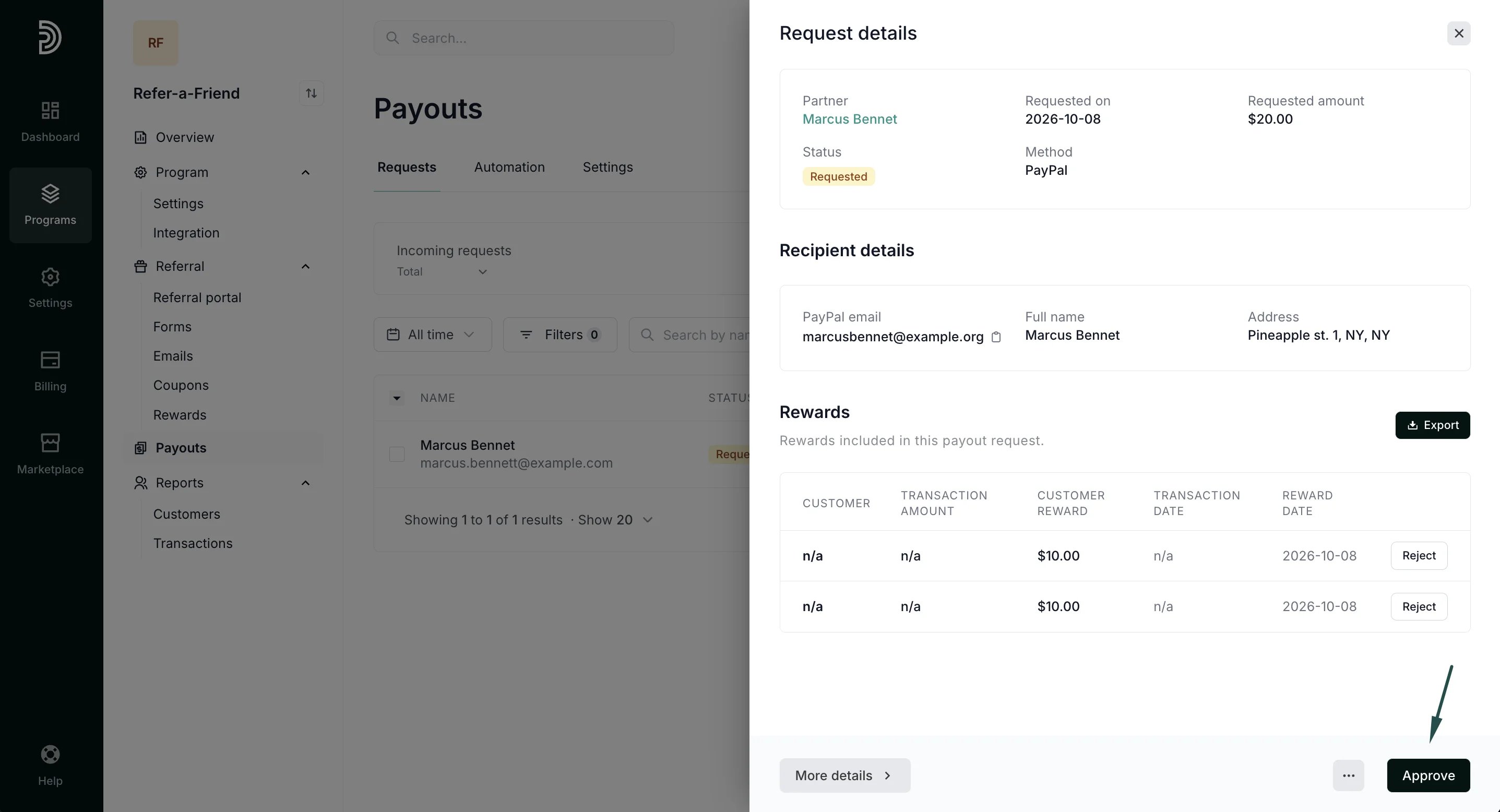 4. Click **Approve**.
Alternatively, you can reject, delete or request to resubmit the payout request:
4. Click **Approve**.
Alternatively, you can reject, delete or request to resubmit the payout request: 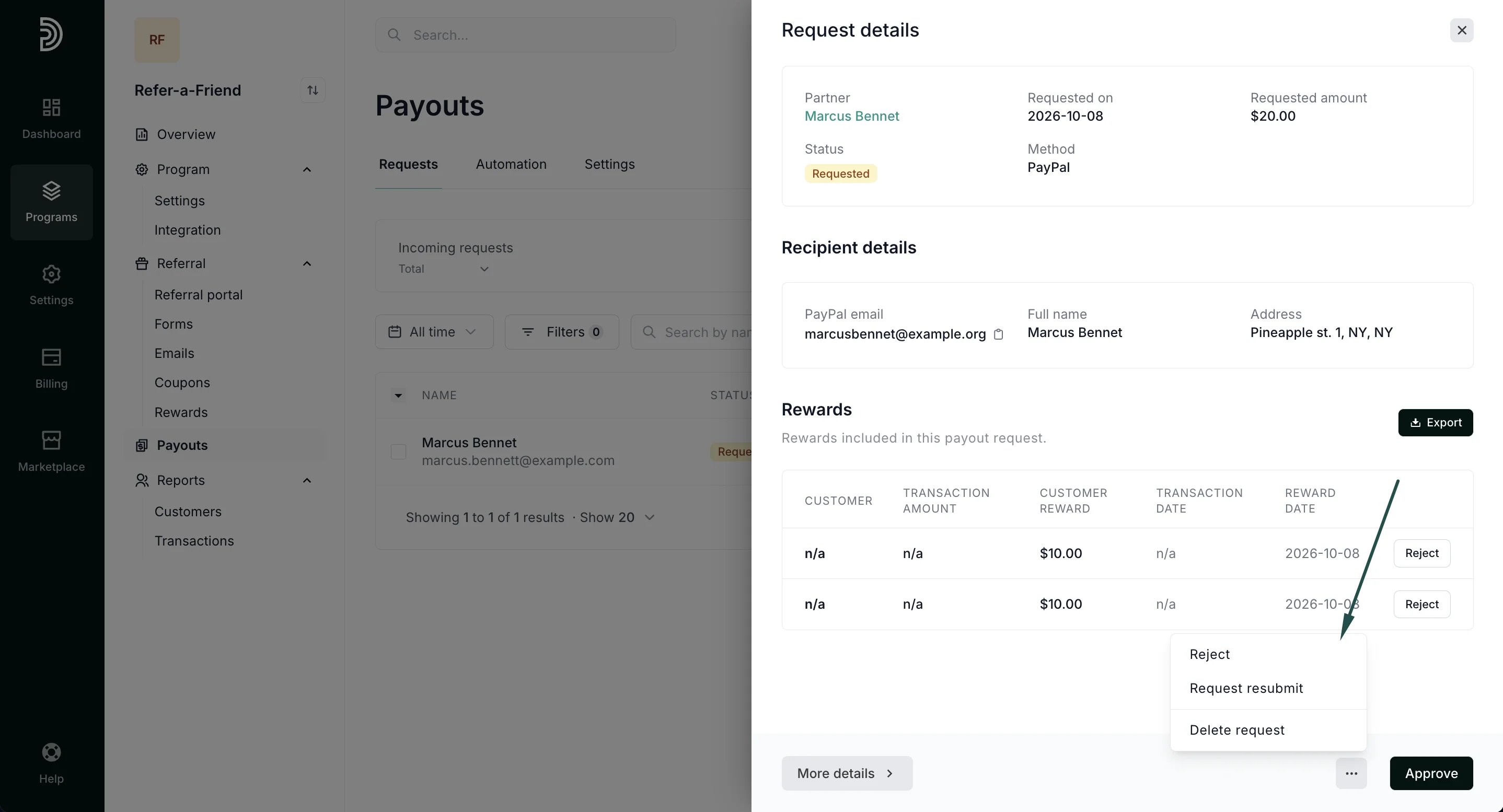 ***
### Paying out approved requests
Once a payout request is approved, it can be paid via PayPal or Wise. Approved payouts can be paid out in batches.
1. Navigate to Payouts → **Requests** and click the **Mass Pay** button at the top right:
***
### Paying out approved requests
Once a payout request is approved, it can be paid via PayPal or Wise. Approved payouts can be paid out in batches.
1. Navigate to Payouts → **Requests** and click the **Mass Pay** button at the top right: 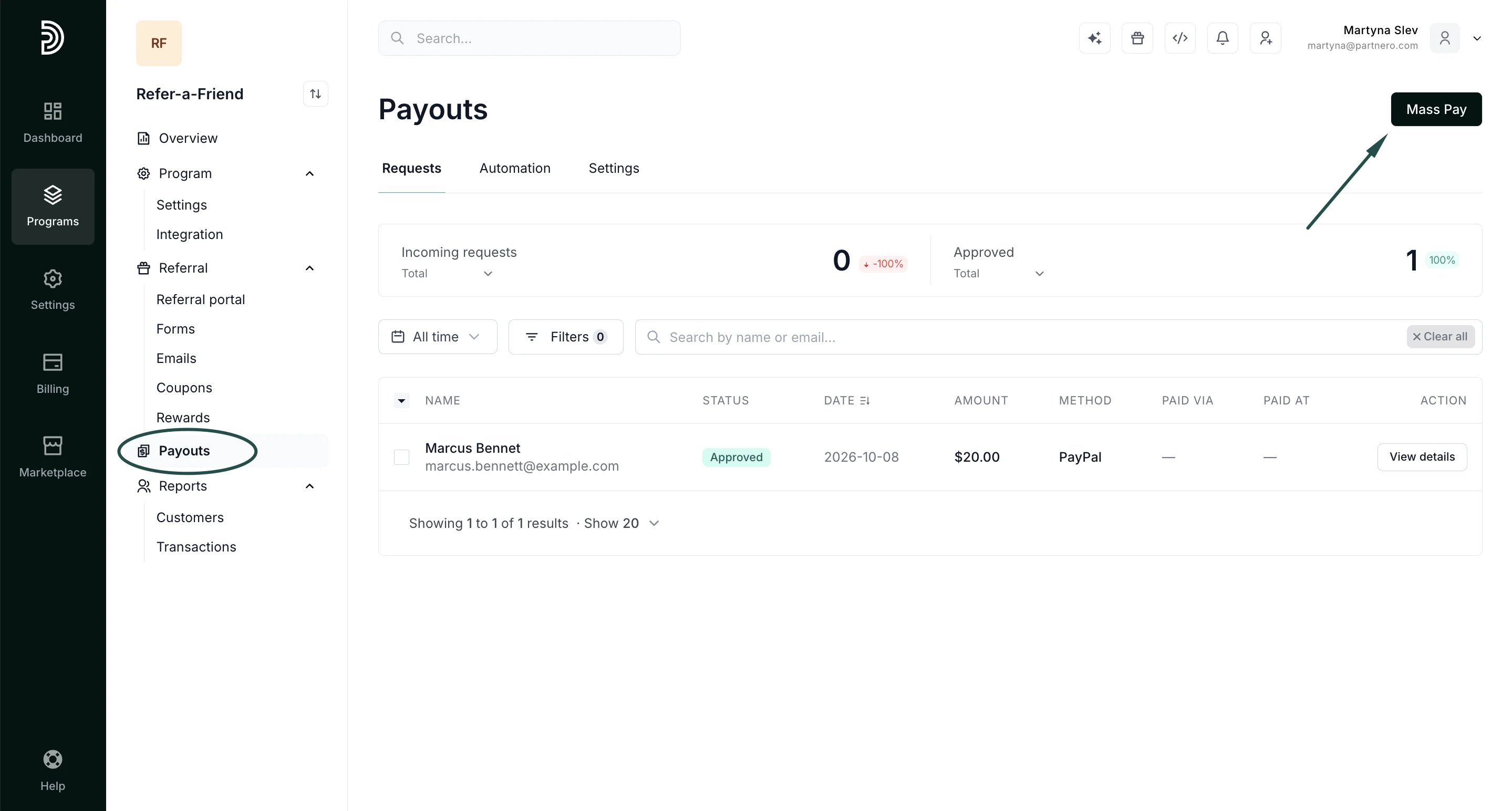 **Important**: For the Mass Pay button to be available, either PayPal or Wise has to be connected to your program.
2. Select the requests you' like to process and click **Proceed**:
**Important**: For the Mass Pay button to be available, either PayPal or Wise has to be connected to your program.
2. Select the requests you' like to process and click **Proceed**: 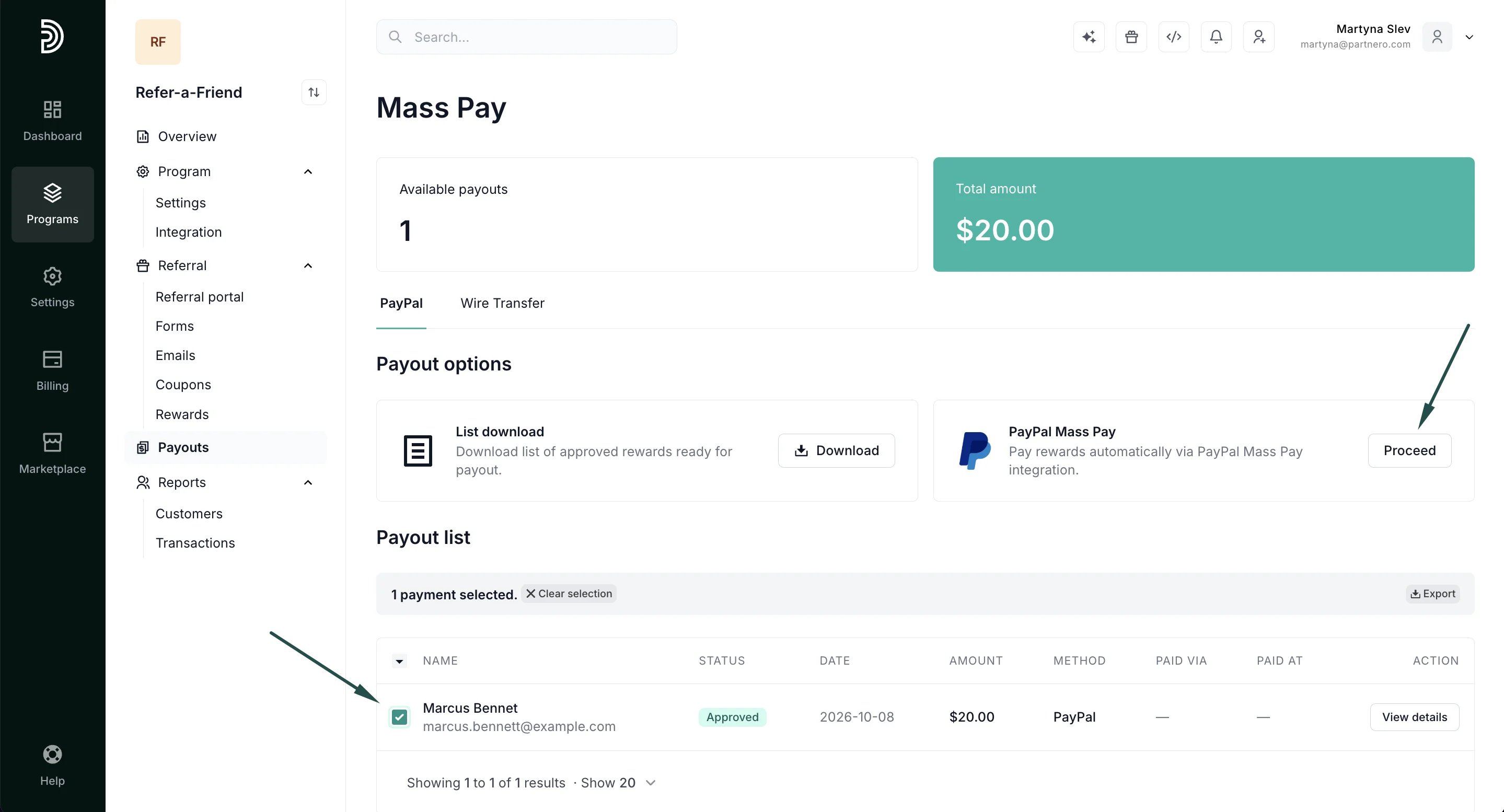 3. That's it! All selected payout requests will be processed in one go.
Alternatively, you can download the list of payout requests to process them outside of Partnero.
3. That's it! All selected payout requests will be processed in one go.
Alternatively, you can download the list of payout requests to process them outside of Partnero. 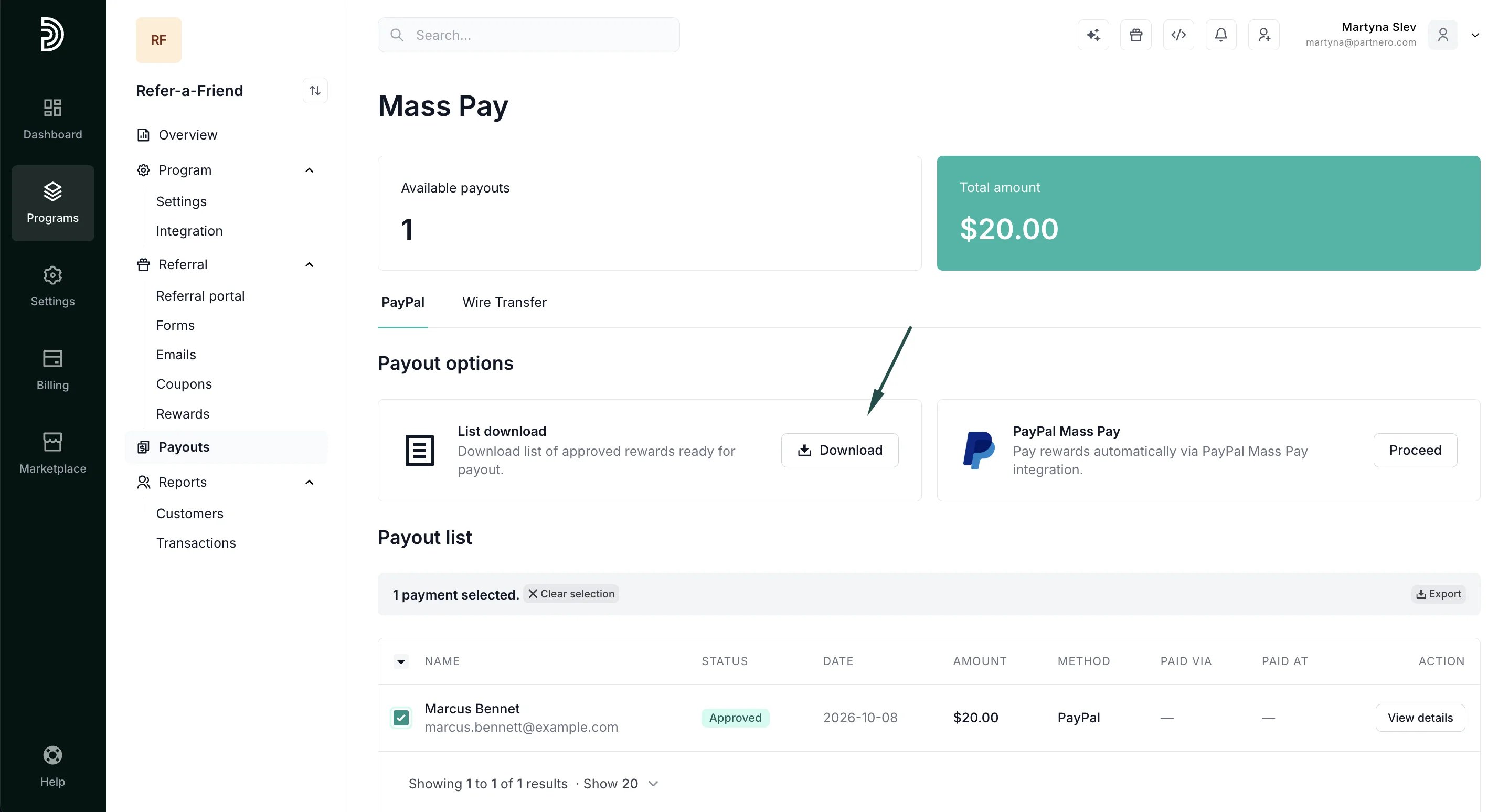 ***
### Setting up automated payouts
If you'd like to automate your payouts based on a schedule:
1. Navigate to **Payouts** → **Automation**:
***
### Setting up automated payouts
If you'd like to automate your payouts based on a schedule:
1. Navigate to **Payouts** → **Automation**: 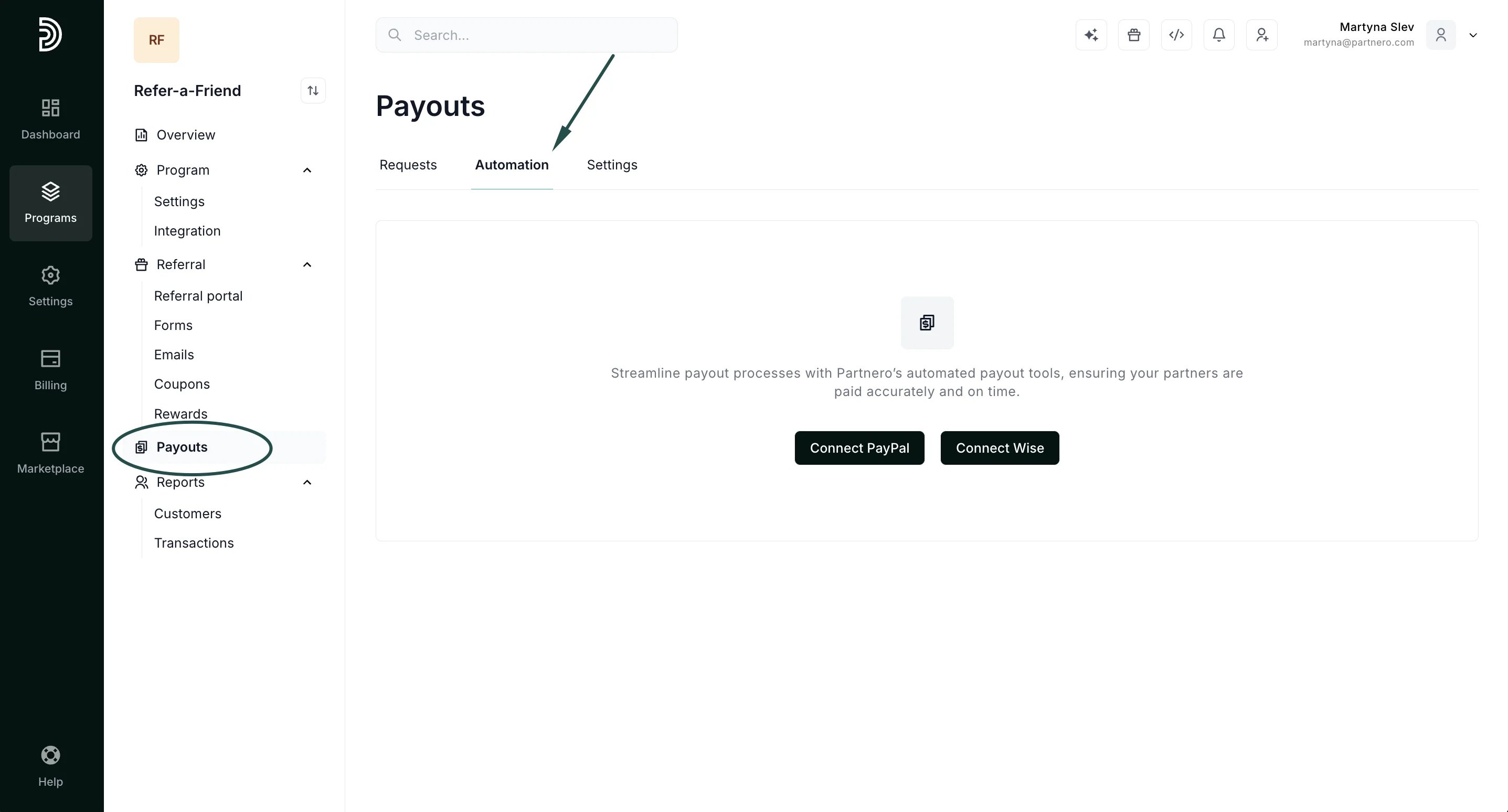 2. Connect your PayPal or Wise account.
1. To connect PayPal, enter your client ID and secret key. [Click here for more details](/integrations/paypal).
2. To connect Wise, enter your API key.
3. Once either PayPal or Wise is connected, click **Manage** to set up the payout automation:
2. Connect your PayPal or Wise account.
1. To connect PayPal, enter your client ID and secret key. [Click here for more details](/integrations/paypal).
2. To connect Wise, enter your API key.
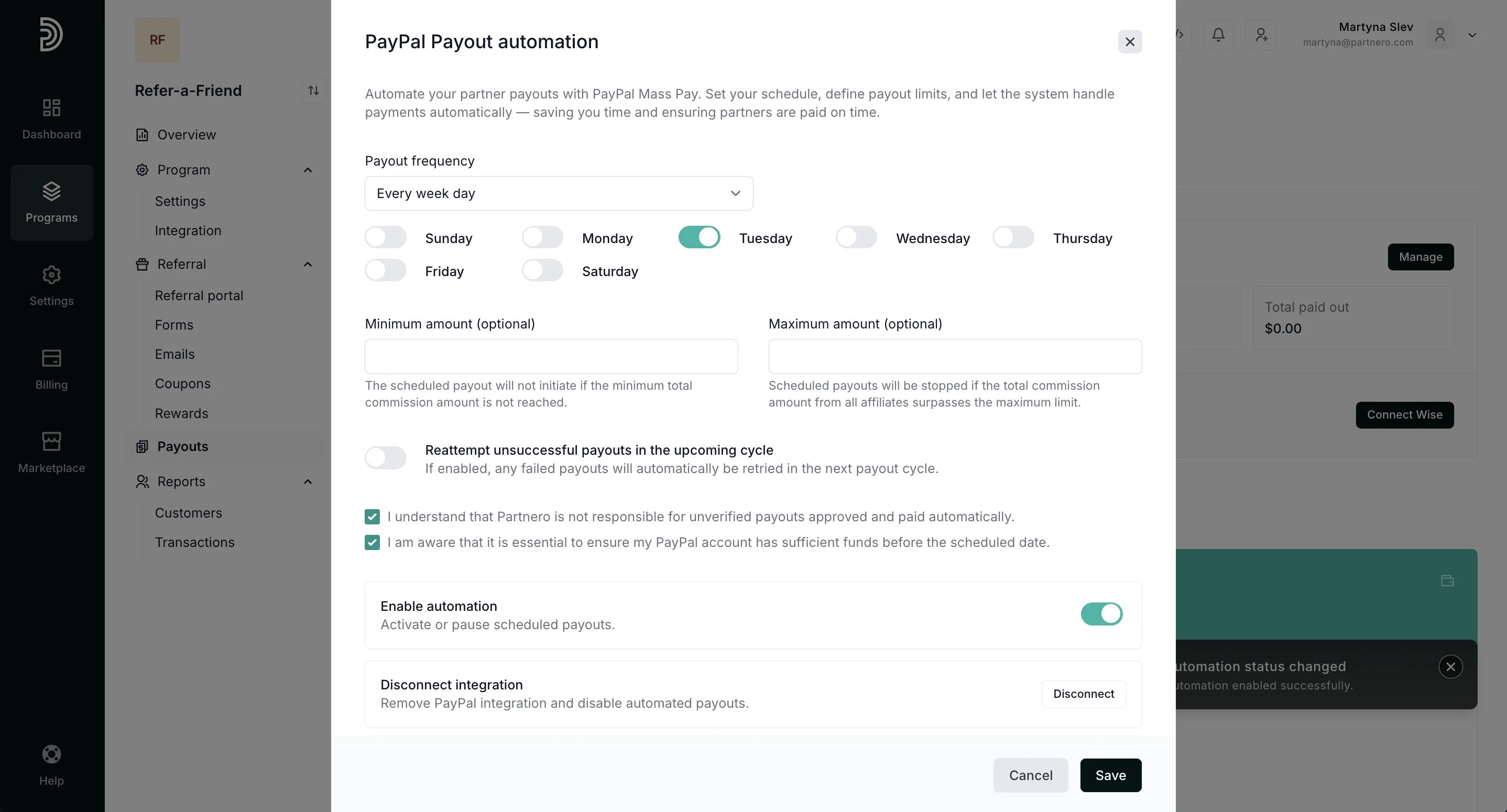
3. Once either PayPal or Wise is connected, click **Manage** to set up the payout automation: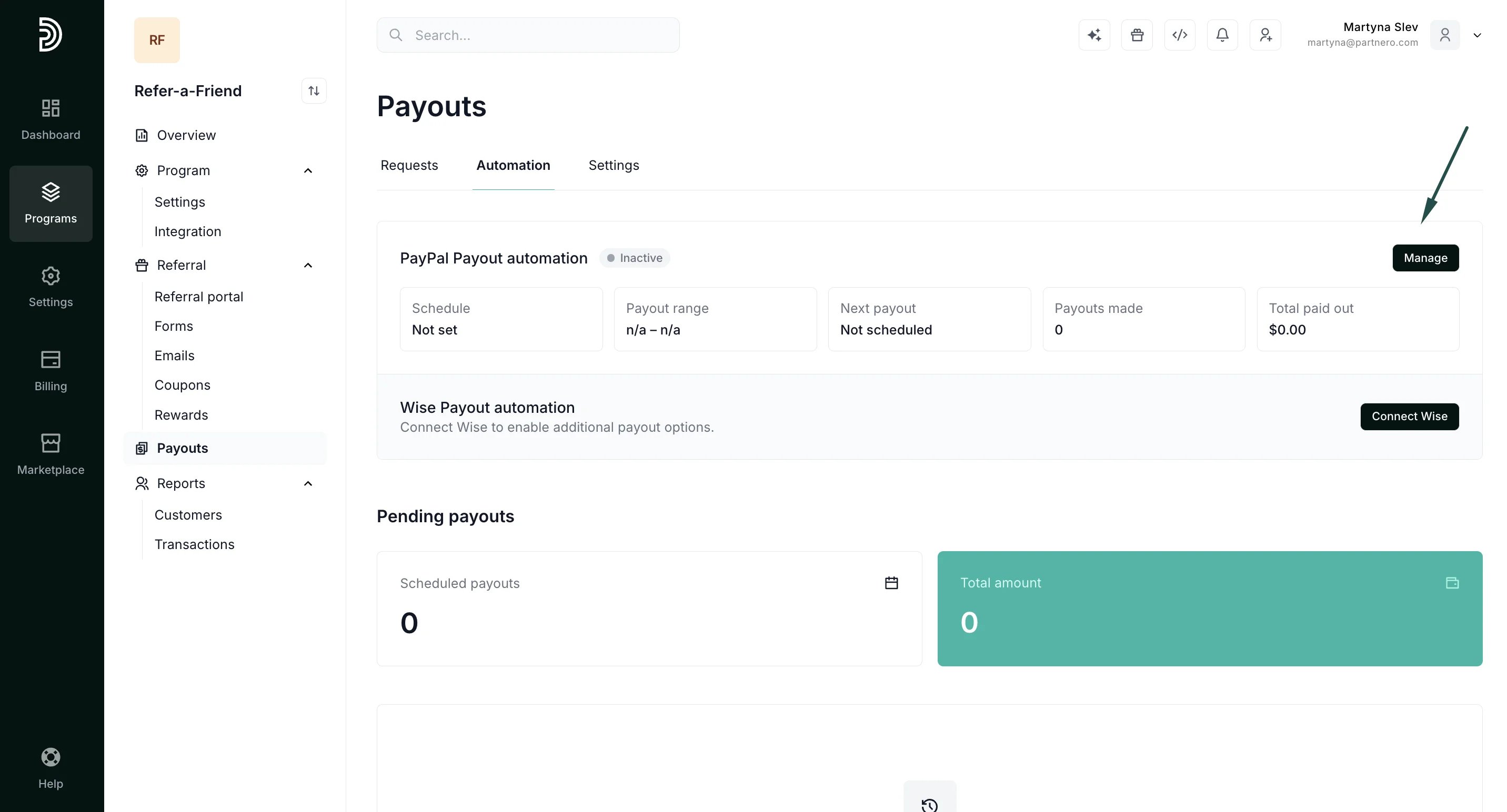 4. Configure the payout frequency, enter minimum or maximum amounts (optional), and enable the automation:
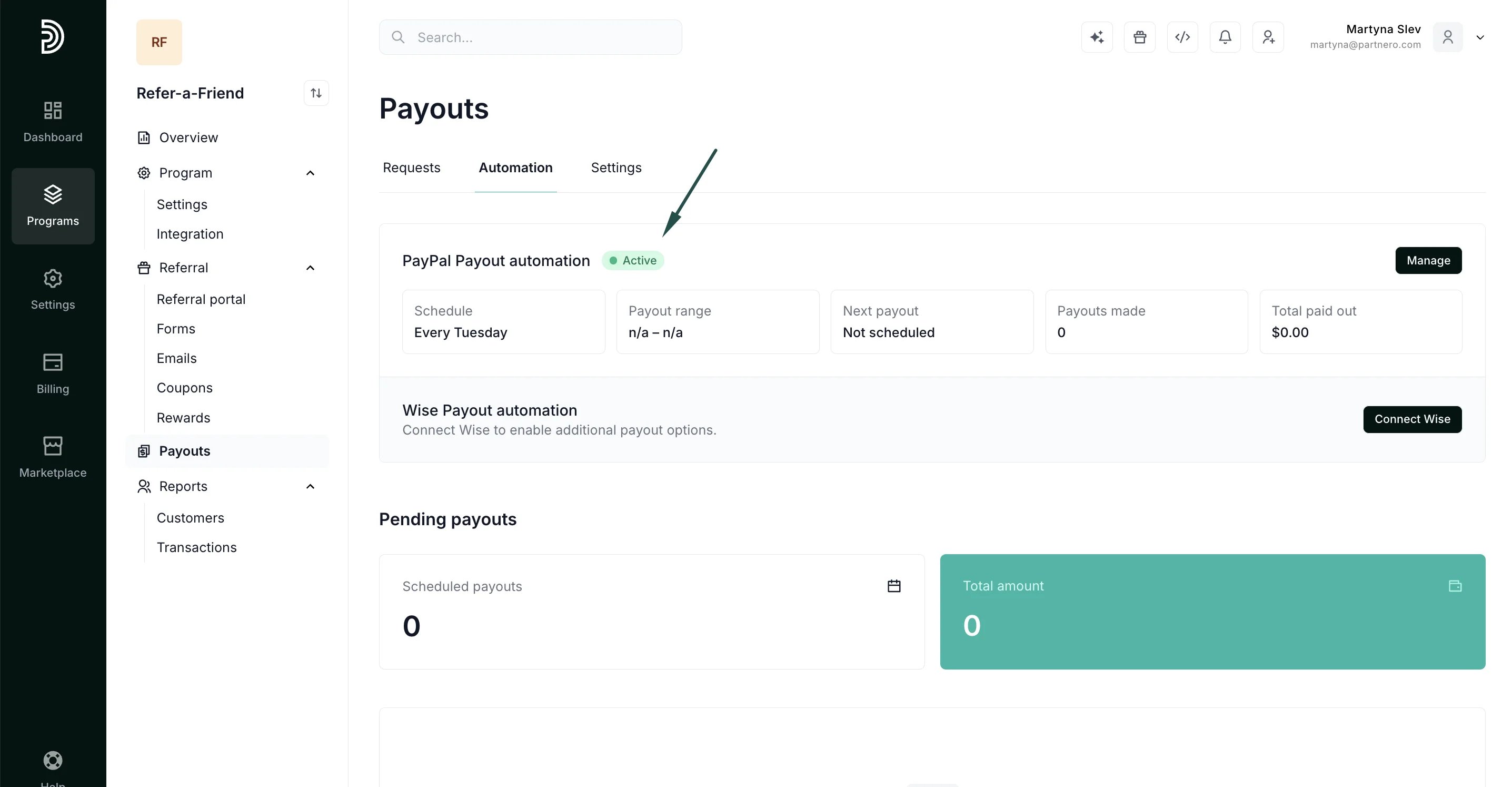
  5. That's it! All payouts that meet the configured criteria (approval or minimum threshold) will be processed based on the set schedule:
  ***
### For referring customers
Referring customers see a payout request button and their payout history in the referral portal. Once rewards are available, they can request a payout and check the status of past and pending payouts at any time.
***
### For referring customers
Referring customers see a payout request button and their payout history in the referral portal. Once rewards are available, they can request a payout and check the status of past and pending payouts at any time. 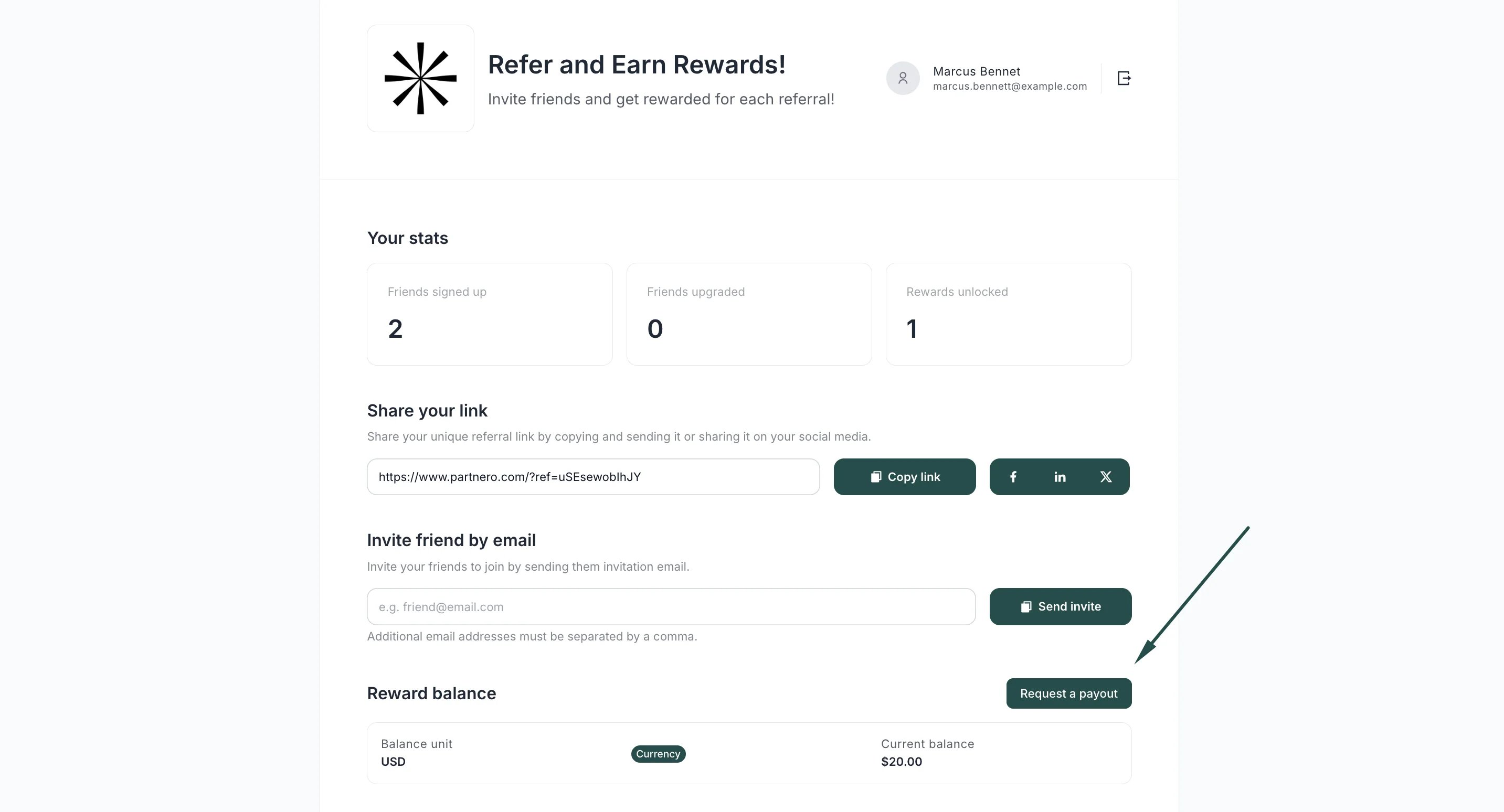 Two settings determine when a referring customer's rewards can be paid out.
**Automatic approval**: If automatic approval is enabled, rewards don't need to be approved manually. They are ready for payout as soon as they're earned. If it's turned off, each reward must be approved before it can be paid.
**Payout threshold:** If you set a payout threshold, the customer's balance must reach that amount before any money is paid out. The same threshold applies to payout requests, so customers can only request a payout once they've met it.
This documentation is built and hosted on [Mintlify](https://mintlify.com), a developer documentation platform.
Two settings determine when a referring customer's rewards can be paid out.
**Automatic approval**: If automatic approval is enabled, rewards don't need to be approved manually. They are ready for payout as soon as they're earned. If it's turned off, each reward must be approved before it can be paid.
**Payout threshold:** If you set a payout threshold, the customer's balance must reach that amount before any money is paid out. The same threshold applies to payout requests, so customers can only request a payout once they've met it.
This documentation is built and hosted on [Mintlify](https://mintlify.com), a developer documentation platform.