> ## Documentation Index
> Fetch the complete documentation index at: https://docs.partnero.com/llms.txt
> Use this file to discover all available pages before exploring further.
# Refer-a-friend program emails
### What are refer-a-friend program emails?
Refer-a-friend program emails are transactional emails sent automatically to customers at key moments — when they share a referral link, log in to the referral portal, or earn a reward.
**Invitations & authentication**
* **One-Time Password (OTP) Request**: sent when a customer requests a one-time password to access the referral portal.
* **Friend invitation**: sent when a customer shares their referral link via email.
* **Friend invitation from embeddable/popup form**: sent when a customer shares their referral link via an embeddable signup form or popup.
**Reward notifications**
* **Referrer reward**: sent to the referring customer when they earn a reward.
* **Referral reward**: sent to the referred customer when they earn a reward.
* **Post-purchase reward**: sent to a customer after a purchase with a reward.
* **Birthday reward**: sent to a customer on their birthday with a reward.
* **Anniversary reward**: sent to a customer on their signup anniversary with a reward.
###
***
Enable program emails
To enable program emails:
1. Go to **Settings** under **Program**.
2. Scroll to the **Other** section. Toggle to enable the email notifications: 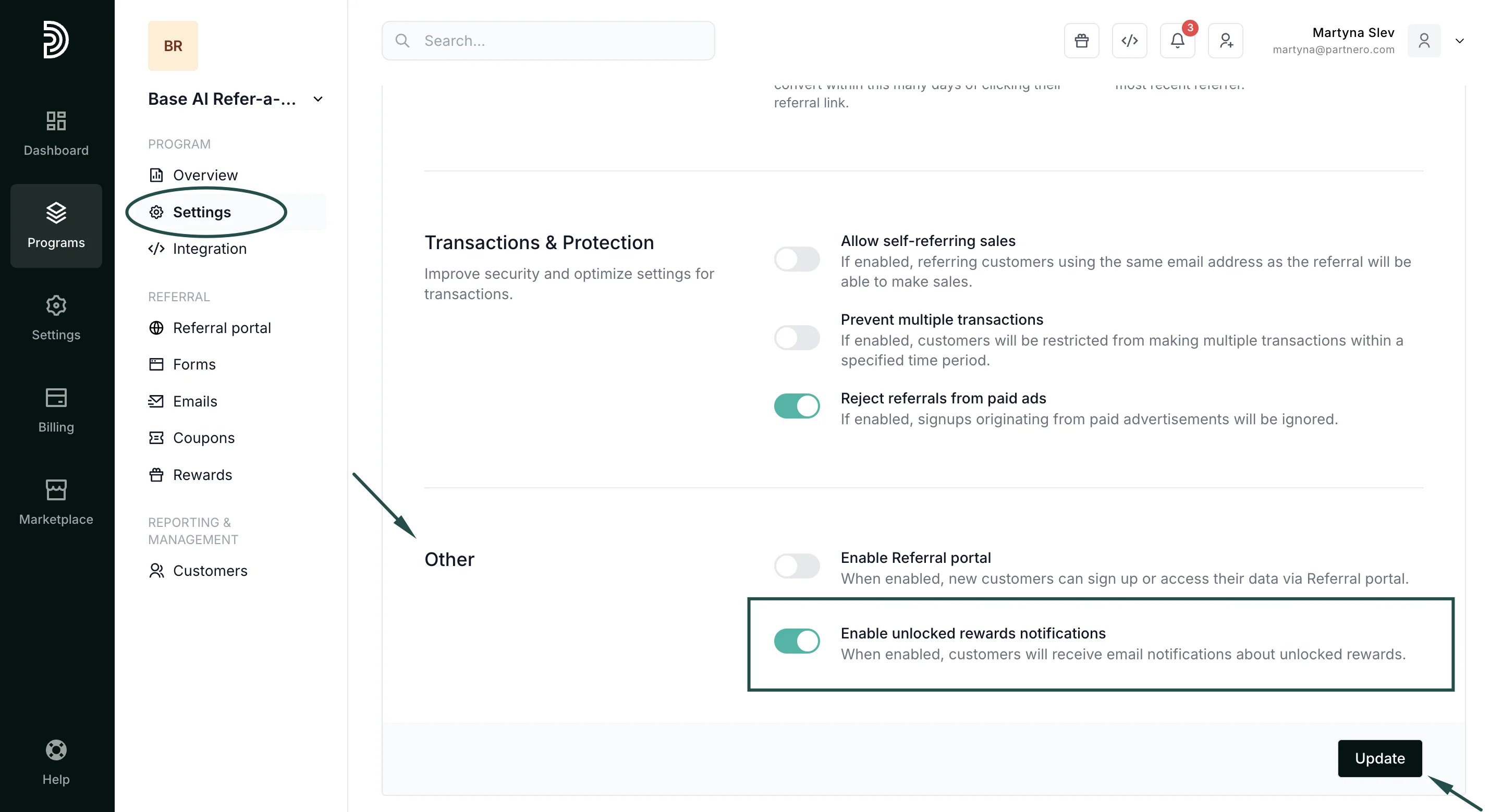 3. Click **Update**.
***
### Email settings
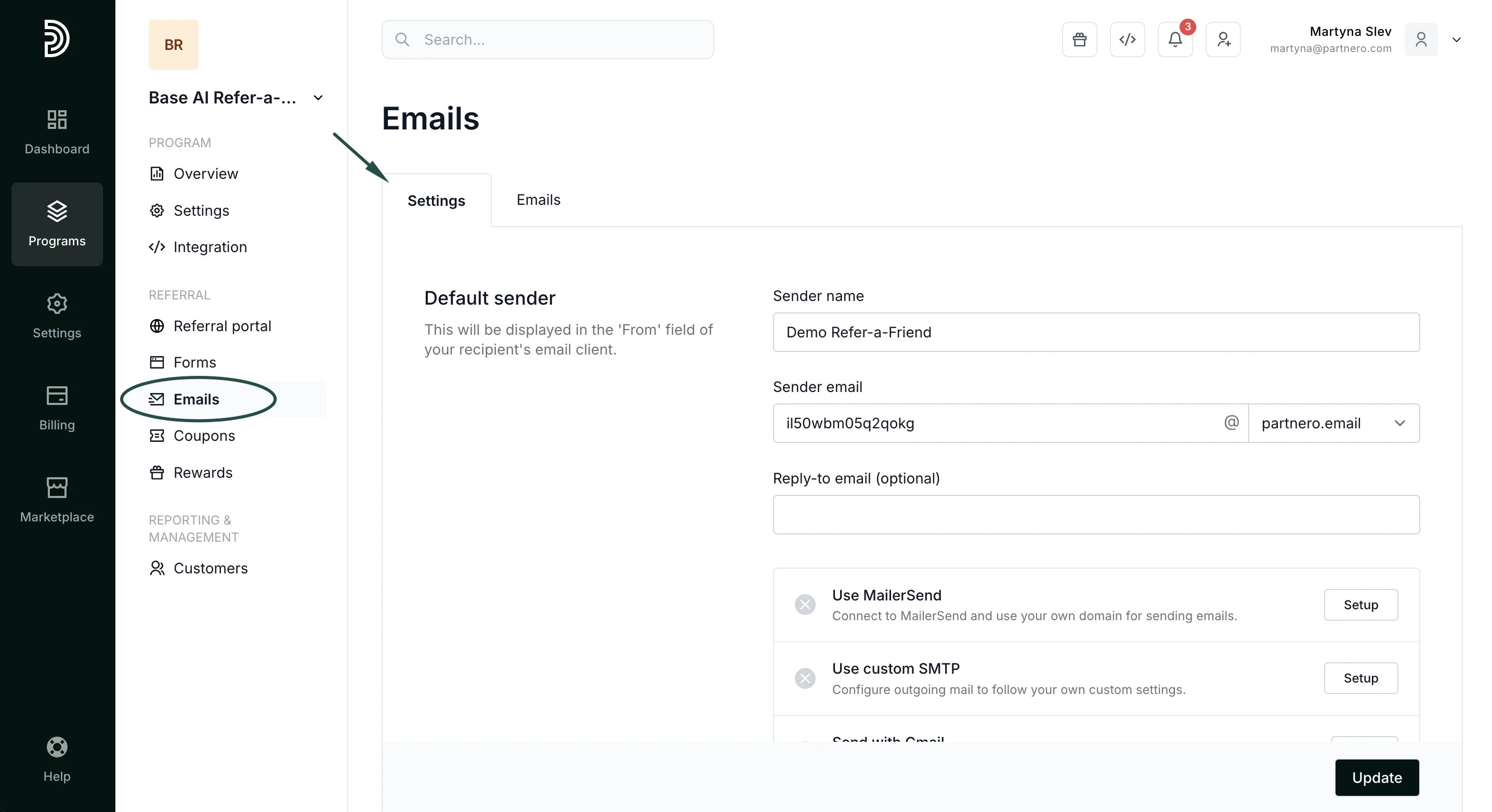
Navigate to **Emails** under Referral. In the **Settings** tab, you’ll find the following sections:
#### 1. Default sender
| Field | Description |
| - | - |
| Sender name | The name that appears in the From field of your recipient's email client. |
| Sender email | All emails are sent from the default domain @partnero.email. Enter your preferred prefix (e.g., [yourbrand@partnero.email](mailto:yourbrand@partnero.email)). |
| Reply-to email | Optional. An inbox address to receive customer replies (e.g., your support email). |
| Email sending domains | Connect a custom sender domain using one of the options below. |
3. Click **Update**.
***
### Email settings
Navigate to **Emails** under Referral. In the **Settings** tab, you’ll find the following sections:
#### 1. Default sender
| Field | Description |
| - | - |
| Sender name | The name that appears in the From field of your recipient's email client. |
| Sender email | All emails are sent from the default domain @partnero.email. Enter your preferred prefix (e.g., [yourbrand@partnero.email](mailto:yourbrand@partnero.email)). |
| Reply-to email | Optional. An inbox address to receive customer replies (e.g., your support email). |
| Email sending domains | Connect a custom sender domain using one of the options below. |
 #### 2. Logo and disclaimer
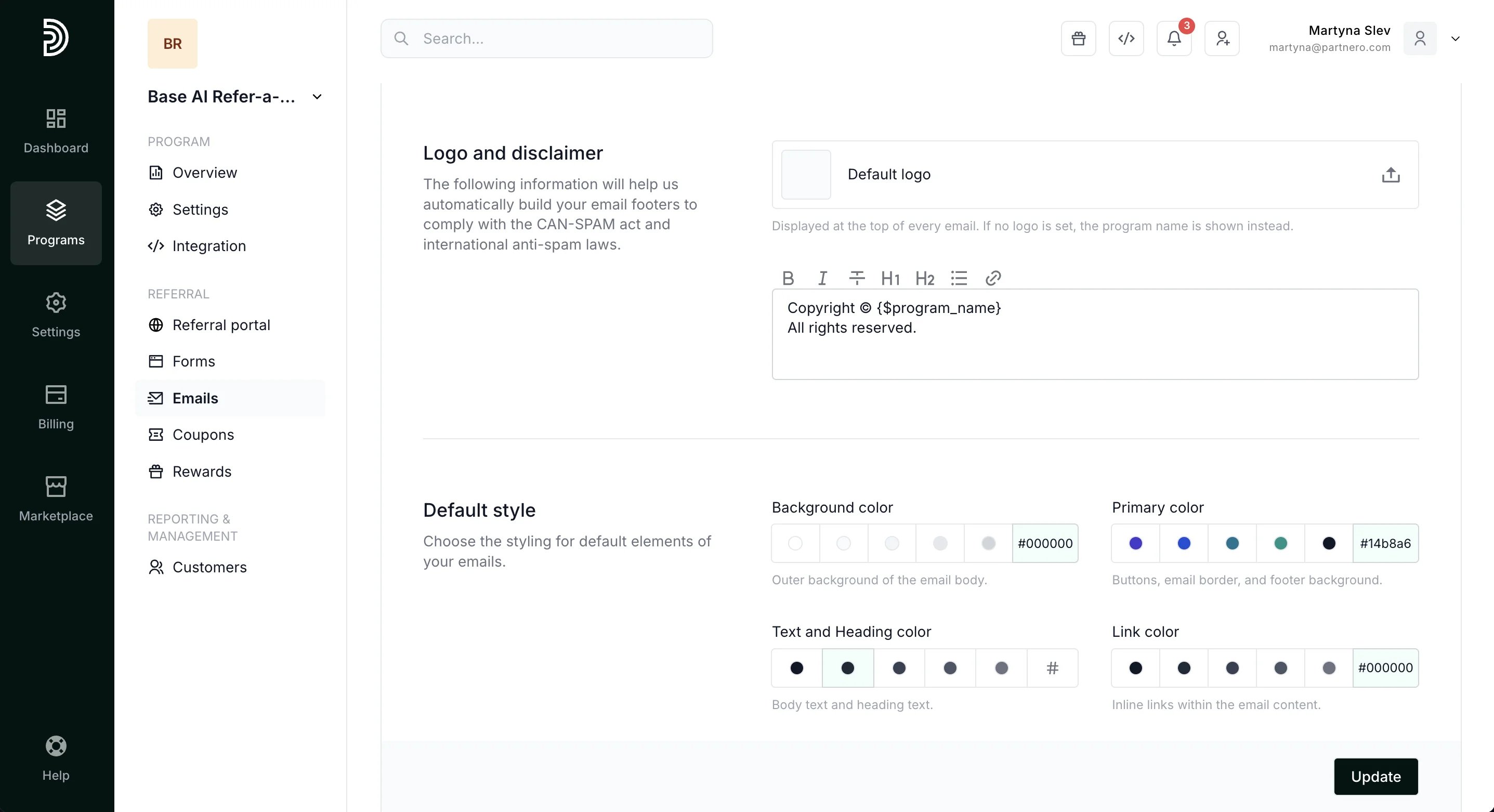
Further down in the **Settings** tab, you'll find the **Logo and disclaimer** section. Add your default logo and footer information to be used in the email footer section.
####
#### 2. Logo and disclaimer
Further down in the **Settings** tab, you'll find the **Logo and disclaimer** section. Add your default logo and footer information to be used in the email footer section.
####  3. Default style
Lastly, you'll see the Default style section, where you can define styling for default elements of your emails, such as:
* background color
* primary color
* text and heading color
* link color.
***
### Connect your domain for email sending
Connecting your own domain improves deliverability and makes your emails more recognizable to customers.
**Via MailerSend**
1. Under **Emails → Settings**, click **Setup** next to MailerSend.
2. Enter your MailerSend API token ([here's how to find it](https://www.mailersend.com/help/managing-api-tokens)).
3. Click **Connect**.
4. Once connected, your domain will appear under **Sender email** domain.
3. Default style
Lastly, you'll see the Default style section, where you can define styling for default elements of your emails, such as:
* background color
* primary color
* text and heading color
* link color.
***
### Connect your domain for email sending
Connecting your own domain improves deliverability and makes your emails more recognizable to customers.
**Via MailerSend**
1. Under **Emails → Settings**, click **Setup** next to MailerSend.
2. Enter your MailerSend API token ([here's how to find it](https://www.mailersend.com/help/managing-api-tokens)).
3. Click **Connect**.
4. Once connected, your domain will appear under **Sender email** domain. 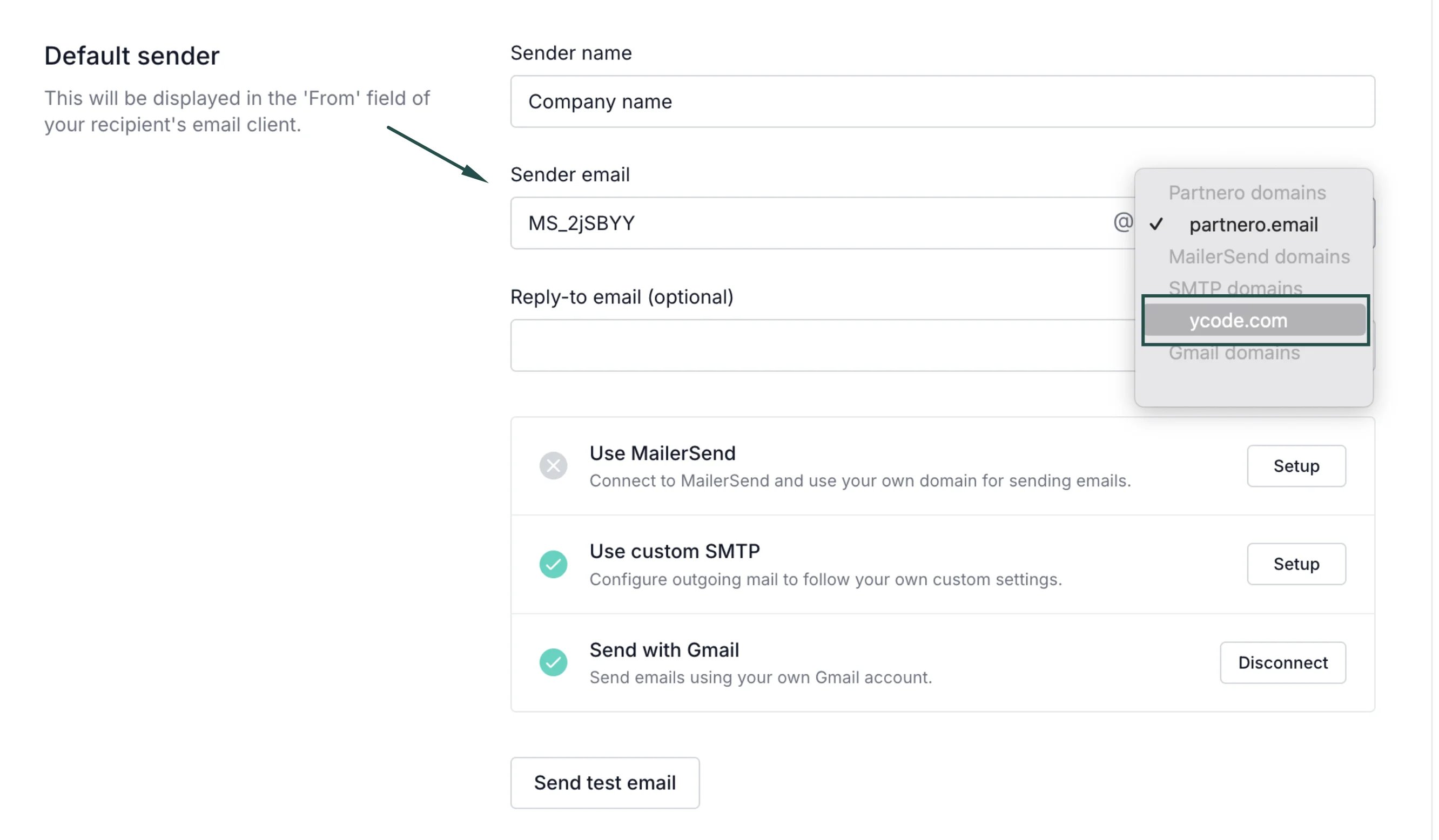 Select it and click **Update**.
**Via custom SMTP**
1. Under **Emails → Settings**, click **Setup** next to **SMTP**.
2. Enter your server information, username, password, and From email address.
3. Click **Connect**.
4. Once connected, select the domain under **Sender email domain** and click **Update**.
**Via Gmail**
[Read how to connect your domain through Gmail →](/knowledge-base/program-emails/send-program-emails-with-gmail)
***
### Customize the email content
Each email can be edited to match your brand voice.
1. In your program, go to **Emails** under Referral. Switch to the **Emails** tab:
Select it and click **Update**.
**Via custom SMTP**
1. Under **Emails → Settings**, click **Setup** next to **SMTP**.
2. Enter your server information, username, password, and From email address.
3. Click **Connect**.
4. Once connected, select the domain under **Sender email domain** and click **Update**.
**Via Gmail**
[Read how to connect your domain through Gmail →](/knowledge-base/program-emails/send-program-emails-with-gmail)
***
### Customize the email content
Each email can be edited to match your brand voice.
1. In your program, go to **Emails** under Referral. Switch to the **Emails** tab: 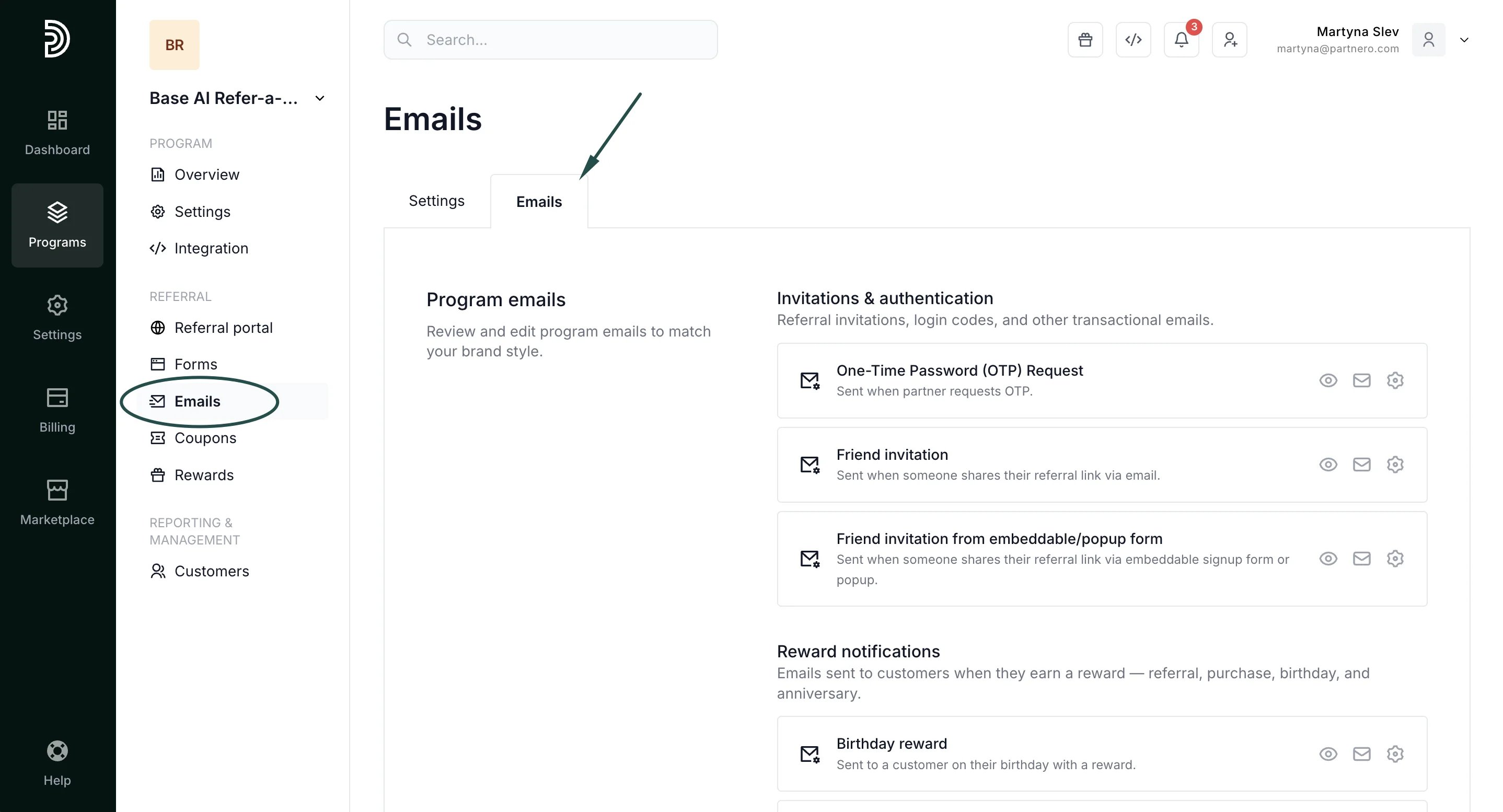 2. Click the gear icon next to the email you want to edit. Edit the subject, content, or send a test email.
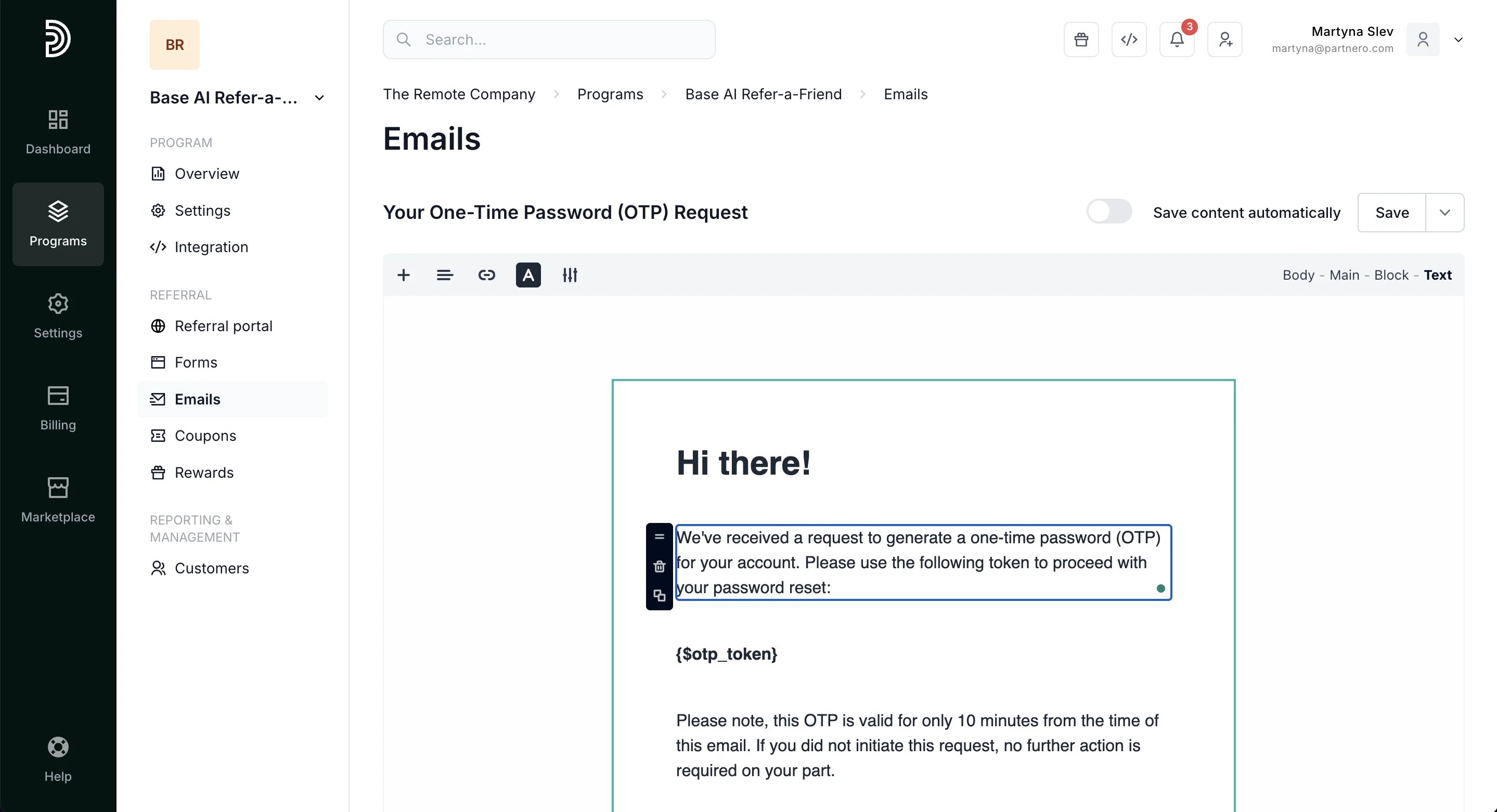
 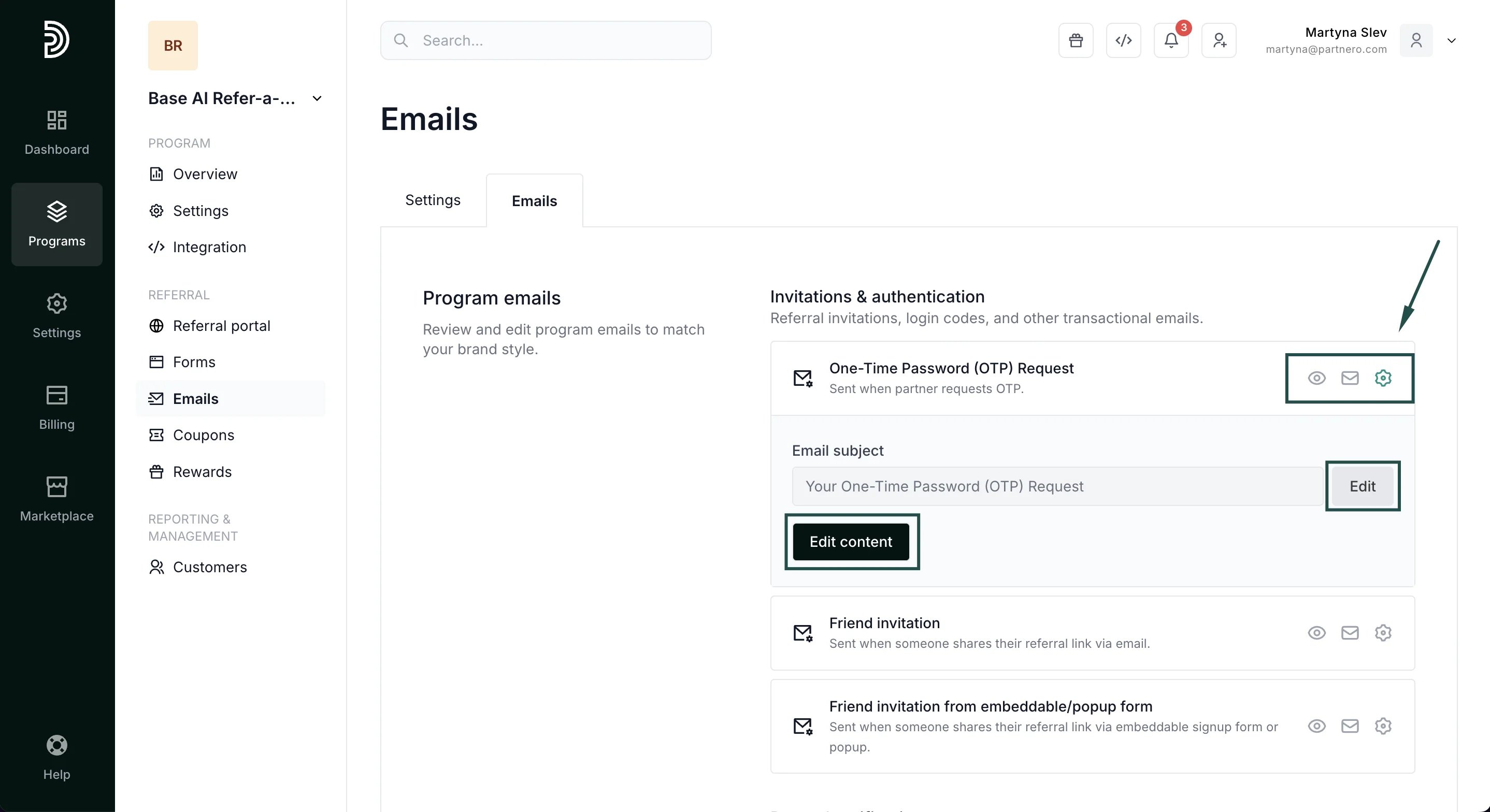 3. Click **Edit content** to open the email editor. Change the text and layout to fit your needs:
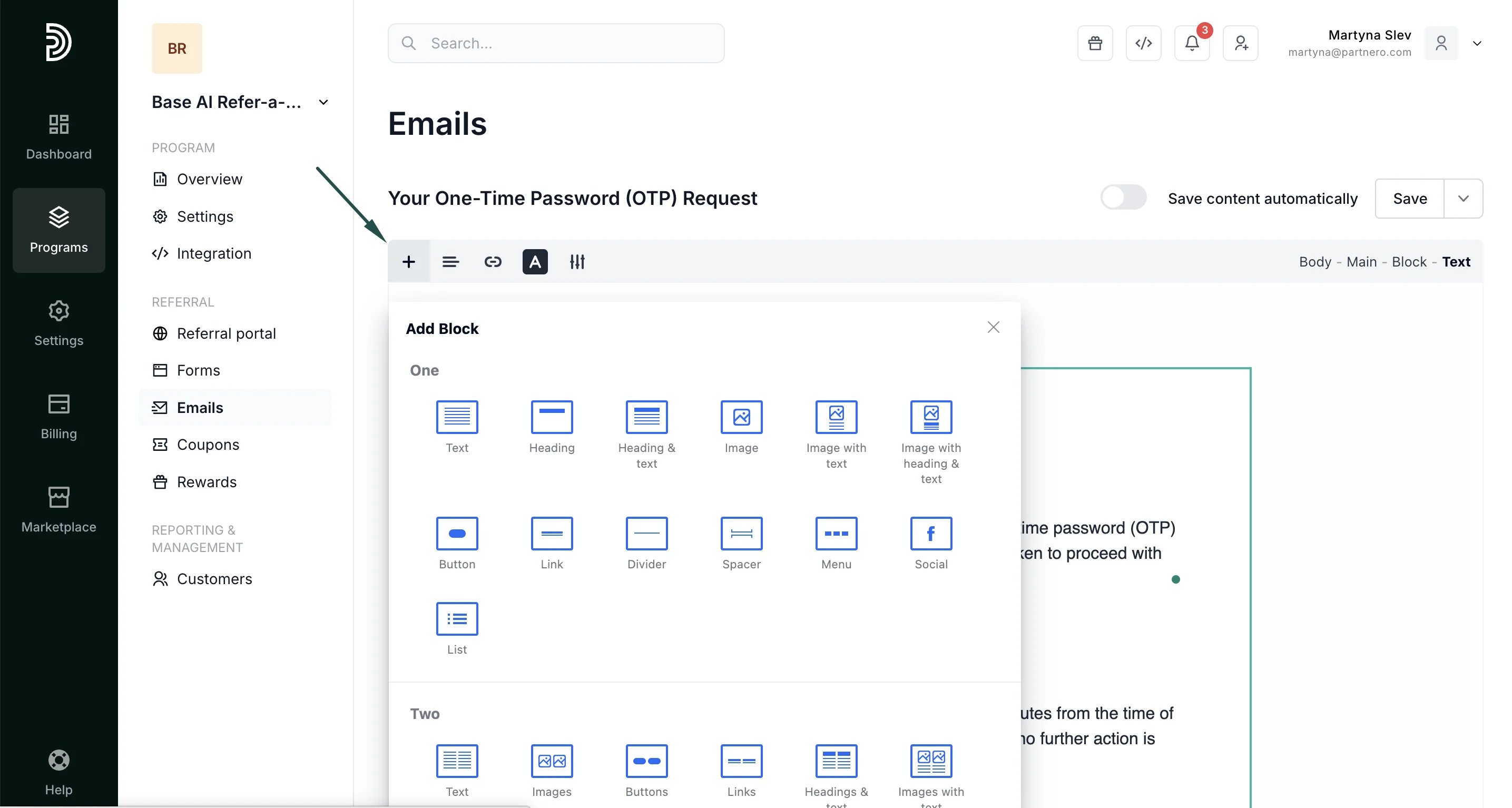
  4. To add additional blocks, click the + sign:
  5. Click **Save** once you're done.
***
### Receive notifications when your customers unlock rewards
To be notified when a customer unlocks a reward:
1. Click on **Settings** under **Program**.
2. Switch to the **Notifications** tab.
3. Toggle "Rewards unlocked notification" and enter your email address.
5. Click **Save** once you're done.
***
### Receive notifications when your customers unlock rewards
To be notified when a customer unlocks a reward:
1. Click on **Settings** under **Program**.
2. Switch to the **Notifications** tab.
3. Toggle "Rewards unlocked notification" and enter your email address.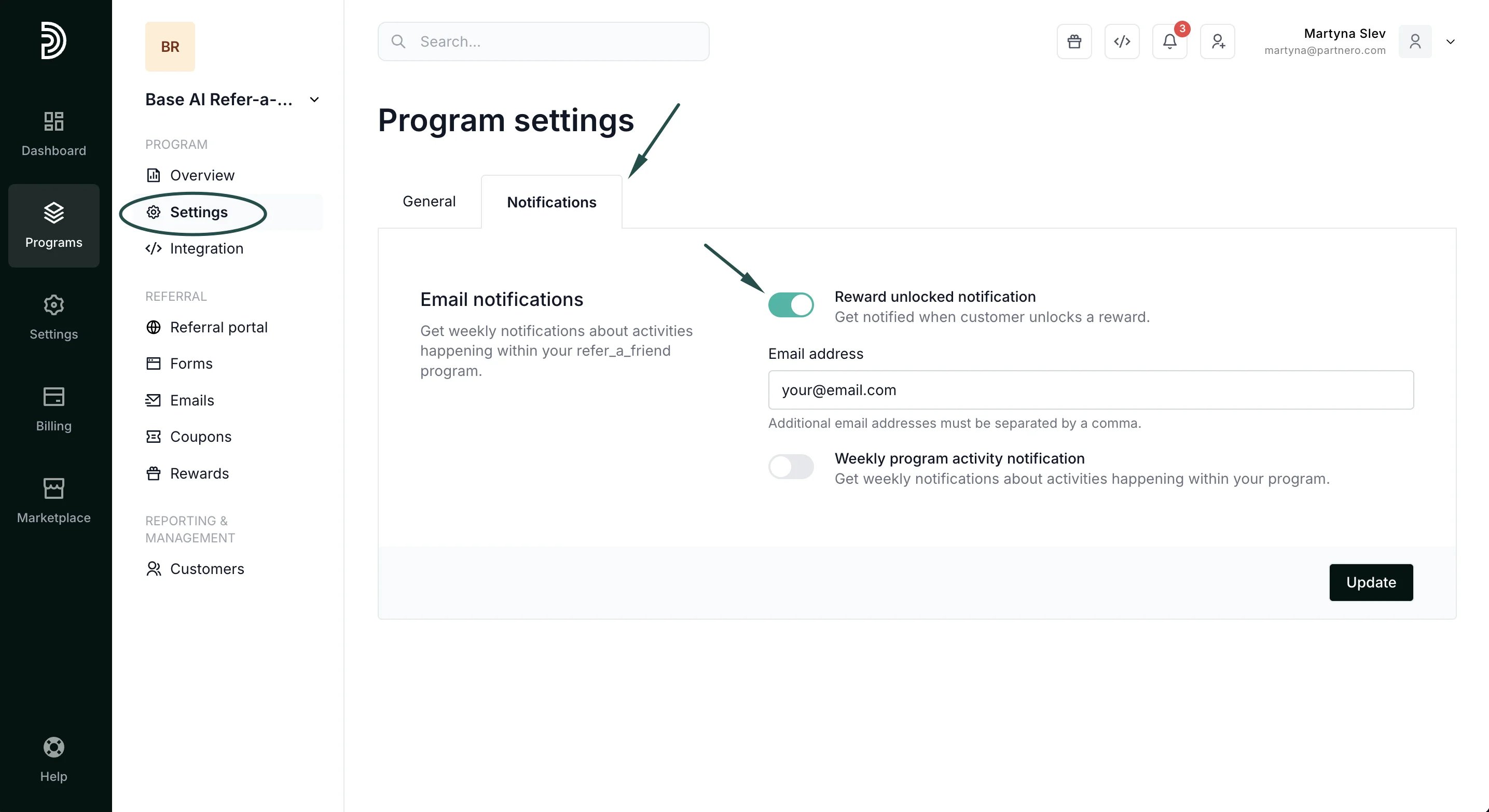 4. Click **Update**.
This documentation is built and hosted on [Mintlify](https://mintlify.com), a developer documentation platform.
4. Click **Update**.
This documentation is built and hosted on [Mintlify](https://mintlify.com), a developer documentation platform.