> ## Documentation Index
> Fetch the complete documentation index at: https://docs.partnero.com/llms.txt
> Use this file to discover all available pages before exploring further.
# Advanced links
### What are advanced links?
**Advanced links** let you create more flexible, powerful affiliate tracking by generating referral URLs not just for your homepage but also for specific pages on your site or even on external domains. With this feature, partners automatically receive unique links for each connected destination, helping you better track performance across campaigns and content sources
***
### How to set up advanced links
1. In your affiliate program, go to **Settings** under **Program**. Scroll down to the **Advanced links** section: 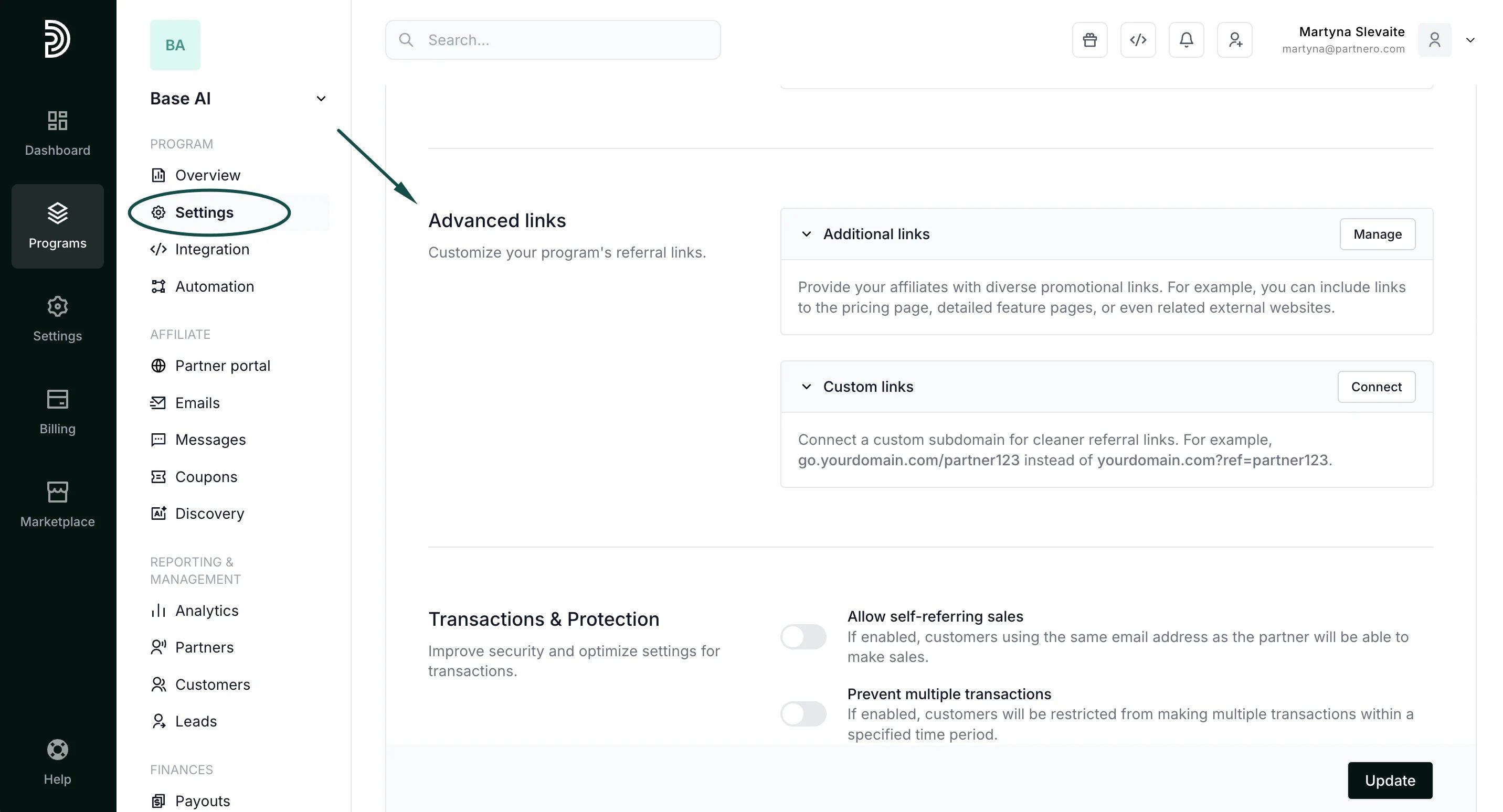 2. Click **Manage** next to **Additional links**:
 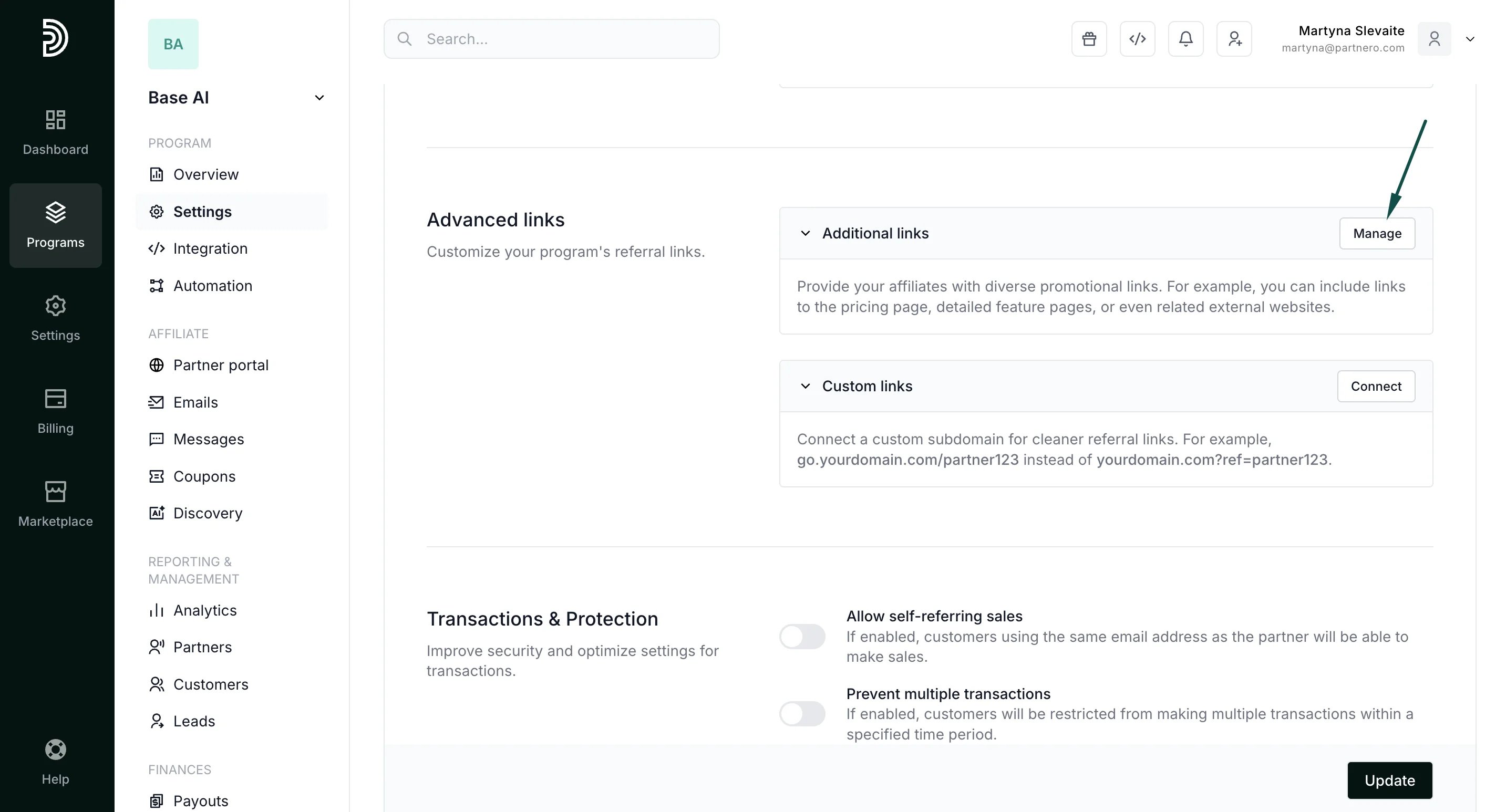 #### To connect various pages from your main website:
Under **Multiple links**, enter the URL of the page you'd like your referral links to point to and click **Save**:
#### To connect various pages from your main website:
Under **Multiple links**, enter the URL of the page you'd like your referral links to point to and click **Save**: 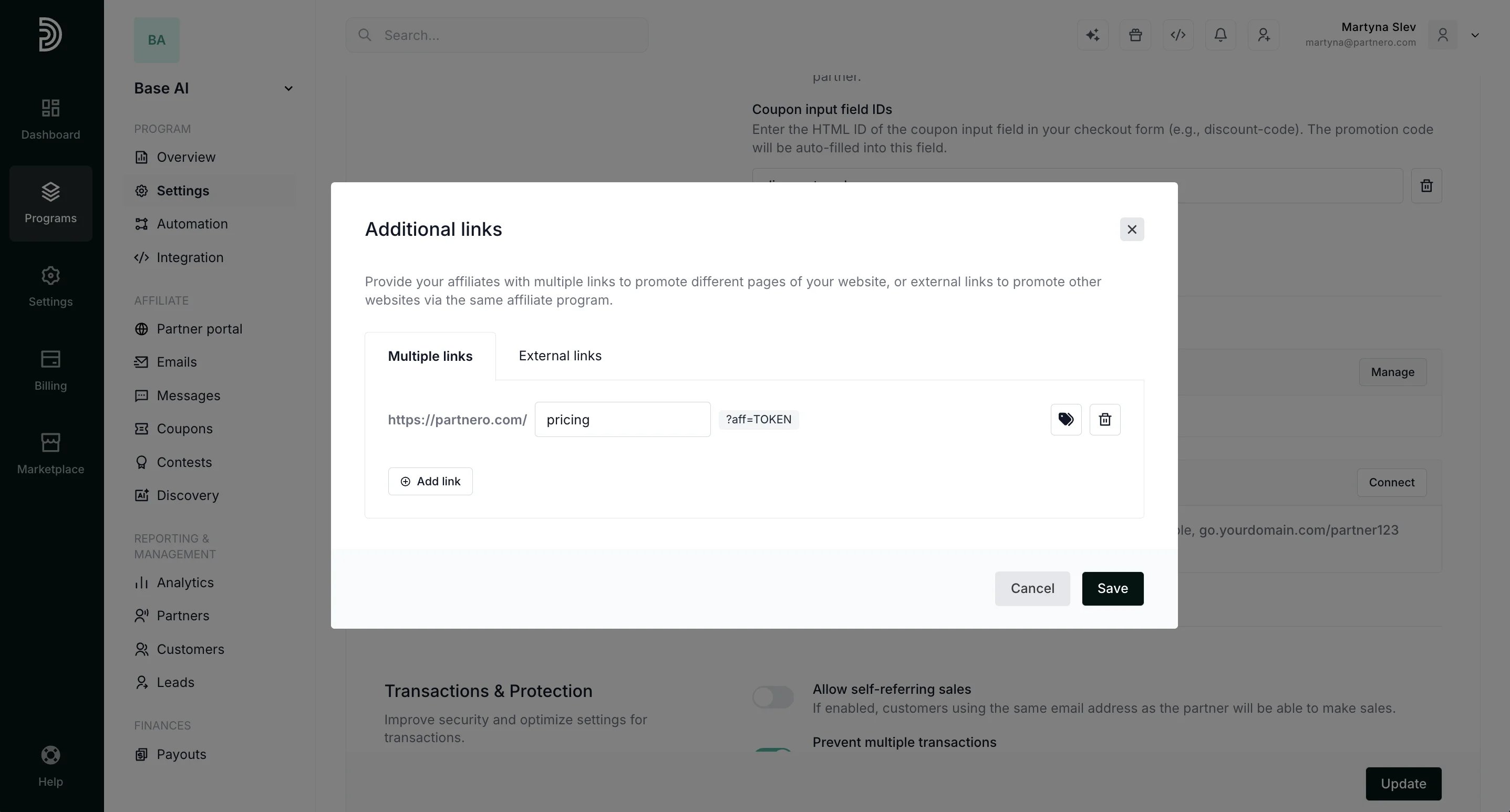 You can add as many URLs as you wish. We'll generate a unique affiliate link for each URL for each affiliate.
Additionally, you can show links to specific partner groups using tags. Only partners with matching tags will see the targeted links:
You can add as many URLs as you wish. We'll generate a unique affiliate link for each URL for each affiliate.
Additionally, you can show links to specific partner groups using tags. Only partners with matching tags will see the targeted links: 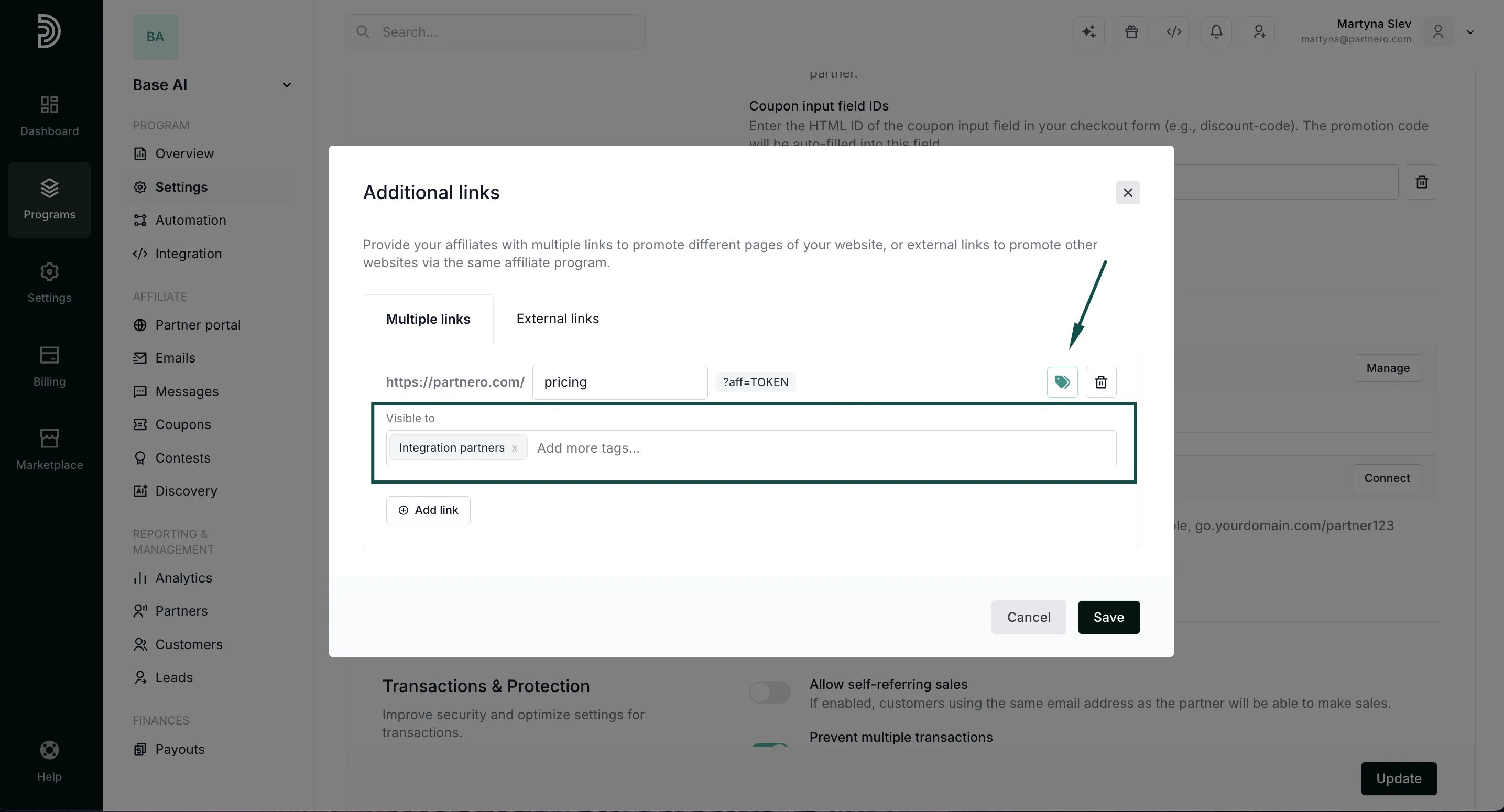 #### To add other domains:
Under **External links**, enter the URL of the website you'd like to connect and click **Save**:
#### To add other domains:
Under **External links**, enter the URL of the website you'd like to connect and click **Save**: 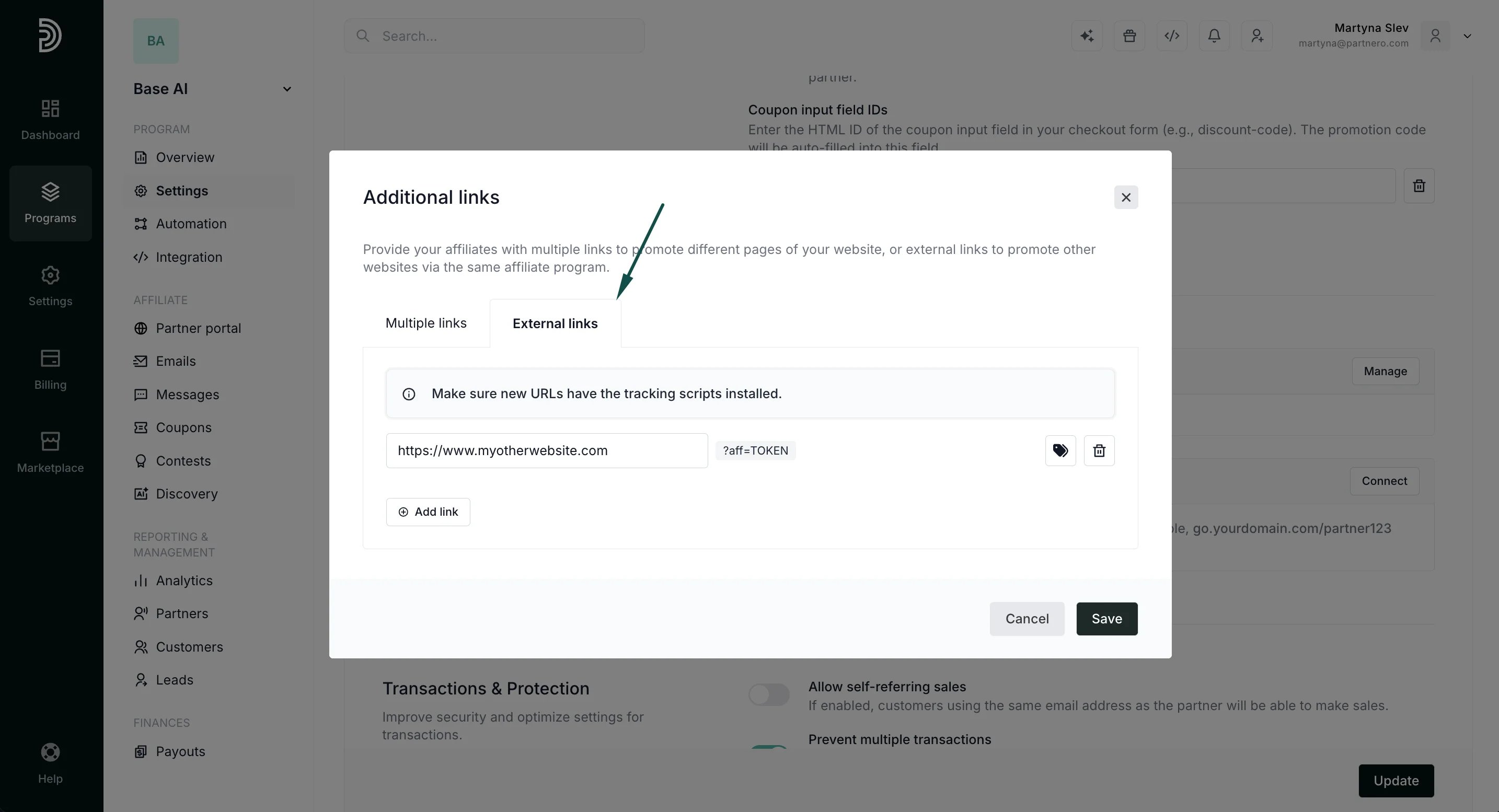 > **⚠️ Important**: External websites must also contain the PartneroJS tracking script in order for us to be able to track visits. The tracking script can be found under **Program** > **Integration** and must be inserted before the closing \ tag in the HTML code of any external websites connected here.
>
> If you'd like to also track signups and sales on external websites, the full integration needs to be done. [Read more](/integrations/integrate-partnero-into-your-website).
***
### Accessing advanced links
Once links have been added, you'll be able to see and manage them under program **Settings** → **Advanced links**:
> **⚠️ Important**: External websites must also contain the PartneroJS tracking script in order for us to be able to track visits. The tracking script can be found under **Program** > **Integration** and must be inserted before the closing \ tag in the HTML code of any external websites connected here.
>
> If you'd like to also track signups and sales on external websites, the full integration needs to be done. [Read more](/integrations/integrate-partnero-into-your-website).
***
### Accessing advanced links
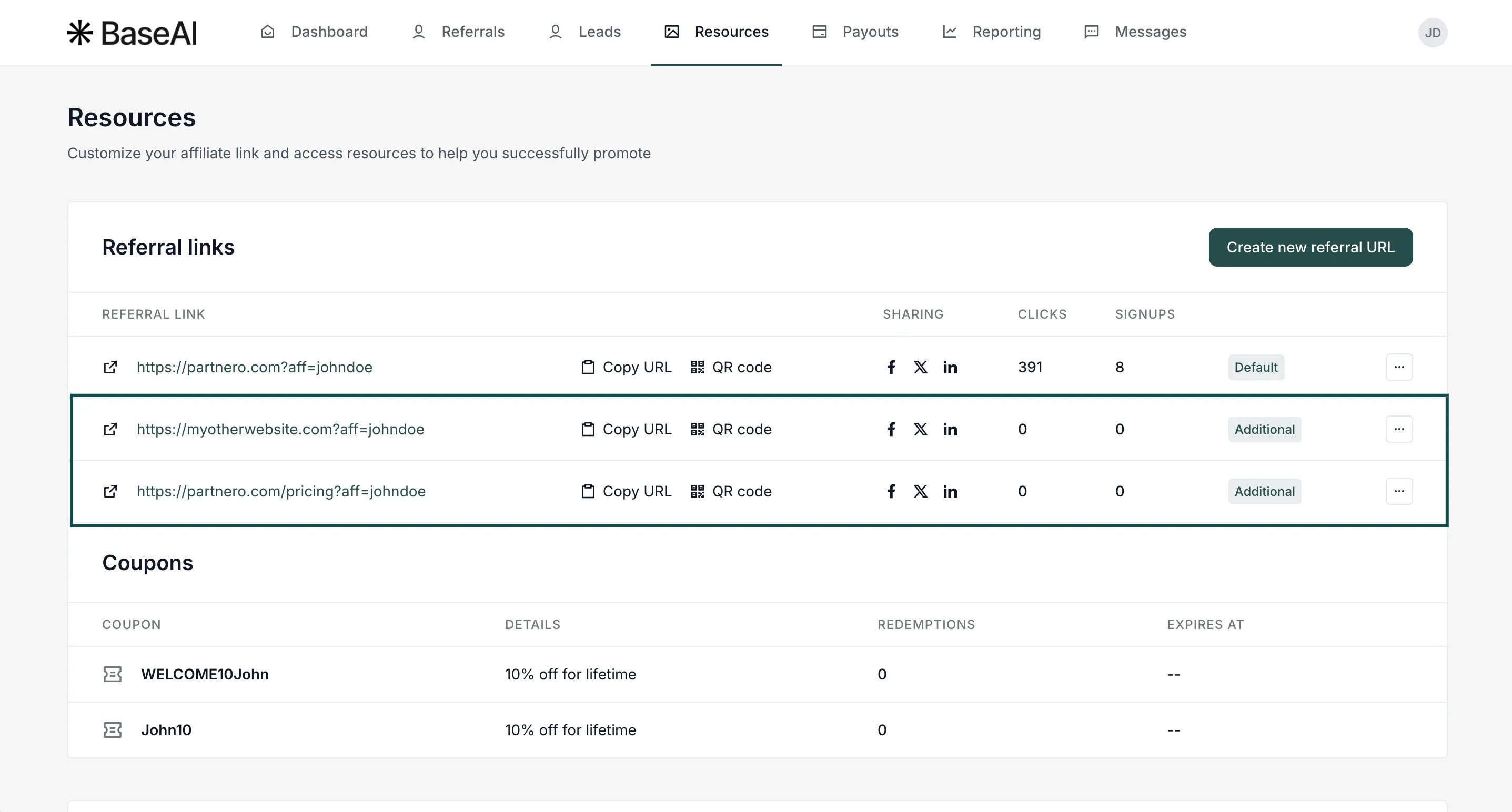
Once links have been added, you'll be able to see and manage them under program **Settings** → **Advanced links**: 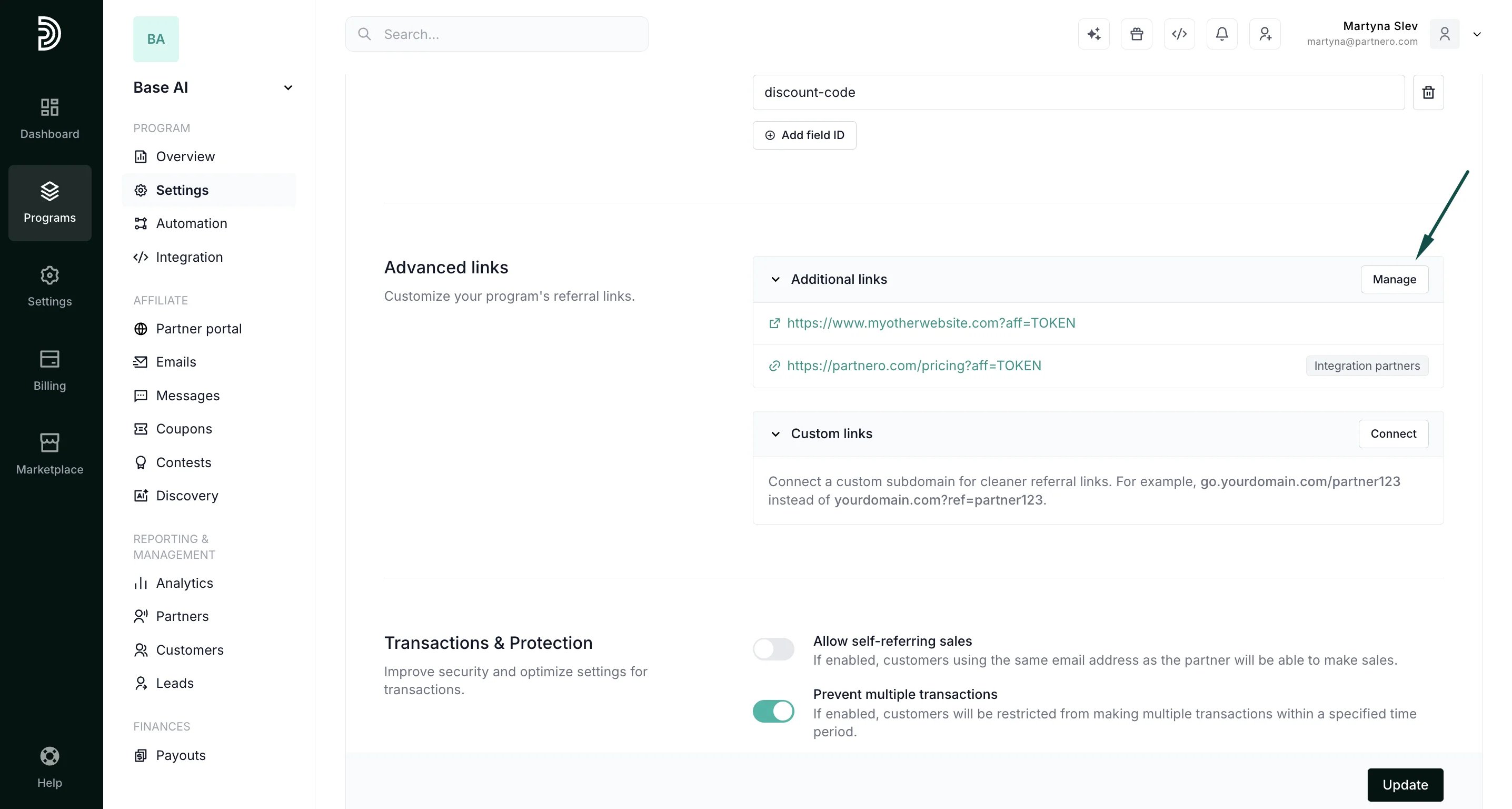 Your affiliate partners will automatically have separate affiliate links to all websites you add. The links can be accessed under the Partner portal **Resources** tab, next to the default link:
 This documentation is built and hosted on [Mintlify](https://mintlify.com), a developer documentation platform.