

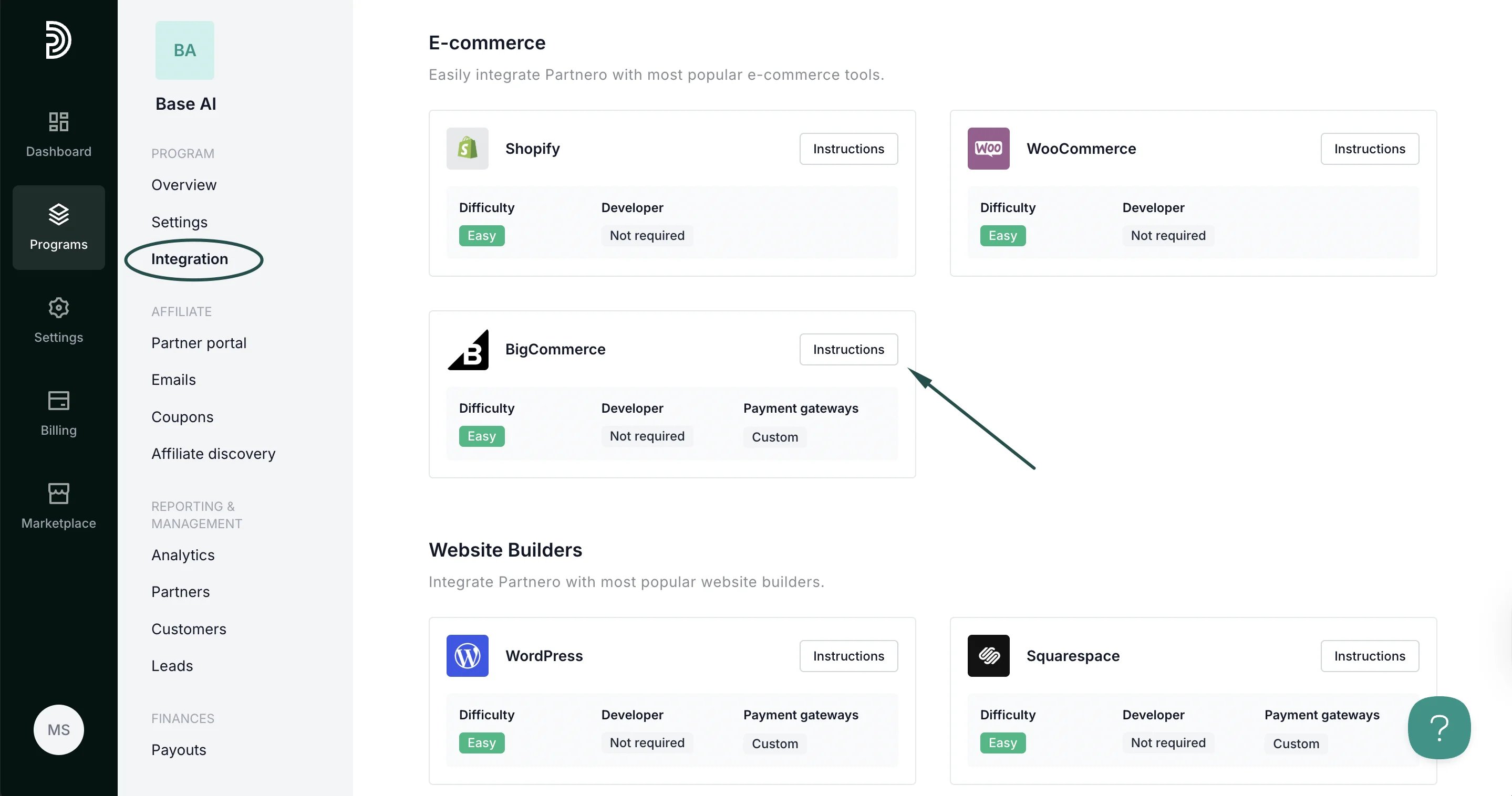
Step 1: Start tracking website visitors
To track visitors on your website, you need to install the PartneroJS snippet as custom code.Install the PartneroJS Snippet
- Go to Integration > Guides tab > BigCommerce. Click Instructions.
- Copy the PartneroJS snippet:
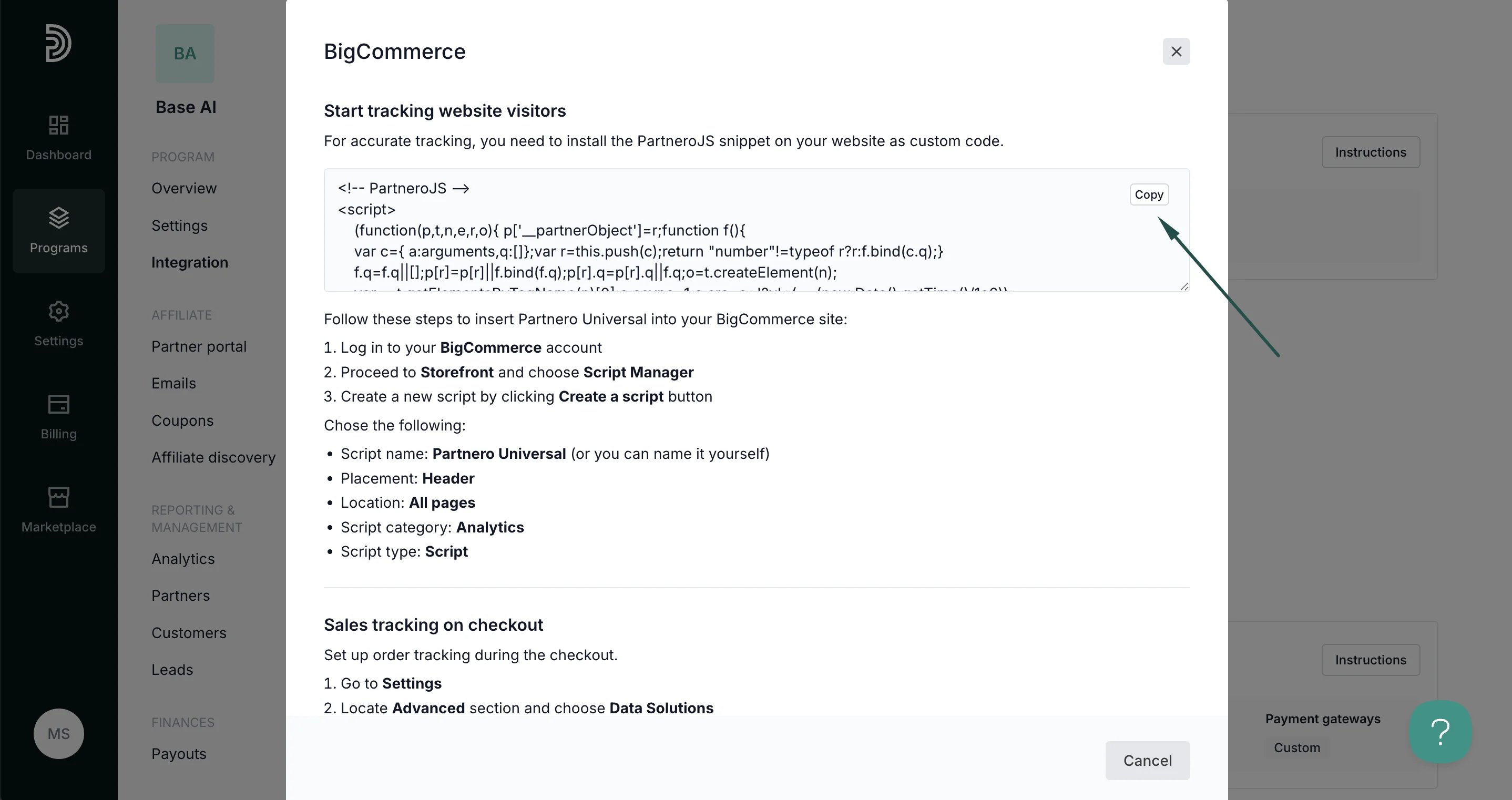
- Log in to your BigCommerce account.
- Proceed to Storefront and choose Script Manager:
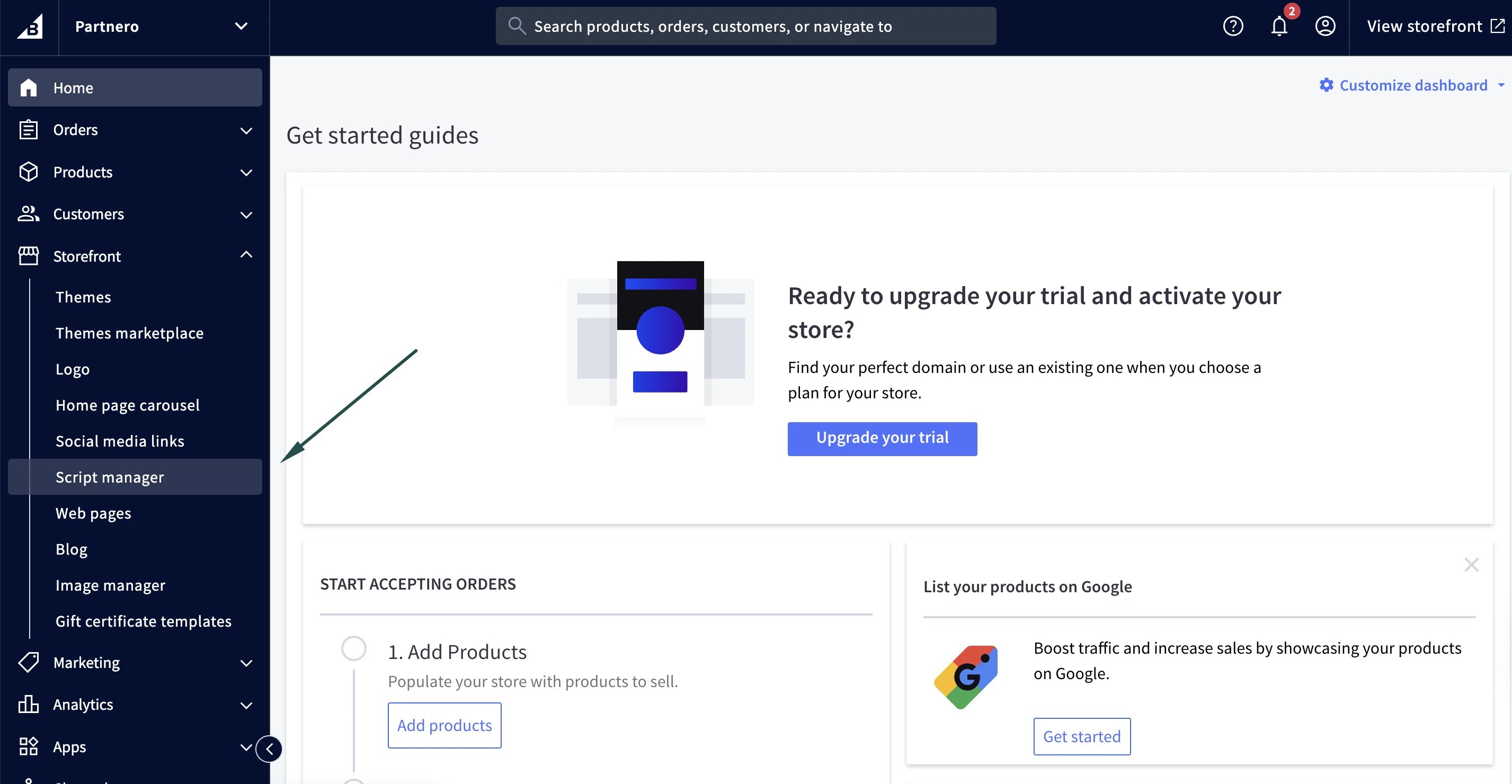
- Click Create a script:
- Select the following:
- Script name: PartneroJS (or any other name that will help you identify this script)
- Placement: Header
- Location: All pages
- Script category: Analytics
- Script type: Script
- Script content: paste the provided PartneroJS snippet.
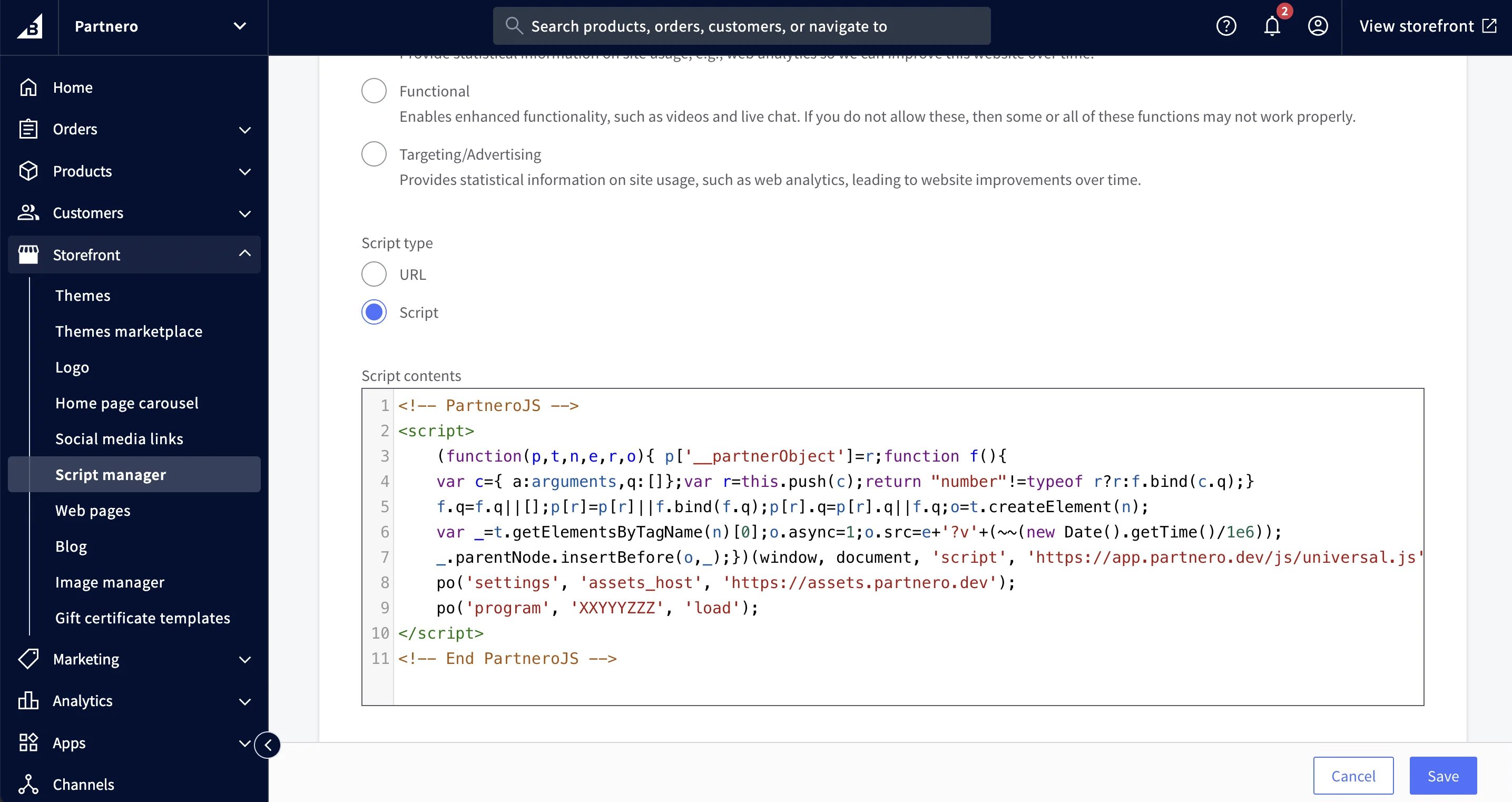
- Click Save.
Step 2: Customer sign-up tracking
Next, let’s set up tracking for when referred visitors create customer accounts in your BigCommerce store. This is essential for proper partner attribution before any transaction tracking.- Copy the customer signup tracking snippet from the BigCommerce integration guide:
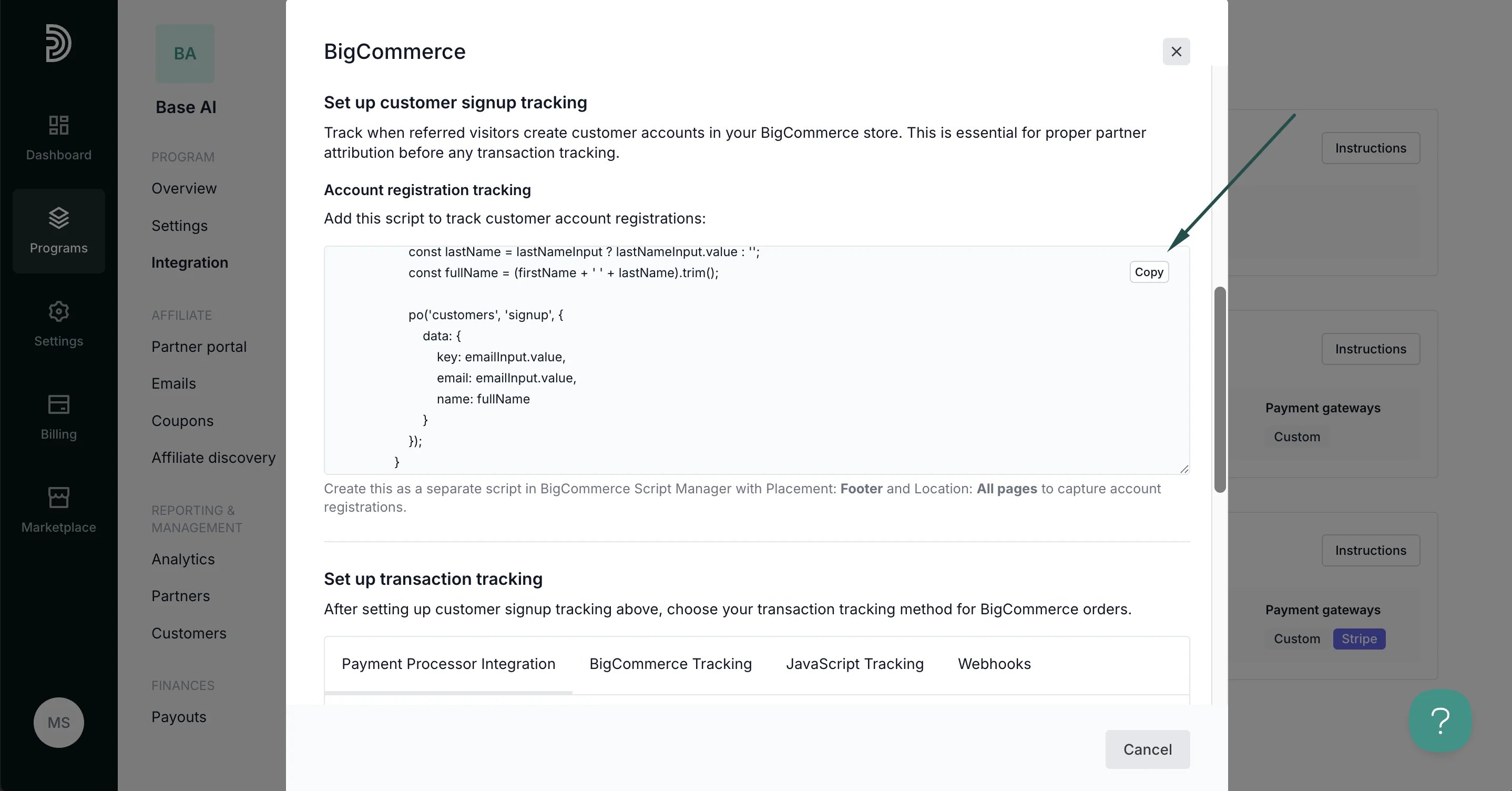
- Return to your BigCommerce account to paste the script under Storefront > Script Manager > Create a script:
- Placement: Footer
- Location: All pages.
- Click Save.
Step 3: Transaction tracking
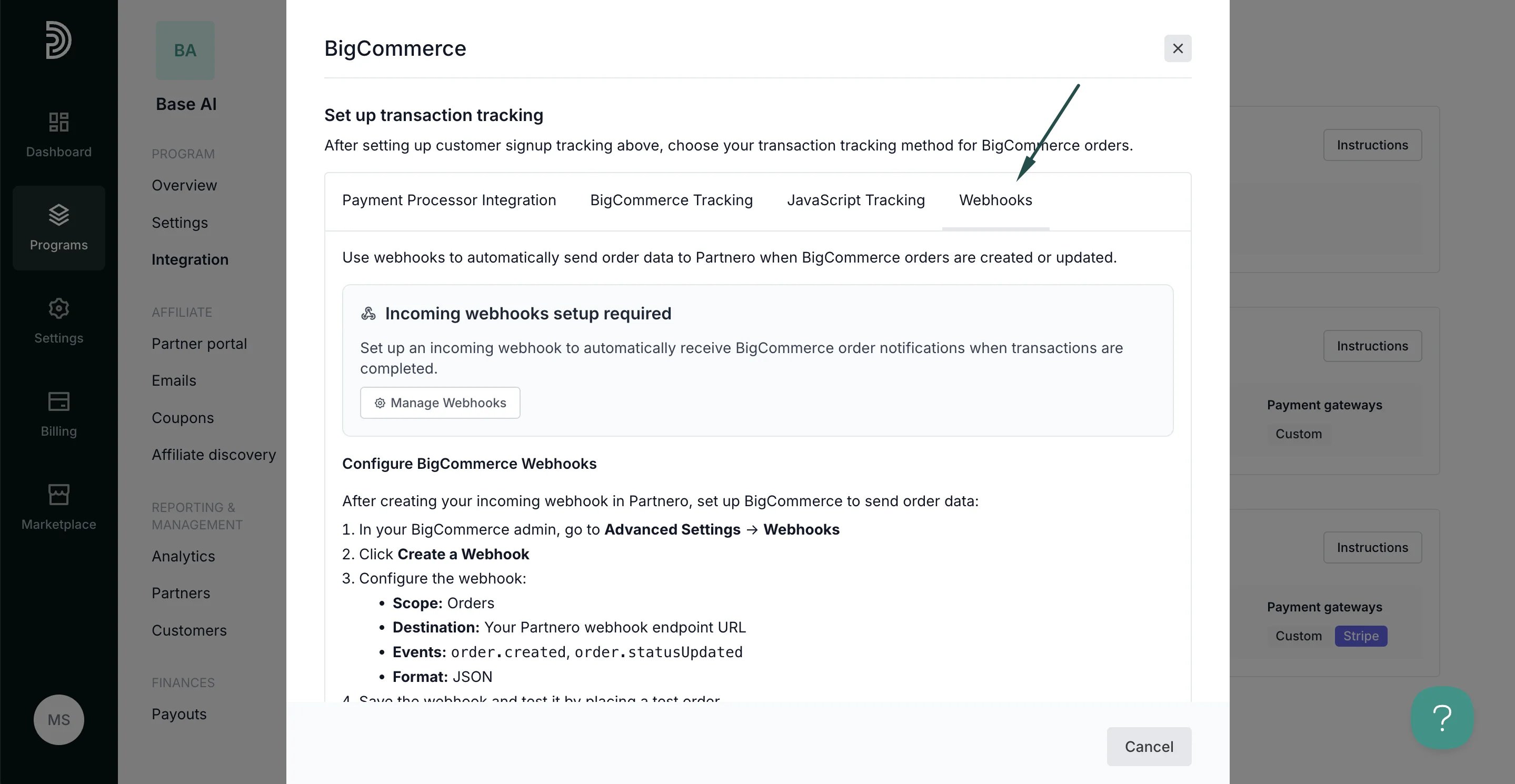
Partnero offers four integration methods to track transactions; choose one that suits your setup best. Each method has unique instructions, available on the BigCommerce integration guide.💡 Pro tip: BigCommerce offers multiple tracking methods that work well together. Start with payment processor integration (Stripe/Paddle) for automatic tracking, use BigCommerce’s built-in conversion tracking as a reliable backup, and implement webhooks for the most comprehensive coverage. Always ensure customer signup tracking (Step 2) is in place first for proper partner attribution.
Method 1: Payment Processor Integration
If your BigCommerce store processes payments through Stripe, Paddle, or other supported payment processors, connect your payment processor directly to Partnero for automatic transaction tracking.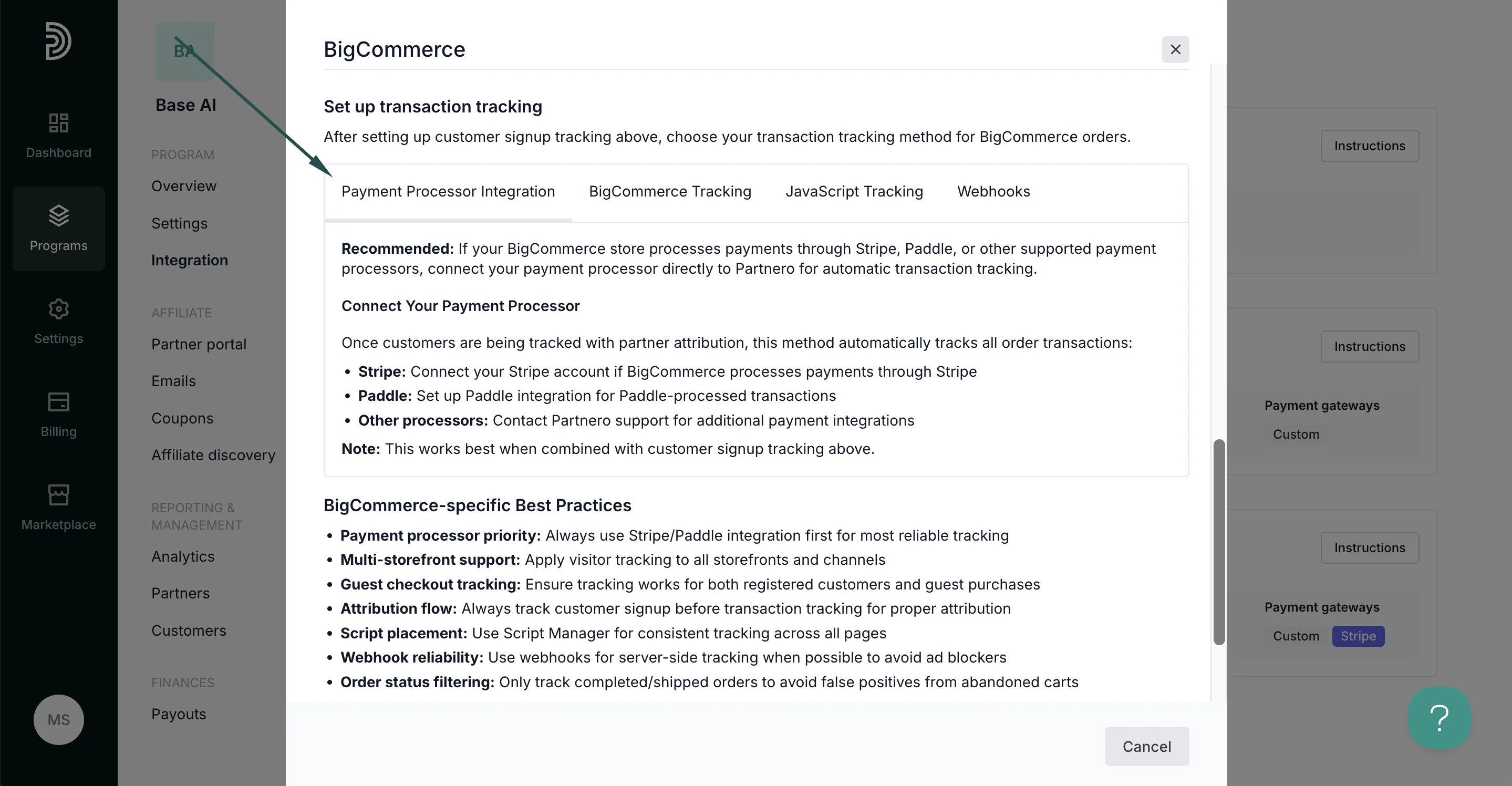
Method 2: BigCommerce Tracking
You can use BigCommerce’s built-in Affiliate Conversion Tracking feature for automatic order tracking when payment processor integration is not available: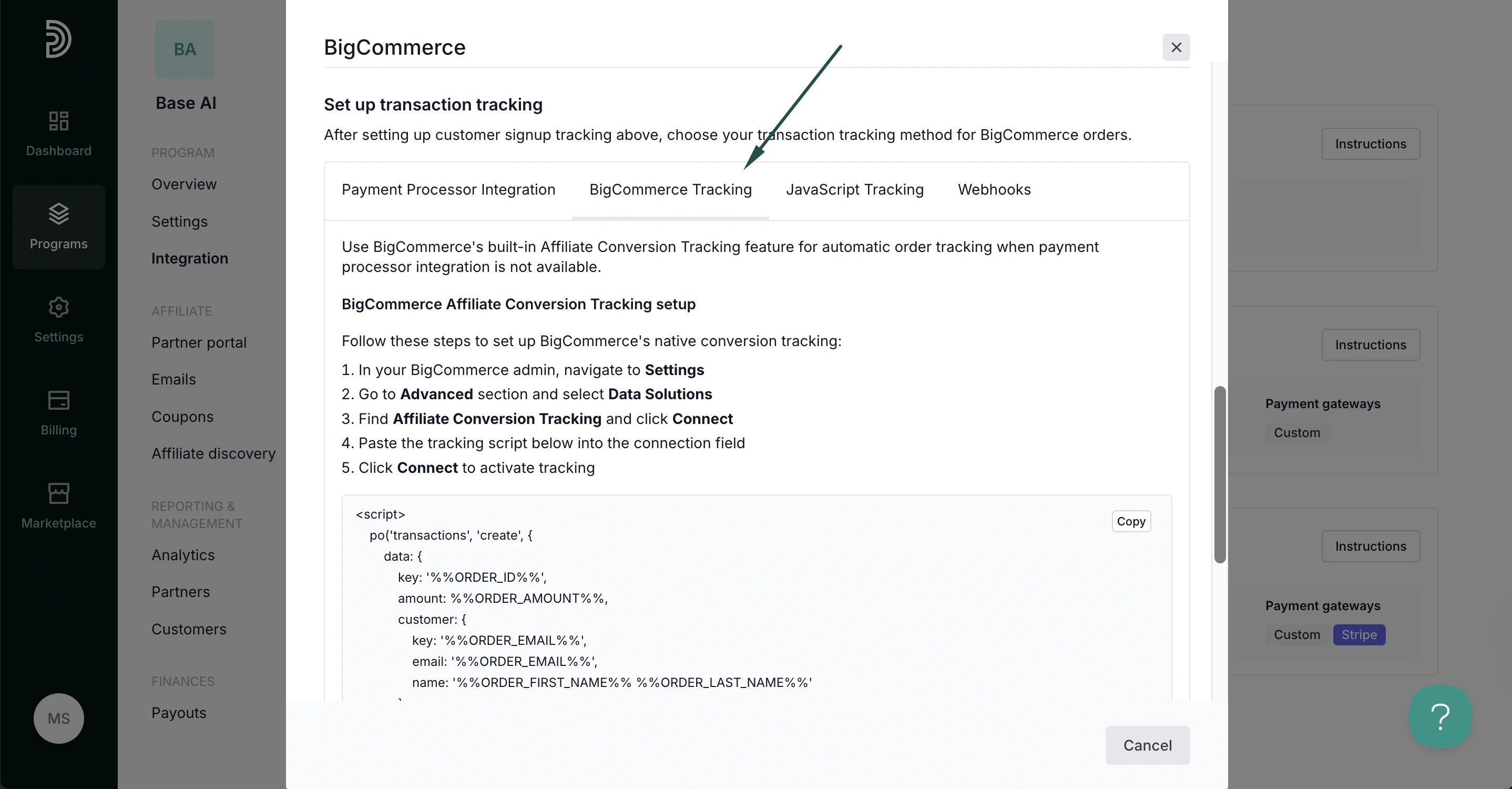
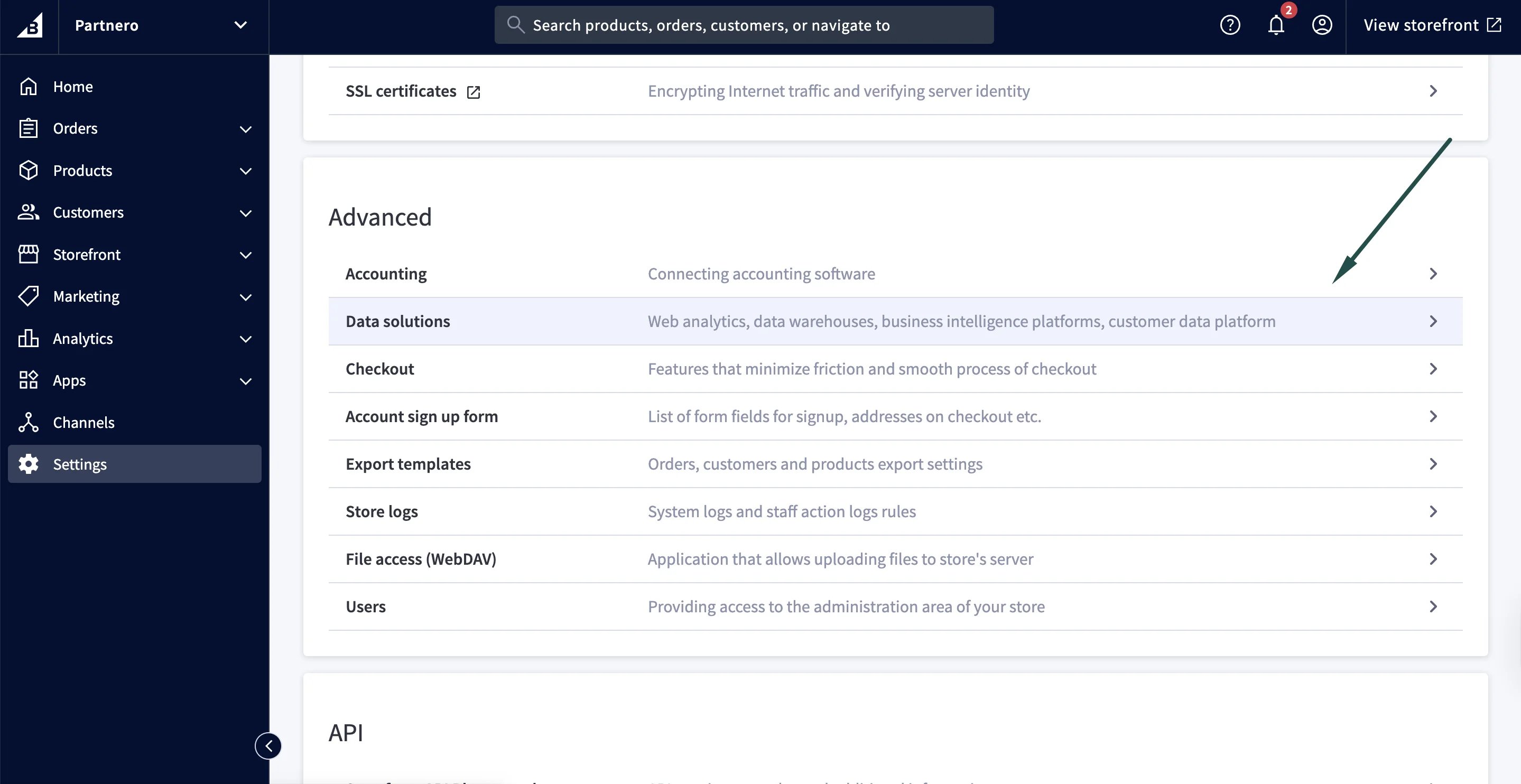
- Go to Settings. Locate the Advanced section and click on Data Solutions:
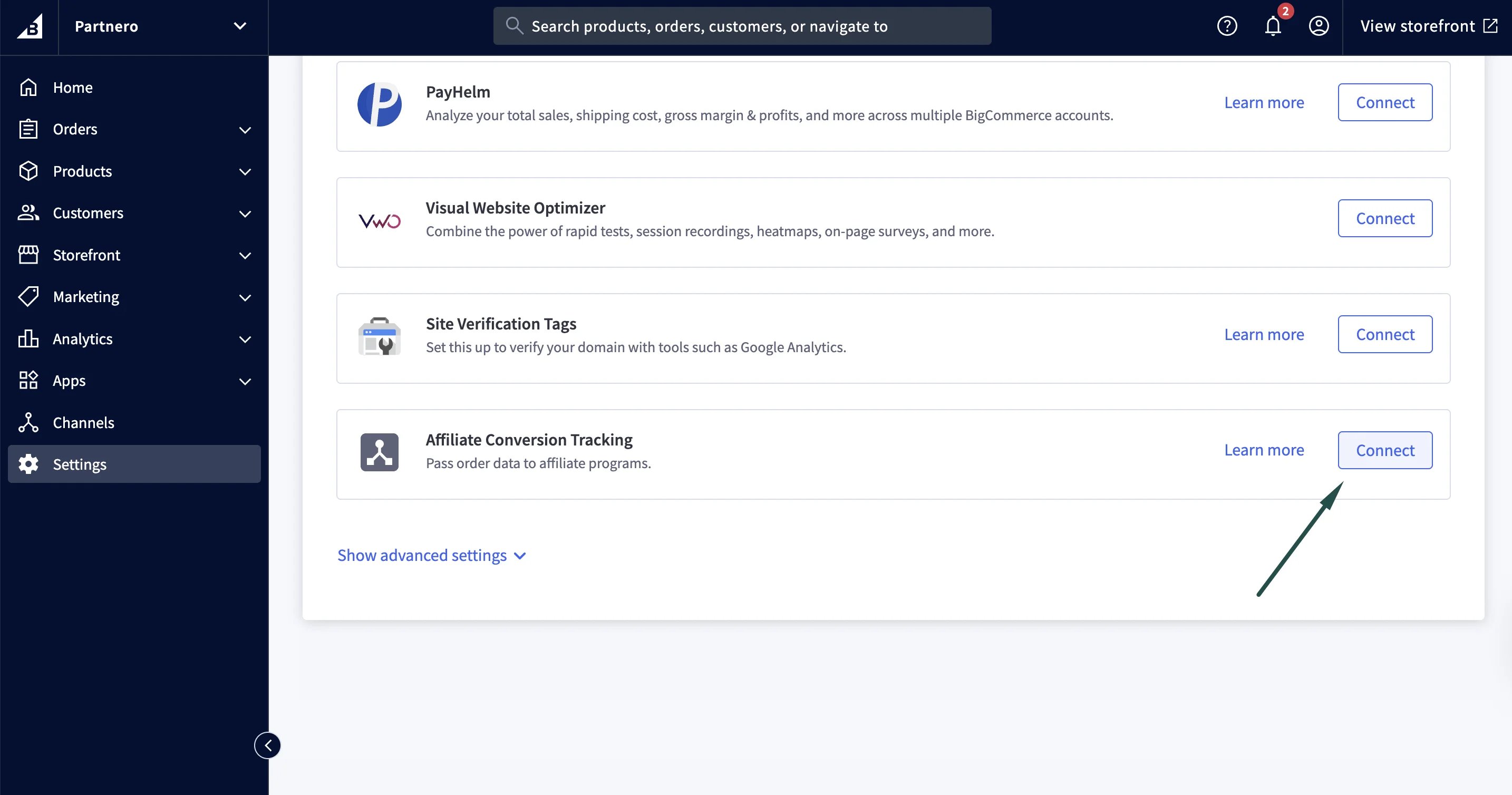
- Click Connect next to Affiliate Conversion Tracking:
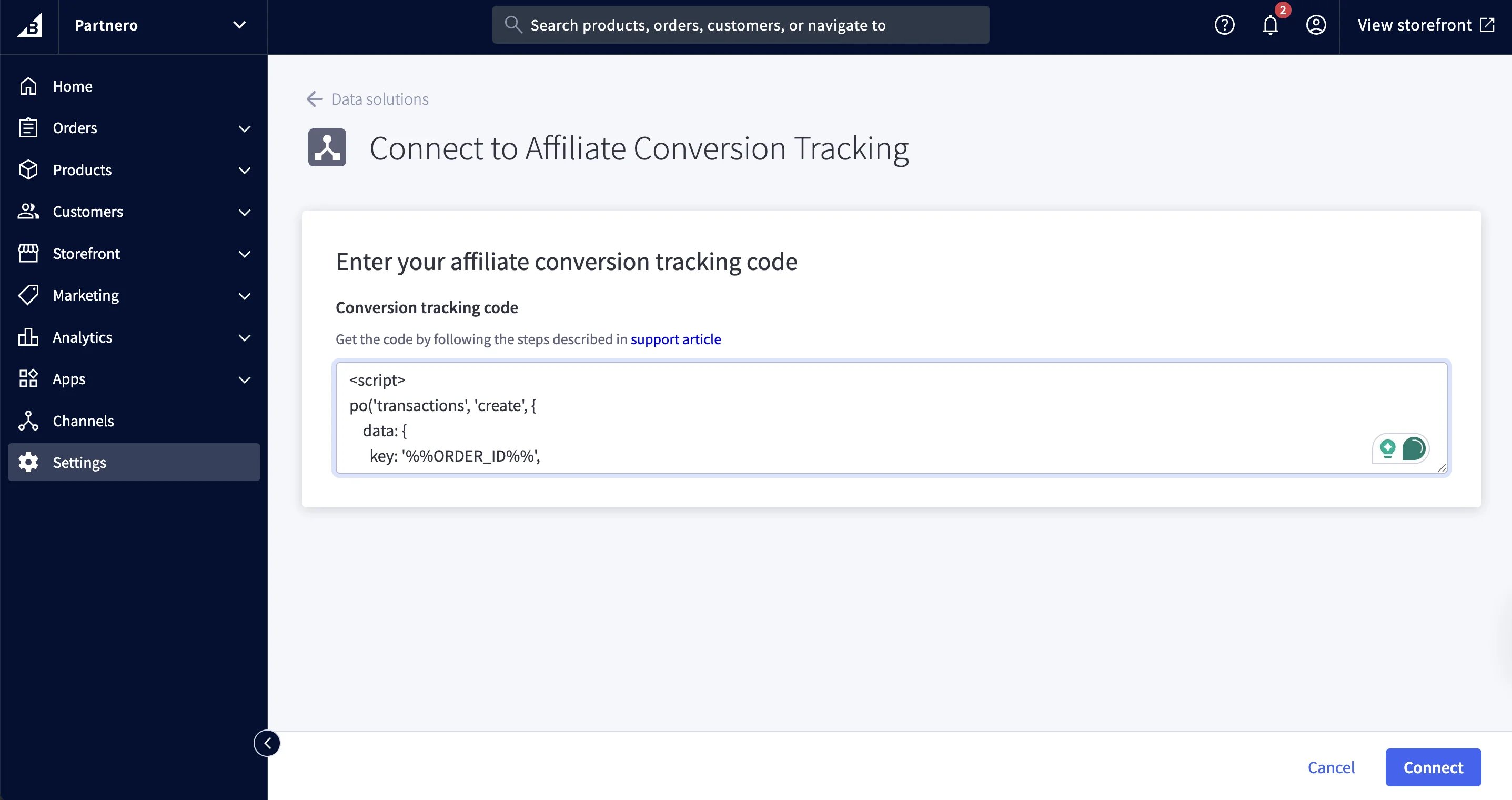
- Paste the snippet from Partnero and click Connect:
Method 3: JavaScript Tracking
Track transactions using JavaScript on order confirmation pages when other tracking methods are not available.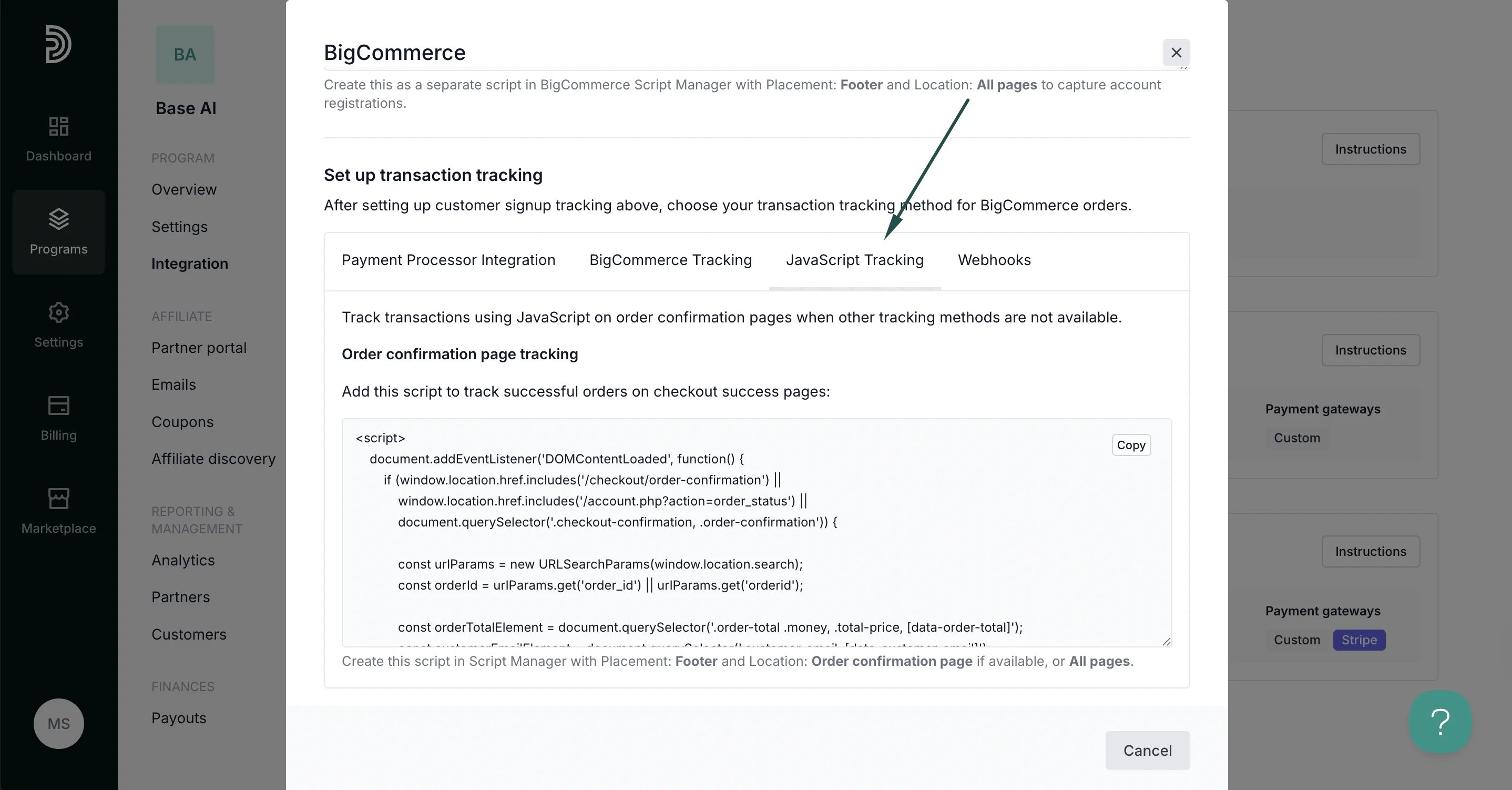
Method 4: Webhooks
Use webhooks to automatically send order data to Partnero when BigCommerce orders are created or updated.
Step 4: Enable transaction creation via JS
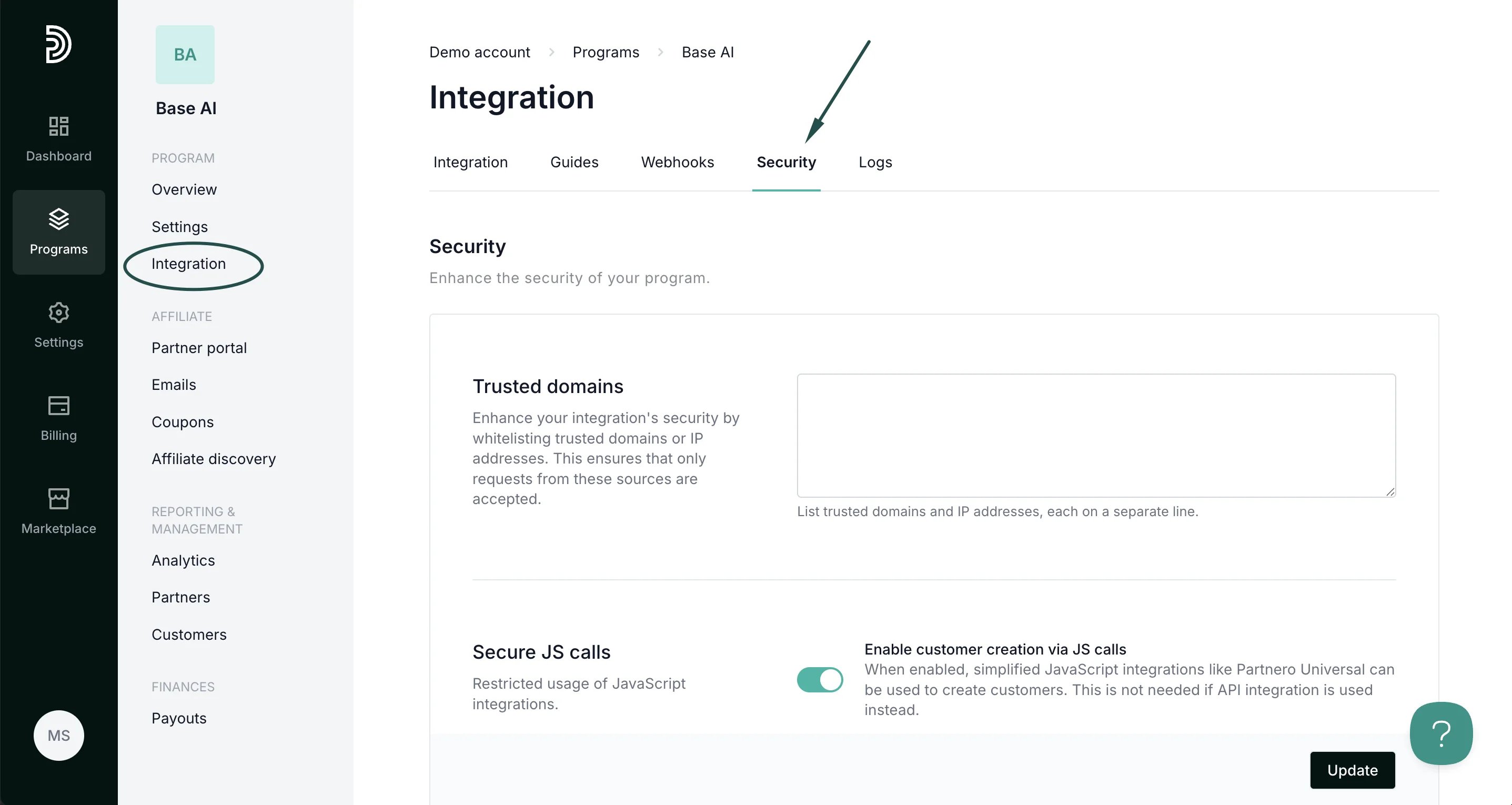
For this integration method to work, transaction creation via JavaScript must be enabled on your Partnero account. To do that:- On your Partnero account, go to Integration > Security tab.
- Scroll down to Secure JS calls. Toggle to enable transaction creation:
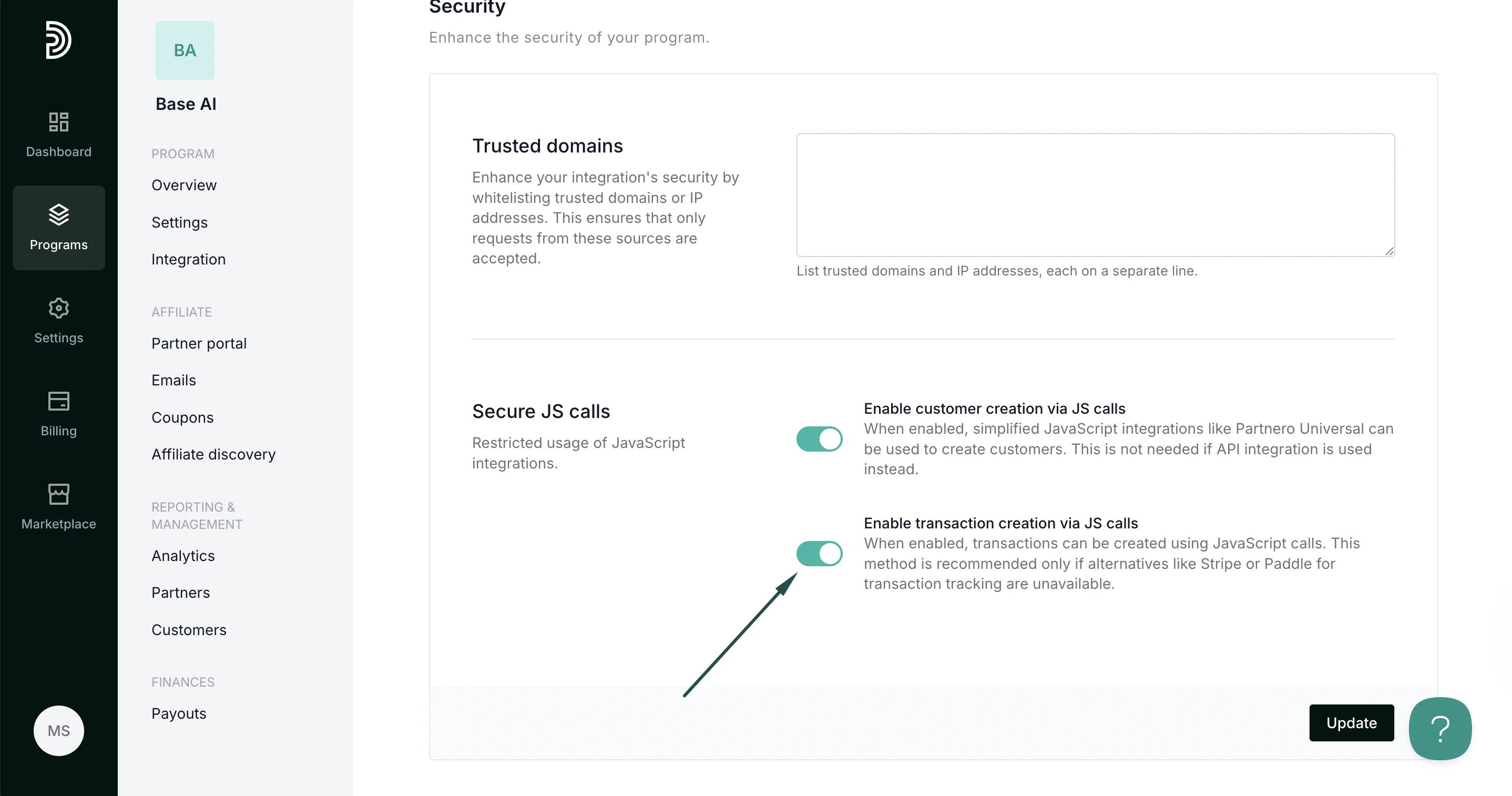
- Click Update.
Your integration with BigCommerce is now complete! We strongly recommend testing the integration by purchasing through an affiliate link.