

Getting Started with Zapier
Sign up for a free Zapier account, from there you can jump right in. To help you hit the ground running, here are some popular pre-made Zaps.To connect Partnero and Zapier:
- Log in to your Zapier account and start at your Dashboard.
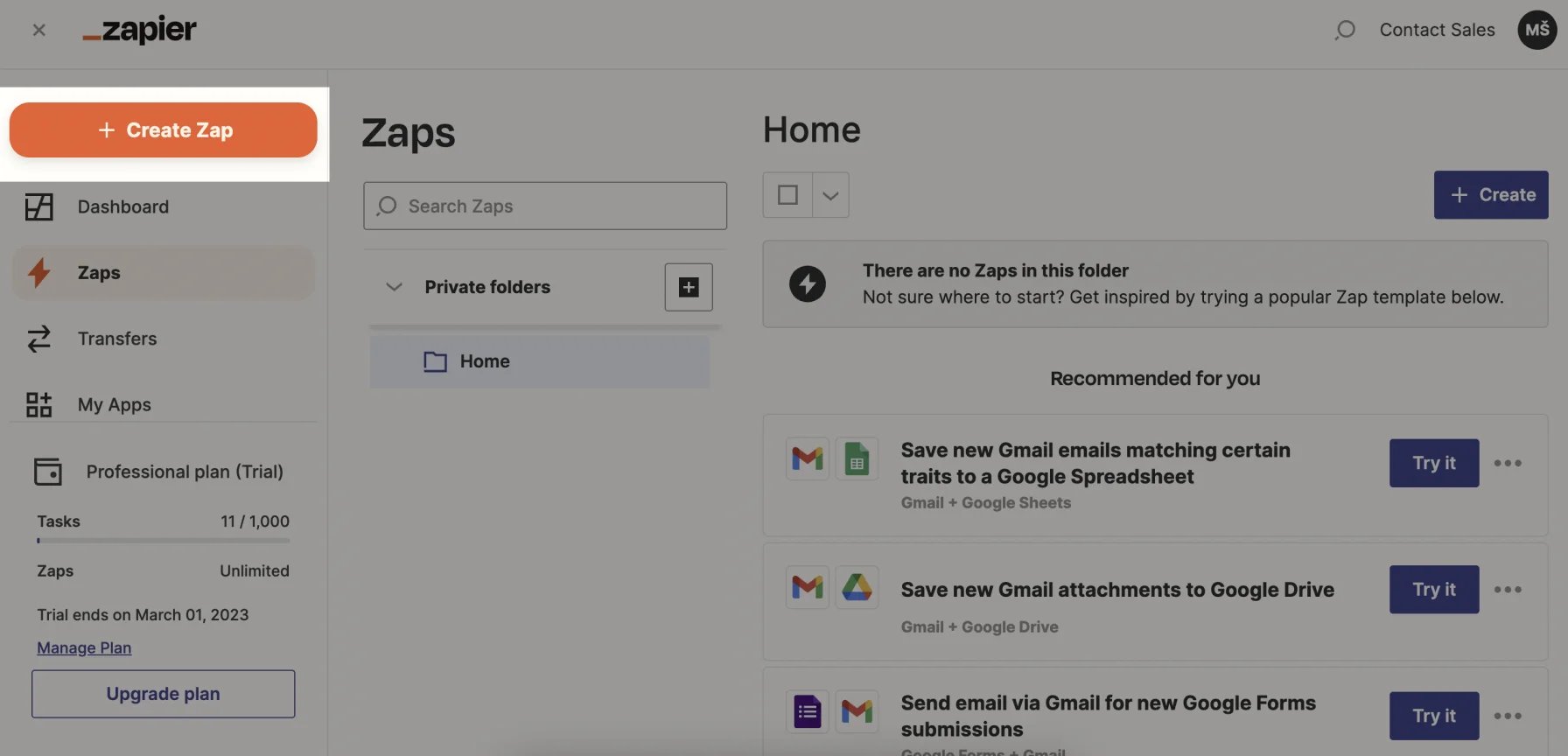
- Click + Create Zap:
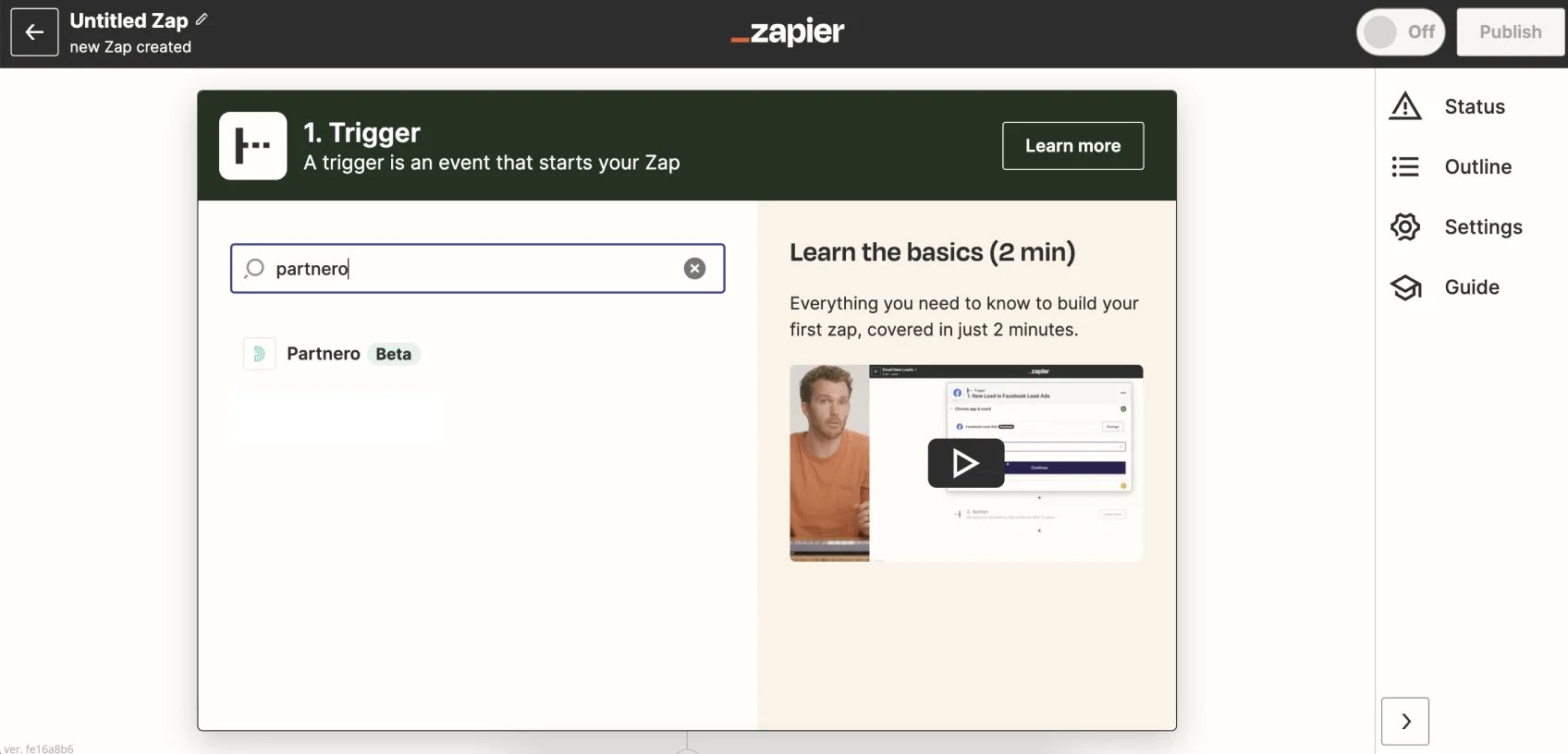
- Under “Trigger”, type Partnero. If you want events in Partnero to trigger actions in a second app, type “Partnero” into the Trigger field. If you want events in a different app to trigger actions in Partnero, type the name of the other app into the Trigger field.
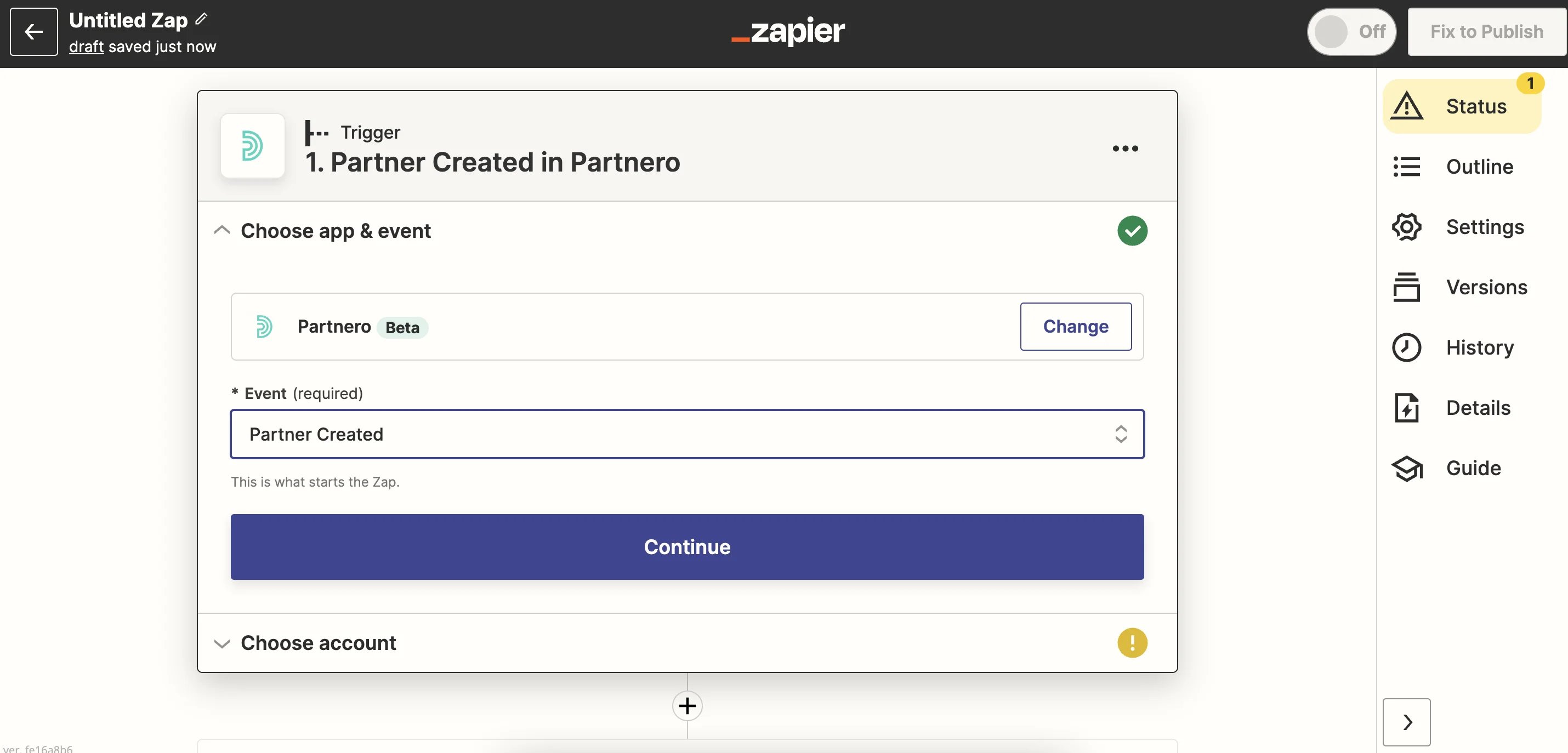
- Select your event, which is the action or “Zap” that starts the flow. In this example, we would like an action to occur in a second application once a new partner is created on Partnero. Click Continue.
- Choose your Partnero account. If you have already connected an account, choose it from the list. If not, click + Connect a new account:
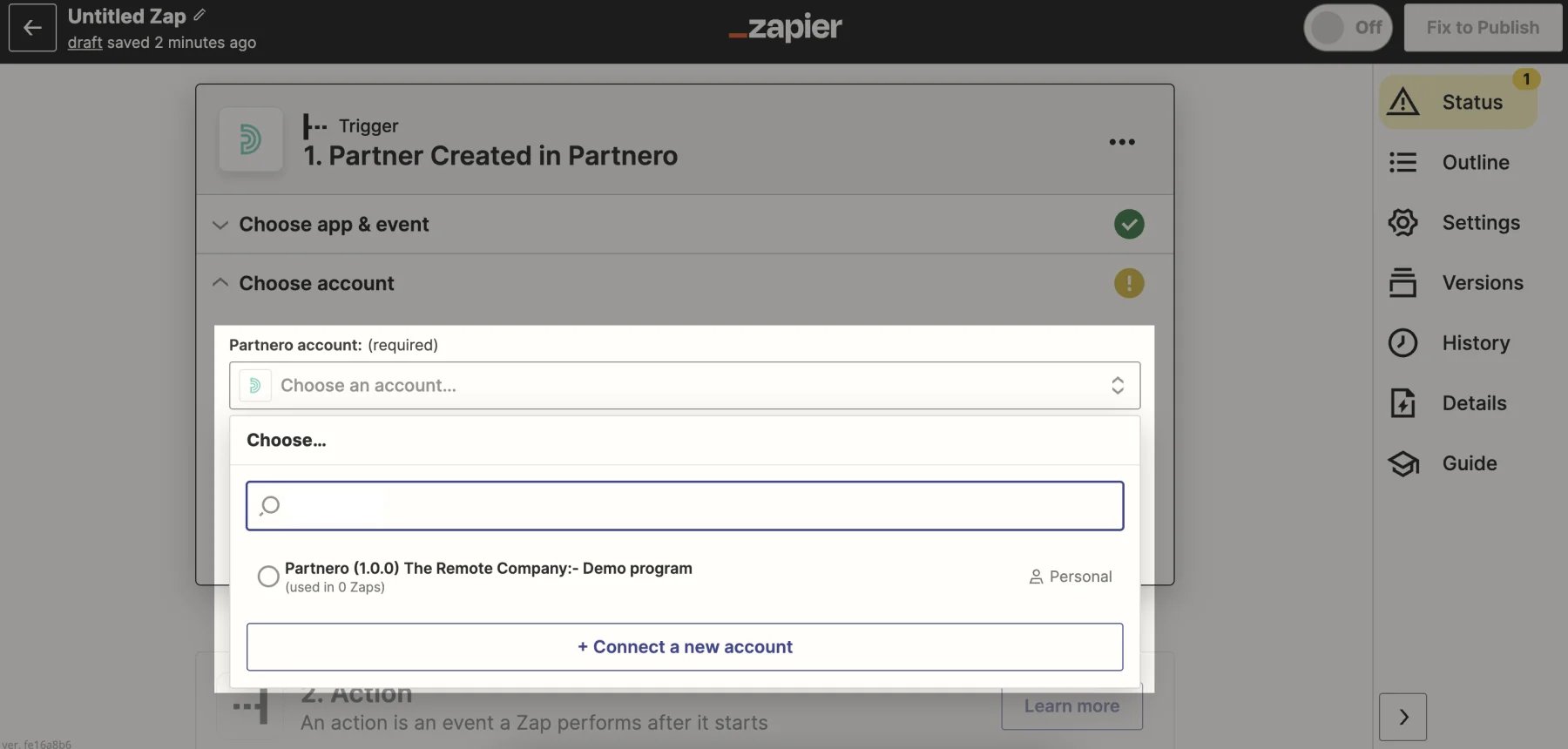
- If you click + Connect a new account, you will be prompted with an authentication window, which will ask for your Partnero API Key.
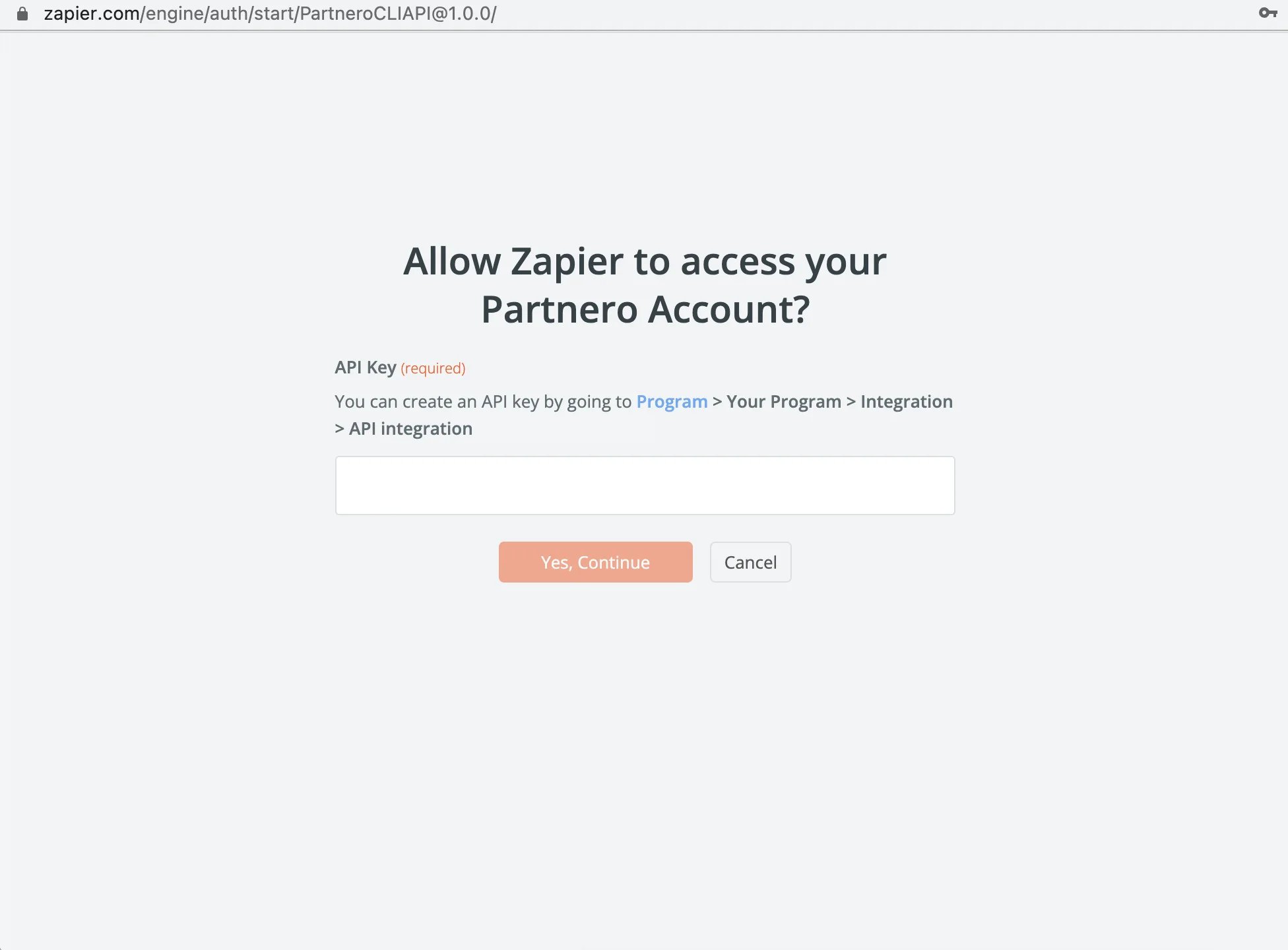
- Go to your Partnero account to generate a new API key. See our guide on how to find your API key. Copy and paste it to this window. Then, click Yes, Continue.
- You will be redirected back to Zapier and your account should now be connected. Click Continue to finish setting up the trigger.
- Click Test trigger to make sure the account is connected and the trigger is set up properly.
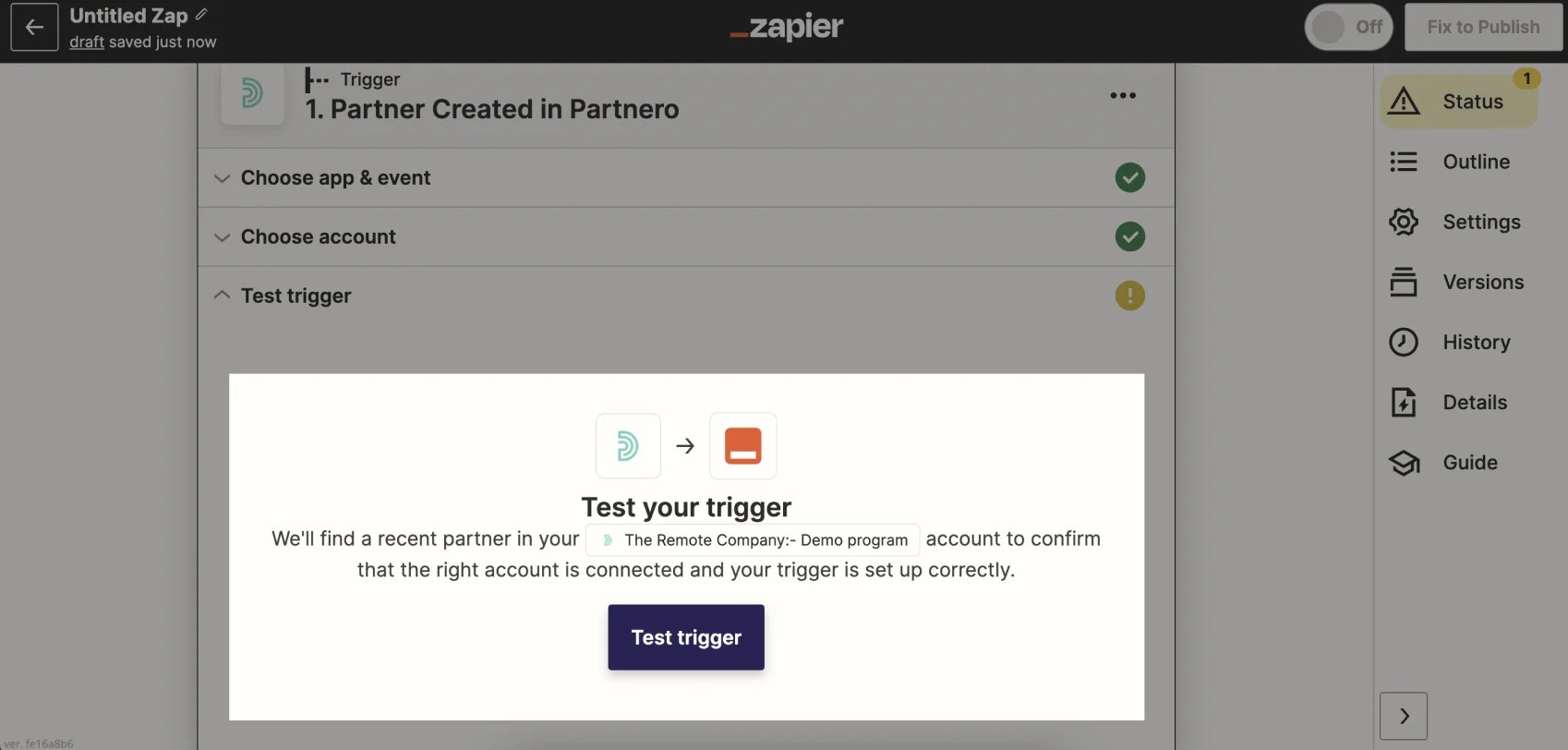
- If the test was successful, click Continue to proceed to the Action step.
- Select an Action. This is the second event that will happen after your trigger. In this example, we are setting up an event to occur (the creation of a spreadsheet row) in Google Sheets after a partner is created on Partnero. Click Continue.
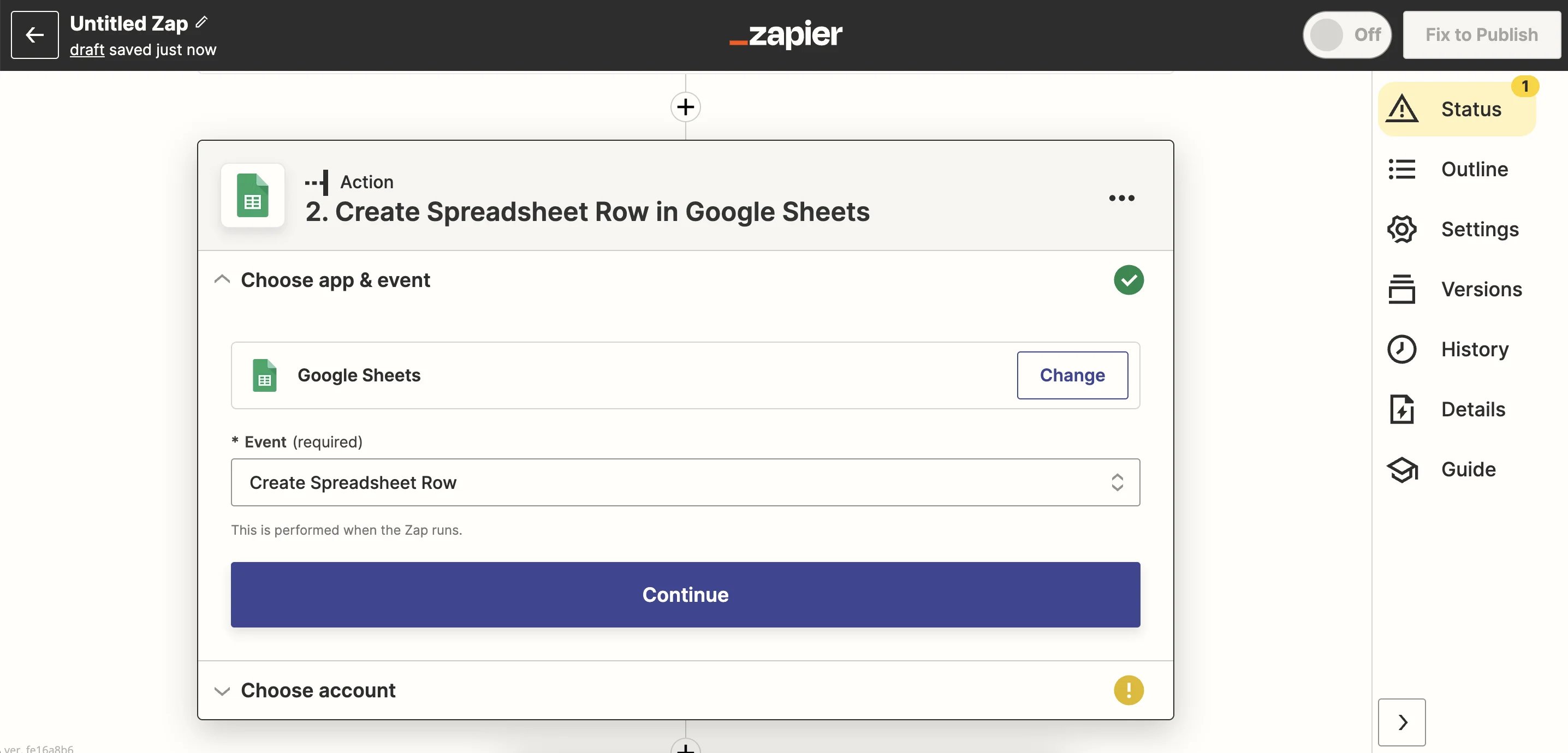
- Choose your account. Connect to your account in the second application. This process will vary depending on the app you are connecting to. Click Continue.
- Set up the Action. Depending on the app you have chosen, you will need to set up the details of the action you want to occur. Click Continue.
- Click Test action. Again, Zapier will run a test to make sure everything is working and set up properly.
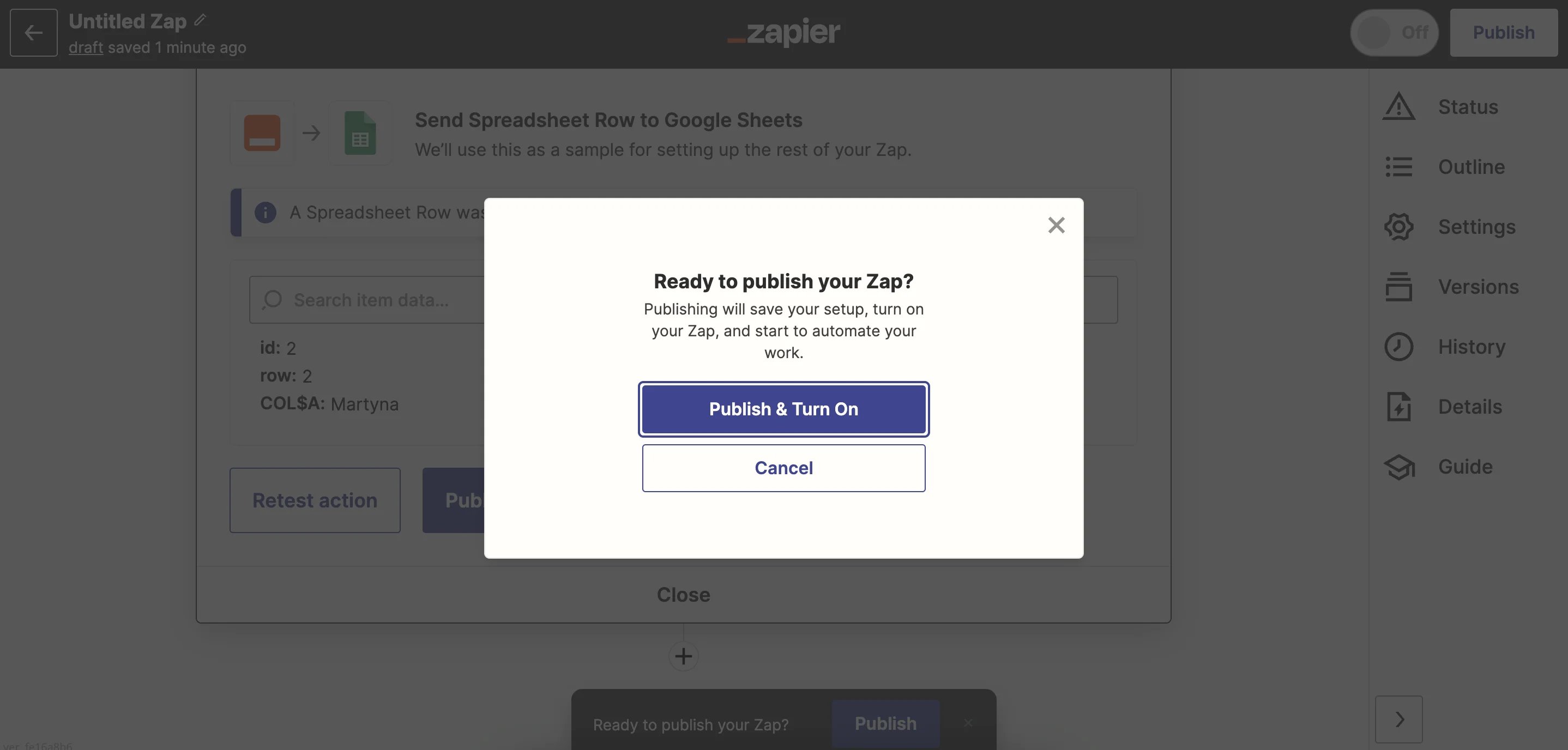
- If everything is correct and the test is successful, you will see the option to publish your Zap by clicking Publish & Turn on.
Actions and triggers
With Partnero, you can find the following triggers:- Partner created: triggers when a new partner has been created.
- Partner deleted: triggers when a partner has been deleted.
- Partner updated: triggers when information about a partner has been updated.
- Customer created: triggers when a new customer has been created.
- Customer credited: triggers when a new customer has been credited.
- Customer deleted: triggers when a customer has been deleted.
- Customer updated: triggers when information about a customer has been updated.
- Transaction created: triggers when a new transaction has been created.
- Transaction deleted: triggers when a transaction has been deleted.
- Subscriber created: triggers when a new subscriber has been created.
- Subscriber deleted: riggers when a subscriber has been deleted.
- Subscriber rewarded: triggers when a subscriber has been rewarded.
- Subscriber updated: triggers when information about a subscriber has been updated.
- Create a new customer: creates a new customer on your Partnero account.
- Create a new partner: creates a new partner on your Partnero account.
- Create a new transaction: creates a new transaction on your Partnero account.
- Create a new referred customer: creates a new referred customer on your Partnero account.
- Create a new referring customer: creates a new referring customer on your Partnero account.
- Delete existing customer: deletes an existing customer on your Partnero account.
- Delete existing partner: deletes an existing partner on your Partnero account.
- Delete existing transaction: deletes an existing transaction on your Partnero account.
- Update existing customer: updates an existing customer information on your Partnero account.
- Update existing partner: updates an existing partner information on your Partnero account.
- Credit customer balance: credits specific customer’s balance.
- Find customer: finds and gets customer details based on customer ID.
- Find partner: finds and gets partner details based on partner ID.