

How does the PayPal Links & Buttons integration work?
There are two main parts to the integration:- Creating a referred customer on Partnero.
- Tracking the customer’s purchases.
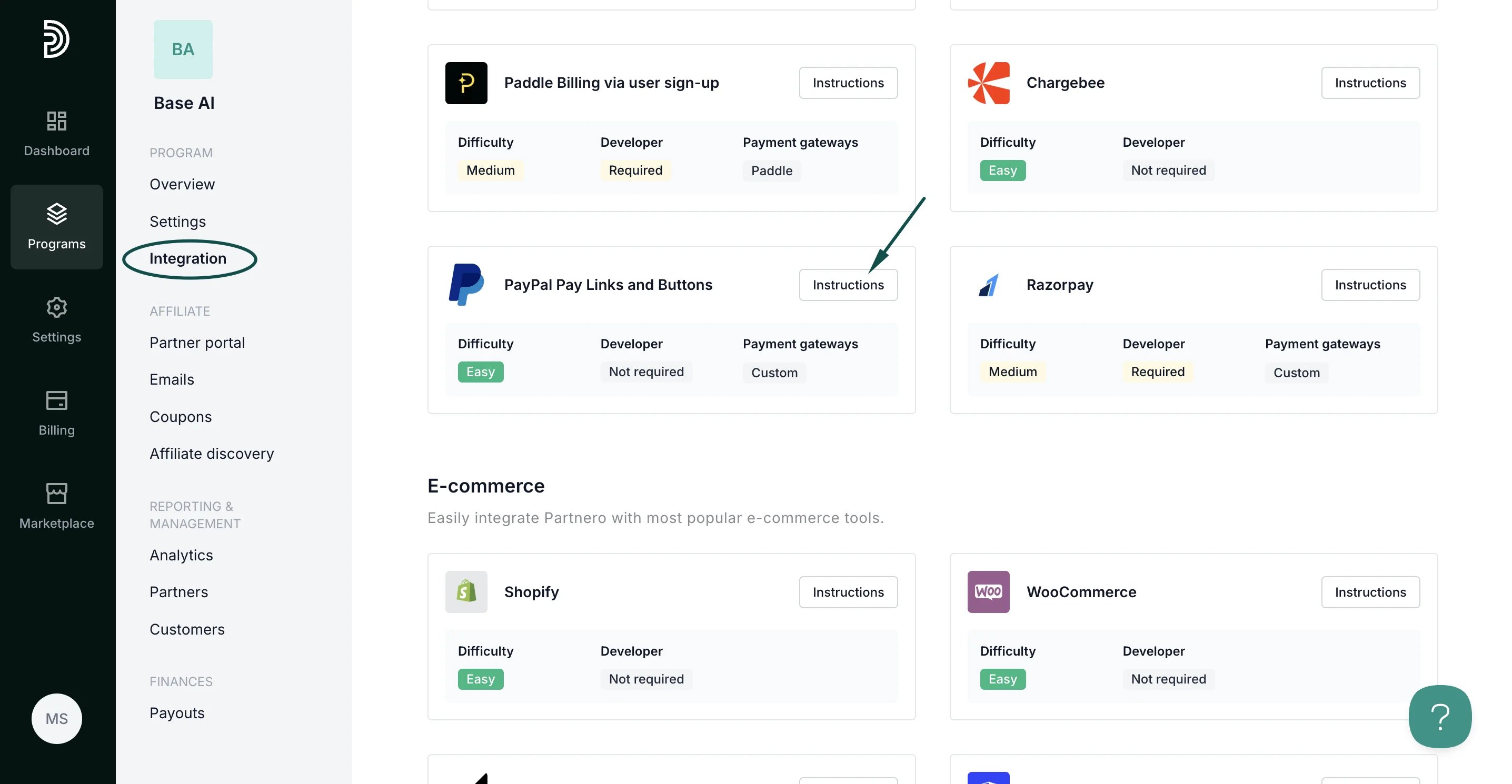
Step 1: Start tracking website visitors
To track visitors on your website, you need to install the PartneroJS snippet as custom code.Install the PartneroJS Snippet
- On Partnero, go to Integration > Guides tab > PayPal Links & Buttons. Click Instructions.
- Copy the PartneroJS snippet:
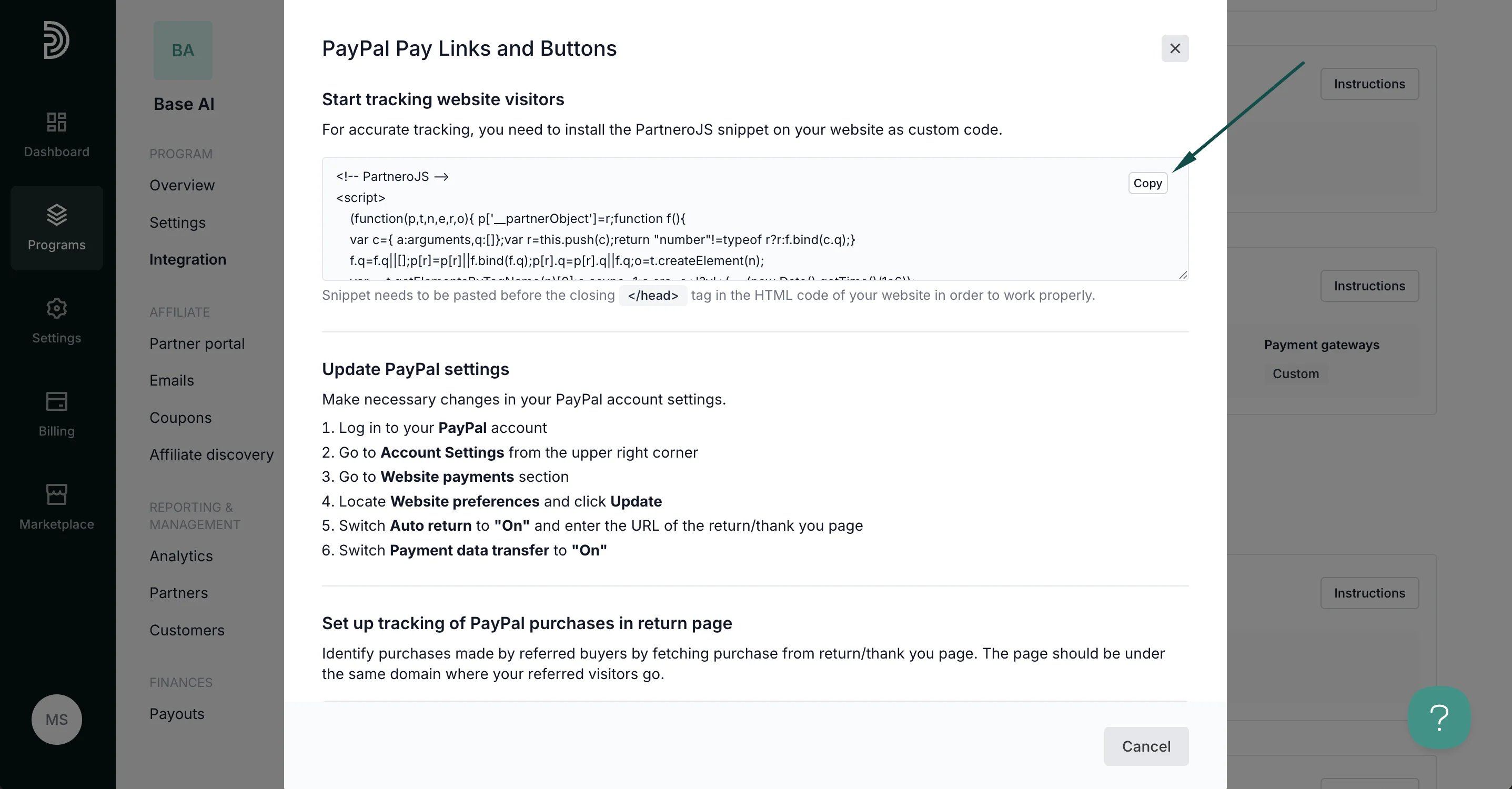
- Pase the script before the closing </head> tag in the HTML code of your website.
Step 2: Update PayPal settings
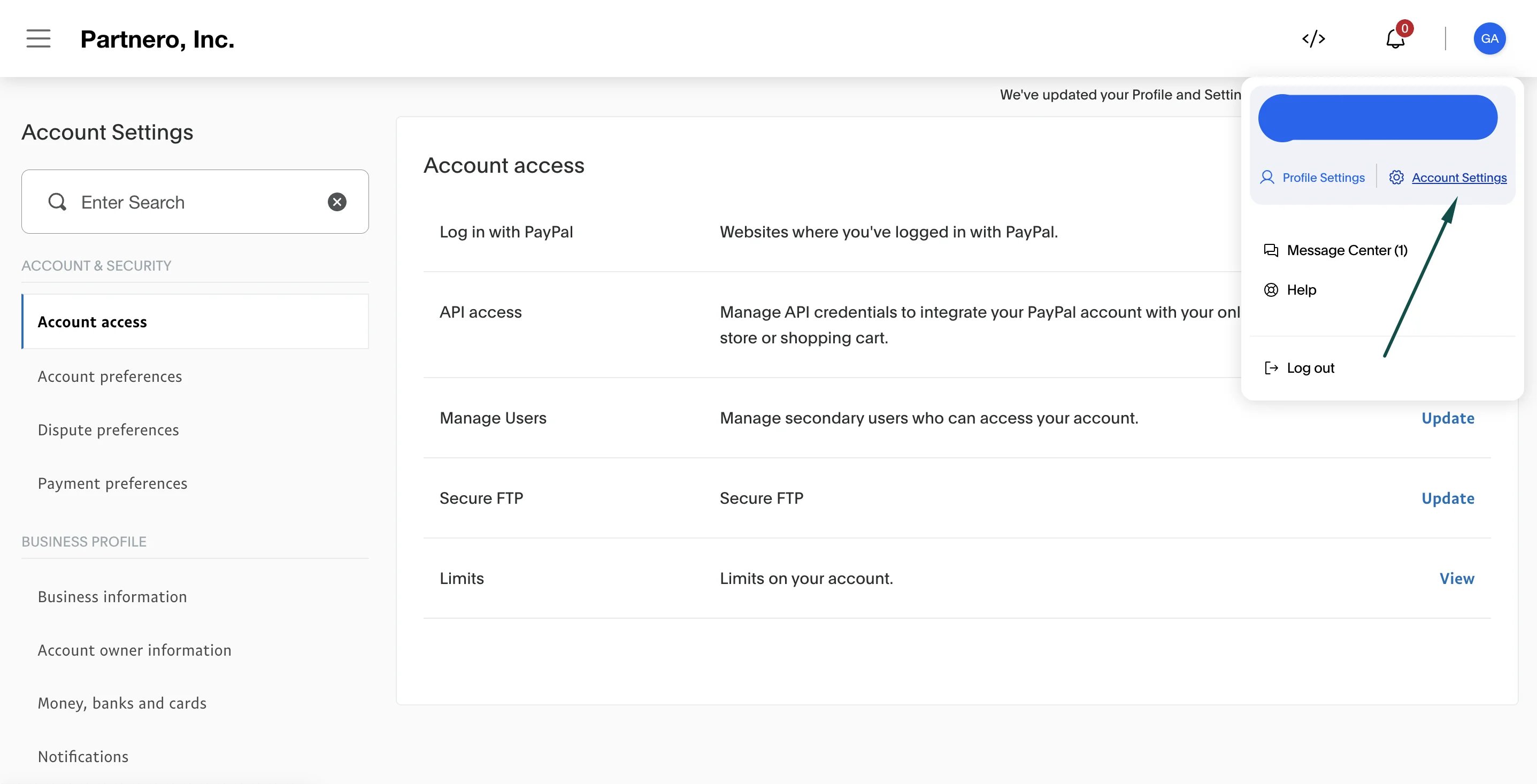
Edit the following settings on your PayPal account:- Go to Account Settings from the upper right corner:
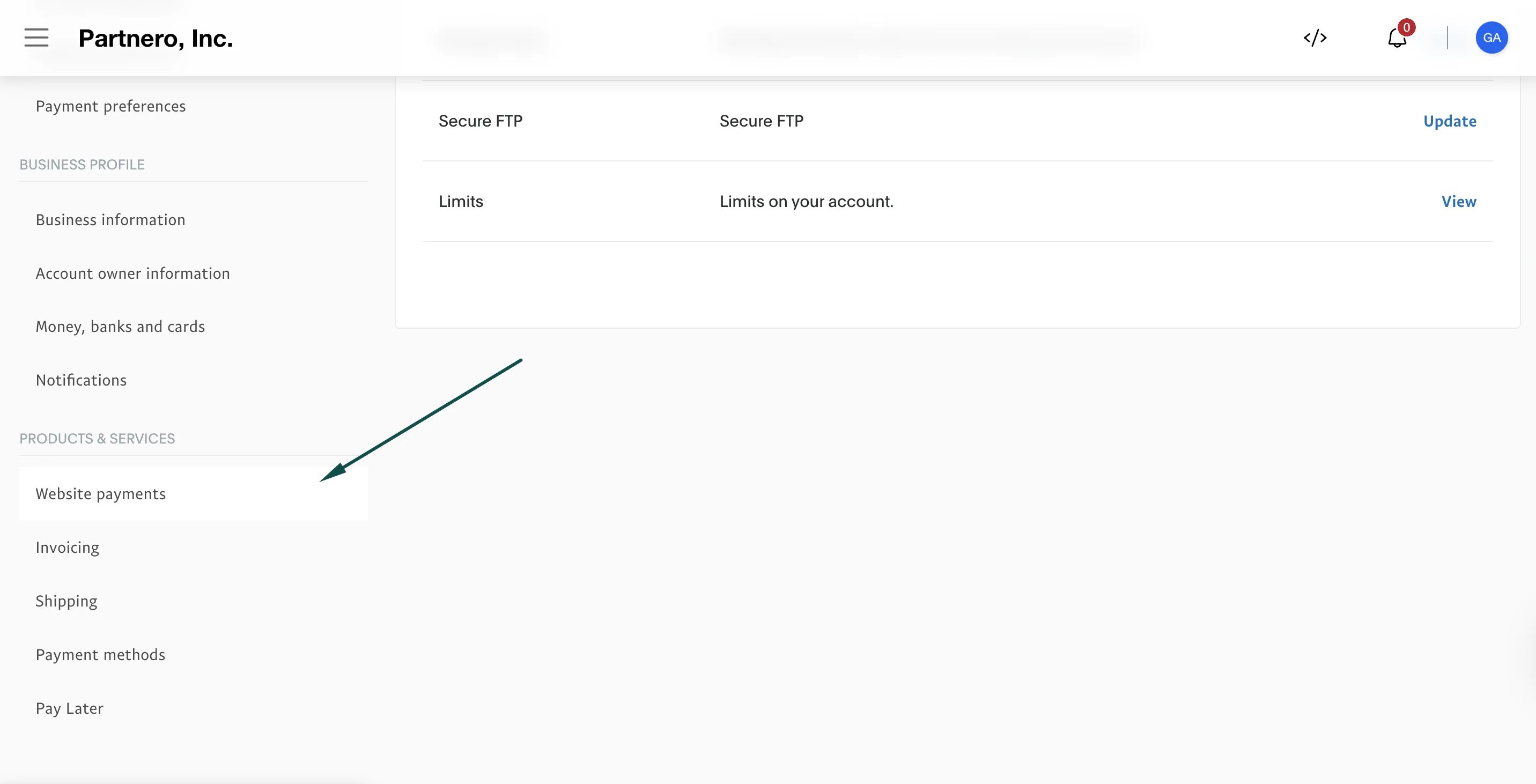
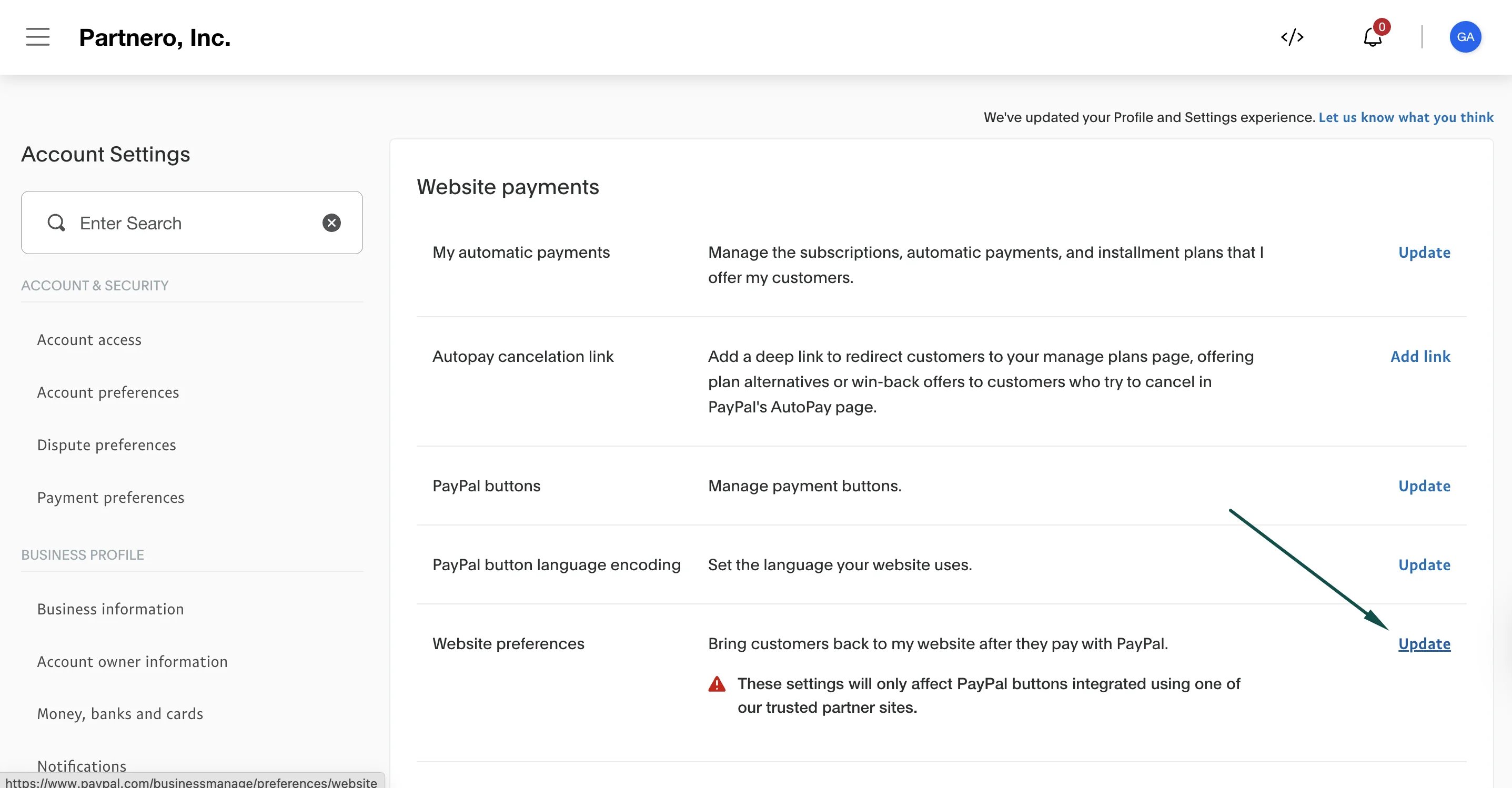
- Go to Website payments section under Products & services:
- Locate Website preferences and click Update:
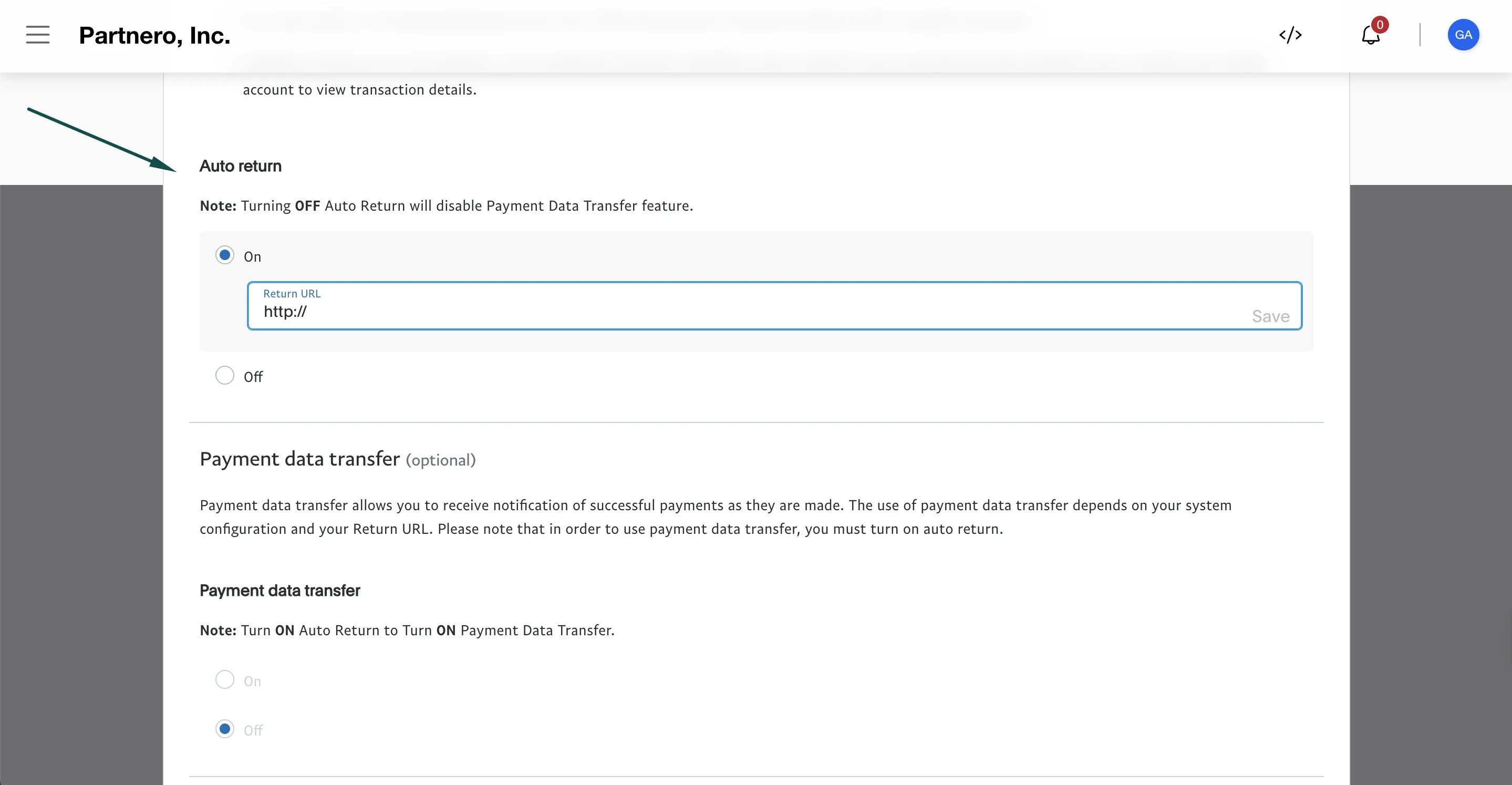
- Switch Auto return to “On” and enter the URL of the return/thank you page:
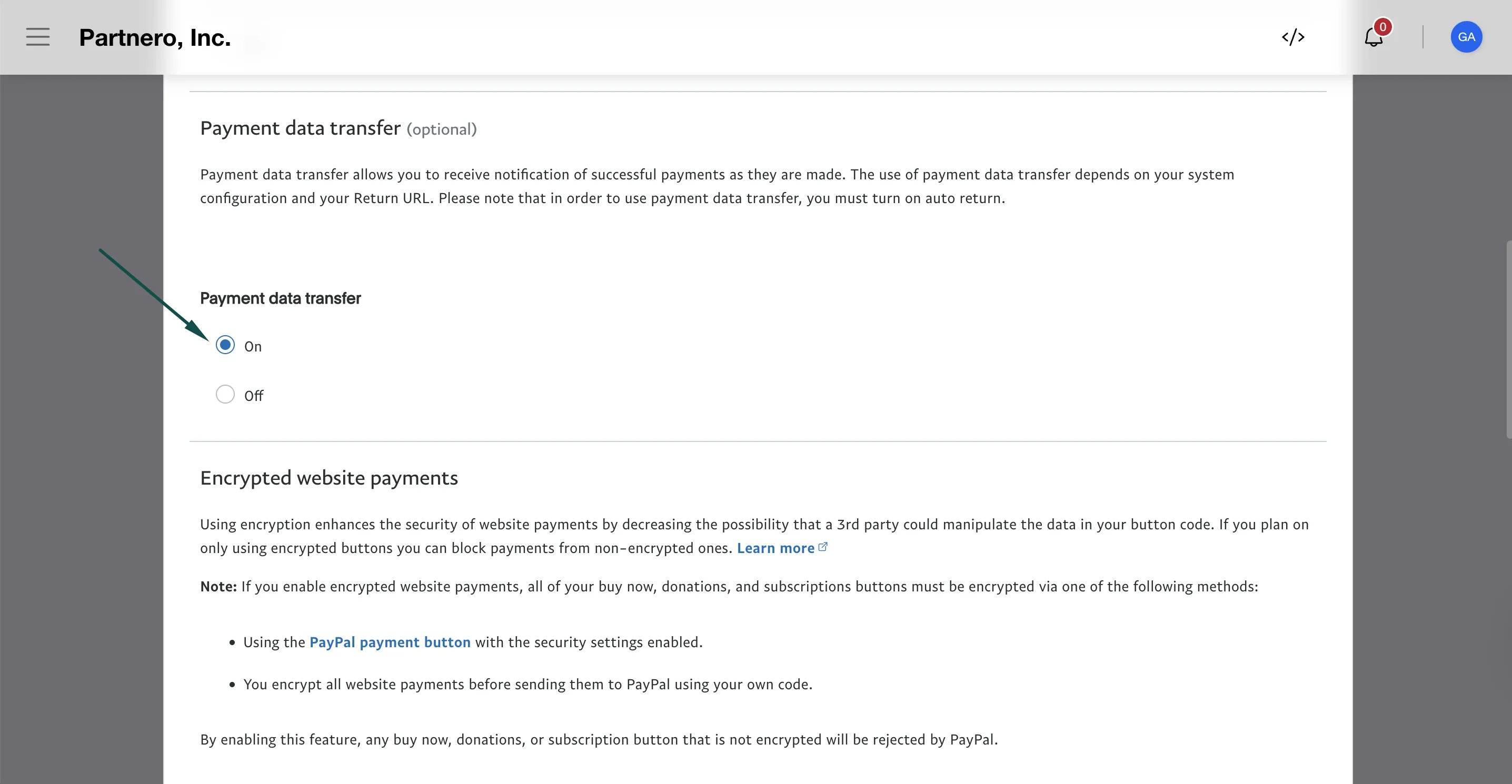
- Switch Payment data transfer to “On”:
Step 3: Set up sales tracking on the return page
Here’s how to set up order tracking during checkout:- On Partnero, copy the sales tracking code from the integration guide:
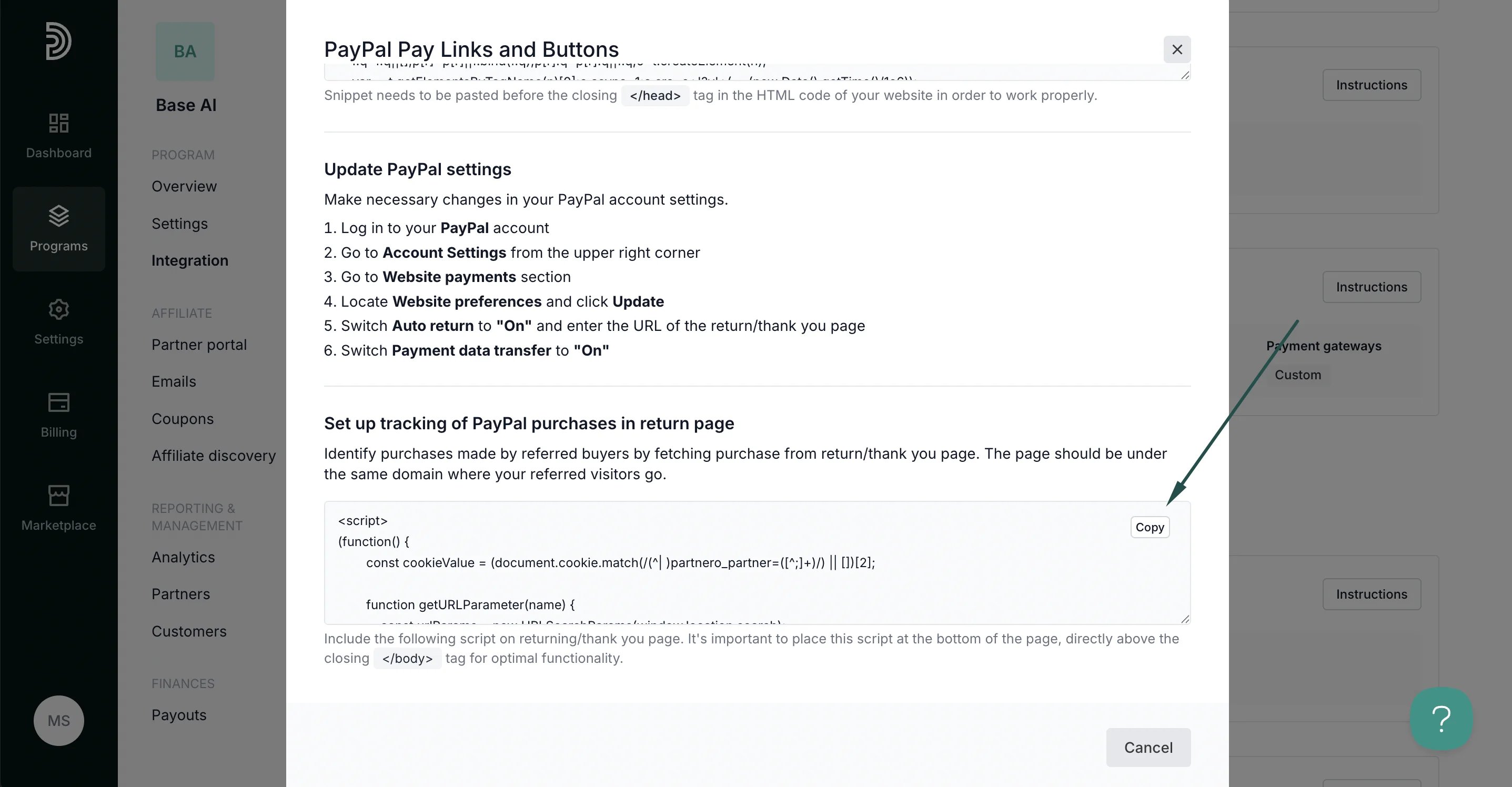
- Paste the script on the returning/thank you page. It’s essential to place this script at the bottom of the page, directly above the closing </body> tag for optimal functionality.
Step 4: Enable transaction creation via JS
For this integration method to work, transaction creation via JavaScript must be enabled on your Partnero account. To do that:- On your Partnero account, go to Integration > Security tab.
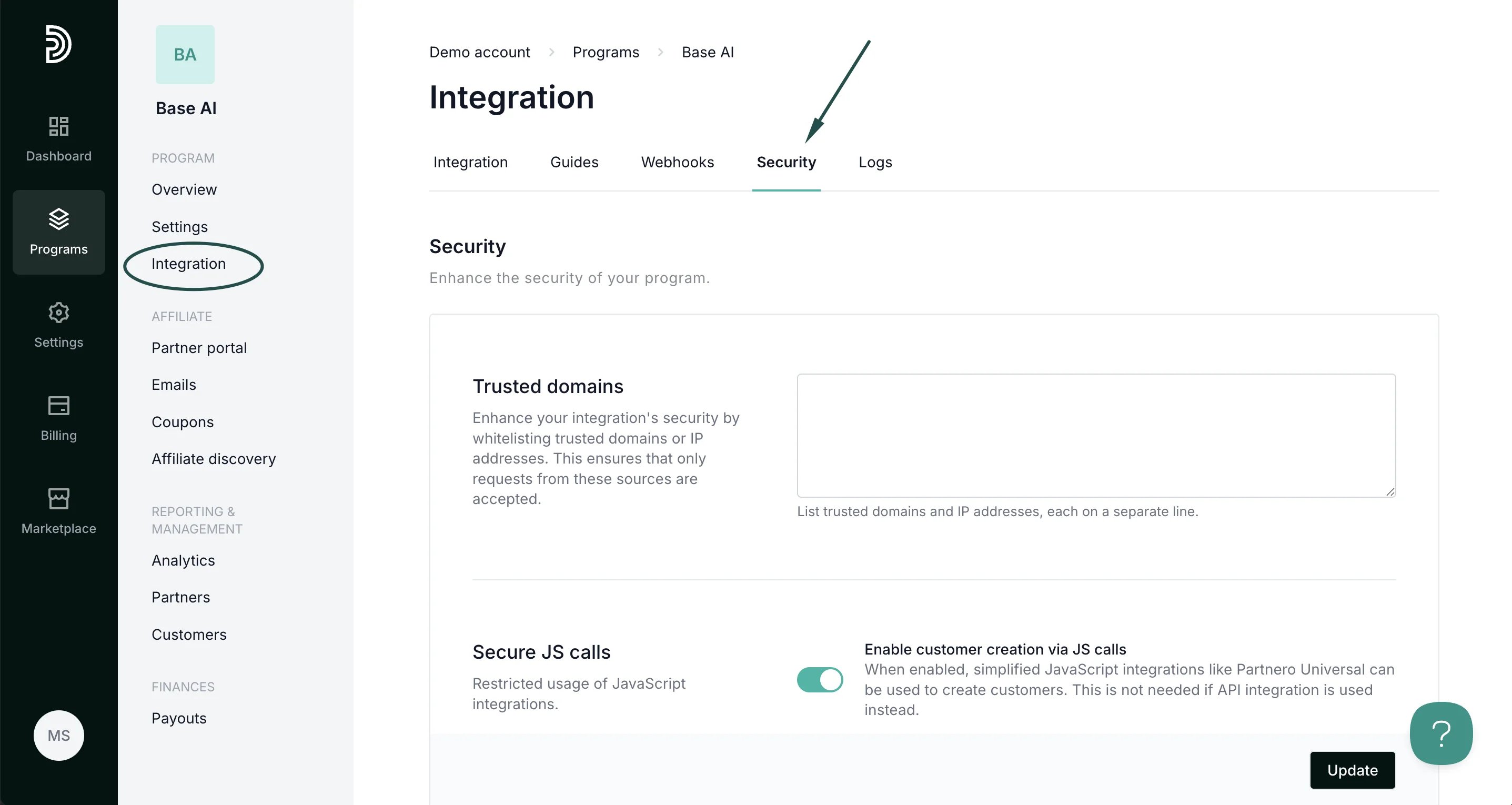
- Scroll down to Secure JS calls. Toggle to enable transaction creation:
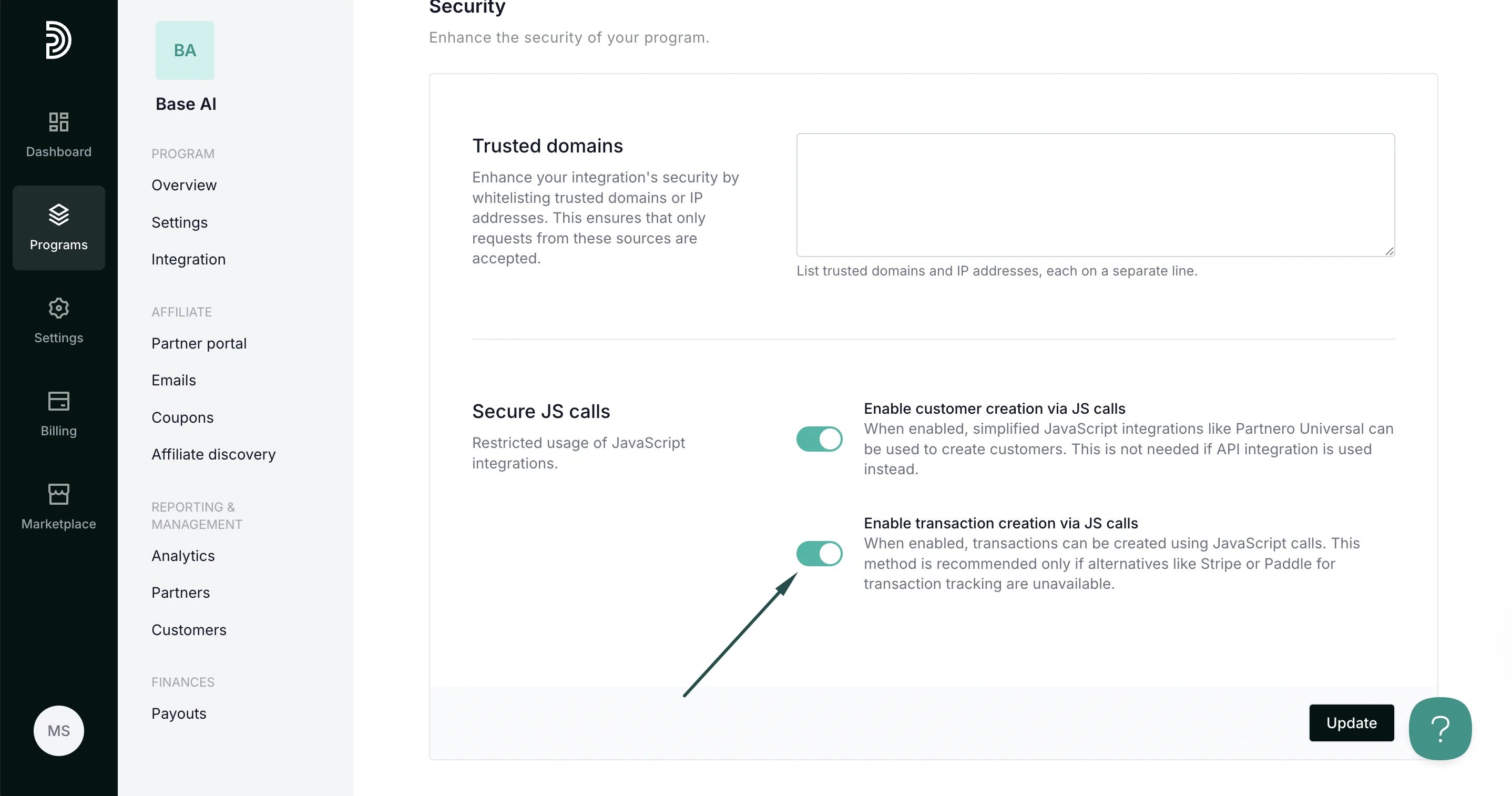
- Click Update.
Your integration is now complete! We strongly recommend testing the integration by purchasing through an affiliate link.