

What are WooCommerce coupons in Partnero?
Coupons are discounts that partners can share with their audience, such as a percentage off or a fixed amount. With the WooCommerce Coupons integration, coupons stay in sync between WooCommerce and Partnero, so you can manage them in either place, and Partnero can track the sales they generate. You can:- Create coupons in Partnero and sync them to WooCommerce.
- Create coupons in WooCommerce and sync them to Partnero.
- Sync coupons you already have in WooCommerce.
Connect WooCommerce Coupons
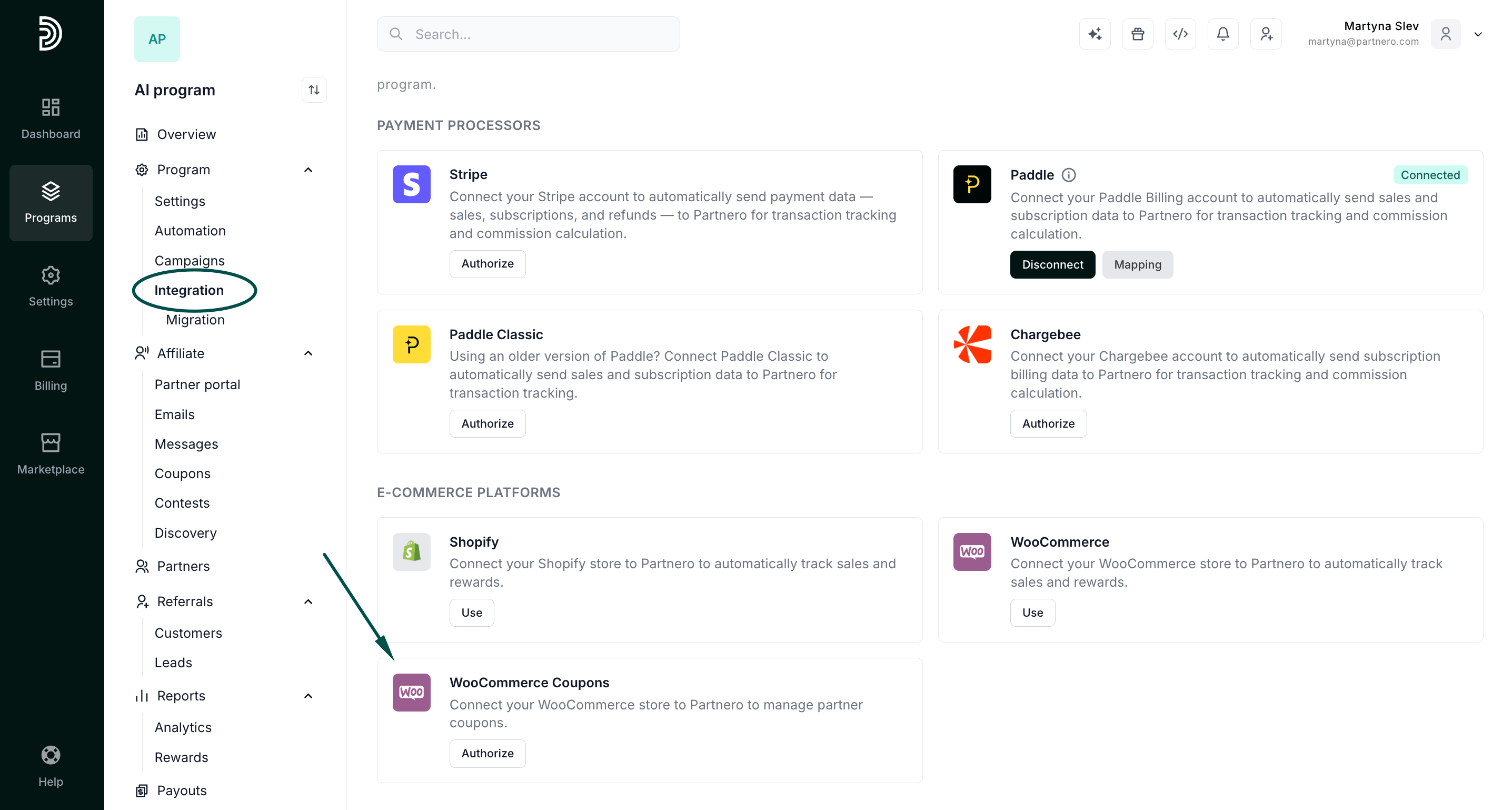
The following steps are required to use this feature:- In your affiliate program, go to Integration and scroll down to Apps & integrations.
-
Click Authorize next to WooCommerce Coupons:
-
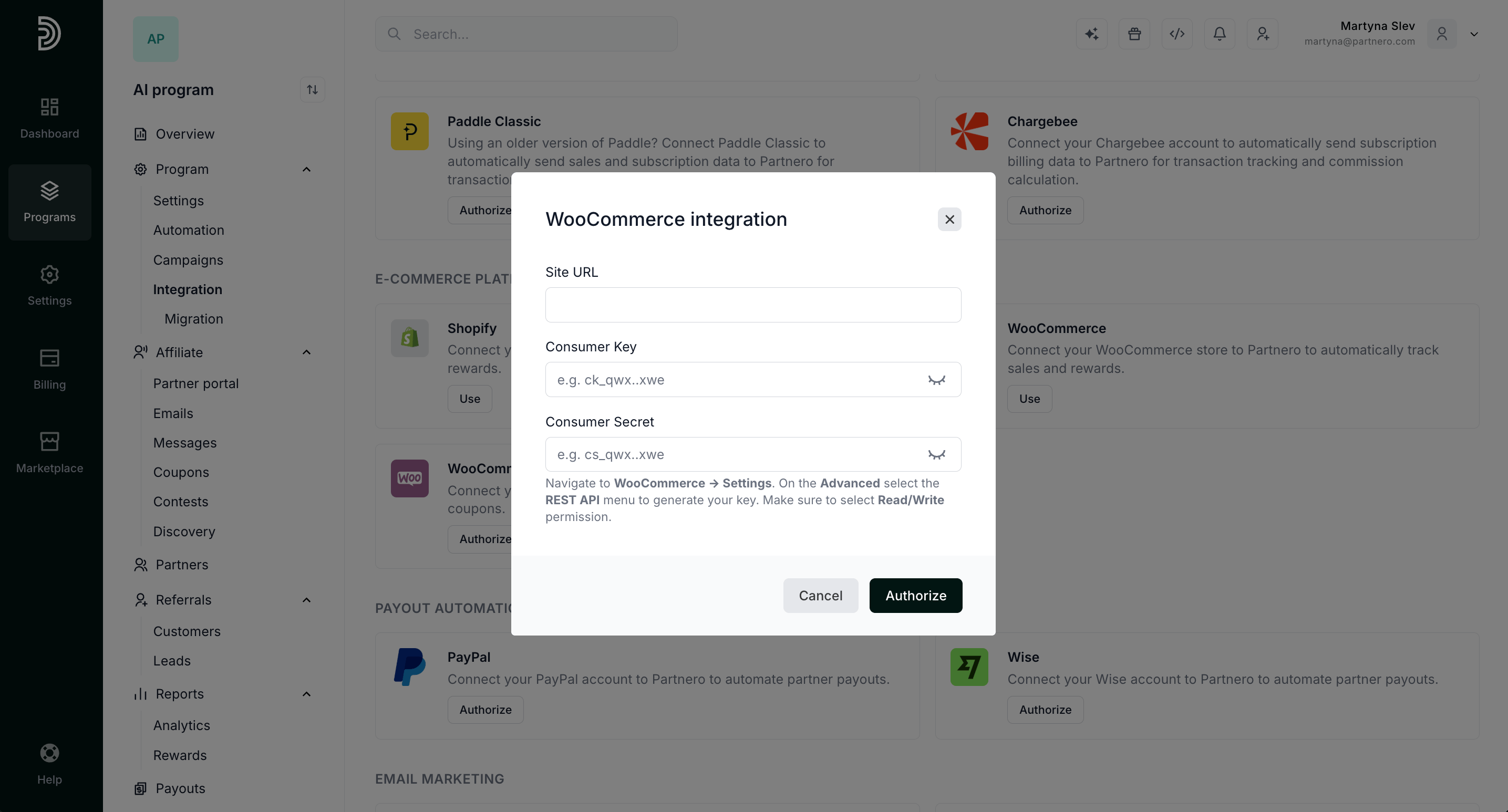
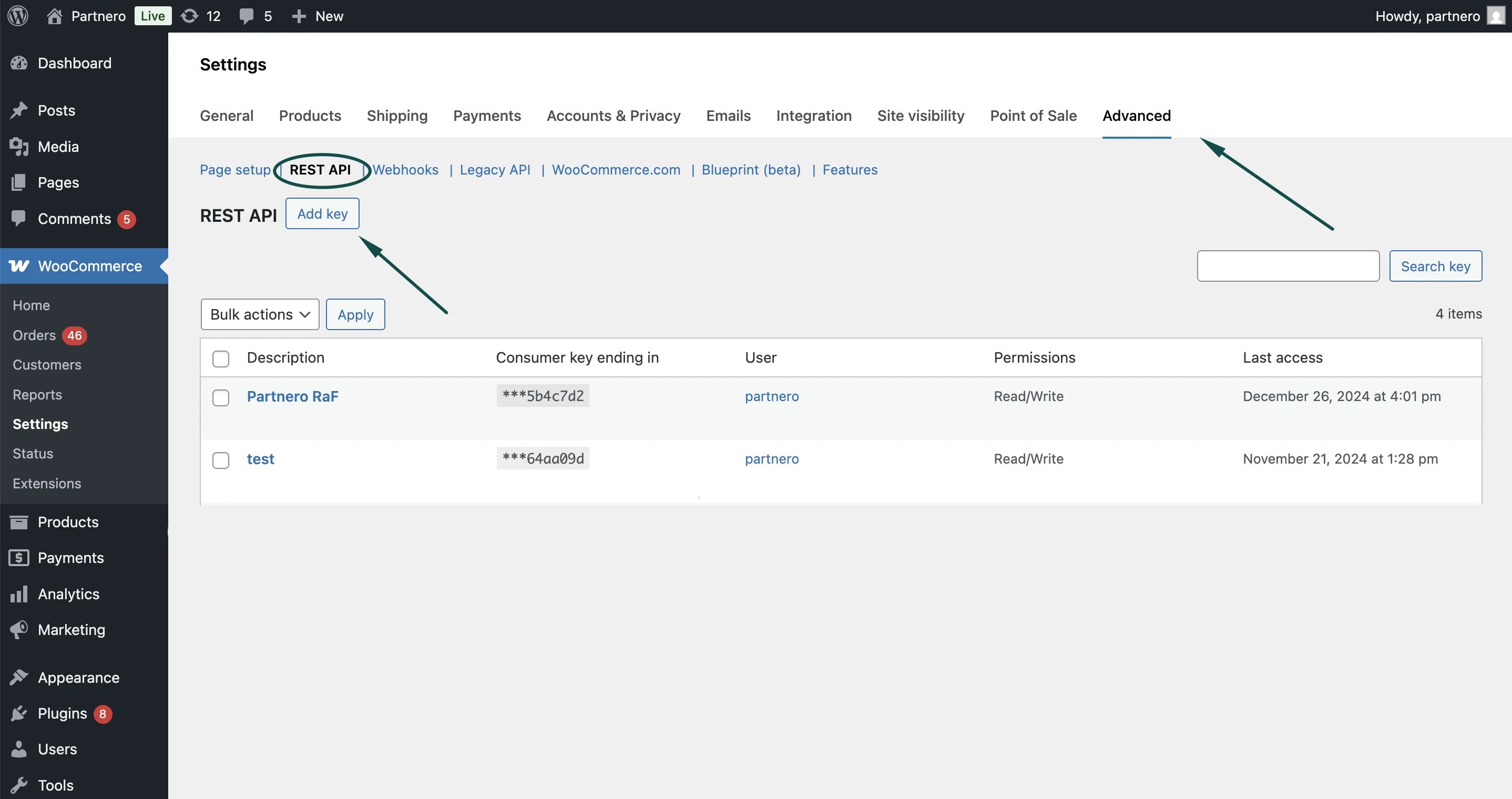
Enter your Site URL, Consumer Key, and Consumer Secret:
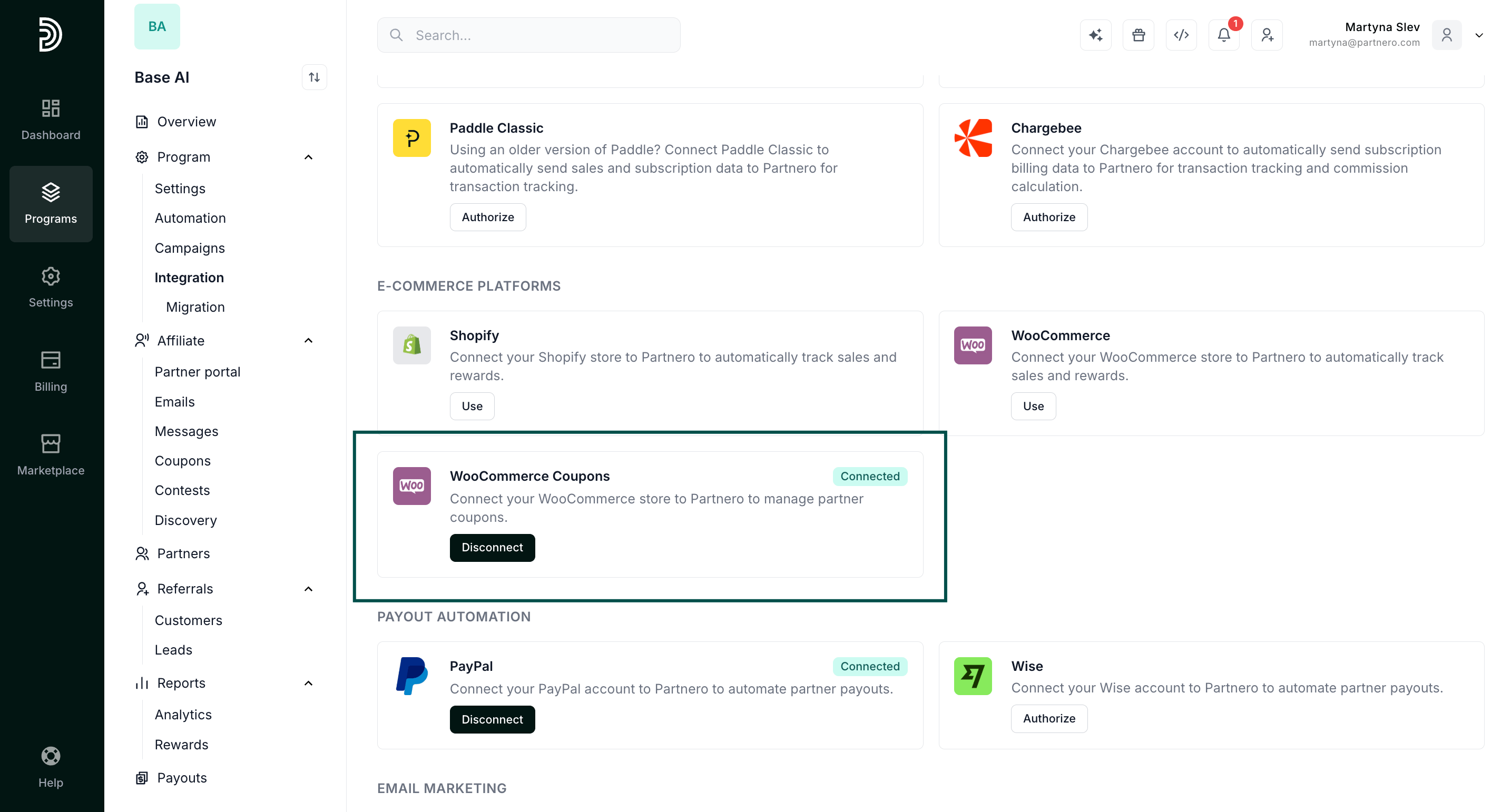
- Click Authorize.
Create coupons in Partnero and sync them to WooCommerce
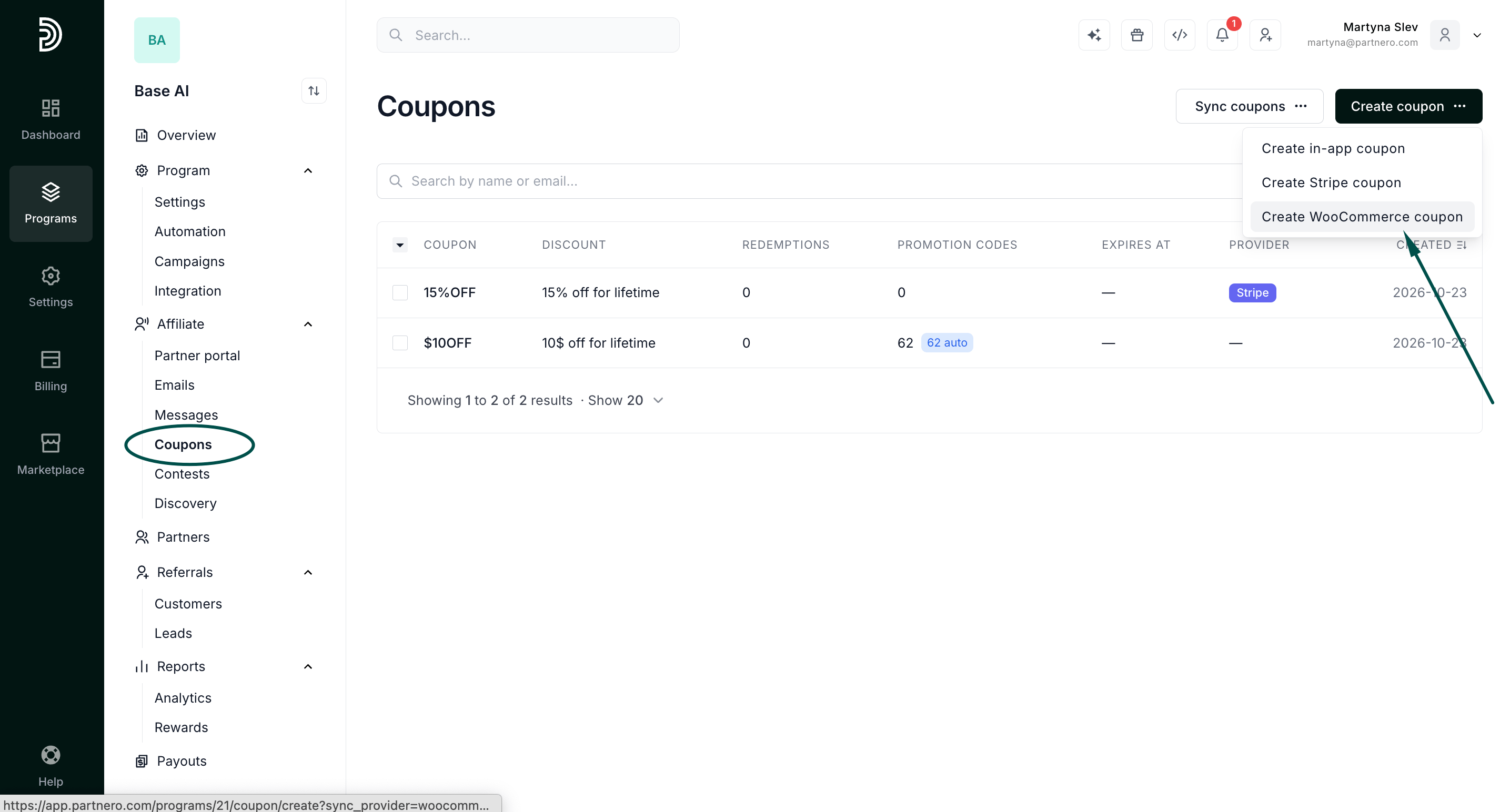
Coupons you create in Partnero are added to WooCommerce automatically.- In your affiliate program, go to Program > Coupons.
-
Click Create coupon and select Create WooCommerce coupon.
-
Set up the coupon.
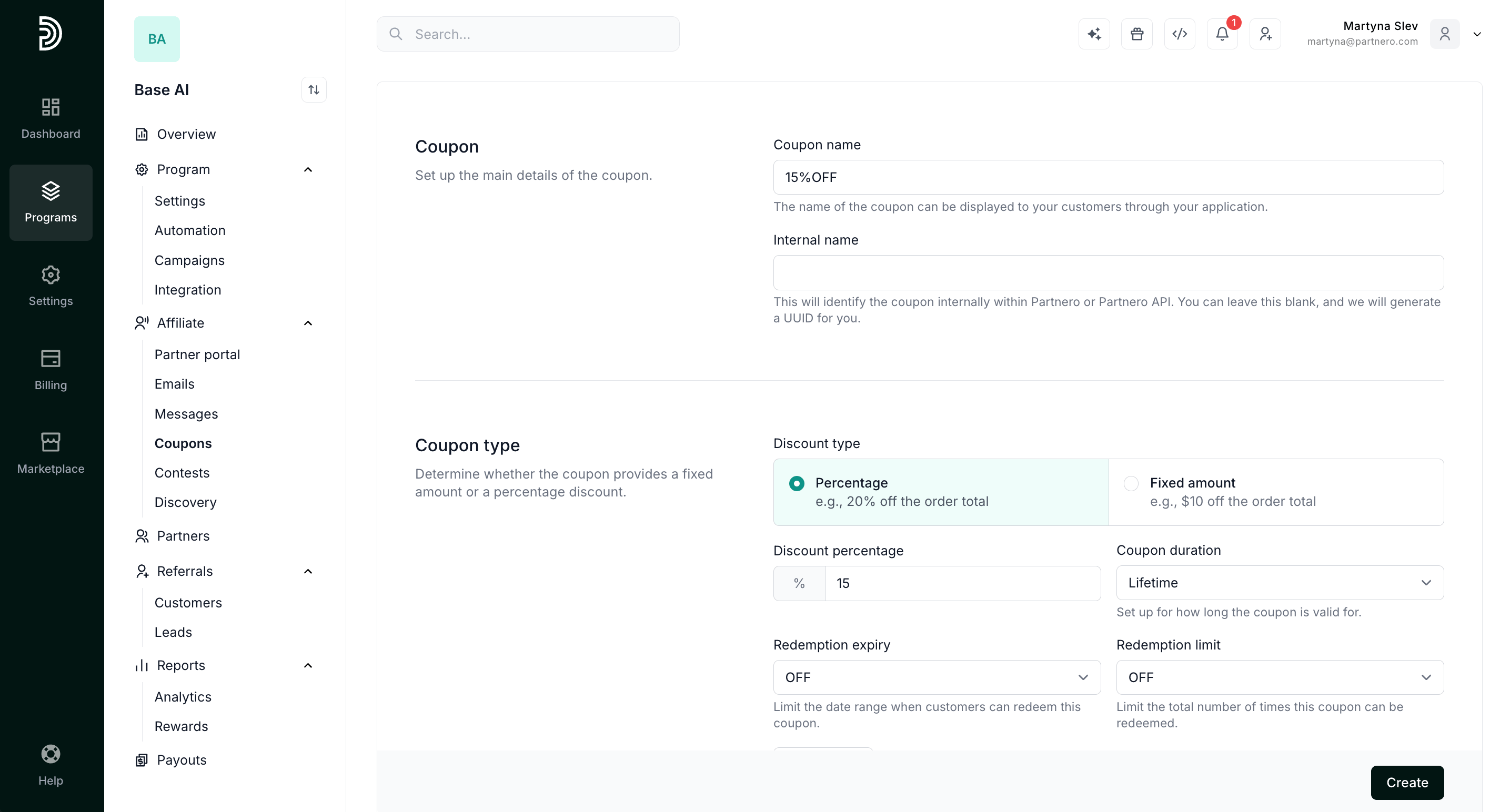
- Coupon name and internal name (optional)
- Coupon type: percentage or fixed amount
- Coupon duration: how long the coupon is valid
- Redemption expiry: the date range the coupon is available
- Redemption limits: the total number of times the coupon can be redeemed
-
Set up the promotion codes customers will use. You can create them manually or generate them automatically.\
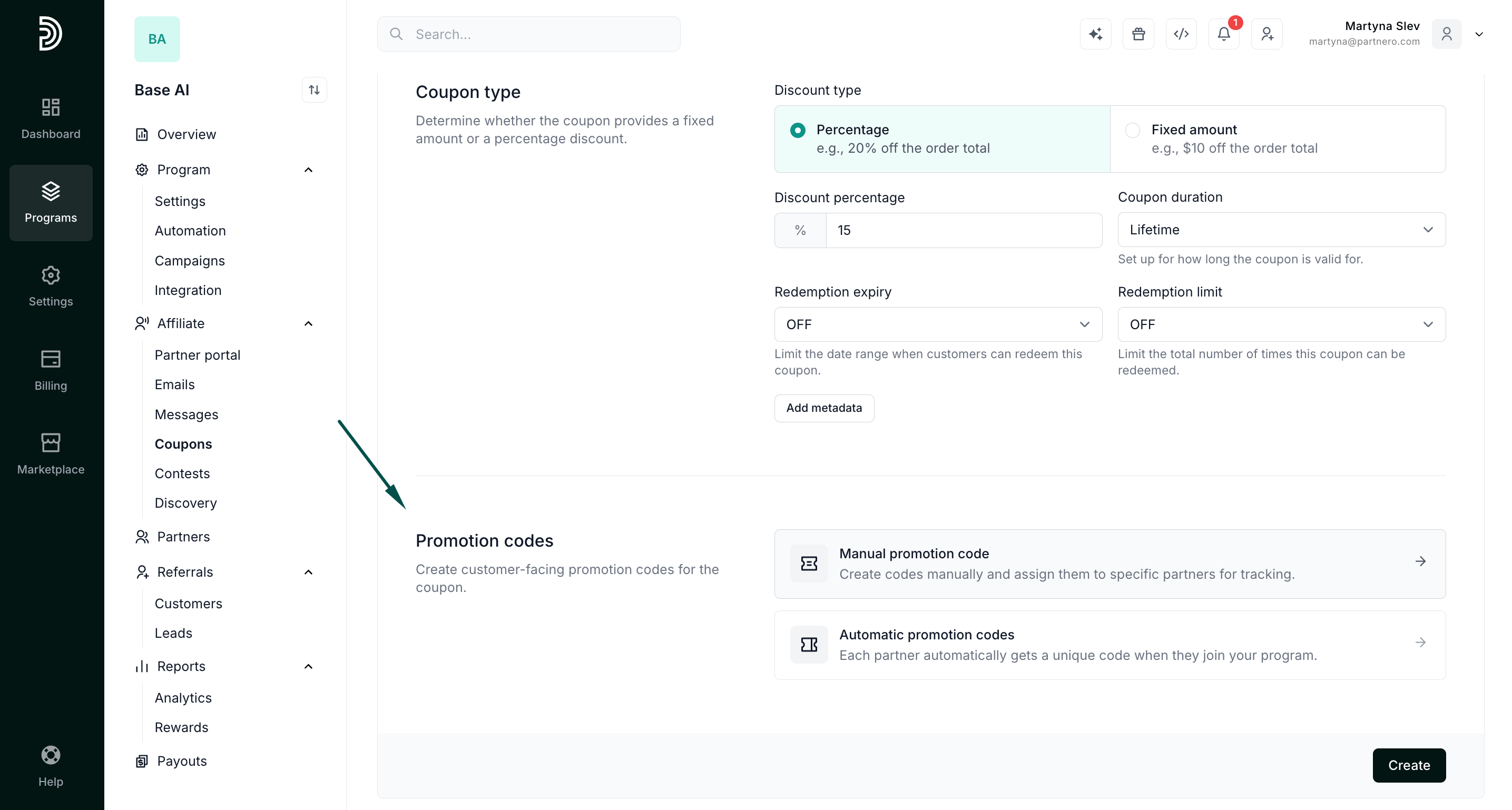
- Manual promotion codes: create codes yourself and assign them to specific partners.
- Automatic promotion codes: each partner gets a unique code when they join your program.
- Click Create.
- Open Coupons in WooCommerce to confirm the new coupon is there.
Create coupons in WooCommerce and sync them to Partnero
Once the integration is connected, WooCommerce sends coupon data to Partnero automatically. Any coupon you create in WooCommerce appears in Partnero under Program > Coupons. See the WooCommerce guide to creating coupons.Sync existing WooCommerce coupons
If you already have coupons in WooCommerce, you can bring them into Partnero.- Go to Program > Coupons.
- Click Sync coupons and select Sync WooCommerce coupons.
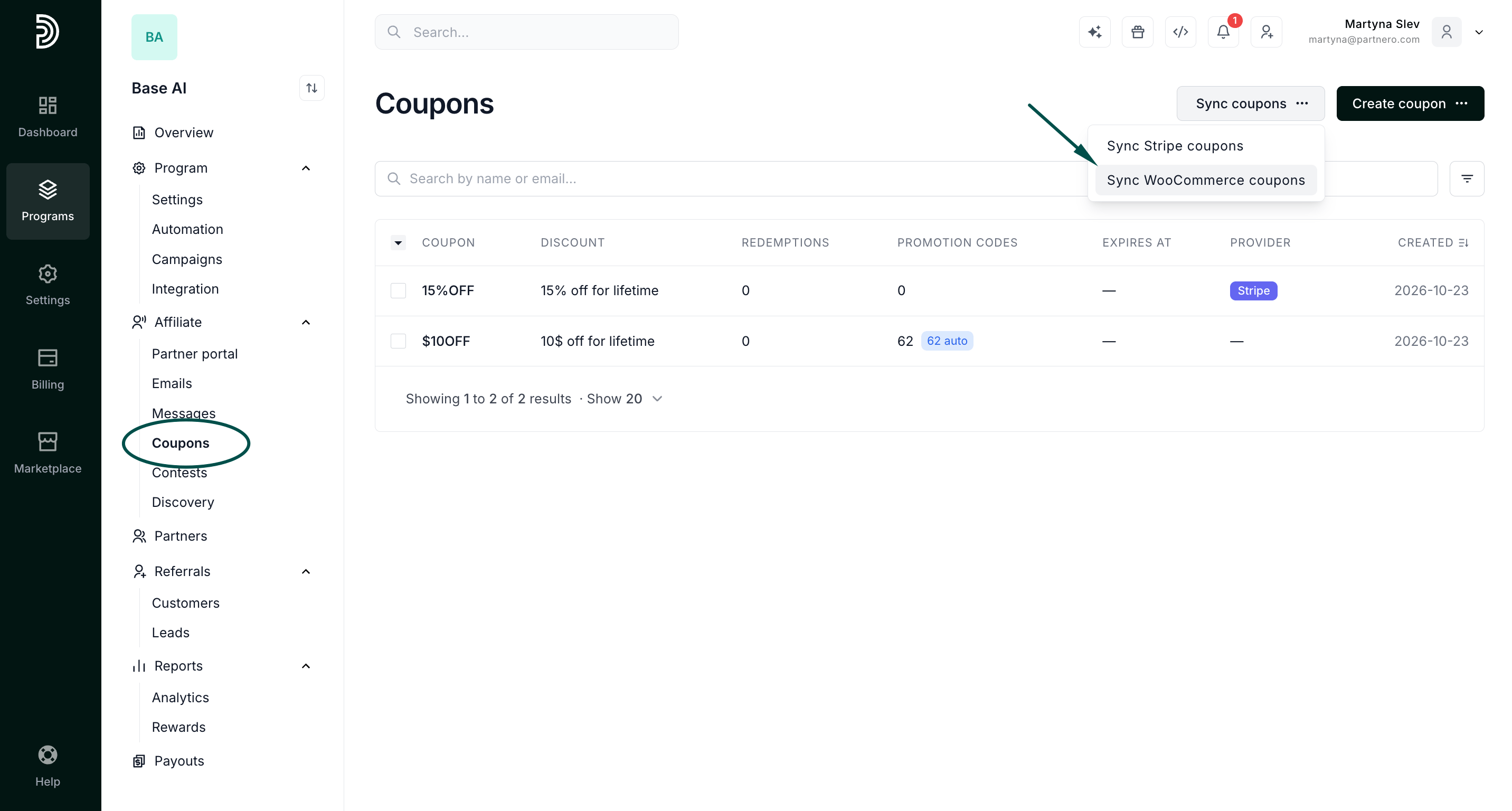
- Your WooCommerce coupons now appear in Partnero.