

- deliver your rewards with additional information, notes, instructions, etc.
- send a series of emails with multiple rewards, e.g., a three-piece online course;
- follow up and ask for feedback a few days after the reward has been sent;
- motivate subscribers by reminding them that they need only x referrals to get a reward.
What information is sent to MailerLite
When you connect Partnero with MailerLite, we automatically generate a unique referral link for each subscriber and synchronize the data between Partnero and MailerLite. We will add the following custom fields to the subscriber’s profile:- {$partnero_newsletter_portal_link} - URL of the subscribe portal;
- {$partnero_newsletter_share_link} - subscriber’s unique referral link;
- {$partnero_newsletter_reward} - reward name;
- {$partnero_newsletter_referral_count} - the number of referrals the subscriber has brought in.
How to create and trigger MailerLite automation
MailerLite offers various ways to trigger automation workflows. The fields listed above can be used to trigger automation workflows by using the Updated field trigger. Below we’ll share an example of the following scenario: your newsletter referral program sends an Amazon Gift card after someone refers ten subscribers. As a program owner, you’d like to send a follow-up and a reminder after a subscriber has referred 5 to keep them motivated. Here’s how to achieve it:- Log in to your MailerLite account.
- Go to Automation and click New automation.
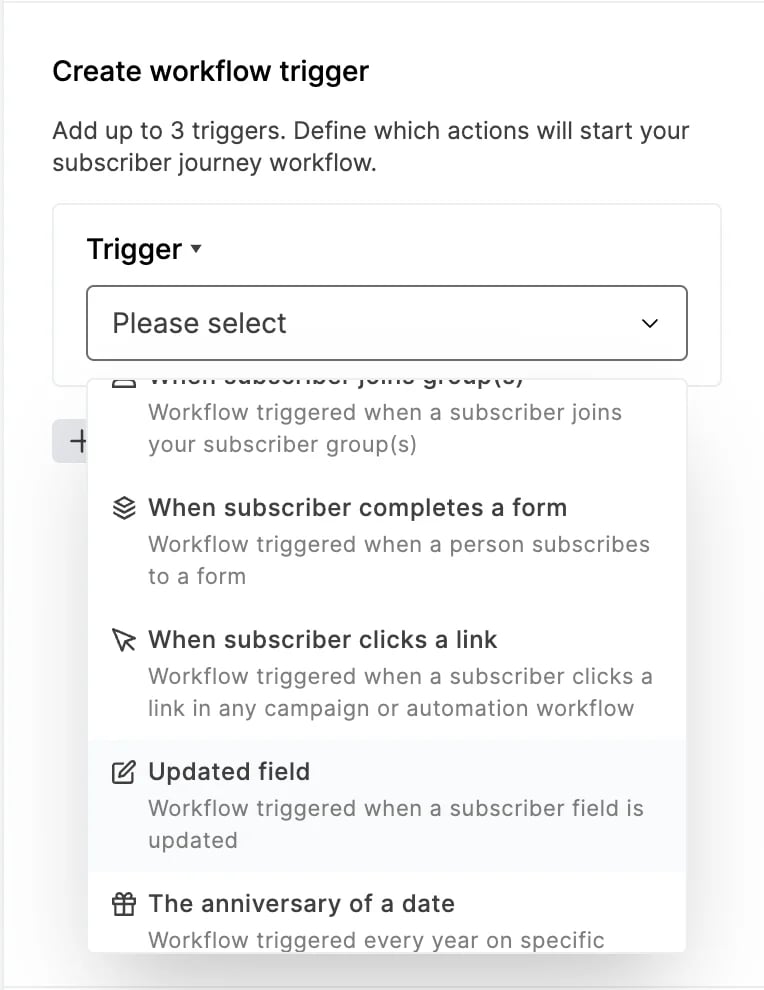
- When setting up the automation trigger, choose the Updated field option:
- Set the following condition: Custom field Partnero Newsletter Referral Count is equal to 5:
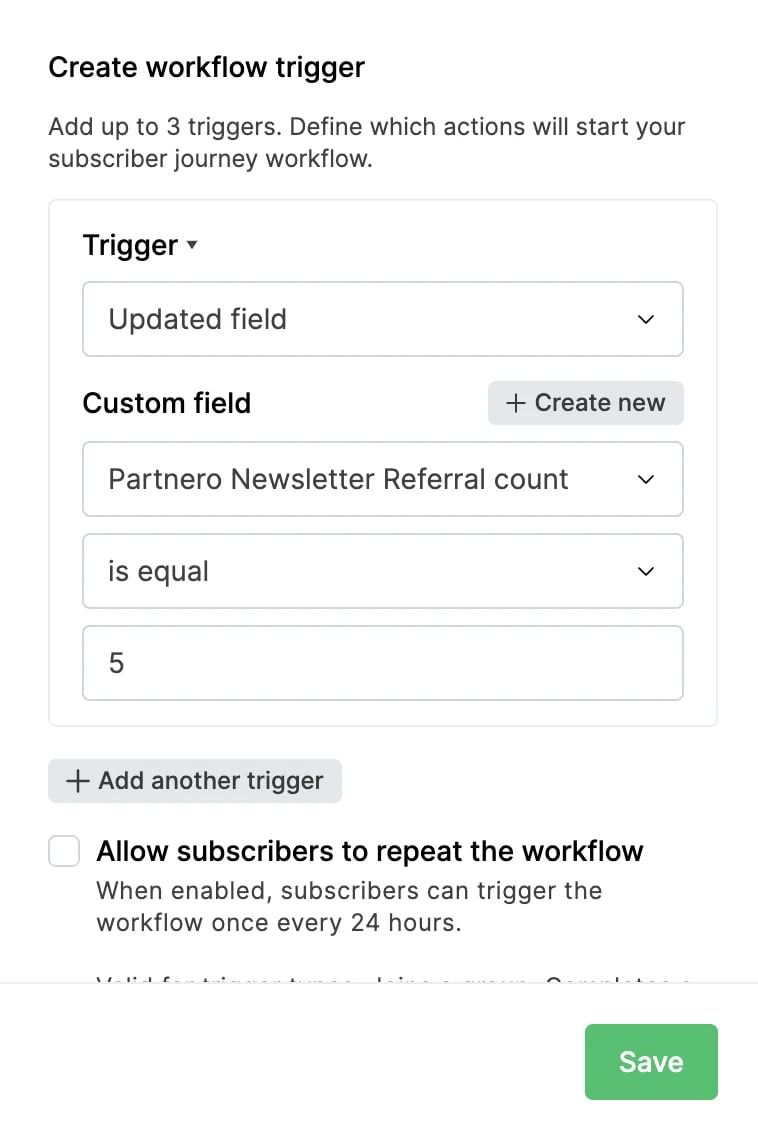
- Click Save.
- Once the trigger is set, you can add the following steps, including delays and the emails containing your rewards. That’s it!
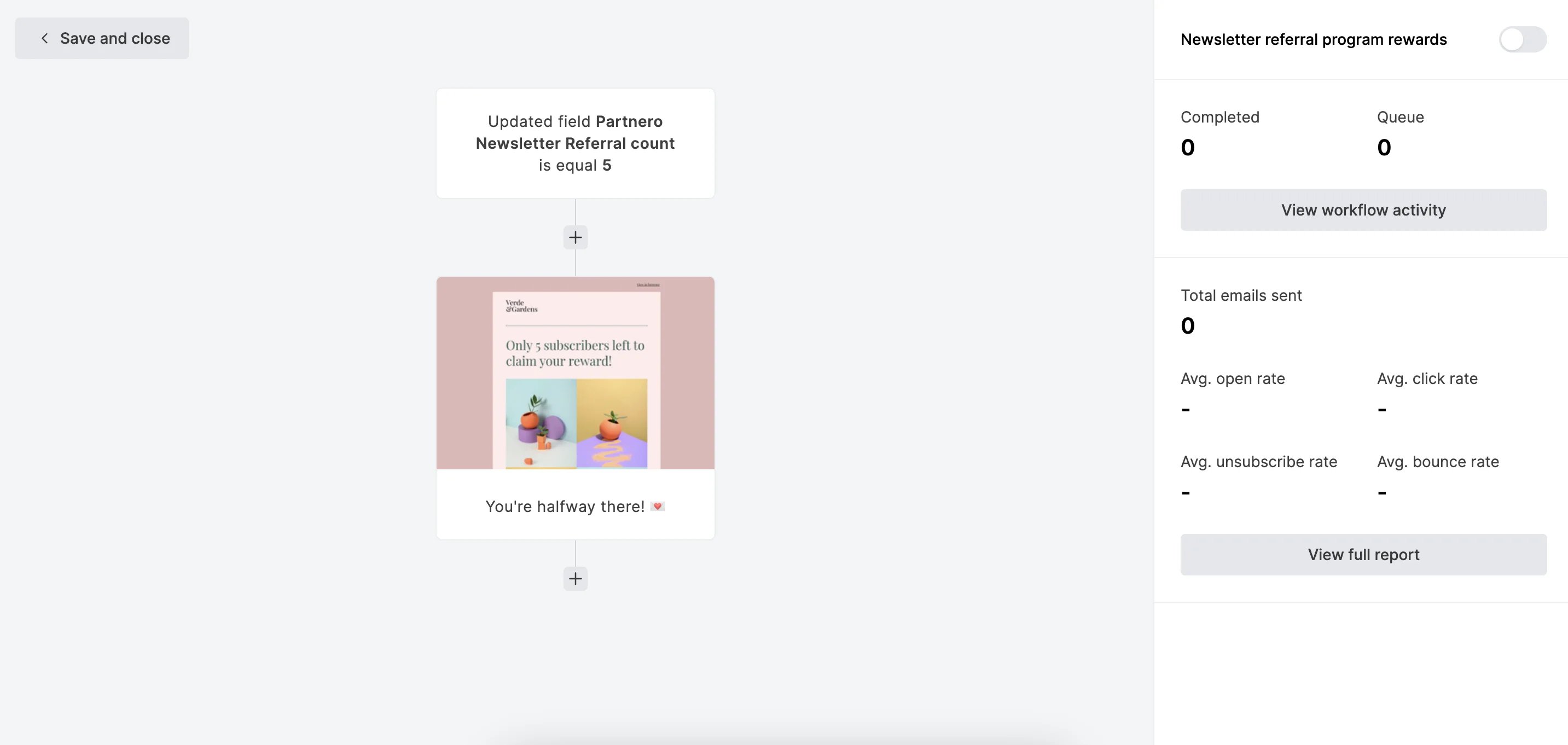
- Don’t forget to turn the workflow on after you’re done!
Additional tips and further reading When you use the workflow trigger Updated field, the workflow will be triggered when a subscriber field you select is updated and matches the trigger rule. A subscriber will trigger the workflow as soon as the field selected meets the rule. This includes:
- When you manually update a subscriber’s field in their profile;
- When a subscriber’s field is updated by an action step in any workflow;
- When a subscriber is added as a single subscriber.
- [How to create an automation workflow](<How to create an automation workflow>)
- How to set up automation triggers
- How to use automation steps