- Program announcements
- Policy or commission updates
- Important reminders or instructions
How to send a message
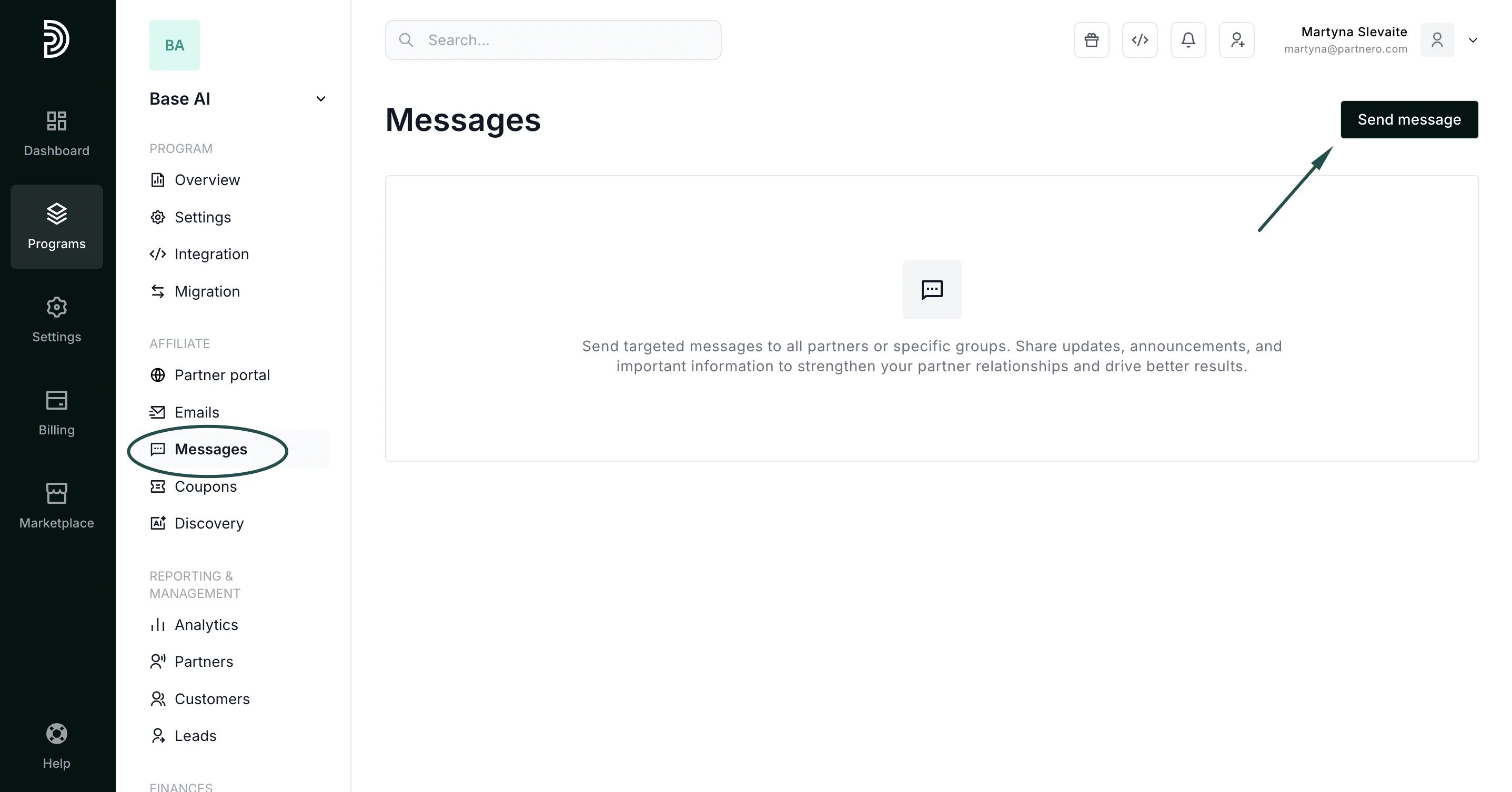
To send a message to partners:- In your affiliate program, go to Messages under Affiliate.
- Click Send message:
- Add the subject and message body:
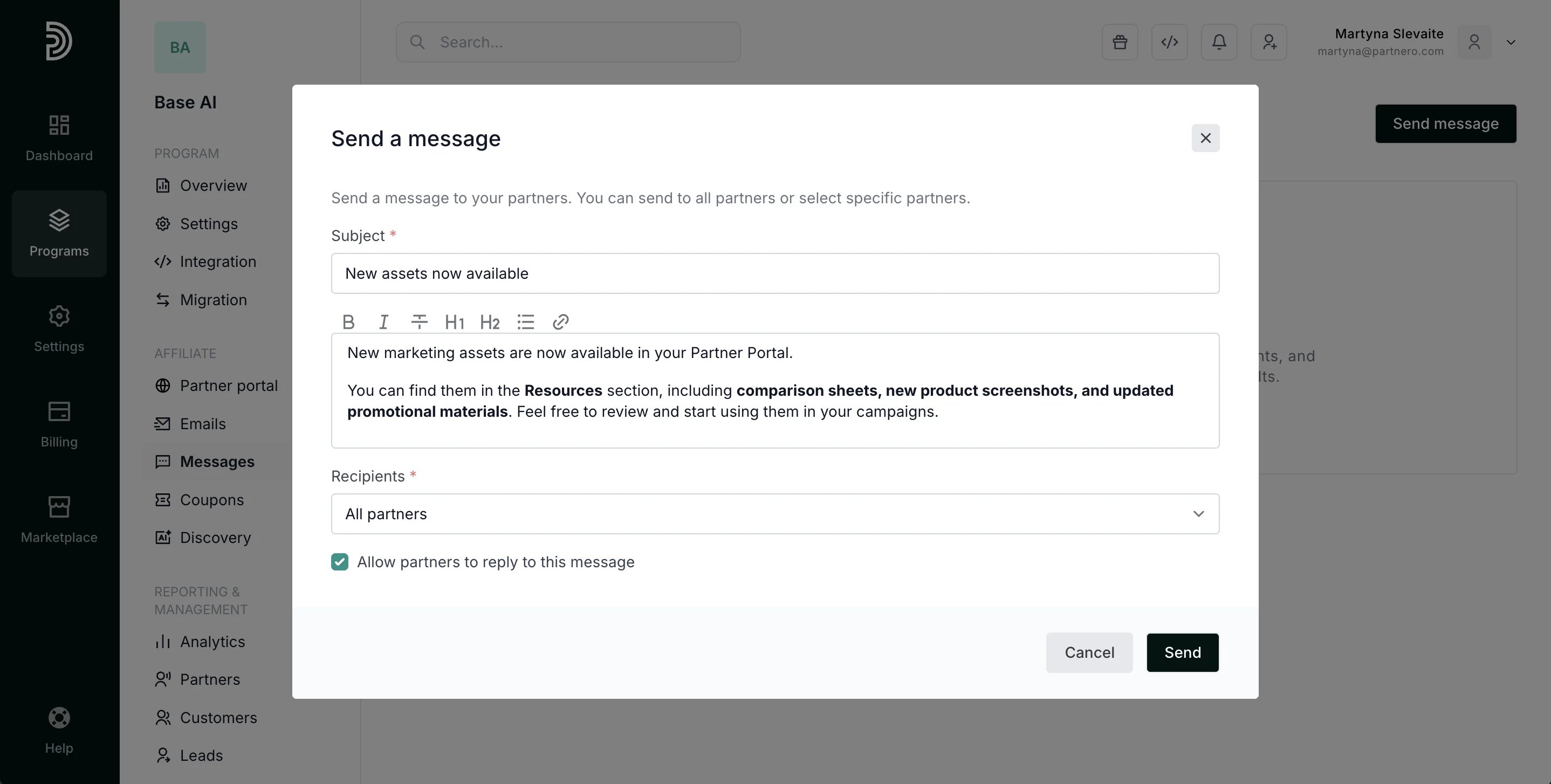
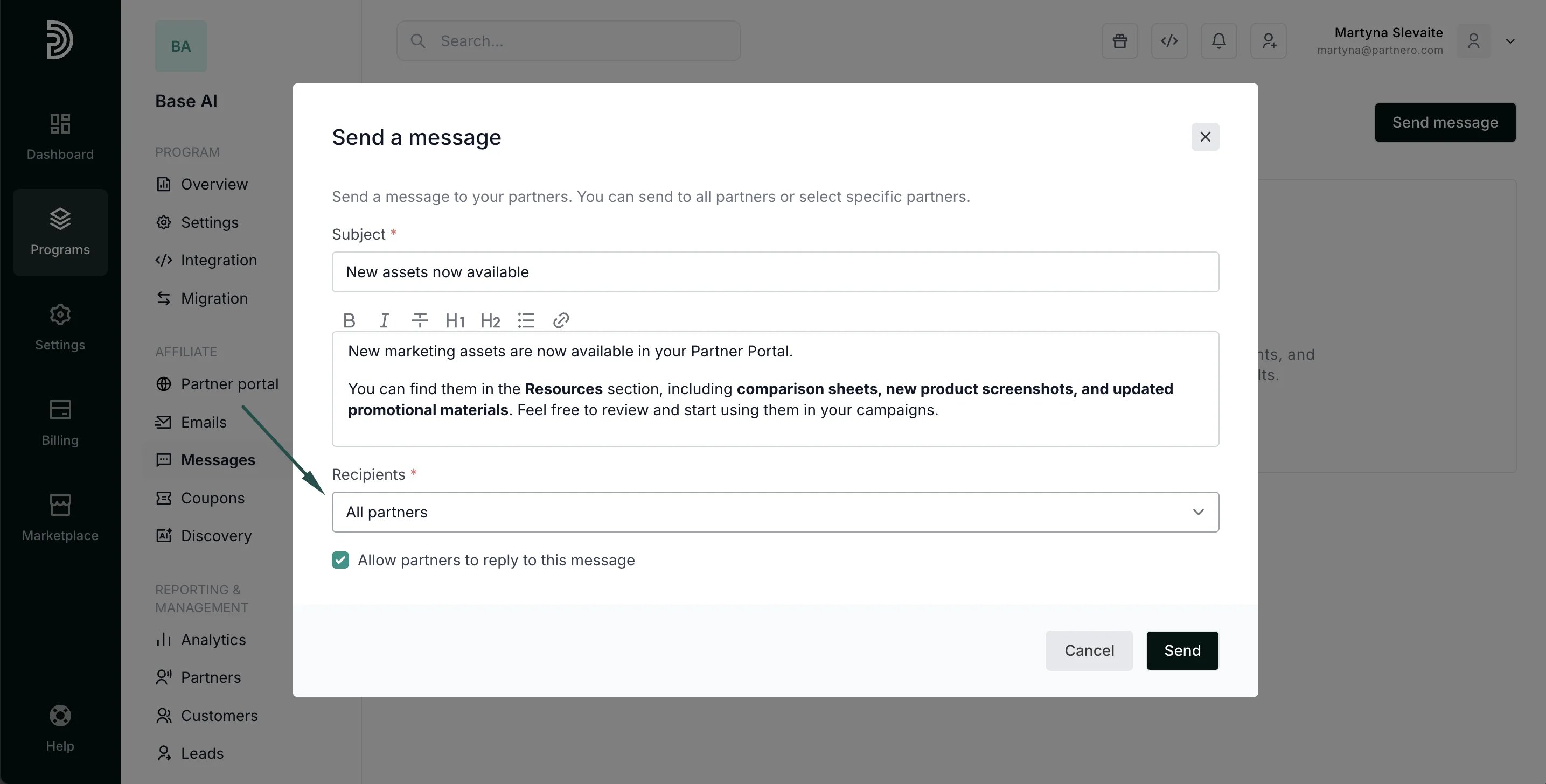
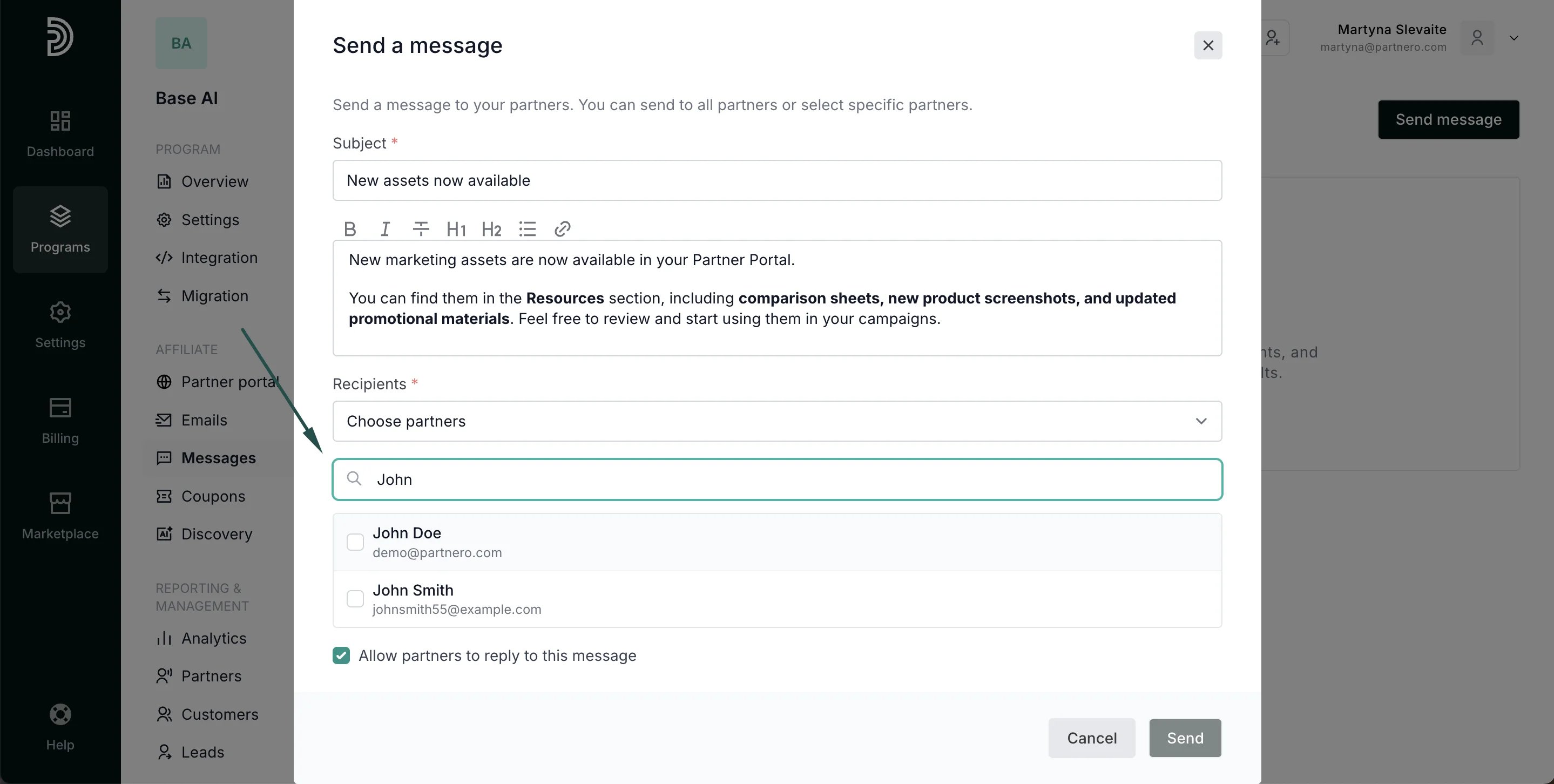
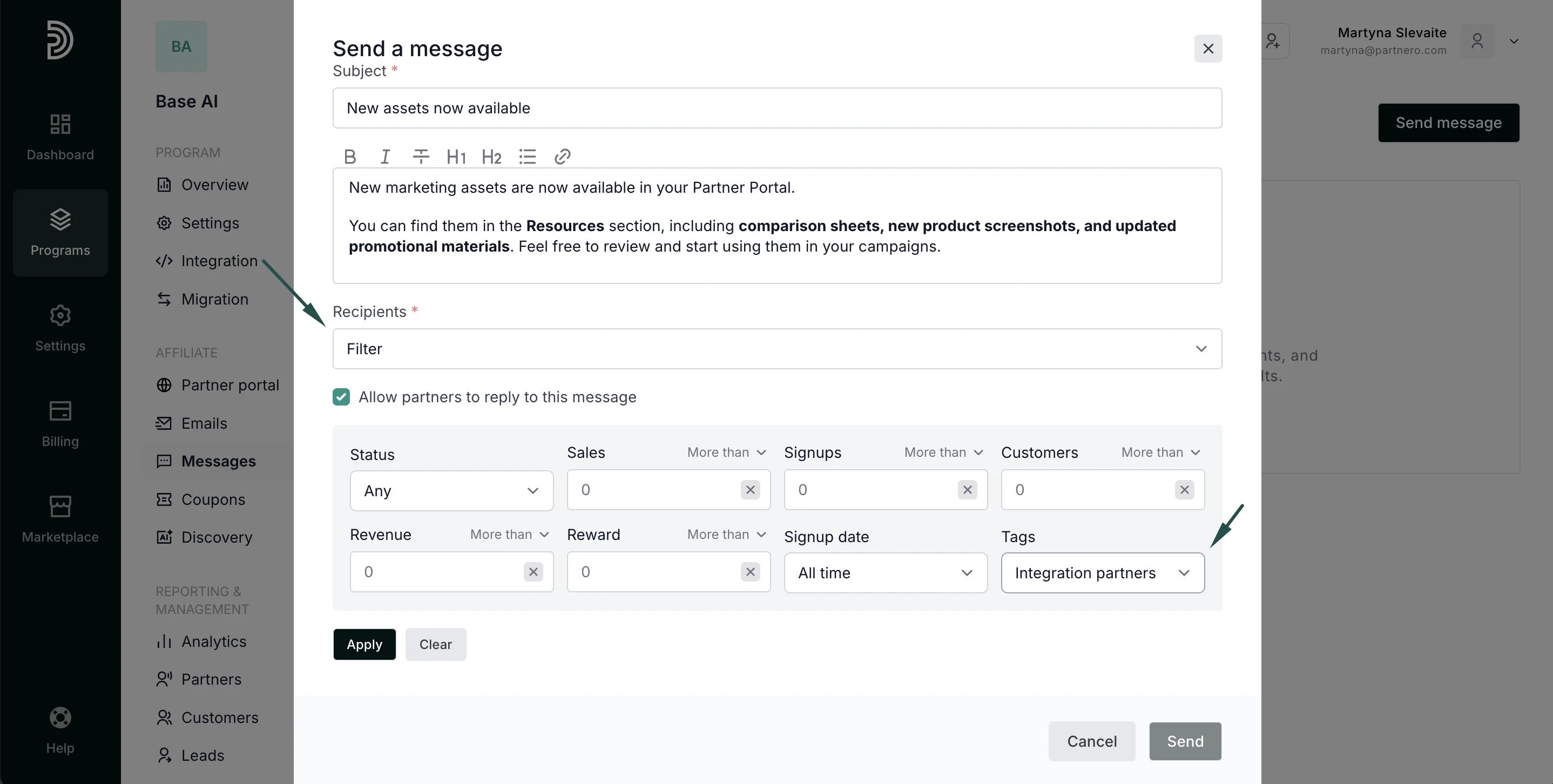
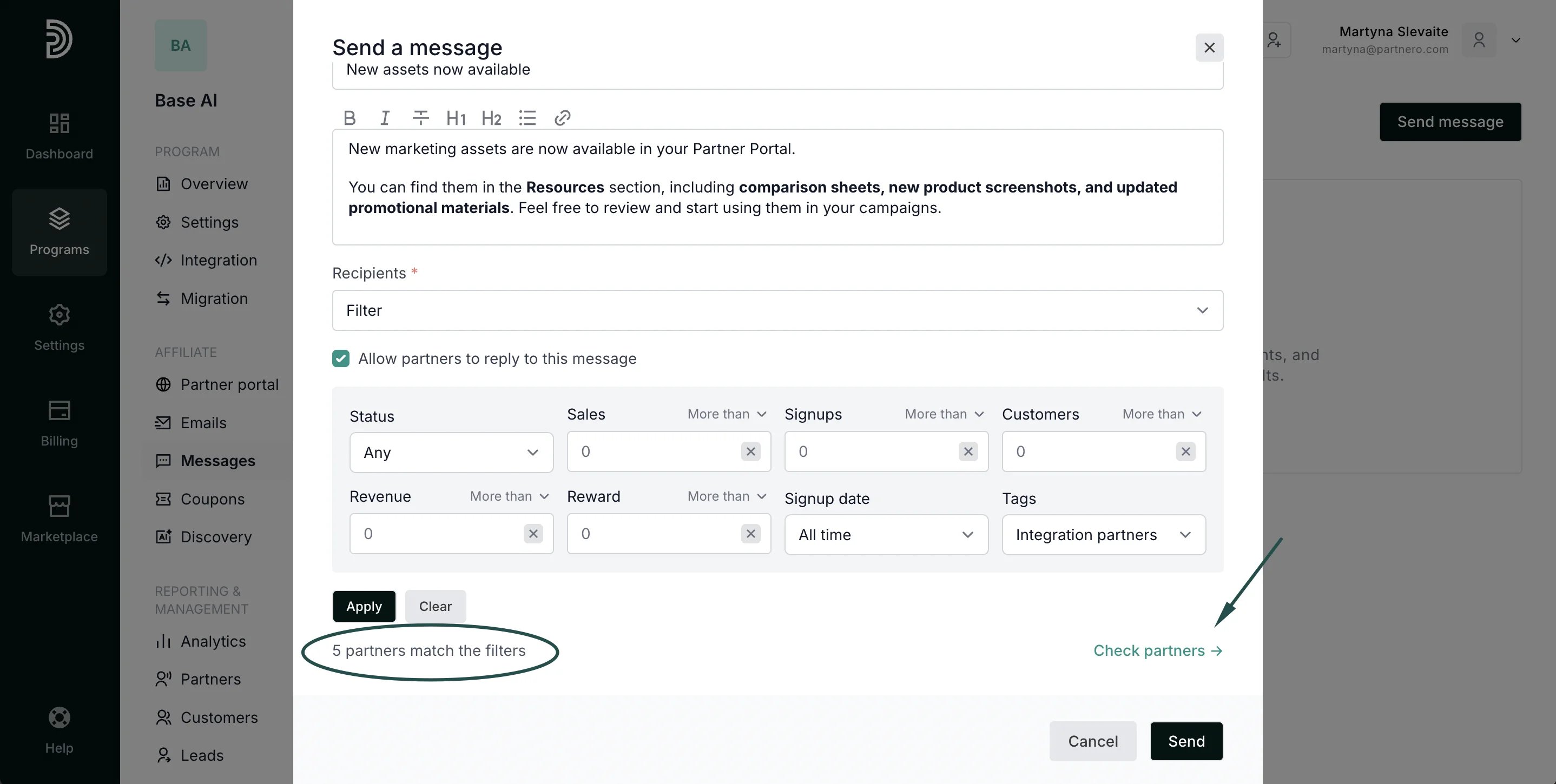
- Select recipients:
- All partners (default):
- Specific partners (search by name or email):
- Filtered partners (for example, by tags or performance):
- All partners (default):
- Select if partners will have the option to reply:
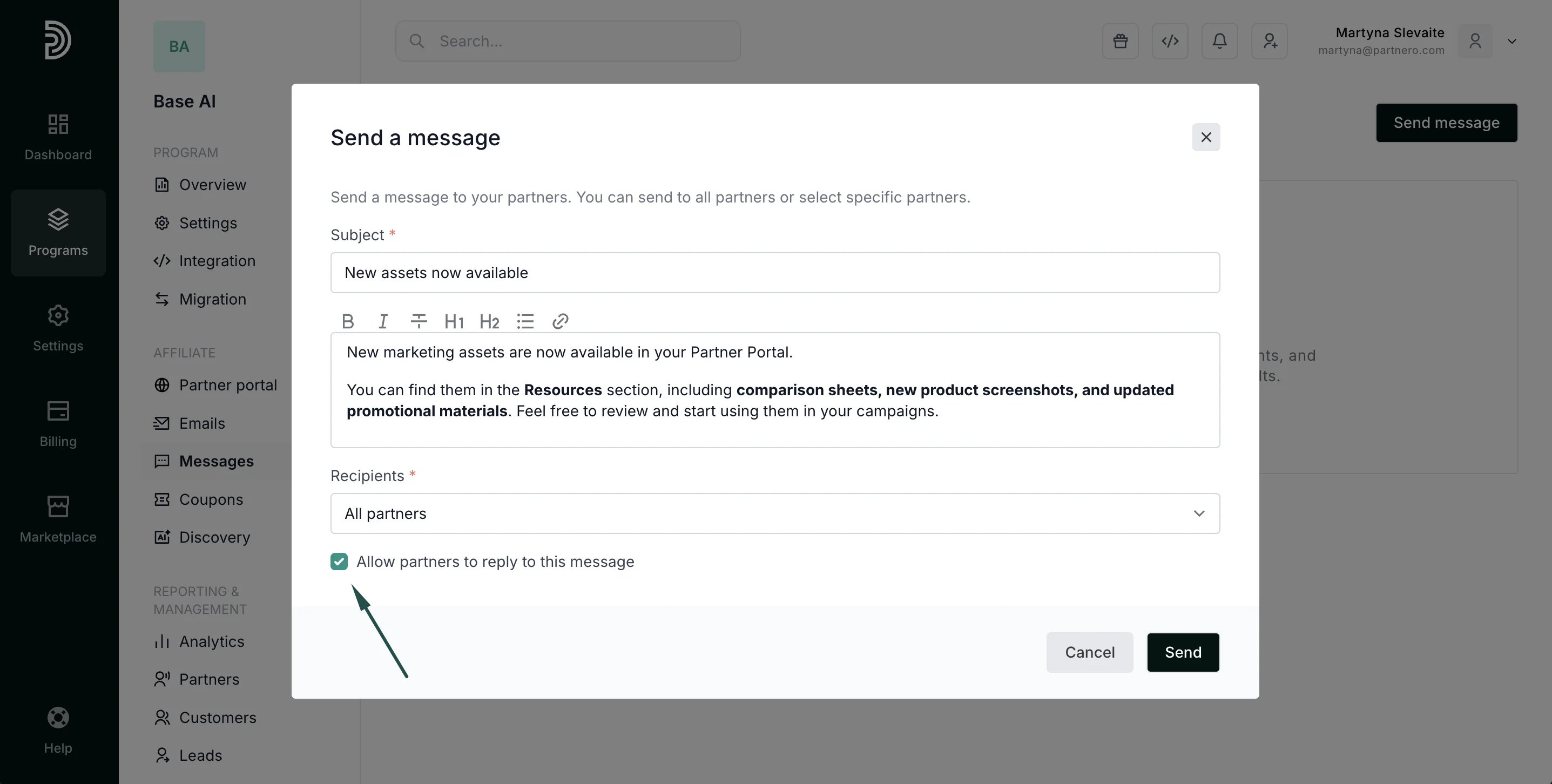
- Click Send.
Message performance and replies
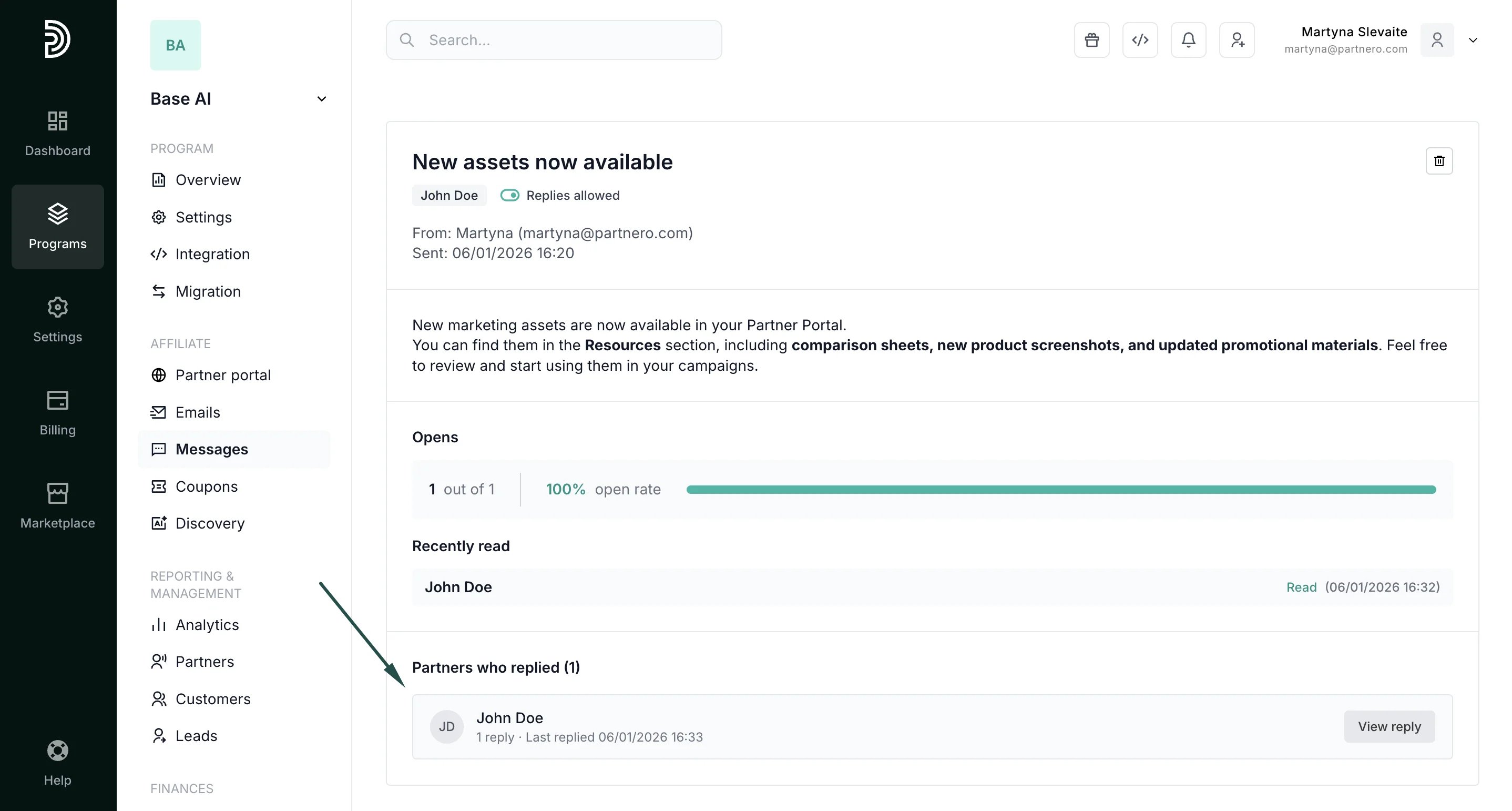
Under Affiliate → Messages, you can view all sent messages and track their performance.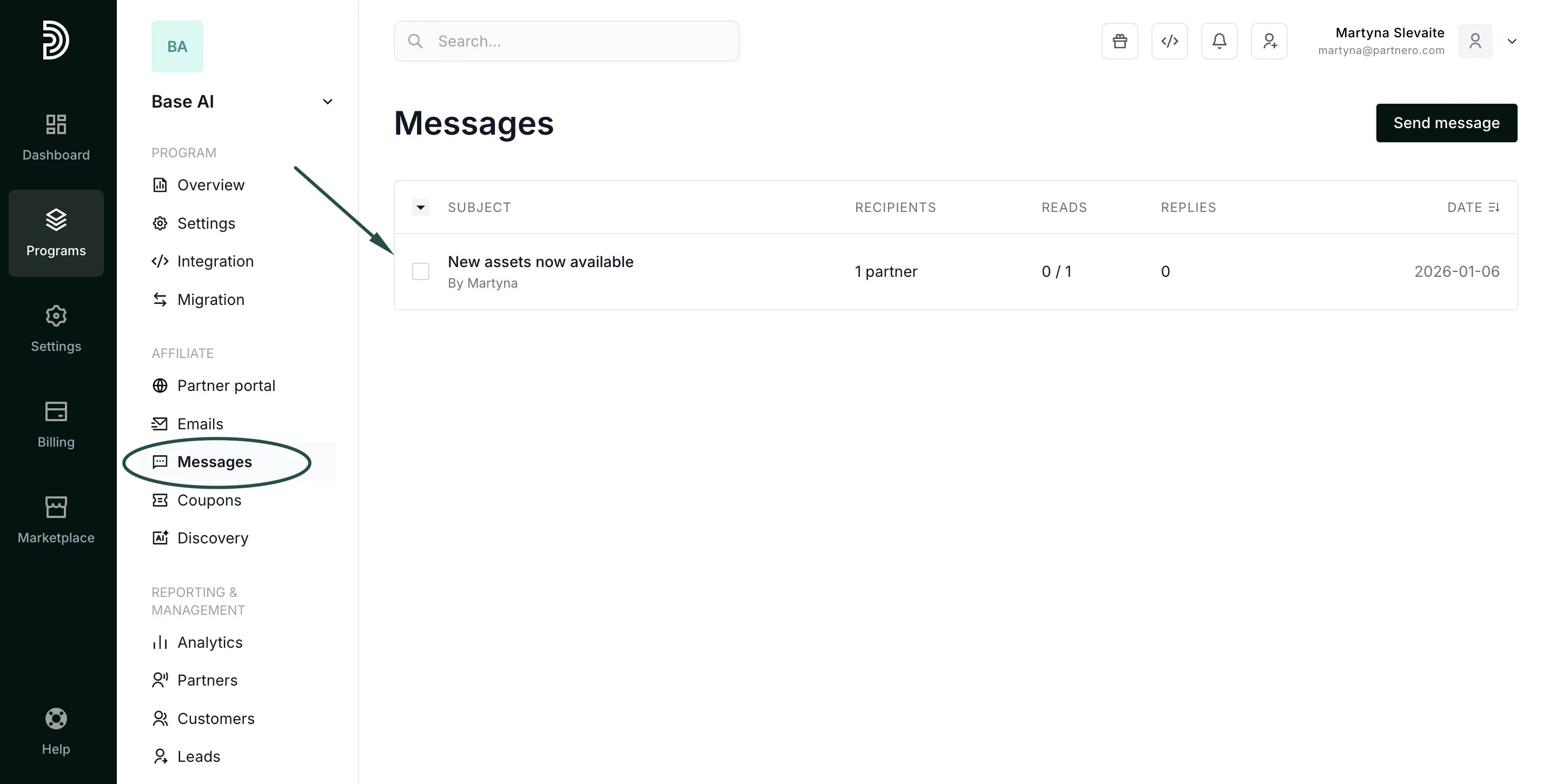
- Who sent the message and when
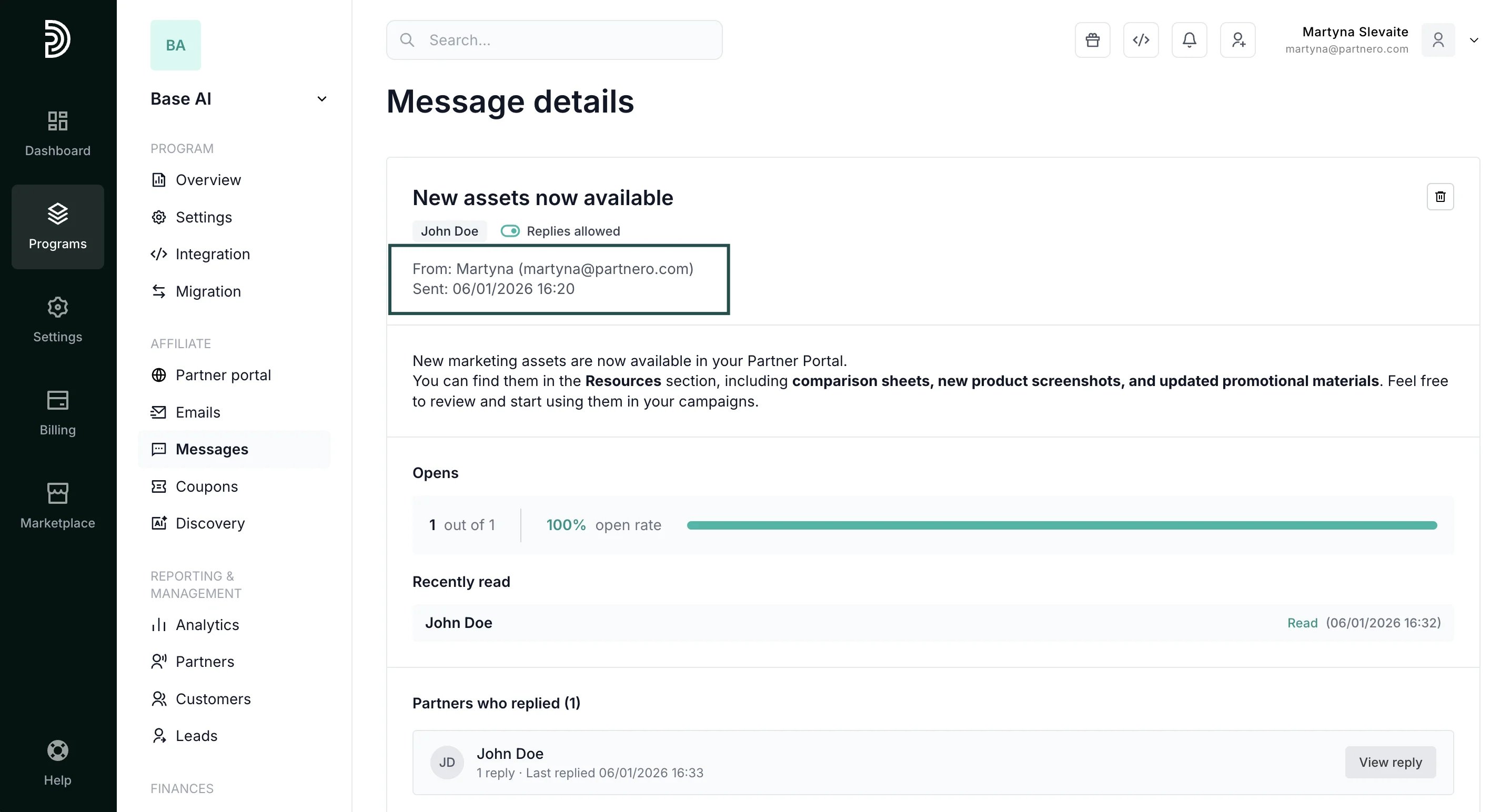
- A copy of the message content
- Number of recipients, opens, and open rate:
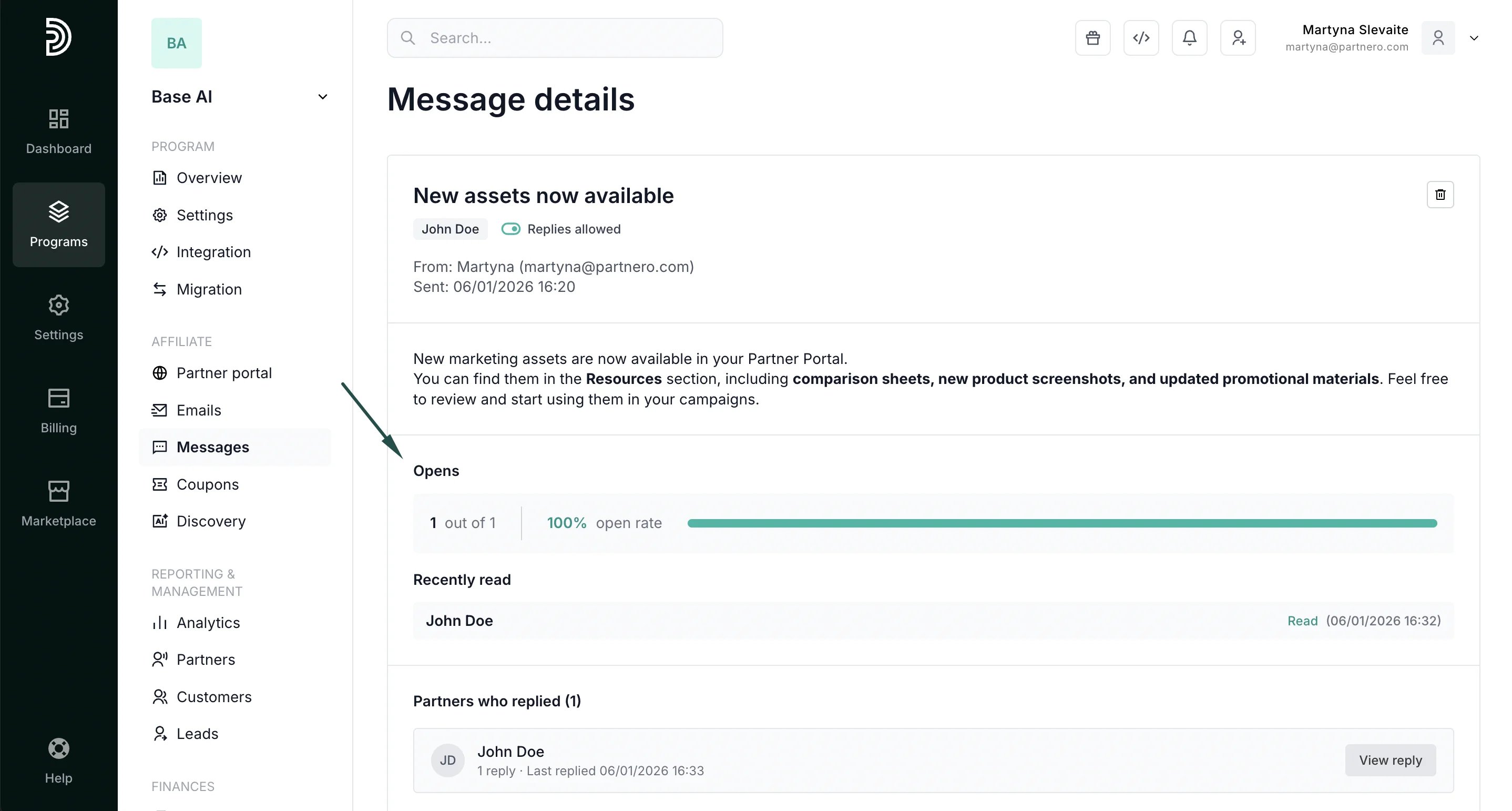
- Partners who replied (if replies are enabled):
Replying to messages
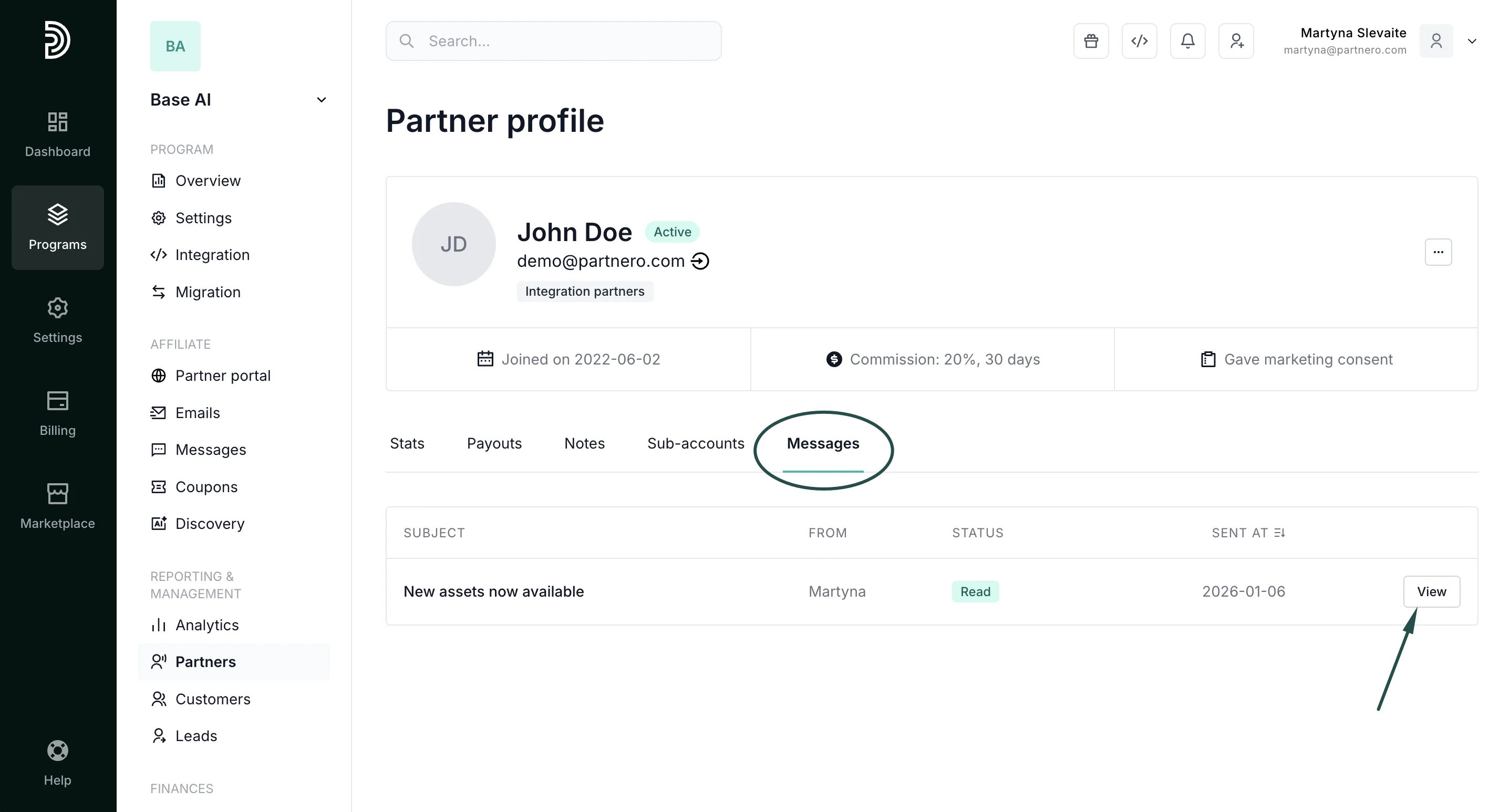
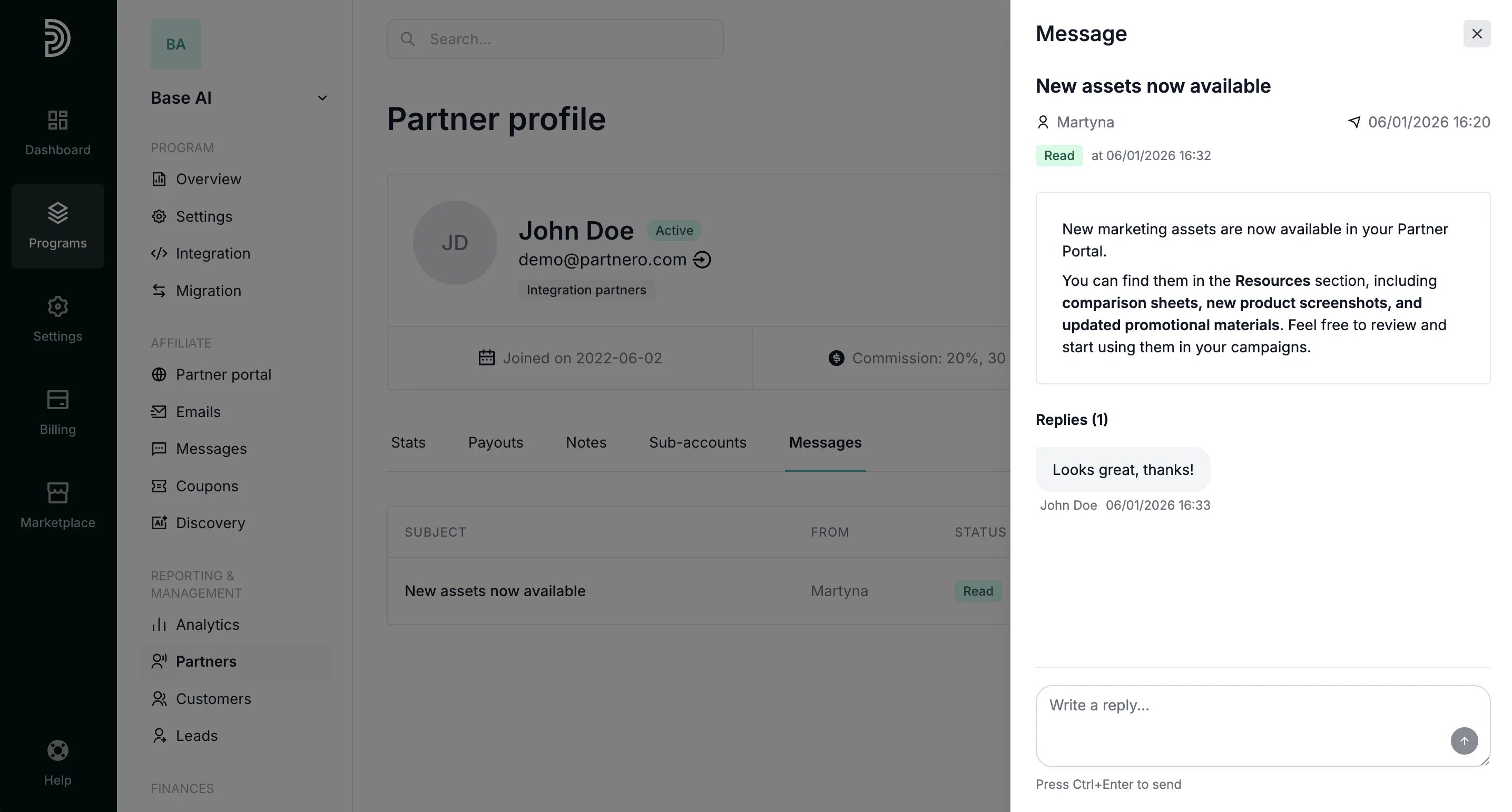
To view or respond to a reply, open the message view as shown above and click View reply next to the partner’s name: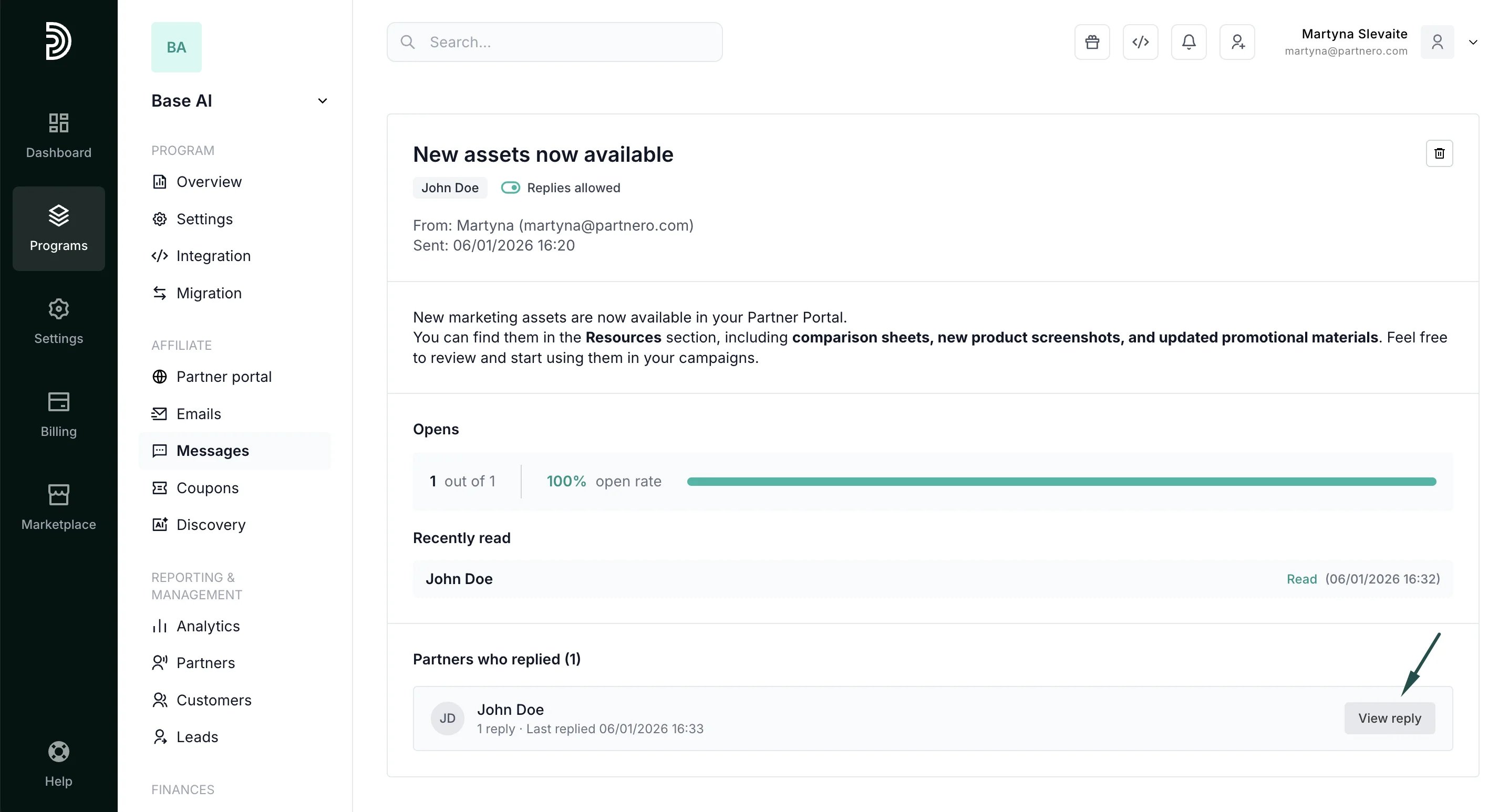
Partner view
When you send a message, partners see a notification in the partner portal dashboard. A Messages tab appears in the portal navigation: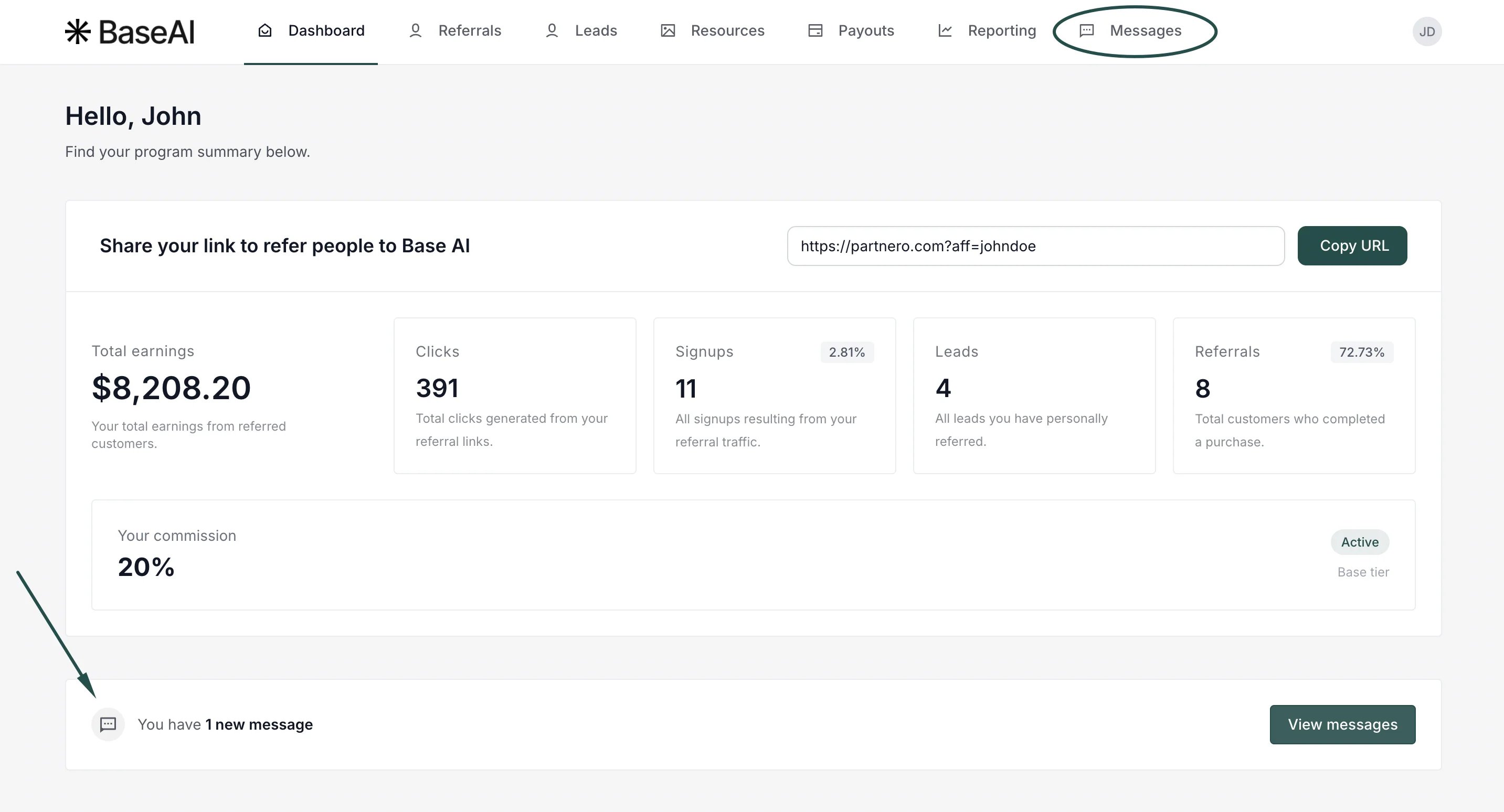
- View all received messages:
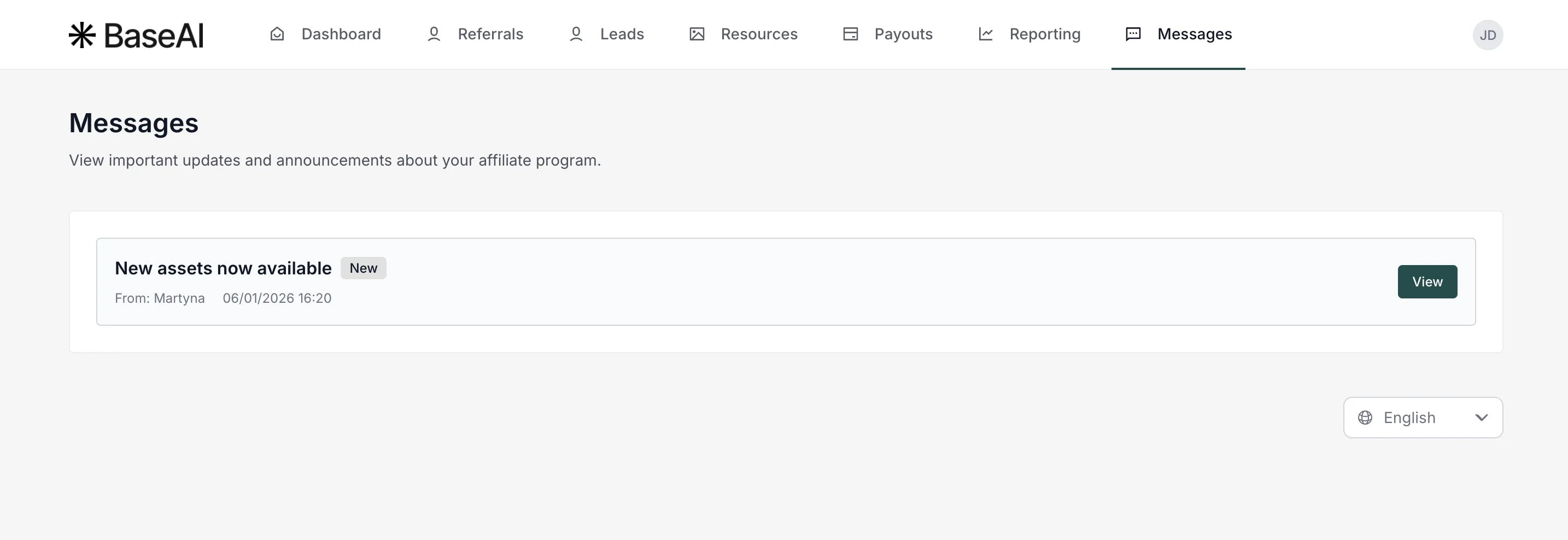
- View a message to read its contents:
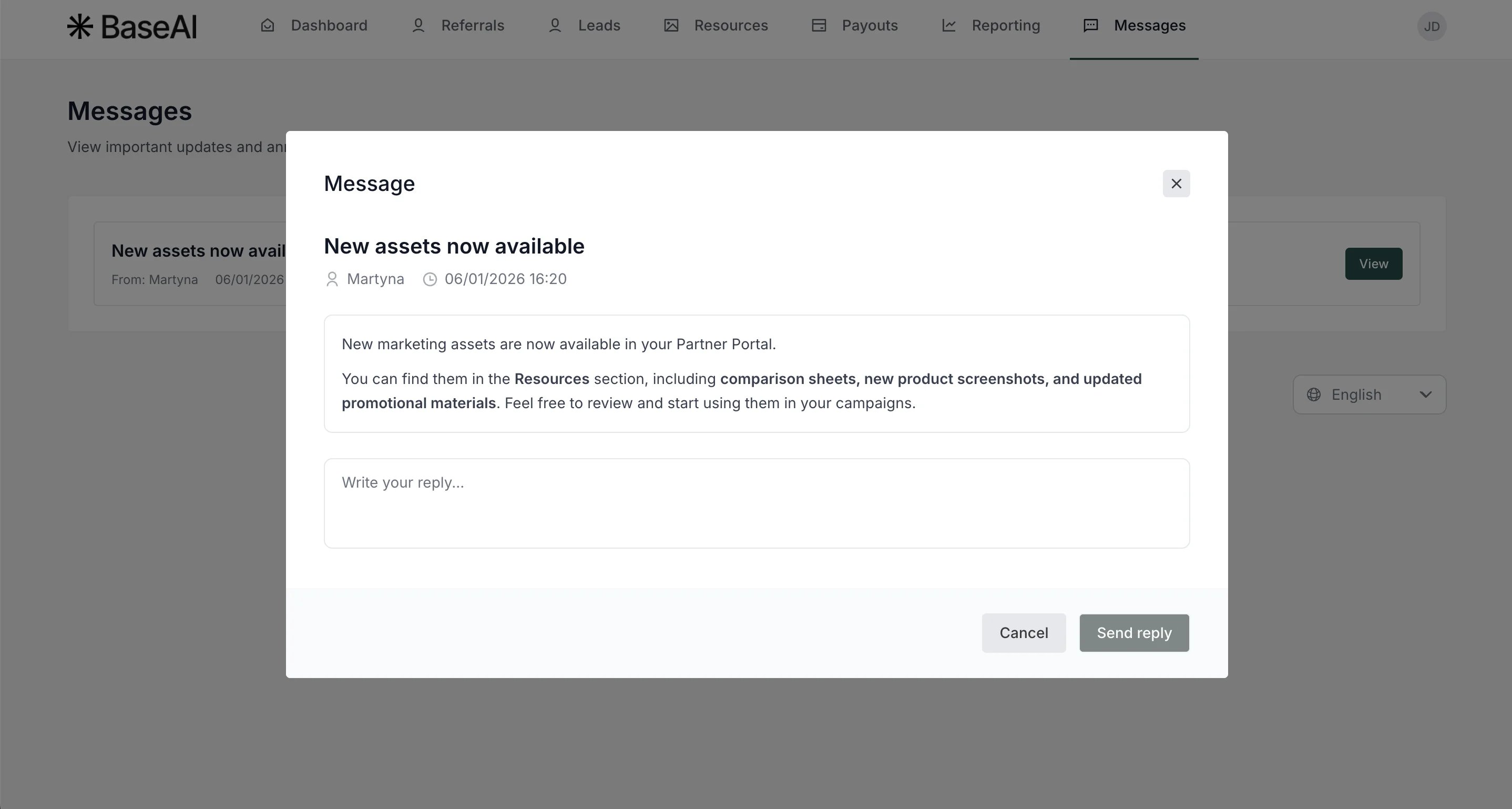
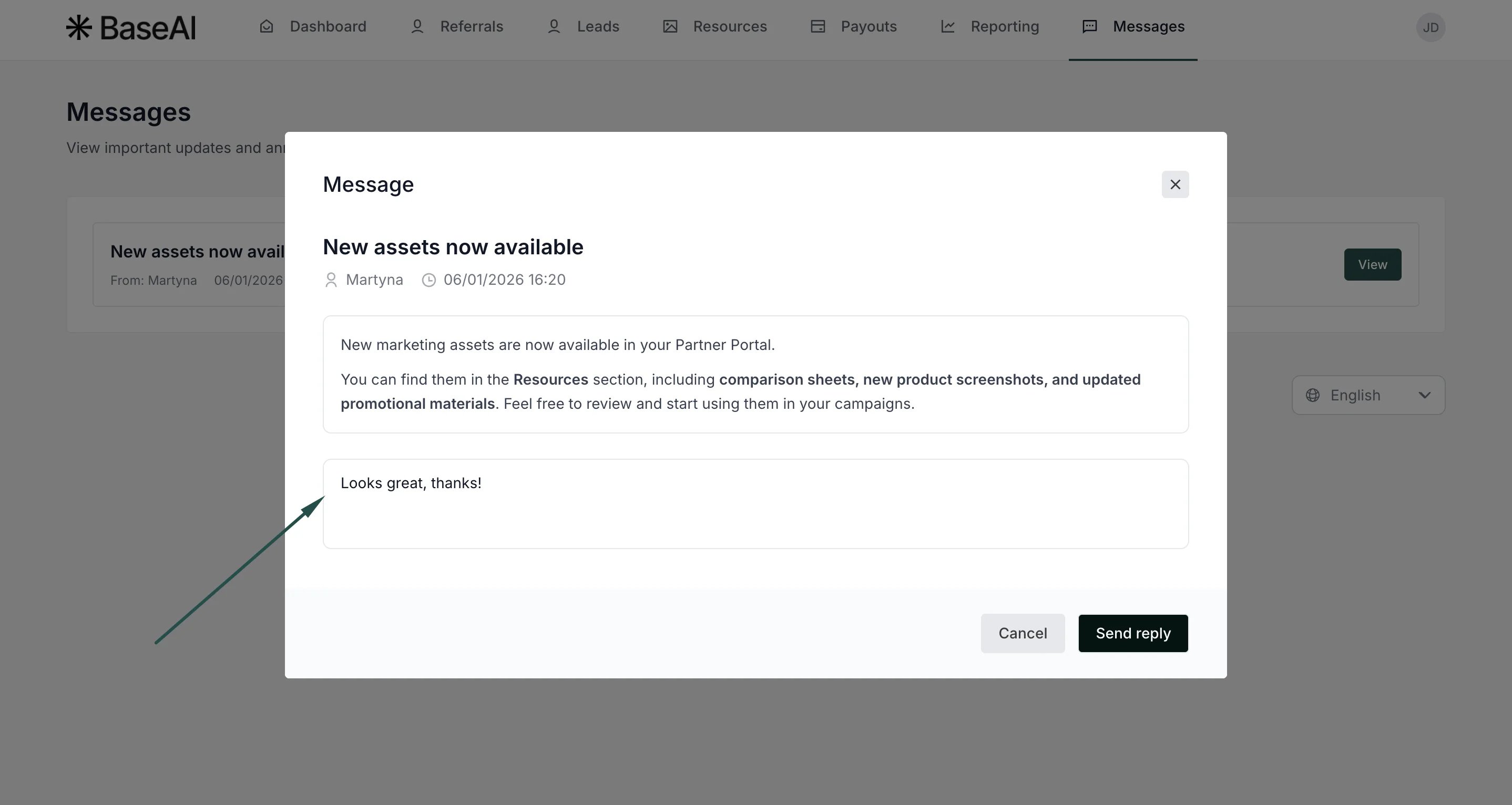
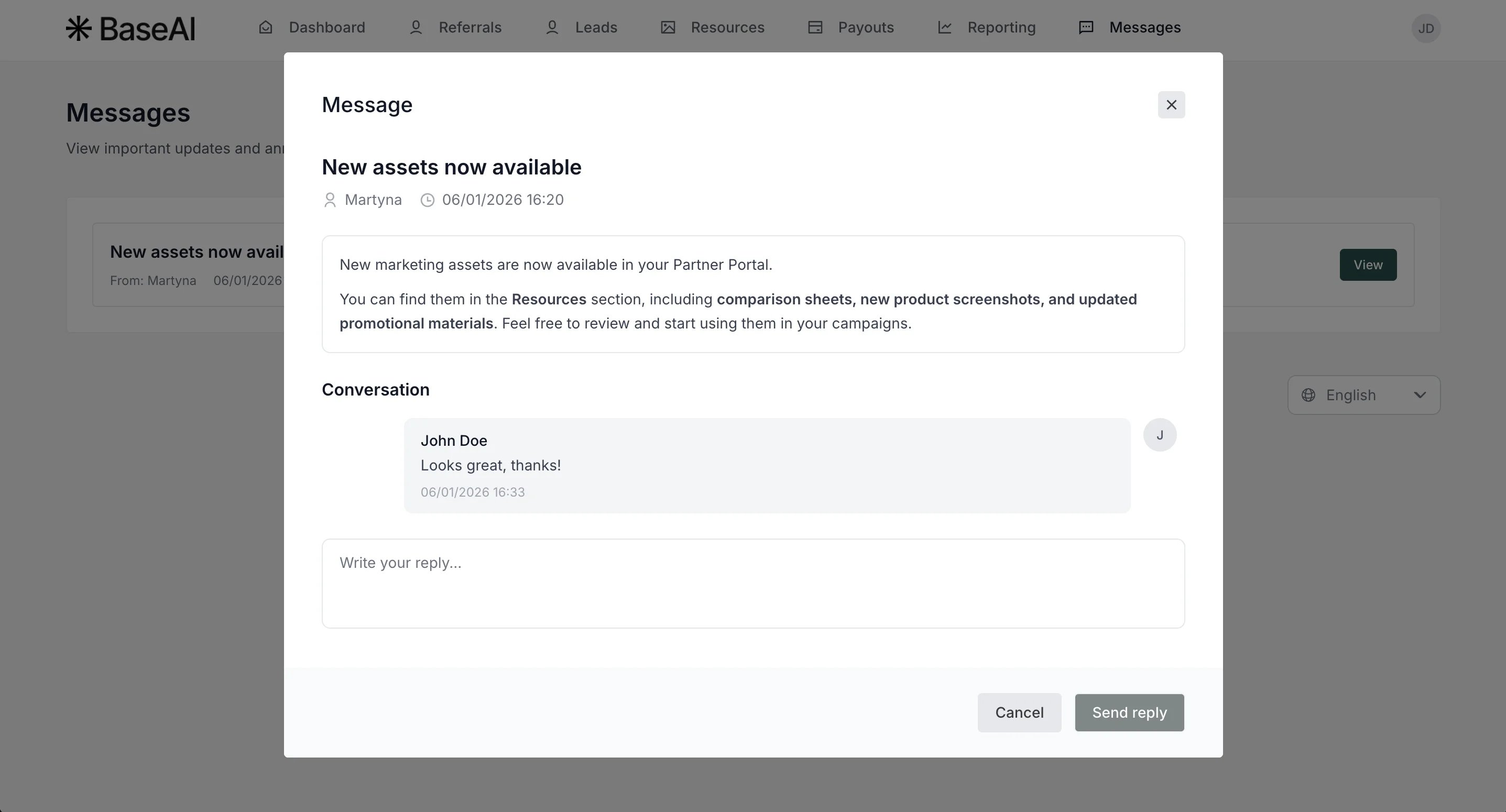
- Reply to the message if replies are enabled by the program owner: