

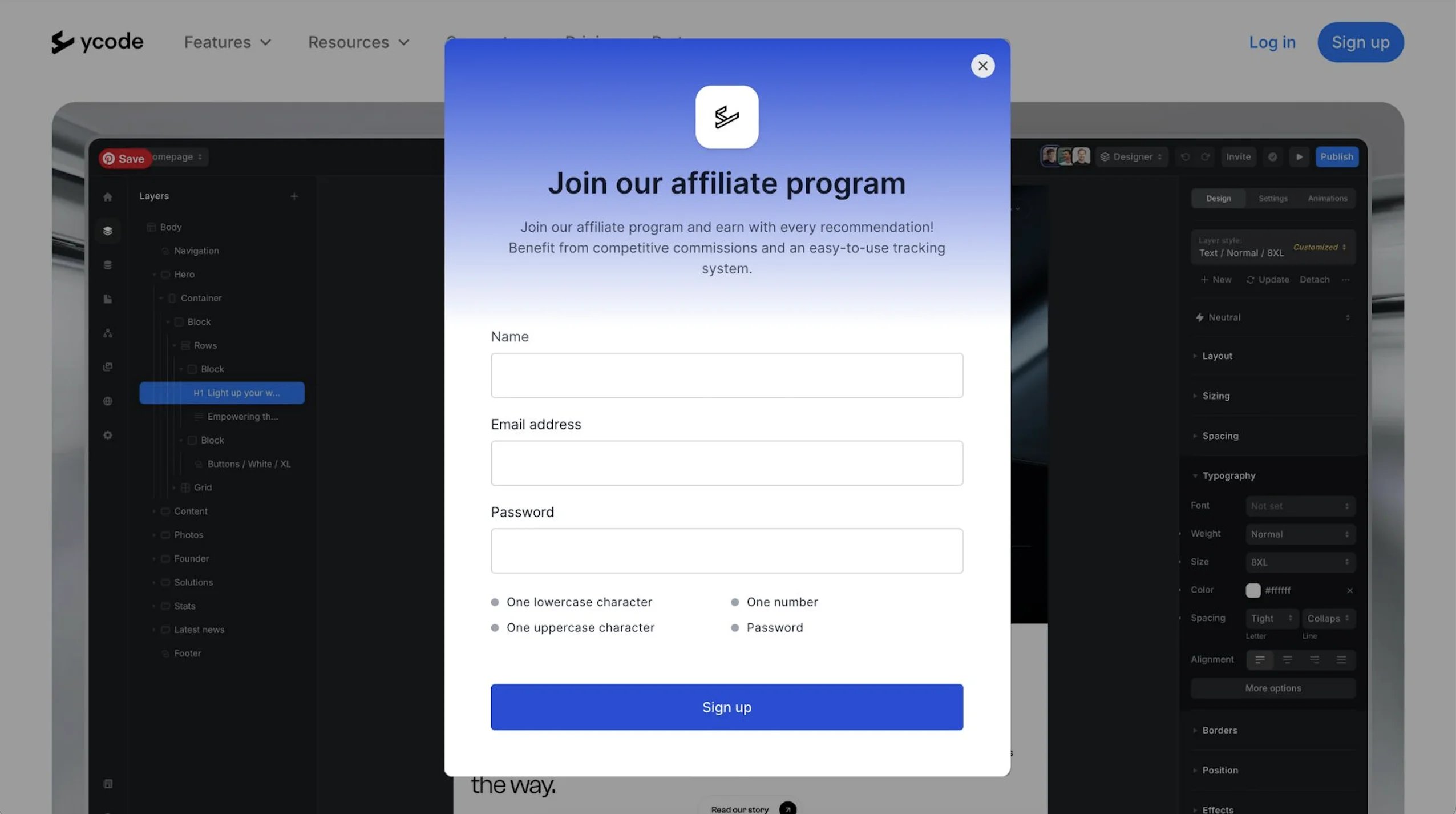
How to customize the pop-up
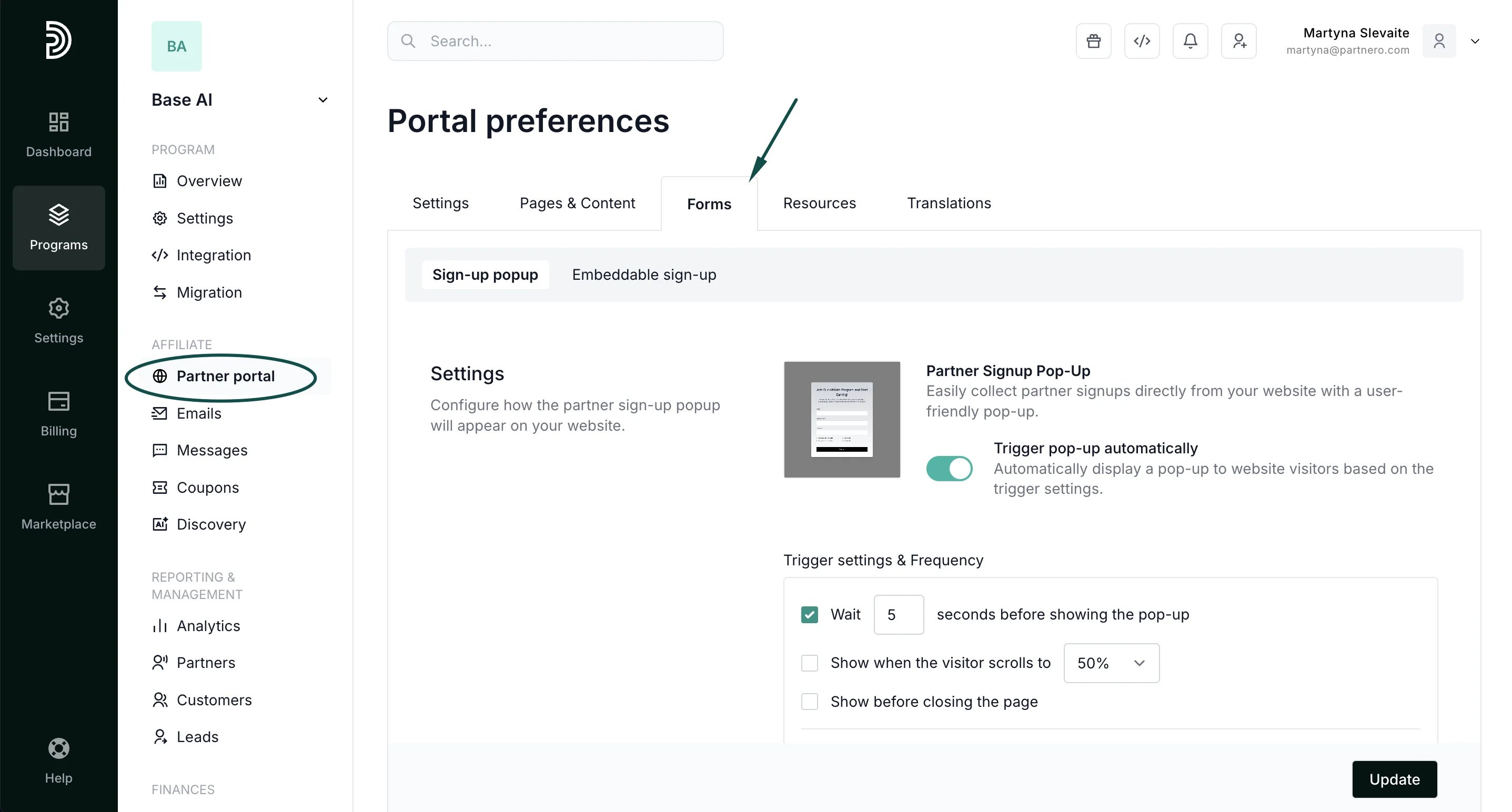
To design and customize the pop-up appearance and behavior:- Open your program and go to Partner portal under Affiliate.
- Switch to the Forms tab:
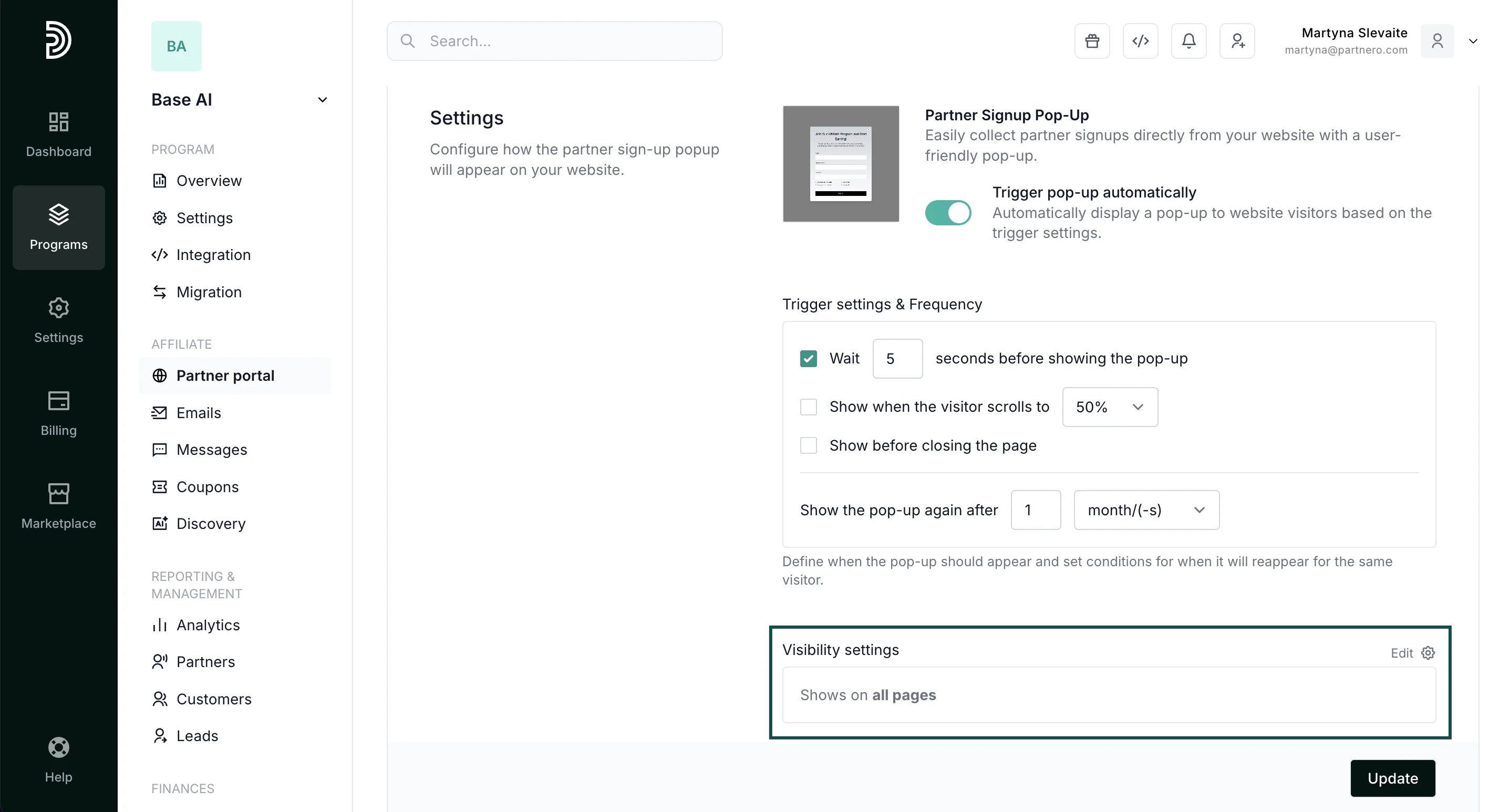
Trigger settings & Frequency
To customize the triggers and settings, toggle to “Trigger pop-up automatically”: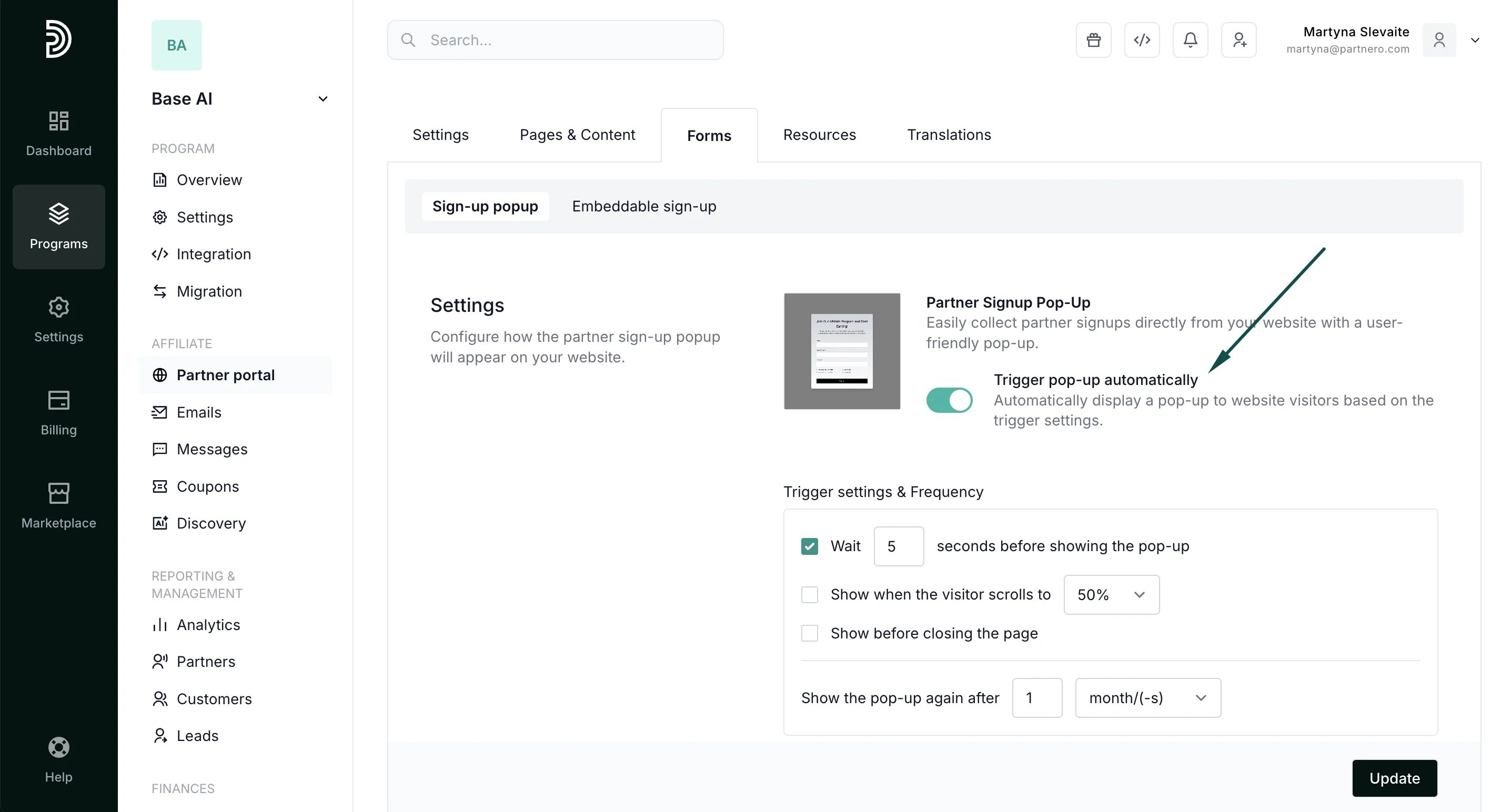
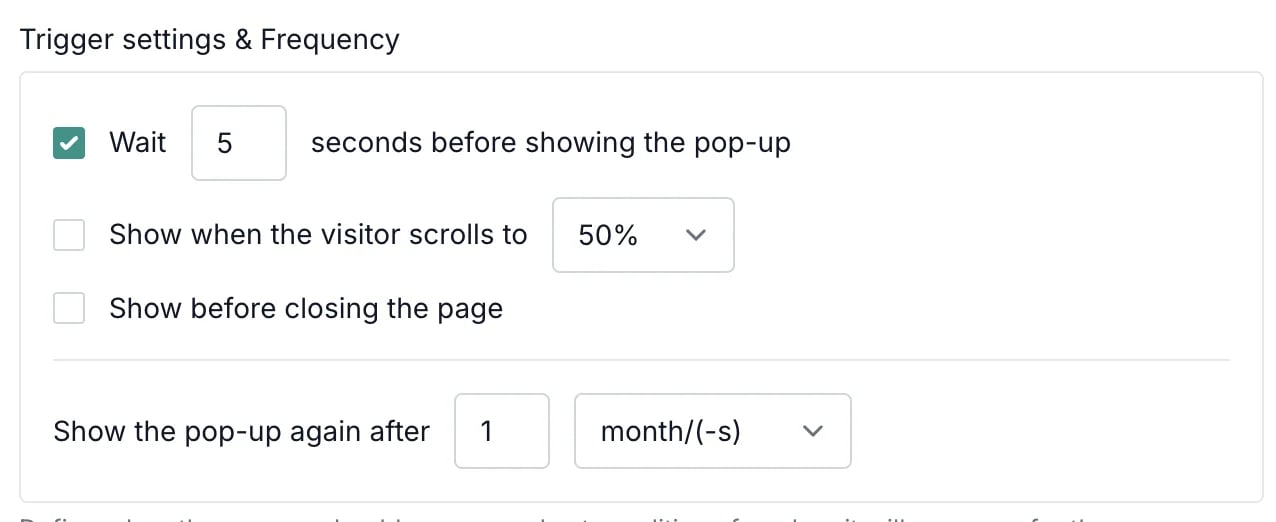
- Wait X seconds before showing the pop-up: the pop-up will appear on your website after a visitor has spent the specified number of seconds.
- Show when the visitor scrolls to X%: the pop-up will appear after the visitor scrolls the indicated percentage of a page.
- Show before closing the page: the pop-up will appear if a visitor moves their mouse towards the closing of the page (tab).
Visibility settings
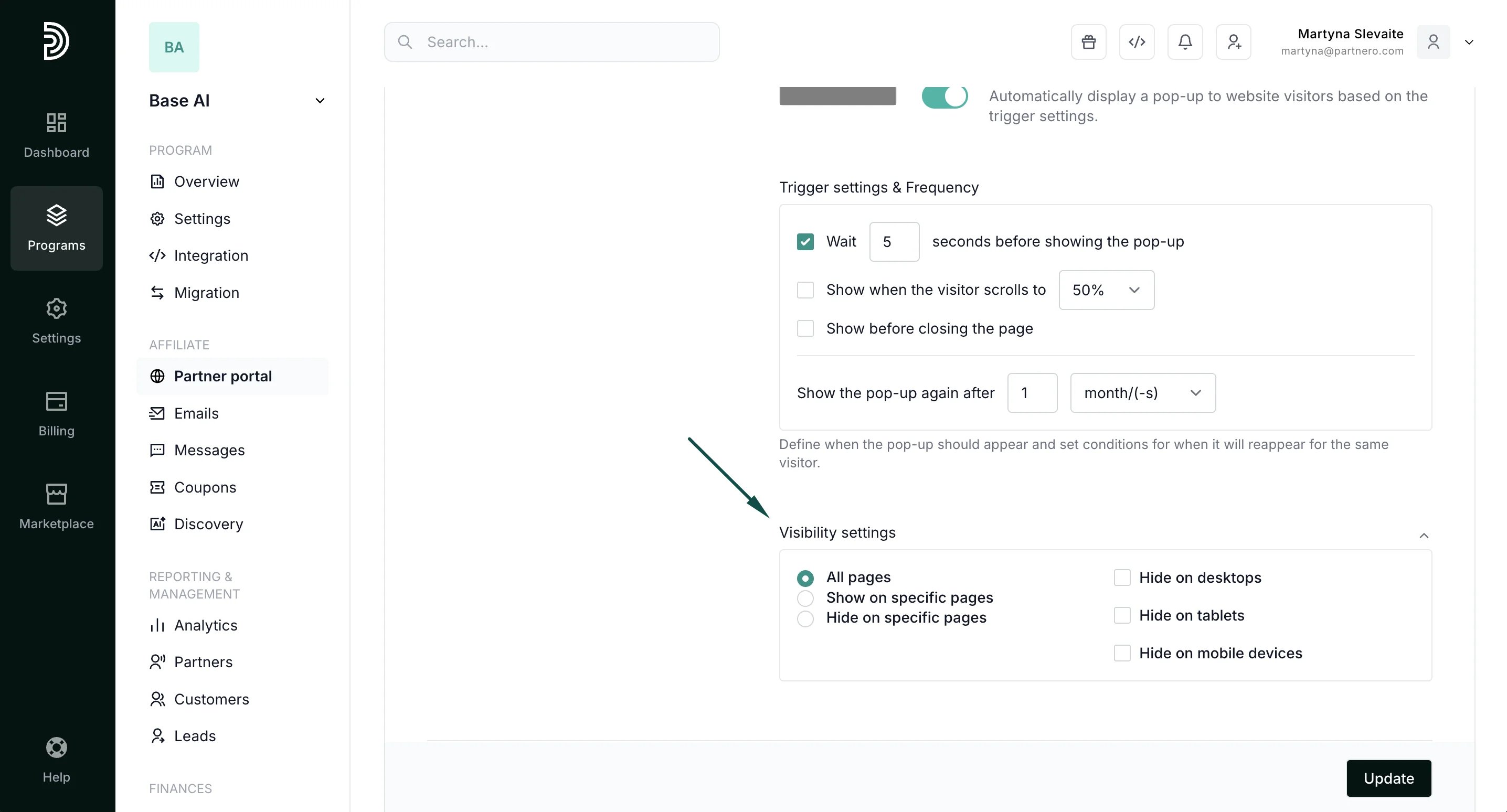
- Always show: the pop-up will appear on all pages of your website.
- Show on specific pages: the pop-up will appear only on the pages listed here.
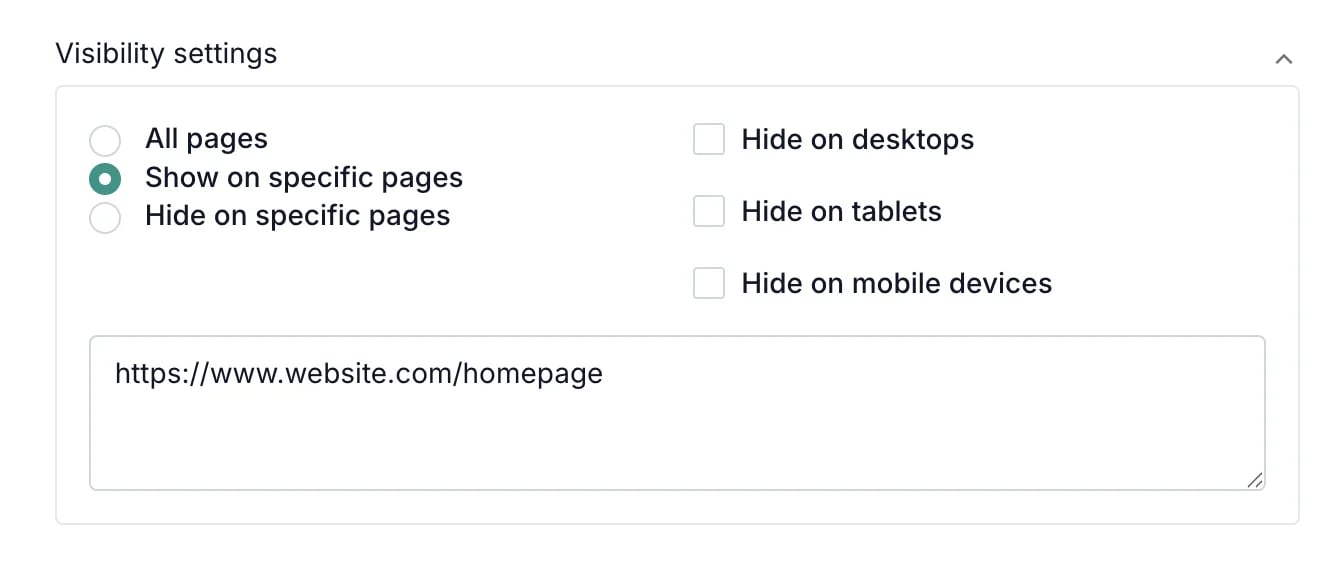
- Hide on specific pages: the pop-up will appear on all pages of your website except the pages listed here.
- Hide on desktop devices: the pop-up will not appear when viewing your website on a desktop device.
- Hide on mobile devices: the pop-up will not appear when viewing your website on mobile.
- Hide on tablet devices: the pop-up will not appear when viewing your website on tablets.
Appearance
Further down, you will find the appearance settings for the popup: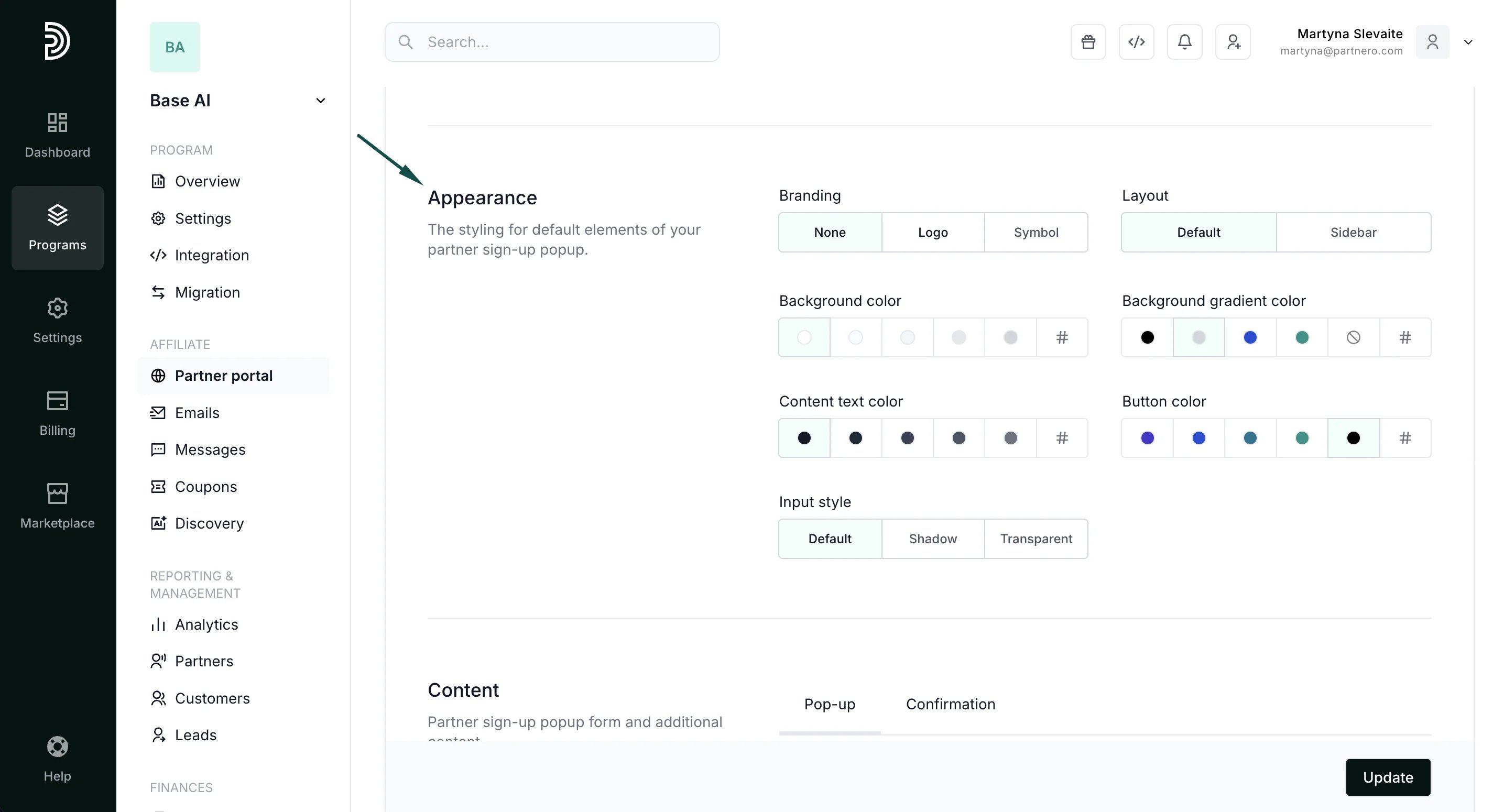
Content
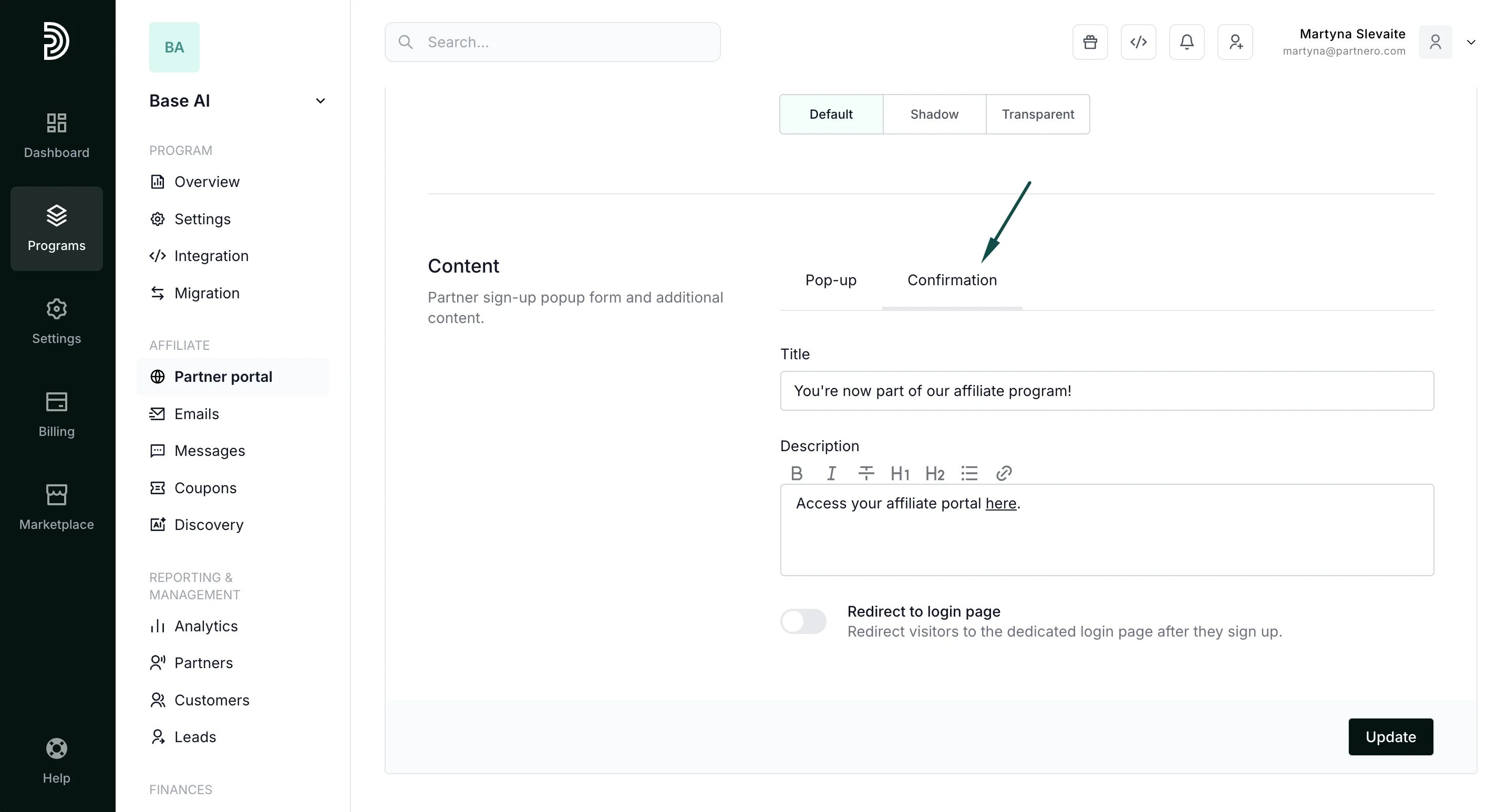
Lastly, you’ll find the popup content settings.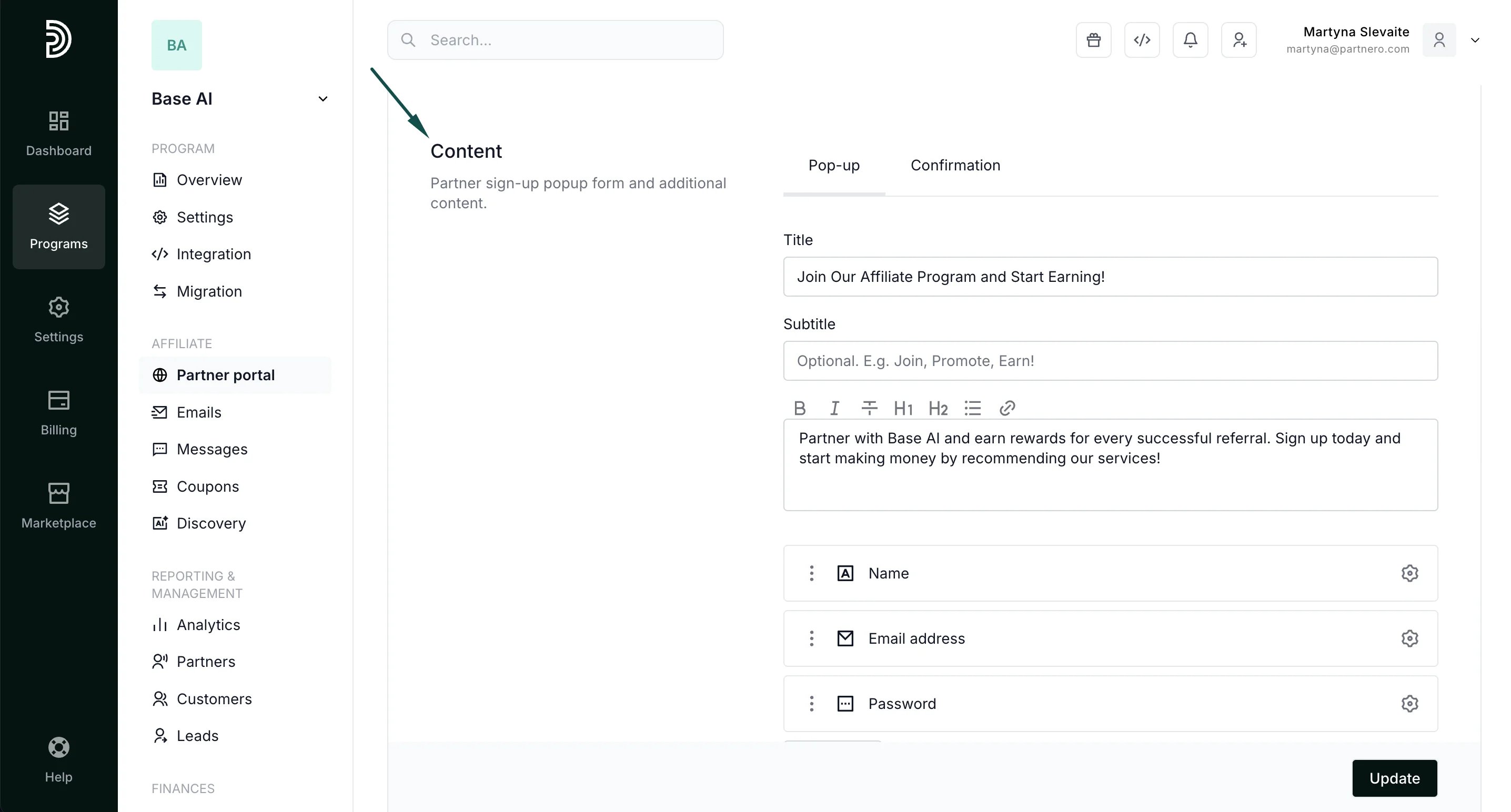
- Edit the title and description for the popup form.
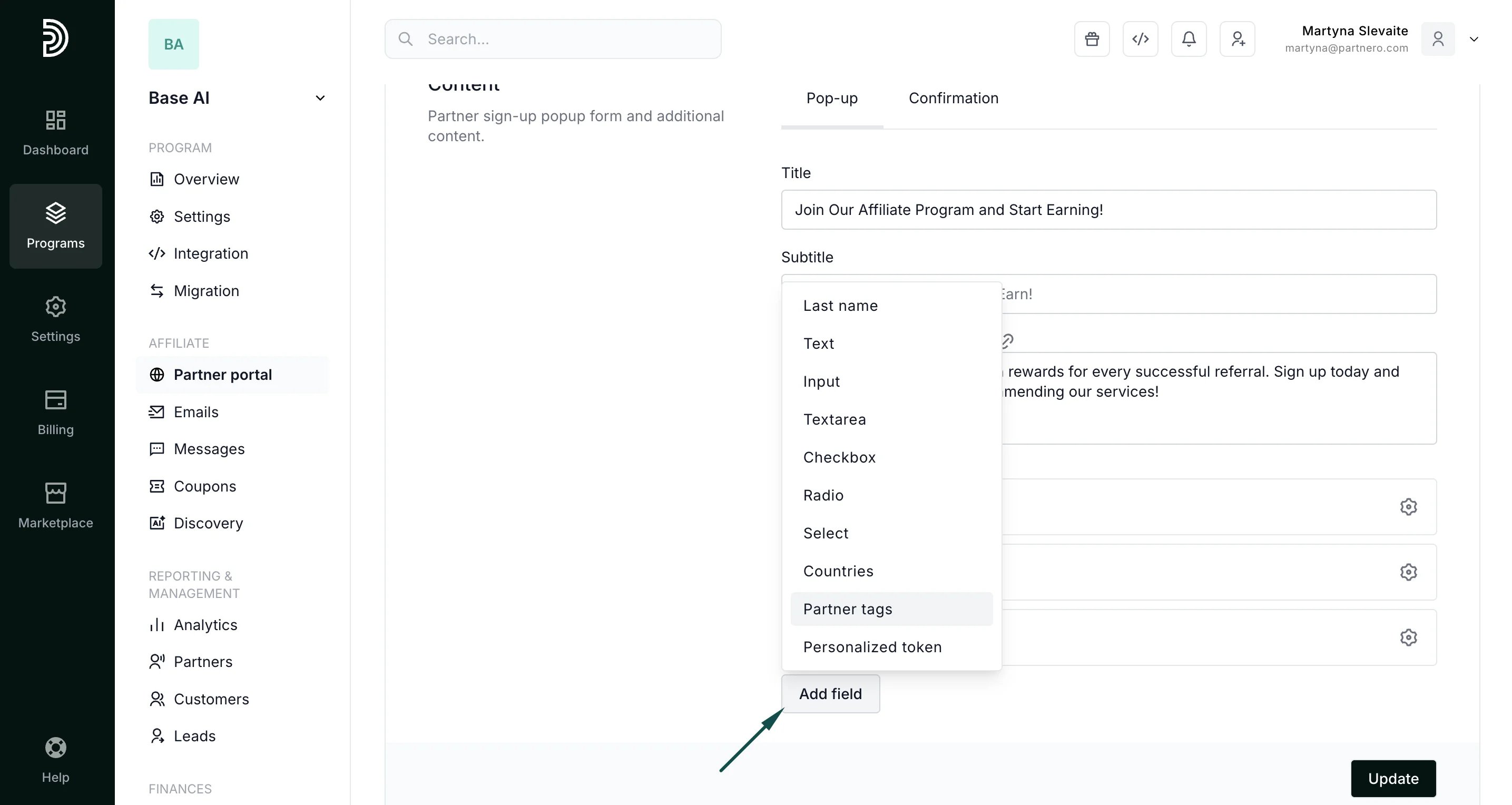
- Customize what data you’re collecting by adding fields to the sign-up form:
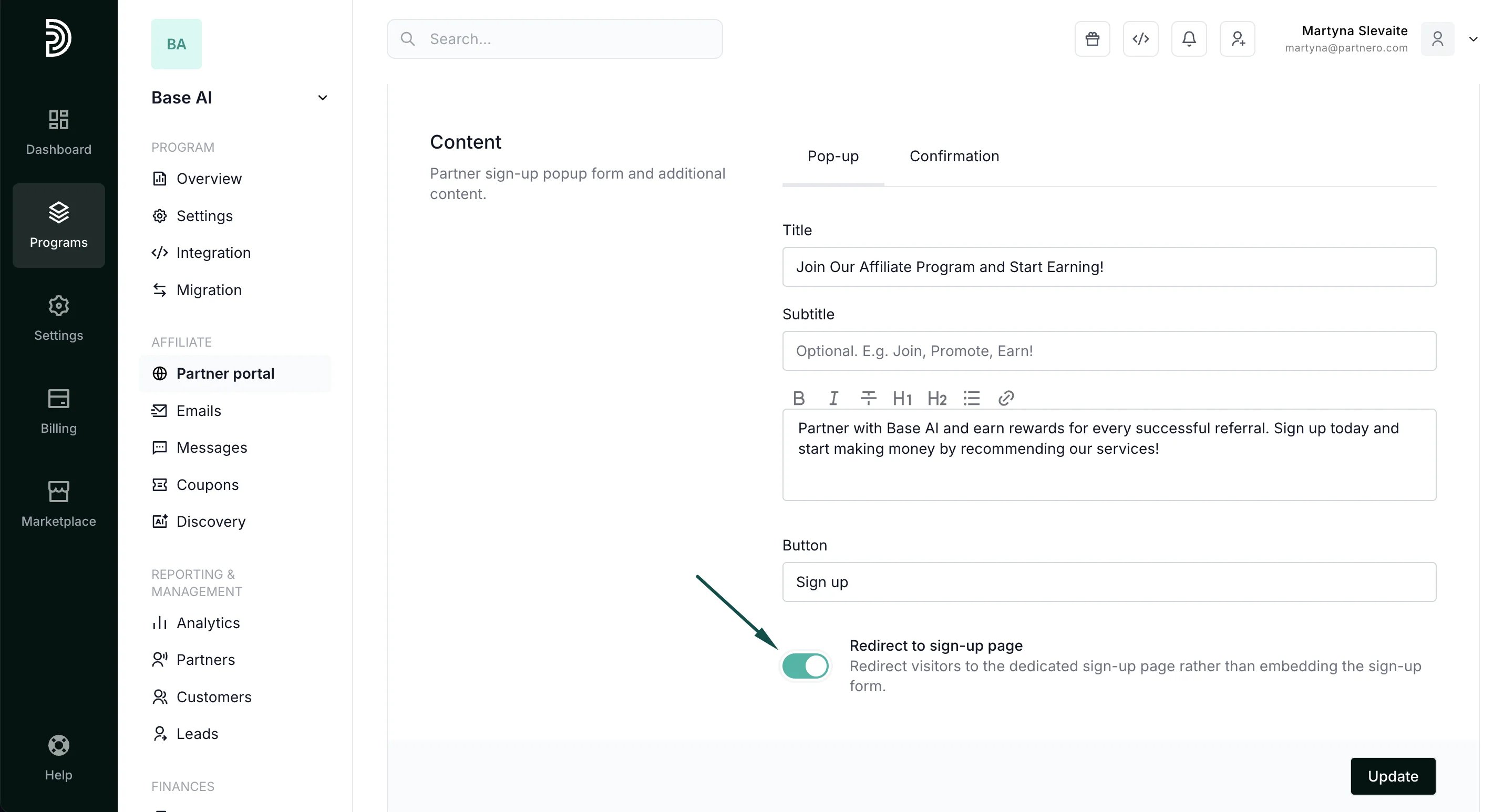
- Edit the CTA text.
- Select to redirect visitors to a signup page. If you enable this option, the signup form will be removed from the popup form, and users will be redirected to the standard partner portal signup page upon clicking the CTA.
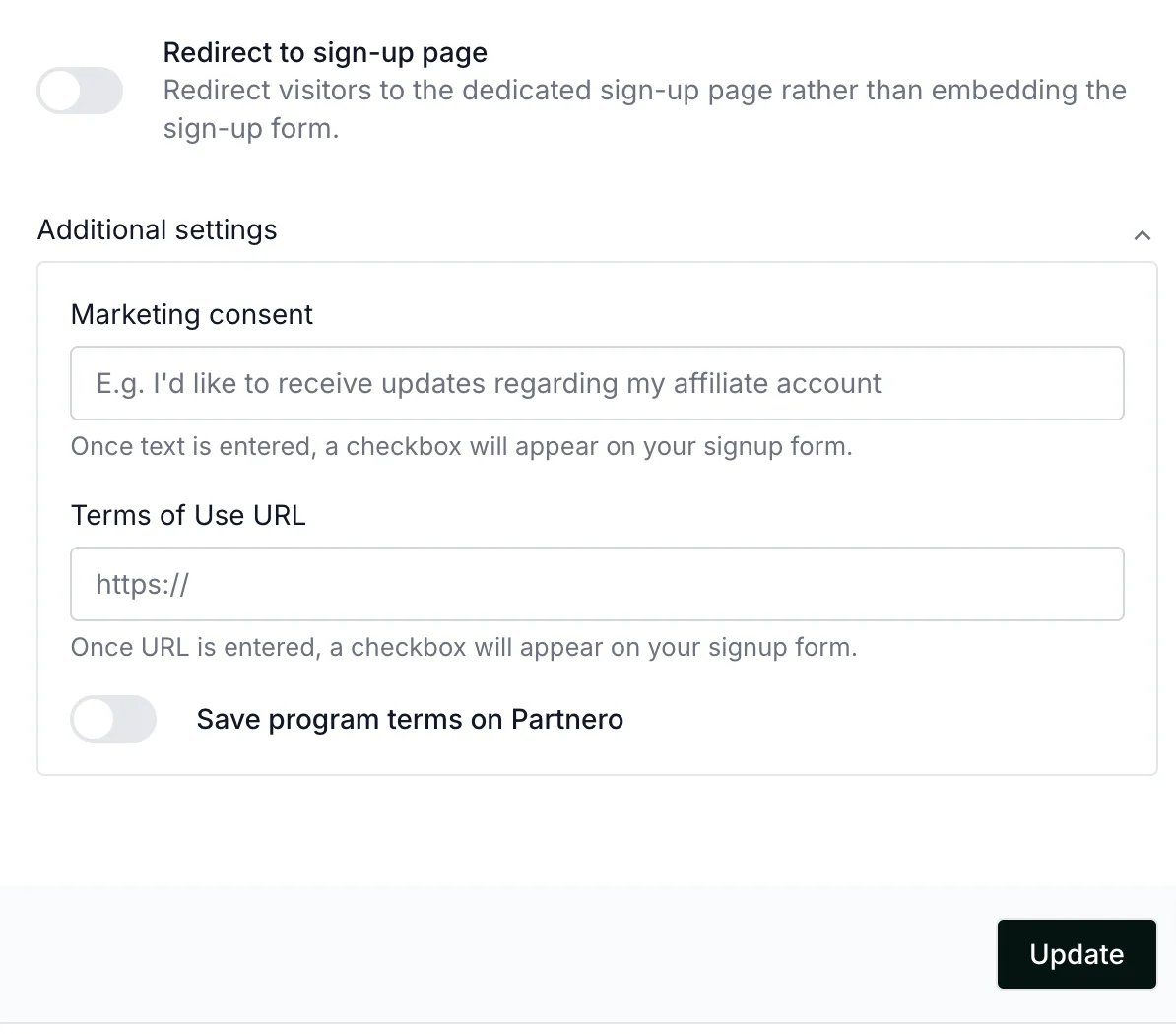
- Opt to collect marketing permissions and add your program terms of use:
How to enable the popup
Once you’re happy with the settings, make sure “Trigger pop-up automatically” is enabled: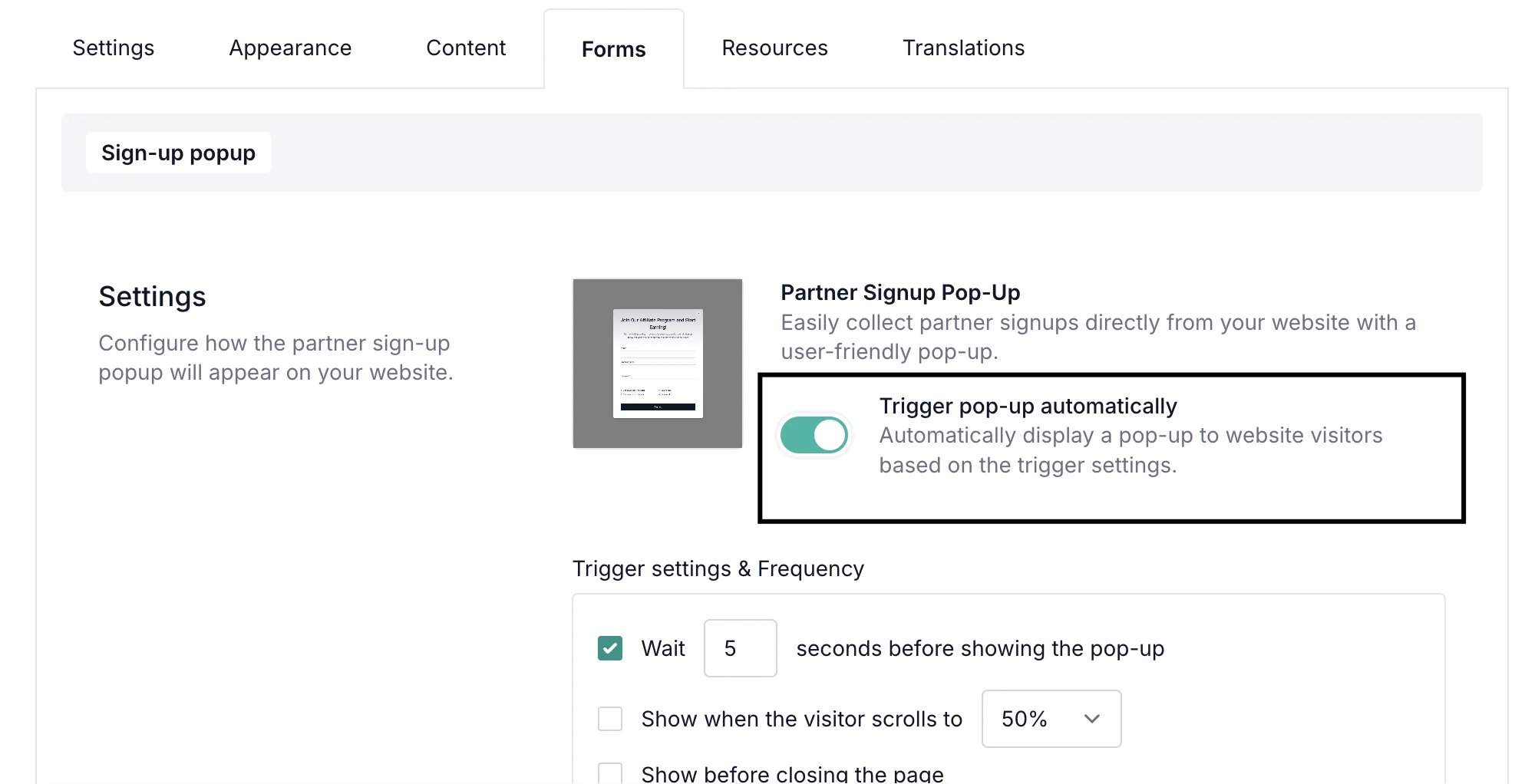
Website integration
⚠️ Important: Partnero JS snippet must be inserted on your website for the popup to work. With most Partnero integration methods, the script will already be present on your website, so you won’t need to do anything else.If your website doesn’t have the PartneroJS snippet:
- Open your program and go to Integration under Program.
- Scroll down to Program details to locate the PartneroJS snippet:
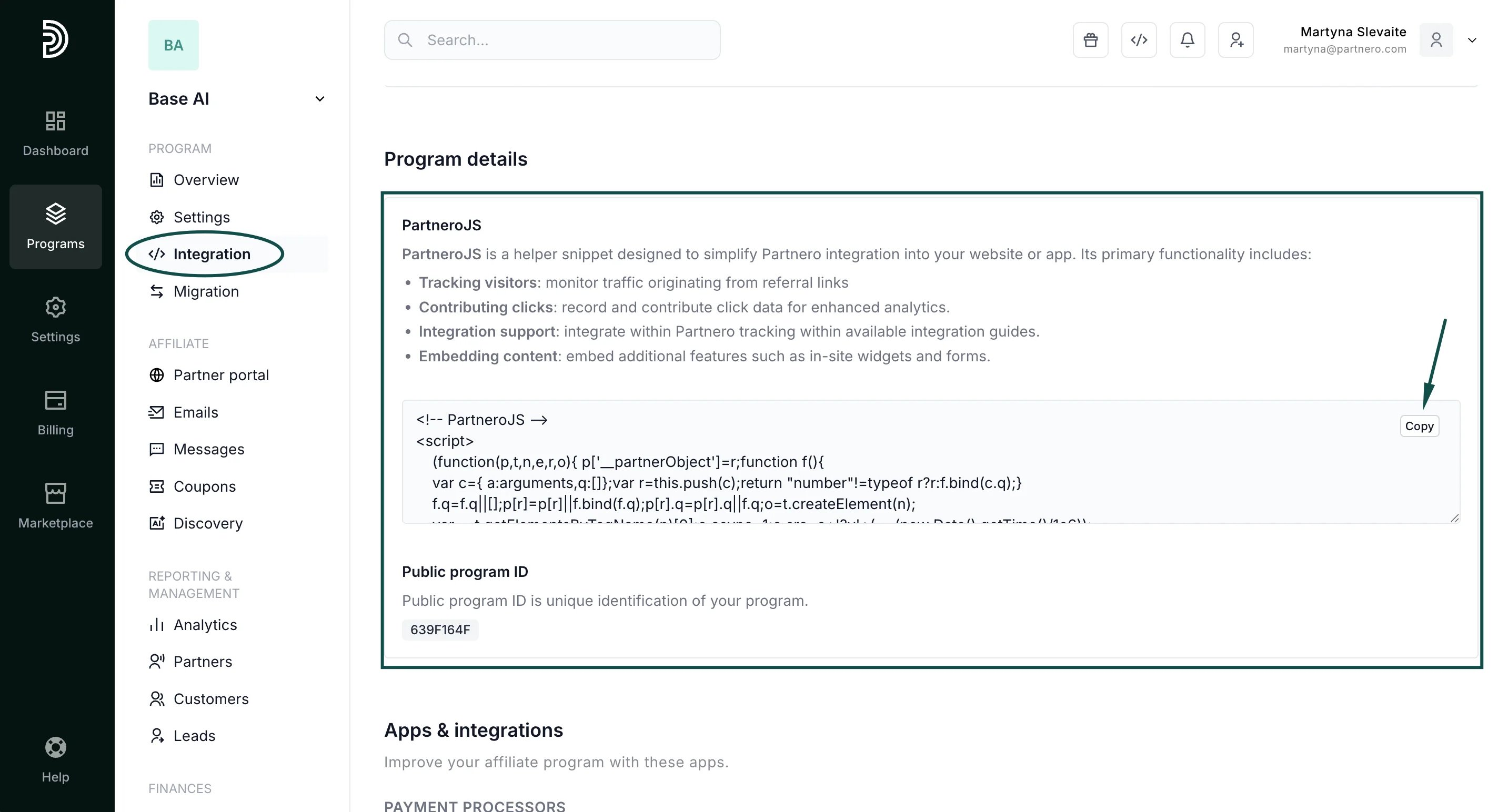
- Copy the provided Partnero JS snippet and paste it before the closing of the </head> tag in the HTML code of your website.