Hold new commissions for a review period, then approve or reject them before partners can be paid
What is a commission review period?
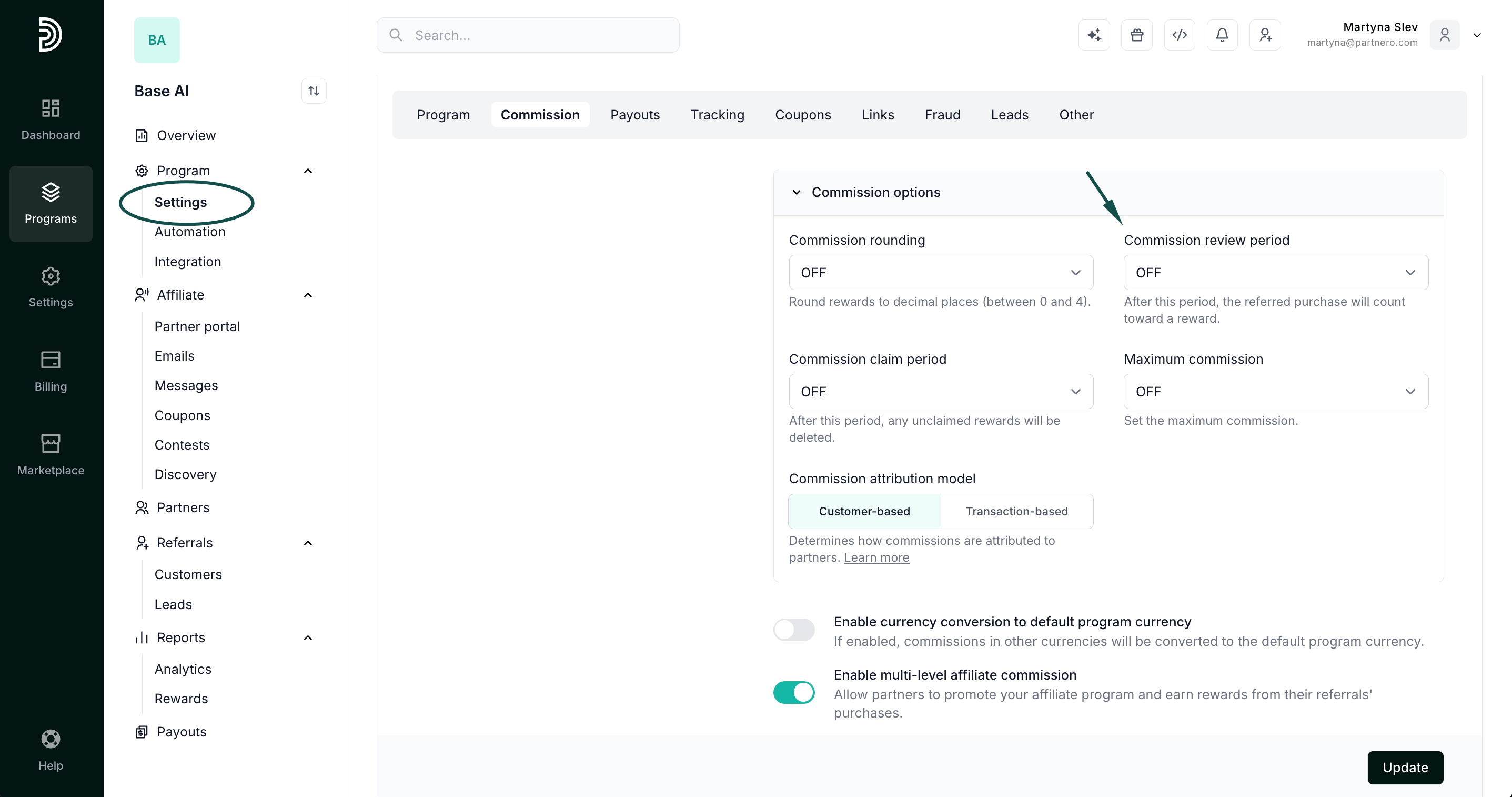
A commission review period gives you time to verify referred transactions before commissions become earned rewards. You can manually approve valid transactions or reject those that don’t meet your program rules, helping prevent incorrect or fraudulent payouts. You can also set the review period to align with your refund policy.The commission review period can be set under Settings → Program, in the Commission section → Commission options → Commission review period:
Where can I see commissions in the review period?
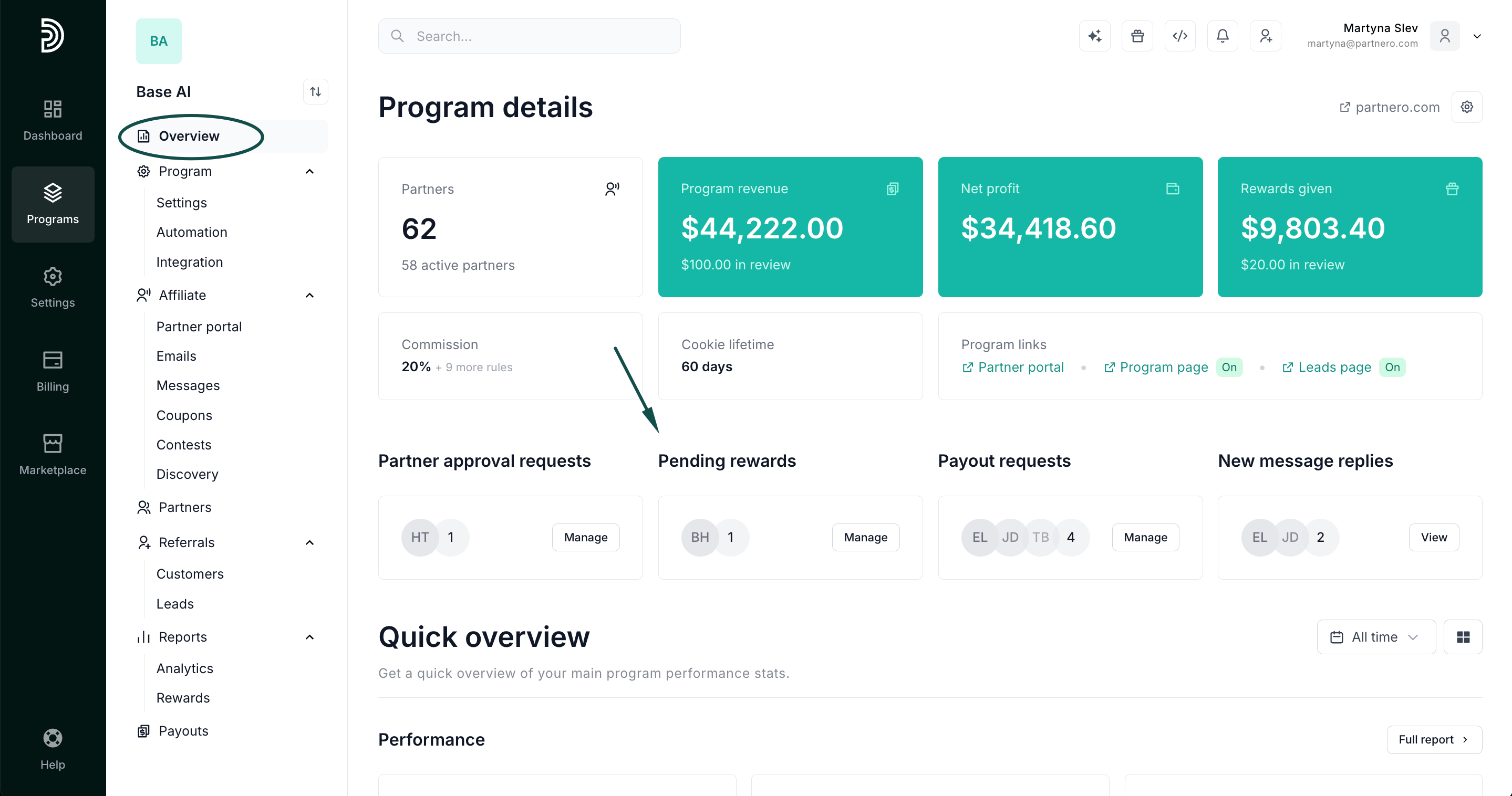
You can find all pending commissions on your program Overview page → Pending rewards section:This section only appears while at least one commission is in review.
Does the commission need to be approved manually?
It depends on the review period you choose:
Hours, days or months: after the review period ends, the commission is automatically added to earned rewards, usually within 10 minutes. You don’t need to do anything. You can still approve or reject it manually before the period ends.
Until manually approved: the commission stays in review until you approve or reject it. Nothing is approved automatically.
Use Until manually approved when a commission should only count after something you confirm yourself, for example a completed delivery or a domain transfer. You can approve these commissions in the dashboard, as described below, or from your own system with the Approve reward and Decline reward API endpoints.
What happens to commissions in review when I change the review period?
Commissions already in review always follow your current review period setting, not the one they were created under:
To a different length (for example, from 30 days to 14 days): commissions already in review are approved once they are older than the new period. Shortening the period can approve many of them at once.
From hours, days or months to Until manually approved: commissions already in review are no longer approved automatically. You need to approve or reject each one.
From Until manually approved to hours, days or months: commissions already in review are approved automatically once they are older than the new period.
To OFF: new commissions are earned straight away, but commissions already in review stay in review. They are never approved automatically. Approve or reject them before you switch, or afterwards from the Pending rewards section.
If you switch the review period to OFF while commissions are still in review, partners won’t get those commissions until you approve them.
How to approve or reject commissions that are in the review period?
To manage commissions that are in the review period:
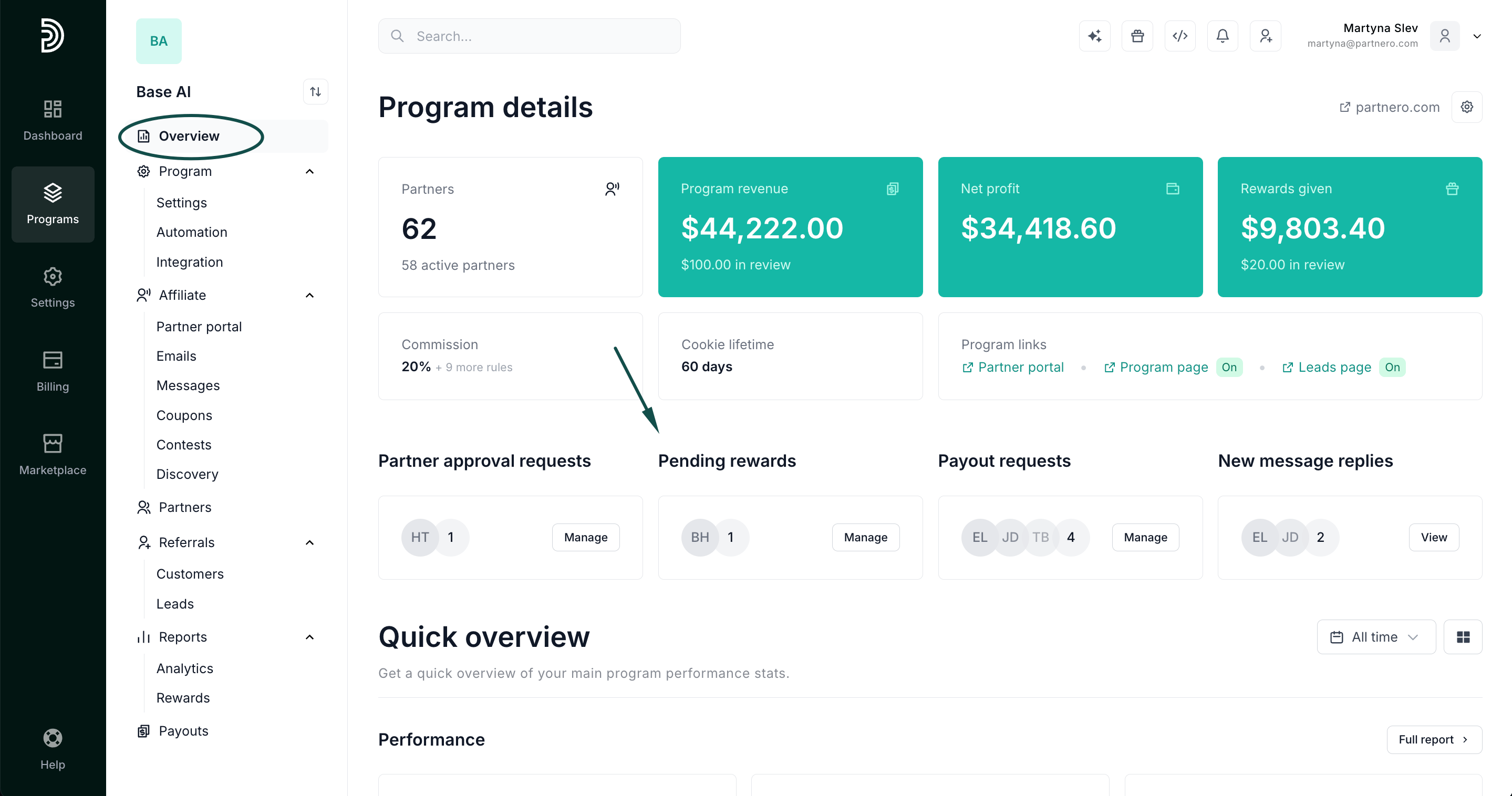
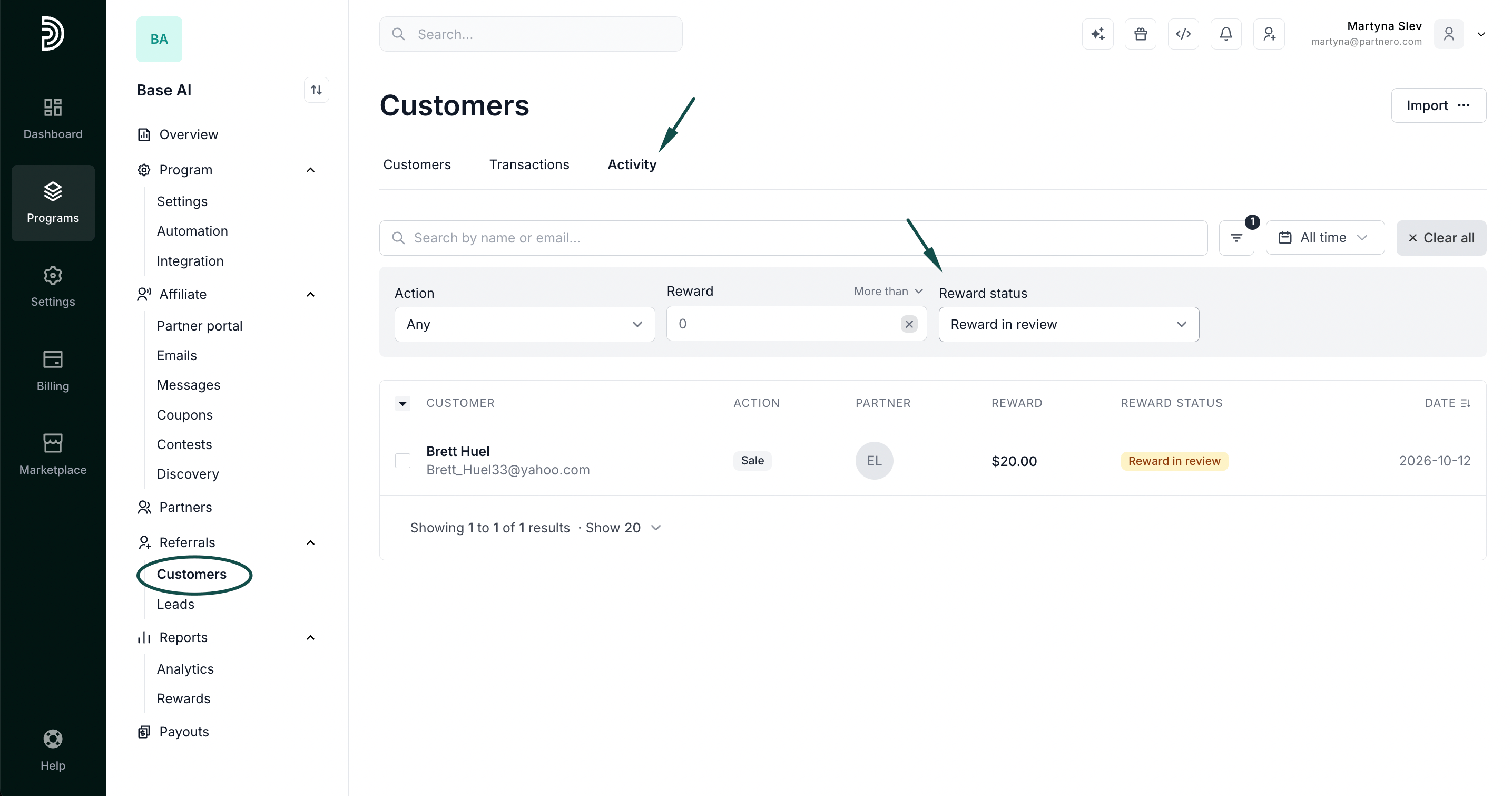
Go to Overview under Program. Click Manage in the Pending rewards section. This opens the rewards list filtered to rewards In review.Alternatively, you can find all pending rewards in the Customers section → Activity tab → filter Reward status: Reward in review:
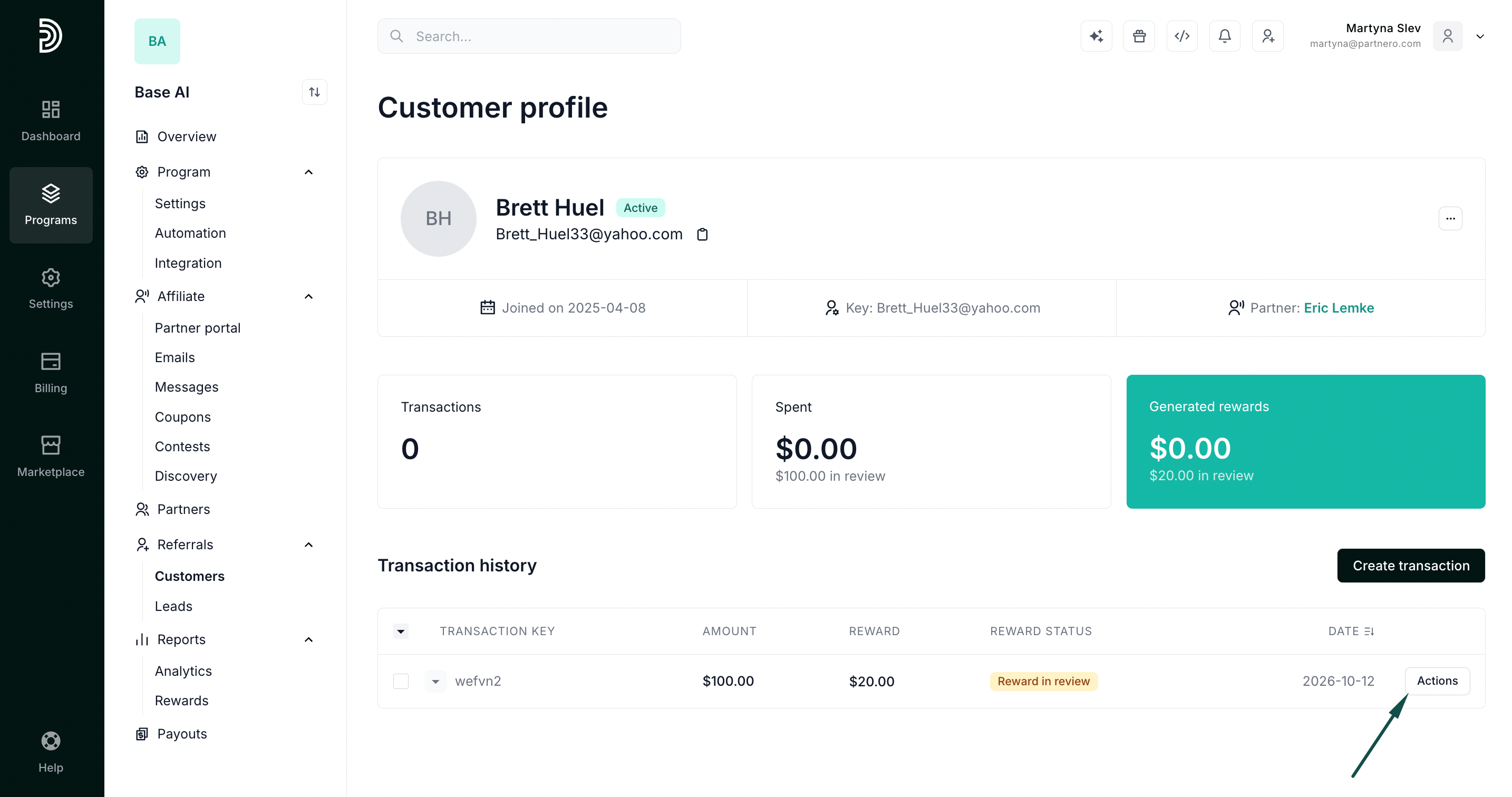
Click on the reward you’d like to review. This will take you to the customer’s profile. Open the actions next to the transaction:
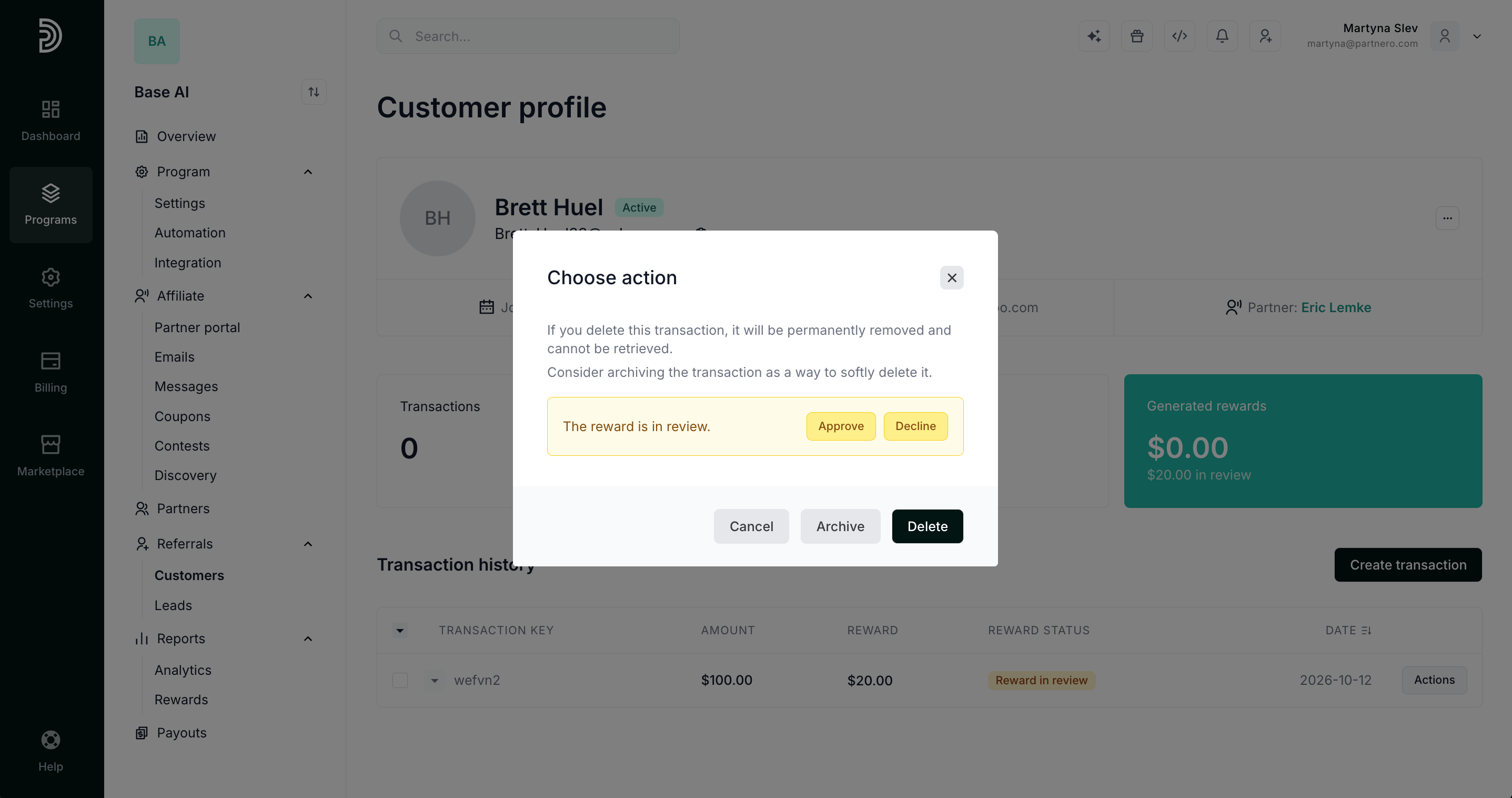
Click Approve reward or Decline reward. A declined reward is not paid to the partner:
To approve or decline several commissions for one partner at once, open the partner’s profile and click Manage on the commission card. The button only appears when the partner has commissions in review. Select the commissions in review, then click Approve or Decline.
Was this page helpful?
{"docsConfig":{"theme":"mint","$schema":"https://mintlify.com/docs.json","name":"Partnero","colors":{"primary":"#134E4A","light":"#134E4A","dark":"#0D9488"},"logo":{"light":"https://mintcdn.com/partnero/gINf_F3u_8GmW16y/images/partnero-black.svg?fit=max\u0026auto=format\u0026n=gINf_F3u_8GmW16y\u0026q=85\u0026s=a61ae64c8a722513b3eb0564bc371392","dark":"https://mintcdn.com/partnero/7W6berVyUt7cGwZs/images/partnero-white.png?fit=max\u0026auto=format\u0026n=7W6berVyUt7cGwZs\u0026q=85\u0026s=ad0f2c11e5d97e1a44089c942b90c6af"},"favicon":"https://mintcdn.com/partnero/gINf_F3u_8GmW16y/images/partnero-symbol.svg?fit=max\u0026auto=format\u0026n=gINf_F3u_8GmW16y\u0026q=85\u0026s=15596439022c16abf73457f39e239e85","api":{},"navbar":{"links":[{"href":"mailto:[email protected]","label":"Support"}],"primary":{"type":"button","label":"Dashboard","href":"https://app.partnero.com"}},"footer":{"socials":{}},"styling":{"codeblocks":"system","latex":true},"contextual":{"options":["copy","chatgpt","claude","cursor","vscode"],"display":"header"},"metadata":{"timestamp":false},"navigation":{"pages":[]}},"deployment":{"deploymentMetadataValue":{"subdomain":"partnero","hasAudioNarration":false,"actualSubdomain":"partnero","customDomains":["docs.partnero.com"],"gitSource":{"type":"github","owner":"partnero","repo":"docs","deployBranch":"main","contentDirectory":"","isPrivate":true,"mountPath":"","label":""},"feedback":{"agentFeedback":true,"thumbs":true},"entitlements":{},"buildId":"6b004cdf6c736afc684595da","clientVersion":"0.0.4271","searchFilterCounts":[{"language":"default","tag":"Knowledge Base","count":237},{"language":"default","tag":"API reference","count":78},{"language":"default","tag":"Guides","count":59},{"language":"default","tag":"Partner portal","count":41},{"language":"default","tag":"Documentation","count":30},{"language":"default","tag":"Newsletter referral","count":27},{"language":"default","tag":"Refer-a-Friend","count":21},{"language":"default","tag":"Getting started","count":19},{"language":"default","tag":"Partner management","count":19},{"language":"default","tag":"Payout management","count":17}]},"assistantConfig":{"enableAskAiButton":false,"enableStarterQuestions":false,"enableAskAiSearchBar":true},"basePath":"","hasChatPermissions":false,"hasWebMcpPermissions":false,"toggles":[{"name":"kill-isr","enabled":true,"variant":{"name":"disabled","enabled":false,"feature_enabled":true},"impressionData":false},{"name":"custom-rbac-roles","enabled":true,"variant":{"name":"disabled","enabled":false,"feature_enabled":true},"impressionData":false},{"name":"agent-mintlify-slack","enabled":true,"variant":{"name":"disabled","enabled":false,"feature_enabled":true},"impressionData":false},{"name":"agent-integrations-settings","enabled":true,"variant":{"name":"disabled","enabled":false,"feature_enabled":true},"impressionData":false},{"name":"rbac-expansion","enabled":true,"variant":{"name":"disabled","enabled":false,"feature_enabled":true},"impressionData":false},{"name":"automations-pr-grouping","enabled":true,"variant":{"name":"disabled","enabled":false,"feature_enabled":true},"impressionData":false},{"name":"custom-prefix","enabled":true,"variant":{"name":"disabled","enabled":false,"feature_enabled":true},"impressionData":false},{"name":"analytics-v7","enabled":true,"variant":{"name":"disabled","enabled":false,"feature_enabled":true},"impressionData":false},{"name":"user-flows-analytics","enabled":true,"variant":{"name":"disabled","enabled":false,"feature_enabled":true},"impressionData":false},{"name":"no-publish-flow","enabled":true,"variant":{"name":"disabled","enabled":false,"feature_enabled":true},"impressionData":false},{"name":"workos-onboarding","enabled":true,"variant":{"name":"disabled","enabled":false,"feature_enabled":true},"impressionData":false},{"name":"snapshot-serving-live","enabled":true,"variant":{"name":"disabled","enabled":false,"feature_enabled":true},"impressionData":false},{"name":"stripTemperatureMiddleware","enabled":true,"variant":{"name":"disabled","enabled":false,"feature_enabled":true},"impressionData":false},{"name":"support-platform-pylon-zendesk","enabled":true,"variant":{"name":"disabled","enabled":false,"feature_enabled":true},"impressionData":false},{"name":"snapshot-serving","enabled":true,"variant":{"name":"disabled","enabled":false,"feature_enabled":true},"impressionData":false},{"name":"instant-rollback","enabled":true,"variant":{"name":"disabled","enabled":false,"feature_enabled":true},"impressionData":false},{"name":"granular-notifications-server","enabled":true,"variant":{"name":"disabled","enabled":false,"feature_enabled":true},"impressionData":false},{"name":"granular-notifications","enabled":true,"variant":{"name":"disabled","enabled":false,"feature_enabled":true},"impressionData":false},{"name":"automations-fable","enabled":true,"variant":{"name":"disabled","enabled":false,"feature_enabled":true},"impressionData":false},{"name":"fixed-ai-action-pricing","enabled":true,"variant":{"name":"disabled","enabled":false,"feature_enabled":true},"impressionData":false},{"name":"site-roles","enabled":true,"variant":{"name":"disabled","enabled":false,"feature_enabled":true},"impressionData":false},{"name":"automation-resolve-merge-conflict","enabled":true,"variant":{"name":"disabled","enabled":false,"feature_enabled":true},"impressionData":false},{"name":"scoped-publishing","enabled":true,"variant":{"name":"disabled","enabled":false,"feature_enabled":true},"impressionData":false},{"name":"mintql","enabled":true,"variant":{"name":"disabled","enabled":false,"feature_enabled":true},"impressionData":false},{"name":"page-level-analytics","enabled":true,"variant":{"name":"disabled","enabled":false,"feature_enabled":true},"impressionData":false},{"name":"editor-version-history-v2","enabled":true,"variant":{"name":"disabled","enabled":false,"feature_enabled":true},"impressionData":false},{"name":"billing-page-v2","enabled":true,"variant":{"name":"disabled","enabled":false,"feature_enabled":true},"impressionData":false},{"name":"full-page-search","enabled":true,"variant":{"name":"disabled","enabled":false,"feature_enabled":true},"impressionData":false},{"name":"workspace-projects","enabled":true,"variant":{"name":"disabled","enabled":false,"feature_enabled":true},"impressionData":false},{"name":"assistant-v5","enabled":true,"variant":{"name":"disabled","enabled":false,"feature_enabled":true},"impressionData":false},{"name":"fork-pr-previews","enabled":true,"variant":{"name":"disabled","enabled":false,"feature_enabled":true},"impressionData":false},{"name":"revalidation-jwt","enabled":true,"variant":{"name":"disabled","enabled":false,"feature_enabled":true},"impressionData":false},{"name":"workos-sso-scim","enabled":true,"variant":{"name":"disabled","enabled":false,"feature_enabled":true},"impressionData":false},{"name":"hobby-abuse-scan","enabled":true,"variant":{"name":"disabled","enabled":false,"feature_enabled":true},"impressionData":false},{"name":"dashboard-inbox","enabled":true,"variant":{"name":"disabled","enabled":false,"feature_enabled":true},"impressionData":false},{"name":"workos-signup","enabled":true,"variant":{"name":"disabled","enabled":false,"feature_enabled":true},"impressionData":false},{"name":"turbopuffer-dual-write","enabled":true,"variant":{"name":"disabled","enabled":false,"feature_enabled":true},"impressionData":false},{"name":"workos-enabled","enabled":true,"variant":{"name":"disabled","enabled":false,"feature_enabled":true},"impressionData":false},{"name":"approve-review-flow","enabled":true,"variant":{"name":"disabled","enabled":false,"feature_enabled":true},"impressionData":false},{"name":"editor-metadata","enabled":true,"variant":{"name":"disabled","enabled":false,"feature_enabled":true},"impressionData":false},{"name":"sso-setup-deadline-banner","enabled":true,"variant":{"name":"disabled","enabled":false,"feature_enabled":true},"impressionData":false},{"name":"turbopuffer-serve","enabled":true,"variant":{"name":"disabled","enabled":false,"feature_enabled":true},"impressionData":false},{"name":"live-agents","enabled":true,"variant":{"name":"disabled","enabled":false,"feature_enabled":true},"impressionData":false},{"name":"starter-pricing","enabled":true,"variant":{"name":"treatment","enabled":true,"payload":{"type":"string","value":"treatment"},"feature_enabled":true},"impressionData":false},{"name":"llms-txt-v2","enabled":true,"variant":{"name":"disabled","enabled":false,"feature_enabled":true},"impressionData":false},{"name":"wildcard-email-auth","enabled":true,"variant":{"name":"disabled","enabled":false,"feature_enabled":true},"impressionData":false}],"googleFontsInlined":false},"customCss":[]}
{"page":{"pagePath":"knowledge-base/commissions-rewards/approve-or-reject-commission-in-review","slug":"/knowledge-base/commissions-rewards/approve-or-reject-commission-in-review","pageMetadata":{"title":"Approve or reject commissions in review","sidebarTitle":"Commission review","description":"Hold new commissions for a review period, then approve or reject them before partners can be paid","href":"/knowledge-base/commissions-rewards/approve-or-reject-commission-in-review"},"description":{"compiledSource":"\"use strict\";\nconst {jsx: _jsx} = arguments[0];\nconst {useMDXComponents: _provideComponents} = arguments[0];\nfunction _createMdxContent(props) {\n const _components = {\n p: \"p\",\n ..._provideComponents(),\n ...props.components\n };\n return _jsx(_components.p, {\n children: \"Hold new commissions for a review period, then approve or reject them before partners can be paid\"\n });\n}\nfunction MDXContent(props = {}) {\n const {wrapper: MDXLayout} = {\n ..._provideComponents(),\n ...props.components\n };\n return MDXLayout ? _jsx(MDXLayout, {\n ...props,\n children: _jsx(_createMdxContent, {\n ...props\n })\n }) : _createMdxContent(props);\n}\nreturn {\n default: MDXContent\n};\n","frontmatter":{},"scope":{}},"pageType":"default","mdx":{"mdxSource":{"compiledSource":"\"use strict\";const{Fragment:_Fragment,jsx:_jsx,jsxs:_jsxs}=arguments[0];const{useMDXComponents:_provideComponents}=arguments[0];function _createMdxContent(props){const _components={a:`a`,hr:`hr`,li:`li`,ol:`ol`,p:`p`,strong:`strong`,ul:`ul`,..._provideComponents(),...props.components},{Heading,OptimizedImage,Warning}=_components;if(!Heading)_missingMdxReference(`Heading`,true);if(!OptimizedImage)_missingMdxReference(`OptimizedImage`,true);if(!Warning)_missingMdxReference(`Warning`,true);return _jsxs(_Fragment,{children:[_jsx(Heading,{level:`3`,id:`what-is-a-commission-review-period`,children:`What is a commission review period?`}),`\n`,_jsx(_components.p,{children:`A commission review period gives you time to verify referred transactions before commissions become earned rewards. You can manually approve valid transactions or reject those that don’t meet your program rules, helping prevent incorrect or fraudulent payouts. You can also set the review period to align with your refund policy.`}),`\n`,_jsxs(_components.p,{children:[`The commission review period can be set under `,_jsx(_components.strong,{children:`Settings`}),` → `,_jsx(_components.strong,{children:`Program`}),`, in the `,_jsx(_components.strong,{children:`Commission`}),` section → `,_jsx(_components.strong,{children:`Commission options`}),` → `,_jsx(_components.strong,{children:`Commission review period`}),`:`]}),`\n`,_jsx(OptimizedImage,{src:`https://mintcdn.com/partnero/5XvxY1Ha2K5lhYW3/images/image-106.png?fit=max\u0026auto=format\u0026n=5XvxY1Ha2K5lhYW3\u0026q=85\u0026s=4e333d02a6b2e64908795ea500848f87`,alt:`Image`,\"data-og-width\":`2874`,width:`2874`,\"data-og-height\":`1514`,height:`1514`,\"data-path\":`images/image-106.png`,\"data-optimize\":`true`,\"data-opv\":`3`,srcset:`https://mintcdn.com/partnero/5XvxY1Ha2K5lhYW3/images/image-106.png?w=280\u0026fit=max\u0026auto=format\u0026n=5XvxY1Ha2K5lhYW3\u0026q=85\u0026s=b70cee7747867ff0044902a66ca7b424 280w, https://mintcdn.com/partnero/5XvxY1Ha2K5lhYW3/images/image-106.png?w=560\u0026fit=max\u0026auto=format\u0026n=5XvxY1Ha2K5lhYW3\u0026q=85\u0026s=4ddc14bac86f5b1253546235aa28918e 560w, https://mintcdn.com/partnero/5XvxY1Ha2K5lhYW3/images/image-106.png?w=840\u0026fit=max\u0026auto=format\u0026n=5XvxY1Ha2K5lhYW3\u0026q=85\u0026s=8d7ff535f241e0563d84cfe38b97c994 840w, https://mintcdn.com/partnero/5XvxY1Ha2K5lhYW3/images/image-106.png?w=1100\u0026fit=max\u0026auto=format\u0026n=5XvxY1Ha2K5lhYW3\u0026q=85\u0026s=3a18ddde3203f35a4be62294a066d0b2 1100w, https://mintcdn.com/partnero/5XvxY1Ha2K5lhYW3/images/image-106.png?w=1650\u0026fit=max\u0026auto=format\u0026n=5XvxY1Ha2K5lhYW3\u0026q=85\u0026s=533aaa2f177563ac6e311a06ed9422f8 1650w, https://mintcdn.com/partnero/5XvxY1Ha2K5lhYW3/images/image-106.png?w=2500\u0026fit=max\u0026auto=format\u0026n=5XvxY1Ha2K5lhYW3\u0026q=85\u0026s=b22b0b2ef7fa034f8a2dcd2c90e728ce 2500w`}),`\n`,_jsx(_components.hr,{}),`\n`,_jsx(Heading,{level:`3`,id:`where-can-i-see-commissions-in-the-review-period`,children:`Where can I see commissions in the review period?`}),`\n`,_jsxs(_components.p,{children:[`You can find all pending commissions on your program `,_jsx(_components.strong,{children:`Overview`}),` page → `,_jsx(_components.strong,{children:`Pending rewards`}),` section:`]}),`\n`,_jsx(OptimizedImage,{src:`https://mintcdn.com/partnero/5XvxY1Ha2K5lhYW3/images/image-107.png?fit=max\u0026auto=format\u0026n=5XvxY1Ha2K5lhYW3\u0026q=85\u0026s=760da451a2b31e95f3f242cd5a62eda4`,alt:`Image`,\"data-og-width\":`2878`,width:`2878`,\"data-og-height\":`1516`,height:`1516`,\"data-path\":`images/image-107.png`,\"data-optimize\":`true`,\"data-opv\":`3`,srcset:`https://mintcdn.com/partnero/5XvxY1Ha2K5lhYW3/images/image-107.png?w=280\u0026fit=max\u0026auto=format\u0026n=5XvxY1Ha2K5lhYW3\u0026q=85\u0026s=4983c5ea2e21712d5cdf185fdca37349 280w, https://mintcdn.com/partnero/5XvxY1Ha2K5lhYW3/images/image-107.png?w=560\u0026fit=max\u0026auto=format\u0026n=5XvxY1Ha2K5lhYW3\u0026q=85\u0026s=7e5e4babe0bea47bb4045b844ea08db9 560w, https://mintcdn.com/partnero/5XvxY1Ha2K5lhYW3/images/image-107.png?w=840\u0026fit=max\u0026auto=format\u0026n=5XvxY1Ha2K5lhYW3\u0026q=85\u0026s=1ccd25d7b5ddc2bb5a671723aed6ddb1 840w, https://mintcdn.com/partnero/5XvxY1Ha2K5lhYW3/images/image-107.png?w=1100\u0026fit=max\u0026auto=format\u0026n=5XvxY1Ha2K5lhYW3\u0026q=85\u0026s=d0a0b8d1b4364c5b049be9ed5d3d32ee 1100w, https://mintcdn.com/partnero/5XvxY1Ha2K5lhYW3/images/image-107.png?w=1650\u0026fit=max\u0026auto=format\u0026n=5XvxY1Ha2K5lhYW3\u0026q=85\u0026s=fcd835892e1c62f1a8bddfb7a06a3eec 1650w, https://mintcdn.com/partnero/5XvxY1Ha2K5lhYW3/images/image-107.png?w=2500\u0026fit=max\u0026auto=format\u0026n=5XvxY1Ha2K5lhYW3\u0026q=85\u0026s=6aafc3144a7b8838d6b0cf60bcd9f028 2500w`}),`\n`,_jsx(_components.p,{children:`This section only appears while at least one commission is in review.`}),`\n`,_jsx(_components.hr,{}),`\n`,_jsx(Heading,{level:`3`,id:`does-the-commission-need-to-be-approved-manually`,children:`Does the commission need to be approved manually?`}),`\n`,_jsx(_components.p,{children:`It depends on the review period you choose:`}),`\n`,_jsxs(_components.ul,{children:[`\n`,_jsxs(_components.li,{children:[_jsx(_components.strong,{children:`Hours, days or months`}),`: after the review period ends, the commission is `,_jsx(_components.strong,{children:`automatically`}),` added to earned rewards, usually within 10 minutes. You don’t need to do anything. You can still approve or reject it manually before the period ends.`]}),`\n`,_jsxs(_components.li,{children:[_jsx(_components.strong,{children:`Until manually approved`}),`: the commission stays in review until you approve or reject it. Nothing is approved automatically.`]}),`\n`]}),`\n`,_jsxs(_components.p,{children:[`Use `,_jsx(_components.strong,{children:`Until manually approved`}),` when a commission should only count after something you confirm yourself, for example a completed delivery or a domain transfer. You can approve these commissions in the dashboard, as described below, or from your own system with the `,_jsx(_components.a,{href:`/api-reference/rewards/approve`,children:`Approve reward`}),` and `,_jsx(_components.a,{href:`/api-reference/rewards/decline`,children:`Decline reward`}),` API endpoints.`]}),`\n`,_jsx(_components.hr,{}),`\n`,_jsx(Heading,{level:`3`,id:`what-happens-to-commissions-in-review-when-i-change-the-review-period`,children:`What happens to commissions in review when I change the review period?`}),`\n`,_jsxs(_components.p,{children:[`Commissions already in review always follow your `,_jsx(_components.strong,{children:`current`}),` review period setting, not the one they were created under:`]}),`\n`,_jsxs(_components.ul,{children:[`\n`,_jsxs(_components.li,{children:[_jsx(_components.strong,{children:`To a different length`}),` (for example, from 30 days to 14 days): commissions already in review are approved once they are older than the new period. Shortening the period can approve many of them at once.`]}),`\n`,_jsxs(_components.li,{children:[_jsx(_components.strong,{children:`From hours, days or months to Until manually approved`}),`: commissions already in review are no longer approved automatically. You need to approve or reject each one.`]}),`\n`,_jsxs(_components.li,{children:[_jsx(_components.strong,{children:`From Until manually approved to hours, days or months`}),`: commissions already in review are approved automatically once they are older than the new period.`]}),`\n`,_jsxs(_components.li,{children:[_jsx(_components.strong,{children:`To OFF`}),`: new commissions are earned straight away, but commissions already in review `,_jsx(_components.strong,{children:`stay in review`}),`. They are never approved automatically. Approve or reject them before you switch, or afterwards from the `,_jsx(_components.strong,{children:`Pending rewards`}),` section.`]}),`\n`]}),`\n`,_jsx(Warning,{children:_jsxs(_components.p,{children:[`If you switch the review period to `,_jsx(_components.strong,{children:`OFF`}),` while commissions are still in review, partners won’t get those commissions until you approve them.`]})}),`\n`,_jsx(_components.hr,{}),`\n`,_jsx(Heading,{level:`3`,id:`how-to-approve-or-reject-commissions-that-are-in-the-review-period`,children:`How to approve or reject commissions that are in the review period?`}),`\n`,_jsx(_components.p,{children:`To manage commissions that are in the review period:`}),`\n`,_jsxs(_components.ol,{children:[`\n`,_jsxs(_components.li,{children:[`\n`,_jsxs(_components.p,{children:[`Go to `,_jsx(_components.strong,{children:`Overview`}),` under `,_jsx(_components.strong,{children:`Program`}),`. Click `,_jsx(_components.strong,{children:`Manage`}),` in the `,_jsx(_components.strong,{children:`Pending rewards`}),` section. This opens the rewards list filtered to rewards `,_jsx(_components.strong,{children:`In review`}),`.`]}),`\n`,_jsx(OptimizedImage,{src:`https://mintcdn.com/partnero/5XvxY1Ha2K5lhYW3/images/image-108.png?fit=max\u0026auto=format\u0026n=5XvxY1Ha2K5lhYW3\u0026q=85\u0026s=6b9d6e600ba98bc77a21d16170c0c15f`,alt:`Image`,\"data-og-width\":`2878`,width:`2878`,\"data-og-height\":`1516`,height:`1516`,\"data-path\":`images/image-108.png`,\"data-optimize\":`true`,\"data-opv\":`3`,srcset:`https://mintcdn.com/partnero/5XvxY1Ha2K5lhYW3/images/image-108.png?w=280\u0026fit=max\u0026auto=format\u0026n=5XvxY1Ha2K5lhYW3\u0026q=85\u0026s=2d4e9a450400791bb8cbb9957c641832 280w, https://mintcdn.com/partnero/5XvxY1Ha2K5lhYW3/images/image-108.png?w=560\u0026fit=max\u0026auto=format\u0026n=5XvxY1Ha2K5lhYW3\u0026q=85\u0026s=9ee3d2f42071260f3e8774aa1f16eb14 560w, https://mintcdn.com/partnero/5XvxY1Ha2K5lhYW3/images/image-108.png?w=840\u0026fit=max\u0026auto=format\u0026n=5XvxY1Ha2K5lhYW3\u0026q=85\u0026s=0128f8678187a4b50c215aa41dea9b5f 840w, https://mintcdn.com/partnero/5XvxY1Ha2K5lhYW3/images/image-108.png?w=1100\u0026fit=max\u0026auto=format\u0026n=5XvxY1Ha2K5lhYW3\u0026q=85\u0026s=4ecd0498b9a1afdb5307b8ca3222e1ab 1100w, https://mintcdn.com/partnero/5XvxY1Ha2K5lhYW3/images/image-108.png?w=1650\u0026fit=max\u0026auto=format\u0026n=5XvxY1Ha2K5lhYW3\u0026q=85\u0026s=27d7c2e8cbd88aa09599f6719ca95608 1650w, https://mintcdn.com/partnero/5XvxY1Ha2K5lhYW3/images/image-108.png?w=2500\u0026fit=max\u0026auto=format\u0026n=5XvxY1Ha2K5lhYW3\u0026q=85\u0026s=78da7fbae168183392881039ad3d40c6 2500w`}),`\n`,_jsxs(_components.p,{children:[`Alternatively, you can find all pending rewards in the `,_jsx(_components.strong,{children:`Customers`}),` section → `,_jsx(_components.strong,{children:`Activity`}),` tab → filter `,_jsx(_components.strong,{children:`Reward status: Reward in review`}),`:`]}),`\n`,_jsx(OptimizedImage,{src:`https://mintcdn.com/partnero/5XvxY1Ha2K5lhYW3/images/image-109.png?fit=max\u0026auto=format\u0026n=5XvxY1Ha2K5lhYW3\u0026q=85\u0026s=c10e9468554d4b9971c4b9b417e406fe`,alt:`Image`,\"data-og-width\":`2870`,width:`2870`,\"data-og-height\":`1510`,height:`1510`,\"data-path\":`images/image-109.png`,\"data-optimize\":`true`,\"data-opv\":`3`,srcset:`https://mintcdn.com/partnero/5XvxY1Ha2K5lhYW3/images/image-109.png?w=280\u0026fit=max\u0026auto=format\u0026n=5XvxY1Ha2K5lhYW3\u0026q=85\u0026s=259ae214d0e21c8dcfa1c89e66f5956e 280w, https://mintcdn.com/partnero/5XvxY1Ha2K5lhYW3/images/image-109.png?w=560\u0026fit=max\u0026auto=format\u0026n=5XvxY1Ha2K5lhYW3\u0026q=85\u0026s=f1a7a8fffe5168dae7f72871322484cd 560w, https://mintcdn.com/partnero/5XvxY1Ha2K5lhYW3/images/image-109.png?w=840\u0026fit=max\u0026auto=format\u0026n=5XvxY1Ha2K5lhYW3\u0026q=85\u0026s=9dafd1fe109509648eeac7442026d5e9 840w, https://mintcdn.com/partnero/5XvxY1Ha2K5lhYW3/images/image-109.png?w=1100\u0026fit=max\u0026auto=format\u0026n=5XvxY1Ha2K5lhYW3\u0026q=85\u0026s=60d3d0d973b95a39280ec4cfbbb707cb 1100w, https://mintcdn.com/partnero/5XvxY1Ha2K5lhYW3/images/image-109.png?w=1650\u0026fit=max\u0026auto=format\u0026n=5XvxY1Ha2K5lhYW3\u0026q=85\u0026s=30796fb228503094c698a7510d7d0891 1650w, https://mintcdn.com/partnero/5XvxY1Ha2K5lhYW3/images/image-109.png?w=2500\u0026fit=max\u0026auto=format\u0026n=5XvxY1Ha2K5lhYW3\u0026q=85\u0026s=3cbccc28424b028aca8be10e741bad53 2500w`}),`\n`]}),`\n`,_jsxs(_components.li,{children:[`\n`,_jsx(_components.p,{children:`Click on the reward you’d like to review. This will take you to the customer’s profile. Open the actions next to the transaction:`}),`\n`,_jsx(OptimizedImage,{src:`https://mintcdn.com/partnero/5XvxY1Ha2K5lhYW3/images/image-110.png?fit=max\u0026auto=format\u0026n=5XvxY1Ha2K5lhYW3\u0026q=85\u0026s=7c80b236fe536aecc087f4733f8c49e9`,alt:`Image`,\"data-og-width\":`2868`,width:`2868`,\"data-og-height\":`1512`,height:`1512`,\"data-path\":`images/image-110.png`,\"data-optimize\":`true`,\"data-opv\":`3`,srcset:`https://mintcdn.com/partnero/5XvxY1Ha2K5lhYW3/images/image-110.png?w=280\u0026fit=max\u0026auto=format\u0026n=5XvxY1Ha2K5lhYW3\u0026q=85\u0026s=1d2cc311f3fe9ab6b5b0c7e6bd12fc6c 280w, https://mintcdn.com/partnero/5XvxY1Ha2K5lhYW3/images/image-110.png?w=560\u0026fit=max\u0026auto=format\u0026n=5XvxY1Ha2K5lhYW3\u0026q=85\u0026s=02758e78c899d8016a3f0bf942ff2c85 560w, https://mintcdn.com/partnero/5XvxY1Ha2K5lhYW3/images/image-110.png?w=840\u0026fit=max\u0026auto=format\u0026n=5XvxY1Ha2K5lhYW3\u0026q=85\u0026s=e406cb494afbf0a9e03feb7dffc9ee35 840w, https://mintcdn.com/partnero/5XvxY1Ha2K5lhYW3/images/image-110.png?w=1100\u0026fit=max\u0026auto=format\u0026n=5XvxY1Ha2K5lhYW3\u0026q=85\u0026s=398650573a53975fa0cf13af88d9c5ce 1100w, https://mintcdn.com/partnero/5XvxY1Ha2K5lhYW3/images/image-110.png?w=1650\u0026fit=max\u0026auto=format\u0026n=5XvxY1Ha2K5lhYW3\u0026q=85\u0026s=d884404cc8fb662cdf797a19fb2b8cda 1650w, https://mintcdn.com/partnero/5XvxY1Ha2K5lhYW3/images/image-110.png?w=2500\u0026fit=max\u0026auto=format\u0026n=5XvxY1Ha2K5lhYW3\u0026q=85\u0026s=5a1b8059d8670f9aee8299643b904fbe 2500w`}),`\n`]}),`\n`,_jsxs(_components.li,{children:[`\n`,_jsxs(_components.p,{children:[`Click `,_jsx(_components.strong,{children:`Approve reward`}),` or `,_jsx(_components.strong,{children:`Decline reward`}),`. A declined reward is not paid to the partner:`]}),`\n`,_jsx(OptimizedImage,{src:`https://mintcdn.com/partnero/5XvxY1Ha2K5lhYW3/images/image-111.png?fit=max\u0026auto=format\u0026n=5XvxY1Ha2K5lhYW3\u0026q=85\u0026s=b3e9ab74fdecf34e10a4f46d82103244`,alt:`Image`,\"data-og-width\":`2874`,width:`2874`,\"data-og-height\":`1516`,height:`1516`,\"data-path\":`images/image-111.png`,\"data-optimize\":`true`,\"data-opv\":`3`,srcset:`https://mintcdn.com/partnero/5XvxY1Ha2K5lhYW3/images/image-111.png?w=280\u0026fit=max\u0026auto=format\u0026n=5XvxY1Ha2K5lhYW3\u0026q=85\u0026s=c3b02b1d083b602e771cd7360235ea5d 280w, https://mintcdn.com/partnero/5XvxY1Ha2K5lhYW3/images/image-111.png?w=560\u0026fit=max\u0026auto=format\u0026n=5XvxY1Ha2K5lhYW3\u0026q=85\u0026s=2d377a00951dfc8e8216da848e0cccb0 560w, https://mintcdn.com/partnero/5XvxY1Ha2K5lhYW3/images/image-111.png?w=840\u0026fit=max\u0026auto=format\u0026n=5XvxY1Ha2K5lhYW3\u0026q=85\u0026s=6a15bb767d850cfd8fc16a34cf3dbd46 840w, https://mintcdn.com/partnero/5XvxY1Ha2K5lhYW3/images/image-111.png?w=1100\u0026fit=max\u0026auto=format\u0026n=5XvxY1Ha2K5lhYW3\u0026q=85\u0026s=2a606ada1d30e38e7fcf8b3c14d81a40 1100w, https://mintcdn.com/partnero/5XvxY1Ha2K5lhYW3/images/image-111.png?w=1650\u0026fit=max\u0026auto=format\u0026n=5XvxY1Ha2K5lhYW3\u0026q=85\u0026s=78dc3f68541214f3859febcdc78d7fa8 1650w, https://mintcdn.com/partnero/5XvxY1Ha2K5lhYW3/images/image-111.png?w=2500\u0026fit=max\u0026auto=format\u0026n=5XvxY1Ha2K5lhYW3\u0026q=85\u0026s=4ace895b29b500b7993bf4a2c43d2e8b 2500w`}),`\n`]}),`\n`]}),`\n`,_jsxs(_components.p,{children:[`To approve or decline several commissions for one partner at once, open the partner’s profile and click `,_jsx(_components.strong,{children:`Manage`}),` on the commission card. The button only appears when the partner has commissions in review. Select the commissions in review, then click `,_jsx(_components.strong,{children:`Approve`}),` or `,_jsx(_components.strong,{children:`Decline`}),`.`]}),`\n`,_jsx(_components.hr,{})]})}function MDXContent(props={}){const{wrapper:MDXLayout}={..._provideComponents(),...props.components};return MDXLayout?_jsx(MDXLayout,{...props,children:_jsx(_createMdxContent,{...props})}):_createMdxContent(props)}return{default:MDXContent};function _missingMdxReference(id,component){throw new Error(`Expected `+(component?`component`:`object`)+\" `\"+id+\"` to be defined: you likely forgot to import, pass, or provide it.\")}","frontmatter":{},"scope":{"codeStyling":"system","config":{},"pageMetadata":{"title":"Approve or reject commissions in review","sidebarTitle":"Commission review","description":"Hold new commissions for a review period, then approve or reject them before partners can be paid","href":"/knowledge-base/commissions-rewards/approve-or-reject-commission-in-review"}}},"mdxSourceWithNoJs":null},"mdxExtracts":{"tableOfContents":[{"title":"What is a commission review period?","slug":"what-is-a-commission-review-period","depth":3,"children":[]},{"title":"Where can I see commissions in the review period?","slug":"where-can-i-see-commissions-in-the-review-period","depth":3,"children":[]},{"title":"Does the commission need to be approved manually?","slug":"does-the-commission-need-to-be-approved-manually","depth":3,"children":[]},{"title":"What happens to commissions in review when I change the review period?","slug":"what-happens-to-commissions-in-review-when-i-change-the-review-period","depth":3,"children":[]},{"title":"How to approve or reject commissions that are in the review period?","slug":"how-to-approve-or-reject-commissions-that-are-in-the-review-period","depth":3,"children":[]}],"codeExamples":{}},"jsLinks":[],"subdomain":"partnero","siteName":"Partnero","title":"Approve or reject commissions in review - Partnero","navMaps":{"firstHrefInVersion":{},"firstHrefInLanguage":{}},"lastModified":"2026-11-20T13:36:36.084Z","originalFileLocation":"knowledge-base/commissions-rewards/approve-or-reject-commission-in-review.mdx"},"headHtml":"\u003cscript data-mint-head>(function(){var d=document.documentElement,p=null;if(!p){try{p=localStorage.getItem(\"isDarkMode\")}catch(e){}if(p==='true')p='dark';else if(p==='false')p='light';if(p!=='light'\u0026\u0026p!=='dark'\u0026\u0026p!=='system')p=\"system\"}var r=p==='system'?(matchMedia(\"(prefers-color-scheme: dark)\").matches?'dark':'light'):p;d.classList.remove(r==='dark'?'light':'dark');d.classList.add(r);d.setAttribute(\"data-theme-preference\",p)})();\u003c/script>\u003cmeta data-mint-head name=\"description\" content=\"Hold new commissions for a review period, then approve or reject them before partners can be paid\">\u003cmeta data-mint-head name=\"application-name\" content=\"Partnero\">\u003cmeta data-mint-head name=\"generator\" content=\"Mintlify\">\u003clink data-mint-head rel=\"icon\" type=\"image/png\" sizes=\"192x192\" href=\"/mintlify-assets/_mintlify/favicons/partnero/Sa9xWNFgYCZSChdd/_generated/favicon/android-chrome-192x192.png\" media=\"(prefers-color-scheme: light)\">\u003clink data-mint-head rel=\"apple-touch-icon\" type=\"image/png\" sizes=\"180x180\" href=\"/mintlify-assets/_mintlify/favicons/partnero/Sa9xWNFgYCZSChdd/_generated/favicon/apple-touch-icon.png\">\u003clink data-mint-head rel=\"icon\" type=\"image/png\" sizes=\"16x16\" href=\"/mintlify-assets/_mintlify/favicons/partnero/Sa9xWNFgYCZSChdd/_generated/favicon/favicon-16x16.png\" media=\"(prefers-color-scheme: light)\">\u003clink data-mint-head rel=\"icon\" type=\"image/png\" sizes=\"32x32\" href=\"/mintlify-assets/_mintlify/favicons/partnero/Sa9xWNFgYCZSChdd/_generated/favicon/favicon-32x32.png\" media=\"(prefers-color-scheme: light)\">\u003clink data-mint-head rel=\"shortcut icon\" type=\"image/x-icon\" href=\"/mintlify-assets/_mintlify/favicons/partnero/Sa9xWNFgYCZSChdd/_generated/favicon/favicon.ico\" media=\"(prefers-color-scheme: light)\">\u003clink data-mint-head rel=\"icon\" type=\"image/png\" sizes=\"192x192\" href=\"/mintlify-assets/_mintlify/favicons/partnero/Sa9xWNFgYCZSChdd/_generated/favicon-dark/android-chrome-192x192.png\" media=\"(prefers-color-scheme: dark)\">\u003clink data-mint-head rel=\"icon\" type=\"image/png\" sizes=\"16x16\" href=\"/mintlify-assets/_mintlify/favicons/partnero/Sa9xWNFgYCZSChdd/_generated/favicon-dark/favicon-16x16.png\" media=\"(prefers-color-scheme: dark)\">\u003clink data-mint-head rel=\"icon\" type=\"image/png\" sizes=\"32x32\" href=\"/mintlify-assets/_mintlify/favicons/partnero/Sa9xWNFgYCZSChdd/_generated/favicon-dark/favicon-32x32.png\" media=\"(prefers-color-scheme: dark)\">\u003clink data-mint-head rel=\"shortcut icon\" type=\"image/x-icon\" href=\"/mintlify-assets/_mintlify/favicons/partnero/Sa9xWNFgYCZSChdd/_generated/favicon-dark/favicon.ico\" media=\"(prefers-color-scheme: dark)\">\u003cmeta data-mint-head property=\"og:title\" content=\"Approve or reject commissions in review - Partnero\">\u003cmeta data-mint-head property=\"og:description\" content=\"Hold new commissions for a review period, then approve or reject them before partners can be paid\">\u003cmeta data-mint-head property=\"og:site_name\" content=\"Partnero\">\u003cmeta data-mint-head property=\"og:url\" content=\"https://docs.partnero.com/knowledge-base/commissions-rewards/approve-or-reject-commission-in-review\">\u003cmeta data-mint-head property=\"og:type\" content=\"website\">\u003cmeta data-mint-head property=\"og:image\" content=\"https://partnero.mintlify.site/_mintlify/api/og/v2?division=Managing+commissions\u0026amp;title=Approve+or+reject+commissions+in+review\u0026amp;description=Hold+new+commissions+for+a+review+period%2C+then+approve+or+reject+them+before+partners+can+be+paid\u0026amp;theme=dd577e376cfcfab166ab7c93\u0026amp;signature=06ebbb73b8c96c0afef6710188c2fca3a8d818bf1502f4ab2cfa2219ec6cabc6\">\u003cmeta data-mint-head property=\"og:image:width\" content=\"1200\">\u003cmeta data-mint-head property=\"og:image:height\" content=\"630\">\u003cmeta data-mint-head name=\"twitter:card\" content=\"summary_large_image\">\u003cmeta data-mint-head name=\"twitter:title\" content=\"Approve or reject commissions in review - Partnero\">\u003cmeta data-mint-head name=\"twitter:description\" content=\"Hold new commissions for a review period, then approve or reject them before partners can be paid\">\u003cmeta data-mint-head name=\"twitter:image\" content=\"https://partnero.mintlify.site/_mintlify/api/og/v2?division=Managing+commissions\u0026amp;title=Approve+or+reject+commissions+in+review\u0026amp;description=Hold+new+commissions+for+a+review+period%2C+then+approve+or+reject+them+before+partners+can+be+paid\u0026amp;theme=dd577e376cfcfab166ab7c93\u0026amp;signature=06ebbb73b8c96c0afef6710188c2fca3a8d818bf1502f4ab2cfa2219ec6cabc6\">\u003cmeta data-mint-head name=\"twitter:image:width\" content=\"1200\">\u003cmeta data-mint-head name=\"twitter:image:height\" content=\"630\">\u003cmeta data-mint-head name=\"msapplication-config\" content=\"/mintlify-assets/_mintlify/favicons/partnero/Sa9xWNFgYCZSChdd/_generated/favicon/browserconfig.xml\">\u003cmeta data-mint-head name=\"apple-mobile-web-app-title\" content=\"Partnero\">\u003cmeta data-mint-head name=\"msapplication-TileColor\" content=\"#134E4A\">\u003clink data-mint-head rel=\"canonical\" href=\"https://docs.partnero.com/knowledge-base/commissions-rewards/approve-or-reject-commission-in-review\">\u003clink data-mint-head rel=\"alternate\" type=\"application/xml\" href=\"/sitemap.xml\">\u003clink data-mint-head rel=\"alternate\" type=\"text/markdown\" href=\"/knowledge-base/commissions-rewards/approve-or-reject-commission-in-review.md\">\u003cscript data-mint-head type=\"application/ld+json\">{\"@context\":\"https://schema.org\",\"@graph\":[{\"@type\":\"Organization\",\"@id\":\"https://docs.partnero.com/#organization\",\"name\":\"Partnero\",\"url\":\"https://docs.partnero.com\",\"logo\":{\"@type\":\"ImageObject\",\"url\":\"https://mintcdn.com/partnero/gINf_F3u_8GmW16y/images/partnero-black.svg?fit=max\u0026auto=format\u0026n=gINf_F3u_8GmW16y\u0026q=85\u0026s=a61ae64c8a722513b3eb0564bc371392\"}},{\"@type\":\"WebSite\",\"@id\":\"https://docs.partnero.com#website\",\"name\":\"Partnero\",\"url\":\"https://docs.partnero.com\",\"publisher\":{\"@id\":\"https://docs.partnero.com/#organization\"}},{\"@type\":\"WebPage\",\"@id\":\"https://docs.partnero.com/knowledge-base/commissions-rewards/approve-or-reject-commission-in-review#webpage\",\"url\":\"https://docs.partnero.com/knowledge-base/commissions-rewards/approve-or-reject-commission-in-review\",\"name\":\"Approve or reject commissions in review\",\"description\":\"Hold new commissions for a review period, then approve or reject them before partners can be paid\",\"dateModified\":\"2026-11-20T13:36:36.084Z\",\"isPartOf\":{\"@id\":\"https://docs.partnero.com#website\"},\"breadcrumb\":{\"@id\":\"https://docs.partnero.com/knowledge-base/commissions-rewards/approve-or-reject-commission-in-review#breadcrumb\"}},{\"@type\":\"BreadcrumbList\",\"@id\":\"https://docs.partnero.com/knowledge-base/commissions-rewards/approve-or-reject-commission-in-review#breadcrumb\",\"itemListElement\":[{\"@type\":\"ListItem\",\"position\":1,\"name\":\"Commissions \u0026 rewards\",\"item\":\"https://docs.partnero.com/knowledge-base/commissions-rewards/overview\"},{\"@type\":\"ListItem\",\"position\":2,\"name\":\"Approve or reject commissions in review\",\"item\":\"https://docs.partnero.com/knowledge-base/commissions-rewards/approve-or-reject-commission-in-review\"}]},{\"@type\":[\"Article\",\"TechArticle\"],\"@id\":\"https://docs.partnero.com/knowledge-base/commissions-rewards/approve-or-reject-commission-in-review#article\",\"headline\":\"Approve or reject commissions in review\",\"name\":\"Approve or reject commissions in review\",\"description\":\"Hold new commissions for a review period, then approve or reject them before partners can be paid\",\"url\":\"https://docs.partnero.com/knowledge-base/commissions-rewards/approve-or-reject-commission-in-review\",\"mainEntityOfPage\":{\"@id\":\"https://docs.partnero.com/knowledge-base/commissions-rewards/approve-or-reject-commission-in-review#webpage\"},\"dateModified\":\"2026-11-20T13:36:36.084Z\",\"publisher\":{\"@id\":\"https://docs.partnero.com/#organization\"},\"isPartOf\":{\"@id\":\"https://docs.partnero.com#website\"}}]}\u003c/script>\u003cscript data-mint-head type=\"application/ld+json\">{\"@context\":\"https://schema.org\",\"@type\":\"WebSite\",\"name\":\"Partnero\",\"publisher\":{\"@type\":\"Organization\",\"name\":\"Partnero\"},\"provider\":{\"@type\":\"Organization\",\"name\":\"Mintlify\",\"url\":\"https://mintlify.com\"}}\u003c/script>","agentPointerHref":"/knowledge-base/commissions-rewards/approve-or-reject-commission-in-review.md","siteName":"Partnero","nav":{"global":null,"tabs":[{"tab":"Documentation","pages":[{"title":"Documentation","href":""}]},{"tab":"Knowledge Base","groups":[{"group":"Overview","pages":[{"title":"Knowledge Base","href":"/knowledge-base/overview"}]},{"group":"Getting started","pages":[{"title":"Getting started","sidebarTitle":"Overview","href":"/knowledge-base/getting-started/overview"},{"title":"Account overview and getting started","href":"/knowledge-base/getting-started/getting-started"},{"title":"Affiliate vs Referral programs: a comparison","href":"/knowledge-base/getting-started/affiliate-vs-referral-programs-a-comparison"},{"title":"Integrate Partnero into your website","sidebarTitle":"Integrate Partnero into your website","href":"/integrations/integrate-partnero-into-your-website"},{"title":"Everything about your plan and billing","href":"/knowledge-base/getting-started/everything-about-your-plan-and-billing"},{"title":"Partnero Marketplace explained","href":"/knowledge-base/getting-started/partnero-marketplace-explained"},{"title":"How to delete my account","href":"/knowledge-base/getting-started/how-to-delete-my-account"},{"title":"How to invite team members","href":"/knowledge-base/getting-started/how-to-invite-team-members"},{"title":"Get notified about program activity","href":"/knowledge-base/getting-started/program-email-notifications"},{"title":"Purchase additional user seats for your account","href":"/knowledge-base/getting-started/purchase-additional-user-seats-for-your-account"},{"title":"Migrate from Rewardful","href":"/knowledge-base/getting-started/migrate-from-rewardful"},{"title":"Migrate from FirstPromoter","href":"/knowledge-base/getting-started/migrate-from-firstpromoter"},{"title":"Migrate from Tolt","href":"/knowledge-base/getting-started/migrate-from-tolt"}]},{"group":"Program setup \u0026 settings","pages":[{"title":"Program setup \u0026 settings","sidebarTitle":"Overview","href":"/knowledge-base/program-management/overview"},{"title":"Create your first program","href":"/knowledge-base/program-management/create-a-program"},{"title":"Create an affiliate program","href":"/knowledge-base/program-management/create-and-customize-an-affiliate-program"},{"title":"How to find my API key","href":"/knowledge-base/program-management/how-to-find-my-api-key"},{"title":"Duplicate a program","href":"/knowledge-base/program-management/duplicate-a-program"},{"title":"Save your program terms on Partnero","href":"/knowledge-base/program-management/save-your-program-terms-on-partnero"},{"title":"Submit your affiliate program to PartneroList","href":"/knowledge-base/program-management/submit-your-affiliate-program-to-partnerolist"},{"title":"How to delete a program","href":"/knowledge-base/program-management/how-to-delete-a-program"},{"title":"Program page: Earnings calculator resource","href":"/knowledge-base/program-management/earnings-calculator"},{"title":"Statuses explained","href":"/knowledge-base/program-management/status-explained"},{"title":"Affiliate program settings","href":"/knowledge-base/program-management/affiliate-program-settings"},{"title":"In-app test data seeder","href":"/knowledge-base/program-management/in-app-test-data-seeder"},{"title":"Program settings change history","href":"/program-settings-change-history"}]},{"group":"Commissions \u0026 rewards","pages":[{"title":"Commissions \u0026 rewards","sidebarTitle":"Overview","href":"/knowledge-base/commissions-rewards/overview"},{"title":"Set up your program commission","sidebarTitle":"Set up commissions","href":"/knowledge-base/commissions-rewards/guide-to-commission-set-up"},{"title":"Create commissions with AI or presets","sidebarTitle":"AI and presets","href":"/knowledge-base/commissions-rewards/create-commissions-with-ai-or-presets"},{"title":"What commissions are calculated on","sidebarTitle":"What commissions are calculated on","href":"/knowledge-base/commissions-rewards/what-commissions-are-calculated-on"},{"title":"Custom commission for individual partners","sidebarTitle":"Custom partner commissions","href":"/knowledge-base/commissions-rewards/custom-commission-for-individual-partners"},{"title":"Handling sales in multiple currencies","sidebarTitle":"Multiple currencies","href":"/knowledge-base/commissions-rewards/handling-sales-in-multiple-currencies"},{"group":"Commission rules","pages":[{"title":"How commission rules work together","sidebarTitle":"How rules work together","href":"/knowledge-base/commissions-rewards/advanced-commissions-explained"},{"title":"Create dynamic commissions","sidebarTitle":"Dynamic commissions","href":"/knowledge-base/commissions-rewards/create-dynamic-commissions"},{"title":"Create product-based commissions","sidebarTitle":"Product commissions","href":"/knowledge-base/commissions-rewards/create-product-based-commissions"},{"title":"Adjust affiliate commission when a discount code is used","sidebarTitle":"Discount-based commissions","href":"/knowledge-base/commissions-rewards/adjust-affiliate-commission-when-a-discount-code-is-used"},{"title":"Create goal-based rewards","sidebarTitle":"Goal-based rewards","href":"/knowledge-base/commissions-rewards/create-goal-based-rewards"},{"title":"Multi-level commissions","sidebarTitle":"Multi-level commissions","description":"Pay partners on sales made by the partners they recruited, up to 5 levels deep","href":"/knowledge-base/commissions-rewards/multi-tier-commission"}]},{"group":"Managing commissions","pages":[{"title":"Approve or reject commissions in review","sidebarTitle":"Commission review","href":"/knowledge-base/commissions-rewards/approve-or-reject-commission-in-review"},{"title":"Manage commissions from the partner profile","sidebarTitle":"Manage partner commissions","description":"Mark a partner's commissions as paid, or approve and decline their commissions in review","href":"/knowledge-base/commissions-rewards/manage-commissions-from-the-partner-profile"},{"title":"View previous commission versions","sidebarTitle":"Commission history","href":"/knowledge-base/commissions-rewards/viewing-previous-commission-versions"}]},{"title":"Create and manage contests","sidebarTitle":"Contests","href":"/knowledge-base/commissions-rewards/create-and-manage-contests"}]},{"group":"Tracking, links \u0026 coupons","pages":[{"title":"Tracking, links \u0026 coupons","sidebarTitle":"Overview","href":"/knowledge-base/tracking-links-coupons/overview"},{"title":"How to use promotion codes","href":"/knowledge-base/shopify/how-to-use-promotion-codes"},{"title":"Direct links explained","href":"/knowledge-base/tracking-links-coupons/direct-links-explained"},{"title":"Additional links","href":"/knowledge-base/tracking-links-coupons/advanced-links"},{"title":"Create and use Stripe coupons","sidebarTitle":"Stripe coupons","href":"/integrations/create-and-use-stripe-coupons"},{"title":"Set up UTM tracking for referral links","href":"/knowledge-base/tracking-links-coupons/set-up-utm-tracking-for-referral-links"},{"title":"Connect a custom domain for referral links","href":"/knowledge-base/tracking-links-coupons/connect-a-custom-domain-for-referral-links"},{"title":"WooCommerce coupons","sidebarTitle":"WooCommerce coupons","href":"/integrations/woocommerce-coupons"},{"title":"Link tracking settings","href":"/knowledge-base/tracking-links-coupons/affiliate-program-default-tracking-settings"},{"title":"Coupons and promotion codes explained","href":"/knowledge-base/tracking-links-coupons/coupons-and-promotion-codes-explained"},{"title":"Create and use Shopify coupons","href":"/knowledge-base/shopify/create-and-use-shopify-coupons"},{"title":"Transactions \u0026 protection settings","href":"/knowledge-base/referral-programs/transaction-settings"},{"title":"Create and use Paddle coupons","href":"/knowledge-base/tracking-links-coupons/create-and-use-paddle-coupons"},{"title":"Disable the option to create or edit affiliate links","href":"/knowledge-base/tracking-links-coupons/disable-the-option-to-create-or-edit-affiliate-links"},{"title":"How to auto-apply promotion codes at checkout","href":"/knowledge-base/referral-programs/how-to-auto-apply-promotion-codes-at-checkout"}]},{"group":"Partner portal","pages":[{"title":"Partner portal","sidebarTitle":"Overview","href":"/knowledge-base/partner-portal/overview"},{"title":"Customize the Partner portal","href":"/knowledge-base/partner-portal/customize-the-partner-portal"},{"title":"Connect a partner portal domain","href":"/knowledge-base/partner-portal/connect-a-partner-portal-domain"},{"title":"Create and enable partner approval form","href":"/knowledge-base/partner-portal/create-an-approval-form"},{"title":"Customize partner portal dashboard","href":"/knowledge-base/partner-portal/customize-partner-portal-dashboard"},{"title":"Build a resources page","href":"/knowledge-base/partner-portal/resources-page"},{"title":"Add social media templates as resources","href":"/knowledge-base/partner-portal/social-media-templates"},{"title":"Customize signup and login pages","href":"/knowledge-base/partner-portal/customize-signup-and-login-pages"},{"title":"New partner onboarding","href":"/knowledge-base/partner-portal/new-partner-onboarding"},{"title":"In-site widget for affiliate programs","href":"/knowledge-base/partner-portal/in-site-widget-for-affiliate-programs"},{"title":"Partner portal: Settings","href":"/knowledge-base/partner-portal/partner-portal-settings"},{"title":"Create a program page","href":"/knowledge-base/partner-portal/create-a-program-page"},{"title":"Create embeddable partner registration forms","href":"/knowledge-base/partner-portal/create-embeddable-partner-registration-forms"},{"title":"Live Designer overview","href":"/knowledge-base/program-management/live-designer-overview"},{"title":"Display commission structure in the partner dashboard","href":"/knowledge-base/partner-portal/display-commission-structure-in-the-partner-dashboard"},{"title":"Partner portal translations","href":"/knowledge-base/partner-portal/partner-portal-translations"},{"title":"Allow partners to create customers manually","href":"/knowledge-base/partner-portal/allow-partners-to-create-customers-manually"},{"title":"Save your program terms on Partnero","href":"/knowledge-base/program-management/save-your-program-terms-on-partnero"},{"title":"Create partner registration popups","href":"/knowledge-base/partner-portal/create-partner-registration-popups"},{"title":"Partner portal: Appearance","href":"/knowledge-base/partner-portal/partner-portal-appearance"},{"title":"One-Time Password (OTP) for partner portal","href":"/knowledge-base/partner-portal/one-time-password-otp-for-partner-portal"},{"title":"Enable Google Social Login for Affiliate Portal","href":"/knowledge-base/partner-portal/enable-google-social-login-for-affiliate-portal"},{"title":"Enable Google reCAPTCHA for partner portal","href":"/knowledge-base/partner-portal/enable-google-recaptcha-for-partner-portal"},{"title":"Enable partner tag selection on signup","href":"/knowledge-base/partner-portal/enable-partner-tag-selection-on-signup"},{"title":"Collect marketing permissions","href":"/knowledge-base/program-emails/collect-marketing-permissions"},{"title":"Control resource visibility with partner tags","href":"/knowledge-base/partner-portal/resource-visibility-by-tags"},{"title":"Disable sign up or program introduction pages","href":"/knowledge-base/program-management/disable-sign-up-or-program-introduction-pages"},{"title":"Enable and edit social media sharing messages","href":"/knowledge-base/partner-portal/enable-and-edit-social-media-sharing-messages"},{"title":"Disable the option to create or edit affiliate links","href":"/knowledge-base/tracking-links-coupons/disable-the-option-to-create-or-edit-affiliate-links"},{"title":"Multi-language support for Affiliate and Referral portals","href":"/knowledge-base/partner-portal/multi-language-support"},{"title":"Add program overview to partner dashboard","href":"/knowledge-base/partner-portal/add-program-overview-to-partner-dashboard"},{"title":"Customize partner portal SEO and tracking","href":"/knowledge-base/partner-portal/customize-partner-portal-seo-and-tracking"},{"title":"Generate example assets","href":"/knowledge-base/partner-portal/generate-example-assets"},{"title":"Add content to partner portal log-in and sign-up pages","href":"/knowledge-base/partner-portal/add-content-to-partner-portal-log-in-and-sign-up-pages"},{"title":"Redirect partner signup to an external URL","href":"/knowledge-base/partner-portal/redirect-partner-signup-to-an-external-url"},{"title":"Add embed code to partner dashboard","href":"/knowledge-base/partner-portal/add-embed-code-to-partner-dashboard"},{"title":"Show multi-level signup link in partner dashboard","href":"/knowledge-base/partner-portal/show-multi-level-signup-link-in-partner-dashboard"},{"title":"Applying a design theme to your partner portal","href":"/knowledge-base/partner-portal/applying-a-design-theme-to-your-partner-portal"},{"title":"Embeddable earnings calculator","href":"/embeddable-earnings-calculator"},{"title":"Instant link sign-up form","href":"/instant-link-sign-up-form"}]},{"group":"Using Partnero AI","pages":[{"title":"Using Partnero AI","sidebarTitle":"Overview","href":"/knowledge-base/using-partnero-ai/overview"},{"title":"AI Affiliate Discovery overview","href":"/knowledge-base/using-partnero-ai/ai-affiliate-discovery-overview"},{"title":"Create a program with AI assistant","href":"/knowledge-base/using-partnero-ai/create-a-program-with-ai"},{"title":"How to use the AI integration assistant","href":"/knowledge-base/using-partnero-ai/how-to-use-the-ai-integration-assistant"},{"title":"Use AI assistant to update existing commission settings","sidebarTitle":"Update commissions with AI","href":"/knowledge-base/using-partnero-ai/use-ai-assistant-to-update-existing-commission-settings"},{"title":"Connect AI Assistants to Partnero with the MCP Server","href":"/knowledge-base/using-partnero-ai/mcp-server"},{"title":"Affiliate Discovery: Pipeline and outreach","href":"/knowledge-base/using-partnero-ai/affiliate-discovery-pipeline-and-outreach"},{"title":"AI assistant","href":"/knowledge-base/using-partnero-ai/ai-assistant"}]},{"group":"Payout management","pages":[{"title":"Payout management","sidebarTitle":"Overview","href":"/knowledge-base/payout-management/overview"},{"title":"Payout settings","href":"/knowledge-base/payout-management/payout-settings"},{"title":"Managing payouts","href":"/knowledge-base/payout-management/managing-payouts"},{"title":"PayPal Mass Pay integration","sidebarTitle":"PayPal","href":"/integrations/paypal"},{"title":"Payout automation","href":"/knowledge-base/payout-management/payout-automation"},{"title":"Payouts using PayPal Mass Pay integration","href":"/knowledge-base/payout-management/payouts-using-paypal-mass-pay-integration"},{"title":"Enable PayPal Mass Pay on PayPal","href":"/knowledge-base/payout-management/enable-paypal-mass-pay-on-paypal"},{"title":"Payouts using Wise integration","href":"/knowledge-base/payout-management/payouts-using-wise-integration"},{"title":"Request invoices from your partners","href":"/knowledge-base/payout-management/request-invoices-from-your-partners"},{"title":"Enable auto-payouts without requests","href":"/knowledge-base/payout-management/enable-auto-payouts-without-requests"},{"title":"Payouts using Mass Pay file","href":"/knowledge-base/payout-management/payouts-using-mass-pay-file"},{"title":"Managed (intermediary) payouts","href":"/knowledge-base/payout-management/intermediary-payouts"},{"title":"Payout analytics","href":"/knowledge-base/payout-management/payout-analytics"},{"title":"Referred clients threshold for payouts","href":"/knowledge-base/payout-management/referred-clients-threshold-for-payouts"},{"title":"Allow bank transfer payouts for individual partners","href":"/knowledge-base/payout-management/allow-bank-transfer-payouts-for-individual-partners"},{"title":"Enable tax form collection (W-9/W-8BEN)","href":"/knowledge-base/payout-management/enable-tax-form-collection"},{"title":"Reject specific transactions in payout requests","href":"/knowledge-base/payout-management/reject-specific-transactions-in-payout-requests"},{"title":"Disable payout requests","href":"/knowledge-base/payout-management/disable-payout-requests"},{"title":"Payout balances","href":"/knowledge-base/payout-management/payout-balances"},{"title":"Self-billing payout documents (Gutschrift / autofacturation / self-billing invoice)","href":"/knowledge-base/payout-management/self-billing-payout-documents"},{"title":"Requesting a partial payout","href":"/knowledge-base/payout-management/requesting-a-partial-payout"}]},{"group":"Partner management","pages":[{"title":"Partner management","sidebarTitle":"Overview","href":"/knowledge-base/partner-management/overview"},{"title":"Managing partner approval requests","href":"/knowledge-base/partner-management/managing-partner-approval-requests"},{"title":"Manage individual partner accounts","href":"/knowledge-base/partner-management/manage-individual-partner-accounts"},{"title":"Invite a partner to join your program","href":"/knowledge-base/partner-management/invite-a-partner"},{"title":"Partner notes overview","href":"/knowledge-base/partner-management/partner-notes-overview"},{"title":"How to create a partner","href":"/knowledge-base/partner-management/how-to-create-a-partner"},{"title":"Referred partners list","href":"/knowledge-base/partner-management/referred-partners-list"},{"title":"Partner tags overview","href":"/knowledge-base/partner-management/partner-tags-overview"},{"title":"Allow bank transfer payouts for individual partners","href":"/knowledge-base/payout-management/allow-bank-transfer-payouts-for-individual-partners"},{"title":"Import partners, customers and transactions","href":"/knowledge-base/customers-leads/import-partners-customers-and-transactions"},{"title":"Partner messaging","href":"/knowledge-base/partner-management/partner-messaging"},{"title":"Manually assign referred partners","href":"/knowledge-base/partner-management/manually-assign-referred-partners"},{"title":"Partner sub-accounts overview","href":"/knowledge-base/partner-management/partner-sub-accounts-overview"},{"title":"How to export partners","href":"/knowledge-base/partner-management/how-to-export-partners"},{"title":"Partner Managers overview","href":"/knowledge-base/partner-management/partner-managers"},{"title":"Allow affiliates to invite sub-affiliates via email","href":"/knowledge-base/partner-management/invite-sub-affiliates-via-email"},{"title":"Partner segments","href":"/knowledge-base/partner-management/partner-segments"},{"title":"Control advanced link visibility with partner tags","href":"/knowledge-base/partner-management/control-advanced-link-visibility-with-partner-tags"},{"title":"Partners list overview","href":"/knowledge-base/partner-management/partner-list"},{"title":"Add a manual reward to a partner","href":"/knowledge-base/partner-management/add-a-manual-reward"}]},{"group":"Customers \u0026 leads","pages":[{"title":"Customers \u0026 leads","sidebarTitle":"Overview","href":"/knowledge-base/customers-leads/overview"},{"title":"Lead submission process","href":"/knowledge-base/customers-leads/lead-submission-process"},{"title":"How to create a customer","href":"/knowledge-base/customers-leads/how-to-create-a-customer"},{"title":"Creating a lead submission page","href":"/knowledge-base/customers-leads/creating-a-lead-submission-page"},{"title":"How to create a transaction","href":"/knowledge-base/customers-leads/how-to-create-a-transaction"},{"title":"Allow partners to create customers manually","href":"/knowledge-base/partner-portal/allow-partners-to-create-customers-manually"},{"title":"Import partners, customers and transactions","href":"/knowledge-base/customers-leads/import-partners-customers-and-transactions"},{"title":"Review, reject, and convert leads","href":"/knowledge-base/customers-leads/review-reject-and-convert-leads"},{"title":"Customer tags overview","href":"/knowledge-base/customers-leads/customer-tags-overview"},{"title":"How to edit a customer profile","href":"/knowledge-base/customers-leads/how-to-edit-a-customer-profile"},{"title":"Create customer tags using API or JavaScript","href":"/knowledge-base/customers-leads/create-customer-tags-using-api-or-javascript"},{"title":"How to export customers, transactions and activity","href":"/knowledge-base/customers-leads/how-to-export-customers-and-transactions"},{"title":"Convert a fraudulent transaction to rewardable","href":"/knowledge-base/customers-leads/convert-a-fraudulent-transaction-to-rewardable"},{"title":"Assigning additional partners to a customer","href":"/knowledge-base/customers-leads/assigning-additional-partners-to-a-customer"}]},{"group":"Campaigns","pages":[{"title":"Campaigns","sidebarTitle":"Overview","href":"/knowledge-base/campaigns/overview"},{"title":"Campaigns overview","href":"/knowledge-base/campaigns/campaigns"},{"title":"How to create a campaign","href":"/knowledge-base/campaigns/how-to-create-a-campaign"},{"title":"Campaign steps explained","href":"/knowledge-base/campaigns/campaign-steps-explained"},{"title":"Entry triggers and re-entry","href":"/knowledge-base/campaigns/entry-triggers-and-re-entry"},{"title":"Managing and editing campaigns","href":"/knowledge-base/campaigns/managing-campaigns"}]},{"group":"Automation","pages":[{"title":"Automation","sidebarTitle":"Overview","href":"/knowledge-base/automation/overview"},{"title":"Automation overview","href":"/knowledge-base/automation/automation"},{"title":"Automatically delete inactive customers","href":"/knowledge-base/automation/automatically-delete-inactive-customers"},{"title":"Automatically convert a lead when a transaction is received","href":"/knowledge-base/automation/convert-a-lead-when-a-transaction-is-received"},{"title":"Automatically send emails based on partner activity","href":"/knowledge-base/automation/automatically-send-emails-based-on-partner-activity"},{"title":"Automatically send emails when a tag is assigned","href":"/knowledge-base/automation/send-emails-automatically-when-a-tag-is-assigned"},{"title":"Automation logs","href":"/knowledge-base/automation/automation-logs"},{"title":"Recurring revenue milestone automations","href":"/recurring-revenue-milestone-automations"}]},{"group":"Analytics \u0026 reporting","pages":[{"title":"Analytics \u0026 reporting","sidebarTitle":"Overview","href":"/knowledge-base/analytics-reporting/overview"},{"title":"Analytics: Click activity","href":"/knowledge-base/analytics-reporting/click-activity"},{"title":"Analytics: Commission tiers","href":"/knowledge-base/analytics-reporting/commission-tiers"},{"title":"Payout analytics","href":"/knowledge-base/payout-management/payout-analytics"},{"title":"Lead Analytics overview","href":"/knowledge-base/analytics-reporting/lead-analytics-overview"},{"title":"Analytics: Link performance","href":"/knowledge-base/analytics-reporting/link-performance"},{"title":"Analytics overview","href":"/knowledge-base/analytics-reporting/analytics-overview"},{"title":"Analytics: Performance report","href":"/knowledge-base/analytics-reporting/performance-report"},{"title":"Analytics: Partner performance","href":"/knowledge-base/analytics-reporting/partner-performance"},{"title":"Rewards list","href":"/knowledge-base/analytics-reporting/reward-analytics"}]},{"group":"Program emails","pages":[{"title":"Program emails","sidebarTitle":"Overview","href":"/knowledge-base/program-emails/overview"},{"title":"Email settings","href":"/knowledge-base/program-emails/email-settings"},{"title":"Affiliate program emails explained","href":"/knowledge-base/program-emails/every-program-email-explained"},{"title":"Get notified about program activity","href":"/knowledge-base/getting-started/program-email-notifications"},{"title":"Send a welcome email to partners","href":"/knowledge-base/program-emails/send-a-welcome-email-to-partners"},{"title":"Get weekly program activity emails","href":"/knowledge-base/referral-programs/weekly-program-activity-notification-emails"},{"title":"Create custom emails","href":"/create-custom-emails"},{"group":"Email gateways","pages":[{"title":"Send program emails with MailerSend","sidebarTitle":"MailerSend","href":"/integrations/mailersend"},{"title":"Send program emails with Brevo","sidebarTitle":"Brevo","href":"/integrations/send-program-emails-with-brevo"},{"title":"Send program emails with Mailgun","sidebarTitle":"Mailgun","href":"/integrations/mailgun"},{"title":"Send program emails with Postmark","sidebarTitle":"Postmark","href":"/integrations/postmark"},{"title":"Send program emails with SendGrid","sidebarTitle":"SendGrid","href":"/integrations/sendgrid"},{"title":"Send program emails with Gmail","sidebarTitle":"Gmail","href":"/knowledge-base/program-emails/send-program-emails-with-gmail"},{"title":"Send program emails with SMTP","sidebarTitle":"SMTP","href":"/knowledge-base/program-emails/send-program-emails-with-smtp"}]}]},{"group":"Refer-a-Friend","pages":[{"title":"Refer-a-Friend","sidebarTitle":"Overview","href":"/knowledge-base/referral-programs/overview"},{"title":"Create a Refer-a-Friend program","href":"/knowledge-base/referral-programs/create-refer-a-friend-program"},{"title":"Shopify Refer-a-Friend program","href":"/knowledge-base/referral-programs/shopify-refer-a-friend-program"},{"title":"Stripe coupons for existing customer subscriptions","href":"/knowledge-base/referral-programs/stripe-coupons-for-existing-customer-subscriptions"},{"title":"How to create a reward","href":"/knowledge-base/referral-programs/how-to-create-a-reward"},{"title":"Customize the referral portal","href":"/knowledge-base/referral-programs/customize-the-referral-portal"},{"title":"Integrate a Refer-a-friend program","href":"/knowledge-base/referral-programs/integrate-a-refer-a-friend-program"},{"title":"Referral portal explained","href":"/knowledge-base/referral-programs/referral-portal-explained"},{"title":"Embed an in-site referral widget","href":"/knowledge-base/referral-programs/embed-an-in-site-referral-portal-widget"},{"title":"Live Designer overview","href":"/knowledge-base/program-management/live-designer-overview"},{"title":"Refer-a-friend program emails","href":"/knowledge-base/referral-programs/refer-a-friend-program-emails"},{"title":"Reward your customers on anniversaries or birthdays","href":"/knowledge-base/referral-programs/reward-your-customers-on-anniversaries-or-birthdays"},{"title":"Embeddable and pop-up forms for refer-a-friend programs","href":"/knowledge-base/referral-programs/embeddable-and-popup-forms-for-refer-a-friend-programs"},{"title":"Dynamic coupons for refer-a-friend programs","href":"/knowledge-base/referral-programs/dynamic-coupons-for-refer-a-friend-programs"},{"title":"Connect a custom referral portal domain","href":"/knowledge-base/referral-programs/connect-a-custom-referral-portal-domain"},{"title":"Transactions \u0026 protection settings","href":"/knowledge-base/referral-programs/transaction-settings"},{"title":"Offer WooCommerce Coupons as Rewards","href":"/knowledge-base/referral-programs/offer-woocommerce-coupons-as-rewards"},{"title":"Display Refer-a-friend data within your Shopify store","href":"/knowledge-base/referral-programs/display-refer-a-friend-data-within-your-shopify-store"},{"title":"Offer Shopify store credit as reward","href":"/knowledge-base/referral-programs/offer-shopify-store-credit-as-reward"},{"title":"How to auto-apply promotion codes at checkout","href":"/knowledge-base/referral-programs/how-to-auto-apply-promotion-codes-at-checkout"},{"title":"Multi-language support for Affiliate and Referral portals","href":"/knowledge-base/partner-portal/multi-language-support"},{"title":"Refer-a-friend: Auto-apply promotion codes at checkout","href":"/knowledge-base/referral-programs/refer-a-friend-auto-apply-promotion-codes-at-checkout"},{"title":"Refer-a-friend monetary payouts","href":"/knowledge-base/referral-programs/refer-a-friend-monetary-payouts"}]},{"group":"Newsletter referral","pages":[{"title":"Newsletter referral","sidebarTitle":"Overview","href":"/knowledge-base/newsletter-referral-programs/overview"},{"title":"How to setup a newsletter referral program","href":"/knowledge-base/newsletter-referral-programs/how-to-setup-a-newsletter-referral-program"},{"title":"Insert a referral section to your ConvertKit newsletter","href":"/knowledge-base/newsletter-referral-programs/insert-a-referral-section-to-your-convertkit-newsletter"},{"title":"Connect a custom Subscribe portal domain","href":"/knowledge-base/newsletter-referral-programs/connect-a-custom-subscribe-portal-domain"},{"title":"Connect MailerLite to your newsletter referral program","href":"/knowledge-base/newsletter-referral-programs/connect-mailerlite-to-your-newsletter-referral-program"},{"title":"MailerLite automations for newsletter referral programs","href":"/knowledge-base/newsletter-referral-programs/mailerlite-automations-for-newsletter-referral-programs"},{"title":"Connect ActiveCampaign to your newsletter referral program","href":"/knowledge-base/newsletter-referral-programs/connect-activecampaign-to-your-newsletter-referral-program"},{"title":"Connect Amazon Incentives","sidebarTitle":"Amazon Incentives","href":"/integrations/connect-amazon-incentives"},{"title":"Insert a referral section to your MailerLite newsletter","href":"/knowledge-base/newsletter-referral-programs/insert-a-referral-section-to-your-mailerlite-newsletter"},{"title":"Newsletter referral: design the subscribe portal \u0026 page","href":"/knowledge-base/newsletter-referral-programs/newsletter-referral-design-the-subscribe-portal-page"},{"title":"Insert a referral section to your Mailchimp newsletter","href":"/knowledge-base/newsletter-referral-programs/insert-a-referral-section-to-your-mailchimp-newsletter"},{"title":"Connect Mailchimp to your newsletter referral program","href":"/knowledge-base/newsletter-referral-programs/connect-mailchimp-to-your-newsletter-referral-program"},{"title":"Mailchimp automations for newsletter referral programs","href":"/knowledge-base/newsletter-referral-programs/mailchimp-automations-for-newsletter-referral-programs"},{"title":"Connect Klaviyo to your newsletter referral program","href":"/knowledge-base/newsletter-referral-programs/connect-klaviyo-to-your-newsletter-referral-program"},{"title":"Insert a referral section to your ActiveCampaign newsletter","href":"/knowledge-base/newsletter-referral-programs/insert-a-referral-section-to-your-activecampaign-newsletter"},{"title":"Send Amazon gift cards to you subscribers","href":"/knowledge-base/newsletter-referral-programs/send-amazon-gift-cards-to-you-subscribers"},{"title":"Newsletter referral program emails","href":"/knowledge-base/newsletter-referral-programs/newsletter-referral-program-emails"},{"title":"Manually import and export subscribers for newsletter referral program","href":"/knowledge-base/newsletter-referral-programs/manually-import-subscribers-for-newsletter-referral-program"},{"title":"Offer Stripe coupons as subscriber rewards","href":"/knowledge-base/newsletter-referral-programs/offer-stripe-coupons-as-subscriber-rewards"},{"title":"Connect ConvertKit to your newsletter referral program","href":"/knowledge-base/newsletter-referral-programs/connect-convertkit-to-your-newsletter-referral-program"},{"title":"Authorize Stripe for newsletter referral programs","href":"/knowledge-base/newsletter-referral-programs/authorize-stripe-for-newsletter-referral-programs"},{"title":"Double opt-in for newsletter referral programs","href":"/knowledge-base/newsletter-referral-programs/double-opt-in-for-newsletter-referral-programs"},{"title":"Using Zapier to sync subscribers for newsletter referral programs","href":"/knowledge-base/newsletter-referral-programs/using-zapier-to-sync-subscribers-for-newsletter-referral-programs"},{"title":"Insert a referral section to your Klaviyo newsletter","href":"/knowledge-base/newsletter-referral-programs/insert-a-referral-section-to-your-klaviyo-newsletter"},{"title":"Zapier templates for Newsletter referral programs","href":"/knowledge-base/newsletter-referral-programs/zapier-templates-for-newsletter-referral-programs"}]},{"group":"Shopify","pages":[{"title":"Shopify","sidebarTitle":"Overview","href":"/knowledge-base/shopify/overview"},{"title":"How to use promotion codes","href":"/knowledge-base/shopify/how-to-use-promotion-codes"},{"title":"Shopify integration","sidebarTitle":"Shopify","href":"/integrations/shopify"},{"title":"Shopify Refer-a-Friend program","href":"/knowledge-base/referral-programs/shopify-refer-a-friend-program"},{"title":"Create and use Shopify coupons","href":"/knowledge-base/shopify/create-and-use-shopify-coupons"},{"title":"Connect additional programs to your Shopify store","href":"/knowledge-base/shopify/connect-additional-programs-to-your-shopify-store"},{"title":"Display Refer-a-friend data within your Shopify store","href":"/knowledge-base/referral-programs/display-refer-a-friend-data-within-your-shopify-store"}]},{"group":"Articles for partners","pages":[{"title":"Articles for partners","sidebarTitle":"Overview","href":"/knowledge-base/articles-for-partners/overview"},{"title":"Create custom referral links","href":"/knowledge-base/articles-for-partners/create-custom-referral-links"},{"title":"Understanding your partner portal","href":"/knowledge-base/articles-for-partners/understanding-your-partner-portal"},{"title":"How to request a payout","href":"/knowledge-base/articles-for-partners/how-to-request-a-payout"},{"title":"How to use sub‑accounts (as a partner)","href":"/knowledge-base/articles-for-partners/how-to-use-sub-accounts-as-a-partner"},{"title":"How to add or update payment details (for partners)","href":"/knowledge-base/articles-for-partners/how-to-add-or-update-payment-details"},{"title":"Inviting sub-affiliates to a multi-tier program","href":"/knowledge-base/articles-for-partners/inviting-sub-affiliates-to-a-multi-tier-program"},{"title":"Export reward activity from your partner portal","href":"/knowledge-base/articles-for-partners/export-reward-activity-from-your-partner-portal"},{"title":"Requesting a partial payout","href":"/knowledge-base/payout-management/requesting-a-partial-payout"},{"title":"Self-billing and tax details (for partners)","href":"/knowledge-base/articles-for-partners/self-billing-and-tax-details-for-partners"}]}]},{"tab":"Guides","pages":[{"title":"Guides","href":"/integrations/overview"}]},{"tab":"API reference","icon":"square-terminal","pages":[{"title":"API reference","href":"/api-reference/introduction"}]}]},"basePath":"","title":"Approve or reject commissions in review - Partnero","deploymentId":"dpl_Em2U4NQQ2N2DE3HPbPUJVZLnAtvc","buildId":"dpl_Em2U4NQQ2N2DE3HPbPUJVZLnAtvc","dynamics":["a74be98ba7"],"chunks":["zoom-image-lightbox-BUkqX3JF.js","lightbox-handle-r17bVUz3.js"]}