

Connect a custom domain for the Partner Portal
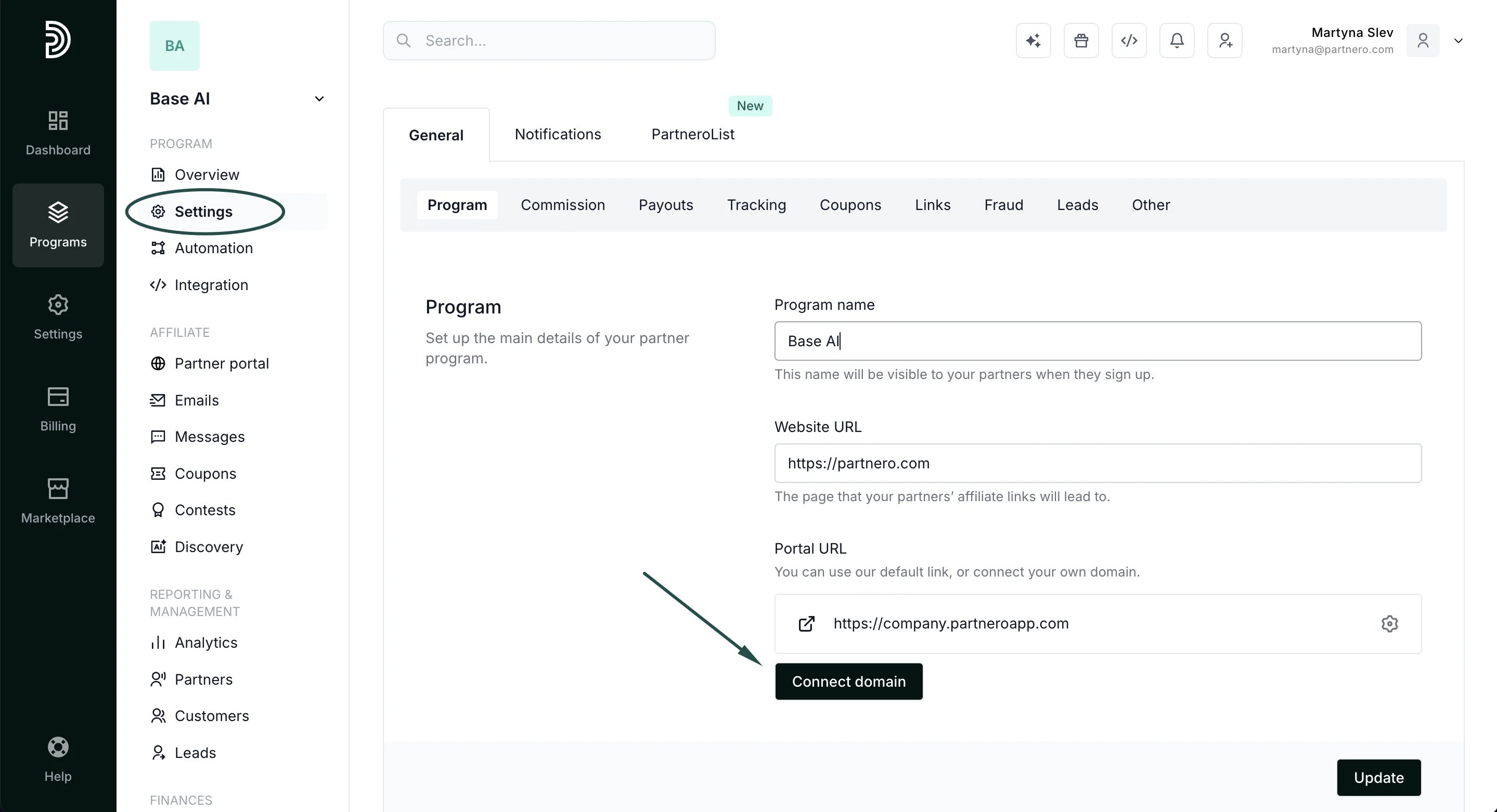
- Navigate to Settings under Program, and click Connect domain under Partner portal URL:
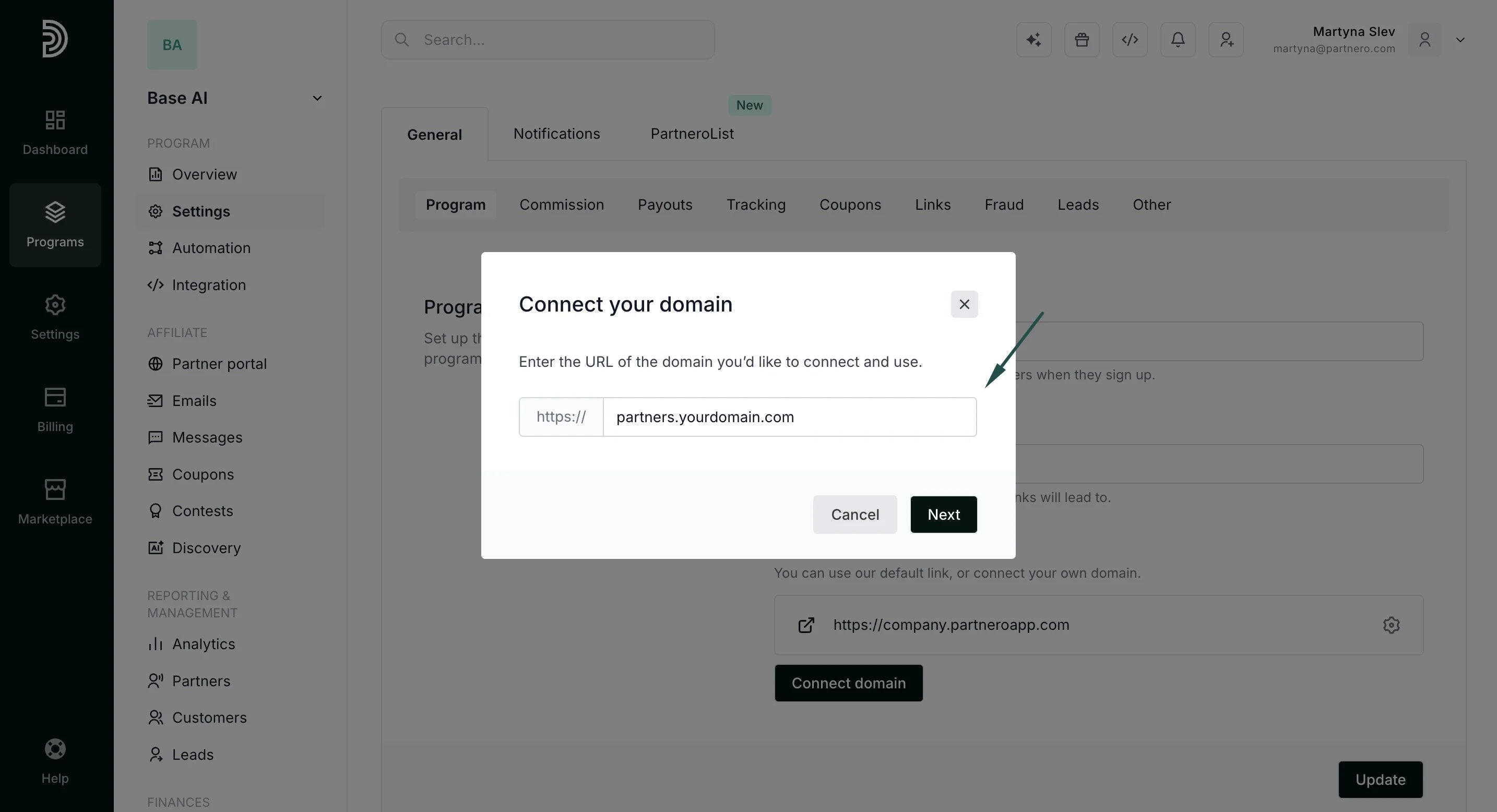
- Enter the domain URL you’d like to connect and use for your partner portal, e.g., partners.yourdomain.com. Click Next.
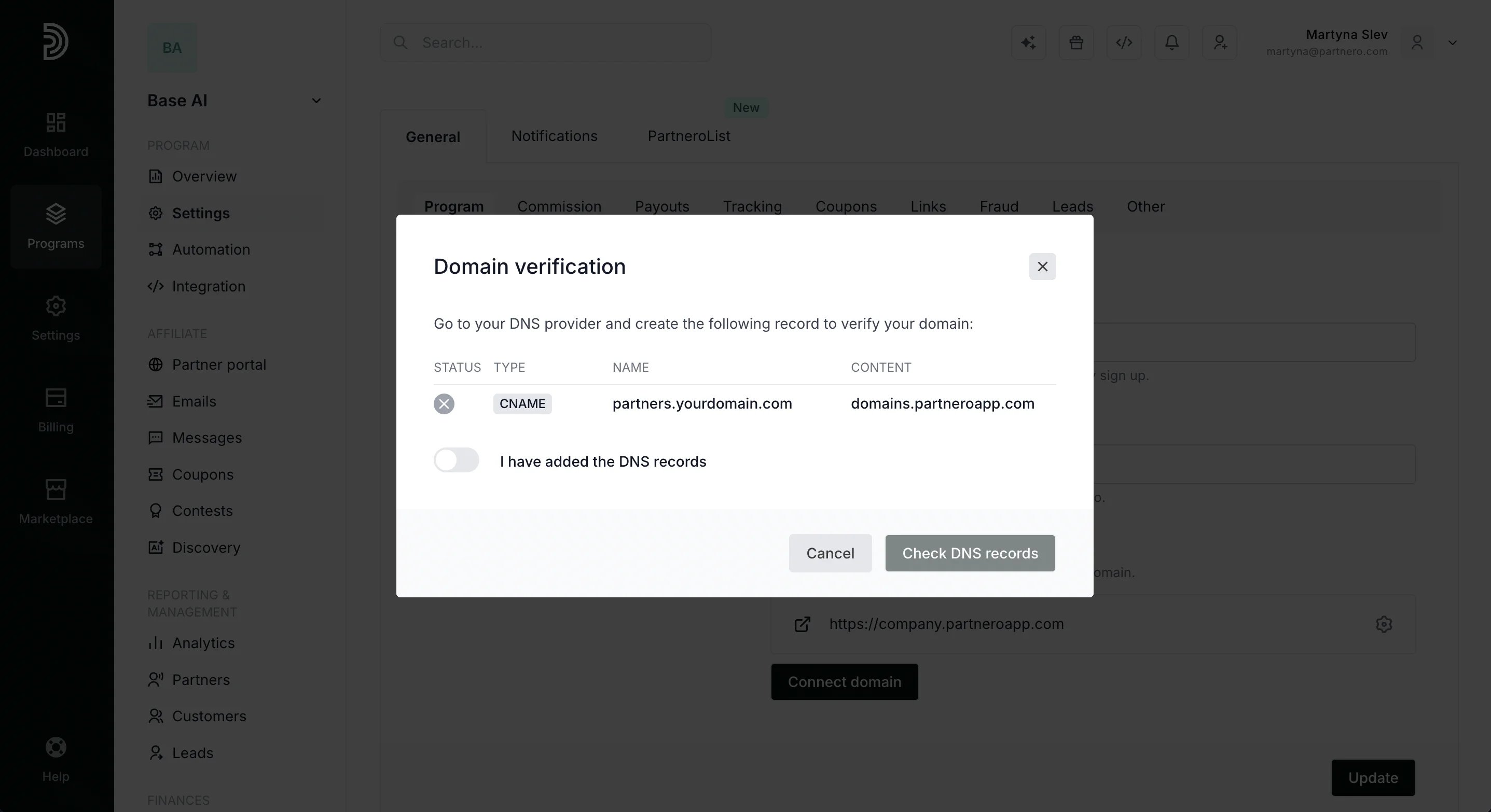
- A Domain Verification window will appear with a CNAME record. Go to the DNS page of your domain management platform and create a CNAME record with the values of the NAME and CONTENT fields.
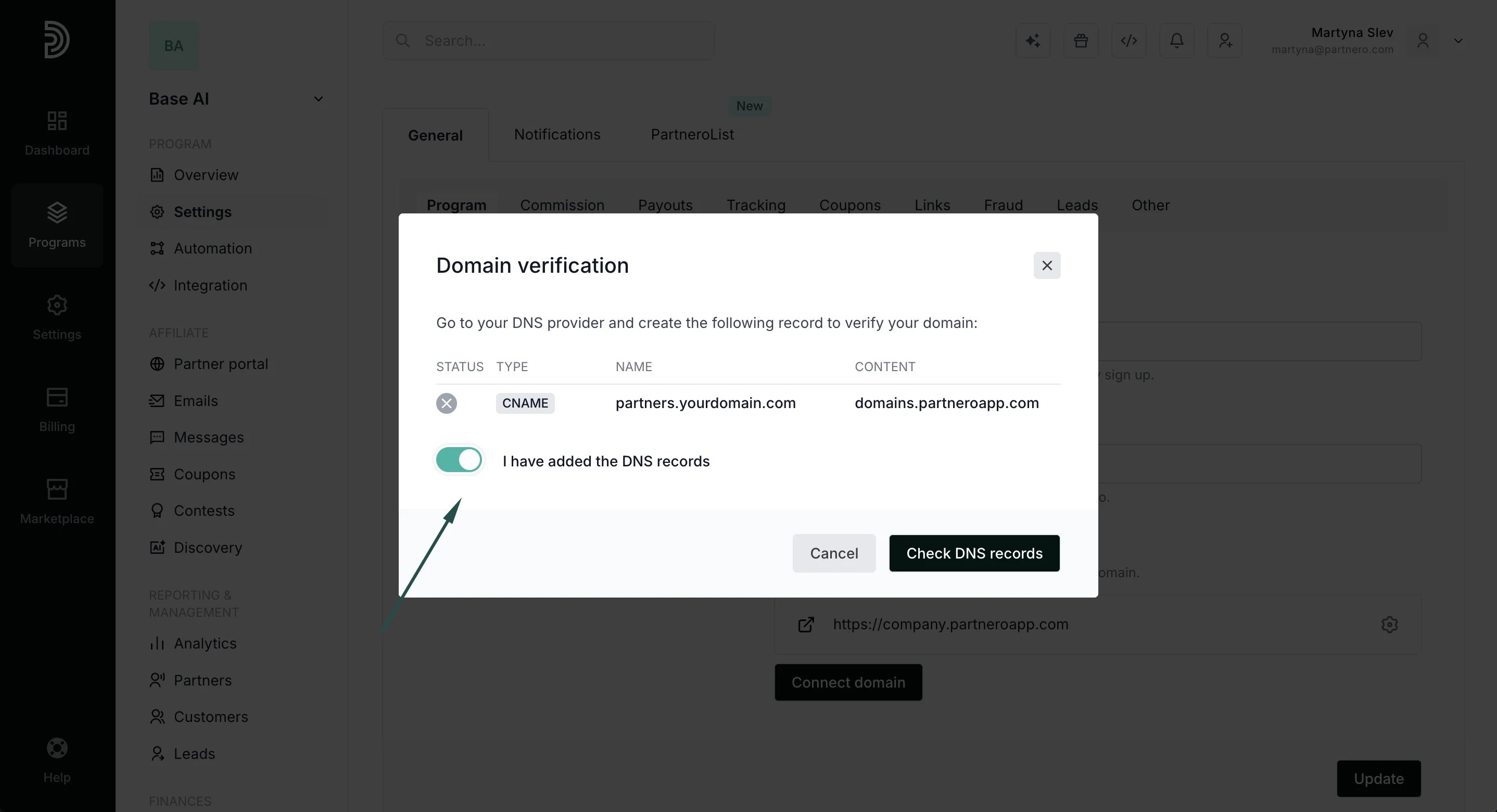
- Once the records have been correctly set up with their respective Name and Value fields, enable the “I have added DNS records” toggle and click Check DNS records.
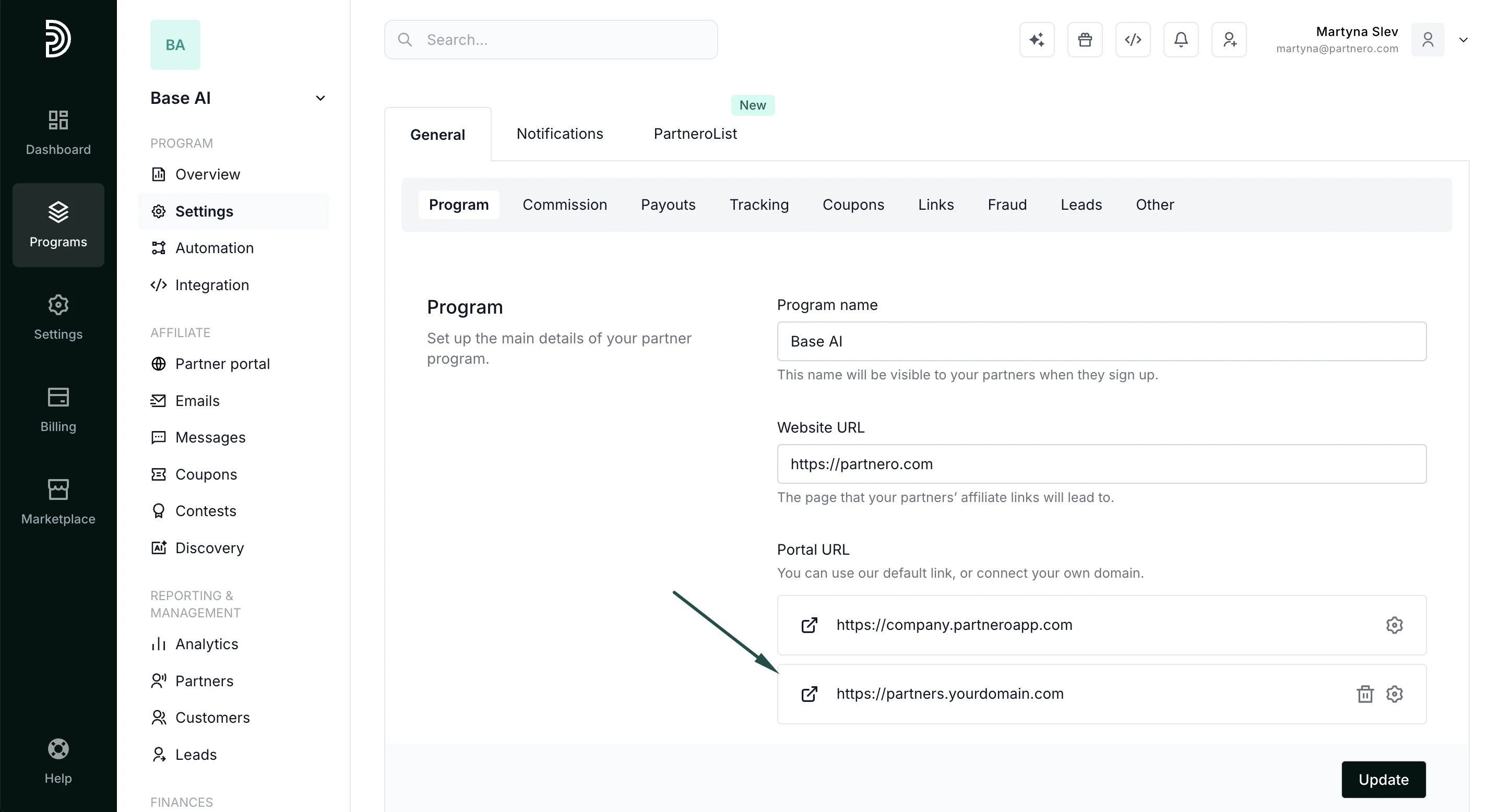
- If the verification is successful, click Save. You’ll then see both the default domain and your new domain listed on the Settings page:
How to access the DNS settings of your domain
The following steps must be completed on your domain’s DNS settings (not on your Partnero account). We recommend contacting your hosting provider if you need help with these steps.- Log in to your domain provider (usually on your hosting).
- Find the DNS settings for your domain. You can find instructions on this by searching “DNS settings” + your hosting provider’s name on any search engine (such as Google).
- Create a DNS record with CNAME type and fill out the Name and Value fields given to you on your Partnero account.
- Name and Host
- Domain and Value
- Domain and Host